Labs · Power BI
Lab: Fix 10 Common Data Problems in One Customer File – Spaces, Case, Duplicates, Nulls and Split Columns
Course: Power BI · Chapter 7: Data Cleaning A–Z in Power Query
Chapter 7 lists the A–Z of cleaning; this lab fixes the 10 problems you will meet most often, in one file.
Chala mitrano! Customer lists are the dirtiest data in any company, because many people type them by hand. One person writes PRIYA, another writes priya, a third puts two spaces. Today we play data doctor: 10 diseases, 10 medicines, one Power Query. By the end, 12 messy rows become 10 clean customers. Chala, upchar suru!
चला मित्रांनो! कोणत्याही company मध्ये customer lists सगळ्यात घाणेरडा data असतो, कारण अनेक लोक हाताने type करतात. एक PRIYA लिहितो, दुसरा priya, तिसरा दोन spaces टाकतो. आज आपण data doctor बनू: 10 आजार, 10 औषधं, एक Power Query. शेवटी 12 messy rows चे 10 clean customers होतील. चला, उपचार सुरू!
चलो दोस्तों! किसी भी company में customer lists सबसे गंदा data होता है, क्योंकि बहुत लोग हाथ से type करते हैं। एक PRIYA लिखता है, दूसरा priya, तीसरा दो spaces डाल देता है। आज हम data doctor बनेंगे: 10 बीमारियाँ, 10 दवाइयाँ, एक Power Query। आखिर में 12 messy rows के 10 clean customers बनेंगे। चलो, इलाज शुरू!
Suppose we are…
Suppose we work in the CRM team of Lenskart. Store staff in different cities type new customers into a shared sheet, and marketing wants to send a birthday-month offer. Before any campaign, the list must be clean: one row per customer, proper names, a 10-digit mobile number, a lower-case email and a real date.
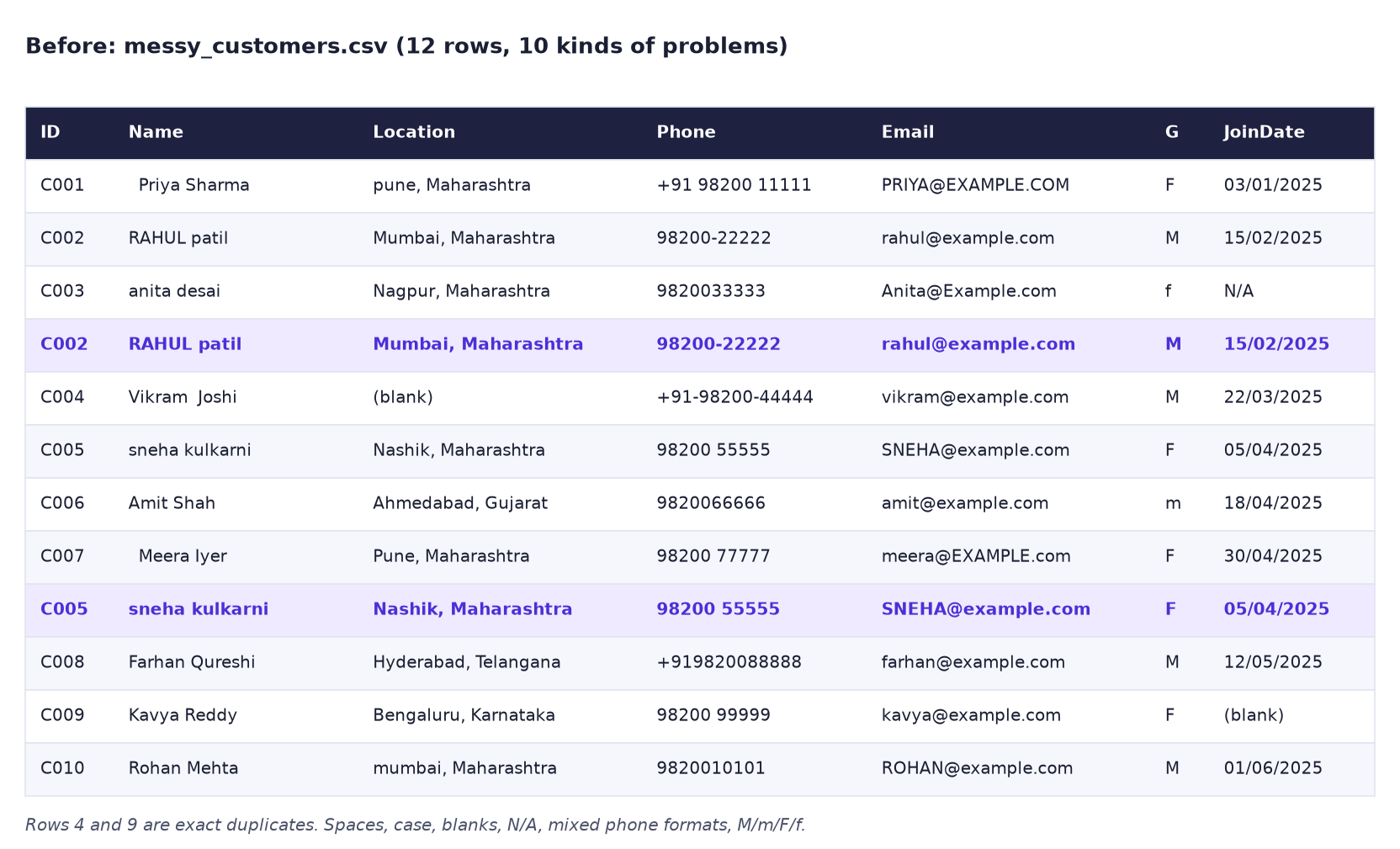
Our export messy_customers.csv has 12 rows and these 10 problems:
- Extra spaces at the start, at the end and in the middle of names.
- Wrong case:
RAHUL patil,anita desai,pune. - Two values in one column:
Pune, Maharashtra. - A blank Location.
- Five different phone formats:
+91 98200 11111,98200-22222,+91-98200-44444… - Emails in mixed case:
PRIYA@EXAMPLE.COM. - Gender codes
M,m,F,f. - The text
N/Aand a blank where a date should be. - Dates as text in dd/mm/yyyy.
- Two duplicate rows (C002 and C005 appear twice).
All names, numbers and emails are made up for practice (the emails use the reserved example.com domain).
Goal of this lab
By the end you will have:
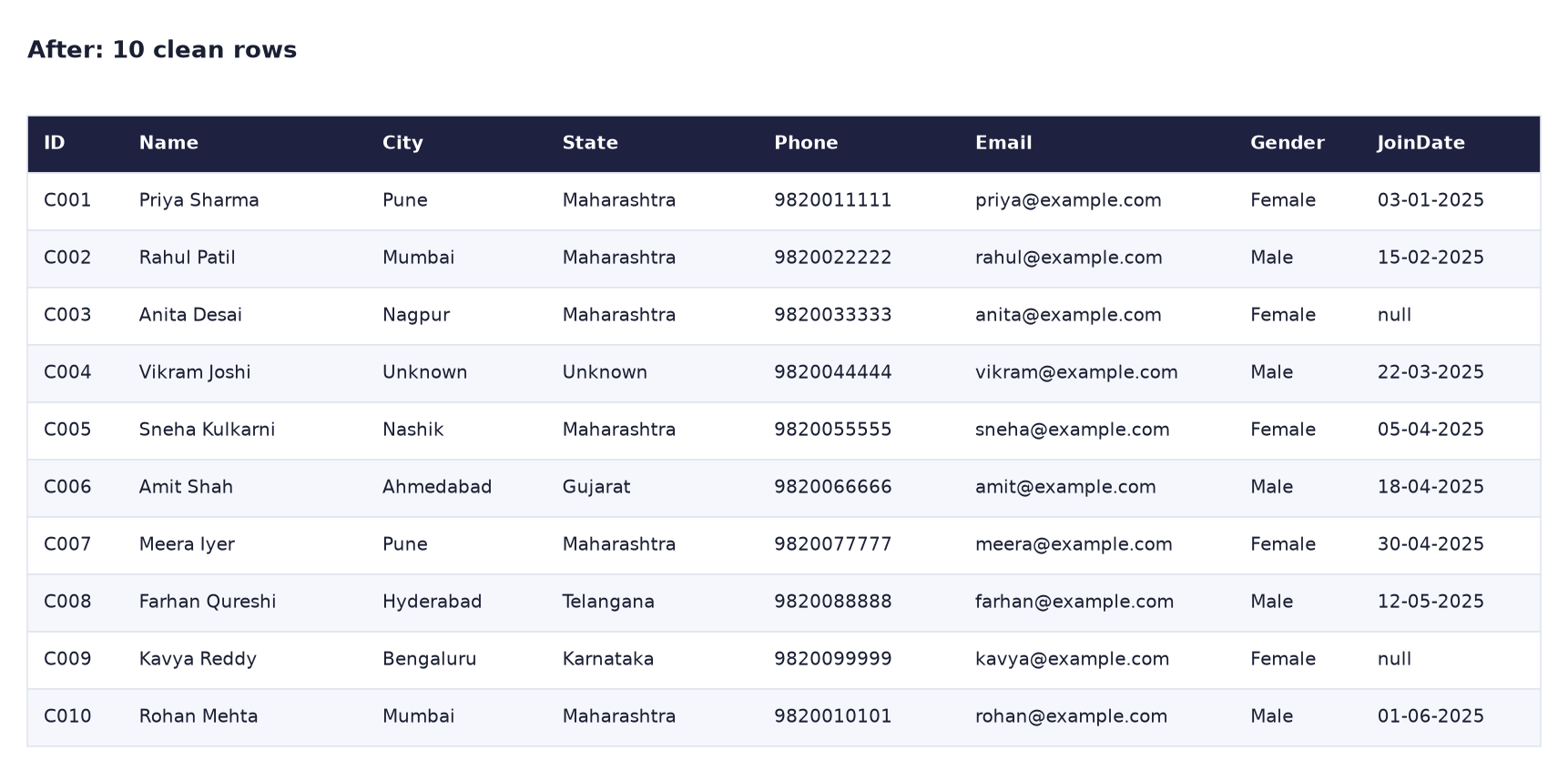
- A query Customers with 10 rows and 8 clean columns: ID, Name, City, State, Phone, Email, Gender, JoinDate.
- Fixed each of the 10 problems with a Power Query button, so the same fixes run on every refresh.
What you need (all free)
- Power BI Desktop.
- The file: Download messy_customers.csv (12 rows, 10 problems)
- 40 minutes.
The data: before and after
Before. Twelve rows. Rows 4 and 9 are exact copies of other rows.
After. Ten clean customers.
The formula
Each button writes one line of M. These are the five functions doing most of the work:
| Button | M function | What it does to one cell |
|---|---|---|
| Format → Trim | Text.Trim |
" Meera Iyer " → "Meera Iyer" |
| Format → Capitalize Each Word | Text.Proper |
"RAHUL patil" → "Rahul Patil" |
| Format → lowercase | Text.Lower |
"SNEHA@example.com" → "sneha@example.com" |
| Replace Values | Table.ReplaceValue |
"98200-22222" → "9820022222" (replace - with nothing) |
| Remove Duplicates | Table.Distinct |
Keeps the first row of each CustomerID |
Order matters. Trim before you remove duplicates (otherwise "RAHUL patil " with a space and without it look different), and replace N/A before you change JoinDate to a date (otherwise you get Error).
Steps
-
Get data → Text/CSV → messy_customers.csv → Transform Data. In Applied Steps, delete the automatic Changed Type step with its X (it may read 03/01/2025 the US way). Keep Promoted Headers (if it is missing, click Home → Use First Row as Headers).
What you should see: 12 rows and 7 columns, all with the ABC (text) icon.
-
Problem 1, spaces. Click the Name header, then Transform → Format → Trim. Then Home → Replace Values: Value To Find = two spaces, Replace With = one space, OK.
What you should see: "Priya Sharma" and "Meera Iyer" start at the left edge; "Vikram Joshi" has one space.
-
Problem 2, case. With Name still selected, click Transform → Format → Capitalize Each Word.
What you should see: Rahul Patil, Anita Desai, Sneha Kulkarni.
-
Problem 4, blank location (we fix it before splitting). Click Location, then Home → Replace Values. Leave Value To Find empty, type
Unknown, Unknownin Replace With, open Advanced options, tick Match entire cell contents, OK.What you should see: C004 now shows "Unknown, Unknown".
-
Problem 3, two values in one column. With Location selected, click Home → Split Column → By Delimiter, choose Comma, Each occurrence of the delimiter, OK. Rename the new columns to City and State (double-click each header).
-
Select City and State together (Ctrl+click), then Transform → Format → Trim and Transform → Format → Capitalize Each Word.
What you should see: City = Pune, Mumbai, Nagpur…; State = Maharashtra, Gujarat… with no leading space; "pune" and "mumbai" are now "Pune" and "Mumbai".
-
Problem 5, phones. Click Phone and do Replace Values three times, leaving Replace With empty each time: find a space
, then-, then+91.What you should see: every phone is exactly 10 digits, for example 9820011111 and 9820088888.
-
Problem 6, email. Click Email → Transform → Format → lowercase.
-
Problem 7, gender. Click Gender → Transform → Format → UPPERCASE. Then Replace Values:
M→MaleandF→Female, each time with Match entire cell contents ticked.What you should see: only "Male" and "Female" in the column.
-
Problem 8, N/A and blank. Click JoinDate → Replace Values:
N/A→null(type the word null), Match entire cell contents ticked. Do it again with Value To Find empty →null.What you should see: C003 and C009 show null in italics.
-
Problem 9, dates. Right-click JoinDate → Change Type → Using Locale…, choose Date and English (India), OK.
What you should see: a calendar icon; C001 is 3 January 2025 (not 1 March); no Error cells. If any cell says Error, right-click the header → Replace Errors → type
null. -
Problem 10, duplicates. Click the CustomerID header, then Home → Remove Rows → Remove Duplicates.
What you should see: 10 rows (the status bar at the bottom left says 10 rows).
-
Rename CustomerID to ID, rename the query to Customers and click Close & Apply. Build a Table visual with State and Count of ID.
What you should see: Maharashtra 6, Gujarat 1, Karnataka 1, Telangana 1, Unknown 1, Total 10.
-
Save as
Lab-07-clean-customers.
Ravindra Bagale's Tip
Remove duplicates on the ID column, not on all columns. If one copy of a customer had an extra space and you removed duplicates on all columns first, both copies would survive. That is why we trimmed and fixed case first and removed duplicates last. Aadhi saaf, mag duplicate!
Ravindra Bagale's Tip – मराठी
Duplicates ID column वर काढा, सगळ्या columns वर नाही. एखाद्या customer च्या एका copy मध्ये extra space असती आणि तुम्ही आधीच सगळ्या columns वर duplicates काढले असते, तर दोन्ही copies राहिल्या असत्या. म्हणूनच आपण आधी trim आणि case fix केलं आणि duplicates शेवटी काढले. आधी साफ, मग duplicate!
Ravindra Bagale's Tip – हिंदी
Duplicates ID column पर हटाओ, सारे columns पर नहीं। किसी customer की एक copy में extra space होती और आपने पहले ही सारे columns पर duplicates हटाए होते, तो दोनों copies बच जातीं। इसीलिए हमने पहले trim और case ठीक किया और duplicates आखिर में हटाए। पहले साफ, फिर duplicate!
Common mistakes
| Mistake | What happens | Fix |
|---|---|---|
| Keeping the automatic Changed Type | 03/01/2025 becomes 1 March; 15/02/2025 becomes Error | Delete it; use Using Locale → English (India) |
Replace M → Male without Match entire cell contents |
Every "M" inside a value is replaced; run it twice and "Male" becomes "Maleale" | Always tick Match entire cell contents for codes |
| Splitting Location before filling the blank | City is empty and State is null for C004 | Fill the blank with "Unknown, Unknown" first |
| Trim only (no double-space fix) | "Vikram Joshi" keeps two spaces inside | Trim removes spaces only at the ends; use Replace Values for the middle |
Removing 91 instead of +91 |
Numbers that contain 91 inside get damaged | Replace the exact text +91 |
| Remove Duplicates before Trim | Copies that differ by a space stay | Clean first, remove duplicates last |
Self-check checklist
0 of 6 done
Try-at-home challenge
Marketing wants to send SMS only to valid numbers. Add a column PhoneOK that says TRUE when the phone has exactly 10 digits and starts with 6, 7, 8 or 9 (Indian mobile rule). Hint: Add Column → Custom Column.
Check your answer
= Text.Length([Phone]) = 10 and List.Contains({"6","7","8","9"}, Text.Start([Phone], 1))Set the new column's type to True/False. All 10 rows show TRUE, because all our numbers start with 9 and have 10 digits after cleaning. Test it: in Notepad change one phone in the CSV to "12345", refresh, and that row shows FALSE.
Samjla ka? Trim, case, split, replace, then remove duplicates last, and every fix repeats on refresh. Aata pudhe jaauya: add a Profit column twice, in Power Query and in DAX.