Labs · Power BI
Lab: Add Date, City and Product Slicers and Sync Them Across Two Pages
Course: Power BI · Chapter 22: Filters and Slicers
Chapter 22 covers filters and slicers; this lab adds three slicers and keeps two pages in step.
Download pbi_sales.csv (24 orders) Download pbi_cities.csv Download pbi_products.csv
Chala mitrano! The manager selects Pune and 2026 on page one, clicks to page two, and sees all cities and all years again. She thinks the report is broken. It is not broken: slicers work only on their own page unless you sync them. Today we fix that, and we also learn the one tick box that can confuse everyone. Ekda select, saglikade lagu!
चला मित्रांनो! Manager पहिल्या page वर Pune आणि 2026 निवडते, दुसऱ्या page वर जाते, आणि तिला परत सगळी cities आणि सगळी वर्षं दिसतात. तिला वाटतं report बिघडलाय. बिघडलेला नाही: sync केल्याशिवाय slicers फक्त स्वतःच्या page वर चालतात. आज ते सोडवू, आणि सगळ्यांना गोंधळात टाकणारा एक tick box पण शिकू. एकदा select, सगळीकडे लागू!
चलो दोस्तों! Manager पहले page पर Pune और 2026 चुनती है, दूसरे page पर जाती है, और उसे फिर से सारी cities और सारे साल दिखते हैं। उसे लगता है report खराब है। खराब नहीं है: sync किए बिना slicers सिर्फ अपने page पर चलते हैं। आज इसे ठीक करेंगे, और वह एक tick box भी सीखेंगे जो सबको उलझा सकता है। एक बार select, हर जगह लागू!
Suppose we are…
Suppose our Croma report has two pages: Overview (KPIs) and Products (a product table). The Pune store manager selects Pune and the dates of 2026 on Overview, then opens Products and expects Pune 2026 there too. Without syncing, Products shows everything. The numbers are sample data made up for practice.
Goal of this lab
By the end you will have:
- Three slicers on Overview: Date (between two dates), City and Product.
- Date and City synced and visible on the Products page.
- Product synced but hidden on Products, so you can see why that option needs care.
What you need (all free)
- Power BI Desktop and a star-schema file from Lab 11 or later (with DateTable).
- Sample data if you need to rebuild: Download pbi_sales.csv (24 orders) Download pbi_cities.csv Download pbi_products.csv
- 30 minutes.
The data: before and after
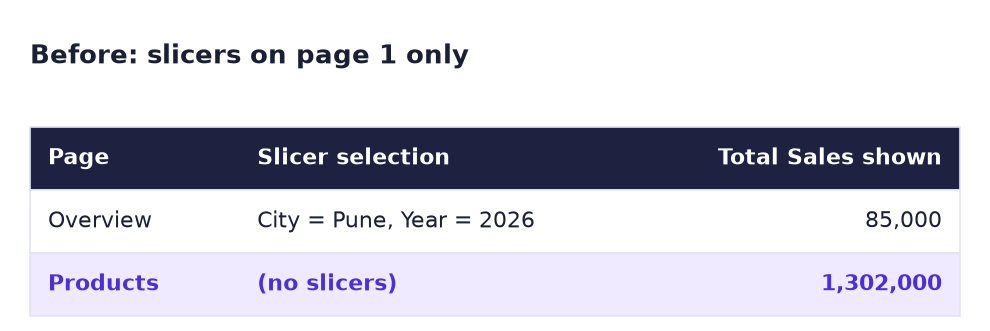
Before. Slicers only on page 1: Overview shows Pune 2026 (85,000), but Products still shows everything (1,302,000).
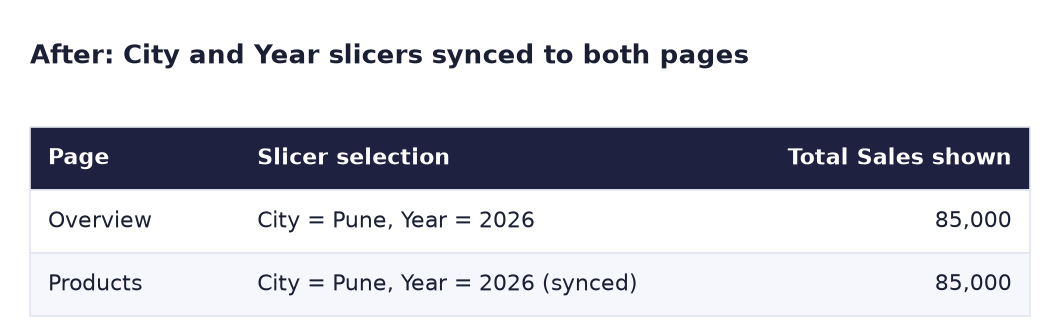
After. The same selection on both pages.
The formula
No new DAX. A slicer is a filter that the user can see and click. On its own page it adds a filter like City = Pune to every visual. Sync copies that same filter to other pages:
| Sync slicers tick | Meaning |
|---|---|
| Sync (the arrows) | This page uses the same selection |
| Visible (the eye) | This page shows a copy of the slicer |
| Sync on, Visible off | The page is filtered, but the user cannot see why |
With City = Pune and dates in 2026, the Products page calculates Total Sales for Pune's 2026 orders only: Mobile 60,000 (SO-1018) + Smartwatch 25,000 (SO-1022) = 85,000.
Steps
- Open your file, Save as
Lab-22-sync-slicers. Rename page 1 to Overview and clear it. - On Overview add a Card with Total Sales.
-
Add a Slicer with DateTable[Date]. In Format → Slicer settings → Options → Style, choose Between.
What you should see: two date boxes and a slider from 01-01-2025 to 31-12-2026.
-
Add a Slicer with pbi_cities[City] (style Vertical list) and another with pbi_products[Product] (style Dropdown).
- Add a new page, Products. Add a Table with pbi_products[Product] and Total Sales.
-
Go back to Overview. Select City Pune. In the date boxes type
01-01-2026and31-12-2026(or drag the slider).What you should see: the card shows 85K.
-
Go to Products.
What you should see: all four products and Total 1,302,000. The slicers did not travel. This is the "Before" problem.
-
Go back to Overview and click View → Sync slicers. Select the City slicer.
What you should see: the Sync slicers pane lists Overview and Products, each with a Sync tick and a Visible tick.
-
Tick both Sync and Visible for Products. Select the Date slicer and do the same.
-
Go to Products.
What you should see: copies of the City and Date slicers, already set to Pune and 2026. Table: Mobile 60,000, Smartwatch 25,000, Total 85,000.
-
Now the risky option. On Overview, select the Product slicer. In Sync slicers, tick Sync for Products but leave Visible unticked. Choose Mobile in the Product slicer.
-
Go to Products.
What you should see: only Mobile, 60,000, and no Product slicer on the page. A user would not know why the other products disappeared.
-
Clear the Product slicer on Overview, then either make it Visible on Products too or untick its Sync. Clear City and Date, and save.
Ravindra Bagale's Tip
Hidden synced slicers are powerful but dangerous: the page is filtered and nobody can see why. If you use them, add a small dynamic text such as "Filters: Pune, 2026" on the page (you learnt dynamic text in Lab 20). Lapvaycha nahi, sangaycha!
Ravindra Bagale's Tip – मराठी
Hidden synced slicers ताकदवान पण धोकादायक असतात: page filtered असतं आणि का ते कोणालाच दिसत नाही. ते वापरत असाल तर page वर "Filters: Pune, 2026" सारखा छोटा dynamic text टाका (dynamic text तुम्ही Lab 20 मध्ये शिकलात). लपवायचं नाही, सांगायचं!
Ravindra Bagale's Tip – हिंदी
Hidden synced slicers ताकतवर हैं लेकिन खतरनाक: page filtered होता है और कोई नहीं देख पाता क्यों। इस्तेमाल करो तो page पर "Filters: Pune, 2026" जैसा छोटा dynamic text लगाओ (dynamic text आपने Lab 20 में सीखा)। छुपाना नहीं, बताना है!
Common mistakes
| Mistake | What happens | Fix |
|---|---|---|
| Copy-pasting a slicer to page 2 and clicking Don't sync | Two independent slicers; selections drift apart | Use Sync slicers, or choose Sync when Power BI asks on paste |
| Slicer on pbi_sales[City] instead of pbi_cities[City] | It may be hidden (Lab 11) or not match other visuals | Use dimension columns in slicers |
| Sync on, Visible off, and forgetting it | Users see filtered numbers with no explanation | Make it visible or add a "Filters:" text |
| Typing dates in the US order on an Indian-format PC | Wrong range | Use the format shown in the box (for example 01-01-2026) or drag the slider |
| Expecting slicers to sync to pages added later | New pages are not in sync groups automatically | Open Sync slicers again and tick the new page |
Self-check checklist
0 of 4 done
Try-at-home challenge
Instead of syncing, use the Filters pane: remove the City sync from Products and add pbi_cities[City] to Filters on all pages with Pune selected. What is the difference for the user compared with a synced slicer?
Check your answer
A filter in Filters on all pages applies to every page (Products shows Pune's 346,000 for all dates), but it lives in the Filters pane, which report readers may not open, and you can lock or hide it so they cannot change it. A synced slicer sits on the page where users see and change it. Rule of thumb: Filters pane for what the report builder decides (e.g. "only Maharashtra"), slicers for what the user decides. Remove the all-pages filter afterwards.
Samjla ka? Sync = same selection, Visible = show a copy; never filter a page silently. Aata pudhe jaauya: redesign a cluttered page with the 5-second rule.