Labs · Power BI
Lab: Add Row-Level Security So Each City Manager Sees Only Their City, and Test It with View As
Course: Power BI · Chapter 26: Row-Level Security (RLS)
Chapter 26 explains row-level security; this lab builds a static and a dynamic role and tests both.
Download pbi_sales.csv (24 orders) Download pbi_cities.csv (with ManagerEmail) Download pbi_products.csv
Chala mitrano! The Pune manager should see Pune's numbers, not Mumbai's. The wrong way is to make four copies of the report, one per city. The right way is one report and one rule: "show the rows of the city whose manager is signed in". That rule is row-level security. Ek report, pratyekala aapla data!
चला मित्रांनो! Pune च्या manager ला Pune चे numbers दिसायला हवेत, Mumbai चे नाही. चुकीचा मार्ग म्हणजे report च्या चार copies, प्रत्येक city साठी एक. बरोबर मार्ग म्हणजे एक report आणि एक नियम: "ज्या city चा manager sign in आहे त्याच rows दाखव". हा नियम म्हणजे row-level security. एक report, प्रत्येकाला आपला data!
चलो दोस्तों! Pune के manager को Pune के numbers दिखने चाहिए, Mumbai के नहीं। गलत तरीका है report की चार copies, हर city के लिए एक। सही तरीका है एक report और एक नियम: "जिस city का manager sign in है, उसी की rows दिखाओ"। यही नियम row-level security है। एक report, हर किसी को अपना data!
Suppose we are…
Suppose Croma shares one Maharashtra sales report with four city managers. Company policy: a manager may see only their own city's sales. pbi_cities.csv already has a ManagerEmail column (pune.manager@example.com and so on). We add row-level security (RLS): a rule on the city table that keeps only the row whose ManagerEmail matches the signed-in user. Because pbi_cities filters pbi_sales through the relationship, the manager's sales are filtered too. The data and emails are sample data made up for practice (example.com is a reserved test domain).
Goal of this lab
By the end you will have:
- A dynamic role City Manager with the rule
[ManagerEmail] = USERPRINCIPALNAME(). - A static role Pune only with the rule
[City] = "Pune". - Tested both with Modeling → View as and seen only Pune's 346,000.
What you need (all free)
- Power BI Desktop and a star-schema file from Lab 11 or later.
- Sample data if you need to rebuild: Download pbi_sales.csv (24 orders) Download pbi_cities.csv (with ManagerEmail) Download pbi_products.csv
- 35 minutes.
The data: before and after
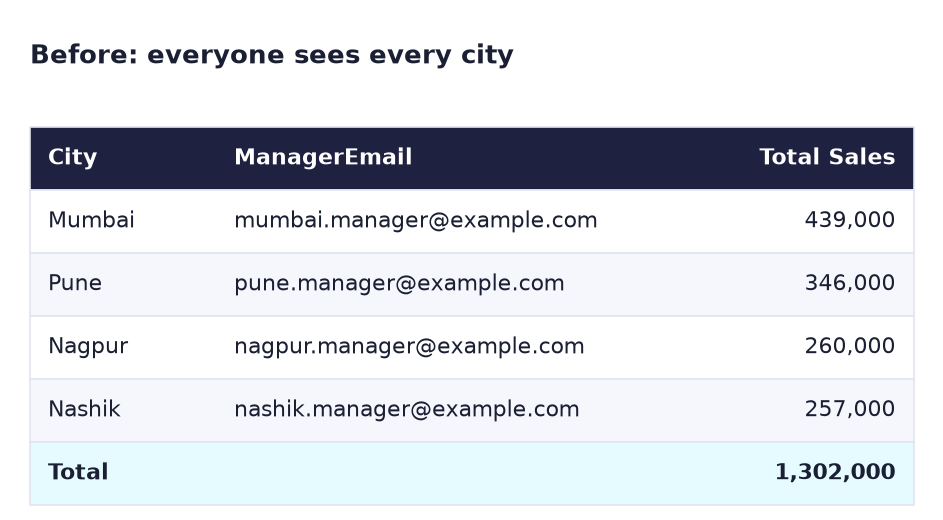
Before. Everyone sees all four cities.
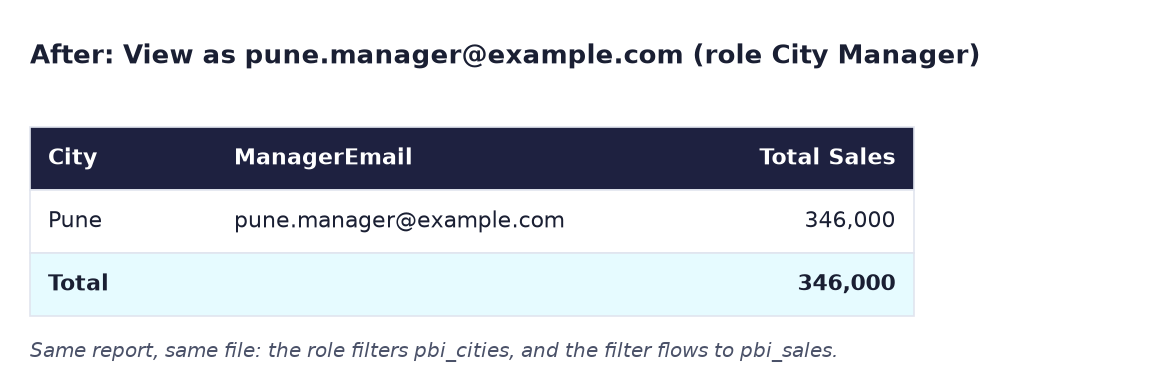
After. Viewing as the Pune manager: one row, Pune 346,000.
The formula
The dynamic rule on table pbi_cities:
[ManagerEmail] = USERPRINCIPALNAME ()
USERPRINCIPALNAME ()returns the email of the person viewing the report (in the Service, their sign-in name).- The rule is checked on every row of pbi_cities. Only rows where it is TRUE stay visible. For pune.manager@example.com that is one row: Pune.
- The relationship pbi_cities (1) → pbi_sales (many) then keeps only Pune's orders. Total Sales = 346,000.
The static rule, for comparison:
[City] = "Pune"
Static roles need one role per city (four roles, four rules). The dynamic role needs one role for everyone, and a new city only needs a new row in pbi_cities.
Steps
-
Open your file and Save as
Lab-26-rls. Make a Table with pbi_cities[City], pbi_cities[ManagerEmail] and Total Sales, and a Card with Total Sales.What you should see: 4 rows and 1,302,000, as in the Before image.
-
Click Modeling → Manage roles → New. Name the role
City Manager. - Under Select tables, choose pbi_cities. Click Switch to DAX editor, type
[ManagerEmail] = USERPRINCIPALNAME ()and click Save. - Click New again: name
Pune only, table pbi_cities, DAX rule[City] = "Pune". Save and close the window. -
Click Modeling → View as. Tick Other user and type
pune.manager@example.com. Tick the role City Manager. Click OK.What you should see: a yellow bar "Now viewing as: pune.manager@example.com, City Manager". The table shows one row, Pune, and the card shows 346K.
-
Look at a visual by Product (or add one: pbi_products[Product] with Total Sales).
What you should see: all four product names, but only Pune's sales: Laptop 200,000, Mobile 105,000, Smartwatch 25,000, Headphones 16,000. RLS filtered the sales, not the product list.
-
Click Stop viewing. Then View as again, untick Other user, tick only Pune only.
What you should see: the same Pune result from the static rule.
-
View as once more with Other user =
someone@example.comand role City Manager.What you should see: the table is empty and the card shows (Blank): an unknown email sees nothing. That is the safe default.
-
Click Stop viewing and save.
After publishing
In the Service, open the semantic model → … → Security, choose the role and add people (or a security group) as members. RLS applies to people with the Viewer role or with shared access; workspace Admins, Members and Contributors can still see all data. Use Test as role on the same Security page to check.
Ravindra Bagale's Tip
Put the RLS rule on the dimension table (pbi_cities), not on the fact table. A rule on a small table is faster and easier to read, and the relationship carries it to the sales. And always test with an email that should see nothing: if that user sees data, your rule is leaking. Gupta data, gupta raha!
Ravindra Bagale's Tip – मराठी
RLS rule dimension table (pbi_cities) वर ठेवा, fact table वर नाही. छोट्या table वरचा rule जास्त fast आणि वाचायला सोपा असतो, आणि relationship तो sales पर्यंत नेतं. आणि ज्याला काहीच दिसू नये अशा email ने नेहमी test करा: त्या user ला data दिसला, तर तुमचा rule गळतोय. गुप्त data, गुप्त राहा!
Ravindra Bagale's Tip – हिंदी
RLS rule dimension table (pbi_cities) पर रखो, fact table पर नहीं। छोटी table पर rule ज़्यादा fast और पढ़ने में आसान होता है, और relationship उसे sales तक ले जाता है। और हमेशा ऐसे email से test करो जिसे कुछ भी नहीं दिखना चाहिए: अगर उस user को data दिखे, तो आपका rule लीक हो रहा है। गुप्त data, गुप्त रहे!
Common mistakes
| Mistake | What happens | Fix |
|---|---|---|
| Rule on pbi_sales with a City column that is hidden or missing | Error, or only part of the model is filtered | Put the rule on pbi_cities |
| Relationship set to filter Both directions without care | Other tables may be filtered in surprising ways | Keep single direction (Lab 11) unless needed |
| Emails in the table differ in case or have spaces | Manager sees nothing | Clean the email column in Power Query (lowercase, trim) |
| Testing only with "Pune only" | You never test the dynamic rule | Use View as → Other user with the email |
| Thinking RLS hides data from workspace Admins/Members | They still see everything | Give report users the Viewer role or share the app |
Rule [City] = 'Pune' with single quotes |
Error | Text needs double quotes: "Pune" |
Self-check checklist
0 of 5 done
Try-at-home challenge
The regional head of Western Maharashtra and Konkan must see two cities, Mumbai and Pune. Without adding a second email column to pbi_cities, how would you support managers who own more than one city?
Check your answer
Add a small security table, for example CityAccess with columns Email and City, one row per email-city pair (west.head@example.com, Mumbai) and (west.head@example.com, Pune). Relate CityAccess[City] to pbi_cities[City], and put the role rule on CityAccess: [Email] = USERPRINCIPALNAME (). To make the filter reach pbi_cities, set that relationship's cross-filter direction to Both and tick Apply security filter in both directions. View as west.head@example.com should show Mumbai 439,000 + Pune 346,000 = 785,000. This "access table" pattern is how most companies do RLS.
Samjla ka? One dynamic rule on the dimension table, USERPRINCIPALNAME() for the viewer, and test with View as. Aata pudhe jaauya: find the slowest visual with Performance Analyzer and make it faster.