Chapter 20: Jenkins Manual Jobs — Install, Configure and Freestyle
20.6 Tools: Git and Node locations
Why: the problem
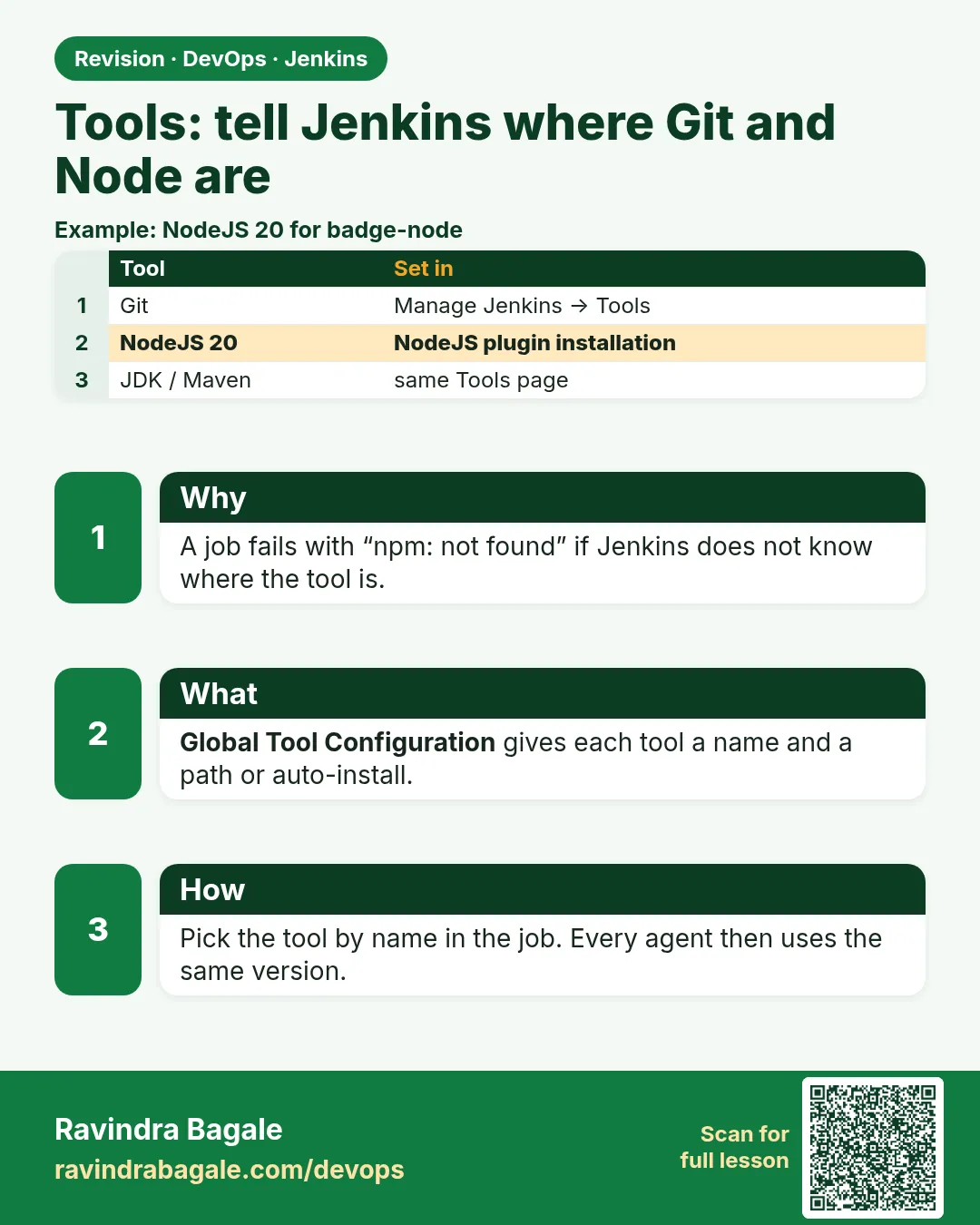
A build fails with "npm: not found" and the developer says "but it works on my laptop". This is the most common Jenkins ticket in any company. Jenkins only runs commands; it does not bring tools with it. Git, Node.js, Java, Maven, Python and the Docker CLI must exist on the machine where the build runs, in the version the project needs. There are three honest ways to give Jenkins a tool. One: install it in the agent or controller image, like the Node.js we baked into ravi/jenkins-node. Two: let Jenkins install it per job with Global Tool Configuration and a plugin like NodeJS, which downloads the exact version on first use. Three: run the build inside a container that has the tool, which comes in chapter 22. A Flipkart-style team with five Node versions across services cannot use one global node; it needs per-job versions. In this lesson you will check where Git and Node come from, add a NodeJS 18 tool install next to the image's Node 20, and make one job use each.
What we will build
You will look at Manage Jenkins > Tools, check the Git executable path, and add a NodeJS installation called node18 that downloads Node 18 automatically. Then you will make two Freestyle jobs, one using the image's default Node 20 and one using node18 through Provide Node and npm bin folder to PATH, and compare their output. Last, you will add a tools check script that fails early with a clear message when a tool is missing.
What: every term in plain English
- Global Tool Configuration — Manage Jenkins > Tools. Named installs of Git, JDK, Maven, NodeJS and others.
- Tool installer — Downloads the tool on the agent the first time a job asks for it.
- NodeJS plugin — Adds NodeJS tool installs and the Provide Node & npm option in jobs.
- PATH — The list of folders the shell searches for commands.
- which — Prints the full path of a command, or nothing if missing.
- Exit code 127 — Command not found.
How: step by step
-
Check Git
Manage Jenkins > Tools > Git installations > Default, path gitWhat it does: Uses git from PATH. It is in the official image.
Output
Saved -
Add NodeJS 18
Manage Jenkins > Tools > NodeJS installations > Add NodeJS > Name node18 > Install automatically > Version NodeJS 18.20.4What it does: Jenkins downloads Node 18 on first use.
Output
Saved -
Make job node-default
New Item > node-default > Freestyle > Execute shell: node --version; which nodeWhat it does: Uses Node 20 from the image.
Output
v20.18.0 -
Make job node-18
New Item > node-18 > Build Environment > Provide Node & npm bin/ folder to PATH > node18 > Execute shell: node --version; which nodeWhat it does: Uses the tool install.
Output
v18.20.4 -
Find the download
docker exec jenkins ls /var/jenkins_home/tools/jenkins.plugins.nodejs.tools.NodeJSInstallation/What it does: Tool installs live under JENKINS_HOME/tools.
Output
node18
Example 1: Two jobs, two Node versions, same machine
Stack. NodeJS plugin, Freestyle
Goal. Two jobs, two Node versions, same machine.
node-default: Execute shell
echo "PATH=$PATH" | cut -c1-80
which node
node --version
npm --version
node-18: Execute shell
which node
node --version
npm --version
What each line does
which node— Shows where node comes from.Provide Node & npm— Adds the node18 bin folder to the front of PATH only for this job.npm --version— npm comes with Node, so it changes too.
Green output
# node-default
PATH=/opt/java/openjdk/bin:/usr/local/sbin:/usr/local/bin:/usr/sbin:/usr/bin
/usr/bin/node
v20.18.0
10.8.2
# node-18 (first run)
Unpacking https://nodejs.org/dist/v18.20.4/node-v18.20.4-linux-x64.tar.gz to /var/jenkins_home/tools/jenkins.plugins.nodejs.tools.NodeJSInstallation/node18 on Jenkins
/var/jenkins_home/tools/jenkins.plugins.nodejs.tools.NodeJSInstallation/node18/bin/node
v18.20.4
10.8.2
Expected result. Each job gets the Node it asks for. The first node-18 run is slower because of the download.
Example 2: A fail-fast tools check at the top of every job
Stack. bash, Node.js
Goal. A fail-fast tools check at the top of every job.
check-tools.sh
#!/usr/bin/env bash
set -u
need="git node npm tar curl"
missing=0
for t in $need; do
  if p=$(command -v "$t"); then
    printf "%-5s ok   %s\n" "$t" "$p"
  else
    printf "%-5s MISSING\n" "$t"
    missing=1
  fi
done
node -e 'const [maj]=process.versions.node.split(".");if(+maj!==Number(process.env.WANT_NODE||maj)){console.error("need node "+process.env.WANT_NODE+" got "+process.versions.node);process.exit(2)}'
exit $missing
What each line does
command -v— Like which, but built into bash.printf "%-5s"— Prints aligned columns.WANT_NODE— Set this in the job to demand a major version.exit $missing— Fails the build early with a clear list.
Green output
git   ok   /usr/bin/git
node  ok   /usr/bin/node
npm   ok   /usr/bin/npm
tar   ok   /usr/bin/tar
curl  ok   /usr/bin/curl
# with WANT_NODE=18 on node-default:
need node 18 got 20.18.0
Build step 'Execute shell' marked build as failure
Expected result. A clear message in line 1 instead of a strange npm error on line 400.
Example 3: The same tool setup as Configuration as Code
Stack. JCasC, NodeJS plugin
Goal. The same tool setup as Configuration as Code.
tools.yaml
tool:
  git:
    installations:
      - name: Default
        home: git
  nodejs:
    installations:
      - name: node18
        properties:
          - installSource:
              installers:
                - nodeJSInstaller:
                    id: "18.20.4"
                    npmPackagesRefreshHours: 72
What each line does
tool:— JCasC section for Global Tool Configuration.home: git— Use git from PATH.nodeJSInstaller id— The exact Node version to download.
Green output
reload 200
Manage Jenkins > Tools shows: NodeJS installations: node18 (Install automatically, 18.20.4)
Expected result. The tool list is now reviewed code, not a click someone forgets.
Verify: did it work?
-
Tool folder exists
docker exec jenkins ls /var/jenkins_home/toolsWhat it does: The plugin keeps downloads here.
Output
jenkins.plugins.nodejs.tools.NodeJSInstallation -
Both jobs green
curl -s -u ravi:$JENKINS_TOKEN "http://localhost:8080/api/json?tree=jobs[name,color]" | grep -o '"node-[^}]*'What it does: Both blue.
Output
"node-default","color":"blue"
"node-18","color":"blue"
When it is red 1
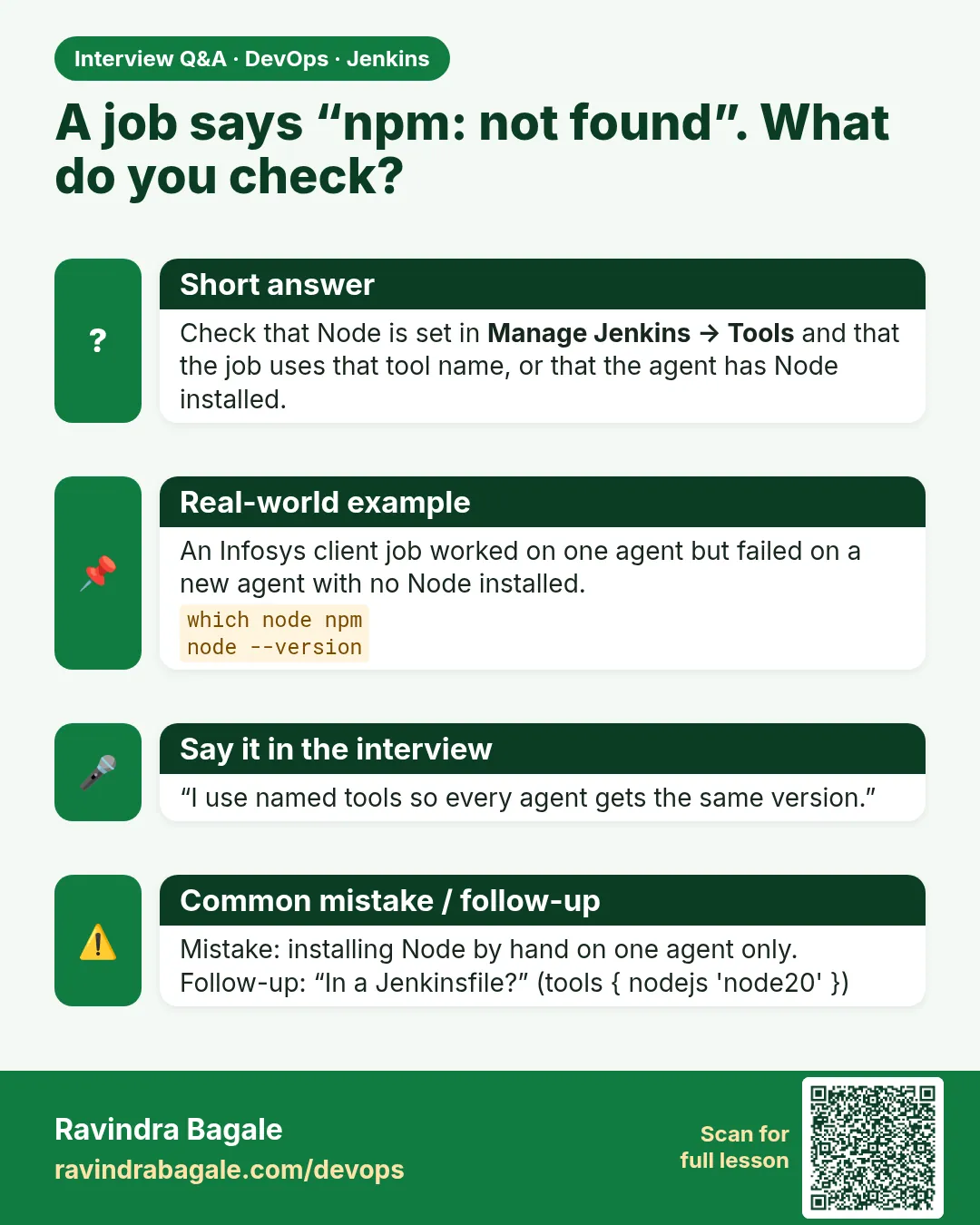
npm: not found (exit code 127)
Cause. Node is not installed where the build runs.
Fix, step by step
- Add Node to the image, or use the NodeJS tool, or a Docker agent.
- Run which npm in the job to confirm.
When it is red 2
Unpacking ... failed: java.net.UnknownHostException: nodejs.org
Cause. The controller has no internet for the tool download.
Fix, step by step
- Fix DNS or proxy for the container.
- Or install Node in the image instead.
When it is red 3
Wrong Node version used
Cause. Another node is earlier in PATH.
Fix, step by step
- Print PATH and which node in the job.
- Make sure Provide Node & npm is ticked.
When it is red 4
node: /lib/x86_64-linux-gnu/libc.so.6: version GLIBC_2.28 not found
Cause. A new Node build was downloaded onto an old Linux agent that has an older C library.
Fix, step by step
- Use an older Node line that supports that OS, or
- upgrade the agent OS image, or
- run the build in a node container image instead.
Cleanup
-
Delete test jobs
for j in node-default node-18; do java -jar jenkins-cli.jar -s http://localhost:8080 -auth ravi:$JENKINS_TOKEN delete-job $j; doneWhat it does: Removes them.
Output
(no output)
Ravindra Bagale's Tip
Jenkins swataha tool aanat nahi. "which node" kara, PATH bagha. Lakshat theva!
Practice tasks
Easy Print PATH
Why: Debugging basics.
What to do: Add echo $PATH to a job.
- Build and read.
Check: You can explain each folder.
Medium Pin npm
Why: Exact versions.
What to do: Add npm install -g npm@10.8.2 in a tool step.
- Use the global npm packages field.
Check: npm version matches.
Hard Offline tools
Why: Air-gapped banks.
What to do: Plan tool installs with no internet.
- Use a local mirror or image.
Check: A written plan.
Easy Say Jenkins tools in two lines
Why: If you can say it simply, you understand it. Juniors and interviewers want the short version first.
What to do: Write two short lines about Jenkins tools for a fresher who knows only Linux basics.
- Write what problem it solves.
- Write the one command or menu you use for it.
- Read it aloud to a friend.
Check: A fresher understands it without asking a question.
Easy Start a fresh lab Jenkins
Why: Practice needs a throwaway Jenkins. If you break it, you delete it and start again.
What to do: Run Jenkins LTS in Docker with a named volume.
- docker volume create jenkins_home
- docker run -d --name jenkins -p 8080:8080 -v jenkins_home:/var/jenkins_home jenkins/jenkins:lts-jdk17
- docker exec jenkins cat /var/jenkins_home/secrets/initialAdminPassword
Check: The Jenkins unlock page opens on localhost:8080.
Medium Break it on purpose
Why: You must know the red message by face. During an outage there is no time to read slowly.
What to do: Cause one error from the "When it is red" part of this lesson and fix it.
- Follow the error section.
- Copy the exact message into your notes.
- Write the fix in one line.
Check: You fixed it using only the steps, without searching the web.
Medium Write a one-page runbook
Why: At 2 a.m. nobody remembers where a file lives. A short page saves the on-call person.
What to do: Write a runbook page for this lesson.
- Title, when to use, exact command, how to check, how to undo.
Check: A teammate can follow it alone.
Medium Repeat it on a cloud VM
Why: A laptop is not a server. Real Jenkins runs on EC2 or a company VM.
What to do: Do the main steps of this lesson again on a small Ubuntu 22.04 EC2 instance.
- Launch t3.small with 20 GB disk.
- Open port 22 only to your IP.
- Repeat the steps and compare the output.
Check: Same green output on the VM as on your laptop.
Hard Explain it like an interview
Why: Interviewers want real stories, not definitions.
What to do: Record a 60 second answer about this lesson.
- Say the problem, the command you ran, and one error you hit.
Check: Your answer has a real command and a real error message.
Hard Draw the flow top to bottom
Why: A drawing shows who talks to whom and in what order.
What to do: Draw this lesson as boxes from top to bottom.
- Start at the developer push, go through the controller and agent, end at the result.
Check: Each box matches a real thing you saw on screen.
Homework: try at home
Try at home
Add a JDK 17 tool install with the Adoptium installer and a job that prints java -version from it. Note where it lands under JENKINS_HOME/tools.
Recap
- Jenkins brings no tools; the build machine must have them.
- Image tools are simple; tool installers give per-job versions.
- which and PATH explain version mix-ups.
- Fail fast with a tools check.
- JCasC can define tools too.
FAQ
Image or tool installer?
Image for one common version, tool installer when jobs need different versions.
Do tool installs work on agents?
Yes, each agent downloads on first use.
Should I install tools by apt inside the job?
No. It is slow and needs root. Prepare tools ahead.
Why is the first build with a tool installer slow?
Jenkins downloads and unpacks the tool on that machine. Later builds reuse the folder, so they are fast. Warm new agents by running one small job.
Can I see all tool versions in one place?
Yes. Manage Jenkins > Tools lists every named install. A small job that runs node --version, git --version and java -version on each agent is a good daily health check.
Interview questions
-
A build says npm not found. Steps?
Check which node runs the build, print PATH, confirm Node is installed there or configured as a tool, then rerun.
-
How do you support several Node versions?
NodeJS tool installs per job, or Docker agents with the needed node image.
-
Where should build tools live in a mature setup?
In versioned agent images or container agents built by CI, so every build machine is the same and changes are reviewed, instead of hand-installed tools on long-lived servers.
Quick quiz
Q1. What exit code means command not found?
127.
Q2. Where do tool installs land?
JENKINS_HOME/tools.
Q3. Name three ways to give Jenkins a tool.
Image, Global Tool install, container agent.
Samajla ka?
 Revision card
 Interview card