Chapter 20: Jenkins Manual Jobs — Install, Configure and Freestyle
20.12 Post-build and reading a red build
Why: the problem
Every engineer spends more time reading red builds than writing green ones. A senior at an Accenture project once timed it: juniors took forty minutes per red build because they scrolled from the top of a 3,000-line log; seniors took five because they jumped to the end, found the first real error, and checked what changed since the last green build. Jenkins gives you tools for this: Console Output with search, the Changes page, test result pages from the JUnit publisher, the workspace browser, and post-build actions that run whatever the result. Post-build actions matter because some work must happen even when the build fails: publish test results so people can see which test broke, clean the workspace, and notify the team. In this lesson you will add Publish JUnit test result report and Delete workspace when build is done, break a test on purpose, and practise a fixed five-step method for reading any red build.
What we will build
You will add two post-build actions to badge-api-ci: Publish JUnit test result report for reports/junit.xml, and Delete workspace when build is done from the Workspace Cleanup plugin. Then you will break a test, use a small script that prints the first error, the failed tests and the changes since the last green build, and fix it. You will also see the difference between FAILURE, UNSTABLE and ABORTED.
What: every term in plain English
- Post-build action — A step that runs after build steps, often whatever the result.
- JUnit publisher — Reads JUnit XML and shows test results and trends.
- UNSTABLE — Yellow result. Build ran, but tests failed and were published.
- FAILURE — Red. A build step failed.
- ABORTED — Grey. Someone stopped it or a timeout hit.
- Changes — The commits since the previous build.
How: step by step
-
Publish tests
Post-build Actions > Publish JUnit test result report > reports/junit.xmlWhat it does: Shows test results on the build page.
Output
Saved -
Clean up
Post-build Actions > Delete workspace when build is doneWhat it does: Frees disk after each build.
Output
Saved -
Make test step not stop on failure
Change step 2 to: npm ci && (npm run test:ci || true)What it does: Lets JUnit decide: failing tests make the build UNSTABLE instead of FAILURE.
Output
Saved -
Break a test
Push a change that breaks silverWhat it does: Simulates a real bug.
Output
UNSTABLE -
Open Test Result
Build #9 > Test ResultWhat it does: Shows the failing test name and message.
Output
1 failure
Example 1: Read any red build in five steps with one script
Stack. Jenkins REST API, Python
Goal. Read any red build in five steps with one script.
why-red.sh
#!/usr/bin/env bash
set -euo pipefail
J=http://localhost:8080; JOB=${1:-badge-api-ci}; A="ravi:$JENKINS_TOKEN"
b=$(curl -s -u "$A" "$J/job/$JOB/lastBuild/api/json?tree=number,result")
echo "1) last build: $b"
echo "2) first error lines:"
curl -s -u "$A" "$J/job/$JOB/lastBuild/consoleText" | grep -n -m3 -iE "error|not ok|failed|exit code"
echo "3) failed tests:"
curl -s -u "$A" "$J/job/$JOB/lastBuild/testReport/api/json?tree=failCount,suites[cases[name,status,errorDetails]]" \
 | python3 -c 'import sys,json;d=json.load(sys.stdin);print(" fail count",d["failCount"]);[print(" ",c["name"],"|",(c["errorDetails"] or "")[:60]) for s in d["suites"] for c in s["cases"] if c["status"] in ("FAILED","REGRESSION")]'
echo "4) changes since last build:"
curl -s -u "$A" "$J/job/$JOB/lastBuild/api/json?tree=changeSets[items[commitId,msg,author[fullName]]]" \
 | python3 -c 'import sys,json;[print(" ",i["commitId"][:7],i["author"]["fullName"],"-",i["msg"]) for c in json.load(sys.stdin)["changeSets"] for i in c["items"]]'
echo "5) last green: $(curl -s -u "$A" "$J/job/$JOB/lastSuccessfulBuild/api/json?tree=number")"
What each line does
1) result— FAILURE, UNSTABLE or ABORTED tells you where to look.2) grep -m3— The first three error lines; the first one is usually the cause.3) testReport/api/json— Failed test names and messages from the JUnit publisher.4) changeSets— Who changed what since the last build. Usually the culprit.5) lastSuccessfulBuild— How far back the last green build is.
Green output
1) last build: {"_class":"hudson.model.FreeStyleBuild","number":9,"result":"UNSTABLE"}
2) first error lines:
41:not ok 2 - silver at 500
3) failed tests:
 fail count 1
  silver at 500 | Expected values to be strictly equal: 'bronze' !== 'silv
4) changes since last build:
  a7d3e10 ravi - tweak silver threshold
5) last green: {"_class":"hudson.model.FreeStyleBuild","number":8}
Expected result. In ten seconds you know: one test, one commit, one author. Revert or fix that commit.
Example 2: See the three result colours on purpose
Stack. Freestyle, JUnit, Build Timeout
Goal. See the three result colours on purpose.
Three Execute shell variants
# FAILURE (red): a step exits non-zero
exit 2

# UNSTABLE (yellow): tests fail but are published by JUnit; the step itself exits 0
npm run test:ci || true

# ABORTED (grey): job option "Terminate a build if it's stuck", Absolute 1 minute
sleep 120
What each line does
exit 2— Any non-zero code is FAILURE.|| true— The shell step passes; the JUnit publisher marks UNSTABLE.Build timeout— Needs the Build Timeout plugin; aborts long builds.
Green output
#10 Finished: FAILURE
#11 Finished: UNSTABLE
#12 Build timed out (after 1 minutes). Marking the build as aborted.
#12 Finished: ABORTED
Expected result. Each colour points to a different problem: a broken step, broken tests, or a stuck build.
Example 3: Keep old builds from filling the disk
Stack. Jenkins build discarder
Goal. Keep old builds from filling the disk.
Job setting
General > Discard old builds
  Strategy: Log Rotation
  Days to keep builds: 14
  Max # of builds to keep: 30
  Max # of builds to keep with artifacts: 5
disk-check.sh
docker exec jenkins du -sh /var/jenkins_home/jobs/badge-api-ci/builds
docker exec jenkins sh -c 'ls /var/jenkins_home/jobs/badge-api-ci/builds | grep -c "^[0-9]"'
What each line does
Log Rotation— Deletes builds older than the rule after each new build.with artifacts: 5— Big files kept only for the last five builds.du -sh builds— How much space history takes.
Green output
3.1M    /var/jenkins_home/jobs/badge-api-ci/builds
12
Expected result. History stays small and useful. Full disks are a top cause of Jenkins outages.
Verify: did it work?
-
Test trend visible
Open badge-api-ci pageWhat it does: A Test Result Trend chart appears after two builds.
Output
Test Result Trend -
Workspace removed
docker exec jenkins ls /var/jenkins_home/workspace/ | grep -c "^badge-api-ci$" || trueWhat it does: 0 after Delete workspace.
Output
0
When it is red 1
ERROR: Step Publish JUnit test result report failed: No test report files were found
Cause. Path wrong or tests did not run.
Fix, step by step
- Check reports/junit.xml exists in the step.
- The pattern is relative to the workspace.
When it is red 2
Deploy ran even though tests failed
Cause. You added || true to the test step but kept deploy as a build step.
Fix, step by step
- Move deploy to a separate job triggered only on stable builds (20.16).
- Or remove || true.
When it is red 3
Console Output too big to open
Cause. Huge logs from verbose tools.
Fix, step by step
- Use consoleText with grep.
- Reduce log level in the tool.
Cleanup
-
Fix the test
git revert --no-edit HEAD && git pushWhat it does: Back to green.
Output
main -> main
Ravindra Bagale's Tip
Log varun khali jaa, pahili error shodha, mag Changes bagha. Lakshat theva!
Practice tasks
Easy Search the log
Why: Speed.
What to do: Use Ctrl+F for "error" in Console Output.
- Note the first hit.
Check: Found in seconds.
Medium Add timestamps
Why: Find slow steps.
What to do: Turn on timestamps in the job.
- Build Environment > Add timestamps.
Check: Each line has time.
Hard Flaky test report
Why: Trust.
What to do: Find tests that fail sometimes.
- Look at Test Result history.
Check: A list of flaky tests.
Easy Say post-build actions and red builds in two lines
Why: If you can say it simply, you understand it. Juniors and interviewers want the short version first.
What to do: Write two short lines about post-build actions and red builds for a fresher who knows only Linux basics.
- Write what problem it solves.
- Write the one command or menu you use for it.
- Read it aloud to a friend.
Check: A fresher understands it without asking a question.
Easy Start a fresh lab Jenkins
Why: Practice needs a throwaway Jenkins. If you break it, you delete it and start again.
What to do: Run Jenkins LTS in Docker with a named volume.
- docker volume create jenkins_home
- docker run -d --name jenkins -p 8080:8080 -v jenkins_home:/var/jenkins_home jenkins/jenkins:lts-jdk17
- docker exec jenkins cat /var/jenkins_home/secrets/initialAdminPassword
Check: The Jenkins unlock page opens on localhost:8080.
Medium Break it on purpose
Why: You must know the red message by face. During an outage there is no time to read slowly.
What to do: Cause one error from the "When it is red" part of this lesson and fix it.
- Follow the error section.
- Copy the exact message into your notes.
- Write the fix in one line.
Check: You fixed it using only the steps, without searching the web.
Medium Write a one-page runbook
Why: At 2 a.m. nobody remembers where a file lives. A short page saves the on-call person.
What to do: Write a runbook page for this lesson.
- Title, when to use, exact command, how to check, how to undo.
Check: A teammate can follow it alone.
Medium Repeat it on a cloud VM
Why: A laptop is not a server. Real Jenkins runs on EC2 or a company VM.
What to do: Do the main steps of this lesson again on a small Ubuntu 22.04 EC2 instance.
- Launch t3.small with 20 GB disk.
- Open port 22 only to your IP.
- Repeat the steps and compare the output.
Check: Same green output on the VM as on your laptop.
Hard Explain it like an interview
Why: Interviewers want real stories, not definitions.
What to do: Record a 60 second answer about this lesson.
- Say the problem, the command you ran, and one error you hit.
Check: Your answer has a real command and a real error message.
Hard Draw the flow top to bottom
Why: A drawing shows who talks to whom and in what order.
What to do: Draw this lesson as boxes from top to bottom.
- Start at the developer push, go through the controller and agent, end at the result.
Check: Each box matches a real thing you saw on screen.
Homework: try at home
Try at home
Use why-red.sh on three red builds of any job and write the cause of each in one line. Time yourself.
Recap
- Post-build actions run after steps, even on failure.
- JUnit gives test pages and trends.
- Red, yellow and grey mean different problems.
- Read the first error and the changes first.
- Discard old builds to protect disk.
FAQ
Should failing tests be red or yellow?
Teams choose. Many use red for main and yellow for experiments.
Why delete the workspace?
Saves disk and stops leftovers, at the cost of a full clone next time.
Can I see old logs after discard?
No. Archive what you must keep.
The log says "Finished: SUCCESS" but the app is broken. How?
A step hid an error, for example a pipe without pipefail or a command ending with || true. Add set -euo pipefail at the top of scripts and a health or smoke check at the end.
How long should I keep build history?
Long enough to compare with the last good build and meet audit needs. Two to four weeks is common for CI jobs; release jobs often keep more, with artifacts stored outside Jenkins.
Interview questions
-
How do you troubleshoot a failed build?
Result type, first error in the log, failed tests, recent changes, compare with the last green build, reproduce locally.
-
FAILURE vs UNSTABLE?
FAILURE means a step failed; UNSTABLE means it ran but quality checks like tests reported problems.
Quick quiz
Q1. Which result means tests failed but steps passed?
UNSTABLE.
Q2. What does the JUnit publisher need?
JUnit XML files.
Q3. Where do you look first in a red build?
The first error line and the changes.
Samajla ka?
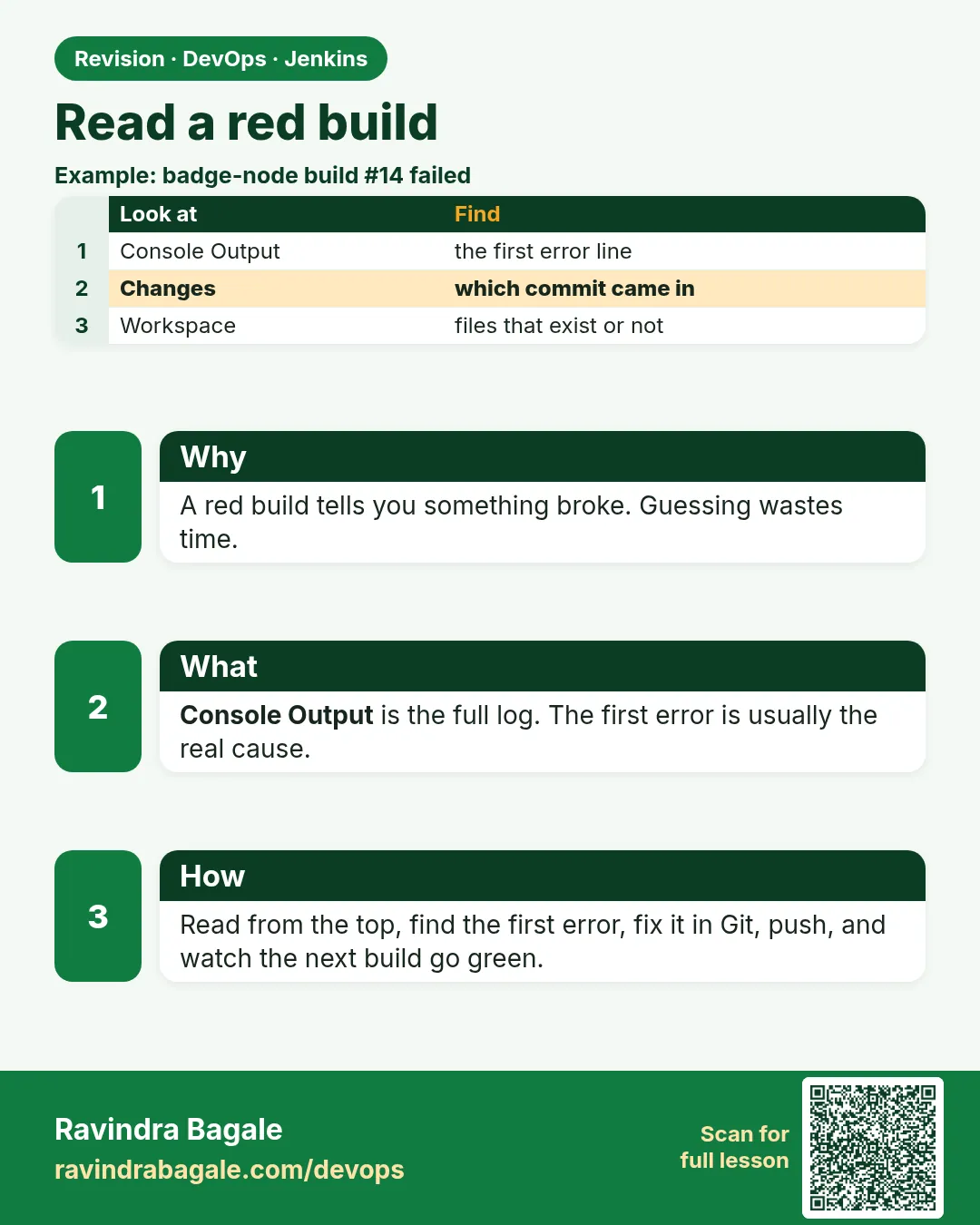 Revision card
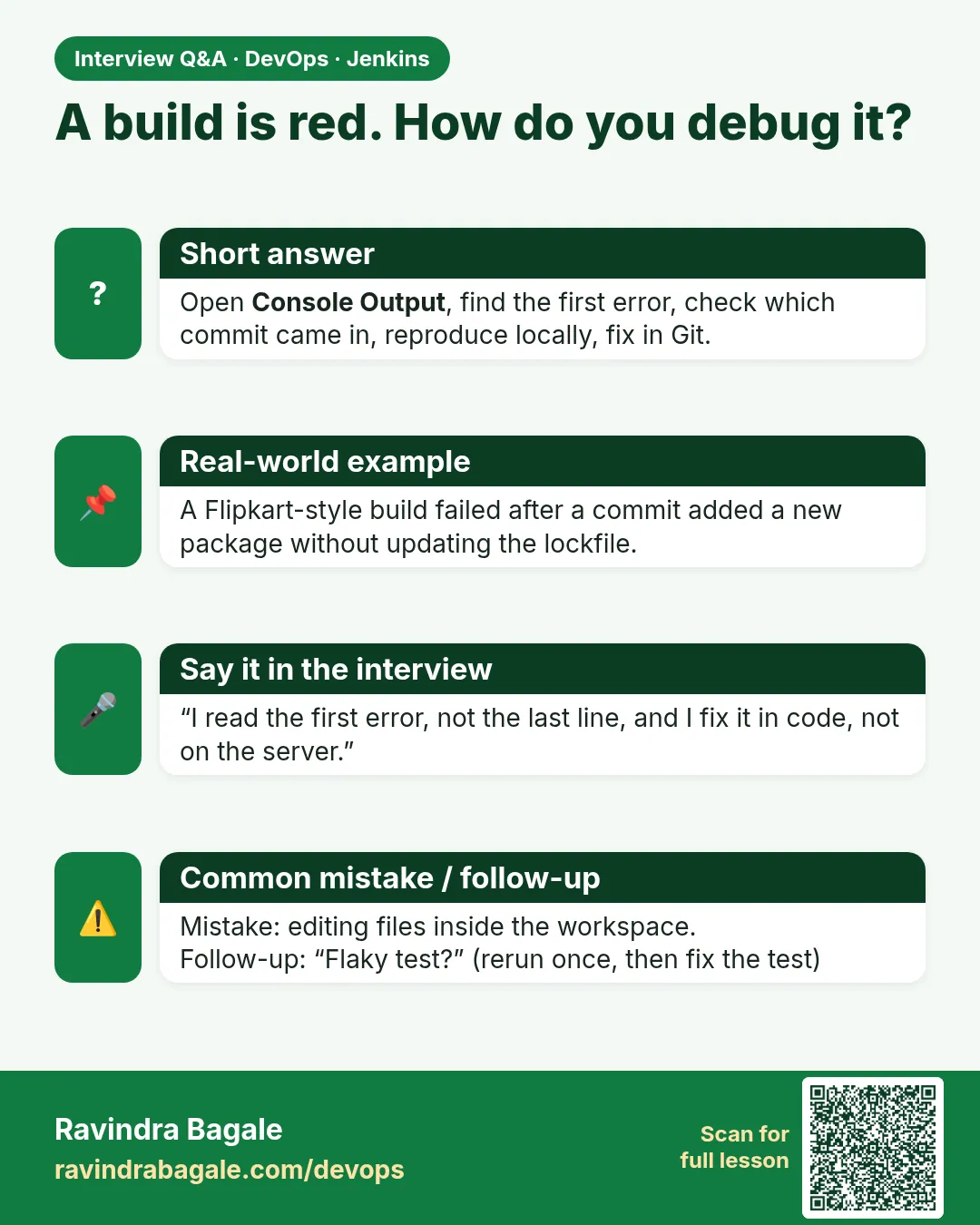 Interview card