Industry Dashboards in Excel: 10 Free Practice Workbooks
Ten classroom dashboards in Excel, one per industry: banking, hospitals, retail, education, logistics, hotels, pharma, real estate, restaurants and telecom. Every workbook has the same four sheets, six KPI cards driven by formulas, six charts and a top 5 table. The common steps are written once below; each industry then has its own section with its KPIs, formulas and one number to change. All numbers in these workbooks are fictional teaching data, not real company figures.
Quick answer
Each workbook has four sheets and opens on Dashboard. Type a new number only in the yellow cells on Data. The cards, the top 5 table and the charts follow those cells.
The 10 dashboards
- Banking (xlsx)
- Education (xlsx)
- Hospitals (xlsx)
- Hotels (xlsx)
- Logistics (xlsx)
- Pharma (xlsx)
- Real Estate (xlsx)
- Restaurants (xlsx)
- Retail (xlsx)
- Telecom (xlsx)
Steps that are the same for every dashboard
The four sheets
- Data. An Excel table named the data table with 96 rows. Yellow input cells are values you can type. The last column is a formula.
- Dashboard. This sheet opens first. It has a coloured title, six KPI cards driven by formulas, six charts, and a top 5 table.
- Calc. City, month and category totals. These cells use SUMIFS, COUNTIFS or AVERAGEIFS. The charts read this sheet. Do not type here.
- How to read. Short lines in the workbook, including the note that the numbers are fictional teaching data.
Open the file and change one number
- Download the workbook with the link above. Your browser will download it.
- Open the file in Microsoft Excel on your computer.
- Stay on the Dashboard sheet. Read the six KPI cards, the six charts and the top 5 table.
- Click the Data sheet tab.
- Type 9000000 and press Enter.
- Click the Dashboard sheet again. The KPI cards, the top 5 table and all six charts update. You do not edit a chart by hand.
Banking
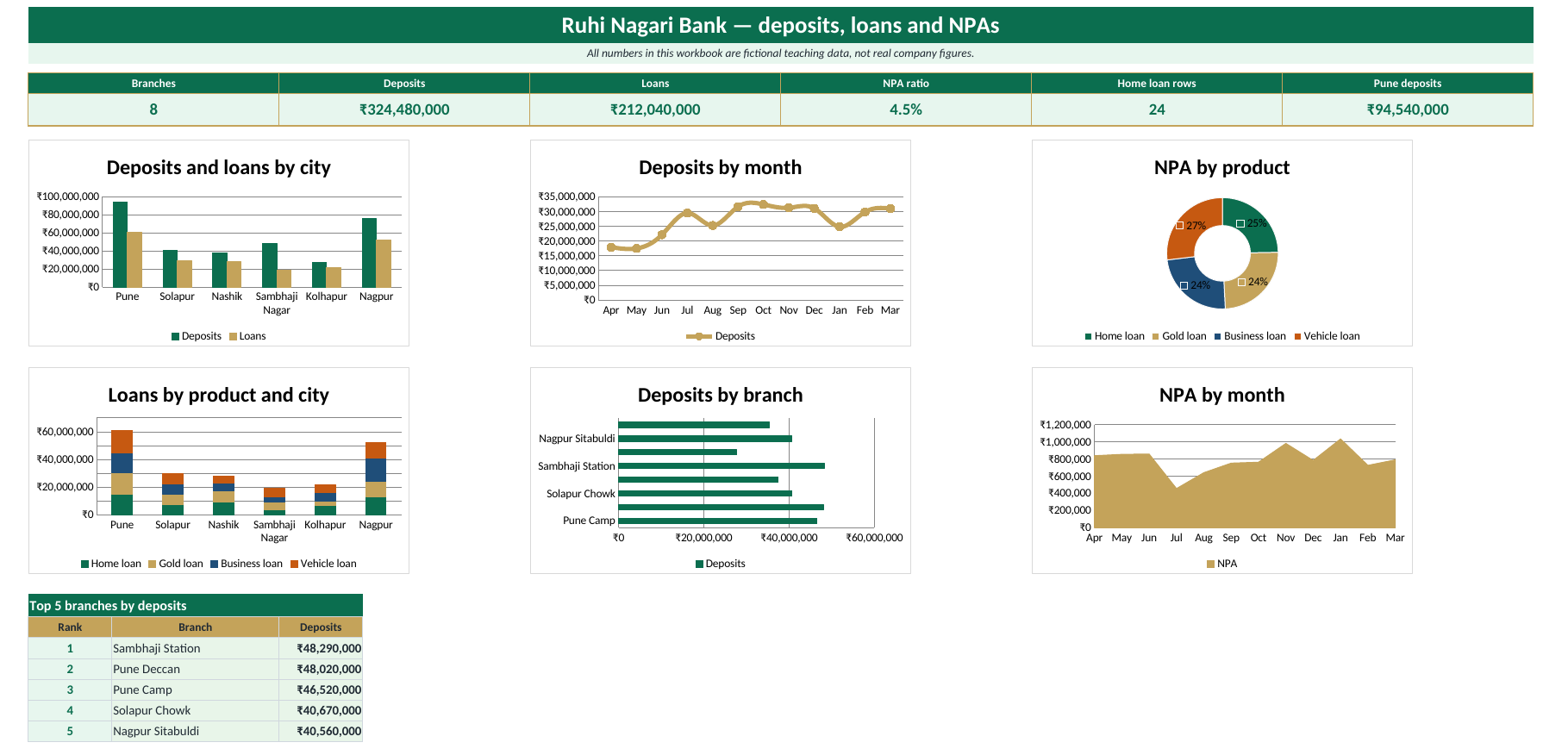
This file is a classroom dashboard for Ruhi Nagari Bank, a fictional bank. It tracks branches, deposits, loans and NPAs. All numbers in this workbook are fictional teaching data, not real company figures.
Download Banking_Dashboard.xlsx. Your browser will download this Excel file. It does not open as a web page.
The four sheets
What each KPI means
The cards read the Data sheet. Do not type over the cards.
- Branches counts the branch names. In this file it shows 8. The formula is =SUMPRODUCT((BankData[Branch]<>"")/COUNTIFS(BankData[Branch],BankData[Branch])).
- Deposits adds every deposit, in rupees. In this file it shows ₹324,480,000. The formula is =SUM(BankData[Deposits]).
- Loans adds every loan, in rupees. In this file it shows ₹212,040,000. The formula is =SUM(BankData[Loans]).
- NPA ratio is total NPA divided by total loans. In this file it shows 4.5%. The formula is =IF(SUM(BankData[Loans])=0,0,SUM(BankData[NPA])/SUM(BankData[Loans])).
- Home loan rows counts rows where the product is Home loan. In this file it shows 24. The formula is =COUNTIFS(BankData[Product],"Home loan").
- Pune deposits adds deposits for Pune only. In this file it shows ₹94,540,000. The formula is =SUMIFS(BankData[Deposits],BankData[City],"Pune").
The dashboard has six charts: a clustered column of deposits and loans by city, a line of monthly deposits, a doughnut of NPA by product, a stacked column of loans by product and city, a bar chart of branches, and an area chart of monthly NPA. The top 5 table uses LARGE, INDEX and MATCH.
Open the file and change one number
- Click cell E3, Deposits for Apr Pune Camp. It shows ₹4,170,000.
- Type 4170000 again in that cell if you want the original teaching numbers.
Ravindra Bagale's Tip
Type only in the yellow cells: Month, City, Branch, Product, Deposits, Loans, NPA. Green cells, the six cards, the Calc sheet and the top 5 table are formulas. If you type a number on top of a formula, that cell stops updating.
Education
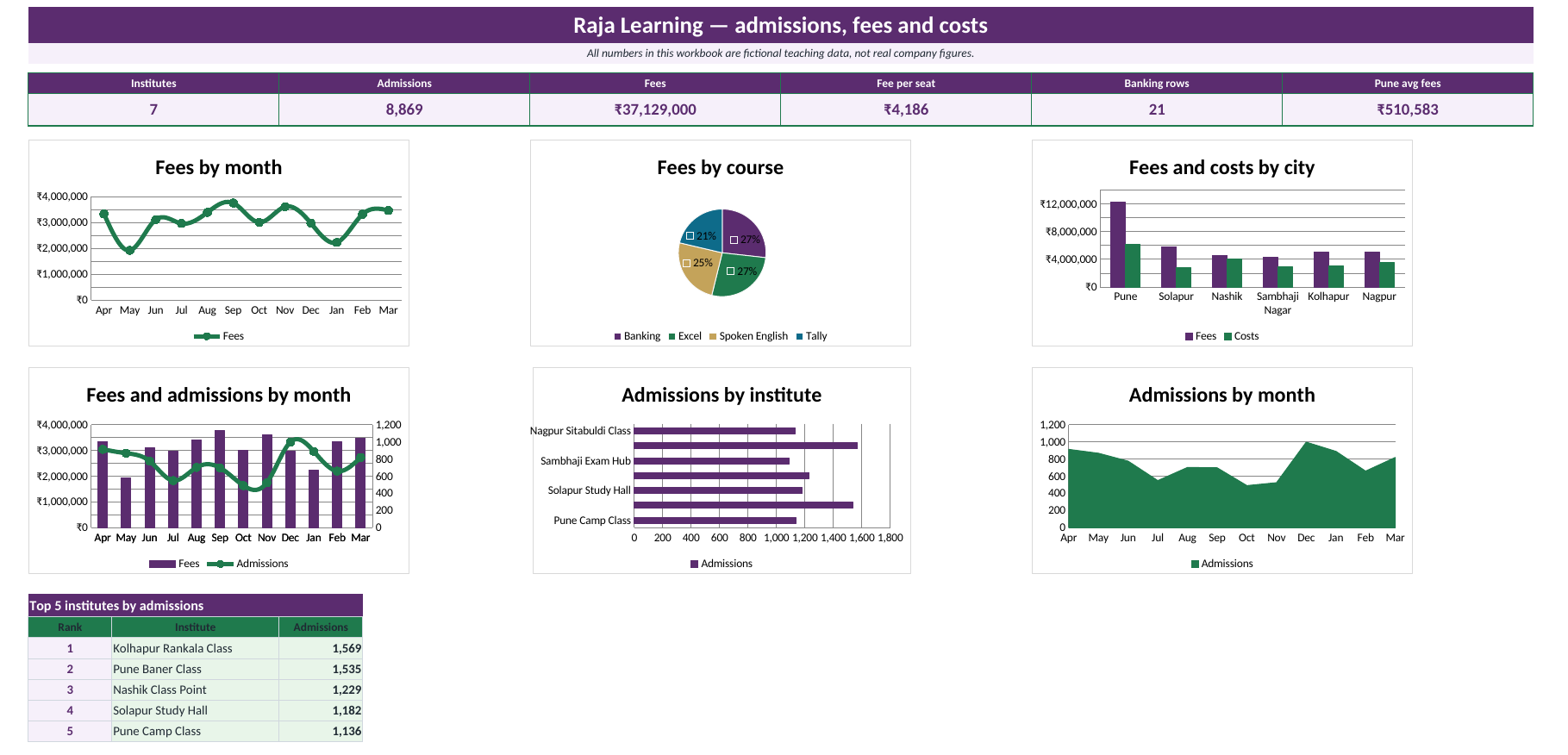
This file is a classroom dashboard for Raja Learning, a fictional group of institutes. It tracks institutes, courses, admissions and fees. All numbers in this workbook are fictional teaching data, not real company figures.
Download Education_Dashboard.xlsx. Your browser will download this Excel file. It does not open as a web page.
The four sheets
- Data. An Excel table named EduData with 84 rows. Yellow input cells are values you can type. The last column is a formula.
What each KPI means
- Institutes counts the institute names. In this file it shows 7. The formula is =SUMPRODUCT((EduData[Institute]<>"")/COUNTIFS(EduData[Institute],EduData[Institute])).
- Admissions adds every admission. In this file it shows 8,869. The formula is =SUM(EduData[Admissions]).
- Fees adds every fee, in rupees. In this file it shows ₹37,129,000. The formula is =SUM(EduData[Fees]).
- Fee per seat is total fees divided by admissions. In this file it shows ₹4,186. The formula is =IF(SUM(EduData[Admissions])=0,0,SUM(EduData[Fees])/SUM(EduData[Admissions])).
- Banking rows counts rows where the course is Banking. In this file it shows 21. The formula is =COUNTIFS(EduData[Course],"Banking").
- Pune avg fees is the average fee of Pune rows. In this file it shows ₹510,583. The formula is =AVERAGEIFS(EduData[Fees],EduData[City],"Pune").
The dashboard has six charts: a line of monthly fees, a pie of fees by course, a clustered column of fees and costs by city, a combo of fees and admissions, a bar chart of institutes, and an area chart of monthly admissions. The top 5 table uses LARGE, INDEX and MATCH.
Open the file and change one number
- Click cell F3, Fees for Apr Pune Camp Class. It shows ₹564,000.
- Type 564000 again in that cell if you want the original teaching numbers.
Ravindra Bagale's Tip
Type only in the yellow cells: Month, City, Institute, Course, Admissions, Fees, Costs. Green cells, the six cards, the Calc sheet and the top 5 table are formulas. If you type a number on top of a formula, that cell stops updating.
Hospitals
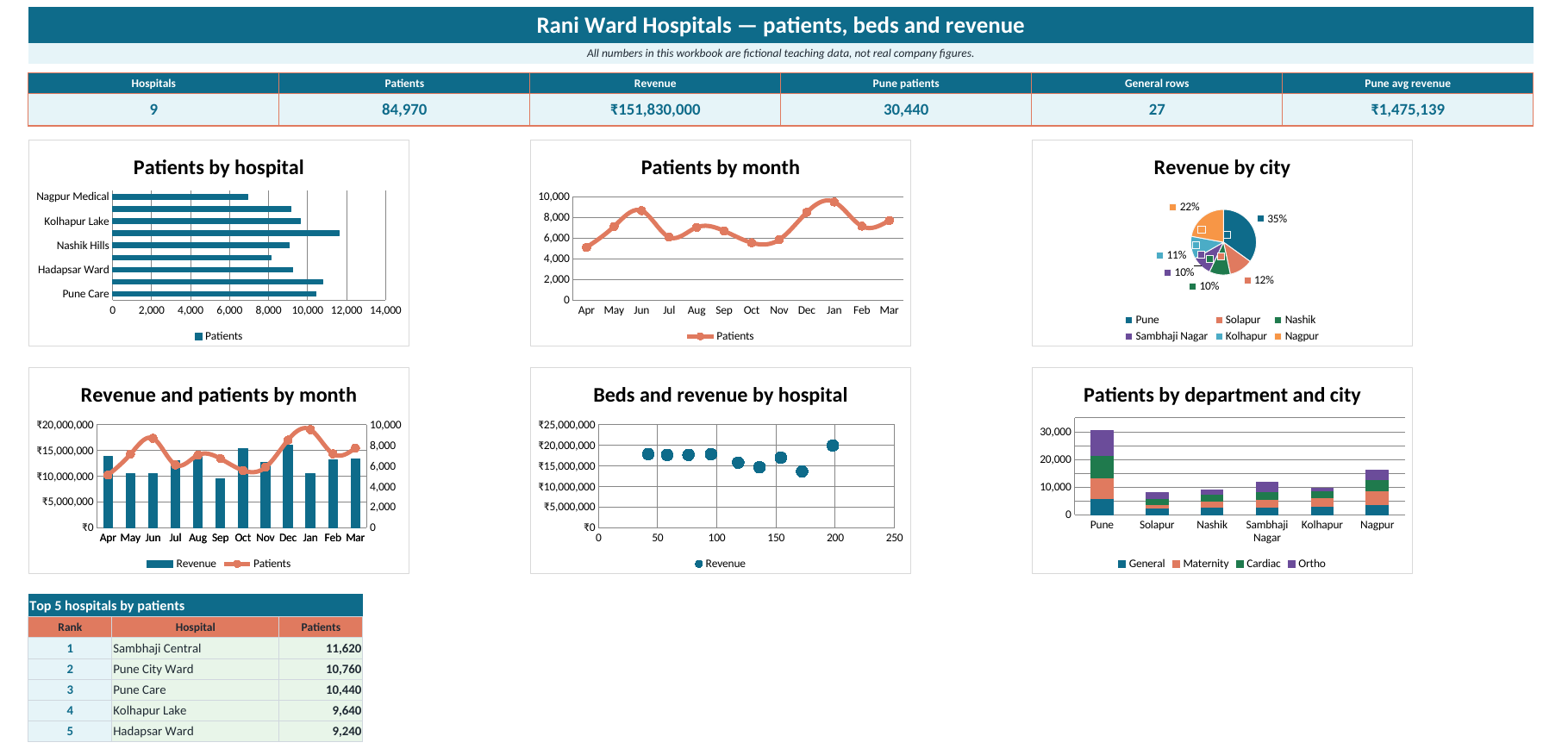
This file is a classroom dashboard for Rani Ward Hospitals, a fictional hospital group. It tracks departments, patients, beds and revenue. All numbers in this workbook are fictional teaching data, not real company figures.
Download Hospitals_Dashboard.xlsx. Your browser will download this Excel file. It does not open as a web page.
The four sheets
- Data. An Excel table named HospitalData with 108 rows. Yellow input cells are values you can type. The last column is a formula.
What each KPI means
- Hospitals counts the hospital names. In this file it shows 9. The formula is =SUMPRODUCT((HospitalData[Hospital]<>"")/COUNTIFS(HospitalData[Hospital],HospitalData[Hospital])).
- Patients adds every patient count. In this file it shows 84,970. The formula is =SUM(HospitalData[Patients]).
- Revenue adds revenue, in rupees. In this file it shows ₹151,830,000. The formula is =SUM(HospitalData[Revenue]).
- Pune patients adds patients for Pune only. In this file it shows 30,440. The formula is =SUMIFS(HospitalData[Patients],HospitalData[City],"Pune").
- General rows counts rows where the department is General. In this file it shows 27. The formula is =COUNTIFS(HospitalData[Department],"General").
- Pune avg revenue is the average revenue of Pune rows. In this file it shows ₹1,475,139. The formula is =AVERAGEIFS(HospitalData[Revenue],HospitalData[City],"Pune").
The dashboard has six charts: a bar chart of patients by hospital, a line of monthly patients, a pie of revenue by city, a combo of revenue and patients by month, a scatter of beds against revenue, and a stacked column of patients by department and city. The top 5 table uses LARGE, INDEX and MATCH.
Open the file and change one number
- Click cell E3, Patients for Apr Pune Care. It shows 230.
- Type 630 and press Enter.
- Type 230 again in that cell if you want the original teaching numbers.
Ravindra Bagale's Tip
Type only in the yellow cells: Month, City, Hospital, Department, Patients, Revenue, Beds. Green cells, the six cards, the Calc sheet and the top 5 table are formulas. If you type a number on top of a formula, that cell stops updating.
Hotels
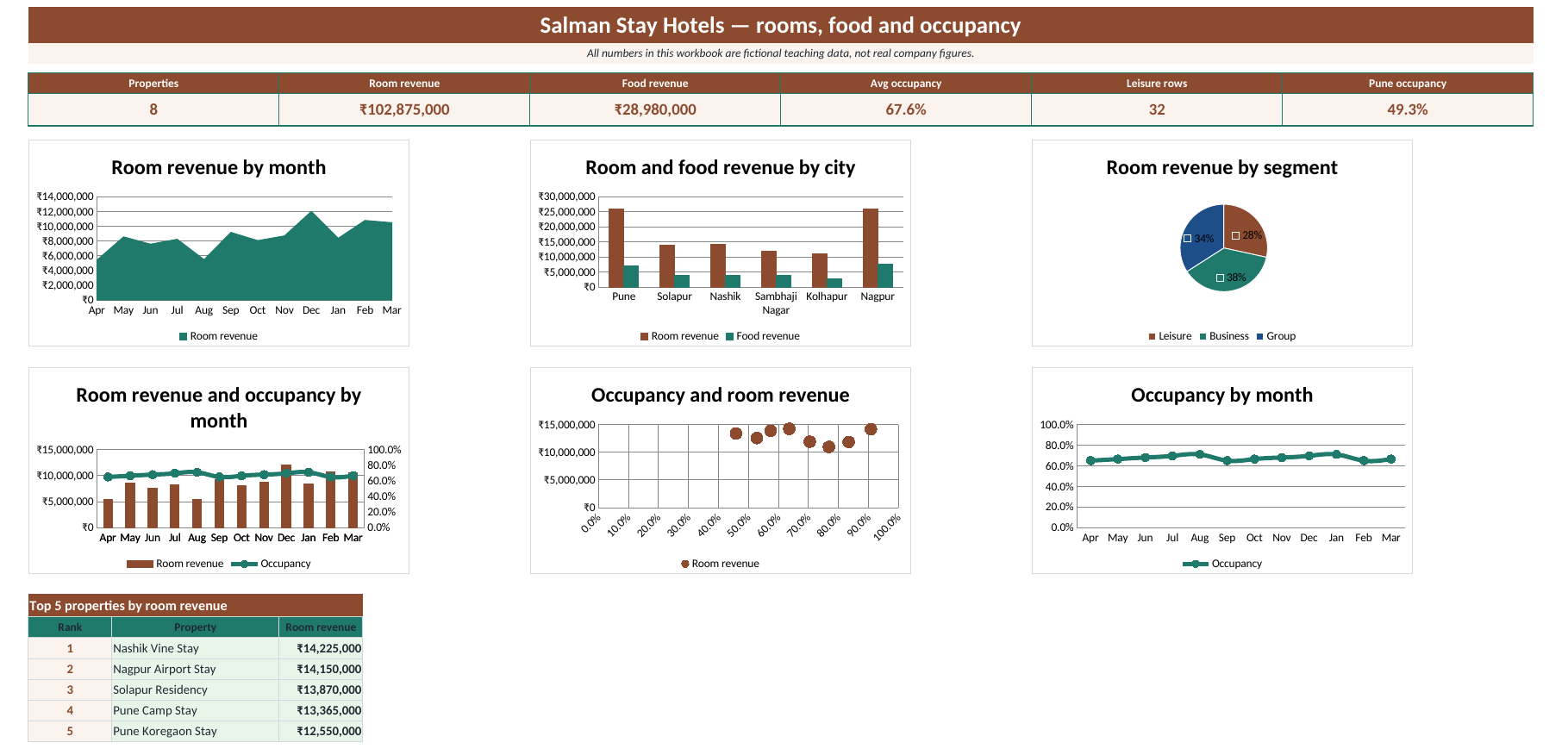
This file is a classroom dashboard for Salman Stay Hotels, a fictional hotel group. It tracks properties, occupancy, room revenue and rating. All numbers in this workbook are fictional teaching data, not real company figures.
Download Hotels_Dashboard.xlsx. Your browser will download this Excel file. It does not open as a web page.
The four sheets
What each KPI means
- Properties counts the property names. In this file it shows 8. The formula is =SUMPRODUCT((HotelData[Property]<>"")/COUNTIFS(HotelData[Property],HotelData[Property])).
- Room revenue adds room revenue, in rupees. In this file it shows ₹102,875,000. The formula is =SUM(HotelData[Room revenue]).
- Food revenue adds food revenue, in rupees. In this file it shows ₹28,980,000. The formula is =SUM(HotelData[Food revenue]).
- Avg occupancy is the average occupancy of every row. In this file it shows 67.6%. The formula is =AVERAGE(HotelData[Occupancy]).
- Leisure rows counts rows where the segment is Leisure. In this file it shows 32. The formula is =COUNTIFS(HotelData[Segment],"Leisure").
- Pune occupancy is the average occupancy of Pune rows. In this file it shows 49.3%. The formula is =AVERAGEIFS(HotelData[Occupancy],HotelData[City],"Pune").
The dashboard has six charts: an area chart of monthly room revenue, a clustered column of room and food revenue by city, a pie of room revenue by segment, a combo of room revenue and occupancy, a scatter of occupancy against room revenue, and a line of monthly occupancy. The top 5 table uses LARGE, INDEX and MATCH.
Open the file and change one number
- Click cell E3, Room revenue for Apr Pune Camp Stay. It shows ₹595,000.
- Type 595000 again in that cell if you want the original teaching numbers.
Ravindra Bagale's Tip
Type only in the yellow cells: Month, City, Property, Segment, Room revenue, Food revenue, Occupancy. Green cells, the six cards, the Calc sheet and the top 5 table are formulas. If you type a number on top of a formula, that cell stops updating.
Logistics
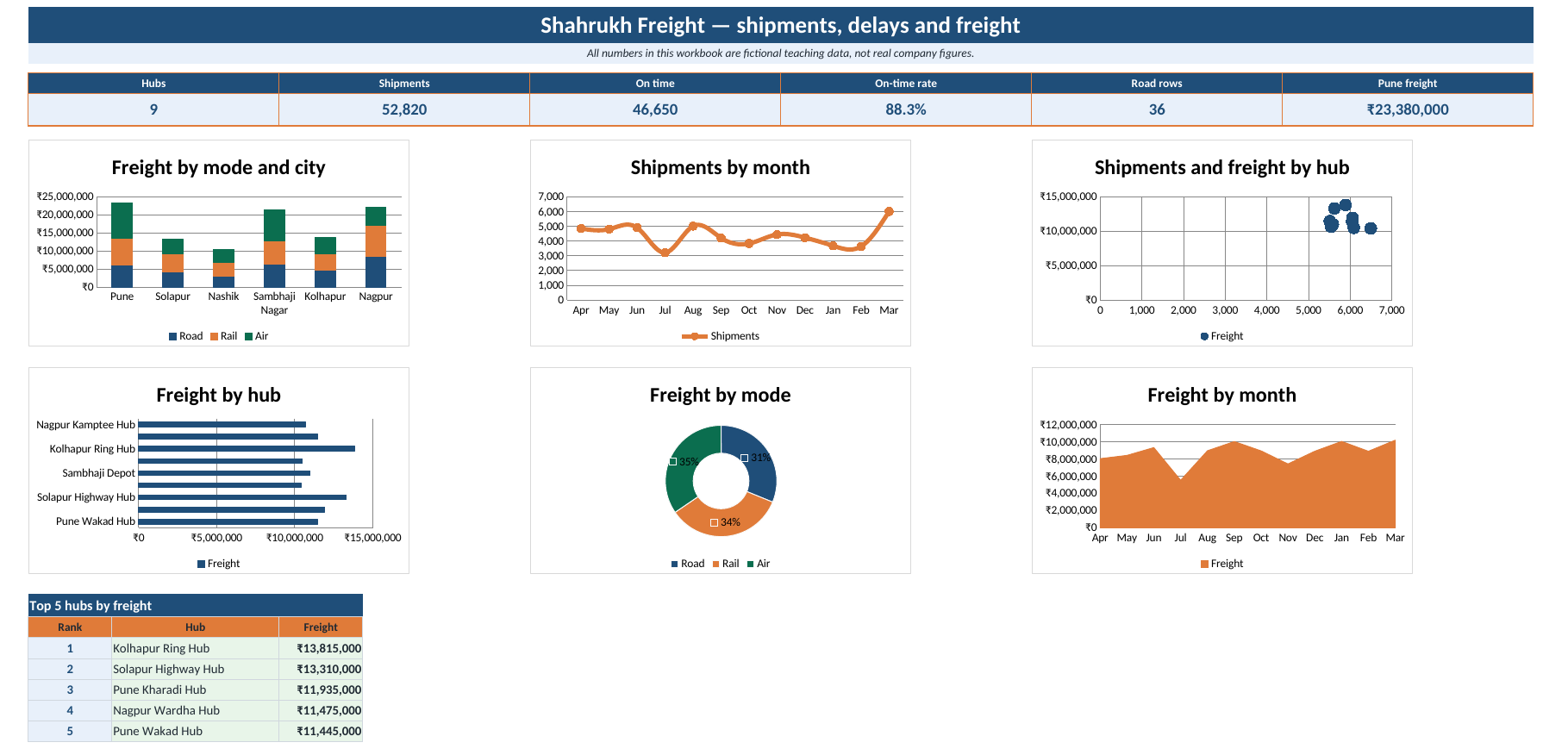
This file is a classroom dashboard for Shahrukh Freight, a fictional logistics firm. It tracks hubs, shipments, on-time delivery and delays. All numbers in this workbook are fictional teaching data, not real company figures.
Download Logistics_Dashboard.xlsx. Your browser will download this Excel file. It does not open as a web page.
The four sheets
What each KPI means
- Hubs counts the hub names. In this file it shows 9. The formula is =SUMPRODUCT((FreightData[Hub]<>"")/COUNTIFS(FreightData[Hub],FreightData[Hub])).
- Shipments adds every shipment count. In this file it shows 52,820. The formula is =SUM(FreightData[Shipments]).
- On time adds every on-time count. In this file it shows 46,650. The formula is =SUM(FreightData[On time]).
- On-time rate is on-time shipments divided by all shipments. In this file it shows 88.3%. The formula is =IF(SUM(FreightData[Shipments])=0,0,SUM(FreightData[On time])/SUM(FreightData[Shipments])).
- Road rows counts rows where the mode is Road. In this file it shows 36. The formula is =COUNTIFS(FreightData[Mode],"Road").
- Pune freight adds freight for Pune only. In this file it shows ₹23,380,000. The formula is =SUMIFS(FreightData[Freight],FreightData[City],"Pune").
The dashboard has six charts: a stacked column of freight by mode and city, a line of monthly shipments, a scatter of shipments against freight, a bar chart of hubs, a doughnut of freight by mode, and an area chart of monthly freight. The top 5 table uses LARGE, INDEX and MATCH.
Open the file and change one number
- Click cell E3, Shipments for Apr Pune Wakad Hub. It shows 605.
- Type 1005 and press Enter.
- Type 605 again in that cell if you want the original teaching numbers.
Ravindra Bagale's Tip
Type only in the yellow cells: Month, City, Hub, Mode, Shipments, On time, Freight. Green cells, the six cards, the Calc sheet and the top 5 table are formulas. If you type a number on top of a formula, that cell stops updating.
Pharma
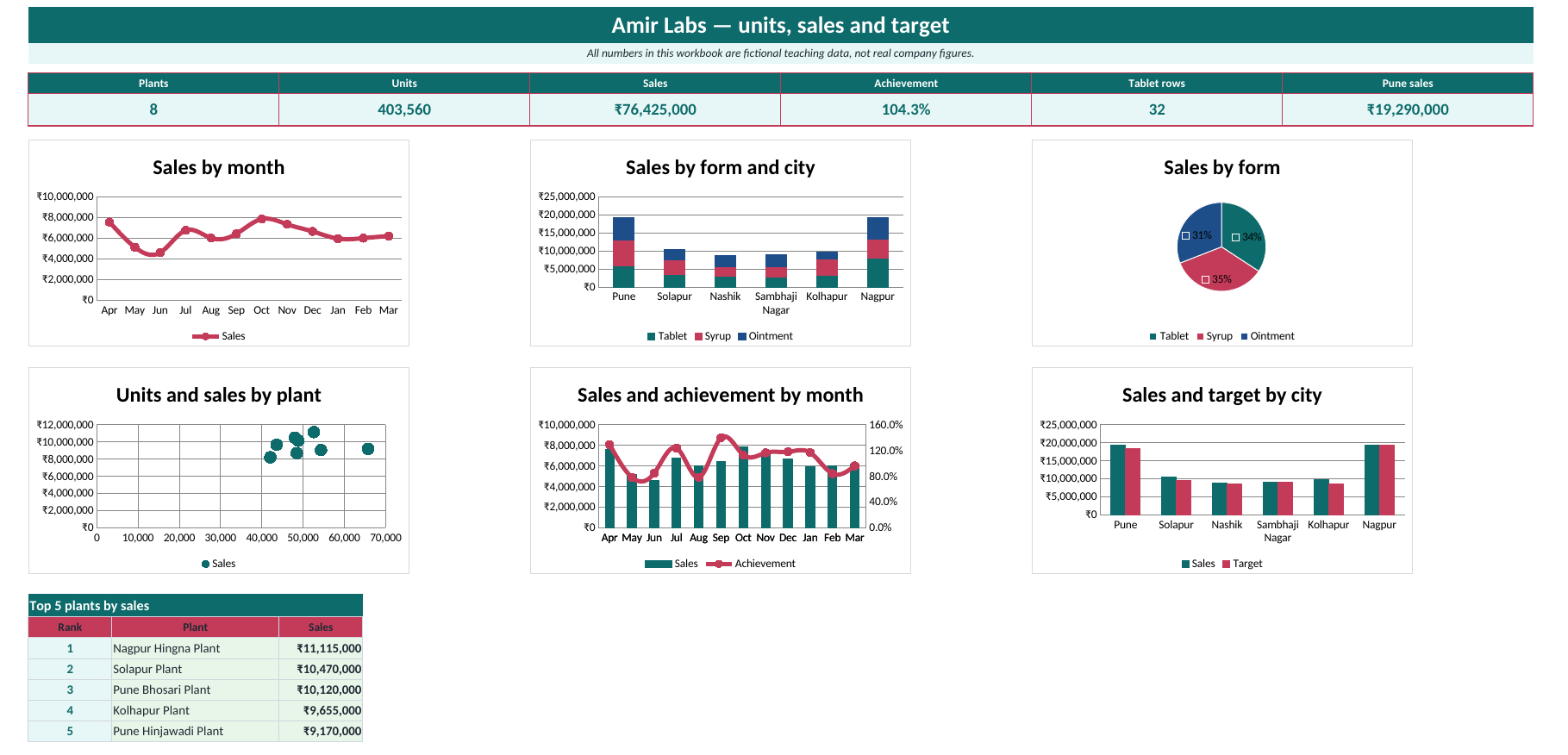
This file is a classroom dashboard for Amir Labs, a fictional pharma company. It tracks plants, products, batches and sales. All numbers in this workbook are fictional teaching data, not real company figures.
Download Pharma_Dashboard.xlsx. Your browser will download this Excel file. It does not open as a web page.
The four sheets
What each KPI means
- Plants counts the plant names. In this file it shows 8. The formula is =SUMPRODUCT((PharmaData[Plant]<>"")/COUNTIFS(PharmaData[Plant],PharmaData[Plant])).
- Units adds every unit count. In this file it shows 403,560. The formula is =SUM(PharmaData[Units]).
- Sales adds every sale, in rupees. In this file it shows ₹76,425,000. The formula is =SUM(PharmaData[Sales]).
- Achievement is total sales divided by total target. In this file it shows 104.3%. The formula is =IF(SUM(PharmaData[Target])=0,0,SUM(PharmaData[Sales])/SUM(PharmaData[Target])).
- Tablet rows counts rows where the form is Tablet. In this file it shows 32. The formula is =COUNTIFS(PharmaData[Form],"Tablet").
- Pune sales adds sales for Pune only. In this file it shows ₹19,290,000. The formula is =SUMIFS(PharmaData[Sales],PharmaData[City],"Pune").
The dashboard has six charts: a line of monthly sales, a stacked column of sales by form and city, a pie of sales by form, a scatter of units against sales, a combo of sales and achievement, and a clustered column of sales and target by city. The top 5 table uses LARGE, INDEX and MATCH.
Open the file and change one number
- Click cell F3, Sales for Apr Pune Hinjawadi Plant. It shows ₹470,000.
- Type 470000 again in that cell if you want the original teaching numbers.
Ravindra Bagale's Tip
Type only in the yellow cells: Month, City, Plant, Form, Units, Sales, Target. Green cells, the six cards, the Calc sheet and the top 5 table are formulas. If you type a number on top of a formula, that cell stops updating.
Real Estate
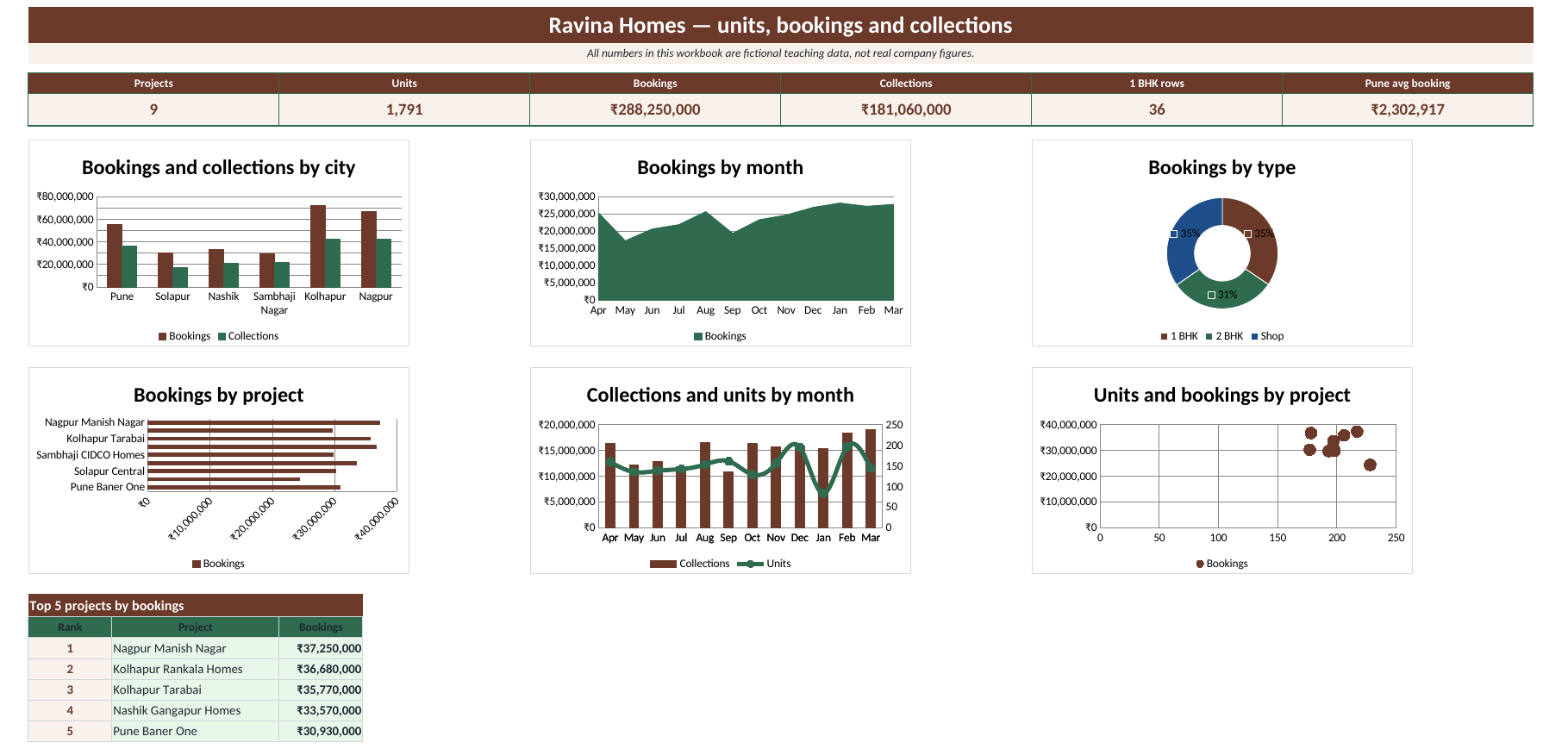
This file is a classroom dashboard for Ravina Homes, a fictional real-estate firm. It tracks projects, units sold, bookings and collections. All numbers in this workbook are fictional teaching data, not real company figures.
Download Real_Estate_Dashboard.xlsx. Your browser will download this Excel file. It does not open as a web page.
The four sheets
What each KPI means
- Projects counts the project names. In this file it shows 9. The formula is =SUMPRODUCT((HomeData[Project]<>"")/COUNTIFS(HomeData[Project],HomeData[Project])).
- Units adds units sold. In this file it shows 1,791. The formula is =SUM(HomeData[Units]).
- Bookings adds booking value, in rupees. In this file it shows ₹288,250,000. The formula is =SUM(HomeData[Bookings]).
- Collections adds collections, in rupees. In this file it shows ₹181,060,000. The formula is =SUM(HomeData[Collections]).
- 1 BHK rows counts rows where the type is 1 BHK. In this file it shows 36. The formula is =COUNTIFS(HomeData[Type],"1 BHK").
- Pune avg booking is the average booking of Pune rows. In this file it shows ₹2,302,917. The formula is =AVERAGEIFS(HomeData[Bookings],HomeData[City],"Pune").
The dashboard has six charts: a clustered column of bookings and collections by city, an area chart of monthly bookings, a doughnut of bookings by type, a bar chart of projects, a combo of collections and units, and a scatter of units against bookings. The top 5 table uses LARGE, INDEX and MATCH.
Open the file and change one number
- Click cell F3, Bookings for Apr Pune Baner One. It shows ₹2,740,000.
- Type 2740000 again in that cell if you want the original teaching numbers.
Ravindra Bagale's Tip
Type only in the yellow cells: Month, City, Project, Type, Units, Bookings, Collections. Green cells, the six cards, the Calc sheet and the top 5 table are formulas. If you type a number on top of a formula, that cell stops updating.
Restaurants
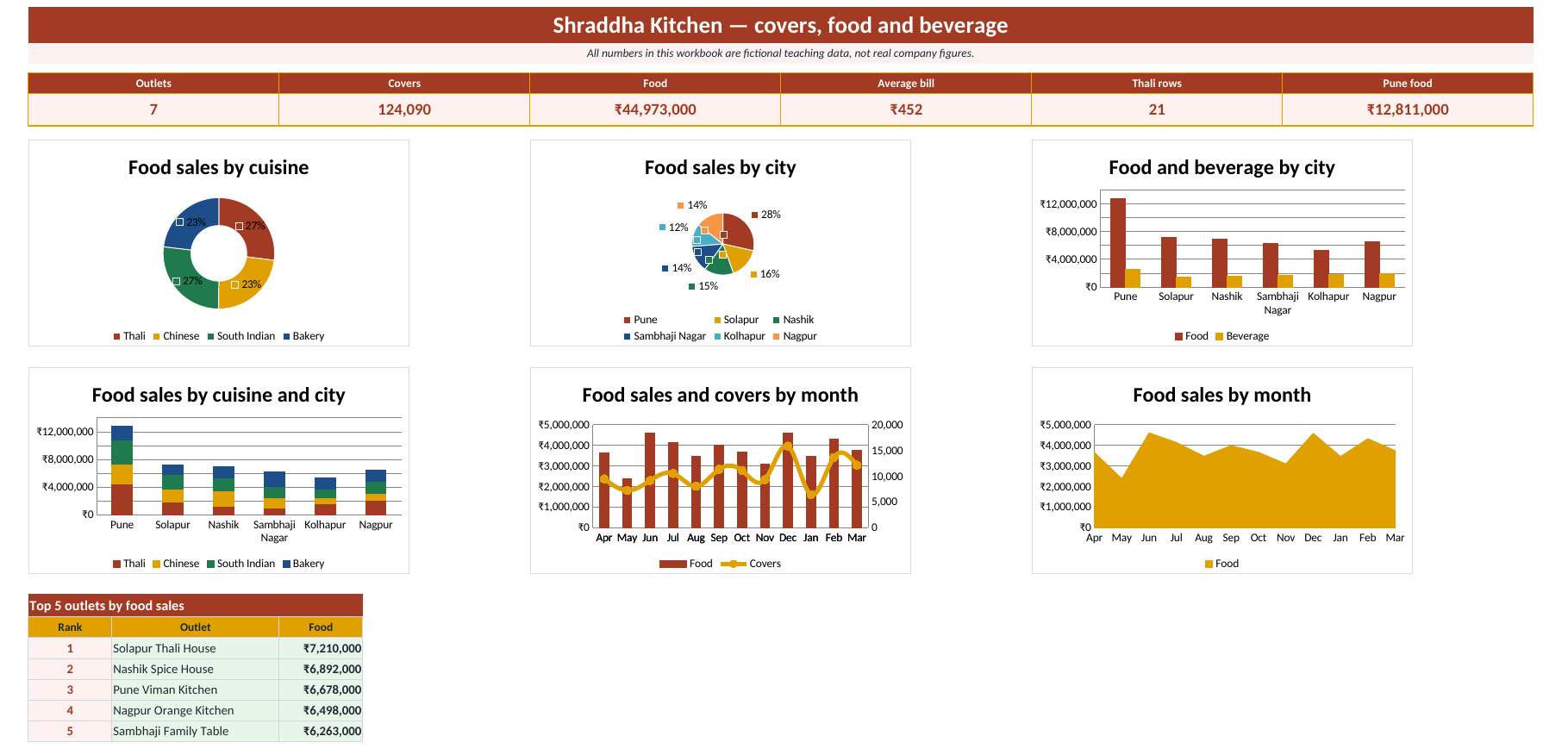
This file is a classroom dashboard for Shraddha Kitchen, a fictional restaurant group. It tracks outlets, covers, average bill and food cost. All numbers in this workbook are fictional teaching data, not real company figures.
Download Restaurants_Dashboard.xlsx. Your browser will download this Excel file. It does not open as a web page.
The four sheets
What each KPI means
- Outlets counts the outlet names. In this file it shows 7. The formula is =SUMPRODUCT((KitchenData[Outlet]<>"")/COUNTIFS(KitchenData[Outlet],KitchenData[Outlet])).
- Covers adds every cover count. In this file it shows 124,090. The formula is =SUM(KitchenData[Covers]).
- Food adds food sales, in rupees. In this file it shows ₹44,973,000. The formula is =SUM(KitchenData[Food]).
- Average bill is food plus beverage, divided by covers. In this file it shows ₹452. The formula is =IF(SUM(KitchenData[Covers])=0,0,(SUM(KitchenData[Food])+SUM(KitchenData[Beverage]))/SUM(KitchenData[Covers])).
- Thali rows counts rows where the cuisine is Thali. In this file it shows 21. The formula is =COUNTIFS(KitchenData[Cuisine],"Thali").
- Pune food adds food sales for Pune only. In this file it shows ₹12,811,000. The formula is =SUMIFS(KitchenData[Food],KitchenData[City],"Pune").
The dashboard has six charts: a doughnut of food sales by cuisine, a pie of food sales by city, a clustered column of food and beverage by city, a stacked column of food sales by cuisine and city, a combo of food sales and covers, and an area chart of monthly food sales. The top 5 table uses LARGE, INDEX and MATCH.
Open the file and change one number
- Click cell F3, Food for Apr Pune FC Kitchen. It shows ₹702,000.
- Type 702000 again in that cell if you want the original teaching numbers.
Ravindra Bagale's Tip
Type only in the yellow cells: Month, City, Outlet, Cuisine, Covers, Food, Beverage. Green cells, the six cards, the Calc sheet and the top 5 table are formulas. If you type a number on top of a formula, that cell stops updating.
Retail
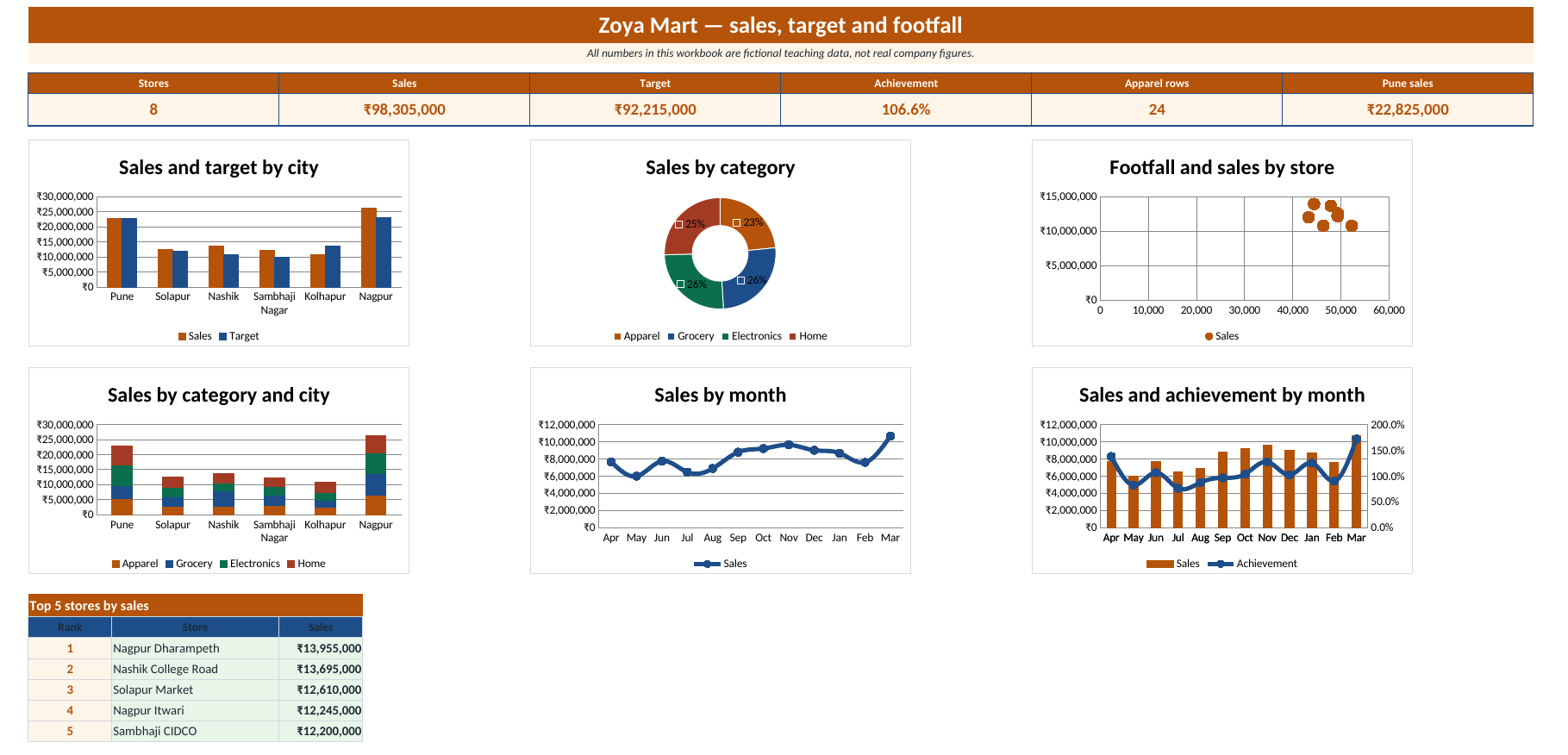
This file is a classroom dashboard for Zoya Mart, a fictional retail chain. It tracks stores, categories, sales and returns. All numbers in this workbook are fictional teaching data, not real company figures.
Download Retail_Dashboard.xlsx. Your browser will download this Excel file. It does not open as a web page.
The four sheets
What each KPI means
- Stores counts the store names. In this file it shows 8. The formula is =SUMPRODUCT((RetailData[Store]<>"")/COUNTIFS(RetailData[Store],RetailData[Store])).
- Sales adds every sale, in rupees. In this file it shows ₹98,305,000. The formula is =SUM(RetailData[Sales]).
- Target adds every target, in rupees. In this file it shows ₹92,215,000. The formula is =SUM(RetailData[Target]).
- Achievement is total sales divided by total target. In this file it shows 106.6%. The formula is =IF(SUM(RetailData[Target])=0,0,SUM(RetailData[Sales])/SUM(RetailData[Target])).
- Apparel rows counts rows where the category is Apparel. In this file it shows 24. The formula is =COUNTIFS(RetailData[Category],"Apparel").
- Pune sales adds sales for Pune only. In this file it shows ₹22,825,000. The formula is =SUMIFS(RetailData[Sales],RetailData[City],"Pune").
The dashboard has six charts: a clustered column of sales and target by city, a doughnut of sales by category, a scatter of footfall against sales, a stacked column of sales by category and city, a line of monthly sales, and a combo of sales and achievement. The top 5 table uses LARGE, INDEX and MATCH.
Open the file and change one number
- Click cell E3, Sales for Apr Pune FC Road. It shows ₹435,000.
- Type 435000 again in that cell if you want the original teaching numbers.
Ravindra Bagale's Tip
Type only in the yellow cells: Month, City, Store, Category, Sales, Target, Footfall. Green cells, the six cards, the Calc sheet and the top 5 table are formulas. If you type a number on top of a formula, that cell stops updating.
Telecom
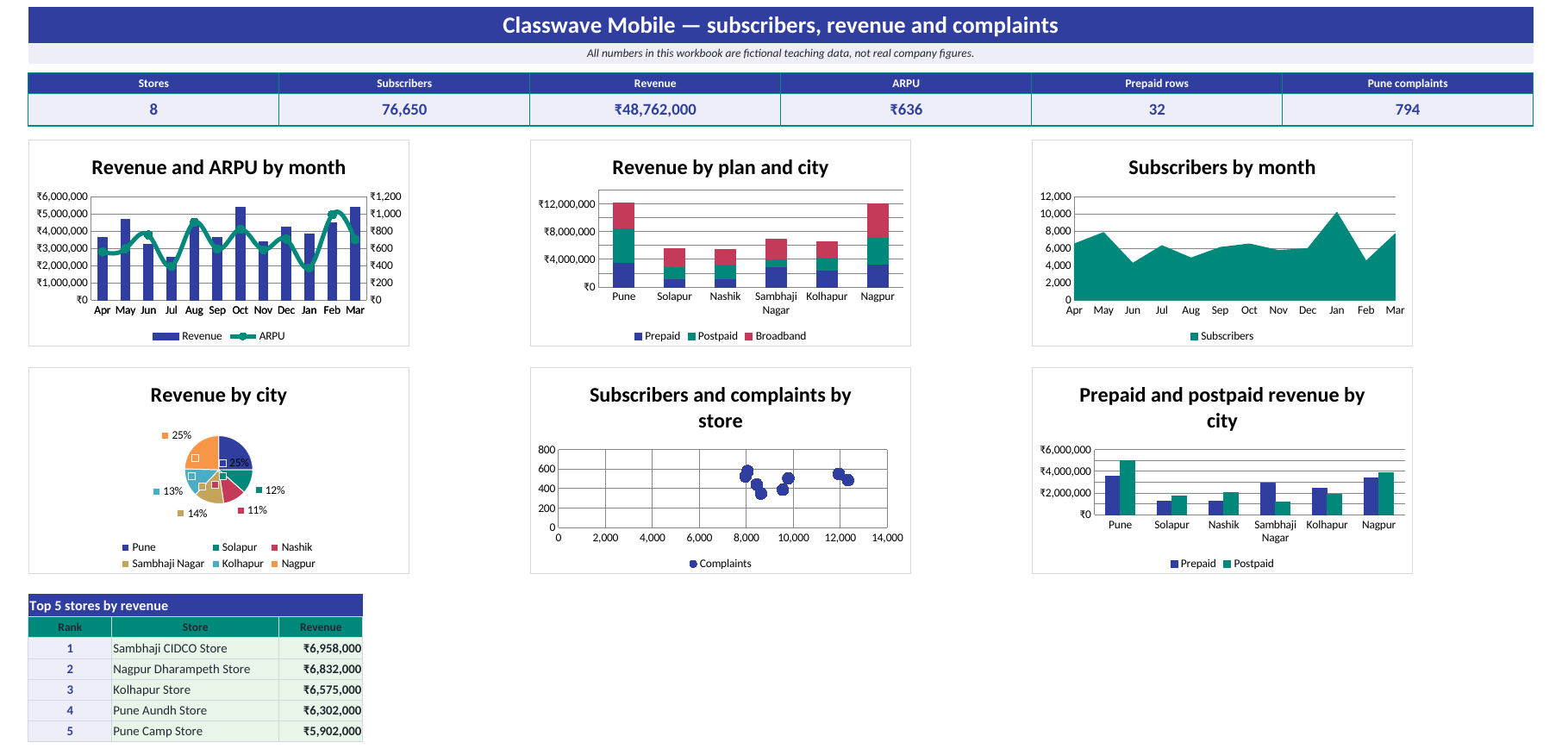
This file is a classroom dashboard for Classwave Mobile, a fictional telecom company. It tracks circles, subscribers, ARPU and complaints. All numbers in this workbook are fictional teaching data, not real company figures.
Download Telecom_Dashboard.xlsx. Your browser will download this Excel file. It does not open as a web page.
The four sheets
What each KPI means
- Subscribers adds every subscriber count. In this file it shows 76,650. The formula is =SUM(MobileData[Subscribers]).
- Revenue adds revenue, in rupees. In this file it shows ₹48,762,000. The formula is =SUM(MobileData[Revenue]).
- ARPU is total revenue divided by subscribers. In this file it shows ₹636. The formula is =IF(SUM(MobileData[Subscribers])=0,0,SUM(MobileData[Revenue])/SUM(MobileData[Subscribers])).
- Prepaid rows counts rows where the plan is Prepaid. In this file it shows 32. The formula is =COUNTIFS(MobileData[Plan],"Prepaid").
- Pune complaints adds complaints for Pune only. In this file it shows 794. The formula is =SUMIFS(MobileData[Complaints],MobileData[City],"Pune").
The dashboard has six charts: a combo of revenue and ARPU by month, a stacked column of revenue by plan and city, an area chart of monthly subscribers, a pie of revenue by city, a scatter of subscribers against complaints, and a clustered column of prepaid and postpaid revenue. The top 5 table uses LARGE, INDEX and MATCH.
Open the file and change one number
- Click cell F3, Revenue for Apr Pune Camp Store. It shows ₹598,000.
- Type 598000 again in that cell if you want the original teaching numbers.
Ravindra Bagale's Tip
Type only in the yellow cells: Month, City, Store, Plan, Subscribers, Revenue, Complaints. Green cells, the six cards, the Calc sheet and the top 5 table are formulas. If you type a number on top of a formula, that cell stops updating.
Frequently asked questions
What is this workbook?
This file is a classroom dashboard for Ruhi Nagari Bank, a fictional bank. It tracks branches, deposits, loans and NPAs. All numbers in this workbook are fictional teaching data, not real company figures.
Which sheet opens first?
The Dashboard sheet opens first. The other sheets are Data, Calc and How to read.
What do the KPI cards mean?
Branches 8, Deposits ₹324,480,000, Loans ₹212,040,000, NPA ratio 4.5%, Home loan rows 24, Pune deposits ₹94,540,000.
How does the chart update?
Change one input number on the Data sheet. The KPI cards, the top 5 table and all six charts are formulas, so they update.