Chapter 18: Kubernetes Workloads
18.11 kubectl get, describe, logs, delete
Why: the problem
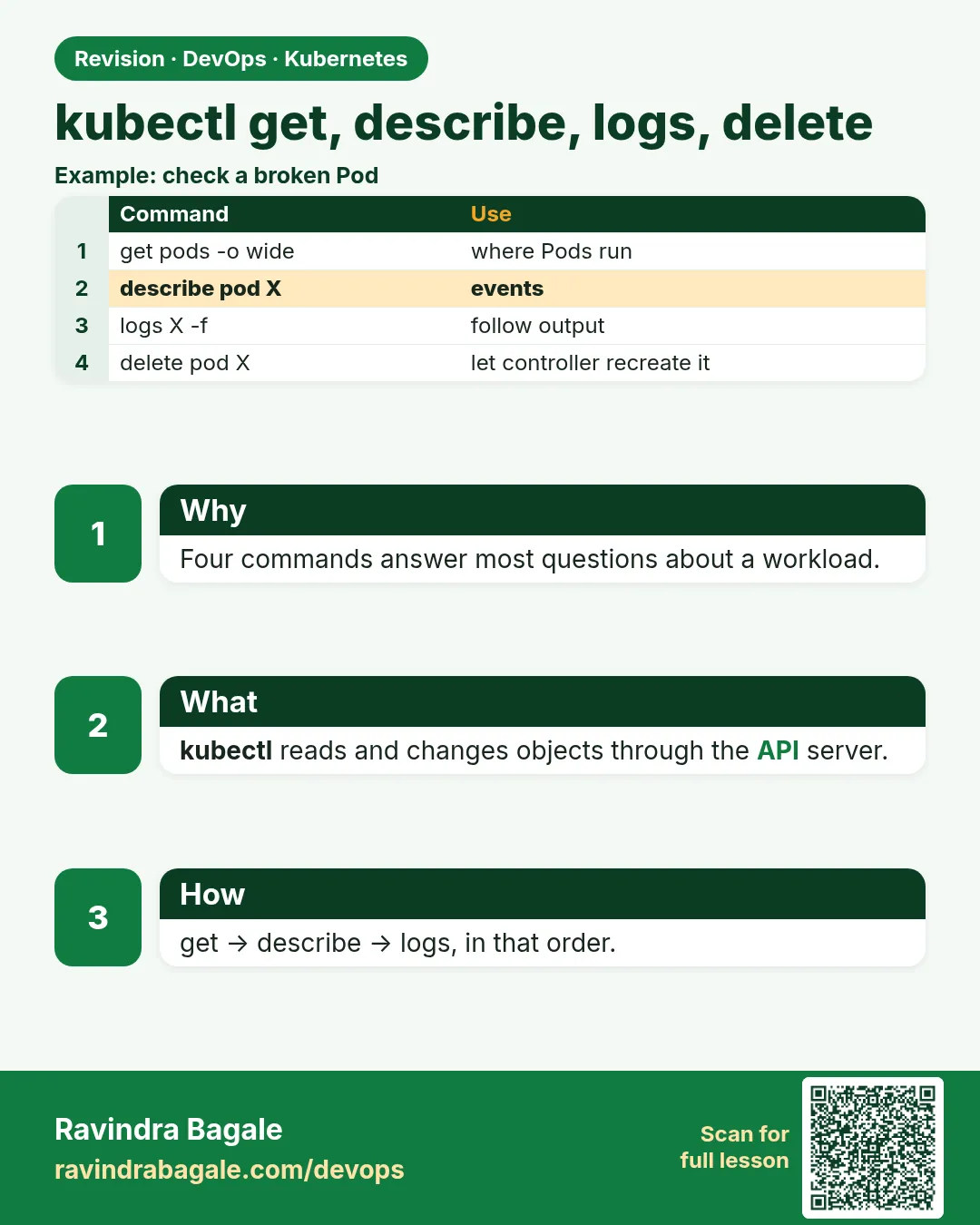
When a Swiggy engineer is paged at night, she does not open a dashboard first. She opens a terminal and runs four commands in the same order every time: get, describe, logs, and, when needed, delete. get shows what exists and its status. describe shows the details and the Events, which usually hold the reason. logs shows what the app printed. delete removes a broken object so its controller makes a clean one. If you learn these four commands with their best flags, you can debug most Pod problems in two minutes. In this lesson you will build a small broken app on purpose, and use only these commands, with flags like -o wide, -l, -w, --previous, -f, --since, -c and --grace-period, to find and fix each problem.
What we will build
You will deploy a shop app with two containers per Pod and a deliberate bug. Then you will walk through get, describe, logs and delete with the most useful flags, and build a small debug routine you can reuse in any outage.
What: every term in plain English
- kubectl get — Lists objects and their short status.
- kubectl describe — Shows full details of one object and its recent Events.
- kubectl logs — Prints what a container wrote to stdout and stderr.
- kubectl delete — Removes objects. A controller may recreate them.
- -o wide — More columns, like node and IP.
- -o yaml — The full object, as stored in the cluster.
- -l — Filter by label, like -l app=shop.
- -w — Watch for changes live.
- -c — Pick one container in a multi-container Pod.
How: step by step
-
Start a lab cluster
kind create cluster --name lab
kubectl get nodes
What it does: Creates a one-node Kubernetes cluster inside Docker. On minikube use: minikube start.
Output
Creating cluster "lab" ... ✓ Ensuring node image (kindest/node:v1.30.0) ✓ Preparing nodes Set kubectl context to "kind-lab" NAME STATUS ROLES AGE VERSION lab-control-plane Ready control-plane 40s v1.30.0 -
Make a practice namespace
kubectl create namespace practice
kubectl config set-context --current --namespace=practice
What it does: Keeps all lab objects in one folder that is easy to delete.
Output
namespace/practice created Context "kind-lab" modified. -
Deploy the shop
kubectl apply -f shop.yamlWhat it does: The file is in Example 1. One container is broken on purpose.
Output
deployment.apps/shop created -
get with useful flags
kubectl get pods -l app=shop -o wideWhat it does: Status, restarts, node and IP in one view.
Output
NAME READY STATUS RESTARTS IP NODE shop-7d8f9c6b5d-k2xq4 1/2 CrashLoopBackOff 3 (20s ago) 10.244.0.8 lab-control-plane shop-7d8f9c6b5d-p9mz7 1/2 CrashLoopBackOff 3 (18s ago) 10.244.0.9 lab-control-plane -
describe for Events
kubectl describe pod -l app=shop | sed -n "/Events/,$ p" | head -8What it does: The Events show which container is restarting.
Output
Events: Warning BackOff 10s (x5 over 1m) kubelet Back-off restarting failed container worker in pod shop-... -
logs for the reason
kubectl logs deploy/shop -c worker --previousWhat it does: The worker printed its error before dying.
Output
connecting to queue redis:6379 ERROR: dial tcp: lookup redis: no such host -
delete to restart cleanly
kubectl delete pod -l app=shopWhat it does: After a fix, delete Pods so new ones start at once.
Output
pod "shop-7d8f9c6b5d-k2xq4" deleted
pod "shop-7d8f9c6b5d-p9mz7" deleted
Example 1: The broken shop app and the first look with get
Stack. kind, Kubernetes 1.30
Goal. The broken shop app and the first look with get.
shop.yaml
apiVersion: apps/v1
kind: Deployment
metadata:
  name: shop
spec:
  replicas: 2
  selector:
    matchLabels: {app: shop}
  template:
    metadata:
      labels: {app: shop, tier: web}
    spec:
      containers:
      - name: web
        image: nginx:1.27
      - name: worker
        image: busybox:1.36
        command: ["sh", "-c", "echo connecting to queue redis:6379; nslookup redis || { echo 'ERROR: dial tcp: lookup redis: no such host'; exit 1; }; sleep 3600"]
terminal
kubectl apply -f shop.yaml
kubectl get all -l app=shop
kubectl get pods -l app=shop -L tier --sort-by=.status.startTime
kubectl get pods -l app=shop -o jsonpath='{range .items[*]}{.metadata.name}{" "}{.status.containerStatuses[*].ready}{"\n"}{end}'
What each line does
two containers— web is fine, worker needs a redis Service that does not exist.get all— Shows Deployment, ReplicaSet and Pods together.-L tier— Adds a label as a column.--sort-by— Orders by a field, here start time.jsonpath ready— Shows true or false for each container.
Green output
NAME                        READY   STATUS             RESTARTS
pod/shop-7d8f9c6b5d-k2xq4   1/2     CrashLoopBackOff   2
pod/shop-7d8f9c6b5d-p9mz7   1/2     CrashLoopBackOff   2
NAME                   READY   UP-TO-DATE   AVAILABLE
deployment.apps/shop   0/2     2            0
NAME                              DESIRED   CURRENT   READY
replicaset.apps/shop-7d8f9c6b5d   2         2         0
shop-7d8f9c6b5d-k2xq4 true false
shop-7d8f9c6b5d-p9mz7 true false
Expected result. READY 1/2 tells you one container of two is down. jsonpath tells you which: the second, worker.
Example 2: describe and logs find the cause
Stack. kubectl describe and logs
Goal. describe and logs find the cause.
terminal
POD=$(kubectl get pod -l app=shop -o name | head -1)
kubectl describe $POD | grep -A6 "worker:"
kubectl logs $POD -c worker --previous
kubectl logs $POD -c web --since=5m | tail -3
kubectl get events --field-selector involvedObject.kind=Pod --sort-by=.lastTimestamp | tail -3
What each line does
POD=$(...)— Saves one Pod name in a variable.describe ... worker:— Shows that container state, last state and exit code.logs -c worker --previous— Logs from the last crash of worker.logs -c web --since=5m— Only the last 5 minutes from web.get events— Cluster events, newest last.
Green output
  worker:
    State:          Waiting
      Reason:       CrashLoopBackOff
    Last State:     Terminated
      Reason:       Error
      Exit Code:    1
connecting to queue redis:6379
ERROR: dial tcp: lookup redis: no such host
10.244.0.1 - - [25/Oct/2026:00:12:01 +0000] "GET / HTTP/1.1" 200 615
Warning  BackOff  pod/shop-7d8f9c6b5d-k2xq4  Back-off restarting failed container worker
Expected result. The cause is clear: there is no redis Service. Two commands found it.
Example 3: Fix, delete, and confirm
Stack. kind, Kubernetes 1.30
Goal. Fix, delete, and confirm.
terminal
kubectl create deployment redis --image=redis:7.2
kubectl expose deployment redis --port=6379
kubectl delete pod -l app=shop
kubectl get pods -l app=shop -w
kubectl logs deploy/shop -c worker -f --tail=5
What each line does
create deployment redis— Adds the missing dependency.expose— Creates the redis Service name the worker looks for.delete pod -l app=shop— Restart now instead of waiting for back-off.-w— Watch until both containers are ready.logs -f --tail=5— Follow the newest lines live.
Green output
deployment.apps/redis created
service/redis exposed
pod "shop-7d8f9c6b5d-k2xq4" deleted
pod "shop-7d8f9c6b5d-p9mz7" deleted
shop-7d8f9c6b5d-r4tq8   2/2   Running   0   6s
shop-7d8f9c6b5d-w8vn1   2/2   Running   0   6s
connecting to queue redis:6379
Server:    10.96.0.10
Name:      redis.practice.svc.cluster.local
Address 1: 10.96.142.33
Expected result. READY 2/2 and the worker found redis. Delete was safe because the Deployment made new Pods.
Verify: did it work?
-
Full object as YAML
kubectl get deploy shop -o yaml | head -20What it does: Shows defaults Kubernetes added, like strategy.
Output
apiVersion: apps/v1 kind: Deployment metadata: generation: 1 name: shop namespace: practice spec: progressDeadlineSeconds: 600 replicas: 2 -
Explain a field
kubectl explain deployment.spec.strategyWhat it does: Built-in docs for any field.
Output
KIND:       Deployment
FIELD:      strategy DeploymentStrategy
DESCRIPTION:
    The deployment strategy to use to replace existing pods with new ones.
When it is red 1
error: a container name must be specified for pod shop-7d8f9c6b5d-k2xq4, choose one of: [web worker]
Cause. The Pod has two containers and you did not pick one.
Fix, step by step
- Add -c worker or -c web.
- Or use --all-containers=true.
When it is red 2
Error from server (NotFound): pods "shop" not found
Cause. You used the Deployment name as a Pod name.
Fix, step by step
- Use deploy/shop with logs, or -l app=shop with get and delete.
When it is red 3
pod stuck in Terminating for minutes
Cause. The node is gone or a finalizer is waiting.
Fix, step by step
- Run kubectl describe pod and check the node.
- As a last step: kubectl delete pod NAME --grace-period=0 --force.
Cleanup
-
Delete the lesson apps
kubectl delete deploy shop redis
kubectl delete svc redis
What it does: Removes everything you made.
Output
deployment.apps "shop" deleted deployment.apps "redis" deleted service "redis" deleted -
Delete the practice namespace
kubectl delete namespace practiceWhat it does: Deletes every object you made in this lesson in one go.
Output
namespace "practice" deleted
Ravindra Bagale's Tip
Get, describe, logs, delete: hich kram. Events madhe kaaran asta, ani crash zala tar --previous vapra. Lakshat theva!
Practice tasks
Easy Use short names
Why: Speed matters on call.
What to do: Use po, deploy, svc, rs, ns, cm in commands.
- kubectl get po,svc
Check: You type less.
Medium Make an alias set
Why: Every SRE has one.
What to do: Add alias k=kubectl and shell completion.
- echo "alias k=kubectl" >> ~/.bashrc
- source the completion script from kubectl completion bash.
Check: k get po works with Tab.
Hard Logs from many Pods
Why: Real apps run many copies.
What to do: Install stern or use kubectl logs -l app=shop --prefix -f.
- Run either tool.
- Filter by container.
Check: You see all replicas in one stream.
Easy Say kubectl get, describe, logs and delete in two lines
Why: If you can say it simply, you understand it. Interviewers want the short version first.
What to do: Write two short lines about kubectl get, describe, logs and delete for a fresher who knows only Docker basics.
- Write what problem it solves.
- Write the one kubectl command you use for it.
- Read it aloud to a friend.
Check: A fresher understands it without asking a question.
Easy Start a fresh lab cluster
Why: Practice needs a throwaway cluster. If you break it, you delete it and start again.
What to do: Create a kind cluster, or a minikube cluster, and check the node is Ready.
- kind create cluster --name lab
- kubectl get nodes
- kubectl get pods -A
Check: One node shows STATUS Ready and the kube-system Pods are Running.
Medium Break it on purpose
Why: You must know the red message by face. During an outage there is no time to read slowly.
What to do: Cause one error from the "When it is red" part of this lesson and fix it.
- Follow the error section.
- Copy the exact message and the kubectl describe Events into your notes.
- Write the fix in one line.
Check: You fixed it using only the steps, without searching the web.
Medium Write a one-page runbook
Why: At 2 a.m. nobody remembers the right command. A short page saves the on-call person.
What to do: Write a runbook page for this lesson.
- Title, when to use, exact kubectl command, how to check, how to undo.
Check: A teammate can follow it alone.
Medium Repeat it on a cloud cluster
Why: kind is a laptop toy. Real clusters run on EKS, GKE, AKS or k3s on a VM.
What to do: Do the main steps of this lesson again on a small k3s VM or a free-tier managed cluster.
- Install k3s on one Ubuntu 22.04 VM: curl -sfL https://get.k3s.io | sh -
- Copy the kubeconfig.
- Apply the same YAML and compare the output.
Check: Same output on the cloud cluster as on kind.
Hard Explain it like an interview
Why: Interviewers want real stories, not definitions.
What to do: Record a 60 second answer about this lesson.
- Say the problem, the YAML field you used, the kubectl command you ran, and one error you hit.
Check: Your answer has a real command and a real error message.
Hard Draw the flow top to bottom
Why: A drawing shows who talks to whom and in what order.
What to do: Draw this lesson as boxes from top to bottom.
- Start at kubectl apply, go through the API server, controller and scheduler, end at the running container.
Check: Each box matches a real thing you saw in kubectl output.
Homework: try at home
Try at home
At home, write your own four-line debug routine: get with -o wide, describe with Events, logs with --previous, and delete. Break one app three different ways and use only the routine to fix it.
Recap
- get shows what exists and its status.
- describe shows details and Events, often the reason.
- logs --previous shows why a container died.
- -c picks a container; -l picks by label.
- delete Pods of a controller to restart them cleanly.
FAQ
describe or get -o yaml?
describe is for humans and shows Events. -o yaml is the exact stored object.
Are Events kept forever?
No, about one hour by default.
Is force delete safe?
Only when the node is truly gone. Otherwise two copies might run.
How do I see logs of all containers?
kubectl logs POD --all-containers=true.
What about kubectl debug?
It adds a debug container to a running Pod. Useful when the image has no shell.
Interview questions
-
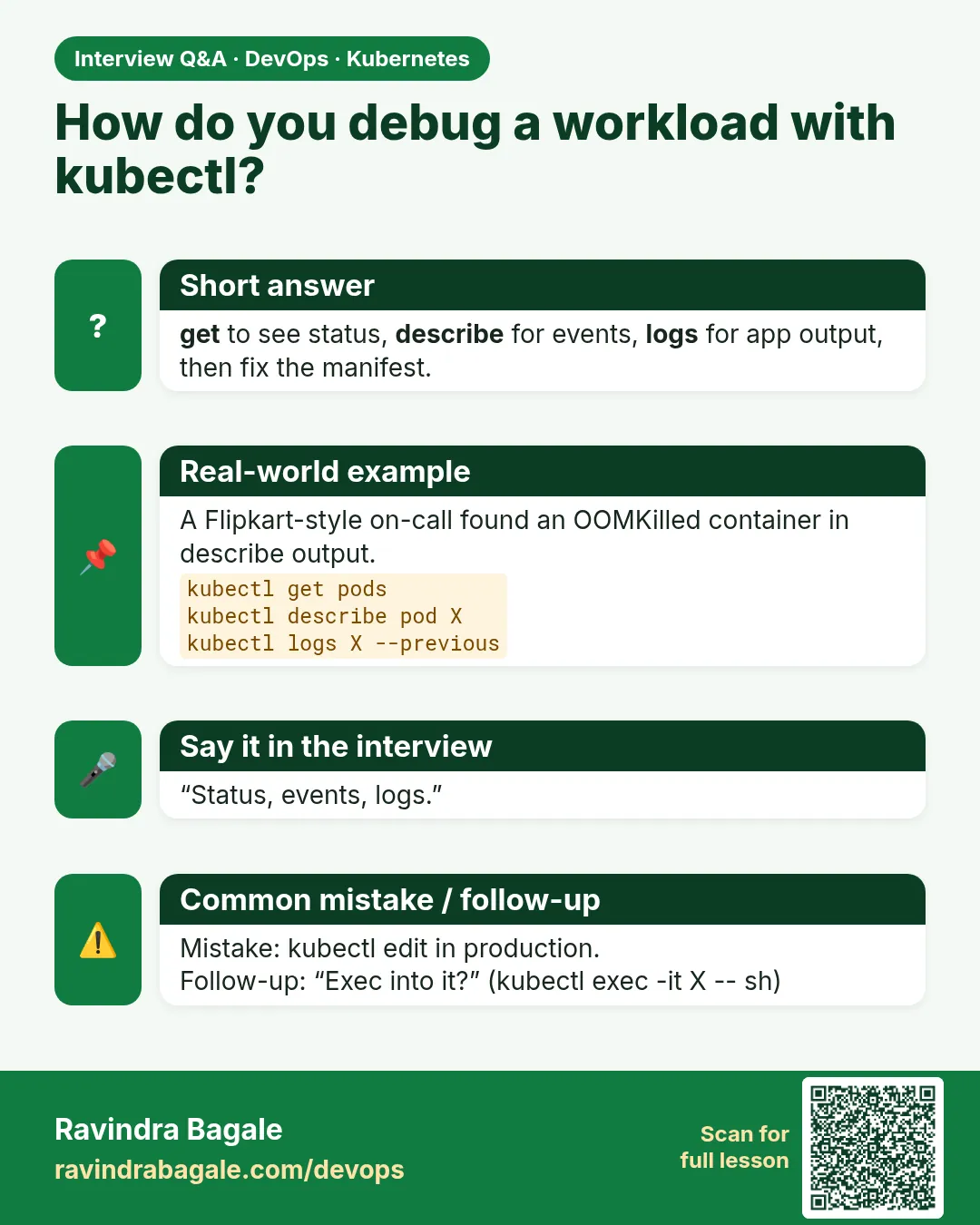
Your Pod shows 1/2 READY. How do you debug it?
get -o wide, describe to find the failing container and Events, logs -c NAME --previous, fix config or dependency, then delete the Pod.
-
Difference between kubectl logs and kubectl describe?
logs shows app output; describe shows object details, state and Events from the cluster.
-
How do you get logs of a crashed container?
kubectl logs POD -c CONTAINER --previous.
-
How do you find all Pods of an app?
With a label selector: kubectl get pods -l app=NAME.
-
When do you use --grace-period=0 --force?
Only for Pods stuck Terminating on a lost node.
Quick quiz
Q1. Which flag shows the node of each Pod?
-o wide.
Q2. Which flag reads logs of the crashed container?
--previous.
Q3. How do you pick a container in a two-container Pod?
-c NAME.
Q4. Where are Events shown?
At the end of kubectl describe, and in kubectl get events.
Q5. Why is deleting a Deployment Pod safe?
The ReplicaSet creates a new one.
Samajla ka?
 Revision card
 Interview card