Chapter 21: Jenkins Pipeline and Jenkinsfile
21.7 Agent tools: Node must exist
Why: the problem
A common first error in Jenkins is npm: not found. The Jenkinsfile is fine. The agent simply has no Node. Jenkins does not install tools by magic. Think of a new Infosys project. The team has three Node versions across apps: 18, 20 and 22. If every agent has only one Node, some builds break. There are three good ways to give a build the right tool. One, install it on the agent and give the agent a label. Two, use the Jenkins tools block, which downloads Node into the agent on first use. Three, run the stage inside a Docker image like node:20, so the tool comes with the image. In this lesson you will try all three, print the version each time, and learn when to pick which.
What we will build
You will install the NodeJS plugin and set up two Node versions in Global Tool Configuration. You will use the tools block. Then you will run a stage inside a node:20 Docker container. Finally you will build on two Node versions and compare.
What: every term in plain English
- Tool installation — A tool Jenkins can download and put on an agent, like Node, Maven or JDK.
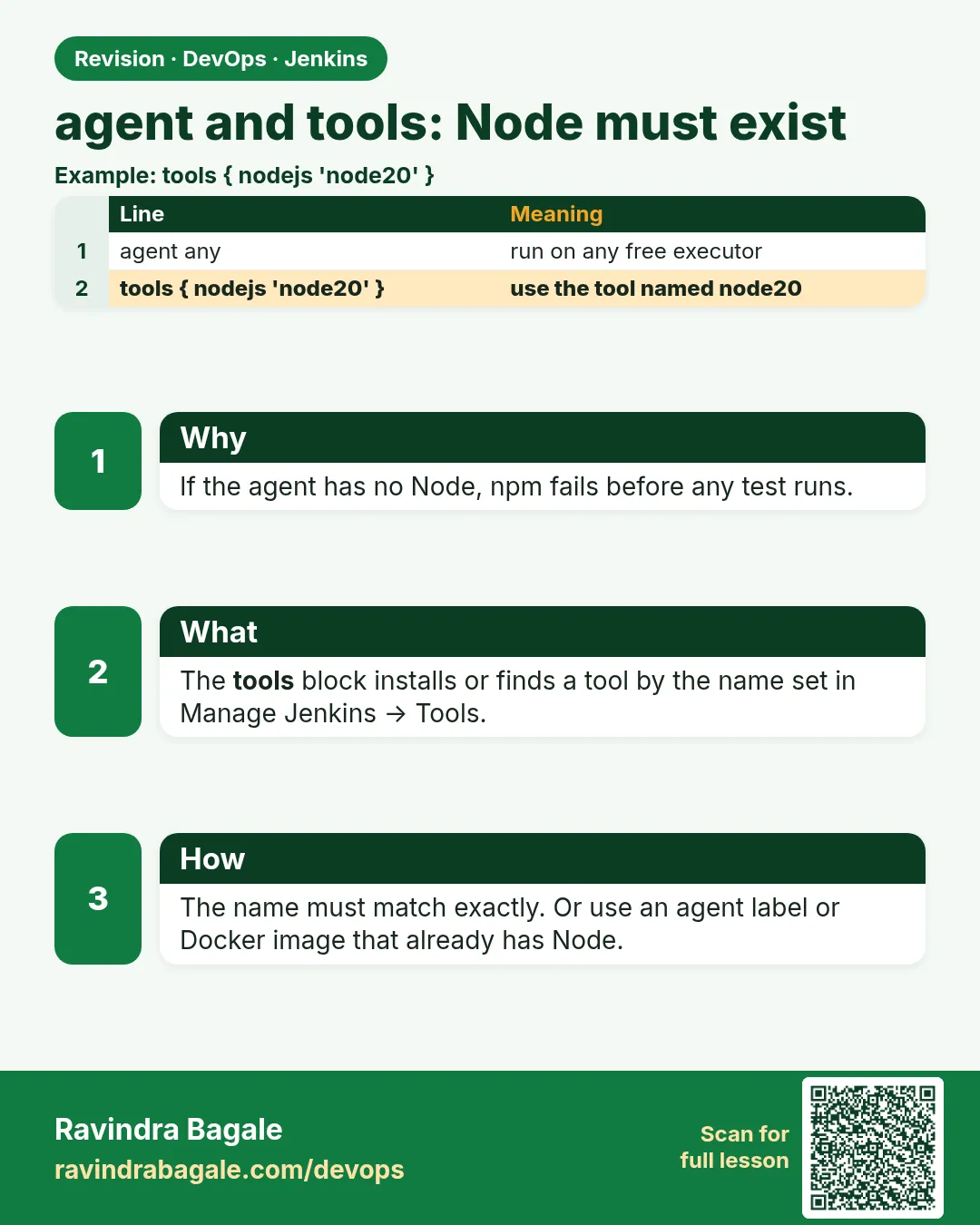
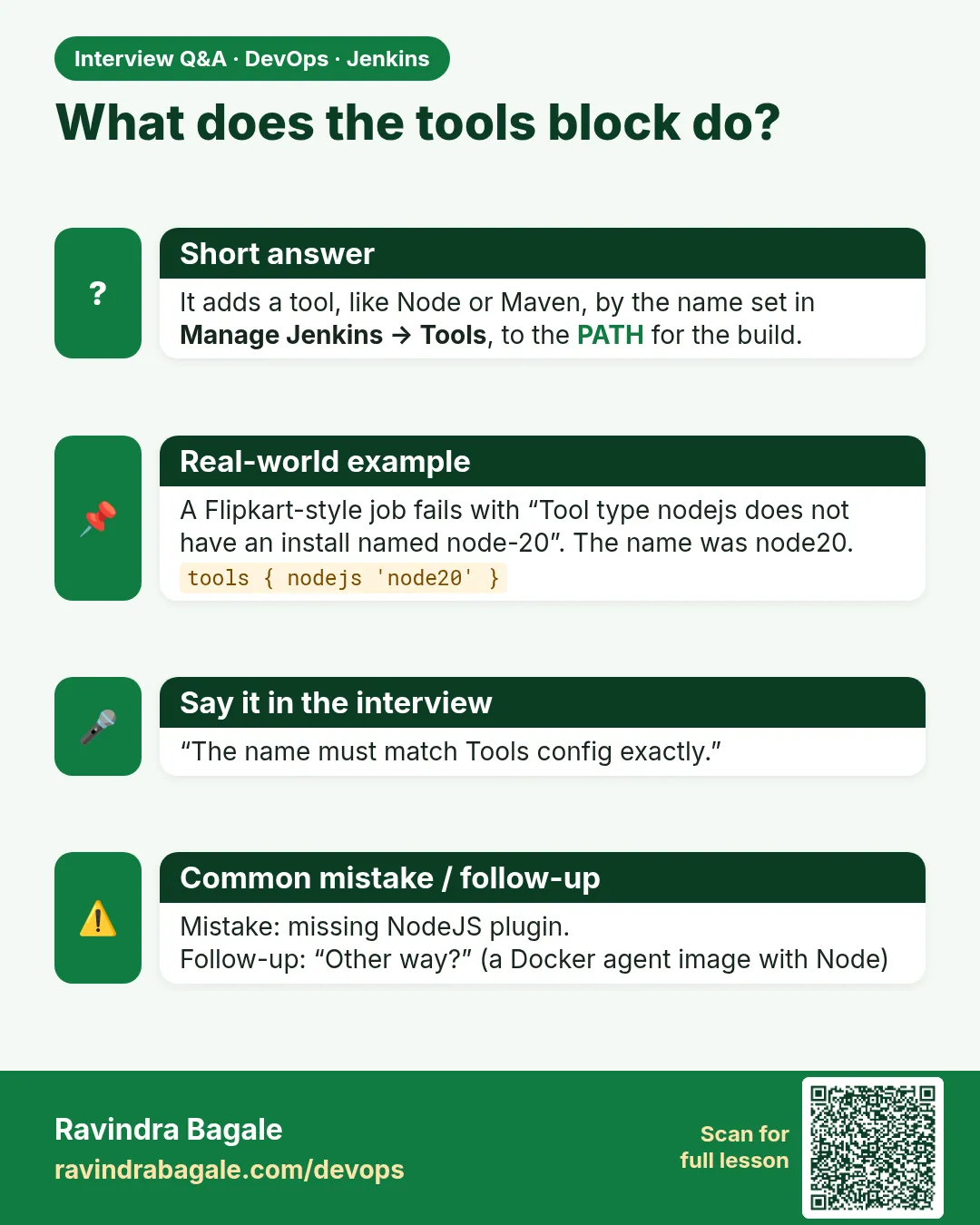
- tools block — Declarative block that adds a configured tool to the PATH.
- NodeJS plugin — Plugin that adds Node.js as a Jenkins tool.
- PATH — The list of folders where the shell looks for commands.
- Docker agent — agent { docker { image ... } }. The stage runs inside a container.
- Docker Pipeline plugin — Plugin that gives the docker agent.
- Label — A tag on an agent that has a tool, like node20.
- nvm — Node Version Manager. Used on agents to install many Node versions.
How: step by step
-
Install the plugin
Manage Jenkins > Plugins > NodeJS, Docker PipelineWhat it does: Adds Node tools and docker agents.
Output
Success -
Add Node 20
Manage Jenkins > Tools > NodeJS installations > Add > Name: node20 > Install automatically > Version 20.15.1What it does: Jenkins downloads Node on first use.
Output
Saved -
Add Node 18
Add > Name: node18 > Version 18.20.4What it does: Second version for old apps.
Output
Saved -
Use tools
tools { nodejs "node20" }What it does: Adds node20 to PATH for the pipeline.
Output
Unpacking ... node-v20.15.1-linux-x64.tar.gz -
Check Docker on the agent
docker version --format "{{.Server.Version}}"What it does: The docker agent needs Docker on the agent machine.
Output
26.1.4 -
Run in a container
agent { docker { image 'node:20-alpine' } }What it does: The stage runs inside node:20.
Output
Pulling node:20-alpine
Example 1: The tools block
Stack. NodeJS plugin
Goal. The tools block.
Jenkinsfile
pipeline {
  agent any
  tools { nodejs 'node20' }
  stages {
    stage('Versions') {
      steps {
        sh 'which node'
        sh 'node --version && npm --version'
      }
    }
    stage('Test') { steps { sh 'npm ci && npm test' } }
  }
}
What each line does
tools { nodejs 'node20' }— Name must match the name in Tools.which node— Shows where Node came from.First run— Downloads Node once, then reuses it.
Green output
Unpacking https://nodejs.org/dist/v20.15.1/node-v20.15.1-linux-x64.tar.gz to /var/jenkins_home/tools/jenkins.plugins.nodejs.tools.NodeJSInstallation/node20
+ which node
/var/jenkins_home/tools/jenkins.plugins.nodejs.tools.NodeJSInstallation/node20/bin/node
+ node --version
v20.15.1
10.7.0
Tests: 2 passed, 2 total
Finished: SUCCESS
Expected result. Node came from the Jenkins tool folder, not the system.
Example 2: Docker agent with node:20
Stack. Docker Pipeline plugin
Goal. Docker agent with node:20.
Jenkinsfile
pipeline {
  agent {
    docker {
      image 'node:20-alpine'
      args '-v npm-cache:/home/node/.npm'
      reuseNode false
    }
  }
  environment { HOME = "${env.WORKSPACE}" }
  stages {
    stage('Versions') { steps { sh 'node --version && cat /etc/os-release | head -2' } }
    stage('Test')     { steps { sh 'npm ci && npm test' } }
  }
}
What each line does
image 'node:20-alpine'— A small official Node image.args '-v npm-cache:...'— Keeps the npm cache in a volume between builds.HOME = WORKSPACE— npm needs a writable home inside the container.cat /etc/os-release— Proves the stage ran in Alpine.
Green output
Pulling node:20-alpine
$ docker run -t -d -u 1000:1000 -v npm-cache:/home/node/.npm -w /var/jenkins_home/workspace/badge-scm ... node:20-alpine cat
+ node --version
v20.15.1
NAME="Alpine Linux"
ID=alpine
Tests: 2 passed, 2 total
$ docker stop --time=1 4c1d...
Finished: SUCCESS
Expected result. The agent needs only Docker. Node comes with the image.
Example 3: Test on Node 18 and 20 in two stages
Stack. Docker agents
Goal. Test on Node 18 and 20 in two stages.
Jenkinsfile
pipeline {
  agent none
  stages {
    stage('Node 18') {
      agent { docker { image 'node:18-alpine' } }
      environment { HOME = "${env.WORKSPACE}" }
      steps { sh 'node --version && npm ci && npm test' }
    }
    stage('Node 20') {
      agent { docker { image 'node:20-alpine' } }
      environment { HOME = "${env.WORKSPACE}" }
      steps { sh 'node --version && npm ci && npm test' }
    }
  }
}
What each line does
agent none— Each stage picks its own agent.Two images— Same tests, two Node versions.Parallel later— Lesson 21.14 runs these at the same time.
Green output
[Pipeline] stage (Node 18)
v18.20.4
Tests: 2 passed, 2 total
[Pipeline] stage (Node 20)
v20.15.1
Tests: 2 passed, 2 total
Finished: SUCCESS
Expected result. The app works on both versions. Safe to upgrade.
Example 4: A label based agent with nvm for many versions
Stack. nvm on a permanent agent
Goal. A label based agent with nvm for many versions.
agent setup (run once on the agent)
# download install.sh from the official nvm project page first
less install.sh
bash install.sh
. ~/.nvm/nvm.sh
nvm install 18 && nvm install 20 && nvm install 22
nvm ls
Jenkinsfile
pipeline {
  agent { label 'node-multi' }
  stages {
    stage('Node 22') {
      steps { sh 'bash -lc ". ~/.nvm/nvm.sh && nvm use 22 && node --version && npm ci && npm test"' }
    }
  }
}
What each line does
less install.sh— Read a script before you run it.nvm install— Installs each Node version in the jenkins user home.label 'node-multi'— Only agents with nvm get this label.bash -lc— Login shell, so nvm loads.
Green output
       v18.20.4
       v20.15.1
->     v22.4.1
...
Now using node v22.4.1 (npm v10.8.1)
v22.4.1
Tests: 2 passed, 2 total
Finished: SUCCESS
Expected result. This works for long lived agents. Docker images are still cleaner for most teams.
Verify: did it work?
-
List tools on the controller
docker exec jenkins ls /var/jenkins_home/tools/jenkins.plugins.nodejs.tools.NodeJSInstallationWhat it does: Shows downloaded Node versions.
Output
node18 node20 -
Check images on the agent
docker images nodeWhat it does: Shows cached Node images.
Output
node 20-alpine 1.2e+08
node 18-alpine 1.3e+08
When it is red 1
sh: 1: npm: not found
Cause. No Node on the agent and no tools or docker block.
Fix, step by step
- Add tools nodejs or a docker agent.
- Or use a node20 labelled agent.
When it is red 2
Tool type nodejs does not have an install of node-20 configured
Cause. Name in tools does not match Tools page.
Fix, step by step
- Copy the exact name.
When it is red 3
docker: not found / Cannot connect to the Docker daemon at unix:///var/run/docker.sock
Cause. The agent has no Docker or the jenkins user cannot use it.
Fix, step by step
- Install Docker on the agent.
- Add jenkins to the docker group and restart the agent.
When it is red 4
npm ERR! code EACCES ... mkdir '/.npm'
Cause. npm has no writable home in the container.
Fix, step by step
- Set HOME to WORKSPACE.
Cleanup
-
Remove old images
docker image prune -fWhat it does: Frees disk on the agent.
Output
Total reclaimed space: 412MB -
Remove npm cache volume
docker volume rm npm-cacheWhat it does: Clears the lab cache.
Output
npm-cache
Ravindra Bagale's Tip
npm not found mhanje agent var Node nahi. tools kiva docker image vapra. Version print kara. Lakshat theva!
Practice tasks
Easy Print versions
Why: Always know your tool.
What to do: Add node --version first.
- Every stage.
Check: Version in log.
Medium Use the tools block
Why: Simple for one controller.
What to do: Set up node20.
- Tools page.
Check: Download line in log.
Hard Docker matrix
Why: Real upgrade checks.
What to do: Run Node 18 and 20.
- agent none.
Check: Both green.
Easy Say giving the agent its tools in two lines
Why: If you can say it simply, you understand it. Juniors and interviewers want the short version first.
What to do: Write two short lines about giving the agent its tools for a fresher who knows only Linux basics.
- Write what problem it solves.
- Write the one command or menu you use for it.
- Read it aloud to a friend.
Check: A fresher understands it without asking a question.
Easy Start a fresh lab Jenkins
Why: Practice needs a throwaway Jenkins. If you break it, you delete it and start again.
What to do: Run Jenkins LTS in Docker with a named volume.
- docker volume create jenkins_home
- docker run -d --name jenkins -p 8080:8080 -v jenkins_home:/var/jenkins_home jenkins/jenkins:lts-jdk17
- docker exec jenkins cat /var/jenkins_home/secrets/initialAdminPassword
Check: The Jenkins unlock page opens on localhost:8080.
Medium Break it on purpose
Why: You must know the red message by face. During an outage there is no time to read slowly.
What to do: Cause one error from the "When it is red" part of this lesson and fix it.
- Follow the error section.
- Copy the exact message into your notes.
- Write the fix in one line.
Check: You fixed it using only the steps, without searching the web.
Medium Write a one-page runbook
Why: At 2 a.m. nobody remembers where a file lives. A short page saves the on-call person.
What to do: Write a runbook page for this lesson.
- Title, when to use, exact command, how to check, how to undo.
Check: A teammate can follow it alone.
Medium Repeat it on a cloud VM
Why: A laptop is not a server. Real Jenkins runs on EC2 or a company VM.
What to do: Do the main steps of this lesson again on a small Ubuntu 22.04 EC2 instance.
- Launch t3.small with 20 GB disk.
- Open port 22 only to your IP.
- Repeat the steps and compare the output.
Check: Same green output on the VM as on your laptop.
Hard Explain it like an interview
Why: Interviewers want real stories, not definitions.
What to do: Record a 60 second answer about this lesson.
- Say the problem, the command you ran, and one error you hit.
Check: Your answer has a real command and a real error message.
Hard Draw the flow top to bottom
Why: A drawing shows who talks to whom and in what order.
What to do: Draw this lesson as boxes from top to bottom.
- Start at the developer push, go through the controller and agent, end at the result.
Check: Each box matches a real thing you saw on screen.
Homework: try at home
Try at home
At home, run the badge build three ways: tools block, docker agent, and Node 18 and 20 stages. Note the time each one takes.
Recap
- Jenkins does not bring tools by itself.
- Use labels, tools or Docker images.
- Tool names must match exactly.
- Docker agents keep agents clean.
- Print versions in every build.
FAQ
Which way do companies use?
Mostly Docker or Kubernetes pod agents, so each build has its own tools.
Is the tools block bad?
No, it is fine for small setups.
Can I pin an exact image?
Yes, use a digest like node:20-alpine@sha256:... for repeatable builds.
Does the docker agent work on Windows agents?
Only with Linux containers support. Use Linux agents for Docker builds.
Where is the npm cache?
In HOME/.npm. Use a volume to keep it.
Interview questions
-
Build says npm not found. What do you do?
Give the build Node via a labelled agent, tools block, or docker agent, and print the version.
-
tools block vs docker agent?
tools downloads into the agent; docker runs the stage in an image with the tool. Docker is cleaner and repeatable.
-
How do you test on two versions?
Separate stages or a matrix with different images.
-
Why can a docker agent fail with permission denied on docker.sock?
The jenkins user is not in the docker group.
-
How do you make builds repeatable?
Pin tool versions and image digests.
Quick quiz
Q1. Why does npm: not found happen?
The agent has no Node.
Q2. Which block adds a configured tool?
tools.
Q3. What does a docker agent need on the machine?
Docker.
Q4. Why set HOME in a node container?
npm needs a writable home.
Q5. How do you test two Node versions?
Two stages with different images.
Samajla ka?
 Revision card
 Interview card