Chapter 2: Git, GitHub and Git Bash
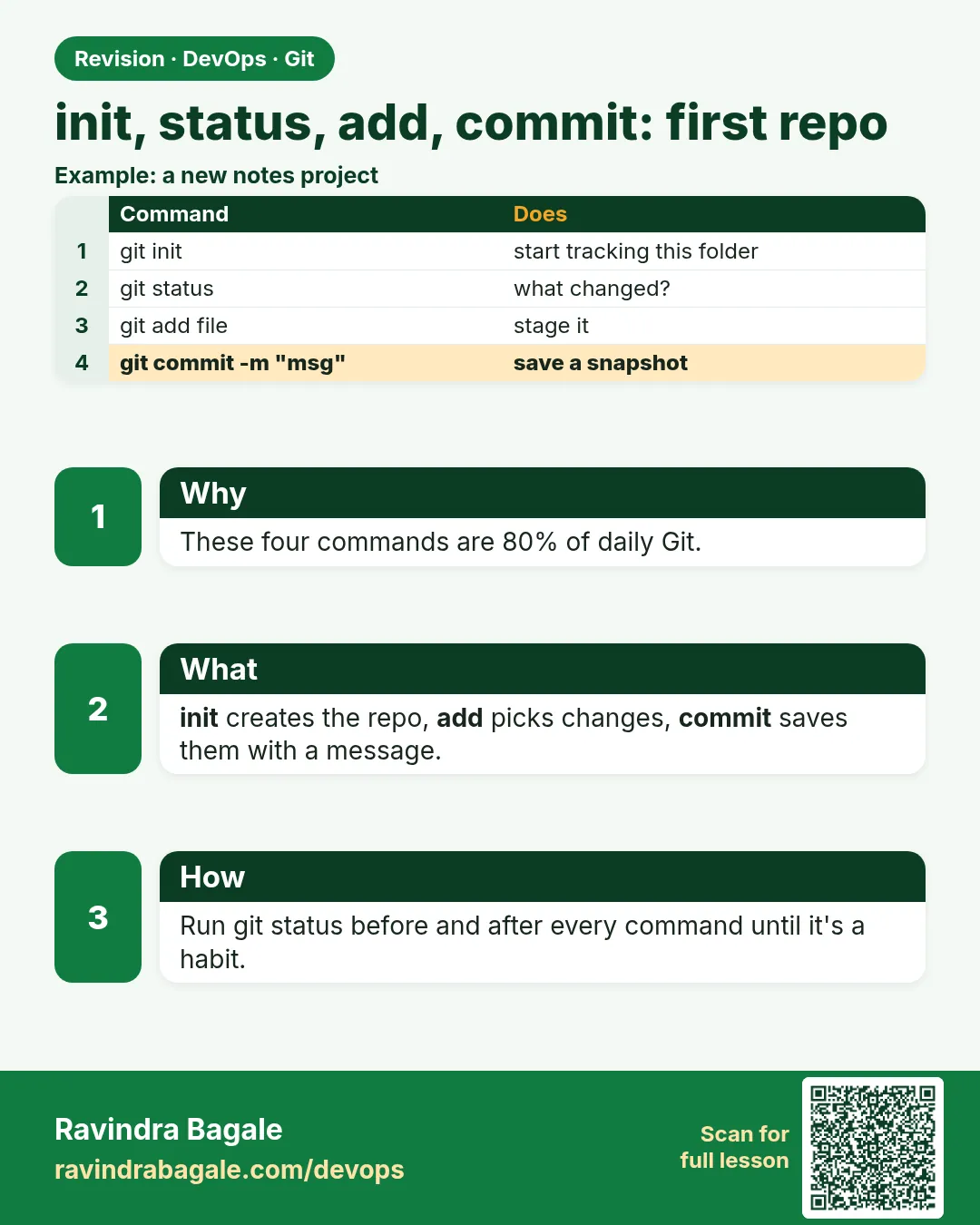
2.5 init, status, add, commit — first repo
Why: the problem
Every Git day starts with four commands: init, status, add and commit. A Flipkart developer may type git status fifty times a day. Why so often? Because status tells you the truth: which files changed, which are new, and what will go into the next commit. Freshers often skip it, then commit a password file or forget a new file. In this lesson you will start a real repo for hello-shop, the small Python app from chapter 1. You will run status after every step and read its output line by line. You will make three small, clean commits: the app, a README, and a health check. By the end, init, status, add and commit will be muscle memory, and you will know exactly what each one changes.
What we will build
You will create the hello-shop repo from zero, add app.py, README.md and a health route, and make three commits. After each command you will run git status and read what it says.
What: every term in plain English
- git init — Turns the current folder into a repo by creating .git.
- git status — Shows changed, new and staged files and your branch.
- git add FILE — Copies the current change of a file into the staging area.
- git add . — Stages every change in this folder and below.
- git commit -m — Saves the staged changes as a commit with a message.
- Untracked — A new file Git has never saved.
- Modified — A tracked file that changed since the last commit.
- Clean — Nothing to commit. Working tree equals the last commit.
How: step by step
-
Make the folder
mkdir -p ~/devops-lab/hello-shop && cd ~/devops-lab/hello-shopWhat it does: The project folder.
Output
(no output) -
Start the repo
git init -b mainWhat it does: Creates .git.
Output
Initialized empty Git repository in /home/ravi/devops-lab/hello-shop/.git/ -
Write the app
nano app.pyWhat it does: Paste app.py from Example 1.
Output
(file saved) -
Read status
git statusWhat it does: app.py is untracked.
Output
On branch main No commits yet Untracked files: (use "git add FILE..." to include in what will be committed) app.py -
Stage it
git add app.py && git status --shortWhat it does: A means added to staging.
Output
A app.py -
Commit
git commit -m "Add hello-shop app"What it does: First commit is the root commit.
Output
[main (root-commit) 2b7c9d1] Add hello-shop app 1 file changed, 14 insertions(+) -
Status again
git statusWhat it does: Clean.
Output
On branch main
nothing to commit, working tree clean
Example 1: Commit 1: the hello-shop app
Stack. Python 3, Git
Goal. Commit 1: the hello-shop app.
app.py
from http.server import BaseHTTPRequestHandler, HTTPServer

VERSION = "v1"

class Handler(BaseHTTPRequestHandler):
    def do_GET(self):
        body = f"hello-shop {VERSION}: cart is working\n".encode()
        self.send_response(200)
        self.end_headers()
        self.wfile.write(body)

if __name__ == "__main__":
    print(f"hello-shop {VERSION} listening on :8000")
    HTTPServer(("", 8000), Handler).serve_forever()
commands
git add app.py
git commit -m "Add hello-shop app"
python3 app.py &
curl -s localhost:8000
kill %1
What each line does
VERSION = "v1"— One place to change the version.do_GET— Answers every GET request.send_response(200)— HTTP OK.HTTPServer(("", 8000), ...)— Listen on port 8000.git add app.py— Stage only this file.git commit -m— Save it with a clear message.
Green output
[main (root-commit) 2b7c9d1] Add hello-shop app
 1 file changed, 14 insertions(+)
hello-shop v1: cart is working
Expected result. The app runs and is saved as the first commit.
Example 2: Commit 2: add a README and read every status line
Stack. Git
Goal. Commit 2: add a README and read every status line.
README.md
# hello-shop
A tiny Python web app for the DevOps course.

Run: python3 app.py
Test: curl localhost:8000
commands
git status --short
git add README.md
git status --short
git commit -m "Add README with run steps"
git log --oneline
What each line does
?? README.md— New, not tracked yet.A README.md— Staged for the next commit.git log --oneline— Two commits now.
Green output
?? README.md
A  README.md
[main 5e6f7a8] Add README with run steps
 1 file changed, 5 insertions(+)
5e6f7a8 Add README with run steps
2b7c9d1 Add hello-shop app
Expected result. Small, focused commits make the story easy to read.
Example 3: Commit 3: change a tracked file and see M
Stack. Python 3, Git
Goal. Commit 3: change a tracked file and see M.
app.py change
def do_GET(self):
    if self.path == "/health":
        self.send_response(200); self.end_headers()
        self.wfile.write(b"ok\n"); return
    body = f"hello-shop {VERSION}: cart is working\n".encode()
commands
git status --short
git diff --stat
git add app.py
git commit -m "Add /health route for checks"
git status
What each line does
M app.py— Modified in the working tree, not staged.git diff --stat— How many lines changed per file.M app.py— After add: staged.nothing to commit— Clean again.
Green output
 M app.py
 app.py | 3 +++
 1 file changed, 3 insertions(+)
[main 9c0d1e2] Add /health route for checks
On branch main
nothing to commit, working tree clean
Expected result. Three clean commits. You can explain each one in one line.
Example 4: Commit only some files when many changed
Stack. Git
Goal. Commit only some files when many changed.
commands
echo "TODO: payments" > notes.txt
echo "# debug" >> app.py
git status --short
git add notes.txt
git commit -m "Add notes"
git status --short
git restore app.py
What each line does
Two changes— A note and a debug line.git add notes.txt— Stage only the note.git commit— The debug line is not in this commit.git restore app.py— Throw away the debug line.
Green output
 M app.py
?? notes.txt
[main 1a2b3c4] Add notes
 M app.py
Expected result. You choose what goes in each commit. That is why staging exists.
Verify: did it work?
-
Count commits
git rev-list --count HEADWhat it does: Should be 4.
Output
4 -
Clean tree
git status --shortWhat it does: Empty.
Output
(no output) -
App works
python3 app.py & sleep 1; curl -s localhost:8000/health; kill %1What it does: Health says ok.
Output
ok
When it is red 1
nothing added to commit but untracked files present (use "git add" to track)
Cause. You ran commit before add.
Fix, step by step
- git add FILE
- git commit -m "message"
When it is red 2
fatal: pathspec 'app.pyy' did not match any files
Cause. Typo in the file name.
Fix, step by step
- ls
- git add with the right name.
When it is red 3
Aborting commit due to empty commit message.
Cause. The editor opened and you saved no message.
Fix, step by step
- Use git commit -m "message".
Cleanup
-
Stop the app
pkill -f "python3 app.py" || trueWhat it does: Stops any test server.
Output
(no output)
Ravindra Bagale's Tip
git status la vichara, to kadhi khota bolat nahi. Pratyek command nantar status bagha.
Practice tasks
Easy Run status ten times
Why: Status is your best friend.
What to do: Do Examples 1-3 and run status after each command.
- git status --short
Check: You can read every status line.
Medium Split one change
Why: Small commits are easy to review.
What to do: Change two files and commit them separately.
- git add file1
- git commit
- git add file2
- git commit
Check: git log shows two commits.
Hard Write good messages
Why: Reviewers read messages first.
What to do: Rewrite your three messages in the imperative style.
- Add, Fix, Change, Remove
Check: Each message starts with a verb.
Easy Say init, status, add and commit in two lines
Why: If you can say it simply, you understand it. Interviewers want the short version first.
What to do: Write two short lines about init, status, add and commit for a fresher who knows only basic Linux.
- Write the problem it solves.
- Write one real command or file that shows it.
- Read it aloud to a friend.
Check: A fresher understands it without asking a question.
Easy Make a safe lab folder
Why: Practice needs a place you can throw away. Then mistakes cost nothing.
What to do: Create a lab folder for this chapter and work only inside it.
- mkdir -p ~/devops-lab && cd ~/devops-lab
- Run every command of this lesson from here.
- Check with pwd before you delete anything.
Check: All lab files live in ~/devops-lab.
Medium Repeat it in a container
Why: Your laptop is not the server. A clean Ubuntu container shows what a fresh server needs.
What to do: Run the main steps of this lesson again inside an Ubuntu container.
- docker run --rm -it -v "$PWD":/lab -w /lab ubuntu:24.04 bash
- apt update and install what is missing.
- Note every missing tool.
Check: Same result inside the container, or a list of what you had to install.
Medium Break it on purpose
Why: You must know the red message by face. In an outage there is no time to read slowly.
What to do: Cause one error from the "When it is red" part of this lesson and fix it.
- Follow the error section.
- Copy the exact message into your notes.
- Write the fix in one line.
Check: You fixed it using only the steps, without searching the web.
Medium Write a one-page runbook
Why: At 2 a.m. nobody remembers the right command. A short page saves the on-call person.
What to do: Write a runbook page for this lesson.
- Title, when to use, exact command, how to check, how to undo.
Check: A teammate can follow it alone.
Hard Explain it like an interview
Why: Interviewers want real stories, not definitions.
What to do: Record a 60 second answer about this lesson.
- Say the problem, the command or file you used, and one error you hit.
Check: Your answer has a real command and a real error message.
Hard Draw the flow top to bottom
Why: A drawing shows who does what and in which order.
What to do: Draw this lesson as boxes from top to bottom.
- Start at the developer laptop, end at the user on the website.
Check: Each box matches a real thing you ran.
Homework: try at home
Try at home
Make your own repo for a small script. Make three commits: create, document, improve. Run git status after every command and write what each line means.
Recap
- git init starts a repo.
- git status tells the truth; run it often.
- git add picks changes for the next commit.
- git commit saves them with a message.
- Keep commits small and focused.
FAQ
Should I use git add . always?
It is fine after git status shows only what you want. Otherwise add files by name.
Can I commit empty folders?
No. Git tracks files. Add a small .gitkeep file.
What is the root commit?
The very first commit, with no parent.
Is commit the same as save?
It is a save point in history. Editor save only changes the file.
How often should I commit?
Whenever one small piece works. Many times a day.
Interview questions
-
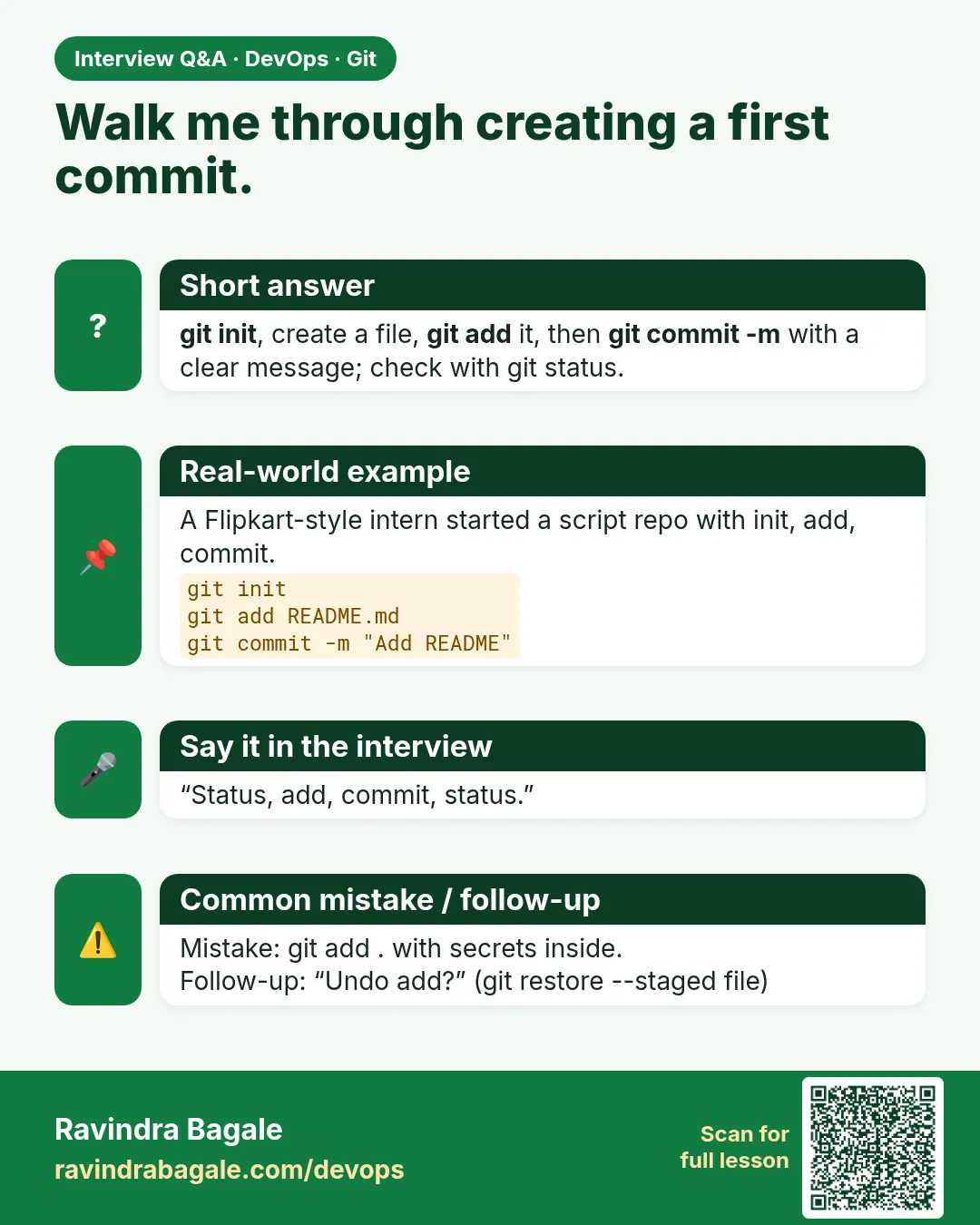
Walk me through creating a repo and first commit.
git init, create files, git status, git add, git commit -m, then git log to confirm.
-
What is the difference between git add and git commit?
add moves changes to the staging area; commit records the staged snapshot in history.
-
How do you see unstaged and staged diffs?
git diff for unstaged, git diff --staged for staged.
-
Why small commits?
Easy review, easy revert, clear history and easier bisect.
-
What does working tree clean mean?
No changes since the last commit.
Quick quiz
Q1. What does git init create?
The hidden .git folder.
Q2. What does ?? mean?
Untracked file.
Q3. What does M in the first column mean?
Staged modification.
Q4. What does M in the second column mean?
Modified but not staged.
Q5. Which command shows what will be committed?
git status (or git diff --staged).
Samajla ka?
 Revision card
 Interview card