Chapter 2: Git, GitHub and Git Bash
2.12 HTTPS vs SSH, and git remote -v
Why: the problem
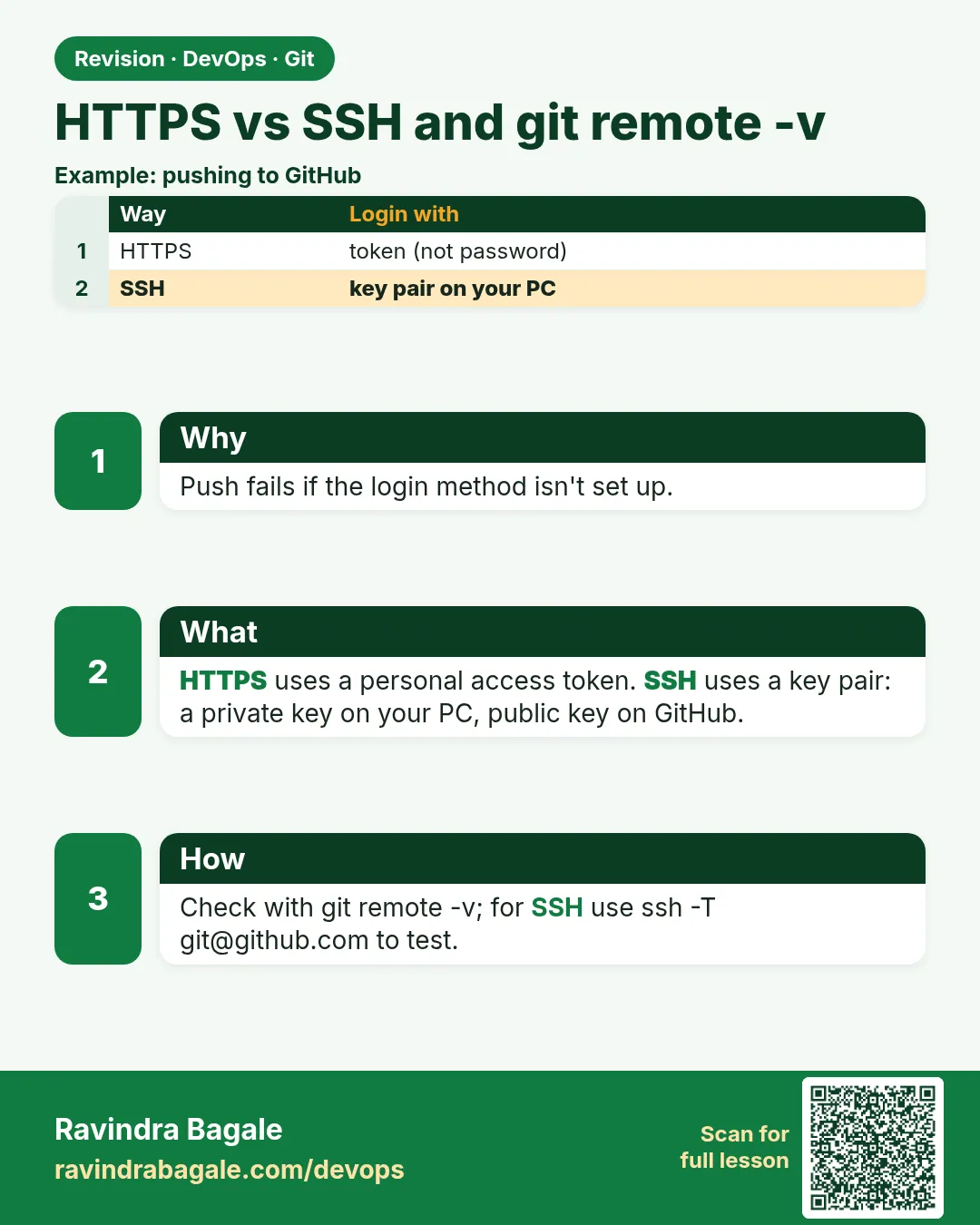
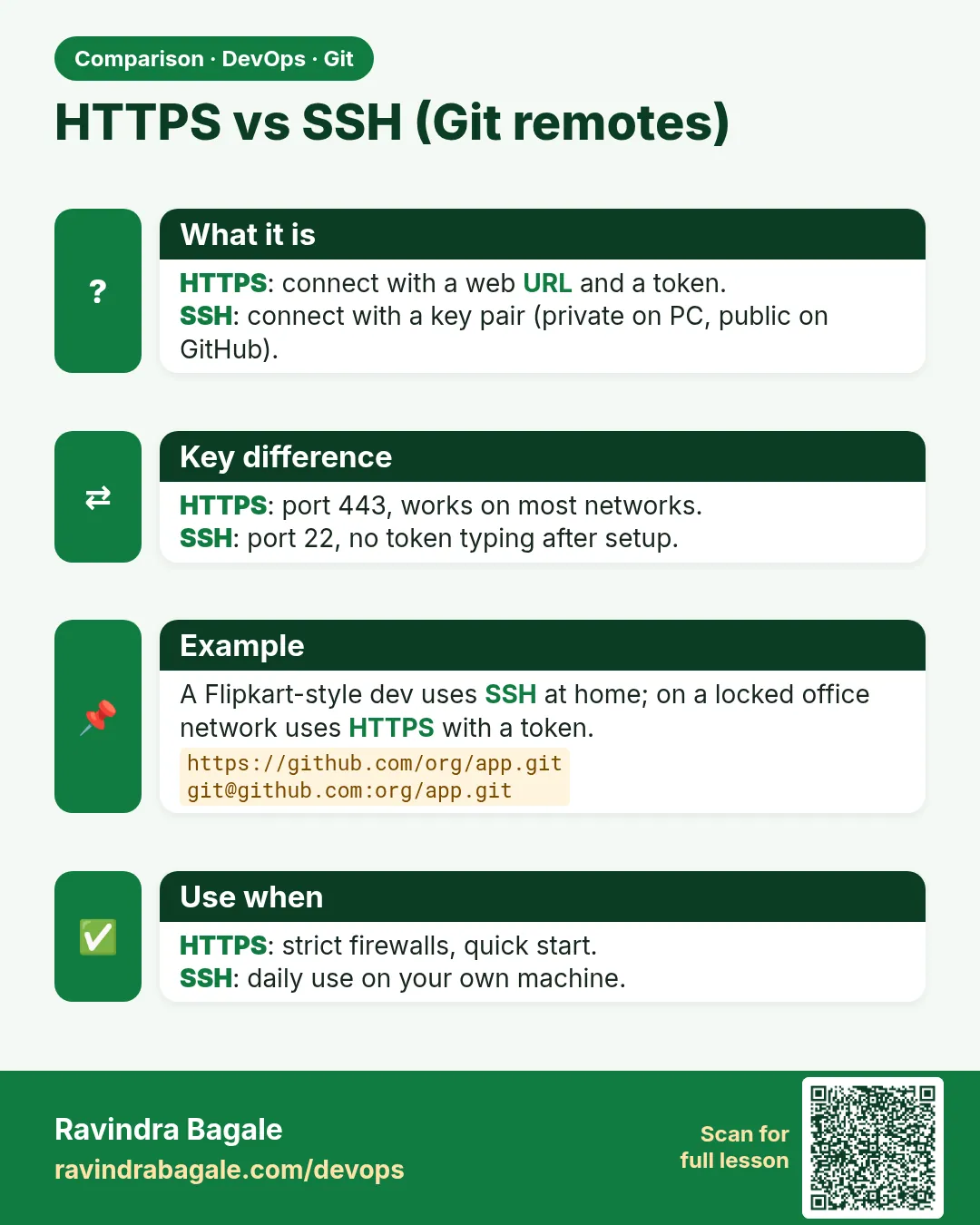
When you push to gitlab.com or to the company server git.example.com, the server must know it is really you. There are two ways: HTTPS and SSH. HTTPS uses a URL like https://gitlab.com/group/repo.git and a username plus a personal access token. Sites stopped accepting normal account passwords for Git years ago, so many freshers get "Authentication failed" on day one. SSH uses a URL like git@gitlab.com:group/repo.git and a key pair on your laptop: a private key that never leaves the laptop, and a public key you paste into your profile. After setup, SSH asks for nothing. Jenkins and GitLab runners also use one of these two ways, so DevOps engineers must know both. In this lesson you will push over HTTPS with a token, create an SSH key with ssh-keygen, add it to gitlab.com, test the connection, switch the remote with git remote set-url, and fix the common errors.
What we will build
You will take hello-shop, push it over HTTPS with a token and a credential helper, then create an ed25519 SSH key, add it to your gitlab.com profile, switch the remote to SSH, and set up a second key for the company server git.example.com.
What: every term in plain English
- HTTPS remote — https://gitlab.com/group/repo.git. Uses username and token.
- Personal access token (PAT) — A long password made only for tools, with limited rights and an expiry date.
- Credential helper — A tool that saves your token so Git does not ask every time.
- SSH remote — git@gitlab.com:group/repo.git. Uses a key pair.
- ssh-keygen — Creates a new SSH key pair.
- Private key — ~/.ssh/id_ed25519. Never share it, never commit it.
- Public key — ~/.ssh/id_ed25519.pub. Safe to paste into your profile.
- git remote -v — Shows which URL and protocol each remote uses.
How: step by step
-
Check the current remote
cd ~/devops-lab/hello-shop && git remote -vWhat it does: See if it is HTTPS or SSH.
Output
origin https://gitlab.com/ravi-learner/hello-shop.git (fetch) origin https://gitlab.com/ravi-learner/hello-shop.git (push) -
Create a token
gitlab.com: Avatar, Edit profile, Access tokens, Add new token, scopes read_repository and write_repository, expiry 30 daysWhat it does: The token is shown once. Store it in a password manager.
Output
Your new personal access token has been created. -
Save tokens safely
git config --global credential.helper store (Windows: manager)What it does: Git saves it after the first push. On shared machines use cache instead.
Output
(no output) -
Push over HTTPS
git push -u origin mainWhat it does: Username is your login; password is the token.
Output
Username for 'https://gitlab.com': ravi-learner Password for 'https://ravi-learner@gitlab.com': To https://gitlab.com/ravi-learner/hello-shop.git e1f2a3b..f6a7b8c main -> main -
Make an SSH key
ssh-keygen -t ed25519 -C "ravi@example.com"What it does: Press Enter for the default path. Add a passphrase.
Output
Your identification has been saved in /home/ravi/.ssh/id_ed25519 Your public key has been saved in /home/ravi/.ssh/id_ed25519.pub -
Copy the public key
cat ~/.ssh/id_ed25519.pubWhat it does: Paste this line in gitlab.com: Edit profile, SSH Keys, Add new key.
Output
ssh-ed25519 AAAAC3NzaC1lZDI1NTE5AAAAIExampleOnlyKeyDoNotUse ravi@example.com -
Test and switch
ssh -T git@gitlab.com && git remote set-url origin git@gitlab.com:ravi-learner/hello-shop.git && git remote -vWhat it does: Greeting means the key works.
Output
Welcome to GitLab, @ravi-learner!
origin  git@gitlab.com:ravi-learner/hello-shop.git (fetch)
origin  git@gitlab.com:ravi-learner/hello-shop.git (push)
Example 1: Push over SSH after switching the remote
Stack. OpenSSH, Git, gitlab.com
Goal. Push over SSH after switching the remote.
ssh-push.sh
cd ~/devops-lab/hello-shop
ls -l ~/.ssh/id_ed25519 ~/.ssh/id_ed25519.pub
eval "$(ssh-agent -s)"
ssh-add ~/.ssh/id_ed25519
ssh -T git@gitlab.com
echo "ssh works" >> README.md
git commit -qam "Note SSH setup in README"
git push
What each line does
ls -l ...— Private key must be -rw------- (600). Public key can be 644.ssh-agent— A helper that keeps your unlocked key in memory.ssh-add— Unlock the key once with your passphrase.ssh -T git@gitlab.com— Test login. No shell is opened.git push— No username or token asked.
Green output
-rw------- 1 ravi ravi 411 Oct 25 12:01 /home/ravi/.ssh/id_ed25519
-rw-r--r-- 1 ravi ravi  98 Oct 25 12:01 /home/ravi/.ssh/id_ed25519.pub
Agent pid 6120
Identity added: /home/ravi/.ssh/id_ed25519 (ravi@example.com)
Welcome to GitLab, @ravi-learner!
To gitlab.com:ravi-learner/hello-shop.git
   f6a7b8c..0b1c2d3  main -> main
Expected result. You push with your key. Nothing secret is typed or stored in the repo.
Example 2: Use two keys: one for gitlab
Stack. OpenSSH, Git, self-hosted GitLab
Goal. Use two keys: one for gitlab.com and one for the company server.
~/.ssh/config
Host gitlab.com
    HostName gitlab.com
    User git
    IdentityFile ~/.ssh/id_ed25519
    IdentitiesOnly yes

Host git.example.com
    HostName git.example.com
    User git
    IdentityFile ~/.ssh/id_ed25519_work
    IdentitiesOnly yes
commands
ssh-keygen -t ed25519 -C "ravi@company.example.com" -f ~/.ssh/id_ed25519_work
chmod 600 ~/.ssh/config
ssh -T git@git.example.com
git clone git@git.example.com:shop/payments.git
What each line does
Host gitlab.com— Rules for this server name.IdentityFile— Which private key to use.IdentitiesOnly yes— Do not try other keys first.-f ~/.ssh/id_ed25519_work— Save the work key with a new name.chmod 600 ~/.ssh/config— Only you can read and write it.
Green output
Generating public/private ed25519 key pair.
Your identification has been saved in /home/ravi/.ssh/id_ed25519_work
Welcome to GitLab, @ravi.bagale!
Cloning into 'payments'...
Expected result. Home and work keys never mix. Each server gets its own key.
Example 3: Give Jenkins read access with a deploy key
Stack. OpenSSH, Jenkins, gitlab.com
Goal. Give Jenkins read access with a deploy key.
deploy-key.sh
ssh-keygen -t ed25519 -N "" -C "jenkins-hello-shop" -f ./jenkins_deploy
cat jenkins_deploy.pub
# gitlab.com: Project, Settings, Repository, Deploy keys, paste, do not tick write
# Jenkins: Manage Jenkins, Credentials, SSH Username with private key, user git, paste jenkins_deploy
GIT_SSH_COMMAND="ssh -i ./jenkins_deploy -o IdentitiesOnly=yes" git ls-remote git@gitlab.com:ravi-learner/hello-shop.git
shred -u jenkins_deploy
What each line does
-N ""— No passphrase, because a robot uses it.Deploy key— A key for one project only, read-only.Jenkins credential— Jenkins stores the private key encrypted.GIT_SSH_COMMAND— Test this one key without changing your config.shred -u— Delete the local private copy after storing it in Jenkins.
Green output
ssh-ed25519 AAAAC3NzaC1lZDI1NTE5AAAAIExampleDeployKey jenkins-hello-shop
0b1c2d3e4f5a6b7c8d9e0f1a2b3c4d5e6f7a8b9c    HEAD
0b1c2d3e4f5a6b7c8d9e0f1a2b3c4d5e6f7a8b9c    refs/heads/main
Expected result. Jenkins can clone this one repo and nothing else. If the key leaks, you remove only it.
Verify: did it work?
-
Which protocol?
git remote -vWhat it does: git@ means SSH; https:// means HTTPS.
Output
origin git@gitlab.com:ravi-learner/hello-shop.git (push) -
Key works
ssh -T git@gitlab.comWhat it does: Greeting line.
Output
Welcome to GitLab, @ravi-learner! -
Key permissions
stat -c "%a %n" ~/.ssh/id_ed25519What it does: Must be 600.
Output
600 /home/ravi/.ssh/id_ed25519
When it is red 1
git@gitlab.com: Permission denied (publickey).
fatal: Could not read from remote repository.
Cause. The server does not have your public key, or SSH uses a different key.
Fix, step by step
- cat ~/.ssh/id_ed25519.pub and add it in your profile.
- ssh -vT git@gitlab.com to see which key is tried.
- Add an IdentityFile line in ~/.ssh/config.
When it is red 2
remote: HTTP Basic: Access denied. If a password was provided for Git authentication, the password was incorrect or you're required to use a token instead of a password.
Cause. You typed your account password for HTTPS.
Fix, step by step
- Create a personal access token.
- Remove the old saved password: git credential reject, or edit ~/.git-credentials.
- Push again with the token.
When it is red 3
WARNING: UNPROTECTED PRIVATE KEY FILE!
Permissions 0644 for '/home/ravi/.ssh/id_ed25519' are too open.
Cause. Others can read your private key, so SSH refuses it.
Fix, step by step
- chmod 600 ~/.ssh/id_ed25519
- chmod 700 ~/.ssh
- Try again.
Cleanup
-
Remove the test deploy key
rm -f jenkins_deploy.pubWhat it does: The private part was already shredded.
Output
(no output) -
Revoke old tokens
gitlab.com: Edit profile, Access tokens, RevokeWhat it does: Tokens you do not use are a risk.
Output
Token revoked
Ravindra Bagale's Tip
Private key mhanje gharachi chaavi. Fakt .pub dusryaana dya. Aani chmod 600 visru naka!
Practice tasks
Easy Read your remotes
Why: Know your protocol.
What to do: Run git remote -v in three repos.
- Look for https:// or git@
Check: You can name the protocol of each.
Medium Switch to SSH
Why: Daily work is faster with SSH.
What to do: Create a key, add it, set-url and push.
- ssh-keygen
- ssh -T
- git remote set-url
Check: Push works with no prompt.
Hard Two keys
Why: Work and home must not mix.
What to do: Add a second key for git.example.com in ~/.ssh/config.
- IdentityFile per Host
Check: ssh -T works for both hosts.
Easy Say HTTPS vs SSH for Git in two lines
Why: If you can say it simply, you understand it. Interviewers want the short version first.
What to do: Write two short lines about HTTPS vs SSH for Git for a fresher who knows only basic Linux.
- Write the problem it solves.
- Write one real command or file that shows it.
- Read it aloud to a friend.
Check: A fresher understands it without asking a question.
Easy Make a safe lab folder
Why: Practice needs a place you can throw away. Then mistakes cost nothing.
What to do: Create a lab folder for this chapter and work only inside it.
- mkdir -p ~/devops-lab && cd ~/devops-lab
- Run every command of this lesson from here.
- Check with pwd before you delete anything.
Check: All lab files live in ~/devops-lab.
Medium Repeat it in a container
Why: Your laptop is not the server. A clean Ubuntu container shows what a fresh server needs.
What to do: Run the main steps of this lesson again inside an Ubuntu container.
- docker run --rm -it -v "$PWD":/lab -w /lab ubuntu:24.04 bash
- apt update and install what is missing.
- Note every missing tool.
Check: Same result inside the container, or a list of what you had to install.
Medium Break it on purpose
Why: You must know the red message by face. In an outage there is no time to read slowly.
What to do: Cause one error from the "When it is red" part of this lesson and fix it.
- Follow the error section.
- Copy the exact message into your notes.
- Write the fix in one line.
Check: You fixed it using only the steps, without searching the web.
Medium Write a one-page runbook
Why: At 2 a.m. nobody remembers the right command. A short page saves the on-call person.
What to do: Write a runbook page for this lesson.
- Title, when to use, exact command, how to check, how to undo.
Check: A teammate can follow it alone.
Hard Explain it like an interview
Why: Interviewers want real stories, not definitions.
What to do: Record a 60 second answer about this lesson.
- Say the problem, the command or file you used, and one error you hit.
Check: Your answer has a real command and a real error message.
Hard Draw the flow top to bottom
Why: A drawing shows who does what and in which order.
What to do: Draw this lesson as boxes from top to bottom.
- Start at the developer laptop, end at the user on the website.
Check: Each box matches a real thing you ran.
Homework: try at home
Try at home
Set up both HTTPS with a token and SSH with a key for one gitlab.com repo. Push once with each. Then write in your notes which one you will use daily and why.
Recap
- HTTPS uses a token; SSH uses a key pair.
- The private key stays on your laptop with 600 permissions.
- git remote -v shows which you use.
- git remote set-url switches protocols.
- Robots like Jenkins use deploy keys or tokens with small rights.
FAQ
Which is better, HTTPS or SSH?
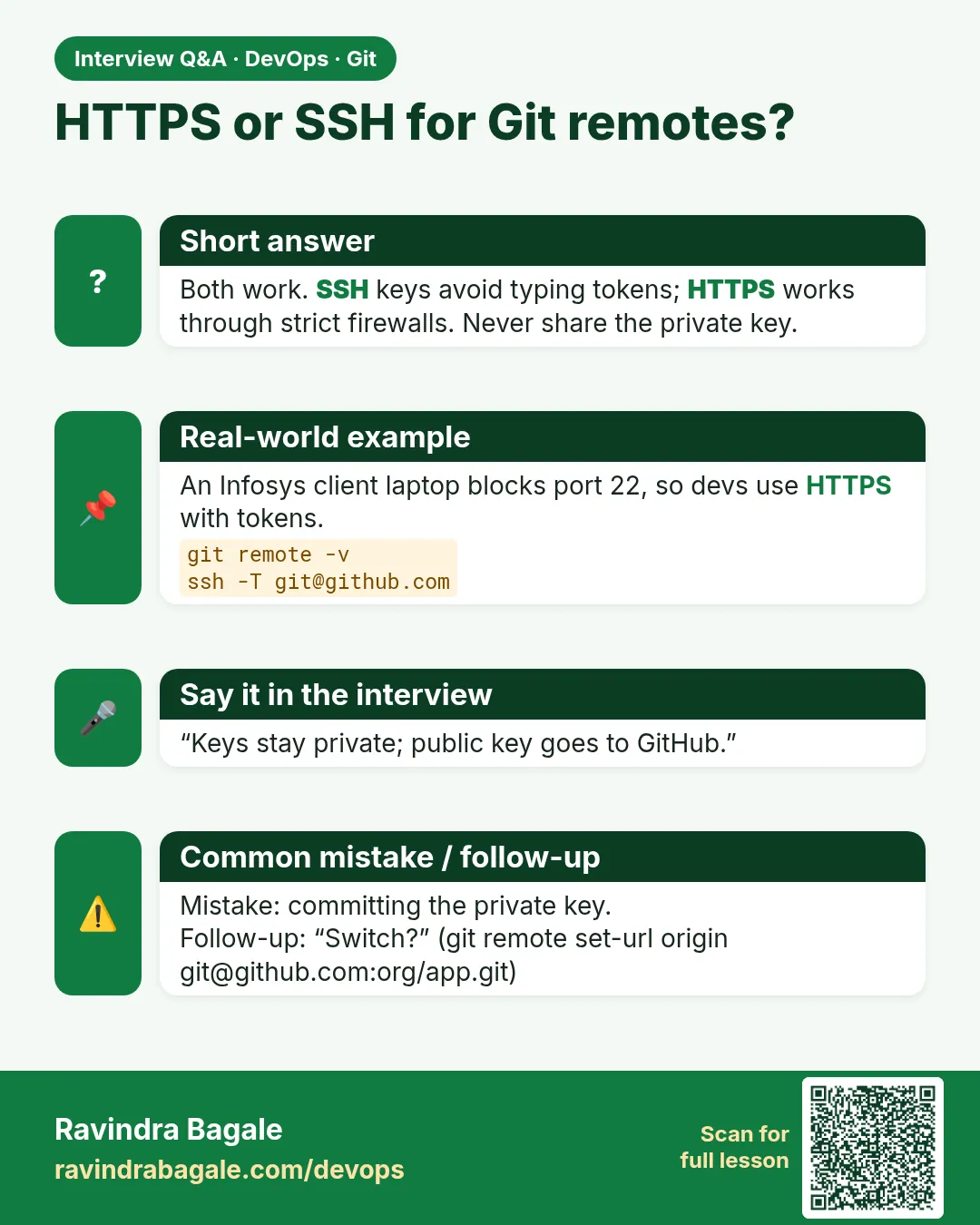
Both are safe. SSH is easier daily. HTTPS works through strict office proxies.
Is port 22 blocked in my office?
Sometimes. Then use HTTPS, or SSH over port 443 if the server supports it.
Can I use the same key on two laptops?
Better to make one key per laptop, so you can remove one if it is lost.
What is a passphrase?
A password that locks the private key file itself.
Where does Git Bash keep keys on Windows?
In C:/Users/NAME/.ssh, the same idea as Linux.
My token expired. What now?
Make a new token and update the saved credential.
Interview questions
-
What is the difference between HTTPS and SSH for Git?
HTTPS authenticates with a username and token; SSH uses a key pair. Both encrypt traffic.
-
How do you set up SSH for Git?
ssh-keygen -t ed25519, add the .pub to the profile, ssh -T to test, and use the git@ URL.
-
What is a deploy key?
A per-project SSH key, usually read-only, for servers or CI.
-
How do you debug Permission denied (publickey)?
ssh -vT git@host to see which key is offered, check the key is added and the config IdentityFile.
-
Why not use account passwords for Git?
Sites block it; tokens can be limited in scope, expire and be revoked alone.
Quick quiz
Q1. What does an SSH remote URL look like?
git@gitlab.com:group/repo.git
Q2. Can you push over HTTPS with your account password?
No. Use a personal access token.
Q3. Which SSH key file must you never share?
The private key, like ~/.ssh/id_ed25519.
Q4. How do you change origin from HTTPS to SSH?
git remote set-url origin git@gitlab.com:group/repo.git
Q5. What permission must the private key have?
600.
Samajla ka?
 Revision card
 Interview card
 Comparison card