Chapter 2: Git, GitHub and Git Bash
2.3 Repository, remote and origin
Why: the problem
When you join a team at TCS or Zomato, your lead will say: "clone the repo and push to origin". Three new words in one line. If you do not know them, you will copy commands without understanding, and one day you will push to the wrong place. A repository, or repo, is just a project folder that Git watches. Inside it there is a hidden folder called .git, which holds every commit. A remote is another copy of the same repo, usually on a server such as gitlab.com or the company server git.example.com. origin is only a nickname. It is the default name Git gives to the remote you cloned from. It is not magic. You can rename it, add more remotes, or remove them. In this lesson you will look inside the .git folder, make a bare remote on your own laptop so you can see what a server really stores, connect to it as origin, and then rename and change remotes safely.
What we will build
You will build a tiny copy of a real company setup on one machine: a bare repo that acts as the server, and two laptop folders, one for Asha and one for Ravi. Asha pushes, Ravi fetches. You will see that origin is only a saved name for a URL.
What: every term in plain English
- Repository — A folder plus its .git history.
- Working tree — The normal files you see and edit.
- .git folder — The hidden database of commits, branches and settings.
- Bare repo — A repo with only history and no working files. Servers keep repos this way.
- Remote — A saved name plus URL for another copy of the repo.
- origin — The default name of the remote you cloned from.
- upstream branch — The remote branch your local branch tracks, like origin/main.
- Remote-tracking branch — Your local memory of a remote branch, such as origin/main.
How: step by step
-
Make the fake server
mkdir -p ~/devops-lab/remote-lab && cd ~/devops-lab/remote-lab && git init --bare -b main server.gitWhat it does: A bare repo is what gitlab.com keeps for you.
Output
Initialized empty Git repository in /home/ravi/devops-lab/remote-lab/server.git/ -
Clone it as Asha
git clone server.git ashaWhat it does: Clone sets origin to the URL automatically.
Output
Cloning into 'asha'... warning: You appear to have cloned an empty repository. -
See origin
cd asha && git remote -vWhat it does: origin points to the server folder.
Output
origin /home/ravi/devops-lab/remote-lab/server.git (fetch) origin /home/ravi/devops-lab/remote-lab/server.git (push) -
Commit and push
echo "v1" > app.txt && git add . && git commit -qm "Add app v1" && git push -u origin mainWhat it does: Asha sends her commit to the server.
Output
To /home/ravi/devops-lab/remote-lab/server.git * [new branch] main -> main -
Clone it as Ravi
cd .. && git clone -q server.git ravi && cat ravi/app.txtWhat it does: Ravi gets Asha's work from the server.
Output
v1 -
Look inside .git
ls asha/.gitWhat it does: HEAD, config, objects and refs hold the history.
Output
HEAD branches config description hooks index info logs objects refs -
Read the remote config
git -C asha config --get remote.origin.urlWhat it does: origin is just this line in .git/config.
Output
/home/ravi/devops-lab/remote-lab/server.git
Example 1: See that a bare repo has no working files
Stack. Git
Goal. See that a bare repo has no working files.
bare-check.sh
cd ~/devops-lab/remote-lab
ls server.git
git --git-dir=server.git log --oneline
ls asha
What each line does
ls server.git— No app.txt, only Git data.git --git-dir=server.git log— Read history straight from the bare repo.ls asha— Asha has normal files to edit.
Green output
HEAD  config  description  hooks  info  objects  refs
1c2b3a4 Add app v1
app.txt
Expected result. A server keeps only history. People edit in working trees on their laptops.
Example 2: Rename origin and add the real company remote
Stack. Git
Goal. Rename origin and add the real company remote.
rename.sh
cd ~/devops-lab/remote-lab/asha
git remote rename origin local
git remote add origin https://git.example.com/shop/app.git
git remote -v
git remote set-url origin git@git.example.com:shop/app.git
git remote get-url origin
What each line does
git remote rename origin local— origin is only a name. Rename it.git remote add origin URL— Add a new origin that points to the company server.git remote set-url origin— Change the URL, for example from HTTPS to SSH.git remote get-url origin— Print just the URL to be sure.
Green output
local   /home/ravi/devops-lab/remote-lab/server.git (fetch)
local   /home/ravi/devops-lab/remote-lab/server.git (push)
origin  https://git.example.com/shop/app.git (fetch)
origin  https://git.example.com/shop/app.git (push)
git@git.example.com:shop/app.git
Expected result. You can change remotes any time. Nothing is changed on any server by these commands.
Example 3: Fetch a teammate's work and see origin/main move
Stack. Git
Goal. Fetch a teammate's work and see origin/main move.
fetch.sh
cd ~/devops-lab/remote-lab
echo "v2" > ravi/app.txt
git -C ravi commit -qam "Bump to v2" && git -C ravi push -q
cd asha
git fetch local
git status -sb
git log --oneline main..local/main
git merge --ff-only local/main
cat app.txt
What each line does
git -C ravi push— Ravi pushes v2 to the server.git fetch local— Download new commits but do not change files.git status -sb— Shows Asha is behind by 1.main..local/main— Commits on the server that Asha does not have yet.git merge --ff-only— Move main forward only if it is a simple fast-forward.cat app.txt— Asha now has v2.
Green output
From /home/ravi/devops-lab/remote-lab/server
   1c2b3a4..7e8f9a0  main       -> local/main
## main...local/main [behind 1]
7e8f9a0 Bump to v2
Updating 1c2b3a4..7e8f9a0
Fast-forward
v2
Expected result. This is exactly how two teammates share work through gitlab.com, only on one laptop.
Verify: did it work?
-
Check both clones match
git -C ~/devops-lab/remote-lab/asha rev-parse HEAD; git -C ~/devops-lab/remote-lab/ravi rev-parse HEADWhat it does: Same commit ID means same state.
Output
7e8f9a0c... 7e8f9a0c... -
Check tracking
git -C ~/devops-lab/remote-lab/ravi branch -vvWhat it does: Shows main tracks origin/main.
Output
* main 7e8f9a0 [origin/main] Bump to v2 -
List remotes
git -C ~/devops-lab/remote-lab/asha remoteWhat it does: Names only.
Output
local
origin
When it is red 1
! [rejected]        main -> main (fetch first)
error: failed to push some refs
Cause. The server has commits you do not have.
Fix, step by step
- git pull --rebase origin main
- Fix any conflict.
- git push again.
When it is red 2
fatal: 'origin' does not appear to be a git repository
fatal: Could not read from remote repository.
Cause. No remote named origin, or the URL is wrong.
Fix, step by step
- git remote -v
- git remote add origin URL, or git remote set-url origin URL.
When it is red 3
warning: You appear to have cloned an empty repository.
Cause. Not an error. The server has no commits yet.
Fix, step by step
- Make a first commit.
- git push -u origin main.
Cleanup
-
Delete the lab
rm -rf ~/devops-lab/remote-labWhat it does: Removes the fake server and both clones.
Output
(no output)
Ravindra Bagale's Tip
origin mhanje fakt nickname aahe, jadu nahi. git remote -v roj bagha, mag chukichya jagi push honaar nahi.
Practice tasks
Easy Draw the setup
Why: A picture shows where commits live.
What to do: Draw server.git, asha and ravi with push and fetch arrows.
- Top: Asha. Middle: server. Bottom: Ravi.
Check: Arrows match the commands you ran.
Medium Rename a remote
Why: Teams rename remotes during migrations.
What to do: Rename origin to old and add a new origin.
- git remote rename origin old
- git remote add origin URL
Check: git remote -v shows both.
Hard Find who is behind
Why: A good engineer checks before pushing.
What to do: Make Ravi push, then use git status -sb in Asha after fetch.
- git fetch
- git status -sb
Check: You see behind 1.
Easy Say repo, remote and origin in two lines
Why: If you can say it simply, you understand it. Interviewers want the short version first.
What to do: Write two short lines about repo, remote and origin for a fresher who knows only basic Linux.
- Write the problem it solves.
- Write one real command or file that shows it.
- Read it aloud to a friend.
Check: A fresher understands it without asking a question.
Easy Make a safe lab folder
Why: Practice needs a place you can throw away. Then mistakes cost nothing.
What to do: Create a lab folder for this chapter and work only inside it.
- mkdir -p ~/devops-lab && cd ~/devops-lab
- Run every command of this lesson from here.
- Check with pwd before you delete anything.
Check: All lab files live in ~/devops-lab.
Medium Repeat it in a container
Why: Your laptop is not the server. A clean Ubuntu container shows what a fresh server needs.
What to do: Run the main steps of this lesson again inside an Ubuntu container.
- docker run --rm -it -v "$PWD":/lab -w /lab ubuntu:24.04 bash
- apt update and install what is missing.
- Note every missing tool.
Check: Same result inside the container, or a list of what you had to install.
Medium Break it on purpose
Why: You must know the red message by face. In an outage there is no time to read slowly.
What to do: Cause one error from the "When it is red" part of this lesson and fix it.
- Follow the error section.
- Copy the exact message into your notes.
- Write the fix in one line.
Check: You fixed it using only the steps, without searching the web.
Medium Write a one-page runbook
Why: At 2 a.m. nobody remembers the right command. A short page saves the on-call person.
What to do: Write a runbook page for this lesson.
- Title, when to use, exact command, how to check, how to undo.
Check: A teammate can follow it alone.
Hard Explain it like an interview
Why: Interviewers want real stories, not definitions.
What to do: Record a 60 second answer about this lesson.
- Say the problem, the command or file you used, and one error you hit.
Check: Your answer has a real command and a real error message.
Hard Draw the flow top to bottom
Why: A drawing shows who does what and in which order.
What to do: Draw this lesson as boxes from top to bottom.
- Start at the developer laptop, end at the user on the website.
Check: Each box matches a real thing you ran.
Homework: try at home
Try at home
Make a bare server repo and two clones. Push from one, fetch in the other, and draw the three folders with arrows.
Recap
- A repo is files plus the .git history.
- A server keeps a bare repo.
- A remote is a name plus a URL.
- origin is only the default name.
- git fetch updates origin/main without touching your files.
FAQ
Can I have no origin?
Yes. A local repo works fine without remotes.
Is origin/main a real branch?
It is your local memory of the server branch. It moves on fetch.
Why use a bare repo for servers?
Nobody edits files on the server, so working files are not needed.
Can a remote be a folder?
Yes. A path works as a URL, as in this lab.
Does remote remove delete the server repo?
No. It only removes the name on your laptop.
Interview questions
-
What is the difference between origin and origin/main?
origin is the remote name. origin/main is the remote-tracking branch for main on that remote.
-
What is a bare repository?
A repository with no working tree, used as a central shared copy.
-
How do you add a second remote?
git remote add NAME URL, then push or fetch using that name.
-
What does git fetch do?
Downloads new commits and updates remote-tracking branches without changing local branches or files.
-
How do you check where you will push?
git remote -v and git branch -vv.
Quick quiz
Q1. What is a bare repo?
A repo with history but no working files, used on servers.
Q2. What is origin?
The default name for the remote you cloned from.
Q3. Does git fetch change your files?
No. It only updates remote-tracking branches like origin/main.
Q4. How do you change a remote URL?
git remote set-url origin NEW_URL.
Q5. Where is the remote URL stored?
In .git/config.
Samajla ka?
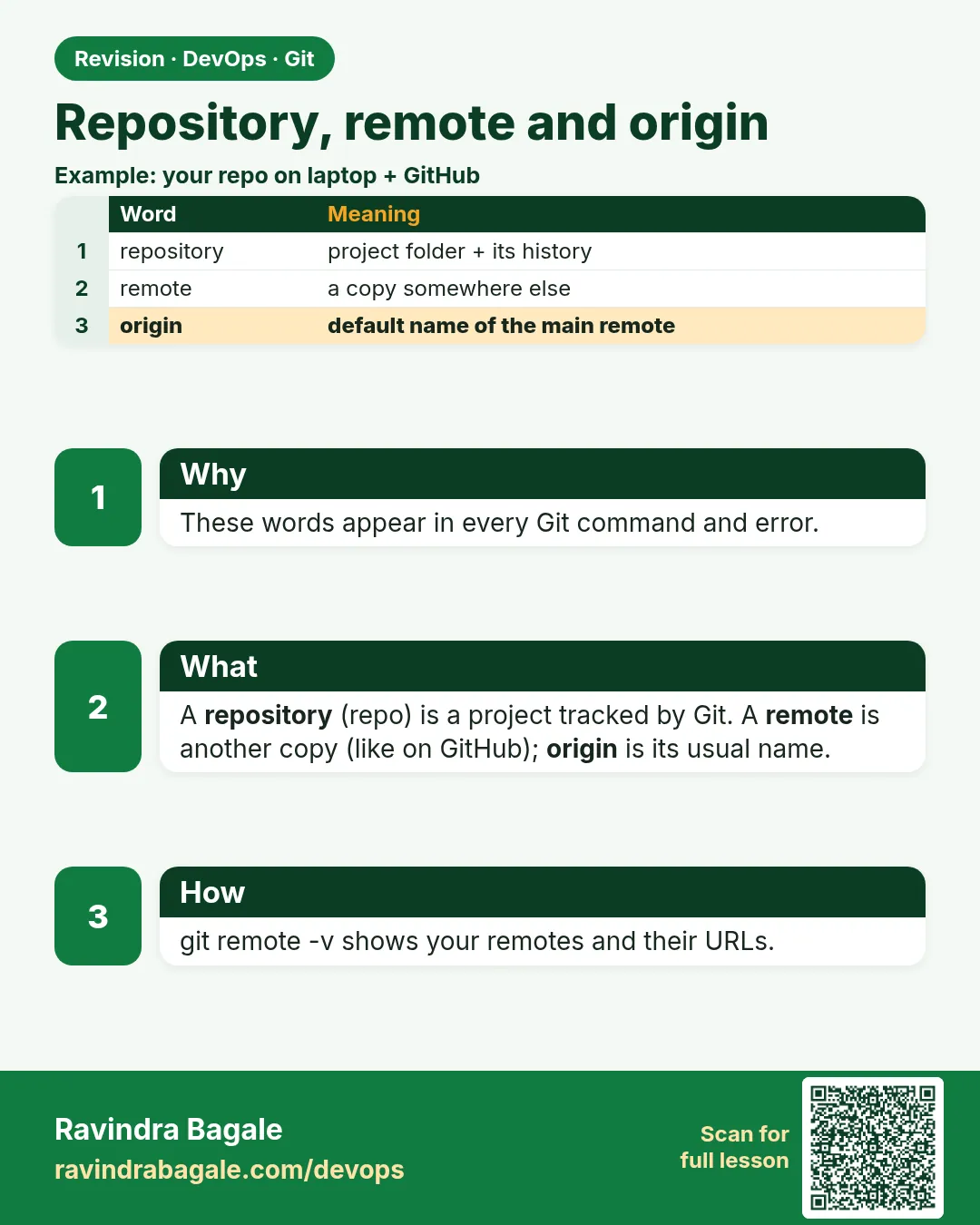 Revision card
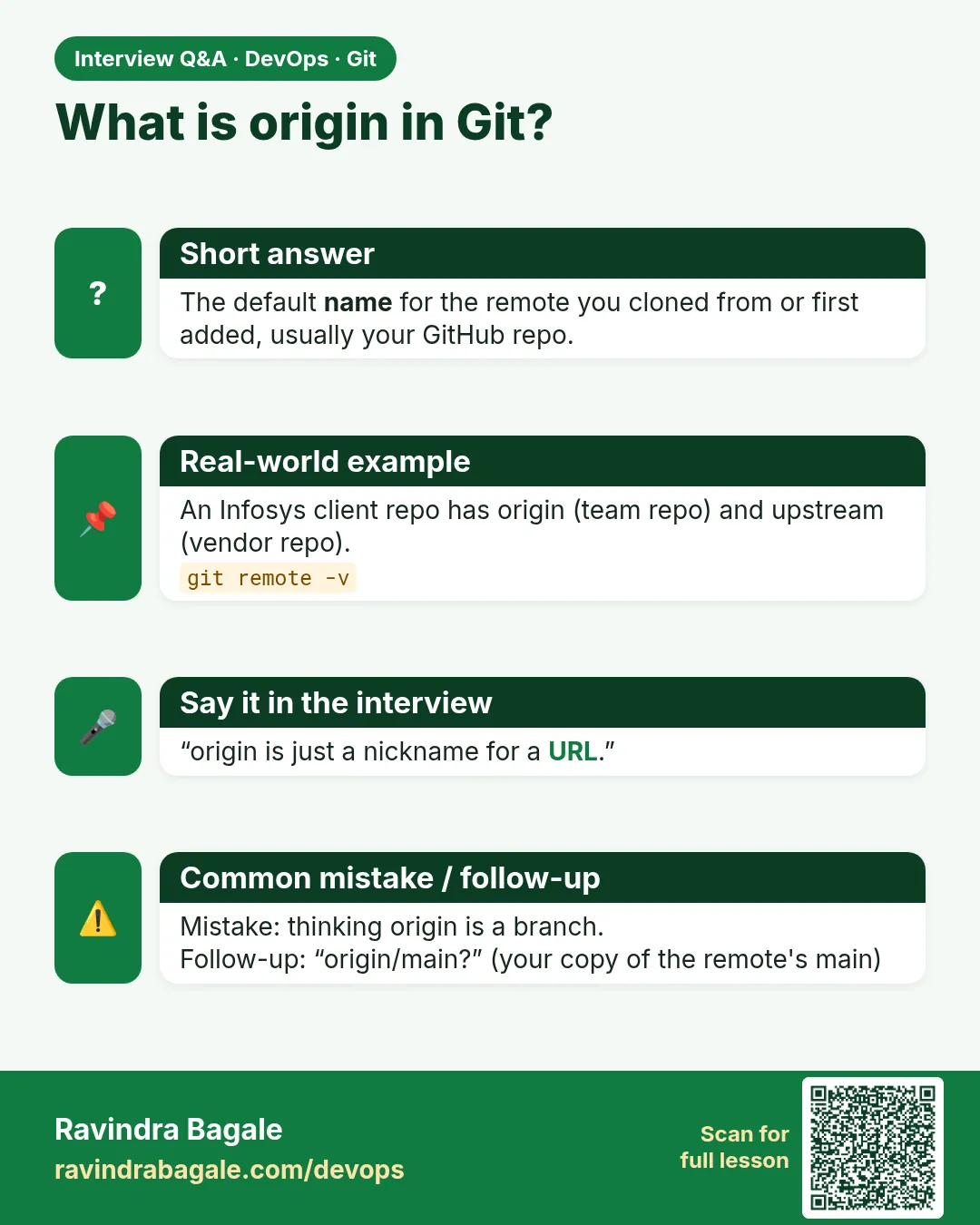 Interview card