Chapter 19: Kubernetes Services, Ingress and Volumes
19.8 Volumes inside a Pod
Why: the problem
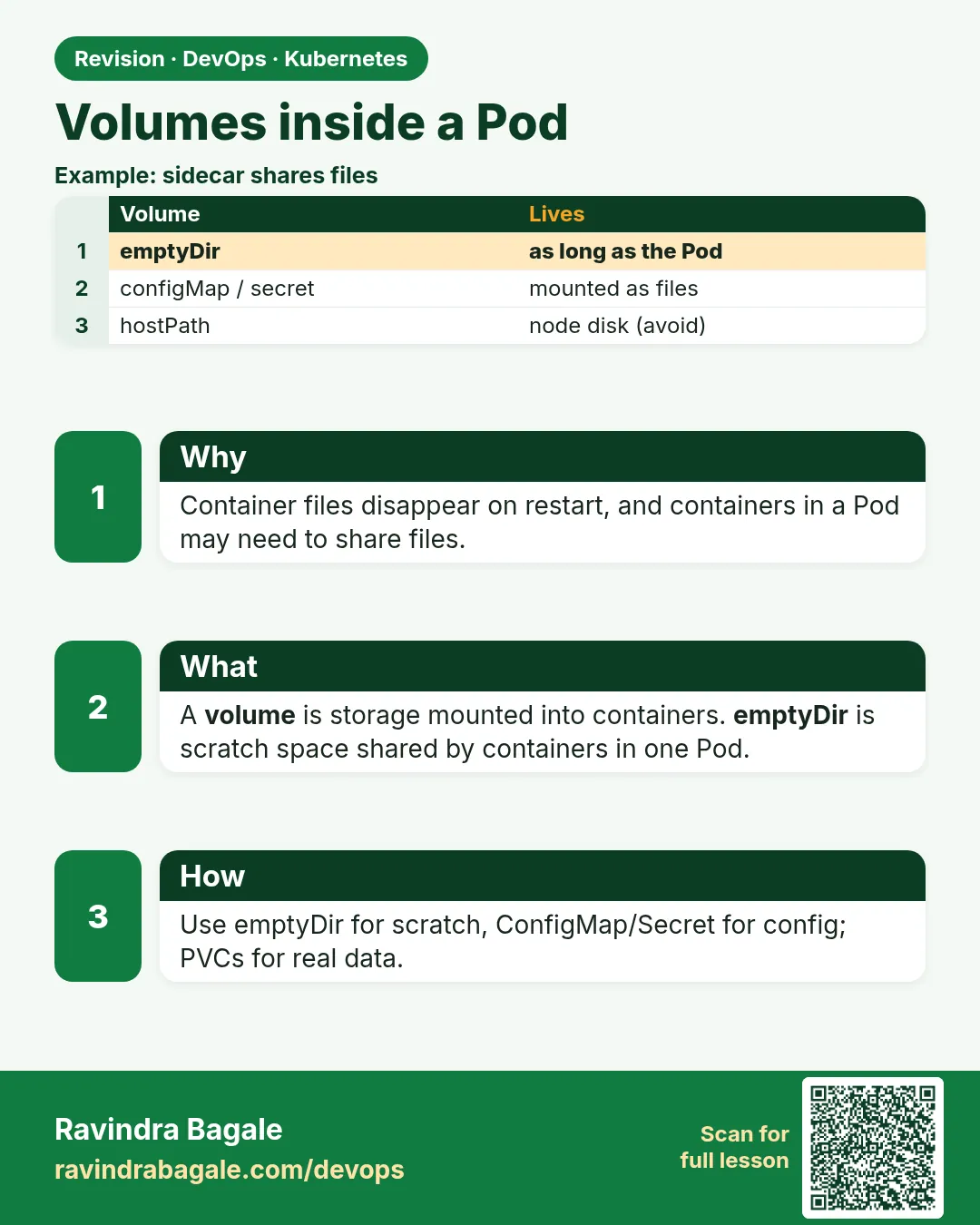
A container's file system is temporary. At Instagram-style startups, a junior engineer runs an upload service in a Pod and saves photos to /uploads inside the container. It works. Then the container crashes, kubelet restarts it, and every photo is gone. Another team runs nginx with a sidecar that writes the HTML; the two containers cannot see each other's files. Volumes fix both problems. A volume is a folder that a Pod mounts at a path. Some volumes live as long as the Pod (emptyDir), shared by all its containers. Some come from config (configMap, secret). Some come from the node (hostPath, risky). Some come from real storage that outlives the Pod (persistentVolumeClaim, next lesson). In this lesson you will lose data on purpose, then keep it across container restarts with emptyDir, share files between two containers, mount config as files, and see why hostPath is dangerous.
What we will build
You will run four Pods: one that loses data on restart, one that keeps it in an emptyDir across restarts, a two-container Pod that shares files, and an nginx Pod whose config comes from a ConfigMap volume.
What: every term in plain English
- Volume — A folder made available to the containers of a Pod.
- volumeMounts — Where in the container the volume appears.
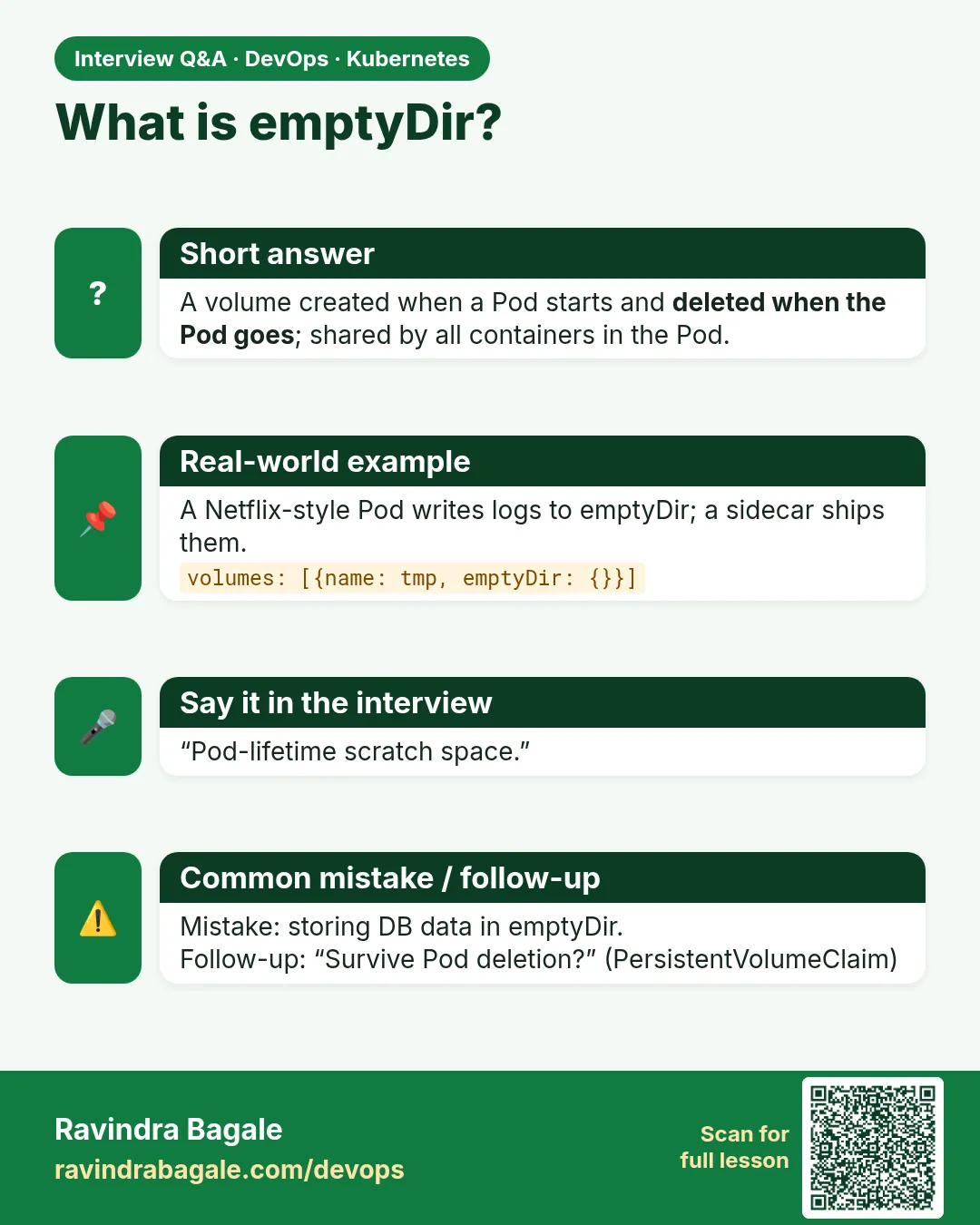
- emptyDir — An empty folder created when the Pod starts and deleted when the Pod is deleted. Survives container restarts.
- medium: Memory — An emptyDir kept in RAM (tmpfs). Fast, counts against memory.
- configMap volume — Mounts keys of a ConfigMap as files.
- secret volume — Mounts keys of a Secret as files, kept in memory on the node.
- hostPath — Mounts a folder from the node. Ties the Pod to one node and can expose the node.
- Sidecar — A helper container in the same Pod.
How: step by step
-
Start a lab cluster
kind create cluster --name lab
kubectl get nodes
What it does: Creates a one-node Kubernetes cluster inside Docker. On minikube use: minikube start.
Output
Creating cluster "lab" ... ✓ Ensuring node image (kindest/node:v1.30.0) ✓ Preparing nodes Set kubectl context to "kind-lab" NAME STATUS ROLES AGE VERSION lab-control-plane Ready control-plane 40s v1.30.0 -
Make a practice namespace
kubectl create namespace practice
kubectl config set-context --current --namespace=practice
What it does: Keeps all lab objects in one folder that is easy to delete.
Output
namespace/practice created Context "kind-lab" modified. -
Run a Pod that writes inside the container
kubectl run lose --image=busybox:1.36 -- sh -c "echo photo1 > /data.txt; sleep 3600"What it does: Writes a file into the container layer.
Output
pod/lose created -
Read the file
kubectl exec lose -- cat /data.txtWhat it does: The file is there.
Output
photo1 -
Kill the main process
kubectl exec lose -- kill 1; sleep 5; kubectl get pod loseWhat it does: kubelet restarts the container.
Output
NAME READY STATUS RESTARTS AGE lose 1/1 Running 1 (3s ago) 40s -
Read again
kubectl exec lose -- cat /data.txt || trueWhat it does: The command wrote it again on start, but anything written later would be gone. Try Example 1 to see real loss.
Output
photo1 -
Show the volume types in a Pod
kubectl explain pod.spec.volumes | grep -E "^ [a-z]" | head -12What it does: Lists the volume kinds Kubernetes knows.
Output
awsElasticBlockStore
azureDisk
configMap
csi
downwardAPI
emptyDir
ephemeral
hostPath
nfs
persistentVolumeClaim
projected
secret
Example 1: Lose data, then keep it with emptyDir
Stack. Kubernetes emptyDir
Goal. Lose data, then keep it with emptyDir.
keep.yaml
apiVersion: v1
kind: Pod
metadata:
  name: keep
spec:
  containers:
  - name: app
    image: busybox:1.36
    command: ["sh", "-c", "sleep 3600"]
    volumeMounts:
    - name: scratch
      mountPath: /uploads
  volumes:
  - name: scratch
    emptyDir:
      sizeLimit: 100Mi
terminal
kubectl apply -f keep.yaml
kubectl exec keep -- sh -c "echo photo1 > /uploads/a.txt; echo photo2 > /tmp/b.txt"
kubectl exec keep -- kill 1; sleep 8
kubectl exec keep -- sh -c "cat /uploads/a.txt; cat /tmp/b.txt"
What each line does
volumeMounts /uploads— The emptyDir appears at /uploads.emptyDir sizeLimit 100Mi— A temporary folder, at most 100 MB./tmp/b.txt— Written to the container layer, not the volume.kill 1— Crashes the container. The Pod stays.
Green output
photo1
cat: can't open '/tmp/b.txt': No such file or directory
Expected result. The file in the emptyDir survived the container restart. The file in the container layer was lost.
Example 2: Two containers share files through one emptyDir
Stack. nginx 1.27-alpine + busybox sidecar
Goal. Two containers share files through one emptyDir.
share.yaml
apiVersion: v1
kind: Pod
metadata:
  name: share
spec:
  containers:
  - name: writer
    image: busybox:1.36
    command: ["sh", "-c", "while true; do date > /html/index.html; sleep 5; done"]
    volumeMounts:
    - {name: html, mountPath: /html}
  - name: web
    image: nginx:1.27-alpine
    volumeMounts:
    - {name: html, mountPath: /usr/share/nginx/html}
  volumes:
  - name: html
    emptyDir: {}
terminal
kubectl apply -f share.yaml
kubectl wait --for=condition=ready pod/share
kubectl exec share -c web -- wget -qO- localhost
What each line does
writer— A sidecar that writes the time into index.html every 5 seconds.web— nginx serves the same folder.same volume name html— Both containers mount one folder.-c web— Pick which container to exec into.
Green output
pod/share condition met
Sat Oct 25 04:51:10 UTC 2026
Expected result. The writer and nginx share files. This is the sidecar pattern used for log shippers, git-sync and config reloaders.
Example 3: Mount nginx config from a ConfigMap as a file
Stack. ConfigMap volume
Goal. Mount nginx config from a ConfigMap as a file.
nginx-cm.yaml
apiVersion: v1
kind: ConfigMap
metadata:
  name: nginx-conf
data:
  default.conf: |
    server {
      listen 80;
      location /health { return 200 "ok\n"; }
      location / { return 200 "hello from configmap\n"; }
    }
---
apiVersion: v1
kind: Pod
metadata:
  name: web-cm
spec:
  containers:
  - name: nginx
    image: nginx:1.27-alpine
    volumeMounts:
    - name: conf
      mountPath: /etc/nginx/conf.d
      readOnly: true
  volumes:
  - name: conf
    configMap:
      name: nginx-conf
terminal
kubectl apply -f nginx-cm.yaml
kubectl wait --for=condition=ready pod/web-cm
kubectl exec web-cm -- wget -qO- localhost/health
kubectl exec web-cm -- ls /etc/nginx/conf.d
What each line does
data default.conf— The file name and its content.mountPath /etc/nginx/conf.d— Where nginx reads extra config.readOnly: true— The container cannot change the config.configMap name— Which ConfigMap to mount.
Green output
ok
default.conf
Expected result. Config lives outside the image. Change the ConfigMap and the file updates in the Pod in about a minute (nginx still needs a reload).
Verify: did it work?
-
Check mounts in a Pod
kubectl get pod share -o jsonpath="{.spec.volumes[*].name}"What it does: Lists the volumes of the Pod.
Output
html kube-api-access-7xk2p -
See emptyDir on the node
docker exec lab-control-plane sh -c "ls /var/lib/kubelet/pods/*/volumes/kubernetes.io~empty-dir/"What it does: emptyDir is a folder on the node under kubelet.
Output
html
scratch
When it is red 1
Error: Pod "keep" is invalid: spec.containers[0].volumeMounts[0].name: Not found: "scratch"
Cause. The mount name does not match any volume name.
Fix, step by step
- Make volumeMounts.name equal volumes.name.
- Apply again.
When it is red 2
The node was low on resource: ephemeral-storage. Container app was using 150Mi, which exceeds its request
Cause. The emptyDir grew past sizeLimit and the Pod was evicted.
Fix, step by step
- Raise sizeLimit or clean old files.
- Use a PVC for big data.
When it is red 3
configmap "nginx-conf" not found
Cause. The Pod started before the ConfigMap existed.
Fix, step by step
- Create the ConfigMap first.
- Delete and re-create the Pod.
Cleanup
-
Delete the Pods
kubectl delete pod lose keep share web-cm --nowWhat it does: Deleting the Pods also deletes their emptyDir data.
Output
pod "lose" deleted pod "keep" deleted pod "share" deleted pod "web-cm" deleted -
Delete the practice namespace
kubectl delete namespace practiceWhat it does: Deletes every object you made in this lesson in one go.
Output
namespace "practice" deleted
Ravindra Bagale's Tip
Container madhe file thevli tar restart la gayab. emptyDir Pod paryant, PVC kayam. Database sathi nehmi PVC!
Practice tasks
Easy RAM emptyDir
Why: Fast scratch space.
What to do: Use emptyDir medium: Memory and check df.
- kubectl exec POD -- df -h /cache
Check: df shows tmpfs.
Medium Secret as file
Why: Apps often read secrets from files.
What to do: Mount a Secret at /etc/creds and cat it.
- kubectl create secret generic db --from-literal=pass=lab-only
- Mount it.
Check: The file contains lab-only.
Hard Projected volume
Why: Combine sources in one folder.
What to do: Mount a ConfigMap, a Secret and downwardAPI labels in one folder.
- Use volumes.projected.sources.
Check: All three files appear in one folder.
Easy Say Pod volumes in two lines
Why: If you can say it simply, you understand it. Interviewers want the short version first.
What to do: Write two short lines about Pod volumes for a fresher who knows only Docker basics.
- Write what problem it solves.
- Write the one kubectl command you use for it.
- Read it aloud to a friend.
Check: A fresher understands it without asking a question.
Easy Start a fresh lab cluster
Why: Practice needs a throwaway cluster. If you break it, you delete it and start again.
What to do: Create a kind cluster, or a minikube cluster, and check the node is Ready.
- kind create cluster --name lab
- kubectl get nodes
- kubectl get pods -A
Check: One node shows STATUS Ready and the kube-system Pods are Running.
Medium Break it on purpose
Why: You must know the red message by face. During an outage there is no time to read slowly.
What to do: Cause one error from the "When it is red" part of this lesson and fix it.
- Follow the error section.
- Copy the exact message and the kubectl describe Events into your notes.
- Write the fix in one line.
Check: You fixed it using only the steps, without searching the web.
Medium Write a one-page runbook
Why: At 2 a.m. nobody remembers the right command. A short page saves the on-call person.
What to do: Write a runbook page for this lesson.
- Title, when to use, exact kubectl command, how to check, how to undo.
Check: A teammate can follow it alone.
Medium Repeat it on a cloud cluster
Why: kind is a laptop toy. Real clusters run on EKS, GKE, AKS or k3s on a VM.
What to do: Do the main steps of this lesson again on a small k3s VM or a free-tier managed cluster.
- Install k3s on one Ubuntu 22.04 VM: curl -sfL https://get.k3s.io | sh -
- Copy the kubeconfig.
- Apply the same YAML and compare the output.
Check: Same output on the cloud cluster as on kind.
Hard Explain it like an interview
Why: Interviewers want real stories, not definitions.
What to do: Record a 60 second answer about this lesson.
- Say the problem, the YAML field you used, the kubectl command you ran, and one error you hit.
Check: Your answer has a real command and a real error message.
Hard Draw the flow top to bottom
Why: A drawing shows who talks to whom and in what order.
What to do: Draw this lesson as boxes from top to bottom.
- Start at kubectl apply, go through the API server, controller and scheduler, end at the running container.
Check: Each box matches a real thing you saw in kubectl output.
Homework: try at home
Try at home
At home, change Example 2 so the writer writes to a log file and a third container runs tail -f on it. Read the logs with kubectl logs share -c tailer. Then delete the Pod and prove the emptyDir data is gone.
Recap
- The container file system is lost on restart.
- emptyDir lives as long as the Pod and is shared by its containers.
- configMap and secret volumes put config in files.
- hostPath ties a Pod to a node and is risky.
- For data that must outlive the Pod, use a PVC (next lesson).
FAQ
Is emptyDir good for a database?
No. It is deleted with the Pod. Use a PVC.
Where does emptyDir data live?
On the node disk under /var/lib/kubelet, or in RAM with medium: Memory.
When is hostPath OK?
For node agents like log collectors that must read node files, with readOnly.
Do ConfigMap files update live?
Yes, after a short delay, unless mounted with subPath.
Can I limit emptyDir size?
Yes, with sizeLimit.
Interview questions
-
What is the difference between emptyDir and a PVC?
emptyDir lives and dies with the Pod; a PVC binds to storage that outlives Pods.
-
How do containers in one Pod share data?
By mounting the same volume, often an emptyDir.
-
Why avoid hostPath?
It breaks scheduling flexibility and can give access to the host file system.
-
How do you inject config files into a Pod?
configMap or secret volumes, or projected volumes.
-
What happens to files written to the container layer after a restart?
They are lost.
Quick quiz
Q1. Does emptyDir survive a container restart?
Yes.
Q2. Does emptyDir survive Pod deletion?
No.
Q3. How do two containers share files?
Mount the same volume.
Q4. Why is hostPath risky?
It ties the Pod to one node and can expose the node's files.
Q5. How do you mount config as files?
A configMap volume.
Samajla ka?
 Revision card
 Interview card