47.8 Docker Desktop: what it includes, install and licence
Chala mitrano! Docker Desktop is Docker's ready-made app: one installer and everything inside. But big companies must pay for it. Today we install it, look at its parts and understand the licence rule.
चला मित्रांनो! Docker Desktop म्हणजे Docker चं तयार app: एक installer आणि सगळं आत. पण मोठ्या company मध्ये त्याला पैसे लागतात. आज install करू, आतले भाग बघू, आणि licence चा नियम समजू.
चलो दोस्तों! Docker Desktop मतलब Docker का तैयार app: एक installer और सब कुछ अंदर. पर बड़ी company में इसके पैसे लगते हैं. आज install करेंगे, अंदर के हिस्से देखेंगे, और licence का नियम समझेंगे.
1. Start from a ready meal box
You can cook dal rice yourself: buy rice, buy dal, light the stove. Or you can order a ready meal box from a cloud kitchen: open it and eat.
Docker Engine on Linux is the cook-it-yourself way. Docker Desktop is the ready meal box. It is one app for Windows and Mac that brings the engine, a hidden Linux VM, Compose, Buildx, Kubernetes and a window with buttons, all set up for you.
Developers at startups like CRED and Meesho use Docker Desktop on their MacBooks. But a ready meal costs money: companies above a certain size must buy a paid plan. We learn both the tool and the rule.
2. Install
Step 1: Install on Windows
Why: On Windows, Docker Desktop uses WSL 2 underneath (lesson 47.7).
What: You download the installer from Docker's website and run it. winget is the Windows package tool that can install it from the command line.
Example 1: Install with winget (PowerShell)
Type this:
winget install -e --id Docker.DockerDesktop
You will see:
Found Docker Desktop [Docker.DockerDesktop] Version 4.34.3
Successfully installed
What it means: -e means exact name match. A restart may be needed.
Example 2: Check WSL 2 is the backend
Type this:
wsl -l -v
You will see:
  NAME              STATE      VERSION
* Ubuntu-24.04      Running    2
  docker-desktop    Running    2
What it means: Docker Desktop made its own small Linux called docker-desktop.
Example 3: Run a test in PowerShell
Type this:
docker run --rm hello-world | Select-String Hello
You will see:
Hello from Docker!
What it means: The docker command works straight from PowerShell.
Step 2: Install on Mac
Why: Macs have no Linux kernel either, so Docker Desktop runs a small Linux VM for you.
What: On a Mac, Homebrew is the common package tool. Choose the Apple chip (M1, M2, M3) or Intel version; Homebrew picks it for you.
Example 4: Check the Mac chip
Type this:
uname -m
You will see:
arm64
What it means: arm64 means an Apple chip. x86_64 means Intel.
Example 5: Install with Homebrew
Type this:
brew install --cask docker
open -a Docker
You will see:
==> Installing Cask docker
docker was successfully installed!
What it means: The whale icon appears in the top menu bar when the engine is ready.
Example 6: Run a test
Type this:
docker run --rm hello-world | head -2
docker version --format '{{.Server.Os}}/{{.Server.Arch}}'
You will see:
Hello from Docker!
linux/arm64
What it means: The server is Linux, inside the hidden VM, even though you are on a Mac.
Step 3: Install on Linux desktop
Why: Some developers run Ubuntu on their laptop and still want the Desktop window.
What: Docker Desktop for Linux is a .deb file. It also runs its own VM, separate from Docker Engine, so the two keep separate images.
Example 7: Install the package
Type this:
sudo apt-get install -y ./docker-desktop-amd64.deb
You will see:
Setting up docker-desktop (4.34.3-170107) ...
What it means: Download the .deb file from Docker's website first.
Example 8: Start it
Type this:
systemctl --user start docker-desktop
You will see:
(no output, the Desktop window opens)
What it means: It runs as your user, not as a system service.
Example 9: Switch between Desktop and Engine
Type this:
docker context ls
You will see:
NAME            DESCRIPTION                   DOCKER ENDPOINT
default         Current DOCKER_HOST          unix:///var/run/docker.sock
desktop-linux * Docker Desktop               unix:///home/ravi/.docker/desktop/docker.sock
What it means: Two engines on one laptop. The star shows which one you are using. Lesson 47.14 explains contexts.
Ravindra Bagale's Tip
After installing Docker Desktop, the docker command does not work instantly. Wait until the whale icon says running, then run commands. If you hurry you get a 'cannot connect' error.
Docker Desktop install केल्यावर docker command लगेच चालेल असं नाही. आधी whale icon 'running' होऊ द्या. मग command चालवा. घाई केली तर 'cannot connect' error येतो.
Docker Desktop install करते ही docker command तुरंत नहीं चलेगा. पहले whale icon को 'running' होने दीजिए. फिर command चलाइए. जल्दी की तो 'cannot connect' error आता है.
3. What you get inside
Step 4: Containers and images in the window
Why: Beginners like to see containers as buttons first, then learn the commands.
What: Every button in the window runs the same Docker command you already know. The window and the terminal always show the same state.
Example 10: Start a container in the terminal
Type this:
docker run -d --name web -p 8080:80 nginx:1.27
You will see:
5b2e...
What it means: Now look at the Containers tab: web is there, green, with a link 8080:80.
Example 11: Read logs from the terminal
Type this:
docker logs web | tail -2
You will see:
/docker-entrypoint.sh: Configuration complete; ready for start up
What it means: The Logs tab in the window shows the same lines. docker logs prints what the container wrote.
Example 12: Stop it from the window, check in terminal
Type this:
docker ps -a --filter name=web --format '{{.Names}} {{.Status}}'
You will see:
web Exited (0) 3 seconds ago
What it means: You clicked Stop in the window, and the terminal agrees.
Step 5: Resource settings
Why: The hidden VM gets a fixed share of the laptop. Too little makes builds fail; too much slows the laptop.
What: In Settings, then Resources, you set CPUs, memory and disk for the VM. On Windows with WSL 2, the .wslconfig file controls this instead.
Example 13: See what the engine has
Type this:
docker info --format 'CPUs: {{.NCPU}} Memory: {{.MemTotal}}'
You will see:
CPUs: 4 Memory: 8217473024
What it means: 4 CPUs and about 8 GB. That is what containers can share.
Example 14: A build that needs more memory
Type this:
docker build -t big-java .
You will see:
ERROR: failed to solve: process "/bin/sh -c mvn package" did not complete successfully: exit code: 137
What it means: 137 means out of memory (lesson 47.4). Raise memory in Settings, Resources, then rebuild.
Example 15: See disk used
Type this:
docker system df
You will see:
TYPE            TOTAL     ACTIVE    SIZE
Images          12        2         3.1GB
Containers      2         0         0B
Build Cache     45        0         1.2GB
What it means: Docker Desktop's disk can fill up. docker system prune frees space; lesson 47.11 covers it.
Step 6: Built-in Kubernetes
Why: At Ola or Swiggy, apps run on Kubernetes. You can try Kubernetes on your laptop with one tick box.
What: In Settings, then Kubernetes, tick Enable Kubernetes. Docker Desktop starts a one-node Kubernetes cluster and installs kubectl, the Kubernetes command tool.
Example 16: Check the cluster
Type this:
kubectl get nodes
You will see:
NAME             STATUS   ROLES           AGE   VERSION
docker-desktop   Ready    control-plane   2m    v1.30.2
What it means: A real Kubernetes, with one node, on your laptop. Chapter 59 starts Kubernetes properly.
Example 17: Run nginx on it
Type this:
kubectl create deployment web --image=nginx:1.27
kubectl get pods
You will see:
deployment.apps/web created
NAME                   READY   STATUS    RESTARTS   AGE
web-7d4b9c8f5d-x2k9p   1/1     Running   0          8s
What it means: Kubernetes started nginx from the same image.
Example 18: Clean up
Type this:
kubectl delete deployment web
docker rm -f web
You will see:
deployment.apps "web" deleted
web
What it means: Both are gone.
Step 7: Docker Scout: check an image for known holes
Why: At PhonePe or Paytm, no image goes to production with known security holes. Desktop has a checker built in.
What: Docker Scout reads the packages inside an image and lists known security problems, called CVEs. A CVE is a public number for one known security bug.
Example 19: Quick summary of an image
Type this:
docker scout quickview nginx:1.27
You will see:
Target     nginx:1.27
  vulnerabilities  0C 1H 3M 40L
What it means: C, H, M, L mean critical, high, medium and low. One high problem is worth looking at.
Example 20: List the problems
Type this:
docker scout cves --only-severity high nginx:1.27
You will see:
HIGH CVE-YYYY-NNNNN libexpat 2.5.0-1 fixed in 2.5.0-1+deb12u1
What it means: Each line names the package and the version that fixes it. CVE-YYYY-NNNNN is a placeholder here; your screen shows the real CVE number.
Example 21: Ask what to change
Type this:
docker scout recommendations nginx:1.27
You will see:
Tag 1.27-alpine: 0C 0H 1M 2L (smaller and fewer issues)
What it means: Scout suggests a better base image. Chapter 48 shows how to switch.
Step 8: Share a laptop folder with a container
Why: You edit code on your Mac or Windows laptop and want the container to see changes at once.
What: A bind mount shares a laptop folder into a container with -v. Docker Desktop passes the files through its hidden VM, using a fast method called VirtioFS on Mac.
Example 22: Make a small website folder
Type this:
mkdir -p ~/site && printf 'Hello from my laptop\n' > ~/site/index.html
cat ~/site/index.html
You will see:
Hello from my laptop
What it means: printf writes one line into index.html.
Example 23: Serve it with nginx
Type this:
docker run -d --name site -p 8090:80 -v ~/site:/usr/share/nginx/html:ro nginx:1.27
curl -s localhost:8090
You will see:
Hello from my laptop
What it means: :ro means read-only: the container can read but not change your files.
Example 24: Edit and see the change at once
Type this:
printf 'Edited on the laptop\n' > ~/site/index.html
curl -s localhost:8090
docker rm -f site
You will see:
Edited on the laptop
site
What it means: No restart needed. This is how front-end teams at Meesho preview changes. Chapter 50 covers volumes fully.
4. The licence rule
Step 9: Docker Desktop licence
Why: Using it without a plan at a big company breaks the licence terms. Many IT teams check this.
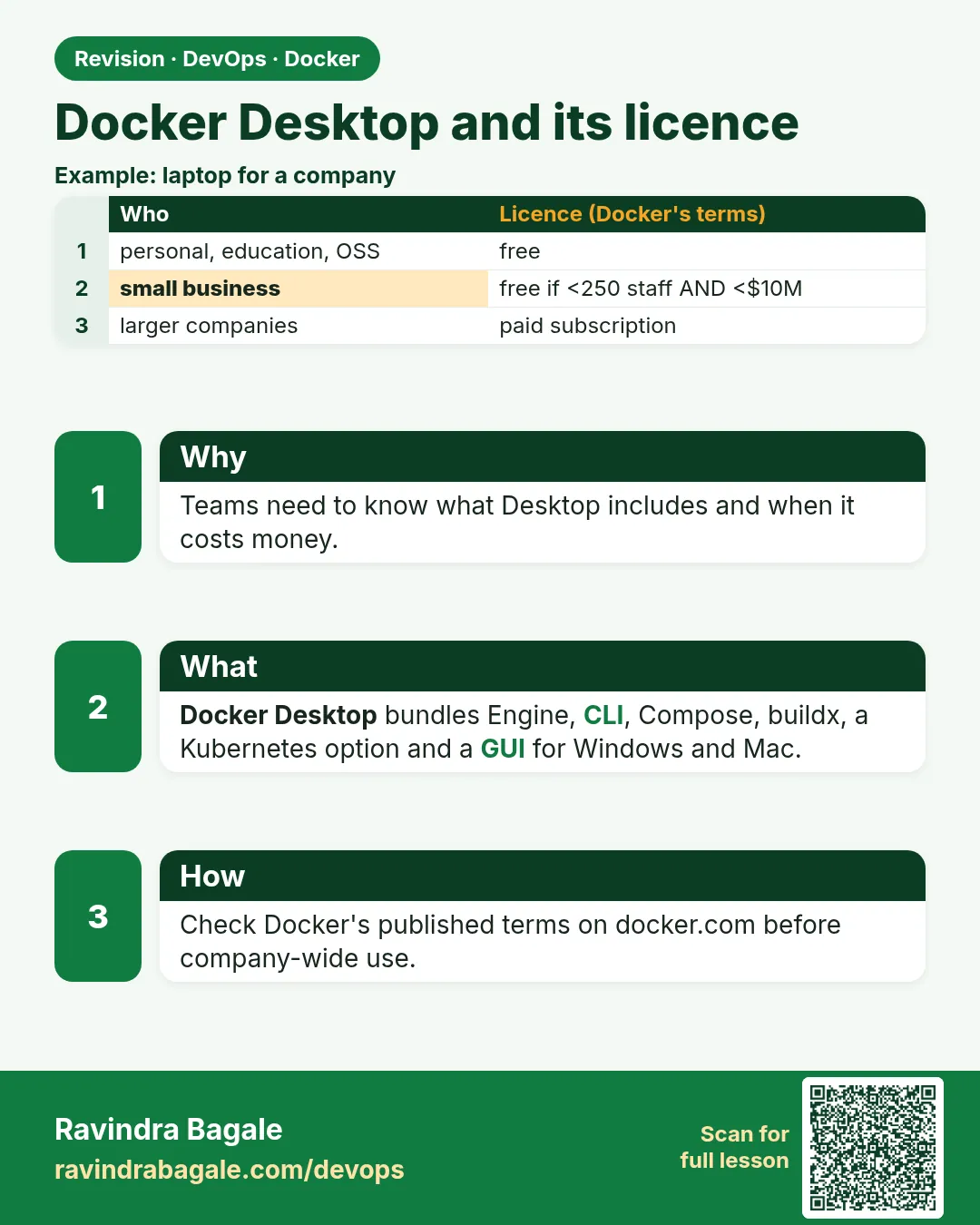
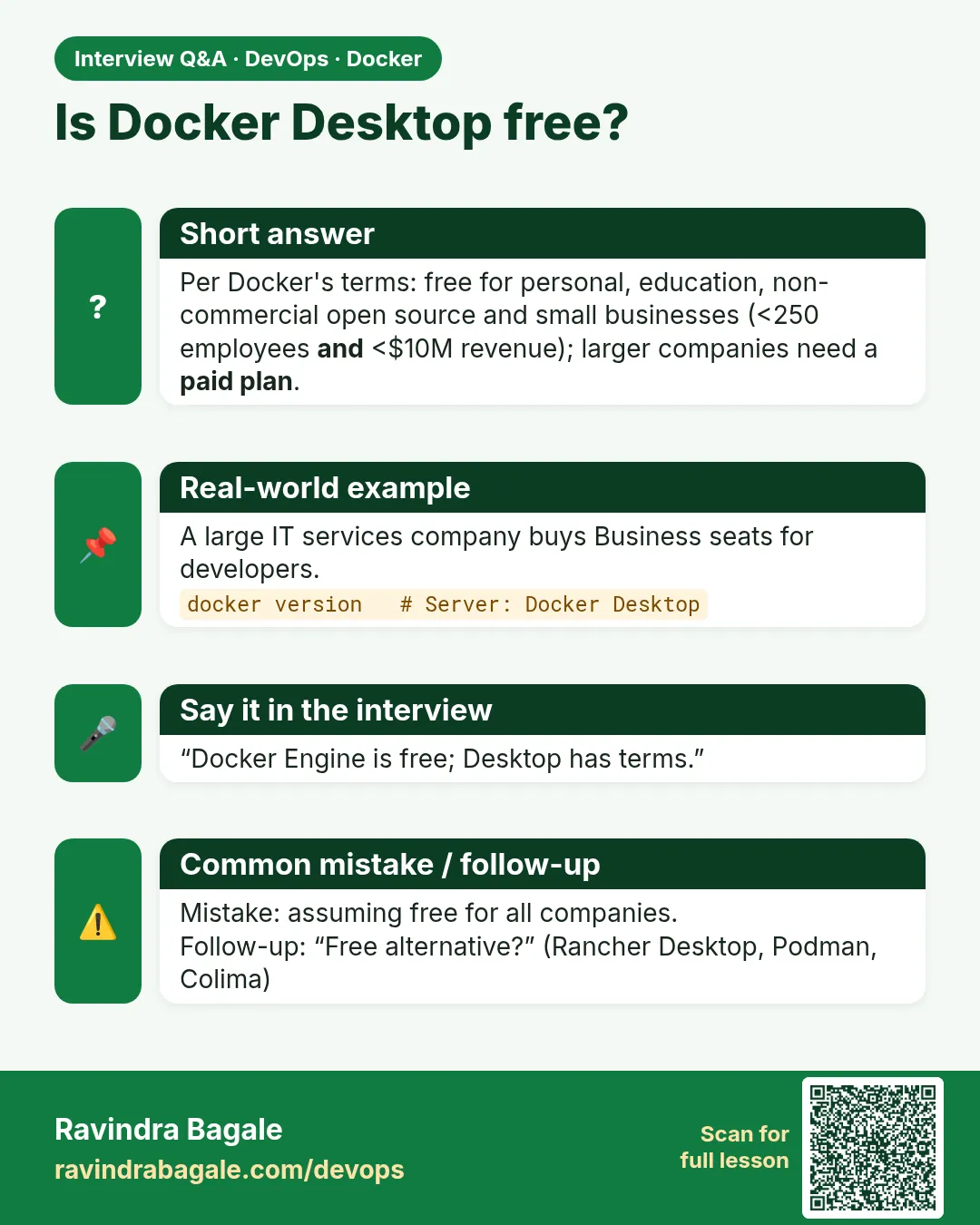
What: Docker Desktop is free for personal use, education, open source and small businesses with fewer than 250 employees and less than 10 million US dollars yearly revenue. Others must buy a paid subscription. Docker Engine on Linux stays free for everyone.
Example 25: See which account you are signed in with
Type this:
docker info --format '{{.Name}}'; docker login 2>&1 | head -1
You will see:
docker-desktop
Authenticating with existing credentials... [Username: ravi]
What it means: The Desktop app shows your plan under your account icon.
Example 26: A big company case
Type this:
echo 'Infosys: 300,000+ staff -> paid plan, or use Docker Engine in WSL 2 / Rancher Desktop'
You will see:
Infosys: 300,000+ staff -> paid plan, or use Docker Engine in WSL 2 / Rancher Desktop
What it means: Large firms like Infosys and Accenture either buy plans or give developers a free alternative (lesson 47.9).
Example 27: A small startup case
Type this:
echo 'Startup: 40 staff, 2M USD revenue -> free'
You will see:
Startup: 40 staff, 2M USD revenue -> free
What it means: Both conditions are under the limit, so free use is allowed.
Step 10: Update and uninstall
Why: Desktop updates often, and sometimes you must remove it to switch to an alternative.
What: Updates come from the app itself or from winget or brew. Uninstalling also removes the hidden VM and its images.
Example 28: Update with winget
Type this:
winget upgrade --id Docker.DockerDesktop
You will see:
No available upgrade found.
What it means: Already the newest.
Example 29: Uninstall on Mac
Type this:
brew uninstall --cask docker
You will see:
==> Uninstalling Cask docker
==> Removing files
What it means: The whale icon disappears.
Example 30: Uninstall on Windows
Type this:
winget uninstall --id Docker.DockerDesktop
wsl -l -v
You will see:
Successfully uninstalled
  NAME            STATE      VERSION
* Ubuntu-24.04    Stopped    2
What it means: The docker-desktop Linux is gone. Your own Ubuntu stays.
Check yourself
Q1. Name three things inside Docker Desktop.
Docker Engine in a hidden VM, Compose and Buildx, and optional Kubernetes.
Q2. Why does Docker Desktop need a VM on a Mac?
Containers need a Linux kernel, and macOS does not have one.
Q3. When is Docker Desktop free?
Personal, education, open source, and businesses under 250 staff and under 10M USD revenue.
Q4. What does exit code 137 during a build suggest on Desktop?
The VM ran out of memory; raise it in Settings.
Q5. Is Docker Engine on Linux free for companies?
Yes.
Friends, Docker Desktop is a ready box: engine, VM, Compose and Kubernetes all inside. But in a big company, remember the licence. Did you understand? Let us try it once more. If not, look at Picture 3 again. Next lesson: free alternatives.
मित्रांनो, Docker Desktop म्हणजे तयार डबा: engine, VM, Compose, Kubernetes सगळं आत. पण मोठी company असेल तर licence लक्षात ठेवा. समजलं का? चला, पुन्हा एकदा करून पाहू. नसेल तर Picture 3 पुन्हा बघा. पुढे free पर्याय.
दोस्तों, Docker Desktop मतलब तैयार डिब्बा: engine, VM, Compose, Kubernetes सब अंदर. पर बड़ी company हो तो licence याद रखिए. समझ आया? चलिए, एक बार फिर करके देखते हैं। नहीं तो Picture 3 फिर देखिए. आगे free विकल्प.
Lab: try at home
- Install Docker Desktop on your Windows or Mac laptop (personal use is free).
- Run nginx with
-p 8080:80and find it in the Containers tab. - Check
docker infofor CPUs and memory, then change them in Settings. - Turn on Kubernetes and run
kubectl get nodes. - Write down whether your company would need a paid plan, and why.
Recap
- Docker Desktop is one app with engine, VM, Compose, Buildx and Kubernetes.
- It uses WSL 2 on Windows and a hidden VM on Mac.
- Buttons in the window match docker commands.
- Set CPU and memory in Settings.
- Big companies need a paid plan; Docker Engine on Linux is free.
 Revision card
 Interview card