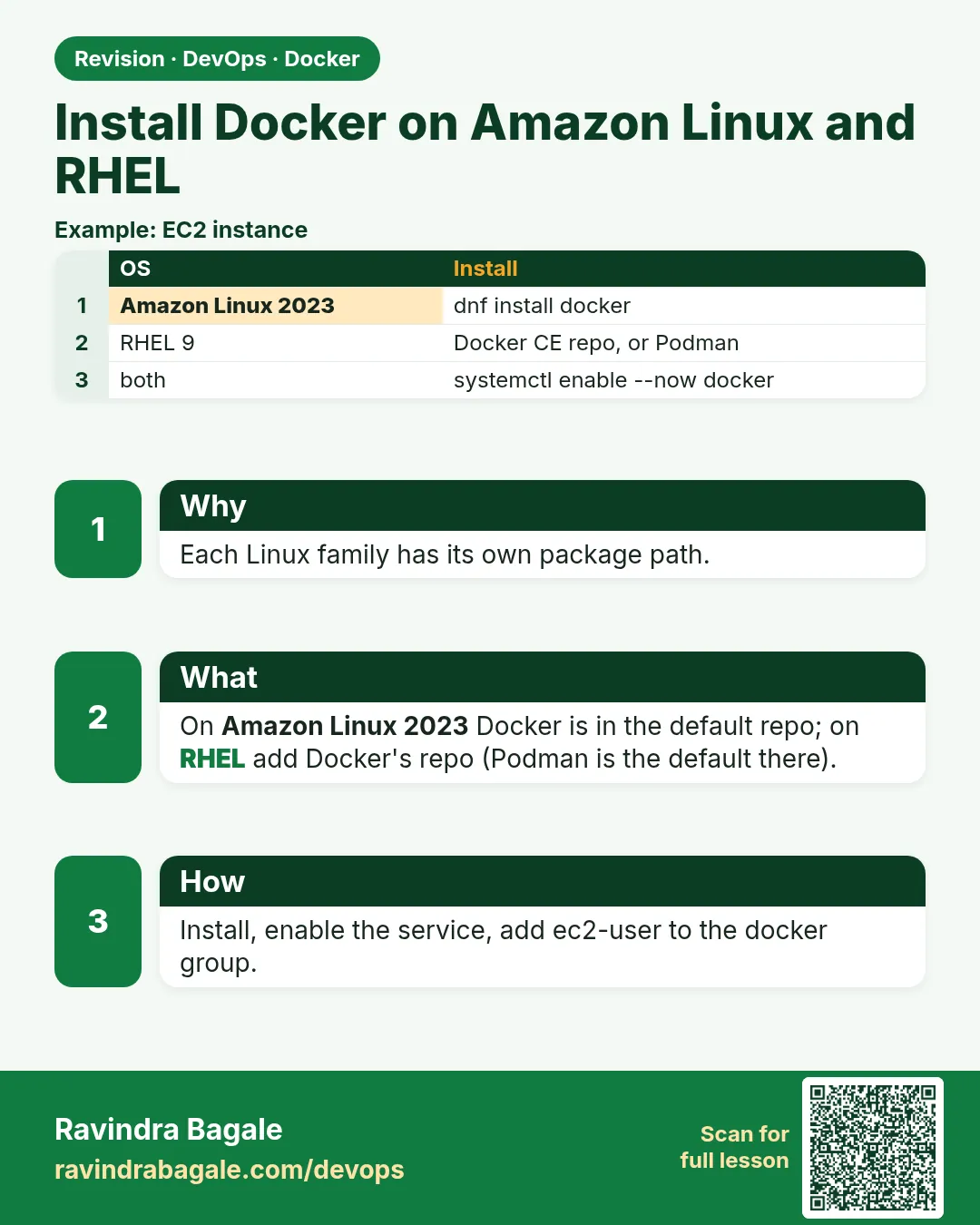
47.6 Install Docker on Amazon Linux 2023 and RHEL
Chala mitrano! Ubuntu is done. But many companies on AWS use Amazon Linux 2023, and banks use RHEL. Today we install on both. The tool is different, dnf instead of apt, but the idea is the same.
चला मित्रांनो! Ubuntu झालं. पण AWS वर खूप companies Amazon Linux 2023 वापरतात, आणि banks RHEL वापरतात. आज दोन्हीवर install करू. Tool वेगळं आहे: apt नाही, dnf. बाकी कल्पना तीच.
चलो दोस्तों! Ubuntu हो गया. पर AWS पर बहुत companies Amazon Linux 2023 इस्तेमाल करती हैं, और banks RHEL. आज दोनों पर install करेंगे. Tool अलग है: apt नहीं, dnf. बाकी बात वही.
1. Start from two different kitchens
Two restaurants make the same biryani. One uses a gas stove, the other an induction stove. The recipe is the same, but you switch it on differently.
Ubuntu and Amazon Linux are like those two kitchens. Both run Docker the same way, but they install software with different tools. Ubuntu uses apt. Amazon Linux 2023 and Red Hat Enterprise Linux (RHEL) use dnf.
Amazon Linux 2023 is the default Linux on AWS EC2, used by startups like Razorpay and big teams at Amazon itself. RHEL is popular in banks such as HDFC and ICICI and at telecom companies like Airtel. You will meet both at work.
2. Amazon Linux 2023
Step 1: Check the operating system
Why: Commands differ between Linux types, so always check first.
What: The file /etc/os-release names the Linux and its version. dnf is the package tool on Amazon Linux 2023 and RHEL.
Example 1: Show the OS name
Type this:
grep PRETTY_NAME /etc/os-release
You will see:
PRETTY_NAME="Amazon Linux 2023.6.20241010"
What it means: We are on Amazon Linux 2023.
Example 2: Check that dnf exists
Type this:
dnf --version | head -1
You will see:
4.14.0
What it means: dnf is the package tool here, like apt on Ubuntu.
Example 3: Check the CPU type
Type this:
uname -m
You will see:
x86_64
What it means: x86_64 is a normal Intel or AMD CPU. Graviton servers show aarch64. Docker supports both.
Step 2: Install Docker from Amazon's shelf
Why: Amazon already keeps a tested Docker package in its own repository, so we do not add anything.
What: On Amazon Linux 2023 the package is simply called docker. It includes the engine, the client and containerd.
Example 4: Update the system first
Type this:
sudo dnf update -y
You will see:
Last metadata expiration check: 0:01:10 ago.
Dependencies resolved.
Nothing to do.
Complete!
What it means: Always update a fresh server first so security fixes are in place.
Example 5: Install Docker
Type this:
sudo dnf install -y docker
You will see:
Installing:
 docker        x86_64   25.0.6-1.amzn2023.0.2   amazonlinux
 containerd    x86_64   1.7.20-1.amzn2023.0.1   amazonlinux
Complete!
What it means: One command. The version may be a little older than Docker's own, because Amazon tests it first.
Example 6: Check the version
Type this:
docker --version
You will see:
Docker version 25.0.6, build 1a2b3c4
What it means: Docker is installed.
Step 3: Start, enable and test
Why: As on Ubuntu, Docker must run now and after every reboot.
What: We use systemctl enable --now and then run hello-world. The default EC2 user is ec2-user.
Example 7: Start and enable
Type this:
sudo systemctl enable --now docker
systemctl is-active docker
You will see:
Created symlink /etc/systemd/system/multi-user.target.wants/docker.service
active
What it means: On Amazon Linux, Docker is not started by default after install, so this step is a must.
Example 8: Allow ec2-user to use Docker
Type this:
sudo usermod -aG docker ec2-user
newgrp docker
id -nG
You will see:
ec2-user adm wheel systemd-journal docker
What it means: ec2-user is now in the docker group.
Example 9: Run hello-world
Type this:
docker run --rm hello-world | head -2
You will see:
Hello from Docker!
What it means: Amazon Linux 2023 is ready.
Step 4: Add the Compose and Buildx plugins
Why: Amazon's docker package does not include the Compose plugin. Many projects need it.
What: We download the plugin file into Docker's plugin folder. A plugin is an extra piece that adds a new sub-command, here docker compose.
Example 10: Make the plugin folder
Type this:
sudo mkdir -p /usr/local/lib/docker/cli-plugins
You will see:
(no output)
What it means: Docker looks for plugins in this folder.
Example 11: Copy the Compose file into the folder
Type this:
scp docker-compose-linux-x86_64 ec2-user@10.0.1.25:/tmp/
sudo cp /tmp/docker-compose-linux-x86_64 /usr/local/lib/docker/cli-plugins/docker-compose
You will see:
docker-compose-linux-x86_64 100% 60MB 45.2MB/s 00:01
What it means: First download the file named docker-compose-linux-x86_64 (or aarch64 for Graviton) from the official Docker Compose releases page on your laptop. scp copies it to the server, and cp puts it into the plugin folder with the name docker-compose.
Example 12: Make it runnable and check
Type this:
sudo chmod 0755 /usr/local/lib/docker/cli-plugins/docker-compose
docker compose version
You will see:
Docker Compose version v2.29.7
What it means: 0755 means root can change it and everyone can run it. A safe mode. Now docker compose works.
Ravindra Bagale's Tip
On Amazon Linux the docker package comes from Amazon, not from Docker the company, so the version may be a little older. In production, keeping all servers on the same version matters more.
Amazon Linux वर docker package Amazon चा आहे, Docker company चा नाही. म्हणून version थोडा जुना असू शकतो. Production मध्ये सगळे servers एकाच version वर ठेवणं जास्त महत्त्वाचं.
Amazon Linux पर docker package Amazon का है, Docker company का नहीं. इसलिए version थोड़ा पुराना हो सकता है. Production में सारे servers एक ही version पर रखना ज़्यादा ज़रूरी है.
3. RHEL 9 (and Rocky or AlmaLinux)
Step 5: Remove clashing packages
Why: RHEL ships Podman and a tool that pretends to be docker. They clash with real Docker.
What: Podman is a Docker-like tool made by Red Hat (chapter 68). The package podman-docker adds a fake docker command that runs Podman. We remove these first.
Example 13: See if a fake docker exists
Type this:
docker --version 2>/dev/null || echo 'no docker yet'
You will see:
Emulate Docker CLI using podman. Create /etc/containers/nodocker to quiet msg.
podman version 4.9.4
What it means: This docker is really Podman. We want the real one.
Example 14: Remove the clashing packages
Type this:
sudo dnf remove -y docker docker-client docker-common docker-latest podman-docker podman runc
You will see:
Removed:
  podman-docker-4.9.4-1.el9.noarch
  podman-4.9.4-1.el9.x86_64
Complete!
What it means: Packages that are not installed are skipped.
Example 15: Confirm it is gone
Type this:
which docker || echo gone
You will see:
gone
What it means: The fake command is removed.
Step 6: Add Docker's official repository
Why: RHEL has no Docker package of its own, so we add Docker's shelf.
What: dnf config-manager adds a repository from a .repo file. The plugin tools come from the package dnf-plugins-core.
Example 16: Install the helper
Type this:
sudo dnf -y install dnf-plugins-core
You will see:
Package dnf-plugins-core-4.3.0-13.el9.noarch is already installed.
What it means: Usually already present.
Example 17: Add the repository
Type this:
sudo dnf config-manager --add-repo https://download.docker.com/linux/rhel/docker-ce.repo
You will see:
Adding repo from: https://download.docker.com/linux/rhel/docker-ce.repo
What it means: For Rocky Linux or AlmaLinux, use the centos path instead of rhel.
Example 18: List the repositories
Type this:
dnf repolist | grep docker
You will see:
docker-ce-stable Docker CE Stable - x86_64
What it means: Docker's stable shelf is active.
Step 7: Install and start on RHEL
Why: Now the same final steps as Ubuntu.
What: We install the five official packages, start the service, and test.
Example 19: Install
Type this:
sudo dnf install -y docker-ce docker-ce-cli containerd.io docker-buildx-plugin docker-compose-plugin
You will see:
Importing GPG key 0x621E9F35:
 Fingerprint: 060A 61C5 1B55 8A7F 742B 77AA C52F EB6B 621E 9F35
Is this ok [y/N]: y
Complete!
What it means: dnf asks to trust Docker's key the first time. Check the fingerprint matches Docker's docs, then accept.
Example 20: Start and test
Type this:
sudo systemctl enable --now docker
sudo docker run --rm hello-world | head -2
You will see:
Hello from Docker!
What it means: Docker is running on RHEL.
Example 21: Check SELinux is still on
Type this:
getenforce
docker info --format '{{.SecurityOptions}}'
You will see:
Enforcing
[name=seccomp,profile=builtin name=selinux name=cgroupns]
What it means: SELinux is a RHEL security guard that limits what programs can touch. Keep it Enforcing. Banks require it. Docker works with it.
Step 8: Firewall and volume labels on RHEL
Why: RHEL is stricter by default. Two things trip up beginners.
What: firewalld is RHEL's firewall. SELinux also blocks containers from reading host folders unless the folder is labelled. Add :Z to a volume to label it.
Example 22: Open a port in the firewall
Type this:
sudo firewall-cmd --add-port=8080/tcp --permanent
sudo firewall-cmd --reload
You will see:
success
success
What it means: Now people outside can reach port 8080. On AWS you must also allow it in the security group.
Example 23: A volume without a label fails
Type this:
mkdir -p ~/site && echo hello > ~/site/index.html
docker run --rm -v ~/site:/usr/share/nginx/html nginx:1.27 cat /usr/share/nginx/html/index.html
You will see:
cat: /usr/share/nginx/html/index.html: Permission denied
What it means: SELinux blocked the container from reading your folder.
Example 24: Add :Z and try again
Type this:
docker run --rm -v ~/site:/usr/share/nginx/html:Z nginx:1.27 cat /usr/share/nginx/html/index.html
You will see:
hello
What it means: :Z labels the folder for this container, and SELinux allows it. Do not turn SELinux off to fix this.
Step 9: Install Docker automatically at launch
Why: At Swiggy, servers are created by the hundred. Nobody types install commands by hand on each one.
What: EC2 user data is a small script that AWS runs once, as root, the first time a server boots. We put our install steps in it.
Example 25: Write the script
Type this:
printf '#!/bin/bash\ndnf install -y docker\nsystemctl enable --now docker\nusermod -aG docker ec2-user\n' > userdata.sh
cat userdata.sh
You will see:
#!/bin/bash
dnf install -y docker
systemctl enable --now docker
usermod -aG docker ec2-user
What it means: printf writes the four lines into a file. \n means a new line.
Example 26: Launch a server with the script
Type this:
aws ec2 run-instances --image-id resolve:ssm:/aws/service/ami-amazon-linux-latest/al2023-ami-kernel-default-x86_64 --instance-type t3.micro --user-data file://userdata.sh --query 'Instances[0].InstanceId'
You will see:
"i-0a1b2c3d4e5f67890"
What it means: The resolve:ssm: part always picks the latest Amazon Linux 2023 image. AWS runs our script at first boot.
Example 27: Check the script worked
Type this:
ssh ec2-user@10.0.1.40 'docker --version; sudo tail -2 /var/log/cloud-init-output.log'
You will see:
Docker version 25.0.6, build 1a2b3c4
Cloud-init v. 22.2.2 finished ... Up 48.21 seconds
What it means: The log file /var/log/cloud-init-output.log shows the script's output. If Docker is missing, read this file first.
Step 10: Amazon Linux 2 versus 2023
Why: Old servers at many companies still run Amazon Linux 2. The commands are a little different.
What: Amazon Linux 2 uses yum instead of dnf, and used an extras tool for Docker. It reaches end of support in 2026, so new servers should use 2023.
Example 28: Spot an Amazon Linux 2 server
Type this:
grep PRETTY_NAME /etc/os-release
You will see:
PRETTY_NAME="Amazon Linux 2"
What it means: No year in the name means the old version.
Example 29: Install Docker on Amazon Linux 2
Type this:
sudo yum install -y docker
sudo systemctl enable --now docker
You will see:
Installed:
  docker.x86_64 0:25.0.6-1.amzn2.0.1
Complete!
What it means: yum is the older tool, but the steps are the same.
Example 30: Check how long support remains
Type this:
rpm -q system-release
You will see:
system-release-2-17.amzn2.noarch
What it means: Plan a move to Amazon Linux 2023. Teams at Zomato moved by building new 2023 servers with user data, then switching traffic.
Check yourself
Q1. Which tool installs software on Amazon Linux 2023 and RHEL?
dnf.
Q2. What is the Docker package called on Amazon Linux 2023?
docker.
Q3. Why remove podman-docker on RHEL first?
It provides a fake docker command that clashes with real Docker.
Q4. What does :Z on a volume do?
It labels the folder so SELinux lets the container read it.
Q5. Should you disable SELinux to make Docker work?
No. Use :Z labels instead.
Friends, Amazon Linux needs one command; RHEL needs the repo added first; and remember :Z for SELinux. Did you understand? Let us try it once more. If not, take two EC2s and install on both. Next: Docker on Windows with WSL 2.
मित्रांनो, Amazon Linux वर एक command, RHEL वर आधी repo add करायची, आणि SELinux साठी :Z लक्षात ठेवा. समजलं का? चला, पुन्हा एकदा करून पाहू. नसेल तर दोन EC2 घ्या आणि दोन्हीवर install करून बघा. पुढे Windows वर WSL 2 सोबत Docker.
दोस्तों, Amazon Linux पर एक command, RHEL पर पहले repo add करनी है, और SELinux के लिए :Z याद रखिए. समझ आया? चलिए, एक बार फिर करके देखते हैं। नहीं तो दो EC2 लीजिए और दोनों पर install कीजिए. आगे Windows पर WSL 2 के साथ Docker.
Lab: try at home
- Launch an Amazon Linux 2023 EC2 instance and install Docker with dnf.
- Add ec2-user to the docker group and run hello-world without sudo.
- Install the Compose plugin and run
docker compose version. - If you have a RHEL or Rocky Linux machine, add Docker's repo and install docker-ce.
- Try a volume with and without
:Zon RHEL and compare.
Recap
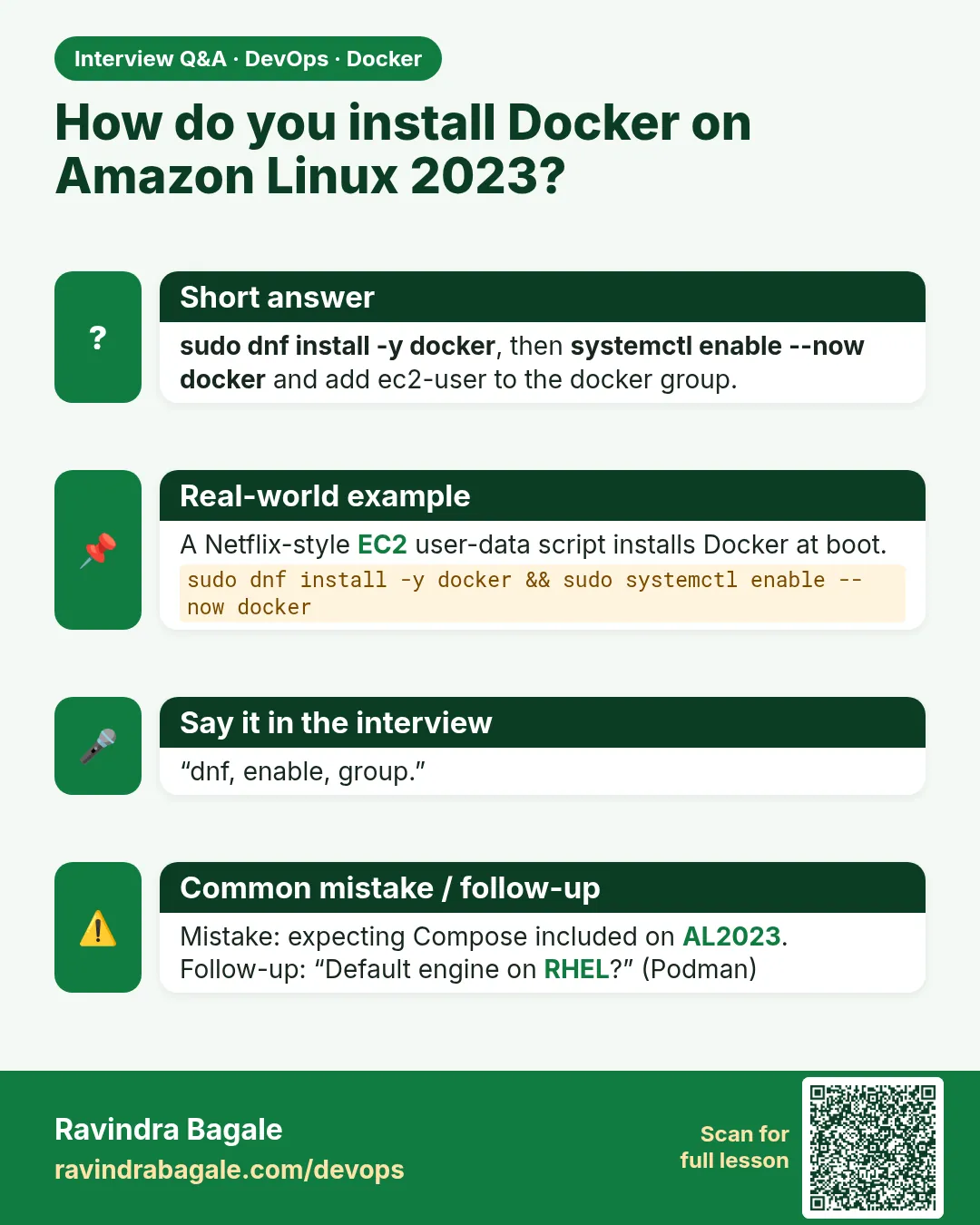
- Amazon Linux 2023: sudo dnf install -y docker, then enable --now.
- RHEL: remove podman-docker, add Docker's repo, install docker-ce.
- Add your user to the docker group.
- Keep SELinux on; use :Z for host folders.
- Open ports in firewalld and the AWS security group.
 Revision card
 Interview card