47.4 Namespaces and cgroups: how isolation really works
Chala mitrano! We saw that a container is just a process. Then how does it get its own walls? Two words today: namespaces decide what it can see, cgroups decide how much it can use. We see each with a command.
चला मित्रांनो! Container म्हणजे फक्त एक process, हे आपण बघितलं. मग त्याला स्वतःच्या भिंती कशा मिळतात? आज दोन शब्द: namespaces म्हणजे काय दिसेल, cgroups म्हणजे किती वापरता येईल. प्रत्येक गोष्ट command ने बघू.
चलो दोस्तों! हमने देखा container बस एक process है. फिर उसे अपनी दीवारें कैसे मिलती हैं? आज दो शब्द: namespaces तय करते हैं क्या दिखेगा, cgroups तय करते हैं कितना इस्तेमाल होगा. हर चीज़ command से देखेंगे.
1. Start from a hostel room
Think of a college hostel. Every student gets a room. Inside the room, the student sees only his own bed, his own cupboard and his own window. He cannot see the other rooms. That is the first rule: what you can see.
The hostel also has rules on how much you may use: one bucket of hot water a day, and the fan only until midnight. That is the second rule: how much you can use.
Linux gives the same two rules to a container. Namespaces decide what a process can see. Cgroups decide how much it can use. Together they turn a normal process into a container.
2. Namespaces: what a process can see
Step 1: Namespace
Why: Without walls, every container could see every other program and file on the server.
What: A namespace is a Linux feature that gives a process its own private view of one kind of thing. There are several kinds: PID (process list), NET (network), MNT (files), UTS (hostname), IPC (shared memory) and USER (user IDs). Docker turns them all on for each container.
Example 1: List the namespaces of your own shell
Type this:
ls -l /proc/$$/ns | awk '{print $9, $11}'
You will see:
cgroup cgroup:[4026531835]
ipc ipc:[4026531839]
mnt mnt:[4026531841]
net net:[4026531840]
pid pid:[4026531836]
uts uts:[4026531838]
What it means: $$ is the ID of your shell. Each line is one namespace with an ID number. All normal programs on the host share these same numbers.
Example 2: List the namespaces of a container
Type this:
docker run -d --name ns1 nginx:1.27
sudo ls -l /proc/$(docker inspect -f '{{.State.Pid}}' ns1)/ns | awk '{print $9, $11}'
You will see:
ipc ipc:[4026532305]
mnt mnt:[4026532303]
net net:[4026532308]
pid pid:[4026532306]
uts uts:[4026532304]
What it means: The numbers are different from the host's. The container lives in its own private rooms.
Example 3: Use lsns to see all namespaces
Type this:
sudo lsns -t net
You will see:
        NS TYPE NPROCS   PID USER    COMMAND
4026531840 net     118     1 root    /sbin/init
4026532308 net       2  2235 root    nginx: master process
What it means: lsns lists namespaces. The host has one network namespace with 118 processes; the nginx container has its own with 2.
Step 2: PID namespace
Why: Each container should see only its own programs.
What: The PID namespace gives a container its own process list. The first program inside becomes process number 1, even though the host knows it by another number.
Example 4: Inside: only my own processes
Type this:
docker exec ns1 ps -e 2>/dev/null || docker exec ns1 ls /proc | grep -E '^[0-9]+$'
You will see:
1
29
30
What it means: nginx has no ps, so we list /proc instead. Only a few numbers, starting with 1. The container cannot see the 100+ host programs.
Example 5: Same process, two numbers
Type this:
docker inspect -f '{{.State.Pid}}' ns1
docker exec ns1 cat /proc/1/comm
You will see:
2235
nginx
What it means: The host calls it 2235. Inside, it is process 1. One process, two names, because of the PID namespace.
Example 6: Share the host's process list on purpose
Type this:
docker run --rm --pid=host alpine ps -e | wc -l
You will see:
124
What it means: --pid=host turns the wall off, so the container sees all host processes. Monitoring tools like Datadog agents use this. Never use it for normal apps.
Step 3: NET namespace
Why: Each container needs its own network card and its own ports.
What: The NET namespace gives a container its own network interfaces, IP address and port numbers. That is why two containers can both use port 80 inside.
Example 7: Container has its own IP
Type this:
docker exec ns1 cat /etc/hosts | tail -1
You will see:
172.17.0.2 6f0c1a2b3c4d
What it means: The container got its own address, 172.17.0.2, on a private Docker network.
Example 8: The host has different interfaces
Type this:
ip -brief addr | head -3
You will see:
lo       UNKNOWN  127.0.0.1/8
ens5     UP       10.0.1.25/24
docker0  UP       172.17.0.1/16
What it means: The host has its own network card (ens5) and a bridge called docker0 that links containers. Chapter 51 covers this in depth.
Example 9: No network at all
Type this:
docker run --rm --network none alpine ip addr | grep inet
You will see:
inet 127.0.0.1/8 scope host lo
What it means: With --network none, the container's network namespace has only the loopback address. Banks use this for jobs that must never touch the network.
Step 4: UTS and MNT namespaces
Why: A container should have its own name and its own files.
What: UTS gives a container its own hostname, the computer's name. MNT gives it its own view of files and folders, built from the image.
Example 10: Each container has its own hostname
Type this:
hostname
docker run --rm alpine hostname
docker run --rm --hostname billing alpine hostname
You will see:
ip-10-0-1-25
4b1e7d9c2a10
billing
What it means: The host name, a random container name, and a name we chose with --hostname.
Example 11: A file made inside stays inside
Type this:
docker run --rm alpine sh -c 'echo hi > /only-here.txt; ls /only-here.txt'
ls /only-here.txt
You will see:
/only-here.txt
ls: cannot access '/only-here.txt': No such file or directory
What it means: The container wrote a file in its own filesystem. The host does not have it. That is the MNT namespace.
Example 12: Different users inside and outside
Type this:
docker run --rm alpine id
You will see:
uid=0(root) gid=0(root)
What it means: Inside, you are root by default. Rootless mode (lesson 47.10) uses the USER namespace to map this root to a normal user on the host, which is safer.
Step 5: Sharing a namespace on purpose
Why: Sometimes two containers must work as a pair, like an app and its helper that reads its traffic.
What: Docker lets one container join another container's namespace with --network container:NAME or --pid container:NAME. Kubernetes pods use exactly this idea: containers in one pod share a network namespace.
Example 13: Start the main app
Type this:
docker run -d --name app nginx:1.27
You will see:
8e1f...
What it means: A normal nginx container. It listens on port 80 inside its own network namespace.
Example 14: A helper joins the app's network
Type this:
docker run --rm --network container:app alpine wget -qO- localhost:80 | grep title
You will see:
<title>Welcome to nginx!</title>
What it means: The helper asked localhost, and nginx answered. Both share one network namespace, so localhost means the same place for both.
Example 15: A helper sees the app's processes
Type this:
docker run --rm --pid container:app alpine ps -o pid,comm
You will see:
PID   COMMAND
    1 nginx
   29 nginx
   35 ps
What it means: With a shared PID namespace, the helper sees nginx as process 1. Debug tools at Uber use this to look inside a running app without changing its image. Clean up with docker rm -f app.
Ravindra Bagale's Tip
Namespace means what it can see; cgroup means how much it can use. Say this one line in an interview and the interviewer is happy. Do not mix them up.
Namespace म्हणजे काय दिसेल, cgroup म्हणजे किती वापरता येईल. हे एक वाक्य interview मध्ये सांगा, interviewer खूश. दोन्हीत गोंधळ करू नका.
Namespace मतलब क्या दिखेगा, cgroup मतलब कितना इस्तेमाल होगा. यह एक लाइन interview में बोलिए, interviewer खुश. दोनों में गड़बड़ मत कीजिए.
3. Cgroups: how much a process can use
Step 6: Cgroup (control group)
Why: Without limits, one buggy container can eat all memory and crash every other app on the server.
What: A cgroup is a Linux feature that puts a group of processes under limits for CPU, memory, disk speed and number of processes. Docker creates one cgroup per container.
Example 16: Find the cgroup version
Type this:
docker info --format '{{.CgroupVersion}}'
You will see:
2
What it means: Modern Linux uses cgroup version 2. The files we read below are version 2 files.
Example 17: See the cgroup of a container
Type this:
cat /proc/$(docker inspect -f '{{.State.Pid}}' ns1)/cgroup
You will see:
0::/system.slice/docker-6f0c1a2b3c4d....scope
What it means: The container's process sits in its own cgroup folder, named after the container ID.
Example 18: No limit set means max
Type this:
docker exec ns1 cat /sys/fs/cgroup/memory.max
You will see:
max
What it means: We gave no limit, so this container may use all memory on the host. That is risky on a shared server.
Step 7: Memory limit
Why: Let us protect the server with a memory limit and see what happens when an app crosses it.
What: --memory sets the most memory a container may use. If the app tries to use more, the kernel kills it. This is called an OOM kill (out of memory).
Example 19: Set a memory limit
Type this:
docker run -d --name small --memory 128m nginx:1.27
docker exec small cat /sys/fs/cgroup/memory.max
You will see:
134217728
What it means: 128 MB in bytes. The kernel now enforces this wall.
Example 20: Watch the usage live
Type this:
docker stats --no-stream --format '{{.Name}} {{.MemUsage}}' small
You will see:
small 3.4MiB / 128MiB
What it means: The app uses 3.4 MB of its 128 MB allowance.
Example 21: Cross the limit on purpose
Type this:
docker run --name hog --memory 50m alpine sh -c 'tail /dev/zero'
docker inspect -f '{{.State.OOMKilled}} {{.State.ExitCode}}' hog
You will see:
(no output, the container stops)
true 137
What it means: tail /dev/zero eats memory forever. The kernel killed it at 50 MB. Exit code 137 plus OOMKilled true is the sign you will see at work when an app at Paytm or PhonePe needs a bigger limit.
Step 8: CPU and process limits
Why: Memory is not the only thing to share. CPU time and process count matter too.
What: --cpus limits how many CPUs a container can use. --pids-limit limits how many processes it may start, which stops a runaway loop from freezing the server.
Example 22: Limit CPU to half a core
Type this:
docker run -d --name cpu1 --cpus 0.5 alpine sh -c 'while true; do :; done'
docker stats --no-stream --format '{{.Name}} {{.CPUPerc}}' cpu1
You will see:
cpu1 50.12%
What it means: The loop wants 100% but gets only 50%. The other apps on the server stay fast.
Example 23: See the CPU rule in the cgroup
Type this:
docker exec cpu1 cat /sys/fs/cgroup/cpu.max
You will see:
50000 100000
What it means: Out of every 100,000 microseconds, this container may run for 50,000. That is half a CPU.
Example 24: Limit the number of processes
Type this:
docker run --rm --pids-limit 20 alpine sh -c 'for i in $(seq 1 30); do sleep 60 & done; wait'
You will see:
sh: can't fork: Resource temporarily unavailable
What it means: The container could start only 20 processes. A buggy script at a bank cannot take down the whole server. Clean up with docker rm -f ns1 small hog cpu1.
Step 9: Change limits on a running container
Why: At Flipkart during a Big Billion Days sale, an app may need more memory without a restart.
What: docker update changes the cgroup limits of a running container. The change takes effect at once.
Example 25: Start with a small limit
Type this:
docker run -d --name shop --memory 128m --cpus 0.5 nginx:1.27
docker stats --no-stream --format '{{.Name}} {{.MemUsage}} {{.CPUPerc}}' shop
You will see:
shop 3.2MiB / 128MiB 0.00%
What it means: The shop container may use 128 MB and half a CPU.
Example 26: Raise the limits live
Type this:
docker update --memory 512m --memory-swap 512m --cpus 2 shop
You will see:
shop
What it means: Docker prints the name to confirm. We set memory-swap equal to memory so there is no extra swap space.
Example 27: Check the new limits
Type this:
docker exec shop cat /sys/fs/cgroup/memory.max /sys/fs/cgroup/cpu.max
You will see:
536870912
200000 100000
What it means: 512 MB and two full CPUs. The app never stopped. Clean up with docker rm -f shop.
Check yourself
Q1. What do namespaces control?
What a process can see: processes, network, files, hostname, users.
Q2. What do cgroups control?
How much a process can use: memory, CPU, processes, disk speed.
Q3. Why is nginx process 1 inside but 2235 on the host?
Because of the PID namespace.
Q4. What does exit code 137 with OOMKilled true mean?
The container crossed its memory limit and the kernel killed it.
Q5. Which flag limits CPU?
--cpus, for example --cpus 0.5.
Q6. Which flag removes the network completely?
--network none.
Friends, remember the hostel: the room is the namespace, the water and fan rules are cgroups. Did you understand? Let us try it once more. If not, rerun the memory limit example and see exit code 137 yourself. Next lesson: install Docker on Ubuntu.
मित्रांनो, hostel चं उदाहरण लक्षात ठेवा: खोली म्हणजे namespace, पाणी आणि fan चे नियम म्हणजे cgroups. समजलं का? चला, पुन्हा एकदा करून पाहू. नसेल तर memory limit चं उदाहरण परत चालवा आणि 137 code स्वतः बघा. पुढे Ubuntu वर Docker install.
दोस्तों, hostel वाला उदाहरण याद रखिए: कमरा मतलब namespace, पानी और fan के नियम मतलब cgroups. समझ आया? चलिए, एक बार फिर करके देखते हैं। नहीं तो memory limit वाला उदाहरण फिर चलाइए और 137 code खुद देखिए. आगे Ubuntu पर Docker install.
Lab: try at home
- Start nginx and compare its namespace IDs with your shell's using
ls -l /proc/.../ns. - Run
docker run --rm --hostname myname alpine hostname. - Run a container with
--memory 50mandtail /dev/zero, then check OOMKilled with docker inspect. - Run a busy loop with
--cpus 0.5and watchdocker stats. - Remove every container you made with one
docker rm -fcommand.
Recap
- A container is a normal process with namespaces and cgroups.
- Namespaces: PID, NET, MNT, UTS, IPC, USER control what it sees.
- Cgroups control how much CPU, memory and processes it can use.
- Crossing the memory limit gives an OOM kill and exit code 137.
- Always set limits on shared servers.
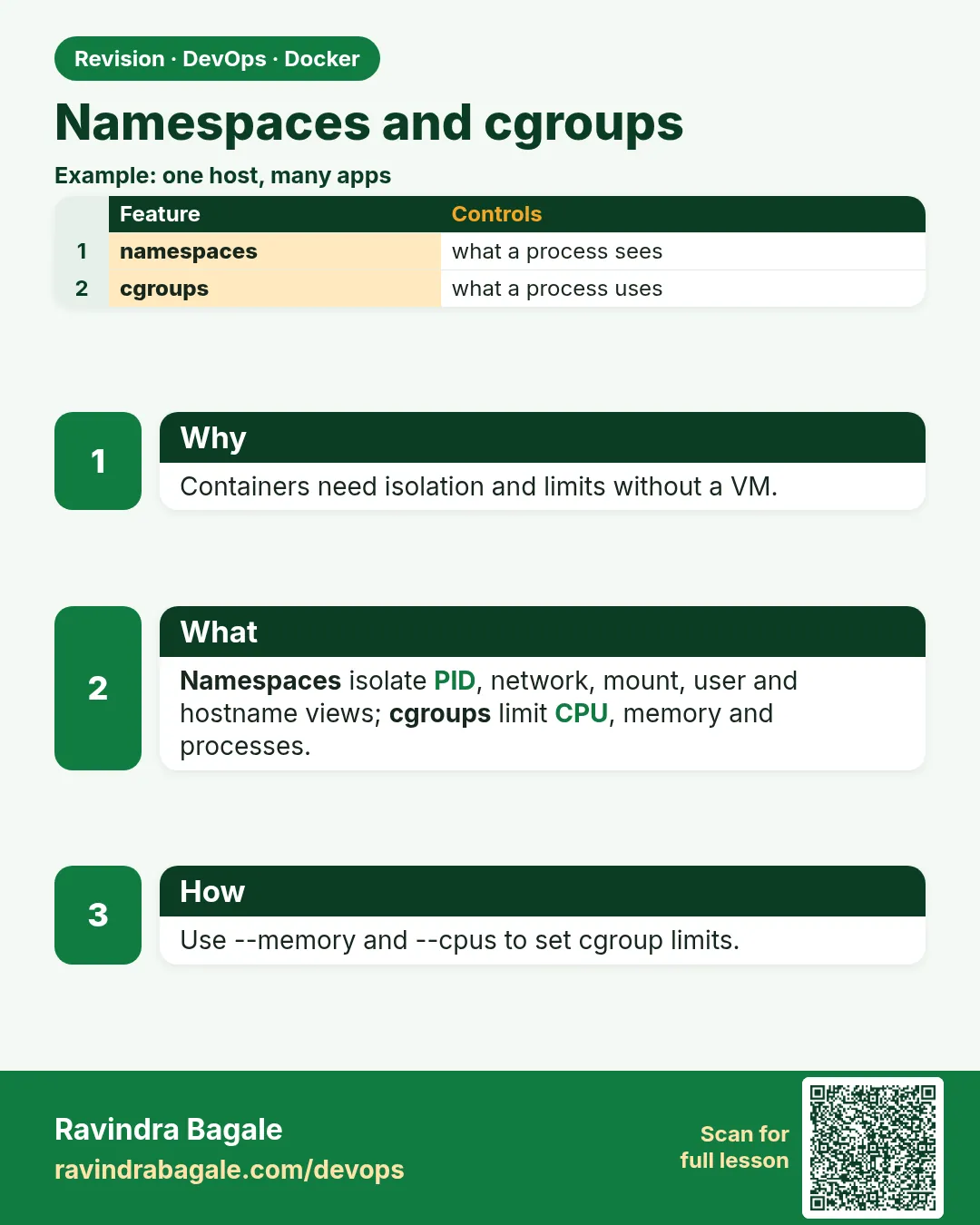 Revision card
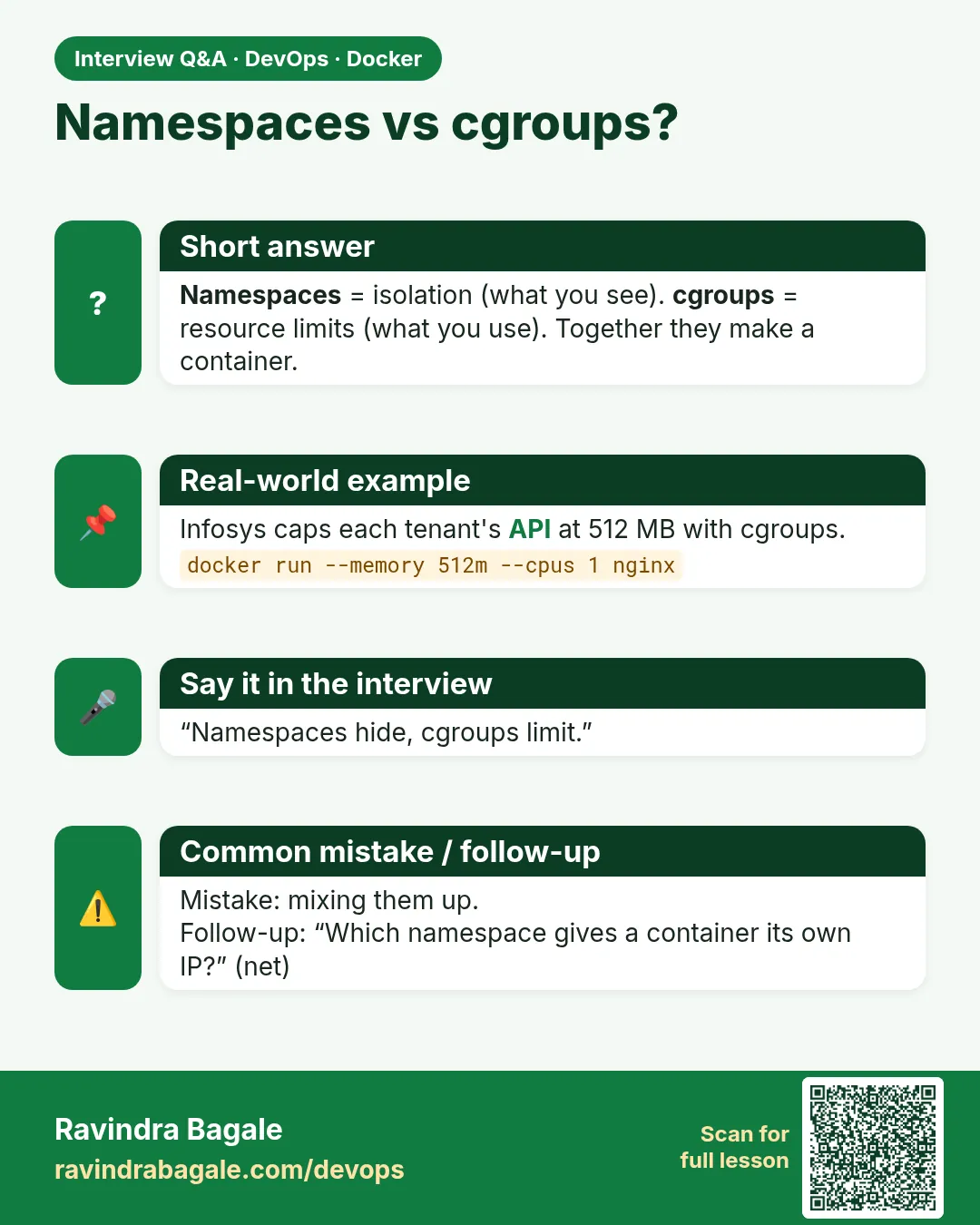 Interview card
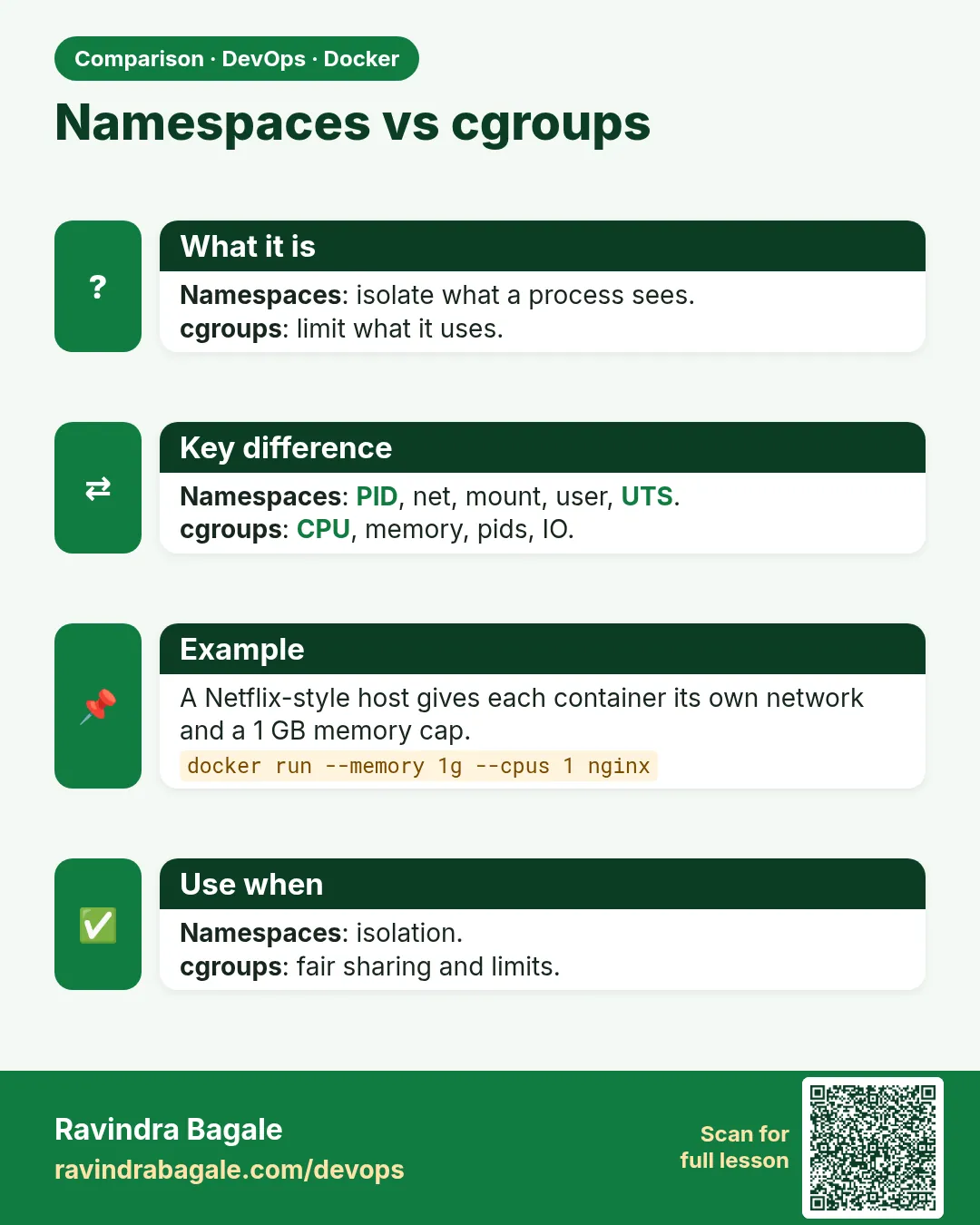 Comparison card