47.10 Rootless mode and post-install setup
Chala mitrano! Docker is installed, but every command needs sudo. Today we learn how to run docker without sudo, what rootless mode is, and the key settings after install: start on boot, log size and disk.
चला मित्रांनो! Docker install झाला, पण प्रत्येक command ला sudo लागतो. आज sudo शिवाय docker कसा चालवायचा, rootless mode काय आहे, आणि install नंतरचे महत्त्वाचे settings बघूया: boot ला start, logs ची size आणि disk.
चलो दोस्तों! Docker install हो गया, पर हर command में sudo लगता है. आज सीखेंगे sudo के बिना docker कैसे चलाएँ, rootless mode क्या है, और install के बाद की ज़रूरी settings: boot पर start, logs का size और disk.
1. Start from a building key
In an office at Magarpatta, the security guard has the master key to every floor. If a thief gets that key, every office is open.
The Docker daemon normally runs as root, the master user of Linux. Anyone who can talk to the daemon can, in effect, act as root. So who gets that access matters.
We learn two paths. First, the common one: add your user to the docker group so you skip sudo. Second, the safer one: rootless mode, where the daemon itself runs as a normal user, like a guard who has only one floor's key.
2. Post-install steps
Step 1: Run docker without sudo
Why: Typing sudo every time is slow, and scripts break without it.
What: The docker group is a Linux group whose members may use the Docker socket, the file /var/run/docker.sock that the client talks through. usermod -aG adds you to a group.
Example 1: See the error first
Type this:
docker ps
You will see:
permission denied while trying to connect to the Docker daemon socket at unix:///var/run/docker.sock
What it means: Your user cannot open the socket yet.
Example 2: Add yourself to the group
Type this:
sudo usermod -aG docker $USER
newgrp docker
You will see:
(no output)
What it means: -aG means append to group. newgrp loads the new group in this terminal; otherwise log out and in.
Example 3: Try again
Type this:
docker ps
id -nG
You will see:
CONTAINER ID   IMAGE   COMMAND   CREATED   STATUS   PORTS   NAMES
ravi adm sudo docker
What it means: It works, and id -nG shows docker in your groups.
Step 2: Why the docker group is powerful
Why: New learners think the group is harmless. It is not.
What: A member can start a container that mounts the whole host disk as root. So only trusted people should be in the group. On shared servers at banks, they use rootless mode or sudo instead.
Example 4: See who is in the group
Type this:
getent group docker
You will see:
docker:x:998:ravi,deploy
What it means: Two users have root-level power through Docker.
Example 5: Show the risk safely
Type this:
docker run --rm -v /etc:/host-etc:ro alpine head -1 /host-etc/shadow
You will see:
root:*:19800:0:99999:7:::
What it means: A normal user just read a root-only file through a container. That is why the group is sensitive.
Example 6: Remove a user who left
Type this:
sudo gpasswd -d deploy docker
You will see:
Removing user deploy from group docker
What it means: Review this list when people leave the team.
Step 3: Start Docker at boot
Why: After a server reboot, containers are down until Docker starts.
What: systemd is the Linux service manager. systemctl enable makes a service start at boot.
Example 7: Enable both services
Type this:
sudo systemctl enable docker.service containerd.service
You will see:
Created symlink /etc/systemd/system/multi-user.target.wants/docker.service
What it means: Docker and containerd will start on every boot.
Example 8: Check
Type this:
systemctl is-enabled docker
You will see:
enabled
What it means: Ready for reboots.
Example 9: Bring containers back too
Type this:
docker run -d --name web --restart unless-stopped -p 80:80 nginx:1.27
docker inspect -f '{{.HostConfig.RestartPolicy.Name}}' web
You will see:
4c1d...
unless-stopped
What it means: --restart unless-stopped starts the container again after reboot unless you stopped it yourself.
Step 4: Limit log file size
Why: By default, container logs grow forever. At Zomato, a chatty container once filled a 100 GB disk.
What: Docker's settings file is /etc/docker/daemon.json. The json-file log driver can rotate logs: keep a few files of a fixed size.
Example 10: Write the setting
Type this:
printf '{\n "log-driver": "json-file",\n "log-opts": {"max-size": "10m", "max-file": "3"}\n}\n' | sudo tee /etc/docker/daemon.json
You will see:
{
  "log-driver": "json-file",
  "log-opts": {"max-size": "10m", "max-file": "3"}
}
What it means: Each container keeps at most 3 files of 10 MB.
Example 11: Restart Docker
Type this:
sudo systemctl restart docker
docker info --format '{{.LoggingDriver}}'
You will see:
json-file
What it means: Settings load on restart.
Example 12: Check a new container
Type this:
docker run -d --name chat alpine sh -c 'while true; do date; done'
docker inspect -f '{{.HostConfig.LogConfig.Config}}' chat
docker rm -f chat
You will see:
map[max-file:3 max-size:10m]
chat
What it means: Only new containers get the setting. Old ones keep their old one.
Step 5: Move Docker's data to a bigger disk
Why: On AWS, the root disk is often small; images belong on a bigger attached disk.
What: Docker keeps images and containers in /var/lib/docker. The data-root setting moves it.
Example 13: See where data lives
Type this:
docker info --format '{{.DockerRootDir}}'
df -h /var/lib/docker | tail -1
You will see:
/var/lib/docker
/dev/root  8.0G  7.1G  0.9G  89% /
What it means: Only 0.9 GB left on an 8 GB disk.
Example 14: Move it
Type this:
sudo systemctl stop docker
sudo rsync -a /var/lib/docker/ /data/docker/
printf '{\n  "data-root": "/data/docker"\n}\n' | sudo tee /etc/docker/daemon.json
sudo systemctl start docker
You will see:
{
  "data-root": "/data/docker"
}
What it means: rsync copies everything. If you already have a daemon.json, add the line instead of replacing the file.
Example 15: Confirm
Type this:
docker info --format '{{.DockerRootDir}}'
docker images --format '{{.Repository}}' | head -2
You will see:
/data/docker
nginx
alpine
What it means: Same images, new disk.
Step 6: Keep containers running while Docker restarts
Why: At Paytm, restarting Docker to change a setting must not take the payment app down.
What: The live-restore setting keeps containers running while the Docker daemon itself stops or restarts. When the daemon comes back, it finds them again.
Example 16: Turn it on
Type this:
printf '{\n  "live-restore": true\n}\n' | sudo tee /etc/docker/daemon.json
sudo systemctl reload docker
You will see:
{
  "live-restore": true
}
What it means: reload asks Docker to read the file again without stopping. Merge this line into your existing daemon.json.
Example 17: Check it is on
Type this:
docker info --format '{{.LiveRestoreEnabled}}'
You will see:
true
What it means: The daemon will now leave containers alone on restart.
Example 18: Test it
Type this:
docker run -d --name pay -p 8080:80 nginx:1.27
sudo systemctl restart docker
docker ps --format '{{.Names}} {{.Status}}'
You will see:
pay Up 40 seconds
What it means: Up 40 seconds, not Up 2 seconds: the container never stopped.
Ravindra Bagale's Tip
One missing comma in daemon.json and Docker will not start. After any change, always check 'sudo systemctl status docker'. If there is an error, 'journalctl -u docker' shows the reason.
daemon.json मध्ये एक comma चुकला तर Docker start होणार नाही. बदल केल्यावर 'sudo systemctl status docker' नक्की बघा. Error असेल तर 'journalctl -u docker' मध्ये कारण दिसेल.
daemon.json में एक comma गलत हुआ तो Docker start नहीं होगा. बदलाव के बाद 'sudo systemctl status docker' ज़रूर देखिए. Error हो तो 'journalctl -u docker' में कारण दिखेगा.
3. Rootless mode
So far the daemon still runs as root, and the docker group only opens the door to it. Rootless mode changes the daemon itself. Think of a co-working space at WeWork: each team has its own locked cabin and its own key, and nobody holds a master key to all cabins. If one cabin is broken into, the others stay safe. That is the idea we set up next, step by step.
Step 7: Install rootless mode
Why: On a shared lab server at a college, you cannot give every student root power.
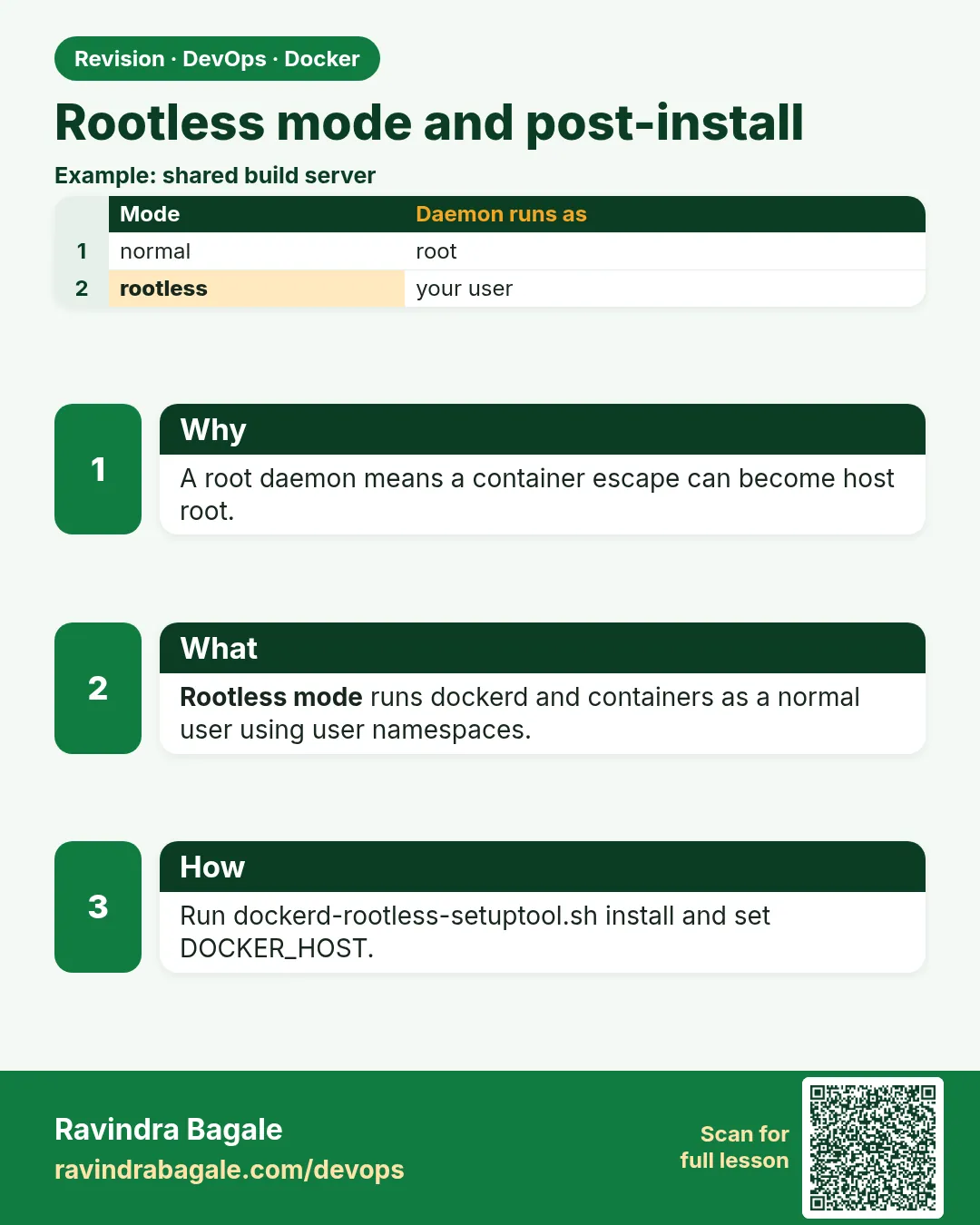
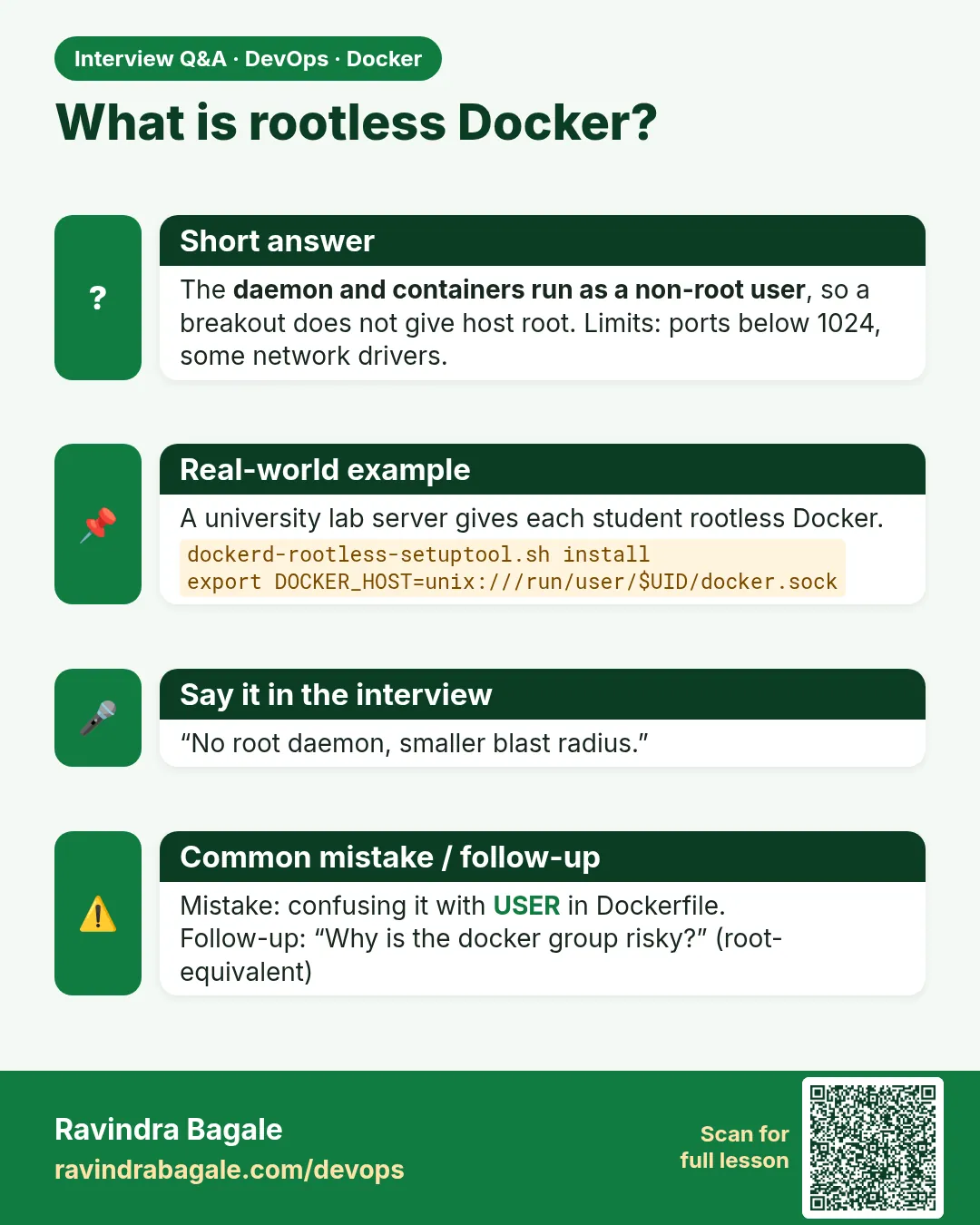
What: Rootless mode runs the daemon and containers as your normal user, using user namespaces (lesson 47.4). Docker gives a setup script for it.
Example 19: Install helper packages
Type this:
sudo apt-get install -y uidmap docker-ce-rootless-extras
You will see:
Setting up uidmap ...
What it means: uidmap lets your user own a range of extra user IDs for containers.
Example 20: Run the setup as your user
Type this:
dockerd-rootless-setuptool.sh install
You will see:
[INFO] Installed docker.service successfully.
[INFO] export DOCKER_HOST=unix:///run/user/1000/docker.sock
What it means: No sudo here. The daemon is now a user service.
Example 21: Point the client to it
Type this:
export DOCKER_HOST=unix:///run/user/1000/docker.sock
docker info --format '{{.SecurityOptions}}'
You will see:
[name=seccomp,profile=builtin name=rootless name=cgroupns]
What it means: name=rootless proves it.
Step 8: Root inside, normal user outside
Why: Learners ask: if I am root inside a container, am I root on the host?
What: In rootless mode, root inside the container maps to your normal user outside. A break-out gets only your user's power.
Example 22: Inside the container
Type this:
docker run --rm alpine id
You will see:
uid=0(root) gid=0(root)
What it means: Looks like root inside.
Example 23: Outside on the host
Type this:
docker run -d --name s alpine sleep 300
ps -o user,cmd -C sleep
You will see:
USER     CMD
ravi     sleep 300
What it means: On the host it runs as ravi.
Example 24: Try to read a root file
Type this:
docker run --rm -v /etc:/h:ro alpine head -1 /h/shadow
docker rm -f s
You will see:
head: /h/shadow: Permission denied
s
What it means: The attack from section 2 fails now.
Step 9: Rootless limits
Why: Rootless is safer, but some things behave differently.
What: Ports below 1024 need extra setup, and some network and storage features are slower or missing.
Example 25: Port 80 fails
Type this:
docker run -d -p 80:80 nginx:1.27
You will see:
Error: cannot expose privileged port 80
What it means: Ports under 1024 are reserved for root.
Example 26: Allow low ports
Type this:
sudo sysctl net.ipv4.ip_unprivileged_port_start=80
You will see:
net.ipv4.ip_unprivileged_port_start = 80
What it means: Now normal users may use port 80 and above. Or just use 8080.
Example 27: Keep it running after logout
Type this:
sudo loginctl enable-linger $USER
systemctl --user enable docker
You will see:
Created symlink ... docker.service
What it means: enable-linger keeps your user services alive when you log out.
Step 10: Switch between rootless and normal
Why: On a dev box you may have both.
What: Use contexts, or the DOCKER_HOST variable, to pick one.
Example 28: List contexts
Type this:
docker context ls --format '{{.Name}} {{.DockerEndpoint}}'
You will see:
default unix:///var/run/docker.sock
rootless unix:///run/user/1000/docker.sock
What it means: The setup made a rootless context.
Example 29: Use rootless
Type this:
docker context use rootless
docker info --format '{{.Name}}'
You will see:
rootless
lab-server
What it means: Commands go to your own daemon.
Example 30: Back to normal
Type this:
docker context use default
You will see:
default
What it means: Normal daemon again. Images are separate in each.
Step 11: Check your setup
Why: Before handing a server to the team, check everything once.
What: A short list of commands confirms service, group, logs and disk.
Example 31: Service status
Type this:
systemctl is-active docker; systemctl is-enabled docker
You will see:
active
enabled
What it means: Running now and at boot.
Example 32: Log settings
Type this:
docker info --format '{{.LoggingDriver}}'; sudo cat /etc/docker/daemon.json
You will see:
json-file
{ "log-driver": "json-file", "log-opts": {"max-size": "10m", "max-file": "3"} }
What it means: Logs will not fill the disk.
Example 33: Disk headroom
Type this:
df -h $(docker info --format '{{.DockerRootDir}}') | tail -1
You will see:
/dev/xvdb 100G 6.2G 94G 7% /data
What it means: Plenty of space.
Check yourself
Q1. Why does the docker group give root-level power?
Members can start containers that mount host files as root.
Q2. Which command adds a user to the docker group?
sudo usermod -aG docker USERNAME
Q3. Where is Docker's settings file?
/etc/docker/daemon.json
Q4. How do you stop container logs from filling the disk?
Set log-opts max-size and max-file for the json-file driver.
Q5. In rootless mode, who is root-in-the-container on the host?
Your normal user.
Friends, the docker group is easy but it carries root power; rootless mode is safer. Do not forget three settings: log limits, start on boot and a big disk. Did you understand? Let us try it once more. If not, look at Pictures 1 and 2 again.
मित्रांनो, docker group सोपा आहे पण त्यात root ची ताकद आहे; rootless mode जास्त सुरक्षित आहे. Logs limit, boot ला start आणि मोठा disk: हे तीन settings विसरू नका. समजलं का? चला, पुन्हा एकदा करून पाहू. नसेल तर Picture 1 आणि 2 परत बघा.
दोस्तों, docker group आसान है पर उसमें root की ताकत है; rootless mode ज़्यादा सुरक्षित है. Logs limit, boot पर start और बड़ा disk: ये तीन settings मत भूलिए. समझ आया? चलिए, एक बार फिर करके देखते हैं। नहीं तो Picture 1 और 2 फिर देखिए.
Lab: try at home
- Add your user to the docker group and run
docker pswithout sudo. - Set log rotation in daemon.json and confirm with docker inspect on a new container.
- Enable Docker at boot and test with a reboot and
--restart unless-stopped. - On a test VM, install rootless mode and show that
idinside differs frompsoutside. - Try port 80 in rootless mode, read the error, then use 8080.
Recap
- The docker group skips sudo but equals root power.
- systemctl enable starts Docker at boot.
- daemon.json sets log limits and data-root.
- Rootless mode runs the daemon as a normal user.
- Use contexts to switch between rootless and normal.
 Revision card
 Interview card