47.1 Why Docker: works on my machine, devs vs ops
Chala mitrano! Today we start Docker. Do not worry, there is only one idea today: keep the app and everything it needs in one box. It is very easy. After every new word we do a small example, and you type every example yourself.
चला मित्रांनो! आज आपण Docker शिकूया. घाबरू नका, आज एकच कल्पना आहे: अॅप आणि त्याला लागणाऱ्या सगळ्या गोष्टी एकाच डब्यात ठेवा. प्रत्येक नवीन शब्दानंतर एक छोटं उदाहरण करू, आणि ते तुम्ही स्वतः टाइप करायचं.
चलो दोस्तों! आज हम Docker सीखेंगे. घबराइए मत, आज एक ही बात है: ऐप और उसकी ज़रूरत की हर चीज़ एक ही डिब्बे में रखो. हर नए शब्द के बाद एक छोटा उदाहरण करेंगे, और हर उदाहरण आप खुद टाइप करेंगे.
What you will learn in this lesson
- Why the same app works on one computer and fails on another.
- What an environment, an image and a container are.
- How to run your first container, list it, open it in a browser and remove it.
- How Docker fixes the "works on my machine" problem, with real company examples.
1. Start from something you do every day
Open the Swiggy app. Tap a restaurant. The menu appears in one second.
Behind that menu is a small program on a server. A server is just a computer in a data centre that stays on all day and answers requests from phones.
A developer at Swiggy writes that menu program on her laptop. On her laptop it works. Then she gives it to the operations team. Operations (or "ops") are the people who run programs on servers.
On the server, the program crashes. The developer says: "It works on my machine!" The ops engineer says: "It does not work on my server!" Both are telling the truth. In this lesson we find out why, and we fix it with Docker, one small step at a time.
2. Why did it break? The environment
Step 1: Environment
Why: The app did not change. Something around the app changed.
What: The environment is everything a program needs around it to run: the language version (for example Python 3.12), the extra libraries it uses, and the settings. Think of it like a recipe: the same recipe fails if one kitchen has a different oven.
Example 1: Ask each computer for its Python version
Type this:
python3 --version
You will see:
Python 3.12.7   (on the laptop)
Python 3.8.10   (on the server)
What it means: Same command, two different answers. The two computers have different environments. That one difference is enough to break the app.
Example 2: Ask for the version of one library
Type this:
python3 -c "import flask; print(flask.__version__)"
You will see:
3.0.3                                      (on the laptop)
ModuleNotFoundError: No module named 'flask'   (on the server)
What it means: A library is extra code that your program borrows, like Flask for building web apps. The laptop has Flask 3.0.3. The server does not have Flask at all. This is the second way an environment can differ.
Example 3: See the operating system name
Type this:
cat /etc/os-release | grep PRETTY_NAME
You will see:
PRETTY_NAME="Ubuntu 24.04.1 LTS"        (on the laptop)
PRETTY_NAME="Amazon Linux 2023"         (on the server)
What it means: The operating system (OS) is the base software of the computer, like Ubuntu or Amazon Linux. Even the OS is different. Real companies like Infosys and TCS see this every week: the code is fine, the environment is not.
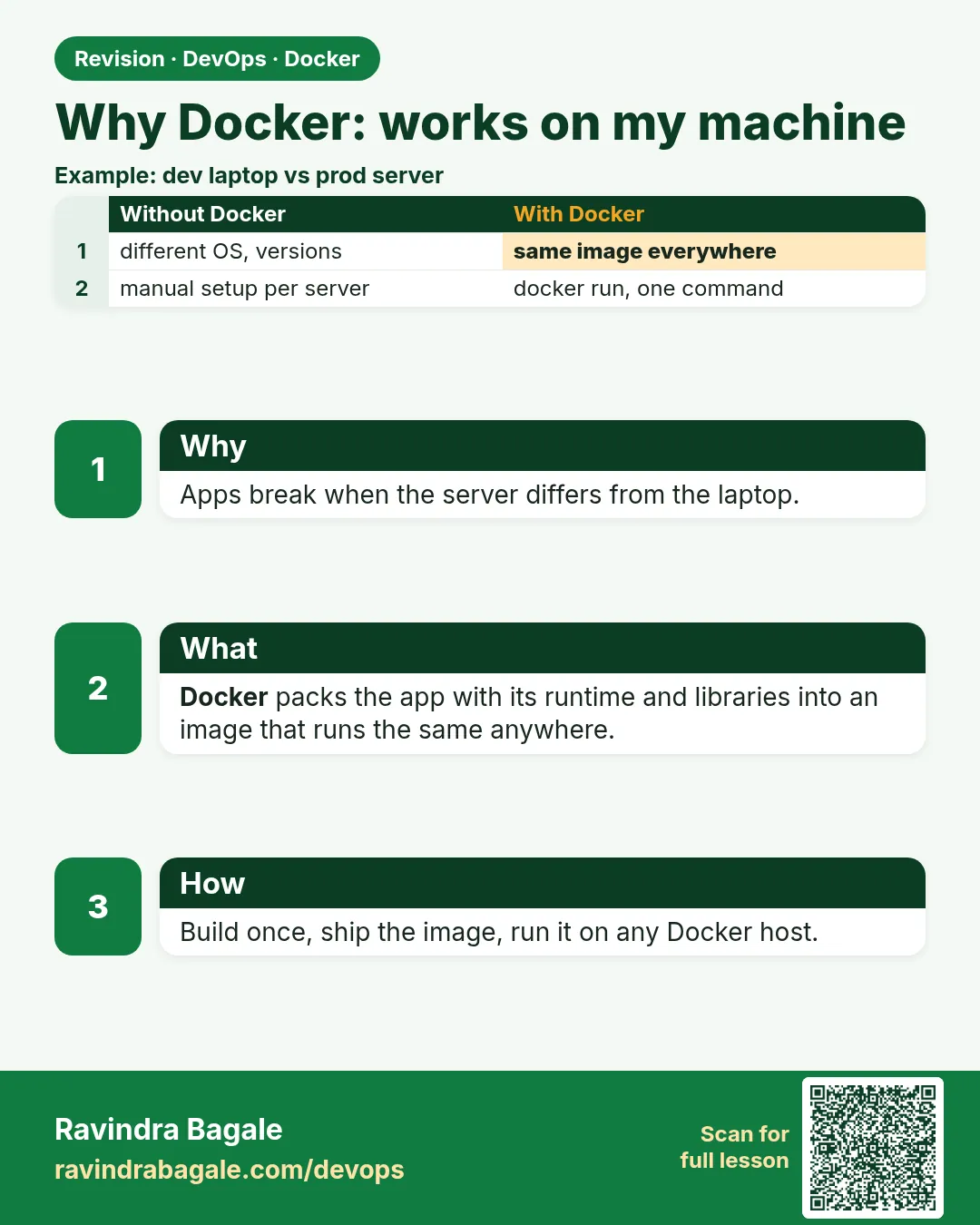
So the real problem is this: we send only the code, but the code also needs its environment. If we could send the code and its environment together, in one box, the problem would go away. That box is what Docker gives us.
Ravindra Bagale's Tip
Many students think Docker is a new programming language. It is not. Docker does not change your code. It only packs your code and its environment together. Remember this.
खूप विद्यार्थ्यांना वाटतं Docker ही नवीन programming language आहे. नाही! Docker तुमचा code बदलत नाही. तो फक्त code आणि त्याचं environment एकत्र pack करतो. लक्षात ठेवा.
बहुत से students सोचते हैं Docker नई programming language है. नहीं! Docker आपका code नहीं बदलता. वह सिर्फ code और उसका environment एक साथ pack करता है. याद रखिए.
3. The idea: a container
Step 2: Docker Engine
Why: Before we make any box, we need the tool that makes and runs boxes.
What: Docker Engine is the program you install on a computer. It makes and runs containers. You talk to it by typing commands that start with the word docker.
Example 4: Check that Docker is installed
Type this:
docker --version
You will see:
Docker version 27.3.1, build ce12230
What it means: Docker is installed and ready. If you see "command not found", install Docker first (lesson 47.5).
Example 5: Check that the engine is running
Type this:
docker version --format '{{.Server.Version}}'
You will see:
27.3.1
What it means: This asks the running engine for its own version. If you get a number, the engine is awake and listening. If you see "Cannot connect to the Docker daemon", start it with sudo systemctl start docker.
Example 6: Ask Docker for a short summary
Type this:
docker info --format 'Containers: {{.Containers}} Images: {{.Images}}'
You will see:
Containers: 0 Images: 0
What it means: A fresh install has zero containers and zero images. Watch these numbers grow as we go through the lesson.
Step 3: Container
Why: This is the box from Picture 2. Let us run one and see it with our own eyes.
What: A container is a running app that carries its own environment. It is a small, separate space on your computer. What happens inside it does not disturb the rest of your computer.
Example 7: Run your very first container
Type this:
docker run hello-world
You will see:
Unable to find image 'hello-world:latest' locally
latest: Pulling from library/hello-world
Hello from Docker!
This message shows that your installation appears to be working correctly.
What it means: docker run means "start a container". Docker started a tiny container, it printed a message, and it stopped. Notice the line "Pulling": Docker downloaded something first. That something is the image, which we meet in the next section.
Example 8: Run a container that says one line
Type this:
docker run alpine echo "Namaste from a container"
You will see:
Unable to find image 'alpine:latest' locally
latest: Pulling from library/alpine
Namaste from a container
What it means: alpine is a very small Linux. After the image name we can give a command, here echo, which prints text. The command ran inside the container, printed the line, and the container stopped.
Example 9: Prove the container has its own space
Type this:
docker run alpine ls /
ls /
You will see:
bin  dev  etc  home  lib  media  mnt  opt  proc  root  run  sbin  srv  sys  tmp  usr  var
bin  boot  dev  etc  home  lib  ... snap  srv  sys  tmp  usr  var   (your computer)
What it means: The first list is the inside of the container. The second list is your own computer. They are different. The container sees its own files, not yours. That is what "separate space" means.
4. Where does a container come from? The image
Step 4: Image
Why: In Step 3, Docker "pulled" something before it ran. We need to know what that was.
What: An image is the packed box: the app plus its environment, saved as a file, not running. A container is that box opened and running. Think of a tiffin box: the packed tiffin is the image, and lunch on the table is the container. One tiffin recipe can feed many people, so one image can start many containers.
Example 10: List the images on your computer
Type this:
docker images
You will see:
REPOSITORY    TAG      IMAGE ID       SIZE
alpine        latest   91ef0af61f39   7.8MB
hello-world   latest   d2c94e258dcb   13.3kB
What it means: Two images are now saved. "REPOSITORY" is the image name. "TAG" is the version name; "latest" is the default when you do not give one. "SIZE" shows these are tiny.
Example 11: Start three containers from one image
Type this:
docker run alpine echo one
docker run alpine echo two
docker run alpine echo three
You will see:
one
two
three
What it means: No "Pulling" this time, because the image is already on disk. One image, three containers. Just like one tiffin recipe feeding three friends.
Example 12: Ask for a specific version with a tag
Type this:
docker run alpine:3.20 cat /etc/alpine-release
docker run alpine:3.19 cat /etc/alpine-release
You will see:
3.20.3
3.19.4
What it means: The part after the colon is the tag. Two tags give two different versions, side by side on the same computer, with no clash. Keep this idea in mind; it is the heart of the Swiggy fix.
Step 5: Docker Hub (where images come from)
Why: Where did Docker download the image from?
What: Docker Hub is a big online store of free, ready images. Docker downloads from it by default. Downloading an image is called "pulling". Companies also run their own private stores, called registries, like Amazon ECR at Netflix or Google Artifact Registry at Spotify.
Example 13: Pull Python without installing Python
Type this:
docker pull python:3.12-slim
You will see:
3.12-slim: Pulling from library/python
Status: Downloaded newer image for python:3.12-slim
What it means: Now you have an image with Python 3.12 inside. You did not install Python on your computer. It lives only inside the image. "slim" is a smaller version of the image.
Example 14: Pull a web server image
Type this:
docker pull nginx:1.27
You will see:
1.27: Pulling from library/nginx
Status: Downloaded newer image for nginx:1.27
What it means: nginx is a popular web server program. Companies like Zomato and Flipkart use it in front of their apps. Now it is on your disk, ready to run.
Example 15: Pull the same image again
Type this:
docker pull nginx:1.27
You will see:
1.27: Pulling from library/nginx
Status: Image is up to date for nginx:1.27
What it means: Docker checks first and downloads nothing, because you already have it. Pulling is safe to repeat.
5. Look at your containers
Step 6: docker ps
Why: After you start containers, you need a way to see them.
What: docker ps lists running containers. Adding -a (short for "all") also lists stopped ones.
Example 16: List running containers
Type this:
docker ps
You will see:
CONTAINER ID IMAGE COMMAND STATUS NAMES
What it means: Only the header line. Nothing is running now, because hello-world and the alpine containers finished their job and stopped.
Example 17: List all containers, stopped ones too
Type this:
docker ps -a
You will see:
CONTAINER ID   IMAGE         STATUS                     NAMES
7c1d0e2f3a45   alpine        Exited (0) 1 minute ago    happy_hopper
4f1c2a9b7e10   hello-world   Exited (0) 2 minutes ago   eager_lamport
What it means: Stopped containers are still on disk. "Exited (0)" means it finished with no error. Docker gave each a random name because we did not give one.
Example 18: Count all containers
Type this:
docker ps -a -q | wc -l
You will see:
6
What it means: -q (quiet) prints only the IDs, and wc -l counts lines. You ran six small containers in this lesson so far, and all six are still lying around.
Step 7: Removing a container
Why: Stopped containers stay on your computer until you remove them.
What: docker rm removes a container. The image stays, so you can start a new container from it any time.
Example 19: Remove one container by name
Type this:
docker rm eager_lamport
You will see:
eager_lamport
What it means: Use the name from your own output, because your random name will be different. Docker prints the name back to confirm.
Example 20: Remove all stopped containers at once
Type this:
docker container prune -f
You will see:
Deleted Containers:
7c1d0e2f3a45...
Total reclaimed space: 0B
What it means: prune cleans every stopped container. -f (force) skips the yes/no question. Running containers are never touched by this command.
Example 21: Run and remove automatically with --rm
Type this:
docker run --rm alpine echo "I clean up after myself"
docker ps -a
You will see:
I clean up after myself
CONTAINER ID   IMAGE   STATUS   NAMES
What it means: --rm deletes the container as soon as it stops. The list stays empty. Use --rm for quick one-time commands.
6. A container that keeps running: a website
Step 8: Running in the background (-d) with a name
Why: hello-world stopped at once. A website must keep running.
What: -d means "run in the background" (detached) so your terminal stays free. --name web gives the container an easy name instead of a random one.
Example 22: Start nginx in the background
Type this:
docker run -d --name web nginx:1.27
You will see:
9a8b7c6d5e4f3a2b1c0d...
What it means: Docker prints the long container ID and gives your prompt back. The website is running quietly in the background.
Example 23: See it running
Type this:
docker ps
You will see:
CONTAINER ID   IMAGE        STATUS         PORTS    NAMES
9a8b7c6d5e4f   nginx:1.27   Up 5 seconds   80/tcp   web
What it means: "Up" means it is still running. "80/tcp" is its door, called a port. A port is a numbered door on a computer where a program listens. This door is inside the container, so your browser cannot reach it yet.
Example 24: Stop and start it again
Type this:
docker stop web
docker ps -a --filter name=web
docker start web
You will see:
web
CONTAINER ID   IMAGE        STATUS                     NAMES
9a8b7c6d5e4f   nginx:1.27   Exited (0) 2 seconds ago   web
web
What it means: docker stop stops it but keeps it. docker start starts the same container again. Using the name web is much easier than typing the ID.
Step 9: Port mapping (-p)
Why: We want to open the website from our own browser.
What: -p 8080:80 joins door 8080 on your computer to door 80 inside the container. Read it as "outside:inside".
Example 25: Replace the container with one that has a door
Type this:
docker rm -f web
docker run -d --name web -p 8080:80 nginx:1.27
curl -s localhost:8080 | grep title
You will see:
web
3e4f5a6b7c8d...
<title>Welcome to nginx!</title>
What it means: docker rm -f stops and removes the old container in one go. The new one has the door joined. curl asks for the web page, just like a browser does. You can also open http://localhost:8080 in your browser.
Example 26: Two websites side by side
Type this:
docker run -d --name web2 -p 8081:80 nginx:1.27
docker ps --format 'table {{.Names}}\t{{.Ports}}'
You will see:
NAMES   PORTS
web2    0.0.0.0:8081->80/tcp
web     0.0.0.0:8080->80/tcp
What it means: Both containers use door 80 inside, but different doors outside. This is how one server at Paytm can run many copies of an app.
Example 27: What happens if the outside door is busy
Type this:
docker run -d --name web3 -p 8080:80 nginx:1.27
You will see:
docker: Error response from daemon: ... Bind for 0.0.0.0:8080 failed: port is already allocated.
What it means: Door 8080 already belongs to web. Pick a free number such as 8082. Then clean up with docker rm -f web web2 web3.
7. Now fix the Swiggy problem
Step 10: Same image, same result
Why: This is why we learned everything above.
What: We ask containers for their Python version. Each one uses the Python inside its own image, not the Python on your computer.
Example 28: Two Python versions on one computer
Type this:
docker run --rm python:3.12-slim python --version
docker run --rm python:3.8-slim python --version
You will see:
Python 3.12.7
Python 3.8.20
What it means: The two images give two different versions on the same computer. The computer's own Python does not matter.
Example 29: Run the Swiggy-style code that broke
Type this:
printf 'import sys\nmatch sys.argv[1]:\n    case "menu":\n        print("Menu OK on Python", sys.version.split()[0])\n' > app.py
docker run --rm -v "$PWD":/app -w /app python:3.8-slim python app.py menu
docker run --rm -v "$PWD":/app -w /app python:3.12-slim python app.py menu
You will see:
  File "/app/app.py", line 2
    match sys.argv[1]:
          ^
SyntaxError: invalid syntax
Menu OK on Python 3.12.7
What it means: printf writes a tiny app into app.py. match only exists in Python 3.10 and newer. -v "$PWD":/app shares your folder with the container, and -w /app makes it the working folder. On 3.8 it fails, exactly like the server. On 3.12 it works. We just reproduced the bug and the fix on one laptop.
Example 30: The same image on another machine
Type this:
ssh ec2-user@test-server 'docker run --rm python:3.12-slim python --version'
You will see:
Python 3.12.7
What it means: Any server with Docker gives the same answer from the same image. So if Swiggy ships the app inside the 3.12 image, every server runs Python 3.12. In chapter 48 you will pack your own app into your own image.
8. The same idea at real companies
Step 11: Many languages, nothing installed
Why: Real teams use many languages. Installing all of them on every server is slow and risky.
What: Each language has an official image. You run the language straight from the image, so the server stays clean.
Example 31: Node.js, the language behind many web apps
Type this:
docker run --rm node:22-slim node --version
You will see:
v22.11.0
What it means: Zomato and Uber use Node.js for many services. You got Node.js without installing it.
Example 32: Java, used by banks and by Netflix
Type this:
docker run --rm eclipse-temurin:21-jre java -version
You will see:
openjdk version "21.0.5" 2024-10-15 LTS
What it means: Java services at HDFC Bank or Netflix run in images like this, so every server runs the exact same Java.
Example 33: A database for testing
Type this:
docker run -d --name db -e POSTGRES_PASSWORD=example postgres:16
docker exec db psql -U postgres -c 'select version();' | head -3
docker rm -f db
You will see:
...
 PostgreSQL 16.4 on x86_64-pc-linux-gnu ...
db
What it means: -e passes a setting into the container; example is a practice value, never a real password. docker exec runs a command inside a running container. A full database in seconds, removed in one command.
Ravindra Bagale's Tip
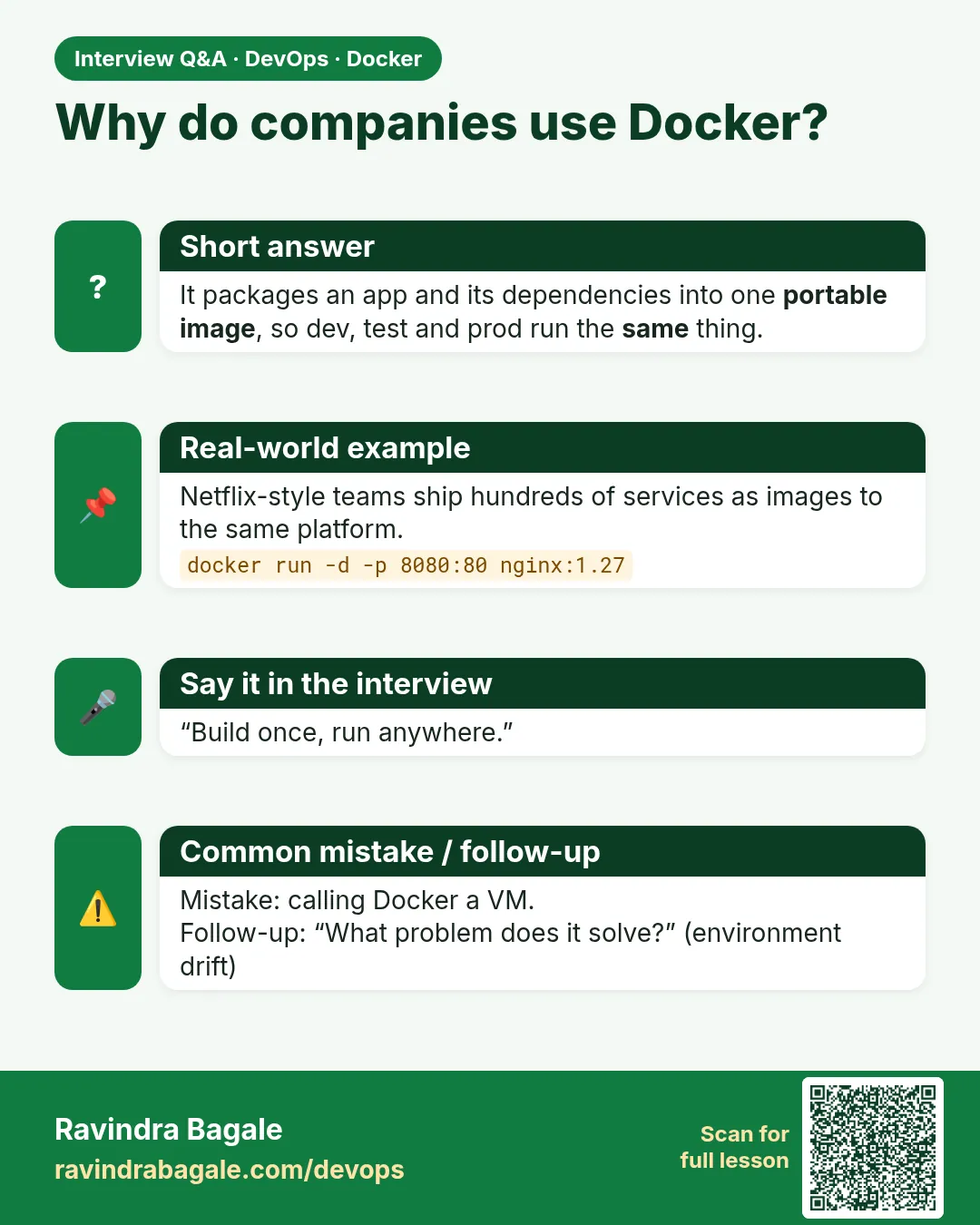
A common mistake is to think an image and a container are the same. An image is a packed tiffin; a container is the opened tiffin. docker images shows the tiffins, docker ps shows running containers. Pay attention!
एक नेहमीची चूक म्हणजे image आणि container एकच समजणं. Image म्हणजे pack केलेला डबा, container म्हणजे उघडलेला डबा. docker images डबे दाखवतो, docker ps चालू container दाखवतो. लक्ष ठेवा!
एक आम गलती है image और container को एक समझना. Image मतलब pack किया हुआ टिफ़िन, container मतलब खुला टिफ़िन. docker images टिफ़िन दिखाता है, docker ps चलते container दिखाता है. ध्यान रखिए!
Check yourself
Q1. The app works on the laptop and fails on the server. What is different?
The environment, for example the Python version or a missing library.
Q2. Which is running: the image or the container?
The container. The image is the packed box on disk.
Q3. In -p 8080:80, which number is on your computer?
8080 (outside:inside).
Q4. Which command shows stopped containers too?
docker ps -a
Q5. What does --rm do?
It removes the container automatically when it stops.
Q6. Why did docker pull nginx:1.27 download nothing the second time?
The image was already on disk, so Docker said it is up to date.
Friends, today we learned one thing: send the environment along with the code, in one image. Laptop or server, the result is the same. Did you understand? Let us try it once more. If not, look at Picture 3 again and type the commands from Step 1 to Step 11 yourself. Next: the difference between a virtual machine and a container.
मित्रांनो, आज आपण एकच गोष्ट शिकलो: code सोबत त्याचं environment पण पाठवा, एकाच image मध्ये. मग laptop असो की server, result सारखाच. समजलं का? चला, पुन्हा एकदा करून पाहू. नसेल तर Picture 3 पुन्हा बघा आणि Step 1 ते 11 चे commands स्वतः टाइप करा. पुढे: virtual machine आणि container मधला फरक.
दोस्तों, आज हमने एक बात सीखी: code के साथ उसका environment भी भेजो, एक ही image में. फिर laptop हो या server, result वही. समझ आया? चलिए, एक बार फिर करके देखते हैं। नहीं तो Picture 3 फिर देखिए और Step 1 से 11 के commands खुद टाइप कीजिए. आगे: virtual machine और container का फ़र्क.
Lab: try at home
- Run
docker run -d --name myweb -p 9090:80 nginx:1.27. - Open http://localhost:9090 in your browser. You should see "Welcome to nginx!".
- Run
docker psand find the PORTS column. Explain it in one sentence. - Run
docker run --rm node:22-slim node --version. You get Node.js without installing it. - Run
docker run --rm python:3.8-slim python --versionanddocker run --rm python:3.12-slim python --version. Write both answers down. - Clean up:
docker rm -f myweb, thendocker container prune -f, then check withdocker ps -a.
Recap
- Same code can fail on two computers because their environments differ.
- An image is the packed box: app plus environment.
- A container is that image, running.
- docker run starts, docker ps lists, docker stop and docker start pause and resume, docker rm removes.
- -p outside:inside opens a container to your browser.
- Ship the image, not only the code, and every server gives the same result.
 Revision card
 Interview card