47.11 Docker system, context and login commands: full reference
Chala mitrano! Today we see Docker's 'office' commands: how much disk is used, how to clean up, how to watch live events, how to log in to a registry, and how to connect to another server. You will use these every day.
चला मित्रांनो! आज Docker चे 'office' commands बघूया: disk किती वापरली, साफ कसं करायचं, live events कसे बघायचे, registry मध्ये login कसं करायचं, आणि दुसऱ्या server ला कसं जोडायचं. हे commands रोज कामाला येतात.
चलो दोस्तों! आज Docker के 'office' commands देखेंगे: disk कितनी इस्तेमाल हुई, सफ़ाई कैसे करें, live events कैसे देखें, registry में login कैसे करें, और दूसरे server से कैसे जुड़ें. ये commands रोज़ काम आते हैं.
1. Start from a full hard disk
It is Monday morning at a Swiggy build server. The Jenkins job fails with the message 'no space left on device'. Nobody deleted anything for three months, and every build left behind old images, stopped containers and build cache.
Docker has a small family of housekeeping commands for exactly this moment. The docker system group tells you what uses space and cleans it up. The docker login group connects you to registries. The docker context group lets one laptop talk to many Docker servers.
We will learn them one at a time. Each step has three examples: the command to type, what you will see, and what it means.
2. docker system: look before you clean
Step 1: docker version
Why: When something breaks, the first question from any senior is: which version are you on?
What: docker version prints the version of the client (the docker command) and the server (the daemon). They can be different.
Example 1: Full version
Type this:
docker version
You will see:
Client: Docker Engine - Community
 Version:           27.3.1
Server: Docker Engine - Community
 Engine:
  Version:          27.3.1
 containerd:
  Version:          1.7.22
What it means: Client and server are both 27.3.1, and containerd is 1.7.22.
Example 2: Only the server version
Type this:
docker version --format '{{.Server.Version}}'
You will see:
27.3.1
What it means: --format picks one field. Handy inside scripts.
Example 3: When the daemon is down
Type this:
sudo systemctl stop docker
docker version
You will see:
Client: Docker Engine - Community
 Version:  27.3.1
Cannot connect to the Docker daemon at unix:///var/run/docker.sock. Is the docker daemon running?
What it means: The client still answers, but the server part fails. Start it again with sudo systemctl start docker.
Step 2: docker info
Why: Support teams at Infosys ask for docker info output before they help you.
What: docker info shows the whole setup: how many containers and images, the storage driver, the logging driver, CPUs, memory and the data folder.
Example 4: The summary
Type this:
docker info
You will see:
Containers: 5
 Running: 2
 Paused: 0
 Stopped: 3
Images: 14
Storage Driver: overlay2
Logging Driver: json-file
CPUs: 2
Total Memory: 3.8GiB
Docker Root Dir: /var/lib/docker
What it means: Five containers, two of them running, fourteen images, and all data under /var/lib/docker.
Example 5: One field
Type this:
docker info --format '{{.Driver}}'
You will see:
overlay2
What it means: overlay2 is the normal storage driver on Linux.
Example 6: Look for warnings
Type this:
docker info 2>&1 | grep -i warning
You will see:
WARNING: No swap limit support
What it means: Warnings appear at the end. This one is common on Ubuntu and is usually safe to ignore.
Step 3: docker system df
Why: Before you delete anything, you must know what is using the space.
What: df means disk free. docker system df shows space used by images, containers, local volumes and build cache, and how much can be reclaimed, which means freed.
Example 7: The short table
Type this:
docker system df
You will see:
TYPE            TOTAL     ACTIVE    SIZE      RECLAIMABLE
Images          14        2         6.1GB     5.2GB (85%)
Containers      5         2         120MB     80MB (66%)
Local Volumes   4         1         2.3GB     1.9GB (82%)
Build Cache     61        0         3.4GB     3.4GB
What it means: Images and build cache are the big ones. 5.2 GB of images are not used by any container.
Example 8: The detailed view
Type this:
docker system df -v | head -8
You will see:
Images space usage:

REPOSITORY   TAG     IMAGE ID       CREATED       SIZE     SHARED SIZE   UNIQUE SIZE   CONTAINERS
node         20      1d2f3c4b5a6e   3 weeks ago   1.1GB    0B            1.1GB         0
nginx        1.27    39286ab8a5e1   2 weeks ago   192MB    0B            192MB         1
What it means: -v means verbose. Now you see which image is heavy and how many containers use it.
Example 9: Compare with the real disk
Type this:
df -h /var/lib/docker | tail -1
You will see:
/dev/root 30G 24G 6.0G 80% /
What it means: The host disk is 80% full, and Docker owns most of it.
Step 4: docker system events
Why: When a container keeps restarting at night, you want to see exactly what Docker did and when.
What: docker system events (or just docker events) prints a live stream of what happens: create, start, die, pull, and so on. Press Ctrl+C to stop.
Example 10: Watch live
Type this:
docker events
# in a second terminal:
docker run --rm alpine echo hi
You will see:
2026-10-25T10:15:01 container create 7a1b... (image=alpine, name=calm_bose)
2026-10-25T10:15:01 container start 7a1b... (image=alpine, name=calm_bose)
2026-10-25T10:15:02 container die 7a1b... (exitCode=0, image=alpine)
2026-10-25T10:15:02 container destroy 7a1b...
What it means: One small run gives four events: create, start, die and destroy.
Example 11: Only die events
Type this:
docker events --filter event=die --since 1h
You will see:
2026-10-25T09:40:12 container die 4c9d... (exitCode=137, name=api)
What it means: Exit code 137 means the container was killed, often because it ran out of memory.
Example 12: Events for one container
Type this:
docker events --filter container=api --since 30m --until 0m
You will see:
2026-10-25T10:02:00 container start 4c9d... (name=api)
2026-10-25T10:05:31 container die 4c9d... (exitCode=1, name=api)
What it means: --since and --until give a time window, so the command ends by itself.
Step 5: docker system prune
Why: Now that you know what is using space, you clean it safely.
What: docker system prune removes stopped containers, unused networks, dangling images (images with no name) and build cache. It asks before it deletes.
Example 13: The basic clean
Type this:
docker system prune
You will see:
WARNING! This will remove:
  - all stopped containers
  - all networks not used by at least one container
  - all dangling images
  - unused build cache
Are you sure you want to continue? [y/N] y
Total reclaimed space: 3.6GB
What it means: Typing y confirms. 3.6 GB came back.
Example 14: Also remove unused images
Type this:
docker system prune -a -f
You will see:
Deleted Images:
untagged: node:20
...
Total reclaimed space: 5.1GB
What it means: -a removes every image not used by a container, not only dangling ones. -f skips the question. Use it on build agents, not on servers where you need images ready.
Example 15: Keep recent things
Type this:
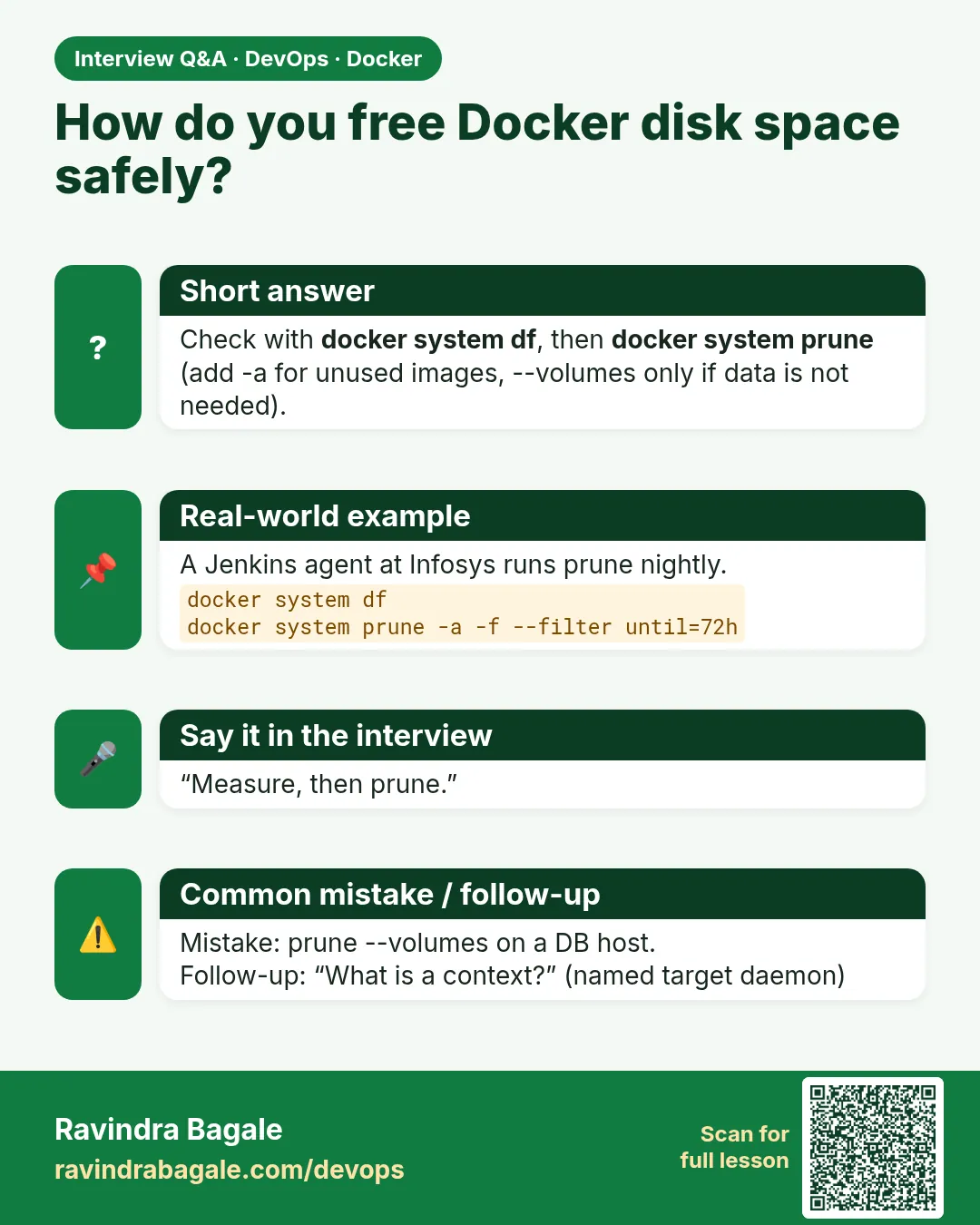
docker system prune -a -f --filter until=72h
You will see:
Total reclaimed space: 2.2GB
What it means: Only things older than 72 hours go. Recent builds keep their cache.
Step 6: Prune one type at a time
Why: On a database server at HDFC Bank, a careless prune of volumes would delete customer data.
What: Each object has its own prune: docker container prune, docker image prune, docker volume prune, docker network prune and docker builder prune. Volumes are never removed by system prune unless you add --volumes.
Example 16: Only build cache
Type this:
docker builder prune -f
You will see:
Total: 3.4GB
What it means: Build cache is safe to delete. The next build is just slower once.
Example 17: Only stopped containers
Type this:
docker container prune -f
You will see:
Deleted Containers:
9e1f...
b72a...
Total reclaimed space: 80MB
What it means: Running containers are never touched.
Example 18: See volumes before you prune
Type this:
docker volume ls -f dangling=true
You will see:
DRIVER    VOLUME NAME
local     pgdata_old
local     8f3c1e...
What it means: Dangling means no container uses it. Check the names before you run docker volume prune. A lost database volume cannot be brought back.
Ravindra Bagale's Tip
Never run 'docker system prune --volumes' directly on a production server. First look at 'docker system df -v', take a backup, and only then clean.
Production server वर 'docker system prune --volumes' कधीही थेट चालवू नका. आधी 'docker system df -v' बघा, backup घ्या, मगच साफ करा.
Production server पर 'docker system prune --volumes' कभी सीधे मत चलाइए. पहले 'docker system df -v' देखिए, backup लीजिए, फिर ही सफ़ाई कीजिए.
3. docker login: tell the registry who you are
Step 7: docker login to Docker Hub
Why: Docker Hub limits anonymous pulls. Logged-in users get more, and only logged-in users can push.
What: docker login asks for a username and password. Use an access token instead of your real password. A token is a long random key you can cancel any time from Docker Hub settings.
Example 19: Log in safely
Type this:
printf '%s' "$DOCKERHUB_TOKEN" | docker login -u ravibagale --password-stdin
You will see:
Login Succeeded
What it means: --password-stdin reads the token from input, so it never appears in your shell history.
Example 20: The unsafe way, for comparison
Type this:
docker login -u ravibagale -p mytoken
You will see:
WARNING! Using --password via the CLI is insecure. Use --password-stdin.
Login Succeeded
What it means: It works, but the token is now in history and visible to other users in the process list. Do not do this.
Example 21: Push after login
Type this:
docker tag myapp:1.0 ravibagale/myapp:1.0
docker push ravibagale/myapp:1.0
You will see:
The push refers to repository [docker.io/ravibagale/myapp]
1.0: digest: sha256:7c1e... size: 1784
What it means: The push works because you are logged in.
Step 8: docker login to Amazon ECR
Why: At companies on AWS, like Zerodha, images live in ECR, not Docker Hub.
What: ECR does not use a fixed password. The AWS CLI gives a token that lasts 12 hours, and you pipe it into docker login.
Example 22: Get a token and log in
Type this:
aws ecr get-login-password --region ap-south-1 | docker login --username AWS --password-stdin 111122223333.dkr.ecr.ap-south-1.amazonaws.com
You will see:
Login Succeeded
What it means: The username is always the word AWS. The server is your account's ECR address. 111122223333 is a sample account number.
Example 23: Pull from ECR
Type this:
docker pull 111122223333.dkr.ecr.ap-south-1.amazonaws.com/shop-api:2.4
You will see:
2.4: Pulling from shop-api
Digest: sha256:91ab...
Status: Downloaded newer image
What it means: Pull works for 12 hours.
Example 24: After 12 hours
Type this:
docker pull 111122223333.dkr.ecr.ap-south-1.amazonaws.com/shop-api:2.4
You will see:
Error response from daemon: pull access denied ... authorization token has expired
What it means: Run the login line again. In Jenkins, put it at the start of every job.
Step 9: Where login is stored
Why: Interviewers ask: where does Docker keep my login?
What: Docker saves logins in the file ~/.docker/config.json. Without a credential helper, it is only base64 encoded, which is not encryption. A credential helper stores it in the system keychain instead.
Example 25: Look at the file
Type this:
cat ~/.docker/config.json
You will see:
{
  "auths": {
    "https://index.docker.io/v1/": {
      "auth": "cmF2aWJh..."
    }
  }
}
What it means: The auth value can be decoded by anyone who can read the file. Keep this file private, mode 0600.
Example 26: Set a safe file mode
Type this:
chmod 0600 ~/.docker/config.json
ls -l ~/.docker/config.json
You will see:
-rw------- 1 ravi ravi 142 Oct 25 10:20 /home/ravi/.docker/config.json
What it means: Only you can read it now.
Example 27: Use a credential helper
Type this:
sudo apt-get install -y pass golang-docker-credential-helpers
printf '{\n  "credsStore": "pass"\n}\n' > ~/.docker/config.json
printf '%s' "$DOCKERHUB_TOKEN" | docker login -u ravibagale --password-stdin
You will see:
Login Succeeded
What it means: Now config.json only says credsStore: pass. The token sits in the encrypted pass store. On Mac, Docker Desktop uses osxkeychain.
Step 10: docker logout
Why: A shared training laptop at a college must not keep your login.
What: docker logout removes the saved login for one registry. Give the registry address for anything other than Docker Hub.
Example 28: Log out of Docker Hub
Type this:
docker logout
You will see:
Removing login credentials for https://index.docker.io/v1/
What it means: Docker Hub is the default.
Example 29: Log out of ECR
Type this:
docker logout 111122223333.dkr.ecr.ap-south-1.amazonaws.com
You will see:
Removing login credentials for 111122223333.dkr.ecr.ap-south-1.amazonaws.com
What it means: Name the registry for others.
Example 30: Check nothing is left
Type this:
cat ~/.docker/config.json
You will see:
{
  "auths": {}
}
What it means: The auths list is empty.
4. docker context: one laptop, many servers
Step 11: docker context ls and show
Why: Before running a delete command, always know which server you are talking to.
What: A context is a saved name for a Docker server address. docker context ls lists them, and the star marks the one in use.
Example 31: List contexts
Type this:
docker context ls
You will see:
NAME        DESCRIPTION                 DOCKER ENDPOINT
default *   Current DOCKER_HOST based   unix:///var/run/docker.sock
What it means: Only the local one so far. The star says it is active.
Example 32: Show the current one
Type this:
docker context show
You will see:
default
What it means: A one-word answer, useful in your shell prompt.
Example 33: Inspect it
Type this:
docker context inspect default --format '{{.Endpoints.docker.Host}}'
You will see:
unix:///var/run/docker.sock
What it means: The address behind the name.
Step 12: docker context create, use and rm
Why: Ops engineers at Razorpay check containers on many servers without logging into each.
What: docker context create saves a new server, docker context use switches, and docker context rm deletes the saved name. Lesson 47.14 goes deeper.
Example 34: Create a context over SSH
Type this:
docker context create staging --docker host=ssh://ubuntu@10.0.1.25
You will see:
staging
Successfully created context "staging"
What it means: It uses your normal SSH key. Nothing is installed on the server.
Example 35: Use it
Type this:
docker context use staging
docker ps --format '{{.Names}}'
You will see:
staging
shop-web
shop-api
What it means: These containers are on the staging server, not your laptop.
Example 36: Run one command only, then remove
Type this:
docker --context default ps -q | wc -l
docker context use default
docker context rm staging
You will see:
3
default
staging
What it means: --context changes the target for one command only. rm removes only the saved name; the server is untouched.
Check yourself
Q1. Which command shows what uses disk space in Docker?
docker system df, with -v for detail.
Q2. What does docker system prune never remove unless you ask?
Volumes. You must add --volumes.
Q3. Why use --password-stdin?
So the token never appears in shell history or the process list.
Q4. Where does Docker keep logins?
In ~/.docker/config.json, or in a credential helper if one is set.
Q5. How do you run one command on another context without switching?
docker --context NAME COMMAND.
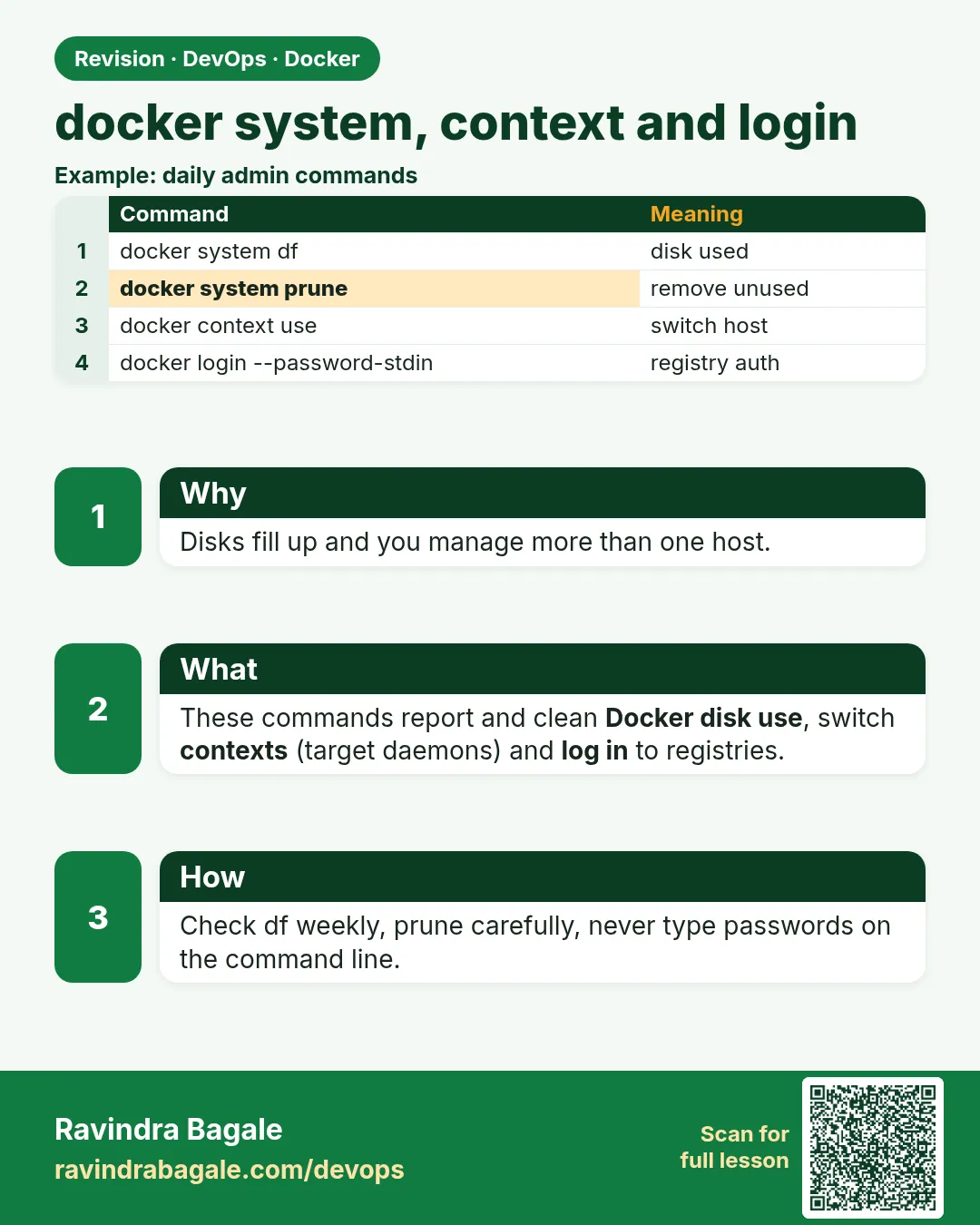
Friends, first look with 'df', then clean with 'prune'. For login always use a token and --password-stdin. Before switching context check 'docker context show', or you may clean the wrong server. Did you understand? Let us try it once more. If not, look at Picture 1 again.
मित्रांनो, आधी 'df' ने बघा, मग 'prune' ने साफ करा. Login साठी नेहमी token आणि --password-stdin. Context बदलण्याआधी 'docker context show' बघा, नाहीतर चुकीचा server साफ होईल. समजलं का? चला, पुन्हा एकदा करून पाहू. नसेल तर Picture 1 परत बघा.
दोस्तों, पहले 'df' से देखो, फिर 'prune' से साफ़ करो. Login के लिए हमेशा token और --password-stdin. Context बदलने से पहले 'docker context show' देखो, वरना गलत server साफ़ हो जाएगा. समझ आया? चलिए, एक बार फिर करके देखते हैं। नहीं तो Picture 1 फिर देखिए.
Lab: try at home
- Run
docker system df, then build two images and run it again to see the build cache grow. - Open
docker eventsin one terminal and start and stop nginx in another. - Create a Docker Hub access token and log in with
--password-stdin. - Look at ~/.docker/config.json, set mode 0600, then log out and look again.
- Create a context to a second VM over SSH, list its containers, and remove the context.
Recap
- docker version and docker info describe your setup.
- docker system df shows space; prune frees it.
- Volumes are only pruned when you ask.
- Log in with tokens and --password-stdin; log out on shared machines.
- Contexts let one CLI talk to many Docker servers.
 Revision card
 Interview card