47.7 Docker on Windows with WSL 2, step by step
Chala mitrano! Many students have a Windows laptop. No problem. Windows can run a small Linux inside, called WSL 2. Today we run Docker in it, one step at a time.
चला मित्रांनो! खूप विद्यार्थ्यांचा laptop Windows चा असतो. काळजी करू नका. Windows मध्ये एक छोटा Linux चालवता येतो, त्याला WSL 2 म्हणतात. आज त्यात Docker चालवू, एक एक step ने.
चलो दोस्तों! बहुत students का laptop Windows वाला होता है. चिंता मत कीजिए. Windows में एक छोटा Linux चलता है, उसे WSL 2 कहते हैं. आज उसमें Docker चलाएँगे, एक-एक step में.
1. Start from a laptop at a service company
A fresher joins TCS and gets a Windows laptop. The project runs on Linux servers with Docker. Docker containers need a Linux kernel, and Windows does not have one.
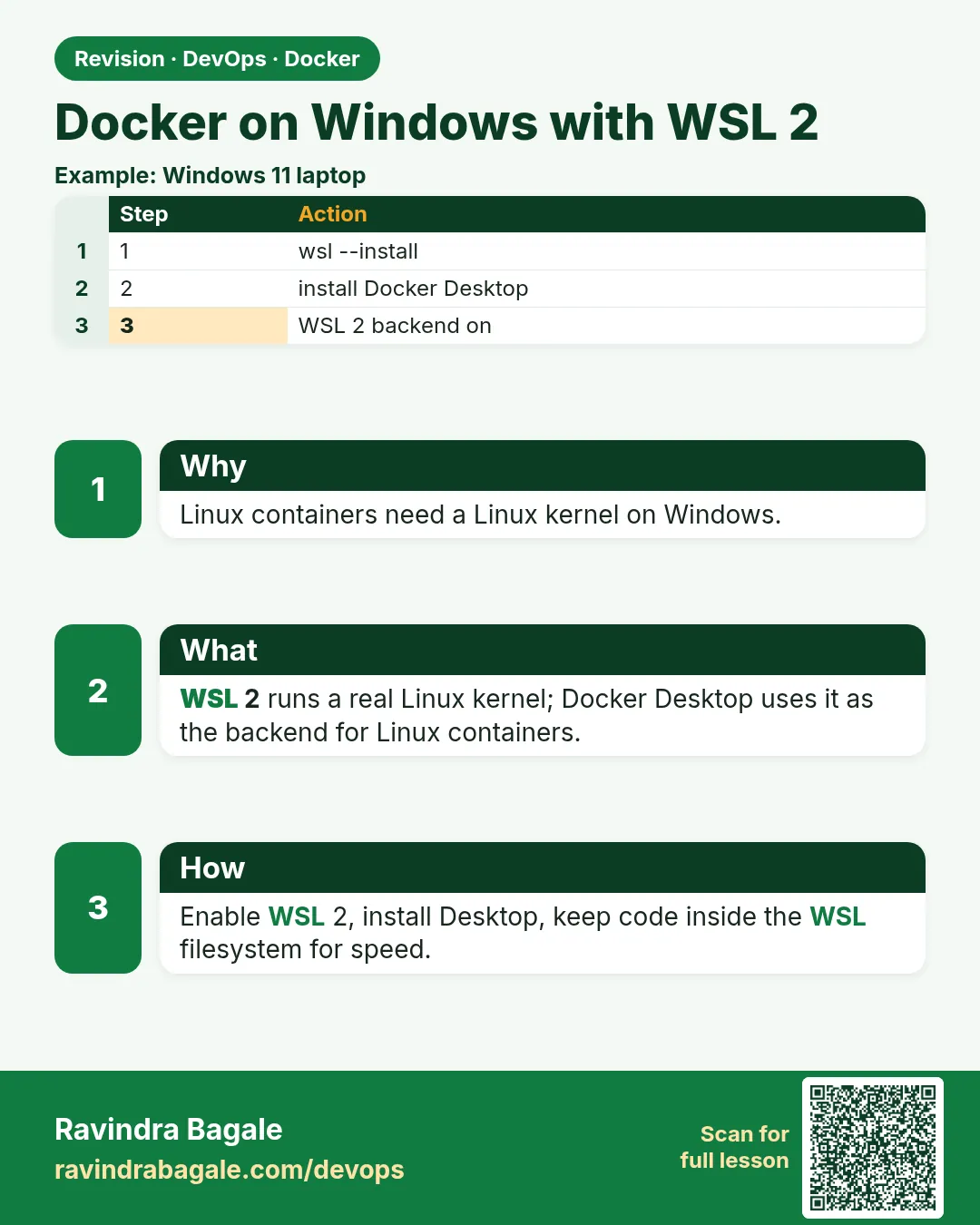
Microsoft solved this with WSL 2, which stands for Windows Subsystem for Linux version 2. It runs a real Linux kernel inside a very light virtual machine that Windows manages for you. You get a full Ubuntu terminal inside Windows.
Once WSL 2 is ready, there are two ways to get Docker: install Docker Engine inside the Ubuntu of WSL 2 (free for everyone), or install Docker Desktop (needs a paid plan in big companies, lesson 47.8). We do the free way first.
2. Turn on WSL 2
Step 1: Check Windows is ready
Why: WSL 2 needs a recent Windows and hardware virtualization turned on.
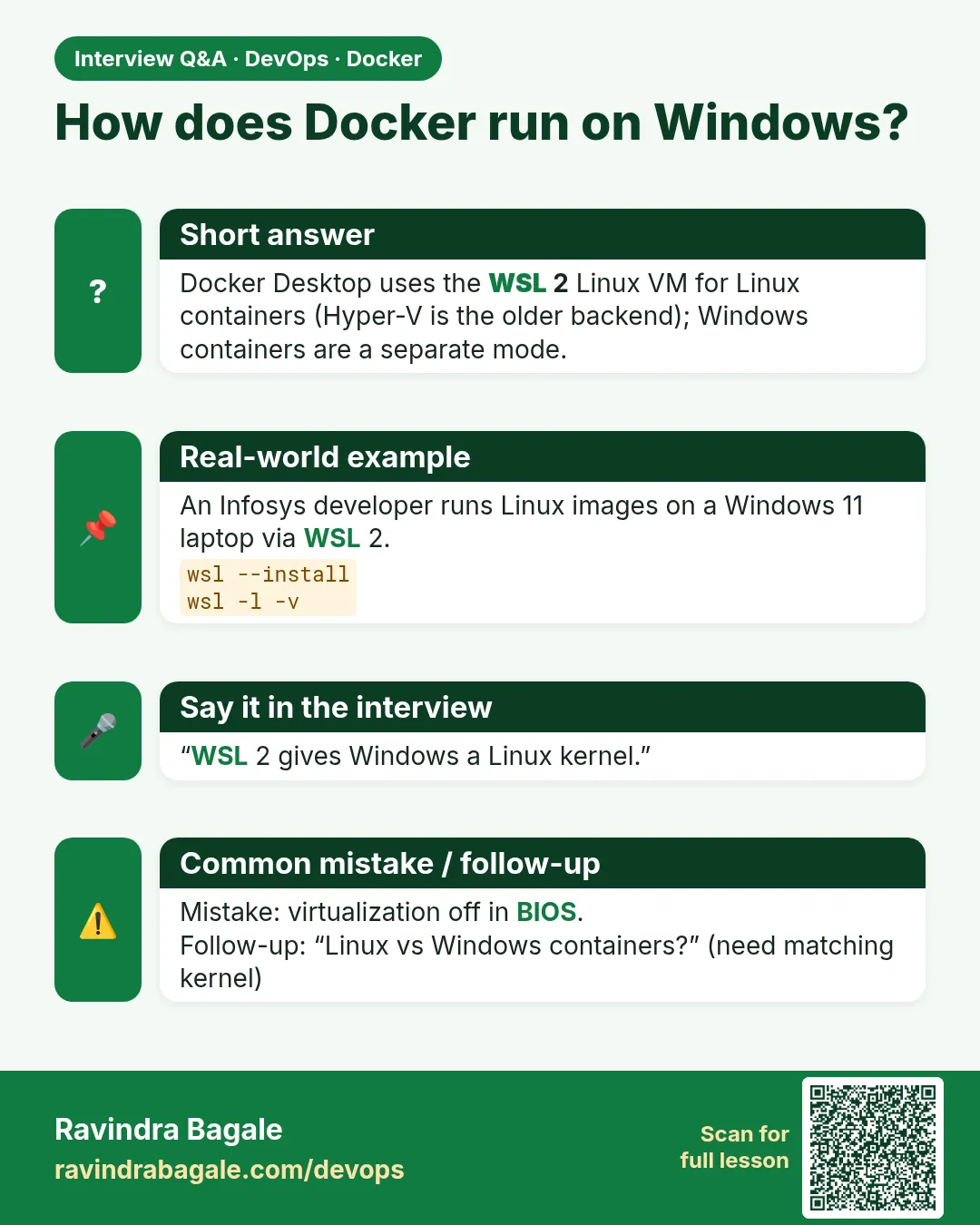
What: Virtualization is a CPU feature that lets a computer run virtual machines. It is usually on, but some office laptops have it off in the BIOS settings.
Example 1: Check the Windows version (PowerShell)
Type this:
winver
[System.Environment]::OSVersion.Version
You will see:
Version 23H2 (OS Build 22631.4317)
Major  Minor  Build  Revision
10     0      22631  0
What it means: Build 19041 or higher is needed. 22631 is Windows 11, which is fine. Open PowerShell from the Start menu to type these.
Example 2: Check virtualization
Type this:
systeminfo | findstr /i "Virtualization"
You will see:
Virtualization Enabled In Firmware: Yes
What it means: If it says No, restart, enter the BIOS (often F2 or Del) and turn on Intel VT-x or AMD-V. Your office IT team may need to do this.
Example 3: Open PowerShell as admin
Type this:
Start-Process powershell -Verb runAs
You will see:
(a new blue window opens and asks: Do you want to allow this app to make changes? Yes)
What it means: The next commands change Windows features, so they need admin rights.
Step 2: Install WSL and Ubuntu
Why: One command does almost all the work.
What: wsl --install turns on the needed Windows features, downloads the Linux kernel and installs Ubuntu.
Example 4: Install
Type this:
wsl --install -d Ubuntu-24.04
You will see:
Installing: Virtual Machine Platform
Installing: Windows Subsystem for Linux
Installing: Ubuntu 24.04 LTS
The requested operation is successful. Changes will not be effective until the system is rebooted.
What it means: Restart the laptop when it asks.
Example 5: Create your Linux user
Type this:
(after reboot, Ubuntu opens by itself)
You will see:
Enter new UNIX username: ravi
New password:
Installation successful!
What it means: This user and password are only for Linux inside WSL, separate from your Windows login. Use a strong password and do not reuse your Windows one.
Example 6: Check the WSL version
Type this:
wsl -l -v
You will see:
  NAME            STATE           VERSION
* Ubuntu-24.04    Running         2
What it means: VERSION must be 2. If it shows 1, run wsl --set-version Ubuntu-24.04 2.
Step 3: Update WSL and Ubuntu
Why: A fresh install may have an old kernel and old packages.
What: wsl --update updates the Linux kernel that Microsoft provides. Inside Ubuntu, apt updates the packages.
Example 7: Update the WSL kernel (PowerShell)
Type this:
wsl --update
wsl --version | Select-String 'Kernel'
You will see:
Checking for updates.
The most recent version of Windows Subsystem for Linux is already installed.
Kernel version: 5.15.153.1-2
What it means: The kernel is recent. Docker needs 5.x or newer.
Example 8: Update Ubuntu (inside Ubuntu)
Type this:
sudo apt-get update && sudo apt-get upgrade -y
You will see:
Reading package lists... Done
0 upgraded, 0 newly installed, 0 to remove
What it means: Now the Ubuntu inside WSL is up to date.
Example 9: Check you are inside Linux
Type this:
uname -a
You will see:
Linux LAPTOP-RAVI 5.15.153.1-microsoft-standard-WSL2 #1 SMP x86_64 GNU/Linux
What it means: The word microsoft-standard-WSL2 shows this is the WSL 2 kernel.
Ravindra Bagale's Tip
In WSL keep your project files in the Linux folder, /home/your-name. From the C drive (/mnt/c) Docker is very slow. Follow this one rule and your laptop stays fast.
WSL मध्ये काम करताना project files Linux च्या folder मध्ये ठेवा, /home/तुमचं-नाव मध्ये. C drive मधून (/mnt/c) Docker खूप slow चालतो. हा एक नियम पाळा, laptop वेगात चालेल.
WSL में काम करते समय project files Linux वाले folder में रखिए, /home/आपका-नाम में. C drive से (/mnt/c) Docker बहुत slow चलता है. यह एक नियम मानिए, laptop तेज़ चलेगा.
3. Install Docker Engine inside WSL 2
Step 4: Turn on systemd
Why: Docker runs as a service, and services need systemd, the program that starts and stops services on Linux.
What: New WSL versions support systemd, but you may need to switch it on in a small config file, /etc/wsl.conf.
Example 10: Check if systemd is running
Type this:
ps -p 1 -o comm=
You will see:
init
What it means: If it prints init, systemd is off. If it prints systemd, skip to the next step.
Example 11: Turn it on
Type this:
printf '[boot]\nsystemd=true\n' | sudo tee /etc/wsl.conf
You will see:
[boot]
systemd=true
What it means: printf writes two lines and sudo tee saves them as root.
Example 12: Restart WSL (PowerShell) and check
Type this:
wsl --shutdown
wsl -d Ubuntu-24.04 -e ps -p 1 -o comm=
You will see:
systemd
What it means: Process 1 is now systemd. Services like Docker can start.
Step 5: Install Docker Engine
Why: These are exactly the Ubuntu steps from lesson 47.5, now inside WSL.
What: We add Docker's key and repository, then install the packages.
Example 13: Add key and repository
Type this:
sudo install -m 0755 -d /etc/apt/keyrings
sudo curl -fsSL https://download.docker.com/linux/ubuntu/gpg -o /etc/apt/keyrings/docker.asc
echo "deb [arch=$(dpkg --print-architecture) signed-by=/etc/apt/keyrings/docker.asc] https://download.docker.com/linux/ubuntu noble stable" | sudo tee /etc/apt/sources.list.d/docker.list
You will see:
deb [arch=amd64 signed-by=/etc/apt/keyrings/docker.asc] https://download.docker.com/linux/ubuntu noble stable
What it means: Same three steps as on a server.
Example 14: Install the packages
Type this:
sudo apt-get update
sudo apt-get install -y docker-ce docker-ce-cli containerd.io docker-buildx-plugin docker-compose-plugin
You will see:
Setting up docker-ce (5:27.3.1-1~ubuntu.24.04~noble) ...
What it means: Docker Engine is now inside WSL.
Example 15: Join the group and test
Type this:
sudo usermod -aG docker $USER
newgrp docker
docker run --rm hello-world | head -2
You will see:
Hello from Docker!
What it means: Docker works inside WSL, with no Docker Desktop and no licence cost.
4. Use it from Windows
Step 6: Open a container from the Windows browser
Why: You want to see your web app in Chrome or Edge on Windows.
What: WSL 2 forwards localhost ports to Windows automatically. A container port mapped with -p inside WSL is reachable from Windows at localhost.
Example 16: Start nginx inside WSL
Type this:
docker run -d --name web -p 8080:80 nginx:1.27
You will see:
4c1d...
What it means: Same command as on Linux.
Example 17: Open it from PowerShell
Type this:
curl.exe -s http://localhost:8080 | Select-String title
You will see:
<title>Welcome to nginx!</title>
What it means: Windows reached the container. Open http://localhost:8080 in Edge too.
Example 18: Find the WSL IP if localhost fails
Type this:
hostname -I
You will see:
172.24.112.5
What it means: On some VPN laptops localhost forwarding is blocked. Then use this IP from Windows: http://172.24.112.5:8080.
Step 7: Work on files from VS Code
Why: You will write code in VS Code on Windows, but run it with Docker inside WSL.
What: The VS Code WSL extension opens a Linux folder directly. Typing code . inside WSL opens the current folder in VS Code.
Example 19: Make a project folder in Linux
Type this:
mkdir -p ~/projects/menu-api && cd ~/projects/menu-api
printf 'print("menu ok")\n' > app.py
ls
You will see:
app.py
What it means: The project lives in the fast Linux filesystem, not on C drive.
Example 20: Open it in VS Code
Type this:
code .
You will see:
Installing VS Code Server for x64 ...
(VS Code opens with WSL: Ubuntu-24.04 in the corner)
What it means: VS Code runs on Windows but reads files inside WSL.
Example 21: Run the file with Docker
Type this:
docker run --rm -v "$PWD":/app -w /app python:3.12-slim python app.py
You will see:
menu ok
What it means: Code edited in VS Code, run in a container, all on a Windows laptop.
Step 8: Speed: Linux folder versus C drive
Why: Beginners often keep projects on C drive and then say Docker is slow.
What: Files on C drive are reached through /mnt/c, which crosses from Linux to Windows on every read. The Linux home folder is much faster.
Example 22: Time a copy on C drive
Type this:
time cp -r /usr/share/doc /mnt/c/Users/ravi/doc-test
You will see:
real 0m41.20s
What it means: Slow, because every file crosses from Linux to Windows.
Example 23: Time the same copy in Linux
Type this:
time cp -r /usr/share/doc ~/doc-test
You will see:
real 0m0.85s
What it means: Almost 50 times faster in the Linux folder.
Example 24: Clean up
Type this:
rm -rf ~/doc-test /mnt/c/Users/ravi/doc-test
docker rm -f web
You will see:
web
What it means: Keep projects in ~/projects inside WSL.
Step 9: Limit WSL memory
Why: WSL 2 can take a large share of laptop memory, slowing Windows down.
What: A file called .wslconfig in your Windows user folder sets the memory and CPU limits for WSL.
Example 25: Write the config (PowerShell)
Type this:
Set-Content -Path $env:USERPROFILE\.wslconfig -Value "[wsl2]`nmemory=4GB`nprocessors=2"
Get-Content $env:USERPROFILE\.wslconfig
You will see:
[wsl2]
memory=4GB
processors=2
What it means: WSL may now use at most 4 GB of memory and 2 CPUs.
Example 26: Restart WSL to apply
Type this:
wsl --shutdown
You will see:
(no output)
What it means: WSL stops and starts fresh next time you open Ubuntu.
Example 27: Check inside Ubuntu
Type this:
free -h | head -2
nproc
You will see:
               total        used        free
Mem:           3.8Gi       420Mi       3.2Gi
2
What it means: The limits are active. Your Windows apps stay fast.
Step 10: Fix the three most common WSL errors
Why: Every batch of students hits these. Knowing them saves an hour each.
What: Each error has one clear cause. Read the message, match it here, and apply the one fix.
Example 28: Virtualization is off
Type this:
wsl --install -d Ubuntu-24.04
You will see:
WslRegisterDistribution failed with error: 0x80370102
Please enable the Virtual Machine Platform Windows feature and ensure virtualization is enabled in the BIOS.
What it means: Turn on virtualization in the BIOS, then run wsl --install again.
Example 29: Docker service is not running
Type this:
docker ps
You will see:
Cannot connect to the Docker daemon at unix:///var/run/docker.sock. Is the docker daemon running?
What it means: systemd is off, or Docker did not start. Check ps -p 1 -o comm=, then run sudo systemctl start docker.
Example 30: No internet inside WSL on a company VPN
Type this:
sudo apt-get update
You will see:
Temporary failure resolving 'archive.ubuntu.com'
What it means: The VPN changed DNS. Add [wsl2] and networkingMode=mirrored to .wslconfig, run wsl --shutdown, and try again. Many Infosys and Wipro laptops need this.
Step 11: Back up and move your WSL Linux
Why: A new laptop, or a broken one, should not mean setting everything up again.
What: wsl --export saves the whole Ubuntu, with Docker and your images, into one file. wsl --import brings it back.
Example 31: Export to a file (PowerShell)
Type this:
wsl --shutdown
wsl --export Ubuntu-24.04 D:\backup\ubuntu-docker.tar
You will see:
Export in progress, this may take a few minutes.
The operation completed successfully.
What it means: The file holds your Linux, Docker, images and projects.
Example 32: Import on another laptop
Type this:
wsl --import Ubuntu-Work C:\WSL\Ubuntu-Work D:\backup\ubuntu-docker.tar
You will see:
Import in progress, this may take a few minutes.
The operation completed successfully.
What it means: A new copy called Ubuntu-Work now exists.
Example 33: Open the imported copy
Type this:
wsl -d Ubuntu-Work -u ravi -e docker images --format '{{.Repository}}:{{.Tag}}'
You will see:
nginx:1.27
python:3.12-slim
hello-world:latest
What it means: Everything came across. Teams at Capgemini hand new joiners a ready WSL file like this.
Check yourself
Q1. Why does Docker on Windows need WSL 2?
Linux containers need a Linux kernel, and WSL 2 provides one.
Q2. Which command installs WSL and Ubuntu?
wsl --install -d Ubuntu-24.04.
Q3. Why turn on systemd in /etc/wsl.conf?
So Docker can run as a service.
Q4. Where should project files live for speed?
In the Linux home folder, not under /mnt/c.
Q5. How do you limit WSL memory?
Set memory= in the .wslconfig file in your Windows user folder.
Friends, Docker runs even on a Windows laptop: WSL 2, systemd on, Docker Engine installed and files in the Linux folder. Did you understand? Let us try it once more. If not, look at Picture 1 again and do each step on your laptop. Next: Docker Desktop.
मित्रांनो, Windows laptop असला तरी Docker चालतो: WSL 2, systemd on, Docker Engine install, आणि files Linux folder मध्ये. समजलं का? चला, पुन्हा एकदा करून पाहू. नसेल तर Picture 1 पुन्हा बघा आणि प्रत्येक step laptop वर करा. पुढे Docker Desktop.
दोस्तों, Windows laptop पर भी Docker चलता है: WSL 2, systemd on, Docker Engine install, और files Linux folder में. समझ आया? चलिए, एक बार फिर करके देखते हैं। नहीं तो Picture 1 फिर देखिए और हर step laptop पर कीजिए. आगे Docker Desktop.
Lab: try at home
- Install WSL 2 with Ubuntu 24.04 on a Windows laptop.
- Turn on systemd and install Docker Engine inside it.
- Run nginx with
-p 8080:80and open it in your Windows browser. - Make a project in ~/projects and open it with
code .. - Create .wslconfig with a 4GB memory limit and check with
free -h.
Recap
- WSL 2 gives Windows a real Linux kernel.
- Install Docker Engine inside WSL Ubuntu, free for everyone.
- Turn on systemd in /etc/wsl.conf.
- Ports are forwarded to Windows localhost.
- Keep files in the Linux folder and limit memory with .wslconfig.
 Revision card
 Interview card