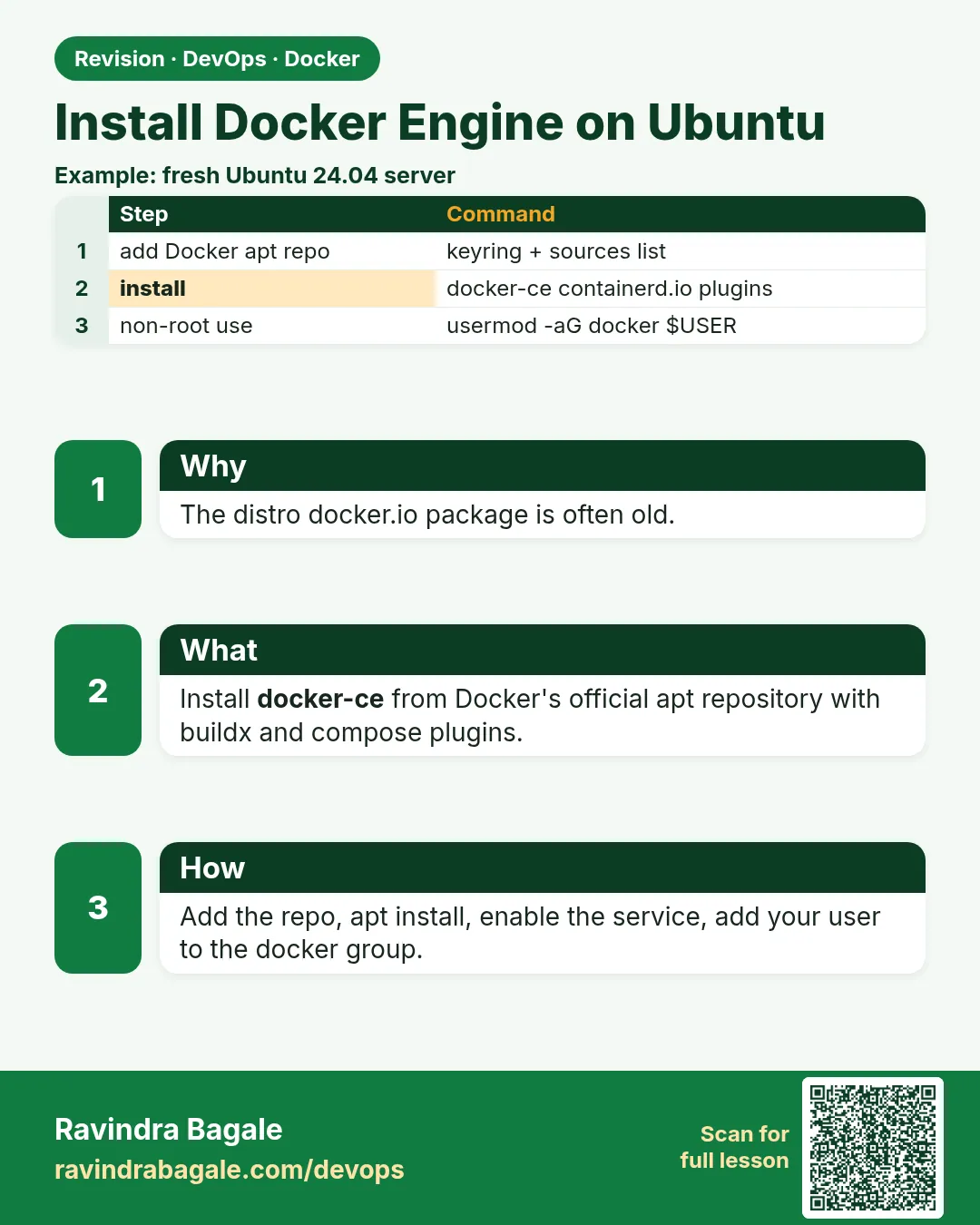
47.5 Install Docker Engine on Ubuntu
Chala mitrano! Now we get our hands dirty. Today we install Docker on an Ubuntu server the official way. Type one command at a time, match the output, then move on. No hurry.
चला मित्रांनो! आता खरं काम. आज Ubuntu server वर Docker install करू, अगदी official पद्धतीने. एक एक command टाइप करा, output जुळवा, मग पुढे जा. घाई करू नका.
चलो दोस्तों! अब असली काम. आज Ubuntu server पर Docker install करेंगे, बिल्कुल official तरीके से. एक-एक command टाइप कीजिए, output मिलाइए, फिर आगे बढ़िए. जल्दी मत कीजिए.
1. Start from a new phone
When you buy a new phone, you install apps from the official Play Store, not from a random website. The official store gives the real app and keeps it updated.
Docker is the same. Ubuntu has its own old package called docker.io, but the Docker company runs its own official package store, called a repository. A repository is an online shelf of software packages that your server can download from.
In this lesson we add Docker's official repository to an Ubuntu 24.04 server, like an AWS EC2 instance used at Infosys or a laptop at home, install Docker Engine, and check that it works.
2. Prepare the server
Step 1: Check the Ubuntu version
Why: Docker gives different packages for each Ubuntu release, so we must know ours.
What: Each Ubuntu release has a version number and a code name, like 24.04 "noble". The repository line we add later uses this code name.
Example 1: Show the version
Type this:
lsb_release -a
You will see:
Distributor ID: Ubuntu
Description:    Ubuntu 24.04.1 LTS
Release:        24.04
Codename:       noble
What it means: LTS means long term support, the version companies use on servers. Codename is noble.
Example 2: Read the same from a file
Type this:
grep VERSION_CODENAME /etc/os-release
You will see:
VERSION_CODENAME=noble
What it means: Scripts read this file because it exists on every Ubuntu machine.
Example 3: Check the CPU type
Type this:
dpkg --print-architecture
You will see:
amd64
What it means: amd64 means a normal Intel or AMD CPU. AWS Graviton servers print arm64. Docker supports both.
Step 2: Remove old or conflicting packages
Why: Old Docker packages from Ubuntu's own shelf can clash with the official ones.
What: We remove packages like docker.io and podman-docker first. If they are not installed, apt simply says so. apt is Ubuntu's tool to install and remove software, and sudo runs a command as the admin user.
Example 4: Remove old packages
Type this:
for p in docker.io docker-doc docker-compose podman-docker containerd runc; do sudo apt-get remove -y $p; done
You will see:
Package 'docker.io' is not installed, so not removed
Package 'containerd' is not installed, so not removed
What it means: A loop runs the remove command once for each name. On a fresh server nothing is installed, so nothing is removed. That is fine.
Example 5: Check nothing is left
Type this:
dpkg -l | grep -E 'docker|containerd' || echo none
You will see:
none
What it means: dpkg -l lists installed packages. || echo none prints none when grep finds nothing.
Example 6: Refresh the package list
Type this:
sudo apt-get update
You will see:
Hit:1 http://archive.ubuntu.com/ubuntu noble InRelease
Reading package lists... Done
What it means: update downloads the latest list of packages. It does not install anything yet.
Step 3: Install helper tools
Why: We need a few small tools to download and check Docker's key.
What: ca-certificates lets the server trust secure websites (https). curl downloads files from the internet.
Example 7: Install the helpers
Type this:
sudo apt-get install -y ca-certificates curl
You will see:
ca-certificates is already the newest version.
curl is already the newest version.
What it means: On most images these are already present. -y answers yes automatically.
Example 8: Make the key folder
Type this:
sudo install -m 0755 -d /etc/apt/keyrings
You will see:
(no output)
What it means: install -d creates a folder; -m 0755 lets everyone read it, only root can change it. This is a safe permission.
Example 9: Check the folder
Type this:
ls -ld /etc/apt/keyrings
You will see:
drwxr-xr-x 2 root root 4096 Oct 25 09:40 /etc/apt/keyrings
What it means: The folder exists and is owned by root.
3. Add Docker's official repository
Step 4: The GPG key
Why: Your server must be sure the packages truly come from Docker and were not changed on the way.
What: A GPG key is a digital signature checker. Docker signs its packages, and your server uses Docker's public key to check each one.
Example 10: Download Docker's key
Type this:
sudo curl -fsSL https://download.docker.com/linux/ubuntu/gpg -o /etc/apt/keyrings/docker.asc
You will see:
(no output)
What it means: -fsSL means: fail on errors, be silent, show errors, follow redirects. -o saves to a file.
Example 11: Let apt read the key
Type this:
sudo chmod a+r /etc/apt/keyrings/docker.asc
ls -l /etc/apt/keyrings/docker.asc
You will see:
-rw-r--r-- 1 root root 3817 Oct 25 09:41 /etc/apt/keyrings/docker.asc
What it means: a+r adds read permission for all. Nobody except root can write it. Never use world-writable modes on key files.
Example 12: Look at the key's fingerprint
Type this:
gpg --show-keys /etc/apt/keyrings/docker.asc | head -2
You will see:
pub   rsa4096 2017-02-22 [SCEA]
      9DC858229FC7DD38854AE2D88D81803C0EBFCD88
What it means: This fingerprint should match the one on Docker's official docs page. If it does not, stop and check your download.
Step 5: The repository line
Why: Now we tell apt where Docker's shelf is.
What: A repository line has the CPU type, the key file, the address, the Ubuntu code name, and the channel stable. We write it into a file in /etc/apt/sources.list.d/.
Example 13: Write the repository file
Type this:
echo "deb [arch=$(dpkg --print-architecture) signed-by=/etc/apt/keyrings/docker.asc] https://download.docker.com/linux/ubuntu $(. /etc/os-release && echo $VERSION_CODENAME) stable" | sudo tee /etc/apt/sources.list.d/docker.list
You will see:
deb [arch=amd64 signed-by=/etc/apt/keyrings/docker.asc] https://download.docker.com/linux/ubuntu noble stable
What it means: The $(...) parts fill in amd64 and noble for you. sudo tee writes the line to the file as root and prints it.
Example 14: Refresh with the new shelf
Type this:
sudo apt-get update | grep docker
You will see:
Get:5 https://download.docker.com/linux/ubuntu noble InRelease [48.8 kB]
Get:6 https://download.docker.com/linux/ubuntu noble/stable amd64 Packages [17.5 kB]
What it means: apt now reads Docker's shelf too.
Example 15: See which versions are offered
Type this:
apt-cache madison docker-ce | head -3
You will see:
docker-ce | 5:27.3.1-1~ubuntu.24.04~noble | https://download.docker.com/linux/ubuntu noble/stable amd64 Packages
docker-ce | 5:27.3.0-1~ubuntu.24.04~noble | ...
What it means: madison lists every available version. Teams at TCS often pin one exact version on all servers so they stay the same.
4. Install and start Docker
Step 6: Install Docker Engine
Why: The shelf is ready. Now we take the packages.
What: We install five packages: docker-ce (the engine), docker-ce-cli (the client), containerd.io, and two plugins: buildx (for building images) and compose (for multi-container apps).
Example 16: Install everything
Type this:
sudo apt-get install -y docker-ce docker-ce-cli containerd.io docker-buildx-plugin docker-compose-plugin
You will see:
Setting up containerd.io (1.7.22-1) ...
Setting up docker-ce (5:27.3.1-1~ubuntu.24.04~noble) ...
Created symlink /etc/systemd/system/multi-user.target.wants/docker.service
What it means: The last line means Docker will start automatically every time the server boots.
Example 17: Install one exact version
Type this:
sudo apt-get install -y docker-ce=5:27.3.1-1~ubuntu.24.04~noble docker-ce-cli=5:27.3.1-1~ubuntu.24.04~noble containerd.io
You will see:
docker-ce is already the newest version (5:27.3.1-1~ubuntu.24.04~noble).
What it means: Put =version after the name to pin it. Useful when every server must match.
Example 18: Check the versions
Type this:
docker --version
docker compose version
docker buildx version
You will see:
Docker version 27.3.1, build ce12230
Docker Compose version v2.29.7
buildx v0.17.1 (docker-buildx-plugin)
What it means: All three tools are present. Compose is now a plugin, so it is docker compose with a space.
Step 7: Start and enable the service
Why: Docker runs as a background service. It must be on now and after every reboot.
What: systemctl start starts a service now. systemctl enable makes it start at every boot.
Example 19: Check status
Type this:
sudo systemctl status docker --no-pager | head -3
You will see:
● docker.service - Docker Application Container Engine
     Loaded: loaded (/usr/lib/systemd/system/docker.service; enabled)
     Active: active (running) since Sun 2026-10-25 09:45:10 IST
What it means: "enabled" means it starts at boot. "active (running)" means it is on now.
Example 20: Enable both services
Type this:
sudo systemctl enable --now docker containerd
You will see:
Synchronizing state of docker.service with SysV service script...
What it means: --now starts and enables in one step. Safe to run even if already on.
Example 21: Run the proof
Type this:
sudo docker run --rm hello-world | head -2
You will see:
Hello from Docker!
What it means: Docker works. We used sudo because our user is not in the docker group yet. Next step fixes that.
Ravindra Bagale's Tip
After install, typing sudo for every command is tiring. We fix that next, but remember: the docker group has root-like power. Add only trusted users to it.
Install झाल्यावर प्रत्येक command ला sudo लावणं कंटाळवाणं आहे. पुढची step करू, पण लक्षात ठेवा: docker group म्हणजे root सारखीच ताकद. फक्त विश्वासू users ना त्या group मध्ये घाला.
Install के बाद हर command में sudo लगाना थकाने वाला है. अगली step में ठीक करेंगे, पर याद रखिए: docker group मतलब root जैसी ताकत. सिर्फ़ भरोसेमंद users को उस group में डालिए.
5. Use Docker without sudo
Step 8: The docker group
Why: Typing sudo every time is slow, and scripts often run as a normal user.
What: The Docker socket belongs to the docker group. Adding your user to that group lets you run docker without sudo.
Example 22: Add yourself to the group
Type this:
sudo usermod -aG docker $USER
You will see:
(no output)
What it means: -aG means add to this group and keep the old groups. Forgetting -a would remove your other groups.
Example 23: Load the new group
Type this:
newgrp docker
id -nG
You will see:
ubuntu adm sudo docker
What it means: newgrp starts a shell with the new group, so you do not need to log out. docker is now in your list.
Example 24: Run without sudo
Type this:
docker run --rm hello-world | head -2
docker ps
You will see:
Hello from Docker!
CONTAINER ID   IMAGE   COMMAND   STATUS   NAMES
What it means: No permission error any more. Your Ubuntu server is ready.
Step 9: Upgrade and uninstall
Why: Docker releases new versions often. You must know how to update and how to remove it cleanly.
What: Upgrading is the same apt install with the new list. Uninstalling removes the packages; the data folder stays unless you delete it.
Example 25: Upgrade Docker
Type this:
sudo apt-get update && sudo apt-get install -y --only-upgrade docker-ce docker-ce-cli containerd.io
You will see:
docker-ce is already the newest version (5:27.3.1-1~ubuntu.24.04~noble).
What it means: --only-upgrade updates only if a newer version exists.
Example 26: Uninstall the packages
Type this:
sudo apt-get purge -y docker-ce docker-ce-cli containerd.io docker-buildx-plugin docker-compose-plugin
You will see:
Removing docker-ce (5:27.3.1-1~ubuntu.24.04~noble) ...
What it means: purge removes packages and their config files.
Example 27: Remove images and containers too
Type this:
sudo rm -rf /var/lib/docker /var/lib/containerd
ls /var/lib | grep -c docker
You will see:
0
What it means: This deletes every image, container and volume. Do it only on a test server, never on a database server without a backup.
Check yourself
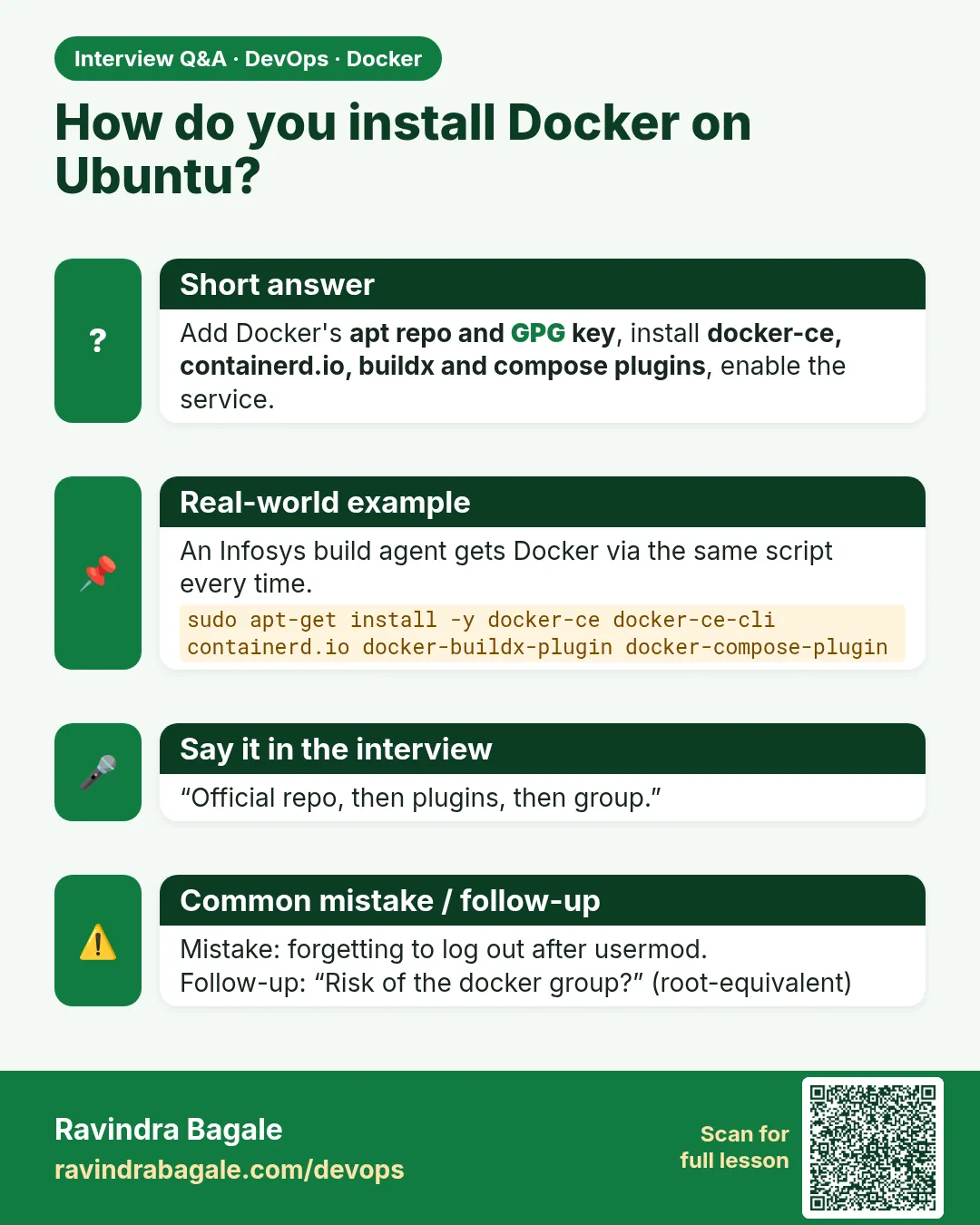
Q1. Why do we add Docker's own repository instead of using docker.io?
It gives the official, newest packages from Docker.
Q2. What does the GPG key do?
It lets apt check that packages really come from Docker.
Q3. What does systemctl enable do?
It makes Docker start at every boot.
Q4. What does -aG in usermod mean?
Add the user to the group and keep the other groups.
Q5. Is the docker group safe for everyone?
No. It gives root-like power, so only trusted users.
Friends, today we installed Docker the official way: update, key, repository, install, enable and group. Did you understand? Let us try it once more. If not, take a fresh EC2 and repeat all the commands. Next: install on Amazon Linux and RHEL.
मित्रांनो, आज आपण official पद्धतीने Docker install केला: update, key, repository, install, enable आणि group. समजलं का? चला, पुन्हा एकदा करून पाहू. नसेल तर नवीन EC2 घ्या आणि सगळे commands परत करा. पुढे Amazon Linux आणि RHEL.
दोस्तों, आज हमने official तरीके से Docker install किया: update, key, repository, install, enable और group. समझ आया? चलिए, एक बार फिर करके देखते हैं। नहीं तो नया EC2 लीजिए और सारे commands दोबारा कीजिए. आगे Amazon Linux और RHEL.
Lab: try at home
- Launch an Ubuntu 24.04 EC2 instance (t3.micro is enough).
- Follow every step of this lesson and run
docker run --rm hello-world. - Add your user to the docker group and run
docker pswithout sudo. - Reboot with
sudo reboot, log in, and checksystemctl is-active docker. - Run
apt-cache madison docker-ce | head -3and note the newest version.
Recap
- Use Docker's official apt repository on Ubuntu.
- Trust the key in /etc/apt/keyrings, then add the repository line.
- Install docker-ce, docker-ce-cli, containerd.io, buildx and compose plugins.
- systemctl enable --now docker starts it now and at boot.
- Add trusted users to the docker group to skip sudo.
 Revision card
 Interview card