52.9 Multi-stage builds and BuildKit secrets
Friends, a Go app needs a 900 MB compiler to build but only a 15 MB file to run. Why ship the compiler to production? Today we learn multi-stage builds, which keep build tools out of the final image, and BuildKit secrets, which let a build use a password without leaving it inside the image.
मित्रांनो, Go app build करायला 900 MB चा compiler लागतो, पण चालवायला फक्त 15 MB ची file. मग production ला compiler कशाला पाठवायचा? आज multi-stage build शिकू, जे build tools final image बाहेर ठेवतं, आणि BuildKit secret, ज्याने build password वापरतो पण image मध्ये तो राहत नाही.
दोस्तों, Go app build करने के लिए 900 MB का compiler चाहिए, पर चलाने के लिए सिर्फ़ 15 MB की file. तो production में compiler क्यों भेजें? आज multi-stage build सीखेंगे, जो build tools को final image से बाहर रखता है, और BuildKit secret, जिससे build password इस्तेमाल करता है पर image में वह नहीं रहता.
1. Start from a story
Meera at Razorpay was asked why the payments API image was 1.1 GB. The security scanner also reported 214 vulnerabilities, most of them in gcc, git and Maven, tools the running app never used.
Worse, an old Dockerfile had ARG NPM_TOKEN to install a private package. Anyone who ran docker history on the image could read the token in plain text.
Meera split the Dockerfile into two stages. The first stage had all the tools and built the jar. The second stage started fresh from a small JRE image and copied only the jar. For the private package she used RUN --mount=type=secret, so the token was available only during that one step.
The image dropped to 190 MB, the scanner showed 11 issues, and docker history showed no token. Today we repeat her steps with small apps of our own.
2. Multi-stage basics
Step 1: What is a stage
Why: Every FROM starts a new stage.
What: A Dockerfile can have many FROM lines. Only the last stage becomes the image, unless you choose another with --target.
Example 1: Two FROMs
Type this:
printf 'FROM alpine:3.20\nRUN echo first > /a.txt\nFROM alpine:3.20\nRUN echo second > /b.txt\n' > Dockerfile
docker build -t two .
You will see:
=> [stage-0 2/2] RUN echo first
=> [stage-1 2/2] RUN echo second
What it means: Two stages were built.
Example 2: What is inside
Type this:
docker run --rm two ls /a.txt /b.txt
You will see:
ls: /a.txt: No such file or directory
/b.txt
What it means: Only the last stage is in the image.
Example 3: Count stages
Type this:
grep -c '^FROM' Dockerfile
You will see:
2
What it means: Two FROM lines, two stages.
Step 2: Name a stage with AS
Why: Names are easier than numbers.
What: FROM image AS name gives the stage a name you can copy from or target.
Example 4: Named
Type this:
printf 'FROM alpine:3.20 AS build\nRUN echo hello > /out.txt\nFROM alpine:3.20\nCOPY --from=build /out.txt /out.txt\nCMD ["cat","/out.txt"]\n' > Dockerfile
docker build -t named . && docker run --rm named
You will see:
hello
What it means: The file came from the build stage.
Example 5: By number
Type this:
sed -i 's/--from=build/--from=0/' Dockerfile && docker build -q -t named . && docker run --rm named
You will see:
hello
What it means: Number 0 also works, but names are clearer.
Example 6: Log shows names
Type this:
docker build --progress=plain -t named . 2>&1 | grep -o '\[build [0-9]/[0-9]\]' | head -1
You will see:
[build 2/2]
What it means: The stage name appears in the log.
Step 3: COPY --from
Why: Take only what you need.
What: COPY --from=stage copies a file or folder from an earlier stage. It can also copy from any image.
Example 7: From a stage
Type this:
grep 'COPY --from' Dockerfile
You will see:
COPY --from=build /out.txt /out.txt
What it means: Only one file crossed over.
Example 8: From an image
Type this:
printf 'FROM alpine:3.20\nCOPY --from=nginx:1.27-alpine /etc/nginx/nginx.conf /nginx.conf\n' > Dockerfile && docker build -q -t fromimg . && docker run --rm fromimg head -1 /nginx.conf
You will see:
user nginx;
What it means: Copied straight from the nginx image.
Example 9: Folder
Type this:
printf 'FROM alpine:3.20 AS b\nRUN mkdir -p /dist && echo a > /dist/1 && echo b > /dist/2\nFROM alpine:3.20\nCOPY --from=b /dist/ /site/\n' > Dockerfile && docker build -q -t fold . && docker run --rm fold ls /site
You will see:
1
2
What it means: The whole folder was copied.
3. Real apps in two stages
Step 4: Go to scratch
Why: A static Go binary needs no OS.
What: Build with CGO_ENABLED=0 in golang, copy the binary into scratch or distroless.
Example 10: Dockerfile
Type this:
printf 'FROM golang:1.23 AS build\nWORKDIR /src\nCOPY . .\nRUN CGO_ENABLED=0 go build -o /app .\nFROM scratch\nCOPY --from=build /app /app\nENTRYPOINT ["/app"]\n' > Dockerfile && docker build -t goapi .
You will see:
=> [stage-1 1/1] COPY --from=build /app /app
=> => naming to docker.io/library/goapi
What it means: Final stage is scratch.
Example 11: Size
Type this:
docker images goapi --format '{{.Size}}'
You will see:
9.8MB
What it means: From about 900 MB to under 10 MB.
Example 12: Run
Type this:
docker run -d -p 8080:8080 --name goapi goapi && curl -s localhost:8080/health
You will see:
ok
What it means: It still works.
Step 5: Java: Maven to JRE
Why: Build with the JDK, run with the JRE.
What: The build stage has Maven and the JDK. The runtime stage has only the JRE and the jar.
Example 13: Dockerfile
Type this:
printf 'FROM maven:3.9-eclipse-temurin-21 AS build\nWORKDIR /src\nCOPY pom.xml .\nRUN mvn -q dependency:go-offline\nCOPY src ./src\nRUN mvn -q package -DskipTests\nFROM eclipse-temurin:21-jre-jammy\nCOPY --from=build /src/target/app.jar /app.jar\nENTRYPOINT ["java","-jar","/app.jar"]\n' > Dockerfile && docker build -t payapi .
You will see:
=> [stage-1 2/2] COPY --from=build /src/target/app.jar /app.jar
What it means: Only the jar crossed.
Example 14: Compare
Type this:
docker images --format '{{.Repository}} {{.Size}}' | grep -E 'payapi|maven'
You will see:
payapi 291MB
maven 812MB
What it means: The image is less than half.
Example 15: No Maven inside
Type this:
docker run --rm --entrypoint sh payapi -c 'which mvn || echo no-maven'
You will see:
no-maven
What it means: Build tools stayed behind.
Step 6: Node: build then serve
Why: A React app needs Node to build but only nginx to serve.
What: Run npm run build in node, copy the dist folder into nginx.
Example 16: Dockerfile
Type this:
printf 'FROM node:22-slim AS build\nWORKDIR /app\nCOPY package*.json ./\nRUN npm ci\nCOPY . .\nRUN npm run build\nFROM nginx:1.27-alpine\nCOPY --from=build /app/dist /usr/share/nginx/html\n' > Dockerfile && docker build -t web .
You will see:
=> [stage-1 2/2] COPY --from=build /app/dist /usr/share/nginx/html
What it means: Static files only.
Example 17: Size
Type this:
docker images web --format '{{.Size}}'
You will see:
49.8MB
What it means: No node_modules in the final image.
Example 18: Serve
Type this:
docker run -d -p 8081:80 web && curl -s -o /dev/null -w '%{http_code}\n' localhost:8081
You will see:
200
What it means: The site works.
Step 7: Python: wheels stage
Why: Compilers are needed to build some packages.
What: Build wheels in a full image, install the wheels in a slim image.
Example 19: Dockerfile
Type this:
printf 'FROM python:3.12 AS build\nCOPY requirements.txt .\nRUN pip wheel --wheel-dir /wheels -r requirements.txt\nFROM python:3.12-slim\nCOPY --from=build /wheels /wheels\nRUN pip install --no-cache-dir /wheels/*\nCOPY app.py .\nCMD ["python","app.py"]\n' > Dockerfile && docker build -t pyapi .
You will see:
=> [stage-1 3/4] RUN pip install --no-cache-dir /wheels/*
What it means: No gcc in the final stage.
Example 20: Size
Type this:
docker images pyapi --format '{{.Size}}'
You will see:
168MB
What it means: Instead of over 1 GB.
Example 21: Check gcc
Type this:
docker run --rm pyapi sh -c 'which gcc || echo no-gcc'
You will see:
no-gcc
What it means: Compiler left behind.
4. Targets and stage tricks
Step 8: --target
Why: Build only up to a stage.
What: Useful for a test stage or a dev image with extra tools.
Example 22: Add a test stage
Type this:
printf 'FROM node:22-slim AS deps\nWORKDIR /app\nCOPY package*.json ./\nRUN npm ci\nFROM deps AS test\nCOPY . .\nRUN npm test\nFROM deps AS prod\nCOPY . .\nCMD ["node","server.js"]\n' > Dockerfile && grep ' AS ' Dockerfile
You will see:
FROM node:22-slim AS deps
FROM deps AS test
FROM deps AS prod
What it means: Three stages.
Example 23: Run tests
Type this:
docker build --target test -t shop:test .
You will see:
=> [test 2/2] RUN npm test
# pass 12
What it means: Stops after the test stage.
Example 24: Prod skips tests
Type this:
docker build --target prod -t shop:1.0 . 2>&1 | grep -c 'npm test'
You will see:
0
What it means: BuildKit skips stages the target does not need.
Step 9: Parallel stages
Why: Independent stages build at the same time.
What: BuildKit runs stages in parallel when they do not depend on each other.
Example 25: Two builders
Type this:
printf 'FROM golang:1.23 AS api\nRUN sleep 5 && echo api > /api\nFROM node:22-slim AS ui\nRUN sleep 5 && echo ui > /ui\nFROM alpine:3.20\nCOPY --from=api /api /\nCOPY --from=ui /ui /\n' > Dockerfile && time docker build -q -t par .
You will see:
real 0m5.9s
What it means: About 5 seconds, not 10.
Example 26: Inside
Type this:
docker run --rm par cat /api /ui
You will see:
api
ui
What it means: Both results combined.
Example 27: Log
Type this:
docker build --no-cache --progress=plain -t par . 2>&1 | grep -E 'api 2/2|ui 2/2' | head -2
You will see:
#5 [api 2/2] RUN sleep 5
#6 [ui 2/2] RUN sleep 5
What it means: They started together.
5. BuildKit secrets
Step 10: Why ARG is unsafe
Why: Build arguments are saved in the image history.
What: ARG and ENV values can be read by anyone who pulls the image.
Example 28: Leak demo
Type this:
printf 'FROM alpine:3.20\nARG TOKEN\nRUN echo using $TOKEN > /dev/null\n' > Dockerfile && docker build -q --build-arg TOKEN=example-not-real-123 -t leak .
You will see:
sha256:4c1e...
What it means: Built with an example token.
Example 29: Read it
Type this:
docker history --no-trunc leak | grep -o 'TOKEN=[a-z0-9-]*'
You will see:
TOKEN=example-not-real-123
What it means: The token is visible. Never do this with a real one.
Example 30: Clean up
Type this:
docker rmi leak
You will see:
Untagged: leak:latest
What it means: Delete leaked images and rotate the token.
Step 11: --secret and type=secret
Why: The safe way.
What: Pass a file with --secret id=name,src=path and mount it in one RUN. It appears at /run/secrets/name.
Example 31: Secret file
Type this:
printf 'example-not-real-456' > token.txt && printf 'FROM alpine:3.20\nRUN --mount=type=secret,id=tok cat /run/secrets/tok | wc -c\n' > Dockerfile
You will see:
(no output)
What it means: Example value only.
Example 32: Build
Type this:
docker build --no-cache --progress=plain --secret id=tok,src=token.txt -t safe . 2>&1 | grep -A1 'RUN --mount' | tail -1
You will see:
#5 0.21 20
What it means: The step could read 20 characters.
Example 33: History is clean
Type this:
docker history --no-trunc safe | grep -c example-not-real
You will see:
0
What it means: Nothing saved in the image.
Step 12: Private npm and pip
Why: The common real use.
What: Mount .npmrc or pip.conf as a secret only for the install step.
Example 34: npm
Type this:
printf 'FROM node:22-slim\nWORKDIR /app\nCOPY package*.json ./\nRUN --mount=type=secret,id=npmrc,target=/root/.npmrc npm ci\n' > Dockerfile && docker build --secret id=npmrc,src=$HOME/.npmrc -t priv .
You will see:
=> [4/4] RUN --mount=type=secret,id=npmrc,target=/root/.npmrc npm ci
What it means: Private package installed.
Example 35: Not inside
Type this:
docker run --rm priv ls /root/.npmrc
You will see:
ls: cannot access '/root/.npmrc': No such file or directory
What it means: The file was never in a layer.
Example 36: From env
Type this:
export PIP_TOKEN=example-not-real-789 && docker build --secret id=pip,env=PIP_TOKEN -t pyp . 2>&1 | tail -1
You will see:
=> => naming to docker.io/library/pyp
What it means: A secret can come from an environment variable too.
Step 13: SSH mounts for private repos
Why: Clone without copying your key.
What: --ssh default forwards your SSH agent to one RUN step with --mount=type=ssh.
Example 37: Start agent
Type this:
eval $(ssh-agent) && ssh-add ~/.ssh/id_ed25519
You will see:
Identity added: /home/meera/.ssh/id_ed25519
What it means: Key loaded in the agent, not in Docker.
Example 38: Dockerfile
Type this:
printf 'FROM alpine:3.20\nRUN apk add --no-cache git openssh-client\nRUN mkdir -p -m 0700 ~/.ssh && ssh-keyscan git.example.com >> ~/.ssh/known_hosts\nRUN --mount=type=ssh git clone git@git.example.com:team/lib.git /lib\n' > Dockerfile && docker build --ssh default -t withlib .
You will see:
=> [4/4] RUN --mount=type=ssh git clone ...
What it means: Cloned using the forwarded agent.
Example 39: No key inside
Type this:
docker run --rm withlib ls /root/.ssh
You will see:
known_hosts
What it means: Only known_hosts, no private key.
6. Common mistakes and how Meera avoids them
Mistake one: copying the whole build folder with COPY --from. Meera copies only the binary, jar or dist folder.
Mistake two: a runtime stage that still uses the full SDK image. Meera picks a JRE, slim, distroless or scratch base for the last stage.
Mistake three: secrets in ARG or ENV. Meera uses --secret and checks docker history after each change.
Mistake four: scratch for an app that needs CA certificates or time zones. Meera copies /etc/ssl/certs from the build stage or uses distroless static.
Mistake five: forgetting that --target stops at a stage. Meera names the production stage last, so a plain build gives the production image.
Check yourself
Q1. Which stage becomes the image?
The last one, unless --target is used.
Q2. How do you copy a file from an earlier stage?
COPY --from=stagename.
Q3. Why is ARG unsafe for tokens?
It is saved in docker history.
Q4. Where does a secret mount appear?
At /run/secrets/id, only during that RUN.
Friends, build big, ship small, and never let a password touch a layer. Did you understand? Let us try it once more. Take one of your own Dockerfiles, split it into two stages, and write down the size before and after.
मित्रांनो, मोठं build करा, लहान ship करा, आणि password कधीही layer ला लागू देऊ नका. समजलं का? चला, पुन्हा एकदा करून पाहू. तुमची एक Dockerfile दोन stage मध्ये तोडा आणि आधी आणि नंतरची size लिहून ठेवा.
दोस्तों, बड़ा build कीजिए, छोटा ship कीजिए, और password को कभी layer में मत जाने दीजिए. समझ आया? चलिए, एक बार फिर करके देखते हैं। अपनी एक Dockerfile को दो stage में बाँटिए और पहले और बाद की size लिखिए.
Ravindra Bagale's Tip
After every Dockerfile change that touches credentials, run docker history --no-trunc and search for the value. It takes ten seconds and saves a security incident.
Credentials ला हात लावणाऱ्या प्रत्येक Dockerfile बदलानंतर docker history --no-trunc चालवा आणि ती value शोधा. दहा सेकंद लागतात आणि security incident वाचतो.
Credentials से जुड़े हर Dockerfile बदलाव के बाद docker history --no-trunc चलाइए और वह value खोजिए. दस सेकंड लगते हैं और security incident बचता है.
Lab: try at home
- Build a two-FROM Dockerfile and check which files exist.
- Convert a Go app to scratch and compare size.
- Add a test stage and use --target.
- Leak an example ARG token and find it in history.
- Rebuild with --secret and prove history is clean.
- Use --ssh to clone a private repo.
Recap
- Every FROM is a stage; the last one ships.
- COPY --from takes only the result.
- --target builds a chosen stage.
- Independent stages run in parallel.
- ARG and ENV leak into history.
- --secret and --ssh keep credentials out of layers.
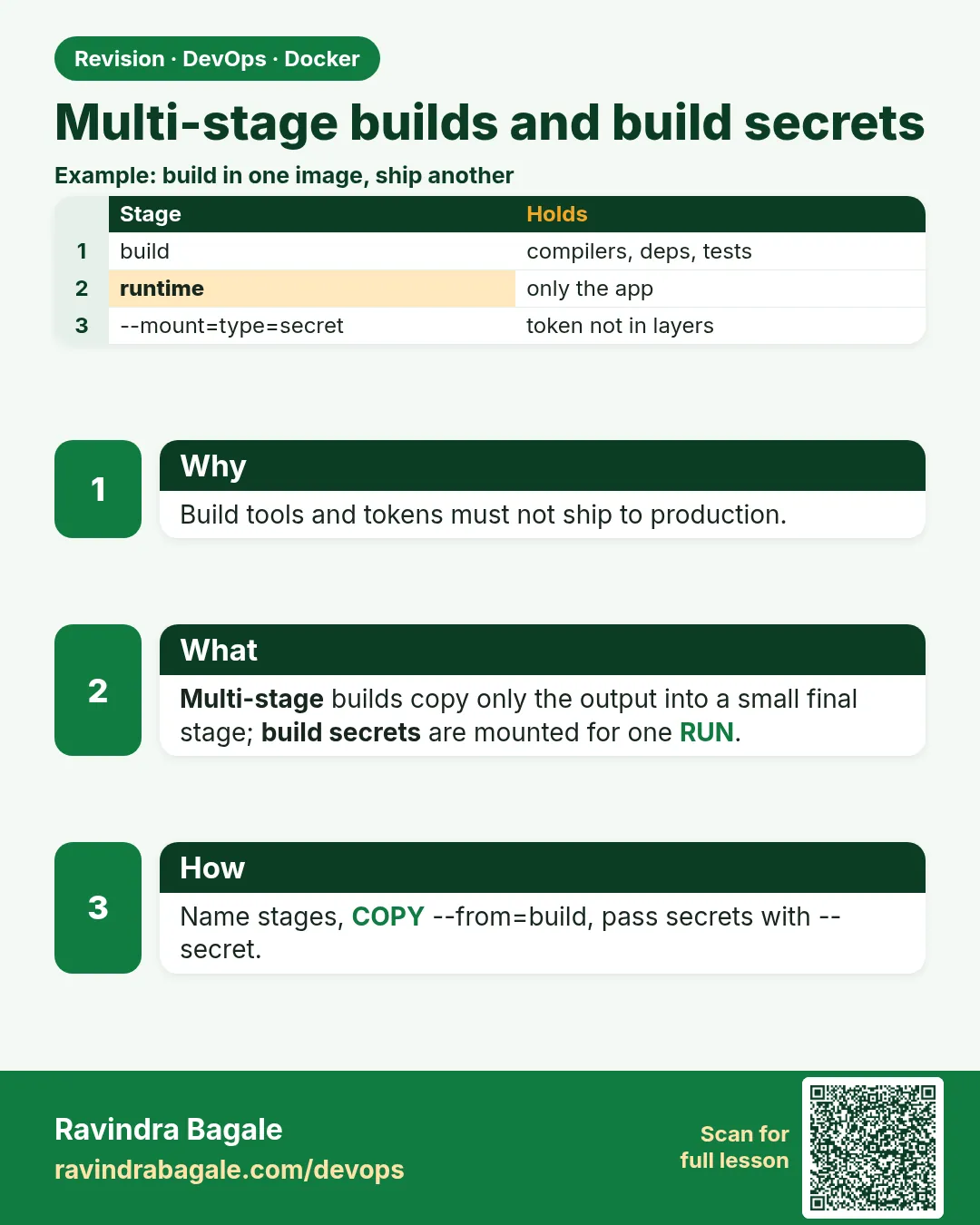 Revision card
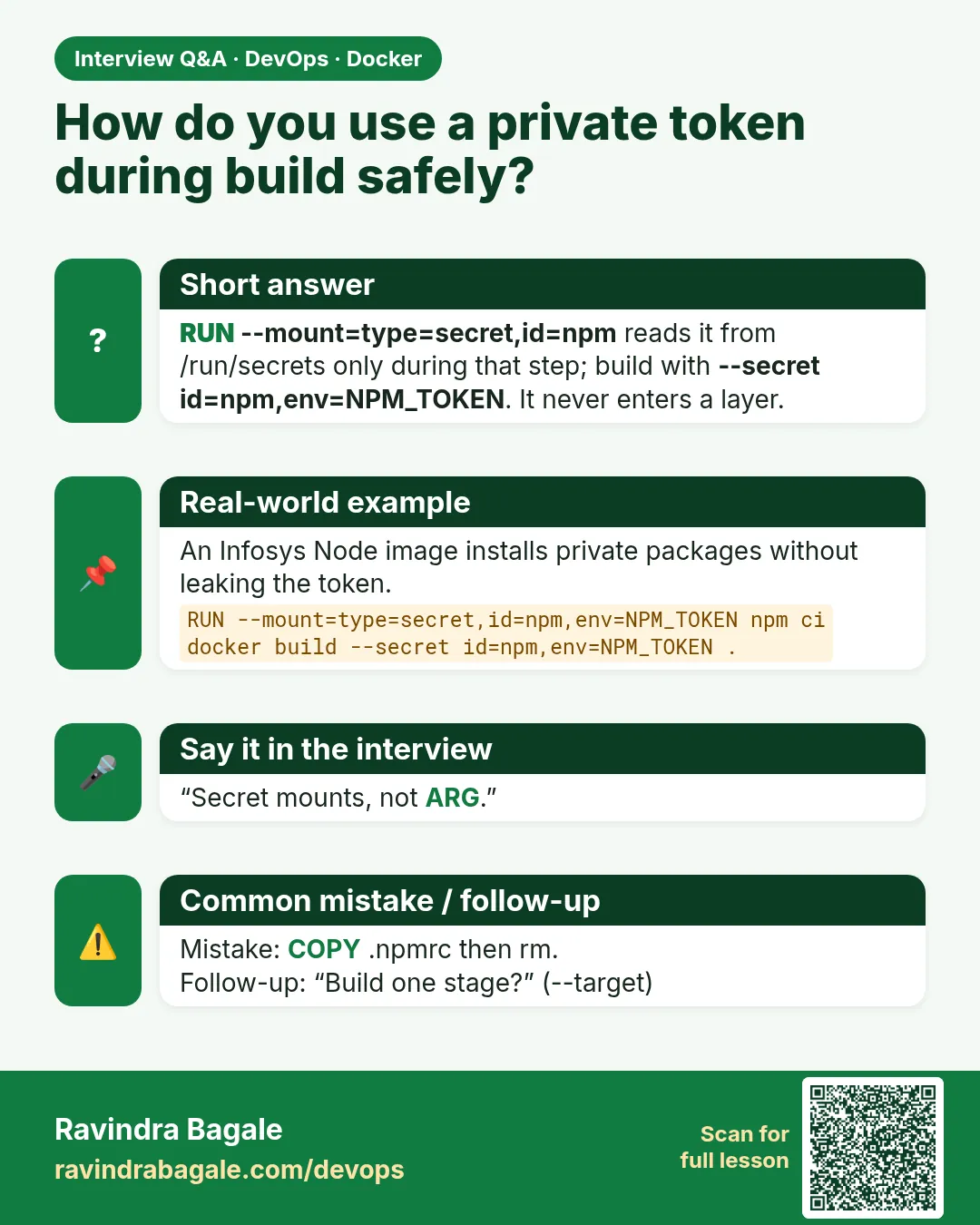 Interview card