52.10 docker build and buildx commands: full reference
Friends, until now we typed docker build -t name . and moved on. But docker build has many flags, and buildx adds builders, multi-platform images, cache export and bake files. Today we try each command once with our own hands, so nothing in a CI file looks strange to you again.
मित्रांनो, आतापर्यंत आपण docker build -t name . टाइप करून पुढे गेलो. पण docker build ला खूप flags आहेत, आणि buildx builders, multi-platform image, cache export आणि bake files देतो. आज प्रत्येक command एकदा स्वतःच्या हाताने करू, म्हणजे CI file मधलं काहीच विचित्र वाटणार नाही.
दोस्तों, अब तक हमने docker build -t name . टाइप किया और आगे बढ़ गए. पर docker build के कई flags हैं, और buildx builders, multi-platform image, cache export और bake files देता है. आज हर command एक बार अपने हाथ से करेंगे, ताकि CI file में कुछ भी अजीब न लगे.
1. Start from a story
Rohit joined the platform team at Zomato. His first ticket said: the delivery-partner app image must run on Graviton (ARM) servers to save cost, and builds must reuse cache between Jenkins runners.
Rohit only knew docker build -t. He opened the existing CI file and saw buildx create, --platform linux/amd64,linux/arm64, --cache-to and docker buildx bake. It looked like a different language.
He sat with a senior for one hour and tried every command on his laptop: tags, build args, target, output, platforms, builders, cache and bake. Each one turned out to be small and logical.
By evening he shipped a multi-arch image and the AWS bill for those servers fell by about a fifth. Today we take the same one-hour tour.
2. Everyday docker build flags
Step 1: -t and many tags
Why: Give the image names.
What: -t name:tag can repeat to give one build several tags.
Example 1: One tag
Type this:
docker build -t shop:1.0 .
You will see:
=> => naming to docker.io/library/shop:1.0
What it means: Named image.
Example 2: Two tags
Type this:
docker build -t shop:1.0 -t shop:latest -t registry.example.com/shop:1.0 . && docker images shop
You will see:
REPOSITORY  TAG     IMAGE ID
shop        1.0     8a1f2c3d4e5f
shop        latest  8a1f2c3d4e5f
What it means: Same image ID, many names.
Example 3: Tag later
Type this:
docker tag shop:1.0 shop:stable && docker images shop --format '{{.Tag}}'
You will see:
stable
1.0
latest
What it means: docker tag adds a name without building.
Step 2: -f and the context
Why: The Dockerfile and the folder are separate things.
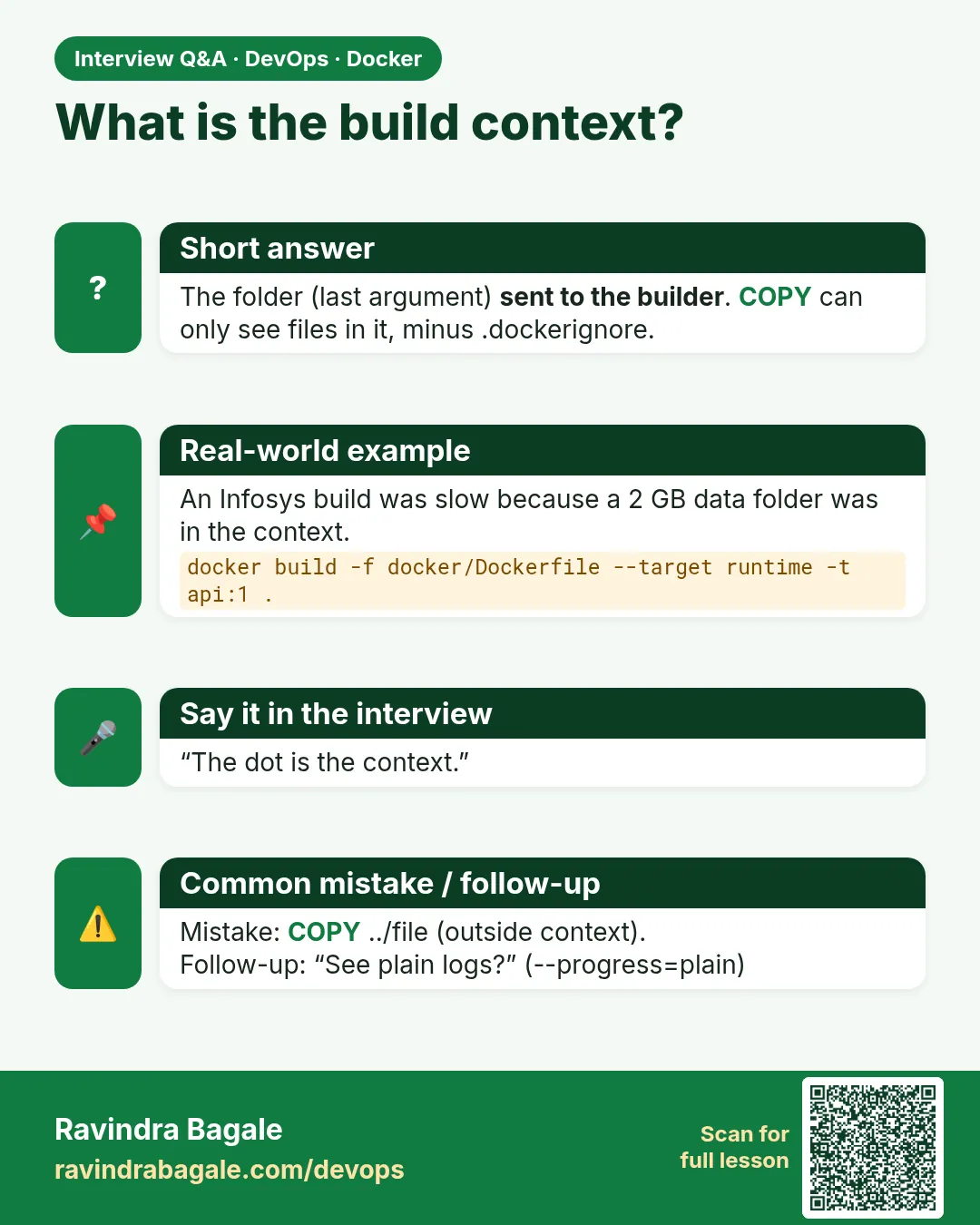
What: -f picks a Dockerfile. The last argument is the context folder, a Git URL or - for stdin.
Example 4: Other file
Type this:
docker build -f docker/api.Dockerfile -t api .
You will see:
=> [internal] load build definition from api.Dockerfile
What it means: File from another folder, context is current folder.
Example 5: Sub-folder context
Type this:
docker build -t web ./web
You will see:
=> => transferring context: 1.2MB
What it means: Only ./web is sent.
Example 6: From stdin
Type this:
printf 'FROM alpine:3.20\nCMD ["echo","stdin"]\n' | docker build -t s - && docker run --rm s
You will see:
stdin
What it means: No context at all; COPY is not possible.
Step 3: --build-arg
Why: Pass values into ARG.
What: Use for versions and non-secret settings.
Example 7: Dockerfile
Type this:
printf 'ARG NODE=22\nFROM node:${NODE}-slim\nARG APP_ENV=dev\nRUN echo env=$APP_ENV\n' > Dockerfile && grep ARG Dockerfile
You will see:
ARG NODE=22
ARG APP_ENV=dev
What it means: Two arguments with defaults.
Example 8: Override
Type this:
docker build --no-cache --progress=plain --build-arg NODE=20 --build-arg APP_ENV=prod -t a . 2>&1 | grep 'env='
You will see:
#6 0.31 env=prod
What it means: New values used.
Example 9: Check base
Type this:
docker run --rm a node -v
You will see:
v20.18.0
What it means: The base changed too.
Step 4: --target, --no-cache and --pull
Why: Control what runs.
What: --target stops at a stage, --no-cache ignores the cache, --pull fetches a fresh base.
Example 10: Target
Type this:
docker build --target test -t shop:test .
You will see:
=> [test 3/3] RUN npm test
What it means: Only up to test.
Example 11: Fresh base
Type this:
docker build --pull -t shop:1.0 . 2>&1 | grep 'load metadata'
You will see:
=> [internal] load metadata for docker.io/library/node:22-slim
What it means: Base checked again on the registry.
Example 12: No cache
Type this:
docker build --no-cache -t shop:1.0 . 2>&1 | grep -c CACHED
You will see:
0
What it means: Every step ran.
Step 5: --progress, -q and --iidfile
Why: Choose how much to see.
What: plain shows all logs, -q prints only the ID, --iidfile writes the ID to a file.
Example 13: Quiet
Type this:
docker build -q -t shop:1.0 .
You will see:
sha256:8a1f2c3d4e5f...
What it means: Only the ID.
Example 14: ID to file
Type this:
docker build --iidfile id.txt -t shop:1.0 . >/dev/null && cat id.txt
You will see:
sha256:8a1f2c3d4e5f...
What it means: Handy in scripts.
Example 15: Plain logs
Type this:
docker build --progress=plain -t shop:1.0 . 2>&1 | grep -m1 '#1'
You will see:
#1 [internal] load build definition from Dockerfile
What it means: Numbered steps, good for CI logs.
Step 6: --label, --network and --add-host
Why: Metadata and network during build.
What: Labels describe the image. --network=none blocks the internet for a step-free build.
Example 16: Label
Type this:
docker build --label org.opencontainers.image.revision=a1b2c3 -t shop:1.0 . && docker inspect -f '{{index .Config.Labels "org.opencontainers.image.revision"}}' shop:1.0
You will see:
a1b2c3
What it means: Commit stored in the image.
Example 17: No network
Type this:
printf 'FROM alpine:3.20\nRUN wget -q -O- https://example.com || echo offline\n' > Dockerfile && docker build --no-cache --progress=plain --network=none -t n . 2>&1 | grep offline
You will see:
#5 0.40 offline
What it means: Proves the build needs no internet.
Example 18: Add host
Type this:
docker build --add-host repo.internal=10.0.0.5 --progress=plain -t h . 2>&1 | grep -m1 'load build'
You will see:
#1 [internal] load build definition from Dockerfile
What it means: Builder can resolve a private name.
Step 7: Remote contexts: Git URL and tarball
Why: Builds can use a Git URL or a tarball as the context.
What: Docker downloads the context itself. Combine with --secret and --ssh for private sources.
Example 19: Git context
Type this:
docker build -t hello https://git.example.com/team/hello.git#main
You will see:
=> [internal] load git source https://git.example.com/team/hello.git#main
What it means: No local clone needed.
Example 20: Sub-folder of a repo
Type this:
docker build -t api 'https://git.example.com/team/shop.git#v1.4:api'
You will see:
=> [internal] load git source ...#v1.4:api
What it means: Tag v1.4, folder api.
Example 21: Tarball
Type this:
docker build -t site https://downloads.example.com/site.tar.gz
You will see:
=> [internal] load remote build context
What it means: A packed context from a web server.
3. buildx and builders
Step 8: buildx version and ls
Why: buildx is the BuildKit CLI plugin.
What: docker build already uses BuildKit; buildx gives extra commands.
Example 22: Version
Type this:
docker buildx version
You will see:
buildx v0.17.1 (plugin)
What it means: Plugin installed.
Example 23: Builders
Type this:
docker buildx ls
You will see:
NAME/NODE     DRIVER/ENDPOINT   STATUS   PLATFORMS
default*      docker            running  linux/amd64, linux/386
What it means: Default builder only.
Example 24: Inspect
Type this:
docker buildx inspect default | grep Driver
You will see:
Driver: docker
What it means: The docker driver has limits for cache export and multi-arch.
Step 9: buildx create
Why: A docker-container builder unlocks every feature.
What: It runs BuildKit in its own container.
Example 25: Create
Type this:
docker buildx create --name multi --driver docker-container --use
You will see:
multi
What it means: New builder, now default.
Example 26: Bootstrap
Type this:
docker buildx inspect --bootstrap | grep -E 'Name|Status' | head -2
You will see:
Name:   multi
Status: running
What it means: BuildKit container started.
Example 27: Remove later
Type this:
docker buildx rm multi && docker buildx use default
You will see:
(no output)
What it means: Back to the default builder.
Step 10: Multi-platform images
Why: One tag for Intel and ARM servers.
What: --platform builds for several CPUs. QEMU emulation or native nodes do the work.
Example 28: Install emulators
Type this:
docker run --privileged --rm tonistiigi/binfmt --install arm64
You will see:
installing: arm64 OK
What it means: Lets an Intel laptop build ARM.
Example 29: Build and push
Type this:
docker buildx build --platform linux/amd64,linux/arm64 -t registry.example.com/partner:1.0 --push .
You will see:
=> [linux/arm64 4/5] RUN npm ci
=> pushing manifest for registry.example.com/partner:1.0
What it means: Both images under one tag.
Example 30: Check
Type this:
docker buildx imagetools inspect registry.example.com/partner:1.0 | grep Platform
You will see:
Platform:  linux/amd64
Platform:  linux/arm64
What it means: Each server pulls its own.
Step 11: --load, --push and --output
Why: Where the result goes.
What: --load puts it in local docker images, --push sends to a registry, --output can write files.
Example 31: Load
Type this:
docker buildx build --load -t shop:dev . && docker images shop:dev --format '{{.Tag}}'
You will see:
dev
What it means: Local image.
Example 32: Files out
Type this:
printf 'FROM alpine:3.20 AS b\nRUN echo report > /r.txt\nFROM scratch\nCOPY --from=b /r.txt /\n' > Dockerfile && docker buildx build --output type=local,dest=out . && cat out/r.txt
You will see:
report
What it means: Build used as a file generator.
Example 33: Tar
Type this:
docker buildx build --output type=docker,dest=shop.tar -t shop:1.0 . && ls -lh shop.tar | awk '{print $5}'
You will see:
62M
What it means: Saved without loading.
Step 12: Cache export
Why: Keep cache outside the builder.
What: type=registry, type=local and type=gha are common. mode=max keeps all stages.
Example 34: Local cache
Type this:
docker buildx build --cache-to type=local,dest=/tmp/bc,mode=max --cache-from type=local,src=/tmp/bc -t shop:1.0 --load .
You will see:
=> exporting cache to client directory
What it means: Saved to a folder.
Example 35: Reuse
Type this:
docker buildx build --cache-from type=local,src=/tmp/bc -t shop:1.0 --load . 2>&1 | grep -c CACHED
You will see:
5
What it means: New builder, cache still used.
Example 36: Disk and prune
Type this:
docker buildx du | tail -1 && docker buildx prune -f --keep-storage 2gb | tail -1
You will see:
Total:  3.10GB
Total:  1.08GB
What it means: Keep the cache in check.
Step 13: buildx bake
Why: Many builds from one file.
What: A docker-bake.hcl file lists targets, tags and platforms. One command builds all.
Example 37: Bake file
Type this:
printf 'group "default" { targets = ["api","web"] }\ntarget "api" { context = "./api"\n tags = ["shop/api:1.0"] }\ntarget "web" { context = "./web"\n tags = ["shop/web:1.0"] }\n' > docker-bake.hcl && docker buildx bake --print | grep -c context
You will see:
2
What it means: Two targets defined.
Example 38: Build all
Type this:
docker buildx bake --load
You will see:
=> [api 4/4] ...
=> [web 3/3] ...
What it means: Built in parallel.
Example 39: One target
Type this:
docker buildx bake web --set web.tags=shop/web:dev --load
You will see:
=> => naming to docker.io/shop/web:dev
What it means: Override from the command line.
4. Common mistakes and how Rohit avoids them
Mistake one: trying --platform with two values on the default docker driver. Rohit creates a docker-container builder first.
Mistake two: a multi-platform build with --load. The classic image store cannot hold it, so Rohit uses --push or the containerd image store.
Mistake three: a huge context because -f points elsewhere but the context is the repo root. Rohit checks the transferring context line.
Mistake four: secrets in --build-arg. Rohit uses --secret.
Mistake five: never pruning. Builders fill the disk; Rohit runs buildx prune with --keep-storage in a weekly job.
Check yourself
Q1. Which flag gives several tags?
-t repeated.
Q2. What is the last argument of docker build?
The context.
Q3. Why create a docker-container builder?
For multi-platform and cache export.
Q4. What builds many images from one file?
docker buildx bake.
Friends, now docker build and buildx are not a mystery. Did you understand? Let us try it once more. Build one image for amd64 and arm64 and inspect the manifest with imagetools.
मित्रांनो, आता docker build आणि buildx गूढ राहिलं नाही. समजलं का? चला, पुन्हा एकदा करून पाहू. एक image amd64 आणि arm64 साठी build करा आणि imagetools ने manifest बघा.
दोस्तों, अब docker build और buildx रहस्य नहीं रहा. समझ आया? चलिए, एक बार फिर करके देखते हैं। एक image amd64 और arm64 के लिए build कीजिए और imagetools से manifest देखिए.
Ravindra Bagale's Tip
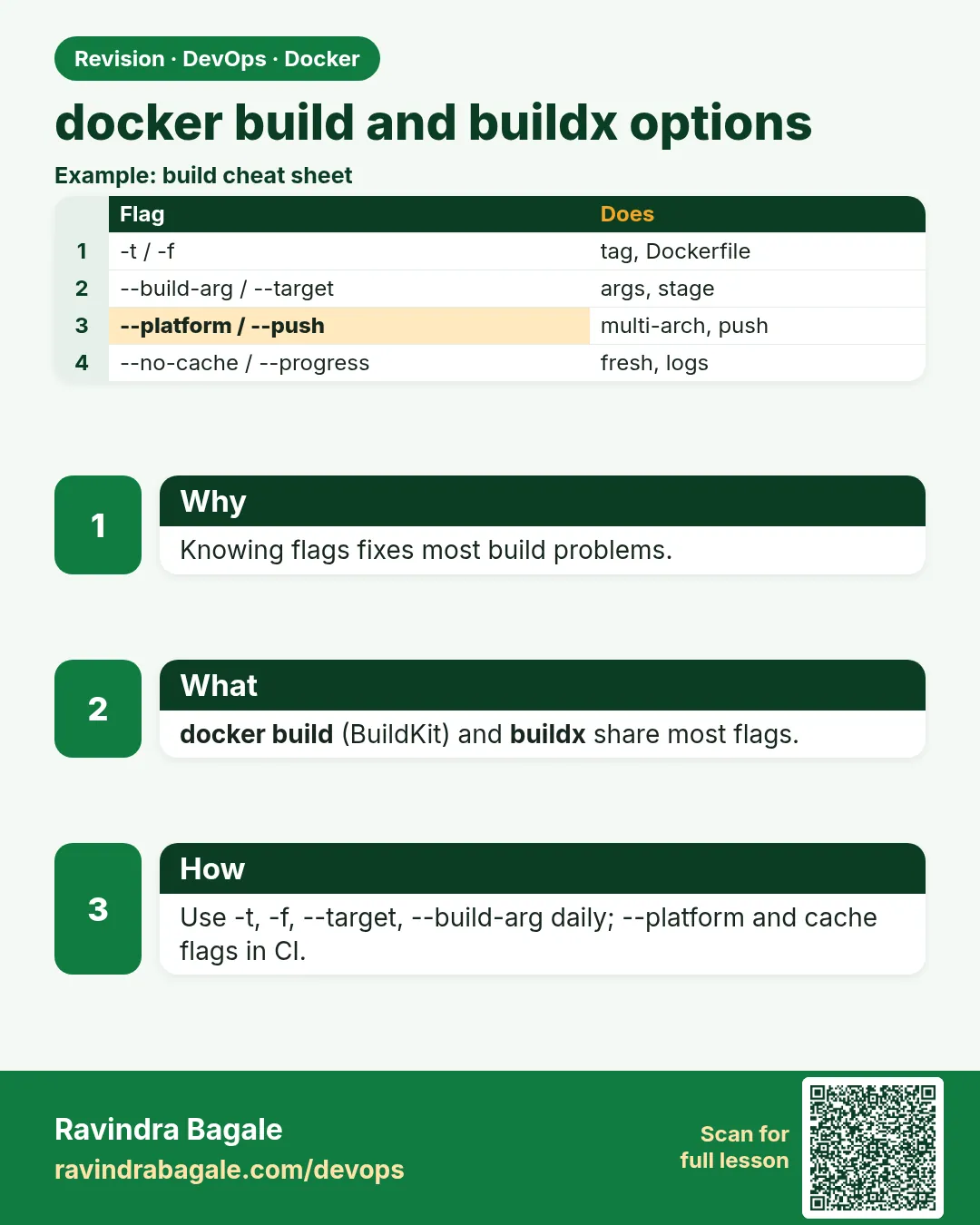
Keep a small cheat sheet: -t, -f, context, --build-arg, --target, --secret, --platform, --push, --cache-to. These nine cover almost every CI file you will meet.
एक छोटी cheat sheet ठेवा: -t, -f, context, --build-arg, --target, --secret, --platform, --push, --cache-to. ह्या नऊ गोष्टी जवळजवळ प्रत्येक CI file मध्ये येतात.
एक छोटी cheat sheet रखिए: -t, -f, context, --build-arg, --target, --secret, --platform, --push, --cache-to. ये नौ चीज़ें लगभग हर CI file में मिलेंगी.
Lab: try at home
- Build with three tags and compare image IDs.
- Build from stdin and from a sub-folder.
- Pass two build args and verify them.
- Create a docker-container builder.
- Build and push a two-platform image.
- Write a bake file with two targets.
Recap
- -t names, -f picks the file, the last argument is the context.
- --build-arg, --target, --no-cache, --pull control the build.
- buildx create unlocks advanced features.
- --platform makes multi-arch images.
- --load, --push and --output choose the destination.
- bake builds many targets at once.
 Revision card
 Interview card