52.2 RUN: shell form, exec form, layers and cache cleanup
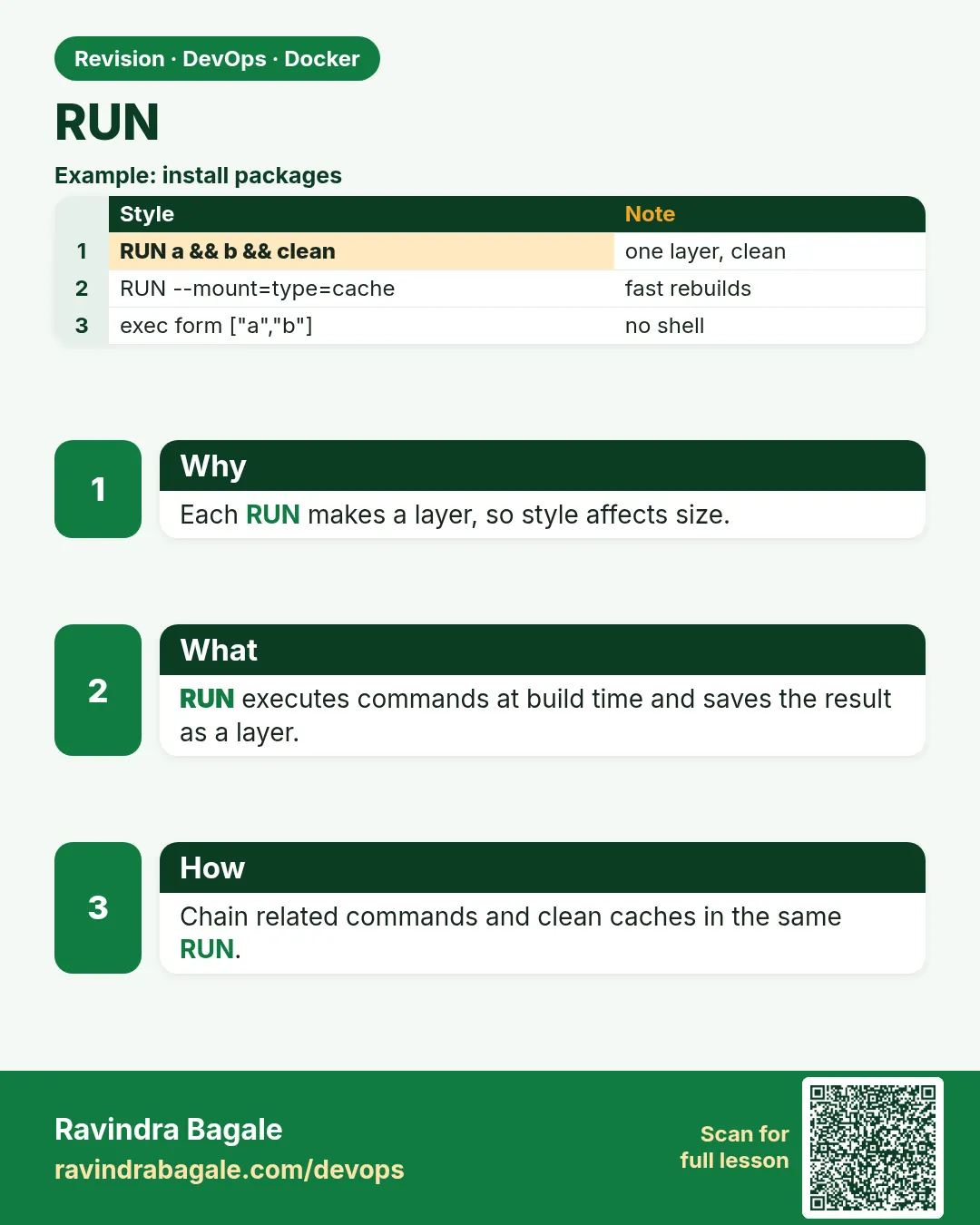
Friends, RUN is where the real work happens while building: installing packages, creating folders, compiling code. Today we learn the two ways to write RUN, how each RUN makes a layer, and how to keep those layers small.
मित्रांनो, build करताना खरं काम RUN मध्ये होतं: packages install करणं, folders बनवणं, code compile करणं. आज RUN लिहिण्याच्या दोन पद्धती, प्रत्येक RUN layer कसा बनवतो, आणि ते layers लहान कसे ठेवायचे ते शिकू.
दोस्तों, build के समय असली काम RUN में होता है: packages install करना, folders बनाना, code compile करना. आज RUN लिखने के दो तरीके, हर RUN layer कैसे बनाता है, और उन layers को छोटा कैसे रखें, यह सीखेंगे.
1. Start from a story
Arjun worked on the search team at Flipkart. The search indexer image grew by 300 MB every month and nobody knew why.
He ran docker history and found the answer. One RUN downloaded a big archive, the next RUN extracted it, and a third RUN deleted the archive. The delete did nothing for size, because the archive was already saved in an earlier layer.
His senior explained: every RUN is a photo of the filesystem. Deleting a file in a later photo does not remove it from an earlier photo. To save space, download, use and delete in the same RUN.
Arjun joined the three RUN lines into one with and-and and cleaned the apt cache in the same line. The image shrank by 340 MB. Today we repeat his fix with our own hands.
2. Two ways to write RUN
Step 1: Shell form
Why: Most RUN lines are short shell commands.
What: RUN command runs through /bin/sh -c, so pipes, and-and and variables work.
Example 1: Pipe and variable
Type this:
printf 'FROM alpine:3.20\nRUN echo $HOME | tr a-z A-Z\n' > Dockerfile
docker build --progress=plain . 2>&1 | grep -A1 'RUN echo'
You will see:
#5 [2/2] RUN echo $HOME | tr a-z A-Z
#5 0.1 /ROOT
What it means: The shell expanded $HOME and ran the pipe.
Example 2: and-and chain
Type this:
printf 'FROM alpine:3.20\nRUN mkdir /app && cd /app && touch ok\nCMD ls /app\n' > Dockerfile
docker build -t sh1 . && docker run --rm sh1
You will see:
ok
What it means: Three commands, one layer.
Example 3: Exit code stops the build
Type this:
printf 'FROM alpine:3.20\nRUN false\n' > Dockerfile
docker build .
You will see:
ERROR: process "/bin/sh -c false" did not complete successfully: exit code: 1
What it means: Any non-zero exit fails the build.
Step 2: Exec form
Why: Sometimes you do not want a shell at all.
What: RUN ["program","arg"] runs the program directly. No variable expansion, no pipes.
Example 4: Exec form
Type this:
printf 'FROM alpine:3.20\nRUN ["mkdir","-p","/data/logs"]\nCMD ["ls","/data"]\n' > Dockerfile
docker build -t ex1 . && docker run --rm ex1
You will see:
logs
What it means: Ran mkdir directly.
Example 5: No expansion
Type this:
printf 'FROM alpine:3.20\nRUN ["echo","$HOME"]\n' > Dockerfile
docker build --progress=plain . 2>&1 | grep -A1 'RUN \['
You will see:
#5 [2/2] RUN ["echo","$HOME"]
#5 0.1 $HOME
What it means: Printed literally: no shell.
Example 6: Exec form with a shell on purpose
Type this:
printf 'FROM alpine:3.20\nRUN ["sh","-c","echo $HOME"]\n' > Dockerfile
docker build --progress=plain . 2>&1 | grep '0.1 /'
You will see:
#5 0.1 /root
What it means: Call sh yourself when you need it.
Step 3: set -eux with pipes
Why: A pipe hides failures by default.
What: In sh, a pipeline returns the last command's exit code. Use bash with pipefail or check carefully.
Example 7: Hidden failure
Type this:
printf 'FROM debian:12-slim\nRUN wget -qO- https://example.invalid/x | wc -c\n' > Dockerfile
docker build .
You will see:
=> [2/2] RUN wget ... | wc -c
=> naming to ...
What it means: Download failed but build passed.
Example 8: pipefail
Type this:
printf 'FROM debian:12-slim\nSHELL ["/bin/bash","-o","pipefail","-c"]\nRUN wget -qO- https://example.invalid/x | wc -c\n' > Dockerfile
docker build .
You will see:
ERROR: ... did not complete successfully: exit code: 4
What it means: Now the failure is caught.
Example 9: Trace lines
Type this:
printf 'FROM alpine:3.20\nRUN set -eux; mkdir /a; echo done\n' > Dockerfile
docker build --progress=plain . 2>&1 | grep '+ '
You will see:
#5 0.1 + mkdir /a
#5 0.1 + echo done
What it means: -x prints each command, great for debugging.
3. Layers and size
Step 4: Every RUN is a layer
Why: Layers are what make an image big or small.
What: docker history lists every layer and its size.
Example 10: Three RUNs
Type this:
printf 'FROM alpine:3.20\nRUN echo a > /a\nRUN echo b > /b\nRUN echo c > /c\n' > Dockerfile
docker build -t three . && docker history three --format '{{.Size}} {{.CreatedBy}}' | head -3
You will see:
2B RUN /bin/sh -c echo c > /c
2B RUN /bin/sh -c echo b > /b
2B RUN /bin/sh -c echo a > /a
What it means: Three layers, one per RUN.
Example 11: Count layers
Type this:
docker image inspect three -f '{{len .RootFS.Layers}}'
You will see:
4
What it means: 1 base + 3 RUN.
Example 12: One RUN
Type this:
printf 'FROM alpine:3.20\nRUN echo a > /a && echo b > /b && echo c > /c\n' > Dockerfile
docker build -t one . && docker image inspect one -f '{{len .RootFS.Layers}}'
You will see:
2
What it means: Fewer layers, same result.
Step 5: Delete in the same RUN
Why: A later delete does not shrink an earlier layer.
What: Download, use and remove temporary files inside one RUN.
Example 13: Wrong way
Type this:
printf 'FROM debian:12-slim\nRUN head -c 100000000 /dev/zero > /big\nRUN rm /big\n' > Dockerfile
docker build -t wrong . && docker images wrong --format '{{.Size}}'
You will see:
175MB
What it means: The 100 MB is still inside.
Example 14: Right way
Type this:
printf 'FROM debian:12-slim\nRUN head -c 100000000 /dev/zero > /big && rm /big\n' > Dockerfile
docker build -t right . && docker images right --format '{{.Size}}'
You will see:
74.8MB
What it means: Created and removed in one layer.
Example 15: See it in history
Type this:
docker history wrong --format '{{.Size}}' | head -2
You will see:
0B
100MB
What it means: The rm layer is 0 B; the 100 MB stays.
Step 6: apt-get the right way
Why: apt is the most common size problem.
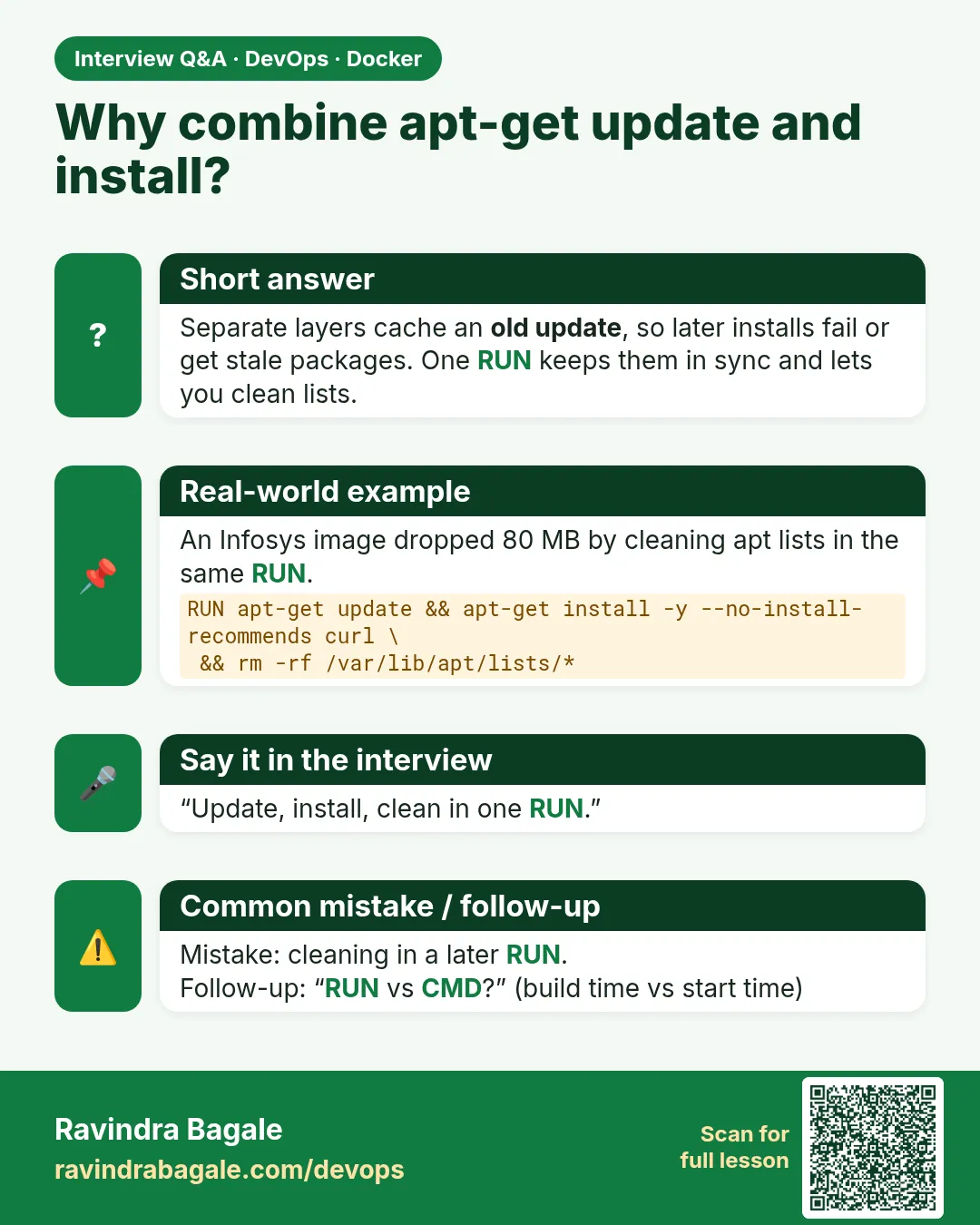
What: Run update and install together, use --no-install-recommends, and remove /var/lib/apt/lists in the same RUN.
Example 16: Good apt line
Type this:
printf 'FROM debian:12-slim\nRUN apt-get update && apt-get install -y --no-install-recommends curl ca-certificates && rm -rf /var/lib/apt/lists/*\n' > Dockerfile
docker build -t aptgood . && docker images aptgood --format '{{.Size}}'
You will see:
97.6MB
What it means: No package lists left behind.
Example 17: Without cleanup
Type this:
printf 'FROM debian:12-slim\nRUN apt-get update && apt-get install -y curl\n' > Dockerfile
docker build -t aptbad . && docker images aptbad --format '{{.Size}}'
You will see:
142MB
What it means: Recommends and lists add 45 MB.
Example 18: Pin a package
Type this:
printf 'FROM debian:12-slim\nRUN apt-get update && apt-get install -y --no-install-recommends curl=7.88.1-10+deb12u8 && rm -rf /var/lib/apt/lists/*\n' > Dockerfile
docker build -t aptpin .
You will see:
=> [2/2] RUN apt-get update && apt-get install -y ... curl=7.88.1-10+deb12u8
What it means: Same package version on every build.
Step 7: apk, dnf and pip cleanup
Why: Every package manager keeps a cache.
What: apk add --no-cache, dnf clean all, pip install --no-cache-dir.
Example 19: Alpine
Type this:
printf 'FROM alpine:3.20\nRUN apk add --no-cache curl\n' > Dockerfile
docker build -t apk1 . && docker images apk1 --format '{{.Size}}'
You will see:
12.1MB
What it means: No index cache stored.
Example 20: Amazon Linux
Type this:
printf 'FROM amazonlinux:2023\nRUN dnf install -y tar gzip && dnf clean all && rm -rf /var/cache/dnf\n' > Dockerfile
docker build -t dnf1 .
You will see:
=> [2/2] RUN dnf install -y tar gzip && dnf clean all ...
What it means: Cache removed in the same layer.
Example 21: pip
Type this:
printf 'FROM python:3.12-slim\nRUN pip install --no-cache-dir requests==2.32.3\n' > Dockerfile
docker build -t pip1 . && docker run --rm pip1 pip cache list
You will see:
No locally built wheels cached.
What it means: No wheel cache inside the image.
Step 8: Long RUN lines, readable
Why: One RUN can still be easy to read.
What: Use backslash line breaks and sort packages alphabetically, one per line.
Example 22: Readable block
Type this:
printf 'FROM debian:12-slim\nRUN apt-get update \\\n && apt-get install -y --no-install-recommends \\\n    ca-certificates \\\n    curl \\\n    git \\\n && rm -rf /var/lib/apt/lists/*\n' > Dockerfile
cat Dockerfile
You will see:
FROM debian:12-slim
RUN apt-get update \
 && apt-get install -y --no-install-recommends \
    ca-certificates \
    curl \
    git \
 && rm -rf /var/lib/apt/lists/*
What it means: One layer, easy diff in code review.
Example 23: Build it
Type this:
docker build -t tidy .
You will see:
=> [2/2] RUN apt-get update && apt-get install ...
What it means: Works the same as one long line.
Example 24: Lint it
Type this:
docker run --rm -i hadolint/hadolint:v2.12.0 < Dockerfile
You will see:
(no output)
What it means: Hadolint finds no problems.
4. RUN and the build cache
Step 9: Cache hits
Why: Docker reuses a RUN layer if nothing before it changed.
What: CACHED in the output means the step was skipped.
Example 25: First build
Type this:
docker build -t c1 .
You will see:
=> [2/2] RUN apt-get update ... 18.2s
What it means: Slow the first time.
Example 26: Second build
Type this:
docker build -t c1 .
You will see:
=> CACHED [2/2] RUN apt-get update ...
What it means: Instant: reused.
Example 27: Force fresh
Type this:
docker build --no-cache -t c1 .
You will see:
=> [2/2] RUN apt-get update ... 17.9s
What it means: Ignores the cache.
Step 10: Stale update trap
Why: A cached apt-get update can be months old.
What: Never put apt-get update alone in its own RUN; keep it with install.
Example 28: Bad split
Type this:
printf 'FROM debian:12-slim\nRUN apt-get update\nRUN apt-get install -y curl\n' > Dockerfile
docker build -t split .
You will see:
=> CACHED [2/3] RUN apt-get update
What it means: Old list reused later.
Example 29: Add a package later
Type this:
sed -i 's/curl/curl jq/' Dockerfile && docker build -t split .
You will see:
E: Unable to locate package jq
What it means: The cached list is stale.
Example 30: Fix
Type this:
printf 'FROM debian:12-slim\nRUN apt-get update && apt-get install -y --no-install-recommends curl jq && rm -rf /var/lib/apt/lists/*\n' > Dockerfile
docker build -t split .
You will see:
=> [2/2] RUN apt-get update && apt-get install ... jq
What it means: Together, the list is always fresh.
Step 11: Cache mounts
Why: Re-downloading packages every build is slow.
What: RUN --mount=type=cache keeps a download cache between builds without storing it in the image.
Example 31: pip cache mount
Type this:
printf 'FROM python:3.12-slim\nCOPY requirements.txt .\nRUN --mount=type=cache,target=/root/.cache/pip pip install -r requirements.txt\n' > Dockerfile
docker build -t cm .
You will see:
=> [3/3] RUN --mount=type=cache,target=/root/.cache/pip pip install ... 21.4s
What it means: First time downloads.
Example 32: Change one package
Type this:
echo 'rich==13.9.2' >> requirements.txt && docker build -t cm .
You will see:
=> [3/3] RUN --mount=type=cache ... 3.1s
What it means: Old wheels came from the cache mount.
Example 33: Not in the image
Type this:
docker run --rm cm ls /root/.cache/pip
You will see:
ls: cannot access '/root/.cache/pip': No such file or directory
What it means: Fast builds, small image.
Step 12: RUN --network=none
Why: Some steps must not touch the internet.
What: A RUN with --network=none has no network, which proves a step only uses files you copied in.
Example 34: Offline step
Type this:
printf 'FROM alpine:3.20\nRUN --network=none echo offline-ok\n' > Dockerfile
docker build --progress=plain . 2>&1 | grep offline-ok
You will see:
#5 0.1 offline-ok
What it means: Works without a network.
Example 35: Download blocked
Type this:
printf 'FROM alpine:3.20\nRUN --network=none wget -q https://example.com\n' > Dockerfile
docker build .
You will see:
wget: bad address 'example.com'
ERROR: ... exit code: 1
What it means: No surprise downloads.
Example 36: Hermetic test
Type this:
printf 'FROM python:3.12-slim\nCOPY . /src\nRUN --network=none python -m compileall -q /src\n' > Dockerfile
docker build -t herm .
You will see:
=> [3/3] RUN --network=none python -m compileall -q /src
What it means: Banks like HDFC use this to prove builds are repeatable.
5. Common mistakes and how Arjun avoids them
Mistake one: one RUN per command. Each line becomes a layer and deletes cannot shrink earlier ones. Arjun groups related steps.
Mistake two: apt-get update in its own RUN. It gets cached and goes stale. Arjun always writes update and install together.
Mistake three: forgetting cleanup. Package lists, pip caches and tar files stay forever. Arjun removes them in the same RUN or uses a cache mount.
Mistake four: pipes that hide errors. Arjun sets bash with pipefail through SHELL when a RUN uses a pipe.
Mistake five: putting a secret in a RUN line such as curl with a token. It stays in history. Arjun uses a secret mount, which we learn in lesson 52.9.
Check yourself
Q1. What is the difference between RUN shell and exec form?
Shell form runs through sh -c; exec form runs the program directly.
Q2. Why does rm in a later RUN not shrink the image?
The file is saved in an earlier layer.
Q3. Why keep apt-get update with install?
So a cached stale list is never used.
Q4. What does a cache mount give you?
Fast rebuilds without storing the cache in the image.
Friends, think of every RUN as a photo. Download, use and clean in the same photo. Did you understand? Let us try it once more. Open one of your Dockerfiles, run docker history, and find the biggest layer.
मित्रांनो, प्रत्येक RUN म्हणजे एक photo. Download, वापर आणि साफसफाई एकाच photo मध्ये करा. समजलं का? चला, पुन्हा एकदा करून पाहू. तुमची एक Dockerfile उघडा, docker history चालवा, आणि सगळ्यात मोठा layer शोधा.
दोस्तों, हर RUN को एक photo समझिए. Download, इस्तेमाल और सफ़ाई एक ही photo में कीजिए. समझ आया? चलिए, एक बार फिर करके देखते हैं। अपनी एक Dockerfile खोलिए, docker history चलाइए, और सबसे बड़ा layer ढूँढिए.
Ravindra Bagale's Tip
Run docker history --no-trunc on any image before you approve it. The biggest layer usually shows the mistake in seconds.
कोणतीही image approve करण्याआधी docker history --no-trunc चालवा. सगळ्यात मोठा layer काही सेकंदात चूक दाखवतो.
कोई भी image approve करने से पहले docker history --no-trunc चलाइए. सबसे बड़ा layer कुछ सेकंड में गलती दिखा देता है.
Lab: try at home
- Build the wrong and right 100 MB examples and compare sizes.
- Write a clean apt-get RUN and check the size.
- Try exec form with $HOME and see it is not expanded.
- Add SHELL with pipefail and catch a failed download.
- Add a pip cache mount and time two builds.
- Run hadolint on your Dockerfile.
Recap
- Shell form uses sh -c; exec form does not.
- Each RUN makes a layer.
- Clean up in the same RUN.
- Keep apt-get update with install.
- Use --no-cache flags of each package manager.
- Cache mounts speed builds without growing images.
 Revision card
 Interview card