52.7 HEALTHCHECK, VOLUME, LABEL, STOPSIGNAL, ONBUILD and SHELL
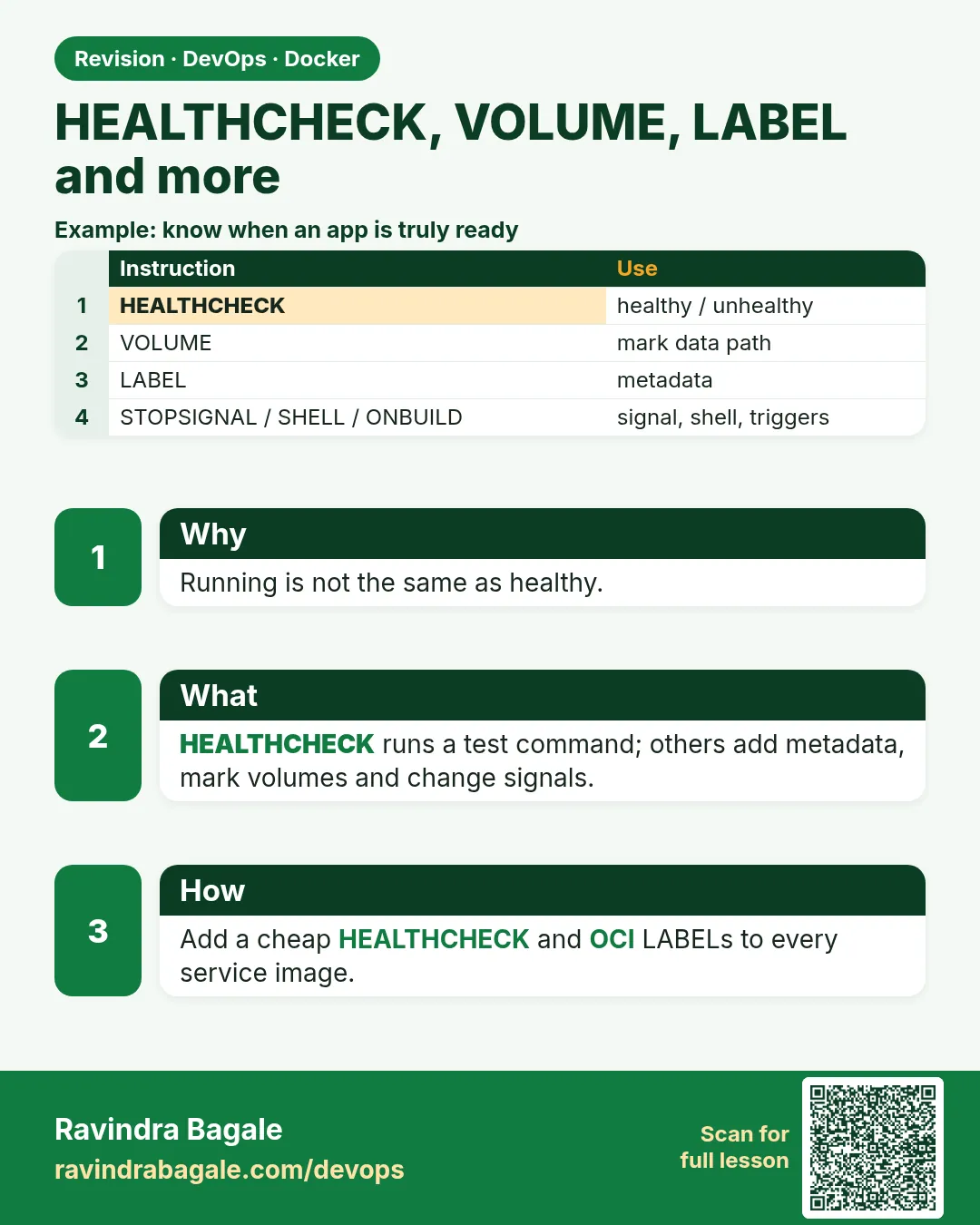
Friends, these six instructions are used less often, but each one solves a real problem. HEALTHCHECK tells Docker if the app is really working, VOLUME marks data folders, LABEL adds information, STOPSIGNAL controls shutdown, ONBUILD and SHELL change how builds behave. One by one, with examples.
मित्रांनो, या सहा instructions कमी वापरल्या जातात, पण प्रत्येक एक खरी समस्या सोडवते. HEALTHCHECK app खरंच काम करतंय का ते Docker ला सांगतो, VOLUME data folders दाखवतो, LABEL माहिती जोडतो, STOPSIGNAL shutdown control करतो, ONBUILD आणि SHELL build चं वागणं बदलतात. एक एक करून, examples सोबत.
दोस्तों, ये छह instructions कम इस्तेमाल होती हैं, पर हर एक असली समस्या हल करती है. HEALTHCHECK Docker को बताता है कि app सच में काम कर रहा है या नहीं, VOLUME data folders दिखाता है, LABEL जानकारी जोड़ता है, STOPSIGNAL shutdown control करता है, ONBUILD और SHELL build का बर्ताव बदलते हैं. एक एक करके, examples के साथ.
1. Start from a story
Neha was on call for the booking service at MakeMyTrip. At 2 AM the dashboard said every container was Up, yet customers saw errors.
The app process was alive but stuck: its database pool was exhausted and every request hung. Docker only checks that the process exists, so it reported Up and nothing restarted.
Next morning Neha added a HEALTHCHECK that called the app's own health endpoint. She also added LABEL lines with the team name and git commit, and a STOPSIGNAL so the app finished bookings before stopping.
The next time the pool got stuck, the container turned unhealthy within a minute and the orchestrator replaced it. In this lesson we add the same lines one by one.
2. HEALTHCHECK
Step 1: Add a health check
Why: Up does not mean working.
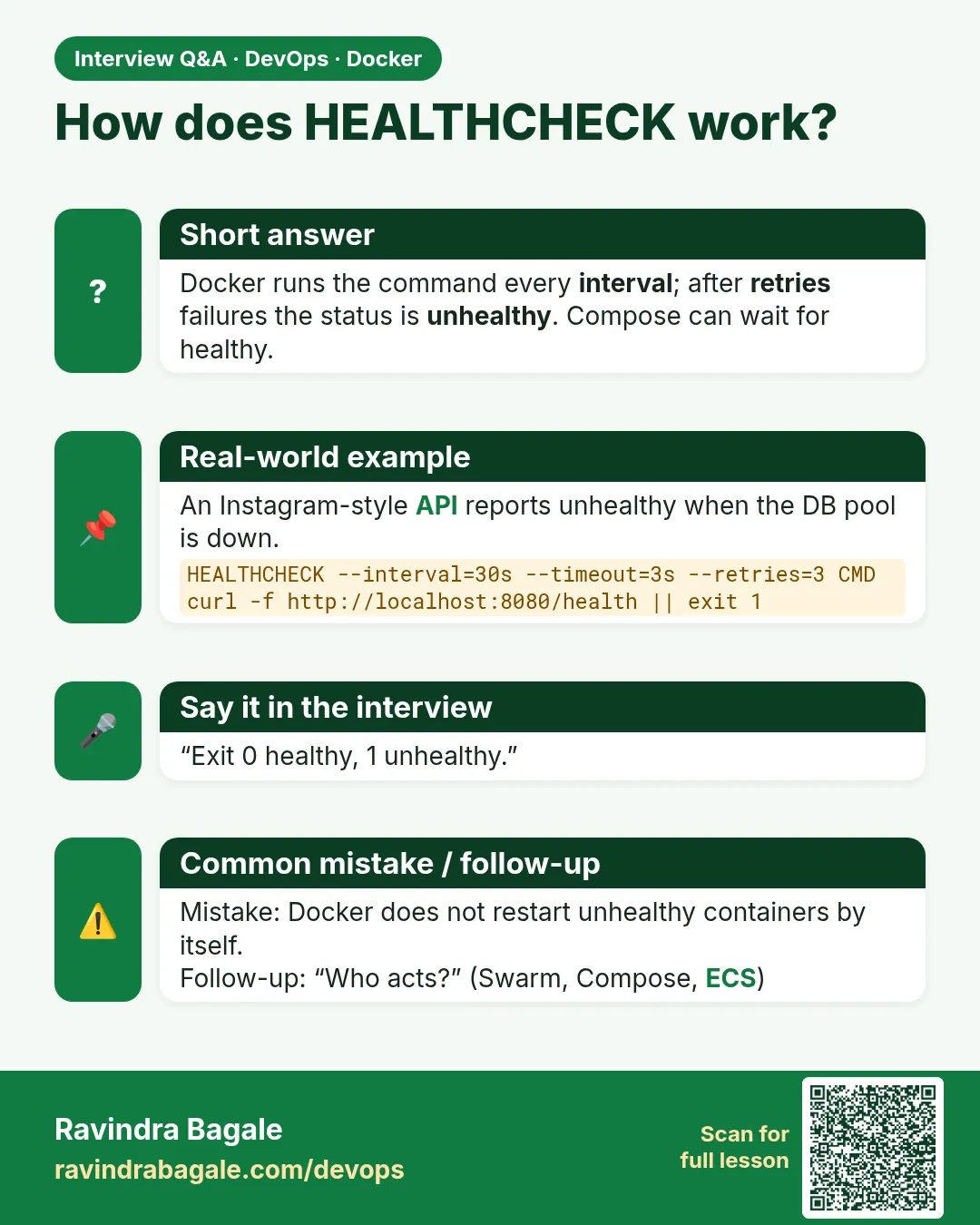
What: HEALTHCHECK CMD runs a command inside the container. Exit 0 means healthy, 1 means unhealthy.
Example 1: Add it
Type this:
printf 'FROM nginx:1.27\nHEALTHCHECK --interval=10s --timeout=3s --retries=3 CMD curl -fsS http://localhost/ || exit 1\n' > Dockerfile
docker build -t h1 . && docker run -d --name h1 h1 && sleep 15 && docker ps --filter name=h1 --format '{{.Status}}'
You will see:
Up 15 seconds (healthy)
What it means: Status now includes health.
Example 2: Break it
Type this:
docker exec h1 rm /usr/share/nginx/html/index.html && sleep 35 && docker ps --filter name=h1 --format '{{.Status}}'
You will see:
Up 50 seconds (unhealthy)
What it means: Process alive, health check failed.
Example 3: See details
Type this:
docker inspect h1 -f '{{range .State.Health.Log}}{{.ExitCode}} {{end}}'
You will see:
0 0 22 22 22
What it means: curl exit 22 means HTTP error.
Step 2: Health check options
Why: Wrong timing gives false alarms.
What: --interval, --timeout, --retries, --start-period and --start-interval tune the check.
Example 4: Slow starter
Type this:
printf 'FROM eclipse-temurin:21-jre\nHEALTHCHECK --start-period=60s --interval=15s CMD wget -qO- localhost:8080/actuator/health || exit 1\n' > Dockerfile && tail -1 Dockerfile
You will see:
HEALTHCHECK --start-period=60s --interval=15s CMD wget -qO- localhost:8080/actuator/health || exit 1
What it means: Failures in the first 60 s do not count.
Example 5: Starting state
Type this:
docker run -d --name j1 javaapp && docker ps --filter name=j1 --format '{{.Status}}'
You will see:
Up 5 seconds (health: starting)
What it means: Grace period in action.
Example 6: Disable at run
Type this:
docker run -d --no-healthcheck --name h2 h1 && docker ps --filter name=h2 --format '{{.Status}}'
You will see:
Up 2 seconds
What it means: No health shown.
Step 3: No curl in the image
Why: Slim images often lack curl.
What: Use the app's own language, wget, or a tiny binary.
Example 7: Python
Type this:
printf 'FROM python:3.12-slim\nHEALTHCHECK CMD python -c "import urllib.request,sys; urllib.request.urlopen(\x27http://localhost:8000/health\x27)" || exit 1\n' > Dockerfile && tail -1 Dockerfile
You will see:
HEALTHCHECK CMD python -c "import urllib.request,sys; urllib.request.urlopen('http://localhost:8000/health')" || exit 1
What it means: Python checks itself.
Example 8: Node
Type this:
printf 'FROM node:22-slim\nHEALTHCHECK CMD node -e "fetch(\x27http://localhost:3000/health\x27).then(r=>process.exit(r.ok?0:1)).catch(()=>process.exit(1))"\n' > Dockerfile && tail -1 Dockerfile
You will see:
HEALTHCHECK CMD node -e "fetch('http://localhost:3000/health')..."
What it means: Built-in fetch in Node 22.
Example 9: Postgres
Type this:
docker run -d --name pg -e POSTGRES_PASSWORD=example-only --health-cmd 'pg_isready -U postgres' --health-interval 5s postgres:16 && sleep 10 && docker ps --filter name=pg --format '{{.Status}}'
You will see:
Up 10 seconds (healthy)
What it means: Health check from the command line.
3. VOLUME, LABEL and STOPSIGNAL
Step 4: VOLUME marks a data folder
Why: Data written there should outlive the container.
What: VOLUME /path makes Docker create an anonymous volume there if you do not mount one.
Example 10: Declare
Type this:
printf 'FROM alpine:3.20\nVOLUME /data\nCMD ["sh","-c","date > /data/t; sleep 60"]\n' > Dockerfile
docker build -t v1 . && docker run -d --name v1 v1 && docker inspect v1 -f '{{range .Mounts}}{{.Type}} {{.Destination}}{{end}}'
You will see:
volume /data
What it means: Anonymous volume created.
Example 11: Hidden volumes pile up
Type this:
docker volume ls -qf dangling=true | wc -l
You will see:
14
What it means: Every run made a new one.
Example 12: Name it instead
Type this:
docker run -d --name v2 -v appdata:/data v1 && docker volume ls --filter name=appdata
You will see:
DRIVER    VOLUME NAME
local     appdata
What it means: Always pass a named volume.
Step 5: VOLUME freezes the folder
Why: Changes after VOLUME in the Dockerfile are lost.
What: Write files into the folder before the VOLUME line, not after.
Example 13: Lost change
Type this:
printf 'FROM alpine:3.20\nVOLUME /data\nRUN echo seed > /data/seed\n' > Dockerfile
docker build -t v3 . && docker run --rm v3 ls /data
You will see:
(no output)
What it means: RUN after VOLUME was thrown away.
Example 14: Right order
Type this:
printf 'FROM alpine:3.20\nRUN mkdir /data && echo seed > /data/seed\nVOLUME /data\n' > Dockerfile
docker build -t v4 . && docker run --rm v4 ls /data
You will see:
seed
What it means: Seed copied into the new volume.
Example 15: Official example
Type this:
docker image inspect mysql:8.4 -f '{{json .Config.Volumes}}'
You will see:
{"/var/lib/mysql":{}}
What it means: Databases declare their data folder.
Step 6: LABEL adds metadata
Why: Who owns this image? Which commit?
What: LABEL key=value pairs. Use the org.opencontainers.image keys.
Example 16: Add
Type this:
printf 'FROM alpine:3.20\nLABEL org.opencontainers.image.title="booking-api" org.opencontainers.image.version="1.4.0" team="payments"\n' > Dockerfile
docker build -t l1 . && docker image inspect l1 -f '{{json .Config.Labels}}'
You will see:
{"org.opencontainers.image.title":"booking-api","org.opencontainers.image.version":"1.4.0","team":"payments"}
What it means: Stored in config.
Example 17: From the command line
Type this:
docker build --label org.opencontainers.image.revision=$(git rev-parse --short HEAD) -t l2 . && docker image inspect l2 -f '{{index .Config.Labels "org.opencontainers.image.revision"}}'
You will see:
9f3c2e1
What it means: CI adds the commit.
Example 18: Filter
Type this:
docker images --filter label=team=payments --format '{{.Repository}}'
You will see:
l1
l2
What it means: Find all images of a team.
Step 7: STOPSIGNAL
Why: Some apps shut down cleanly only on a special signal.
What: STOPSIGNAL sets what docker stop sends first. Default is SIGTERM.
Example 19: nginx graceful
Type this:
docker image inspect nginx:1.27 -f '{{.Config.StopSignal}}'
You will see:
SIGQUIT
What it means: nginx finishes requests on SIGQUIT.
Example 20: Set your own
Type this:
printf 'FROM alpine:3.20\nSTOPSIGNAL SIGINT\nCMD ["sleep","300"]\n' > Dockerfile
docker build -t s1 . && docker image inspect s1 -f '{{.Config.StopSignal}}'
You will see:
SIGINT
What it means: Stored.
Example 21: Grace time
Type this:
docker run -d --name s1 --stop-timeout 30 s1 && time docker stop s1
You will see:
s1
real 0m0.3s
What it means: sleep exits on SIGINT at once; timeout is the maximum wait.
Step 8: Health in Compose
Why: Other services should wait until a dependency is really ready, not just started.
What: Compose reads the image health check, or a healthcheck block you write. depends_on with condition service_healthy makes the API wait until the database reports healthy.
Example 22: Compose file
Type this:
printf 'services:\n db:\n image: postgres:16\n environment:\n POSTGRES_PASSWORD: example-only\n healthcheck:\n test: ["CMD","pg_isready","-U","postgres"]\n interval: 5s\n retries: 5\n api:\n image: h1\n depends_on:\n db:\n condition: service_healthy\n' > compose.yaml && docker compose up -d
You will see:
Container demo-db-1  Healthy
Container demo-api-1  Started
What it means: The API started only after the database turned healthy.
Example 23: Check status
Type this:
docker compose ps --format '{{.Name}} {{.Status}}'
You will see:
demo-api-1 Up 20 seconds (healthy)
demo-db-1 Up 31 seconds (healthy)
What it means: Both services show their health.
Example 24: Wait in scripts
Type this:
docker compose up -d --wait && echo all healthy
You will see:
all healthy
What it means: --wait blocks until every service is healthy, which is perfect for CI test jobs.
Step 9: Watch health events
Why: On-call engineers want to know the moment health changes.
What: docker events streams health_status events. You can filter them and feed them to alerts or simple scripts.
Example 25: Stream events
Type this:
docker events --filter event=health_status --format '{{.Actor.Attributes.name}} {{.Status}}'
You will see:
h1 health_status: unhealthy
What it means: A live line every time health changes.
Example 26: Auto-heal script
Type this:
docker events --filter event=health_status:unhealthy --format '{{.Actor.ID}}' | while read id; do docker restart $id; done
You will see:
h1
What it means: Plain Docker restarts unhealthy containers only if you script it, unlike Swarm or Kubernetes.
Example 27: Last output
Type this:
docker inspect h1 -f '{{(index .State.Health.Log 0).Output}}'
You will see:
curl: (22) The requested URL returned error: 404
What it means: The check's own output tells you why it failed.
4. ONBUILD and SHELL
Step 10: ONBUILD
Why: A base image can add steps to the child build.
What: ONBUILD instructions run when another Dockerfile uses this image in FROM.
Example 28: Base
Type this:
printf 'FROM python:3.12-slim\nWORKDIR /app\nONBUILD COPY requirements.txt .\nONBUILD RUN pip install --no-cache-dir -r requirements.txt\n' > Dockerfile.base
docker build -f Dockerfile.base -t pybase .
You will see:
=> naming to docker.io/library/pybase
What it means: Triggers stored, not run.
Example 29: Child
Type this:
printf 'FROM pybase\nCOPY . .\n' > Dockerfile
docker build --progress=plain -t child . 2>&1 | grep ONBUILD
You will see:
#5 [2/3] ONBUILD COPY requirements.txt .
#6 [3/3] ONBUILD RUN pip install ...
What it means: Triggers ran in the child.
Example 30: Hidden magic
Type this:
docker image inspect pybase -f '{{json .Config.OnBuild}}'
You will see:
["COPY requirements.txt .","RUN pip install --no-cache-dir -r requirements.txt"]
What it means: Hard to see, so most teams avoid ONBUILD.
Step 11: SHELL
Why: Change the shell used by shell-form lines.
What: SHELL ["/bin/bash","-o","pipefail","-c"] makes pipes fail properly. On Windows images, PowerShell.
Example 31: Bash with pipefail
Type this:
printf 'FROM debian:12-slim\nSHELL ["/bin/bash","-o","pipefail","-c"]\nRUN false | true\n' > Dockerfile
docker build .
You will see:
ERROR: ... "/bin/bash -o pipefail -c false | true" did not complete successfully: exit code: 1
What it means: Pipe failure caught.
Example 32: Bash features
Type this:
printf 'FROM debian:12-slim\nSHELL ["/bin/bash","-c"]\nRUN echo {a,b,c}\n' > Dockerfile
docker build --progress=plain . 2>&1 | grep '0.1 a'
You will see:
#5 0.1 a b c
What it means: Brace expansion needs bash.
Example 33: Windows
Type this:
printf 'FROM mcr.microsoft.com/windows/servercore:ltsc2022\nSHELL ["powershell","-Command"]\nRUN Write-Host hello\n' > Dockerfile && tail -1 Dockerfile
You will see:
RUN Write-Host hello
What it means: PowerShell on Windows hosts.
Step 12: Read everything back
Why: Check what your instructions stored.
What: docker image inspect shows Healthcheck, Volumes, Labels and StopSignal together.
Example 34: Health config
Type this:
docker image inspect h1 -f '{{json .Config.Healthcheck.Test}}'
You will see:
["CMD-SHELL","curl -fsS http://localhost/ || exit 1"]
What it means: Stored test.
Example 35: All at once
Type this:
docker image inspect mysql:8.4 -f '{{json .Config.Volumes}} {{.Config.StopSignal}}'
You will see:
{"/var/lib/mysql":{}}
What it means: Volume set, default stop signal.
Example 36: Lint
Type this:
docker run --rm -i hadolint/hadolint:v2.12.0 < Dockerfile.base
You will see:
(no output)
What it means: Lint passes.
5. Common mistakes and how Neha avoids them
Mistake one: no health check. Stuck apps look Up. Neha adds HEALTHCHECK or a Kubernetes probe to every service.
Mistake two: health checks that call heavy pages. They slow the app. Neha uses a light /health endpoint.
Mistake three: RUN after VOLUME. The change disappears. Neha writes files first and declares VOLUME last.
Mistake four: images with no owner. Neha adds team and revision labels in CI.
Mistake five: hidden ONBUILD triggers. Neha prefers explicit steps in each Dockerfile.
Check yourself
Q1. What does exit 1 in a health check mean?
Unhealthy.
Q2. What does --start-period do?
Ignores failures while the app starts.
Q3. Why avoid RUN after VOLUME?
Changes there are discarded.
Q4. Which signal does nginx use to stop gracefully?
SIGQUIT.
Friends, Up is not the same as healthy. Add a health check, label your images, and choose the right stop signal. Did you understand? Let us try it once more. Add a HEALTHCHECK to one of your images and break it on purpose to watch it turn unhealthy.
मित्रांनो, Up म्हणजे healthy नाही. Health check जोडा, images ना label द्या, आणि योग्य stop signal निवडा. समजलं का? चला, पुन्हा एकदा करून पाहू. तुमच्या एका image ला HEALTHCHECK जोडा आणि मुद्दाम तोडून ती unhealthy होताना बघा.
दोस्तों, Up का मतलब healthy नहीं. Health check जोड़िए, images को label दीजिए, और सही stop signal चुनिए. समझ आया? चलिए, एक बार फिर करके देखते हैं। अपनी एक image में HEALTHCHECK जोड़िए और जानबूझकर तोड़कर उसे unhealthy होते देखिए.
Ravindra Bagale's Tip
Kubernetes ignores the Dockerfile HEALTHCHECK. Still add it for Docker and Compose, and copy the same check into liveness and readiness probes.
Kubernetes Dockerfile मधला HEALTHCHECK वापरत नाही. तरी Docker आणि Compose साठी तो लावा, आणि तोच check liveness आणि readiness probes मध्ये टाका.
Kubernetes Dockerfile का HEALTHCHECK इस्तेमाल नहीं करता. फिर भी Docker और Compose के लिए उसे लगाइए, और वही check liveness और readiness probes में डालिए.
Lab: try at home
- Add a health check to nginx and break it.
- Use --start-period for a slow app.
- Prove RUN after VOLUME is lost.
- Add OCI labels and filter by them.
- Check nginx StopSignal.
- Use SHELL with pipefail.
Recap
- HEALTHCHECK shows real health.
- Tune interval, timeout, retries, start-period.
- VOLUME marks data; name your volumes.
- LABEL adds owner and revision.
- STOPSIGNAL controls graceful stop.
- ONBUILD is hidden; SHELL changes the build shell.
 Revision card
 Interview card