52.6 WORKDIR, EXPOSE and USER
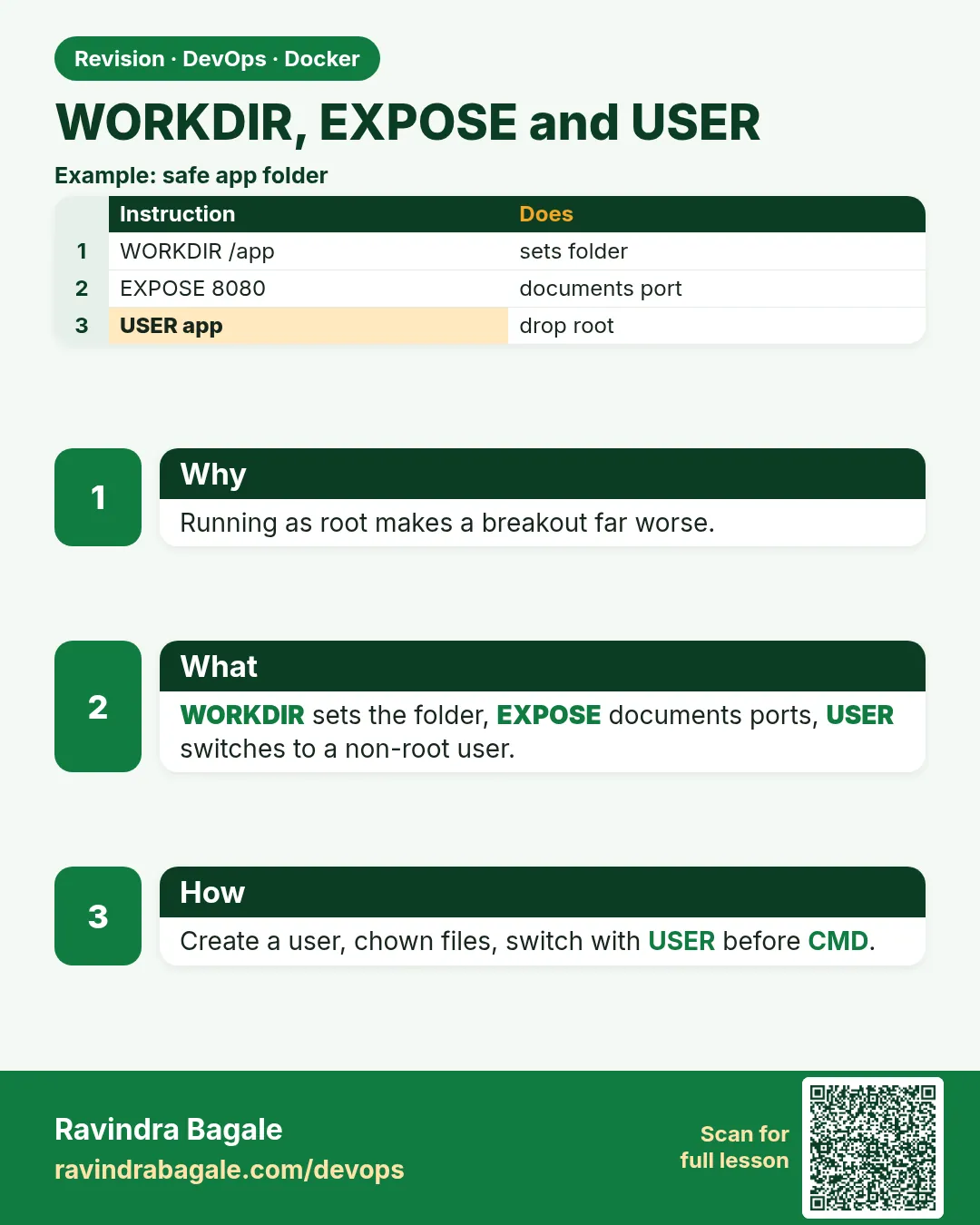
Friends, three small instructions make a big difference: WORKDIR decides where you stand inside the image, EXPOSE documents the port, and USER decides who runs the app. Today we learn each one and why running as root is a risk.
मित्रांनो, तीन छोट्या instructions मोठा फरक करतात: WORKDIR image मध्ये तुम्ही कुठे उभे आहात ते ठरवतो, EXPOSE port ची नोंद करतो, आणि USER app कोण चालवणार ते ठरवतो. आज प्रत्येक शिकू आणि root म्हणून चालवणं धोकादायक का ते पाहू.
दोस्तों, तीन छोटी instructions बड़ा फ़र्क लाती हैं: WORKDIR तय करता है कि image में आप कहाँ खड़े हैं, EXPOSE port दर्ज करता है, और USER तय करता है कि app कौन चलाएगा. आज हर एक सीखेंगे और देखेंगे कि root के रूप में चलाना खतरनाक क्यों है.
1. Start from a story
Vikram ran the image pipeline at Ola. An auditor asked a simple question: which of your containers run as root? The honest answer was almost all of them.
One old Dockerfile used cd /app inside a RUN line and then wondered why the next RUN was back in the root folder. Another did not say which port the app used, so every new engineer guessed.
Vikram set three rules for every image. Use WORKDIR, never cd. Write EXPOSE so readers know the port. End with USER and a non-root account that owns only what it needs.
Within a month the audit report changed from almost all root to zero root. In this lesson we apply the same three rules.
2. WORKDIR
Step 1: WORKDIR sets the current folder
Why: cd in RUN only lasts for that one line.
What: WORKDIR changes the folder for every later RUN, CMD, COPY and for docker exec. It creates the folder if missing.
Example 1: cd does not stick
Type this:
printf 'FROM alpine:3.20\nRUN cd /tmp\nRUN pwd\n' > Dockerfile
docker build --progress=plain . 2>&1 | grep -E '#6 0'
You will see:
#6 0.1 /
What it means: Back at root after the cd line.
Example 2: WORKDIR sticks
Type this:
printf 'FROM alpine:3.20\nWORKDIR /app\nRUN pwd\nCMD ["pwd"]\n' > Dockerfile
docker build -t w1 . && docker run --rm w1
You will see:
/app
What it means: Build and run both use /app.
Example 3: exec lands there
Type this:
docker run -d --name w1 w1 sleep 60 && docker exec w1 pwd
You will see:
/app
What it means: Shell sessions start in WORKDIR too.
Step 2: Relative WORKDIR
Why: Many lines build on each other.
What: A relative WORKDIR is added to the previous one.
Example 4: Stack
Type this:
printf 'FROM alpine:3.20\nWORKDIR /srv\nWORKDIR api\nCMD ["pwd"]\n' > Dockerfile
docker build -t w2 . && docker run --rm w2
You will see:
/srv/api
What it means: Joined.
Example 5: Use ENV
Type this:
printf 'FROM alpine:3.20\nENV HOME_DIR=/opt/shop\nWORKDIR $HOME_DIR\nCMD ["pwd"]\n' > Dockerfile
docker build -t w3 . && docker run --rm w3
You will see:
/opt/shop
What it means: Variables work.
Example 6: Override at run
Type this:
docker run --rm -w /tmp w3 pwd
You will see:
/tmp
What it means: -w changes it for one run.
Step 3: COPY into WORKDIR
Why: Short COPY lines.
What: COPY with . as destination copies into the current WORKDIR.
Example 7: Dot destination
Type this:
printf 'FROM python:3.12-slim\nWORKDIR /app\nCOPY app.py .\nCMD ["python","app.py"]\n' > Dockerfile
printf 'print("from /app")\n' > app.py
docker build -t w4 . && docker run --rm w4
You will see:
from /app
What it means: app.py landed in /app.
Example 8: Check location
Type this:
docker run --rm w4 ls
You will see:
app.py
What it means: Default folder is /app.
Example 9: Owner of WORKDIR
Type this:
docker run --rm w4 stat -c '%U' /app
You will see:
root
What it means: WORKDIR folders are made by root; fix with USER lines later.
3. EXPOSE
Step 4: EXPOSE documents a port
Why: Readers and tools need to know the port.
What: EXPOSE does not open or publish anything. It is metadata.
Example 10: Add it
Type this:
printf 'FROM nginx:1.27\nEXPOSE 80\n' > Dockerfile
docker build -t x1 . && docker image inspect x1 -f '{{json .Config.ExposedPorts}}'
You will see:
{"80/tcp":{}}
What it means: Stored as metadata.
Example 11: Still not reachable
Type this:
docker run -d --name x1 x1 && curl -s -o /dev/null -w '%{http_code}' localhost:80
You will see:
000
What it means: No -p, no access.
Example 12: Publish
Type this:
docker run -d --name x2 -p 8080:80 x1 && curl -s -o /dev/null -w '%{http_code}' localhost:8080
You will see:
200
What it means: -p opens the door.
Step 5: -P uses EXPOSE
Why: Quick tests with random host ports.
What: docker run -P publishes every exposed port on a random high host port.
Example 13: Random port
Type this:
docker run -d --name x3 -P x1 && docker port x3
You will see:
80/tcp -> 0.0.0.0:32768
What it means: Picked automatically.
Example 14: Test it
Type this:
curl -s -o /dev/null -w '%{http_code}' localhost:32768
You will see:
200
What it means: Works.
Example 15: UDP
Type this:
printf 'FROM alpine:3.20\nEXPOSE 53/udp 8080/tcp\n' > Dockerfile
docker build -t x4 . && docker image inspect x4 -f '{{json .Config.ExposedPorts}}'
You will see:
{"53/udp":{},"8080/tcp":{}}
What it means: Protocol can be set.
Step 6: Ports below 1024
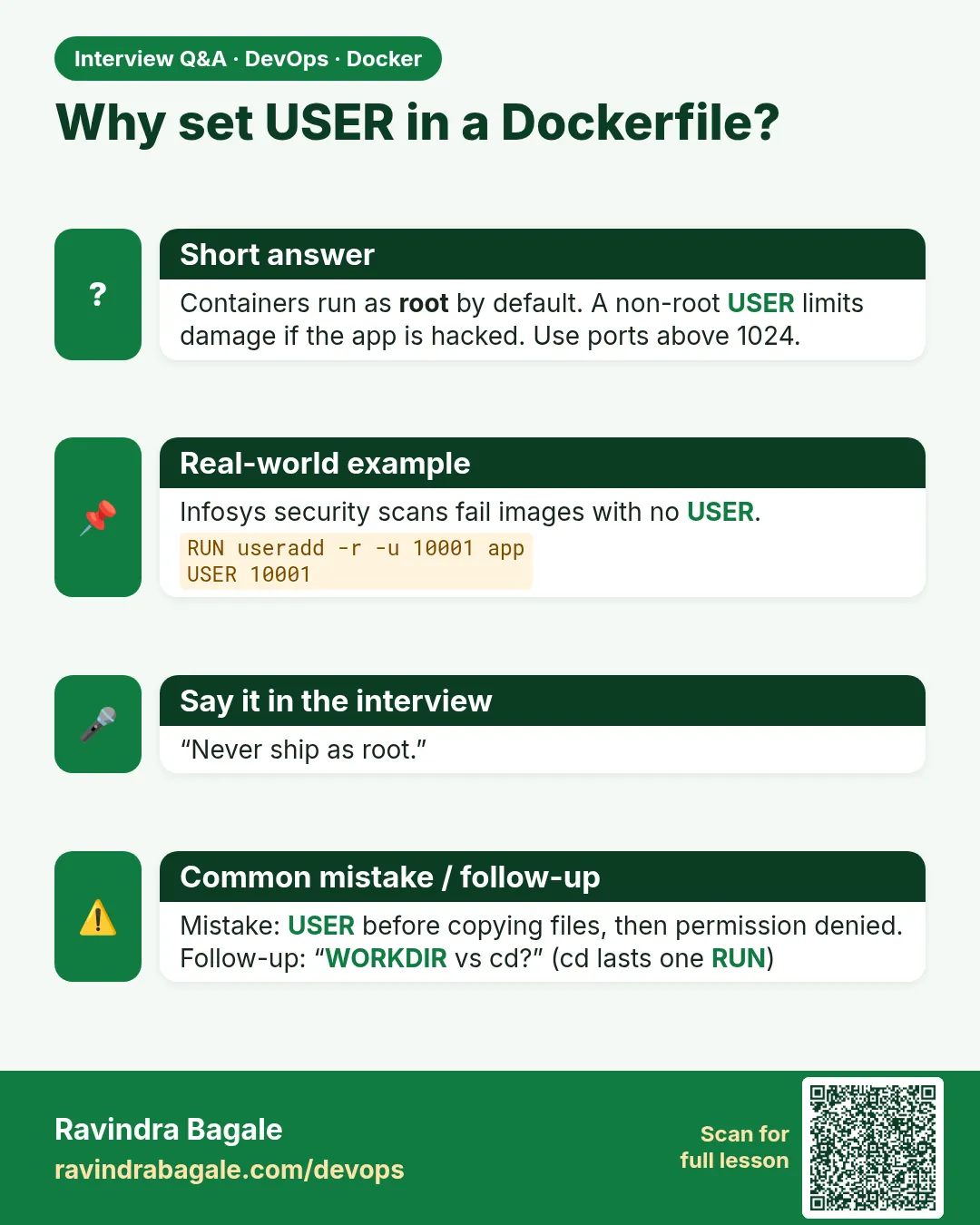
Why: Non-root users cannot bind low ports by default.
What: Use 8080 or similar inside the container and map 80 on the host.
Example 16: Fail
Type this:
docker run --rm --user 1000 python:3.12-slim python -m http.server 80
You will see:
PermissionError: [Errno 13] Permission denied
What it means: Port 80 needs root.
Example 17: Use 8080
Type this:
docker run -d --name h --user 1000 -p 80:8080 python:3.12-slim python -m http.server 8080 && curl -s -o /dev/null -w '%{http_code}' localhost
You will see:
200
What it means: Host 80 to container 8080.
Example 18: Unprivileged nginx
Type this:
docker run -d --name un -p 8081:8080 nginxinc/nginx-unprivileged:1.27 && curl -s -o /dev/null -w '%{http_code}' localhost:8081
You will see:
200
What it means: Vendor image already on 8080, non-root.
4. USER
Step 7: Default is root
Why: Check before you trust.
What: Most images run as root unless USER is set.
Example 19: Who am I
Type this:
docker run --rm python:3.12-slim id
You will see:
uid=0(root) gid=0(root) groups=0(root)
What it means: Root by default.
Example 20: Image config
Type this:
docker image inspect python:3.12-slim -f '[{{.Config.User}}]'
You will see:
[]
What it means: Empty means root.
Example 21: Risk
Type this:
docker run --rm -v /etc:/host-etc python:3.12-slim touch /host-etc/pwned && ls /etc/pwned
You will see:
/etc/pwned
What it means: Root in the container wrote to the host folder.
Step 8: Create and switch user
Why: Least privilege.
What: Create a system user, give it the app folder, then USER it.
Example 22: Debian
Type this:
printf 'FROM python:3.12-slim\nRUN groupadd -r app && useradd -r -g app -d /app app\nWORKDIR /app\nCOPY --chown=app:app app.py .\nUSER app\nCMD ["python","app.py"]\n' > Dockerfile
docker build -t u1 . && docker run --rm u1 id
You will see:
uid=999(app) gid=999(app) groups=999(app)
What it means: Non-root.
Example 23: Alpine
Type this:
printf 'FROM alpine:3.20\nRUN addgroup -S app && adduser -S -G app app\nUSER app\nCMD ["id"]\n' > Dockerfile
docker build -t u2 . && docker run --rm u2
You will see:
uid=100(app) gid=101(app) groups=101(app)
What it means: Alpine uses addgroup and adduser.
Example 24: Built-in users
Type this:
docker run --rm node:22-slim id node
You will see:
uid=1000(node) gid=1000(node) groups=1000(node)
What it means: Node images already have a node user.
Step 9: Numeric USER
Why: Kubernetes can check runAsNonRoot only with numbers.
What: USER 10001 works even without a name, and Kubernetes can verify it.
Example 25: Numeric
Type this:
printf 'FROM alpine:3.20\nUSER 10001:10001\nCMD ["id"]\n' > Dockerfile
docker build -t u3 . && docker run --rm u3
You will see:
uid=10001 gid=10001
What it means: No name, still works.
Example 26: Writable dir
Type this:
docker run --rm u3 touch /tmp/ok && echo ok
You will see:
ok
What it means: /tmp is writable for all.
Example 27: Kubernetes
Type this:
kubectl run nr --image=u3 --overrides='{"spec":{"securityContext":{"runAsNonRoot":true}}}' && kubectl get pod nr
You will see:
NAME   READY   STATUS      RESTARTS   AGE
nr     0/1     Completed   0          4s
What it means: runAsNonRoot accepted the numeric user.
Step 10: Fix permission errors the right way
Why: Non-root apps cannot write everywhere.
What: Give ownership of only the folders the app writes, never make folders world-writable.
Example 28: Error
Type this:
docker run --rm u1 touch /app/cache.db
You will see:
touch: cannot touch '/app/cache.db': Permission denied
What it means: WORKDIR is root-owned.
Example 29: Fix
Type this:
printf 'FROM python:3.12-slim\nRUN groupadd -r app && useradd -r -g app app\nWORKDIR /app\nRUN chown app:app /app\nUSER app\n' > Dockerfile
docker build -t u4 . && docker run --rm u4 touch /app/cache.db && echo ok
You will see:
ok
What it means: Only /app given to the user.
Example 30: Override at run
Type this:
docker run --rm --user 0 u4 id
You will see:
uid=0(root) gid=0(root)
What it means: Possible for debugging only; never in production.
Step 11: Ready-made non-root bases
Why: Creating users by hand in every Dockerfile is repetitive and easy to forget.
What: Many vendors publish bases that already run as a non-root user. Distroless has a nonroot tag with user 65532, Chainguard images default to non-root, and nginx-unprivileged runs nginx on port 8080 as a normal user. Starting from these saves lines and mistakes.
Example 31: Distroless nonroot
Type this:
docker run --rm --entrypoint '' gcr.io/distroless/base-debian12:nonroot id 2>/dev/null || docker image inspect gcr.io/distroless/base-debian12:nonroot -f '{{.Config.User}}'
You will see:
65532
What it means: The image config already says user 65532, so your app never starts as root.
Example 32: Use it in a Go build
Type this:
printf 'FROM golang:1.23 AS build\nWORKDIR /src\nCOPY . .\nRUN CGO_ENABLED=0 go build -o /out/api .\nFROM gcr.io/distroless/static-debian12:nonroot\nCOPY --from=build /out/api /api\nEXPOSE 8080\nENTRYPOINT ["/api"]\n' > Dockerfile
docker build -t goapi . && docker image inspect goapi -f '{{.Config.User}}'
You will see:
65532
What it means: No USER line needed; the base already set it.
Example 33: Node non-root
Type this:
printf 'FROM node:22-slim\nWORKDIR /app\nCOPY --chown=node:node . .\nUSER node\nEXPOSE 3000\nCMD ["node","server.js"]\n' > Dockerfile
docker build -t nodeapp . && docker run --rm nodeapp whoami
You will see:
node
What it means: The official node image ships a node user, so one USER line is enough.
Step 12: Audit every image for root
Why: You cannot fix what you never measure.
What: Check the configured user of every image on a host, and let a scanner flag Dockerfiles with no USER line. Hadolint and Trivy both report this, so the check can run in CI on every pull request.
Example 34: List users of local images
Type this:
for i in $(docker images --format '{{.Repository}}:{{.Tag}}' | head -4); do printf '%s [%s]\n' $i "$(docker image inspect $i -f '{{.Config.User}}')"; done
You will see:
u1:latest [app]
u3:latest [10001:10001]
x1:latest []
python:3.12-slim []
What it means: Empty brackets mean root; x1 and python need a fix before production.
Example 35: Trivy config scan
Type this:
docker run --rm -v $PWD:/src aquasec/trivy:0.56.2 config /src | grep -A2 DS002
You will see:
DS002 (HIGH): Specify at least 1 USER command in Dockerfile with non-root user as argument
What it means: Trivy flags the missing USER line as HIGH.
Example 36: Running containers
Type this:
docker ps -q | xargs -r docker inspect -f '{{.Name}} [{{.Config.User}}]'
You will see:
/u1 [app]
/x2 []
What it means: Check what is actually running, not just what was built. Teams at Ola run this nightly.
5. Common mistakes and how Vikram avoids them
Mistake one: cd inside RUN. It is forgotten on the next line. Vikram uses WORKDIR.
Mistake two: thinking EXPOSE publishes. It does not. Vikram uses -p or a Service.
Mistake three: no USER line. The app runs as root. Vikram ends every Dockerfile with a non-root USER.
Mistake four: fixing permission errors by making folders writable for everyone. Vikram changes ownership of just the folders the app writes.
Mistake five: binding port 80 as a non-root user. Vikram uses 8080 inside and maps 80 outside.
Check yourself
Q1. Does EXPOSE publish a port?
No, it only documents.
Q2. Why not cd in RUN?
It lasts only for that line.
Q3. What does an empty Config.User mean?
Root.
Q4. Why use a numeric USER?
Kubernetes can verify runAsNonRoot.
Friends, three lines in every Dockerfile: WORKDIR, EXPOSE, USER. Did you understand? Let us try it once more. Run docker run --rm your-image id on all your images today and fix every root you find.
मित्रांनो, प्रत्येक Dockerfile मध्ये तीन ओळी: WORKDIR, EXPOSE, USER. समजलं का? चला, पुन्हा एकदा करून पाहू. आज तुमच्या सगळ्या images वर docker run --rm your-image id चालवा आणि सापडलेला प्रत्येक root सुधारा.
दोस्तों, हर Dockerfile में तीन लाइनें: WORKDIR, EXPOSE, USER. समझ आया? चलिए, एक बार फिर करके देखते हैं। आज अपनी सारी images पर docker run --rm your-image id चलाइए और जो भी root मिले उसे ठीक कीजिए.
Ravindra Bagale's Tip
Put USER as late as possible but before CMD. Install packages as root first, then switch, so you do not need sudo inside the image.
USER शक्य तितकं उशिरा पण CMD च्या आधी ठेवा. आधी root म्हणून packages install करा, मग switch करा, म्हणजे image मध्ये sudo लागत नाही.
USER को जितना हो सके देर से, पर CMD से पहले रखिए. पहले root के रूप में packages install कीजिए, फिर switch कीजिए, ताकि image में sudo न लगे.
Lab: try at home
- Show that cd in RUN does not stick.
- Use relative WORKDIR lines.
- Add EXPOSE and use -P.
- Create a non-root user and check id.
- Use a numeric USER and test runAsNonRoot.
- Fix a permission error with chown on one folder.
Recap
- WORKDIR, never cd.
- EXPOSE documents; -p publishes.
- Default user is root.
- Create a user and switch with USER.
- Numeric USER for Kubernetes.
- Give ownership only where needed.
 Revision card
 Interview card