52.4 COPY vs ADD
Friends, your code lives on your laptop, but the image needs it inside. COPY and ADD both bring files in. Today we learn why COPY is the normal choice, the two special things ADD can do, and every useful COPY flag.
मित्रांनो, तुमचा code laptop वर असतो, पण image ला तो आत पाहिजे. COPY आणि ADD दोन्ही files आत आणतात. आज COPY हीच नेहमीची निवड का, ADD च्या दोन खास गोष्टी, आणि COPY चे सगळे उपयोगी flags शिकू.
दोस्तों, आपका code laptop पर होता है, पर image को वह अंदर चाहिए. COPY और ADD दोनों files अंदर लाते हैं. आज सीखेंगे कि COPY ही आम पसंद क्यों है, ADD की दो खास बातें, और COPY के सारे काम के flags.
1. Start from a story
Rahul joined the payments team at Paytm. A security scan flagged one of their images: it contained a file called .env with a test database password.
The Dockerfile said ADD . /app. Nobody had noticed that ADD copied everything in the folder, including .env, .git and old log files. Worse, a second line used ADD with a URL, so the image changed every time the remote file changed.
His lead gave him two rules. One: use COPY for local files, and copy only what the app needs. Two: if you need a remote file, download it with a pinned checksum so it can never change silently.
Rahul rewrote the file with COPY, a .dockerignore and ADD --checksum. The next scan was clean. Today we follow the same steps.
2. COPY basics
Step 1: COPY a file
Why: The simplest way to put a file in the image.
What: COPY source destination. The source is relative to the build context, the folder you pass to docker build.
Example 1: One file
Type this:
printf 'hello\n' > note.txt
printf 'FROM alpine:3.20\nCOPY note.txt /note.txt\nCMD ["cat","/note.txt"]\n' > Dockerfile
docker build -t cp1 . && docker run --rm cp1
You will see:
hello
What it means: File is inside.
Example 2: Outside context fails
Type this:
printf 'FROM alpine:3.20\nCOPY ../secret.txt /\n' > Dockerfile
docker build .
You will see:
ERROR: failed to compute cache key: "/secret.txt": not found
What it means: COPY cannot reach outside the context.
Example 3: Context from another folder
Type this:
docker build -f Dockerfile -t cp2 ./app
You will see:
=> [internal] load build context
=> transferring context: 2.31kB
What it means: The last argument decides the context.
Step 2: COPY a folder
Why: Apps have many files.
What: COPY dir/ /dest/ copies the contents of the folder, not the folder itself.
Example 4: Folder contents
Type this:
mkdir -p src && printf 'print(1)\n' > src/app.py
printf 'FROM python:3.12-slim\nCOPY src/ /app/\nCMD ["ls","/app"]\n' > Dockerfile
docker build -t cp3 . && docker run --rm cp3
You will see:
app.py
What it means: Contents landed in /app.
Example 5: Whole context
Type this:
printf 'FROM python:3.12-slim\nWORKDIR /app\nCOPY . .\nCMD ["ls"]\n' > Dockerfile
docker build -t cp4 . && docker run --rm cp4
You will see:
Dockerfile
note.txt
src
What it means: Everything came, even the Dockerfile.
Example 6: Trailing slash rule
Type this:
printf 'FROM alpine:3.20\nCOPY note.txt src/app.py /dest/\nCMD ["ls","/dest"]\n' > Dockerfile
docker build -t cp5 . && docker run --rm cp5
You will see:
app.py
note.txt
What it means: Several sources need a folder ending in /.
Step 3: Wildcards
Why: Copy many matching files at once.
What: COPY accepts patterns such as .txt or requirements.txt.
Example 7: Pattern
Type this:
printf 'a\n' > requirements.txt && printf 'b\n' > requirements-dev.txt
printf 'FROM alpine:3.20\nCOPY requirements*.txt /r/\nCMD ["ls","/r"]\n' > Dockerfile
docker build -t w1 . && docker run --rm w1
You will see:
requirements-dev.txt
requirements.txt
What it means: Both matched.
Example 8: No match
Type this:
printf 'FROM alpine:3.20\nCOPY *.yaml /c/\n' > Dockerfile
docker build .
You will see:
ERROR: failed to compute cache key: no source files were specified
What it means: Pattern found nothing.
Example 9: Node pattern
Type this:
printf 'FROM node:22-slim\nWORKDIR /app\nCOPY package*.json ./\nRUN npm ci\n' > Dockerfile
cat Dockerfile | grep COPY
You will see:
COPY package*.json ./
What it means: Copies package.json and package-lock.json together.
3. COPY flags
Step 4: --chown
Why: Files copied as root cannot be written by a non-root app.
What: --chown=user:group sets the owner while copying, with no extra layer.
Example 10: Default owner
Type this:
printf 'FROM node:22-slim\nCOPY note.txt /app/\nCMD ["ls","-l","/app"]\n' > Dockerfile
docker build -t o1 . && docker run --rm o1
You will see:
-rw-r--r-- 1 root root 6 Oct 25 06:00 note.txt
What it means: Owned by root.
Example 11: Owned by node
Type this:
printf 'FROM node:22-slim\nCOPY --chown=node:node note.txt /app/\nCMD ["ls","-l","/app"]\n' > Dockerfile
docker build -t o2 . && docker run --rm o2
You will see:
-rw-r--r-- 1 node node 6 Oct 25 06:00 note.txt
What it means: Right owner, no chown RUN.
Example 12: Size check
Type this:
docker history o2 --format '{{.Size}} {{.CreatedBy}}' | head -1
You will see:
6B COPY note.txt /app/ # buildkit
What it means: No duplicate layer like RUN chown makes.
Step 5: --chmod
Why: Scripts need execute permission.
What: --chmod sets the file mode during copy. Use safe modes such as 0755 for scripts and 0644 for files.
Example 13: Script mode
Type this:
printf '#!/bin/sh\necho run\n' > start.sh
printf 'FROM alpine:3.20\nCOPY --chmod=0755 start.sh /start.sh\nCMD ["/start.sh"]\n' > Dockerfile
docker build -t m1 . && docker run --rm m1
You will see:
run
What it means: Executable without RUN chmod.
Example 14: Read-only config
Type this:
printf 'FROM alpine:3.20\nCOPY --chmod=0644 note.txt /etc/app.conf\nCMD ["stat","-c","%a","/etc/app.conf"]\n' > Dockerfile
docker build -t m2 . && docker run --rm m2
You will see:
644
What it means: Readable, not writable by others.
Example 15: Missing mode
Type this:
printf 'FROM alpine:3.20\nCOPY start.sh /start.sh\nCMD ["/start.sh"]\n' > Dockerfile
chmod 0644 start.sh && docker build -t m3 . && docker run --rm m3
You will see:
exec /start.sh: permission denied
What it means: Mode comes from your laptop unless you set it.
Step 6: --from
Why: Copy from another stage or image.
What: COPY --from=stage or --from=image takes files from there instead of your folder.
Example 16: From a stage
Type this:
printf 'FROM alpine:3.20 AS b\nRUN echo built > /out.txt\nFROM alpine:3.20\nCOPY --from=b /out.txt /\nCMD ["cat","/out.txt"]\n' > Dockerfile
docker build -t f1 . && docker run --rm f1
You will see:
built
What it means: Took the file from stage b.
Example 17: From an image
Type this:
printf 'FROM alpine:3.20\nCOPY --from=nginx:1.27 /etc/nginx/nginx.conf /ref/\nCMD ["head","-2","/ref/nginx.conf"]\n' > Dockerfile
docker build -t f2 . && docker run --rm f2
You will see:
user nginx;
What it means: Borrowed a file from a public image.
Example 18: Grab a binary
Type this:
printf 'FROM debian:12-slim\nCOPY --from=docker.io/hadolint/hadolint:v2.12.0 /bin/hadolint /usr/local/bin/\nCMD ["hadolint","--version"]\n' > Dockerfile
docker build -t f3 . && docker run --rm f3
You will see:
Haskell Dockerfile Linter 2.12.0
What it means: No download script needed.
Step 7: --link
Why: Rebuilding should not redo copies above a changed base.
What: COPY --link makes the copy an independent layer, so it can be reused even when earlier layers change.
Example 19: Use link
Type this:
printf 'FROM nginx:1.27\nCOPY --link index.html /usr/share/nginx/html/\n' > Dockerfile
docker build -t l1 .
You will see:
=> [2/2] COPY --link index.html /usr/share/nginx/html/
What it means: Independent layer.
Example 20: Bump base
Type this:
sed -i 's/1.27/1.27.2/' Dockerfile && docker build -t l1 .
You will see:
=> CACHED [2/2] COPY --link index.html ...
What it means: Copy reused after base change.
Example 21: Rebase speed
Type this:
time docker build -t l1 .
You will see:
real 0m0.9s
What it means: Fast rebuilds in CI.
4. ADD and its two extras
Step 8: ADD unpacks local tar files
Why: Sometimes you ship a tar archive.
What: ADD with a local .tar or .tar.gz extracts it automatically. COPY does not.
Example 22: Make tar
Type this:
mkdir -p pkg && printf 'x\n' > pkg/a && tar czf pkg.tar.gz pkg
printf 'FROM alpine:3.20\nADD pkg.tar.gz /opt/\nCMD ["ls","/opt/pkg"]\n' > Dockerfile
docker build -t a1 . && docker run --rm a1
You will see:
a
What it means: Extracted.
Example 23: COPY keeps tar
Type this:
sed -i 's/^ADD/COPY/' Dockerfile && docker build -t a2 . && docker run --rm a2 ls /opt
You will see:
pkg.tar.gz
What it means: Not extracted.
Example 24: Surprise
Type this:
printf 'FROM alpine:3.20\nADD backup.tar.gz /data/backup.tar.gz\n' > Dockerfile && cp pkg.tar.gz backup.tar.gz
docker build -t a3 . && docker run --rm a3 ls /data/backup.tar.gz
You will see:
a
What it means: You wanted the file, got a folder: use COPY.
Step 9: ADD from a URL with --checksum
Why: Remote files can change or be tampered with.
What: ADD --checksum=sha256:... downloads and verifies. Without it the content can silently change.
Example 25: Get checksum
Type this:
curl -sL https://dl.k8s.io/release/v1.31.0/bin/linux/amd64/kubectl.sha256
You will see:
7c27adc64a84d1c0cc3dcf7bf4b6e916cc00f3f576a2dbac51b318d926032437
What it means: Official checksum.
Example 26: Verified ADD
Type this:
printf 'FROM alpine:3.20\nADD --chmod=0755 --checksum=sha256:7c27adc64a84d1c0cc3dcf7bf4b6e916cc00f3f576a2dbac51b318d926032437 https://dl.k8s.io/release/v1.31.0/bin/linux/amd64/kubectl /usr/local/bin/kubectl\n' > Dockerfile
docker build -t k1 .
You will see:
=> [2/2] ADD --checksum=sha256:7c27... https://dl.k8s.io/...
What it means: Downloaded and checked.
Example 27: Wrong checksum
Type this:
sed -i 's/7c27/0000/' Dockerfile && docker build -t k2 .
You will see:
ERROR: ... digest mismatch
What it means: Tampering is caught.
Step 10: .dockerignore
Why: The context should not carry secrets or junk.
What: .dockerignore lists paths that never go into the build context.
Example 28: Write it
Type this:
printf '.git\n.env\nnode_modules\n*.log\n' > .dockerignore && cat .dockerignore
You will see:
.git
.env
node_modules
*.log
What it means: Four common rules.
Example 29: Prove it
Type this:
printf 'DB_PASS=example-only\n' > .env
printf 'FROM alpine:3.20\nCOPY . /app\n' > Dockerfile
docker build -t ig . && docker run --rm ig ls -a /app | grep -c env
You will see:
0
What it means: .env never reached the image.
Example 30: Smaller context
Type this:
docker build . 2>&1 | grep transferring
You will see:
=> => transferring context: 4.12kB
What it means: From 180 MB to 4 KB without node_modules.
Step 11: COPY and the build cache
Why: Copying the wrong thing first makes every build slow.
What: Docker checks a fingerprint of the copied files. If any copied file changes, that COPY and every step after it run again.
Example 31: Change a note
Type this:
printf 'FROM alpine:3.20\nCOPY note.txt /\nRUN echo slow-step\n' > Dockerfile
docker build -t cc . && printf 'changed\n' > note.txt && docker build --progress=plain -t cc . 2>&1 | grep -c CACHED
You will see:
0
What it means: The file changed, so COPY and the RUN after it rebuilt.
Example 32: Touch only
Type this:
touch note.txt && docker build --progress=plain -t cc . 2>&1 | grep -c CACHED
You will see:
2
What it means: Only content counts, not the file time.
Example 33: Unrelated file
Type this:
printf 'x\n' > other.txt && docker build --progress=plain -t cc . 2>&1 | grep -c CACHED
You will see:
2
What it means: Files you did not copy do not break the cache.
Step 12: See exactly what was copied
Why: Trust, but verify before you push.
What: List the folder inside the image, or use dive to browse every layer and spot extra files.
Example 34: List inside
Type this:
docker run --rm ig find /app -maxdepth 1
You will see:
/app
/app/Dockerfile
/app/note.txt
/app/src
What it means: Exactly the files you expected.
Example 35: Size per layer
Type this:
docker history ig --format '{{.Size}} {{.CreatedBy}}' | head -1
You will see:
4.1kB COPY . /app # buildkit
What it means: Small copy layer: no node_modules, no .git.
Example 36: Browse with dive
Type this:
docker run --rm -it -v /var/run/docker.sock:/var/run/docker.sock wagoodman/dive:v0.12 ig --ci
You will see:
Results:
  PASS: highestUserWastedPercent
  PASS: lowestEfficiency
What it means: dive confirms no wasted files. Teams at Myntra run this in CI.
5. Common mistakes and how Rahul avoids them
Mistake one: ADD . /app. ADD has hidden behaviours, so Rahul uses COPY for every local file.
Mistake two: no .dockerignore. Secrets, .git and node_modules go into the context and maybe into the image. Rahul writes .dockerignore before the Dockerfile.
Mistake three: RUN chown -R after COPY. It doubles the size of the copied files. Rahul uses COPY --chown.
Mistake four: ADD with a URL and no checksum. The image changes silently. Rahul adds --checksum or downloads with curl and sha256sum in one RUN.
Mistake five: copying the whole folder before installing dependencies, which breaks the cache. We fix this in lesson 52.8.
Check yourself
Q1. Which instruction should you use for local files?
COPY.
Q2. What two extras does ADD have?
Unpacks local tar files and downloads URLs.
Q3. How do you set owner while copying?
COPY --chown=user:group.
Q4. Where do you list files to keep out?
.dockerignore.
Friends, the rule is short: COPY for files, ADD only for a tar to unpack or a checksummed URL. Did you understand? Let us try it once more. Add a .dockerignore to your project today and see how much smaller the context becomes.
मित्रांनो, नियम छोटा आहे: files साठी COPY, ADD फक्त tar unpack करायला किंवा checksum असलेल्या URL साठी. समजलं का? चला, पुन्हा एकदा करून पाहू. आज तुमच्या project ला .dockerignore लावा आणि context किती लहान होतो ते बघा.
दोस्तों, नियम छोटा है: files के लिए COPY, ADD सिर्फ़ tar unpack करने या checksum वाले URL के लिए. समझ आया? चलिए, एक बार फिर करके देखते हैं। आज अपने project में .dockerignore लगाइए और देखिए context कितना छोटा होता है.
Ravindra Bagale's Tip
Write .dockerignore first, the Dockerfile second. A secret that never enters the context can never leak into an image.
आधी .dockerignore लिहा, मग Dockerfile. Context मध्ये न आलेला secret कधीच image मध्ये leak होऊ शकत नाही.
पहले .dockerignore लिखिए, फिर Dockerfile. जो secret context में आया ही नहीं, वह कभी image में leak नहीं हो सकता.
Lab: try at home
- COPY a file and a folder and list them.
- Use --chown and --chmod and check with ls -l.
- Copy a binary with --from from a public image.
- Compare ADD and COPY with a tar file.
- Download kubectl with ADD --checksum.
- Add .dockerignore and prove .env is not inside.
Recap
- COPY is the default for local files.
- Folder copy takes the contents.
- --chown and --chmod avoid extra layers.
- --from copies from stages and images.
- ADD unpacks local tar and downloads URLs.
- Always add a .dockerignore.
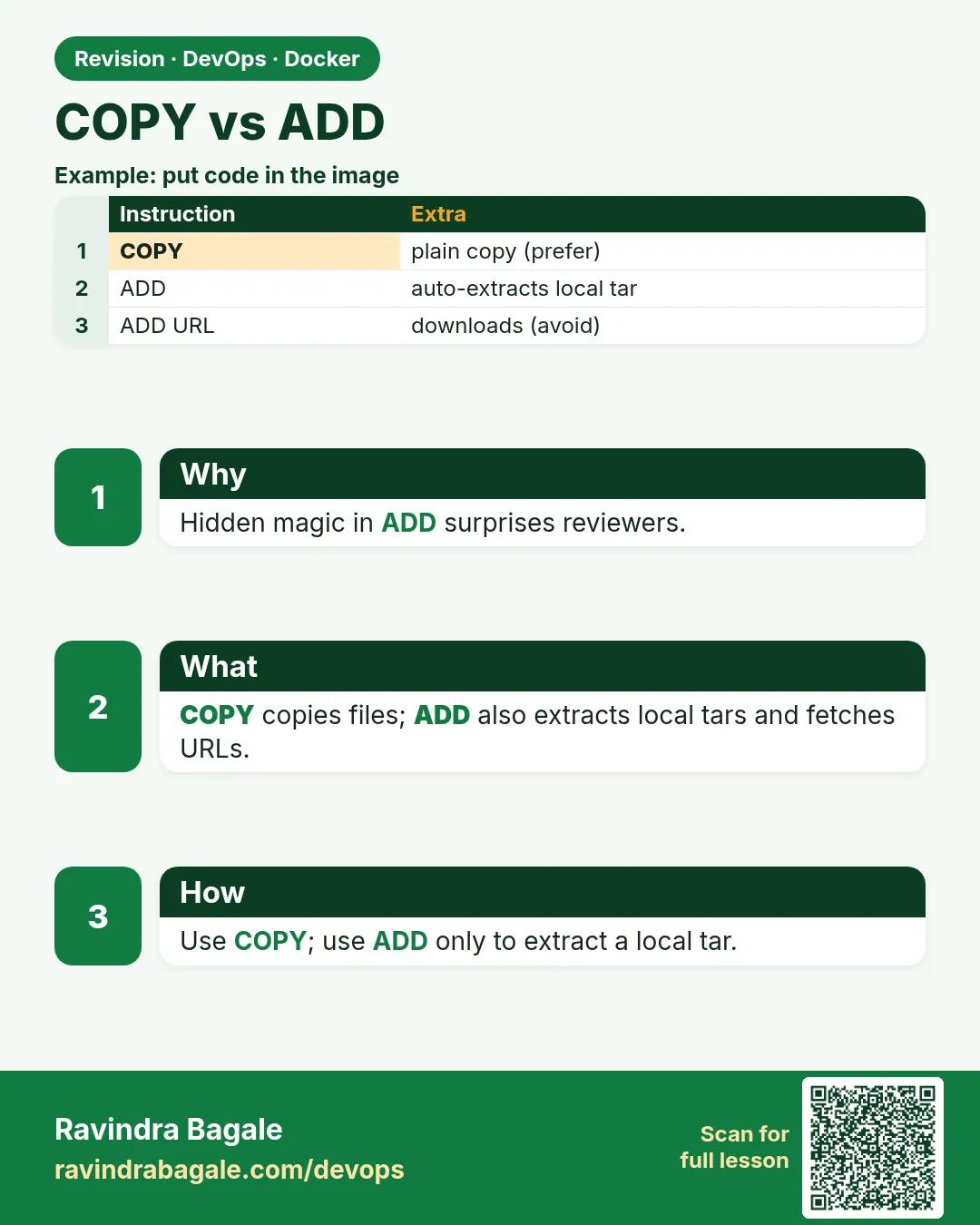 Revision card
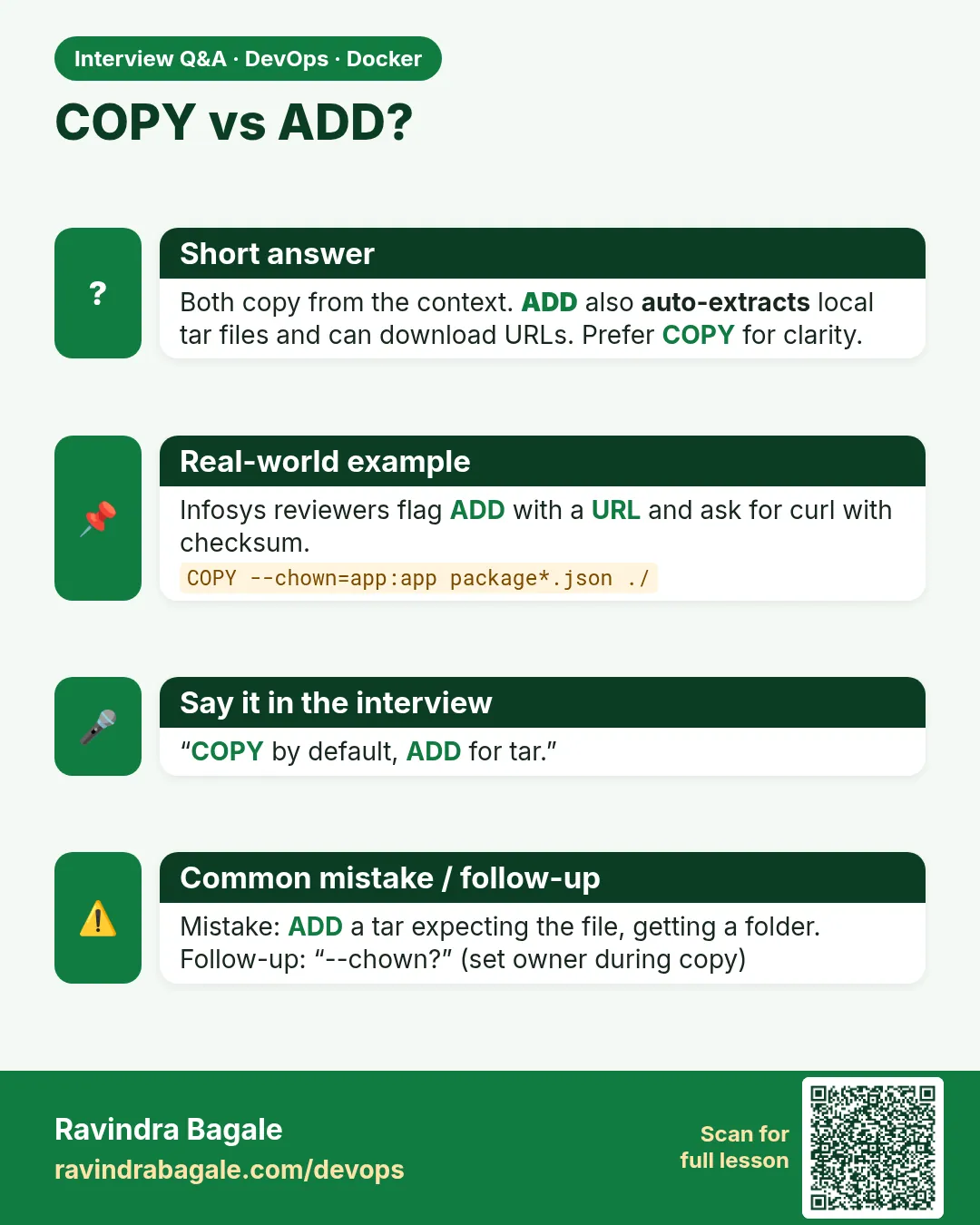 Interview card
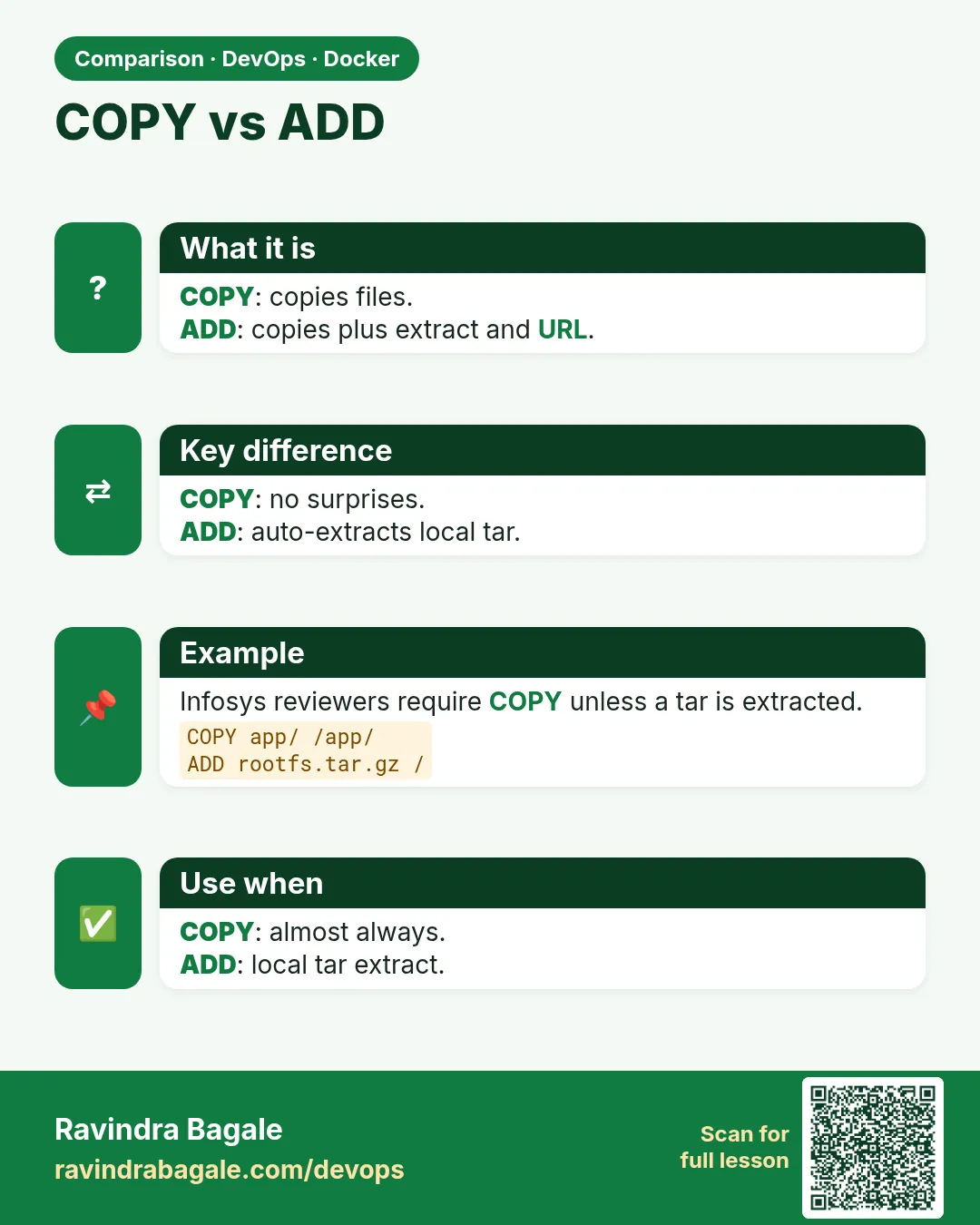 Comparison card