48.9 Clean up images: dangling, unused and prune
Friends, one day the server shows 'no space left on device' and deploys stop. Why? Old images, build cache and stopped containers. Today we learn safe cleaning: look first, then delete.
मित्रांनो, एक दिवस server वर 'no space left on device' error येतो आणि deploy थांबतो. कारण? जुन्या images, build cache आणि थांबलेले containers. आज सुरक्षित साफसफाई शिकू: आधी बघा, मग काढा.
दोस्तों, एक दिन server पर 'no space left on device' error आता है और deploy रुक जाता है. क्यों? पुरानी images, build cache और रुके हुए containers. आज सुरक्षित सफ़ाई सीखेंगे: पहले देखो, फिर हटाओ.
1. Start from a full disk
Priya is on call for an e-commerce site in Hyderabad. At 2 AM the CI build server alerts: disk 97 percent full. Every build for six months left images and cache behind, and nobody cleaned up.
Docker never deletes images by itself. Each build with the same tag leaves the old image without a name, called a dangling image. Old tags you no longer run are unused images. BuildKit also keeps a build cache.
The safe rule for this lesson: first look, then delete a little, then delete more. Never run the strongest prune command on a production server without knowing what it removes.
2. Look before deleting
Step 1: docker system df
Why: You need to know what is using space before cleaning.
What: docker system df shows space used by images, containers, volumes and build cache, and how much can be reclaimed.
Example 1: Summary
Type this:
docker system df
You will see:
TYPE            TOTAL     ACTIVE    SIZE      RECLAIMABLE
Images          148       6         61.2GB    57.9GB (94%)
Containers      23        6         1.1GB     904MB (82%)
Local Volumes   14        5         9.8GB     3.1GB (31%)
Build Cache     812       0         38.4GB    38.4GB
What it means: Almost 100 GB can be freed.
Example 2: Detailed view
Type this:
docker system df -v | head -8
You will see:
Images space usage:

REPOSITORY   TAG      IMAGE ID       CREATED        SIZE      SHARED SIZE   UNIQUE SIZE   CONTAINERS
shop/api     2.41     5a6b7c8d9e0f   2 hours ago    412MB     380MB         32MB          2
shop/api     <none>   1f2e3d4c5b6a   5 hours ago    410MB     380MB         30MB          0
What it means: UNIQUE SIZE is what you really free by deleting one image.
Example 3: Check the disk
Type this:
df -h /var/lib/docker
You will see:
Filesystem  Size  Used Avail Use% Mounted on
/dev/nvme1n1 200G  194G  6.0G  97% /var/lib/docker
What it means: Matches the alert.
Step 2: Find dangling images
Why: These are the easiest and safest to remove.
What: A dangling image has no repository and tag; it shows as none. The filter dangling=true lists them.
Example 4: See how they appear
Type this:
docker build -q -t shop/api:dev . && printf '// change\n' >> app.js && docker build -q -t shop/api:dev .
docker image ls shop/api
You will see:
REPOSITORY  TAG    IMAGE ID      CREATED          SIZE
shop/api    dev    9c8b7a6d5e4f  2 seconds ago    412MB
shop/api    none   3d4e5f6a7b8c  20 seconds ago   412MB
What it means: The tag moved to the new image; the old one lost its name.
Example 5: List only dangling
Type this:
docker image ls -f dangling=true -q | wc -l
You will see:
96
What it means: 96 nameless images.
Example 6: Their total size
Type this:
docker image ls -f dangling=true --format '{{.Size}}' | head -3
You will see:
410MB
409MB
411MB
What it means: Most share layers, so real savings are lower than the sum.
Step 3: Find unused images
Why: Images with names can still be useless, like last year's versions.
What: An unused image is one that no container, running or stopped, uses. Compare the image list with what containers use.
Example 7: Images in use
Type this:
docker ps -a --format '{{.Image}}' | sort -u
You will see:
postgres:16
redis:7
shop/api:2.41
shop/web:2.41
What it means: Only four are used.
Example 8: Old images by age
Type this:
docker image ls --filter before=shop/api:2.30 --format '{{.Repository}}:{{.Tag}} {{.CreatedSince}}' | head -3
You will see:
shop/api:2.29 3 months ago
shop/api:2.28 3 months ago
shop/api:2.27 4 months ago
What it means: Candidates for removal.
Example 9: Filter by label
Type this:
docker image ls --filter label=stage=ci --format '{{.Repository}}:{{.Tag}}' | head -2
You will see:
shop/api:ci-8812
shop/api:ci-8811
What it means: If CI adds a label, you can target only its images.
3. Remove step by step
Step 4: docker rmi
Why: Sometimes you want to delete just one image.
What: docker rmi (same as docker image rm) removes images by name or ID. It refuses if a container uses it.
Example 10: Remove one
Type this:
docker rmi shop/api:2.27
You will see:
Untagged: shop/api:2.27
Deleted: sha256:7f8e...
What it means: Gone.
Example 11: Image in use
Type this:
docker rmi postgres:16
You will see:
Error response from daemon: conflict: unable to remove repository reference "postgres:16" (must force) - container 2a3b4c5d is using its referenced image
What it means: Docker protects you. Do not use -f here.
Example 12: Remove a tag only
Type this:
docker tag shop/api:2.41 shop/api:latest && docker rmi shop/api:latest
You will see:
Untagged: shop/api:latest
What it means: Other tags still point to the image, so only the name is removed.
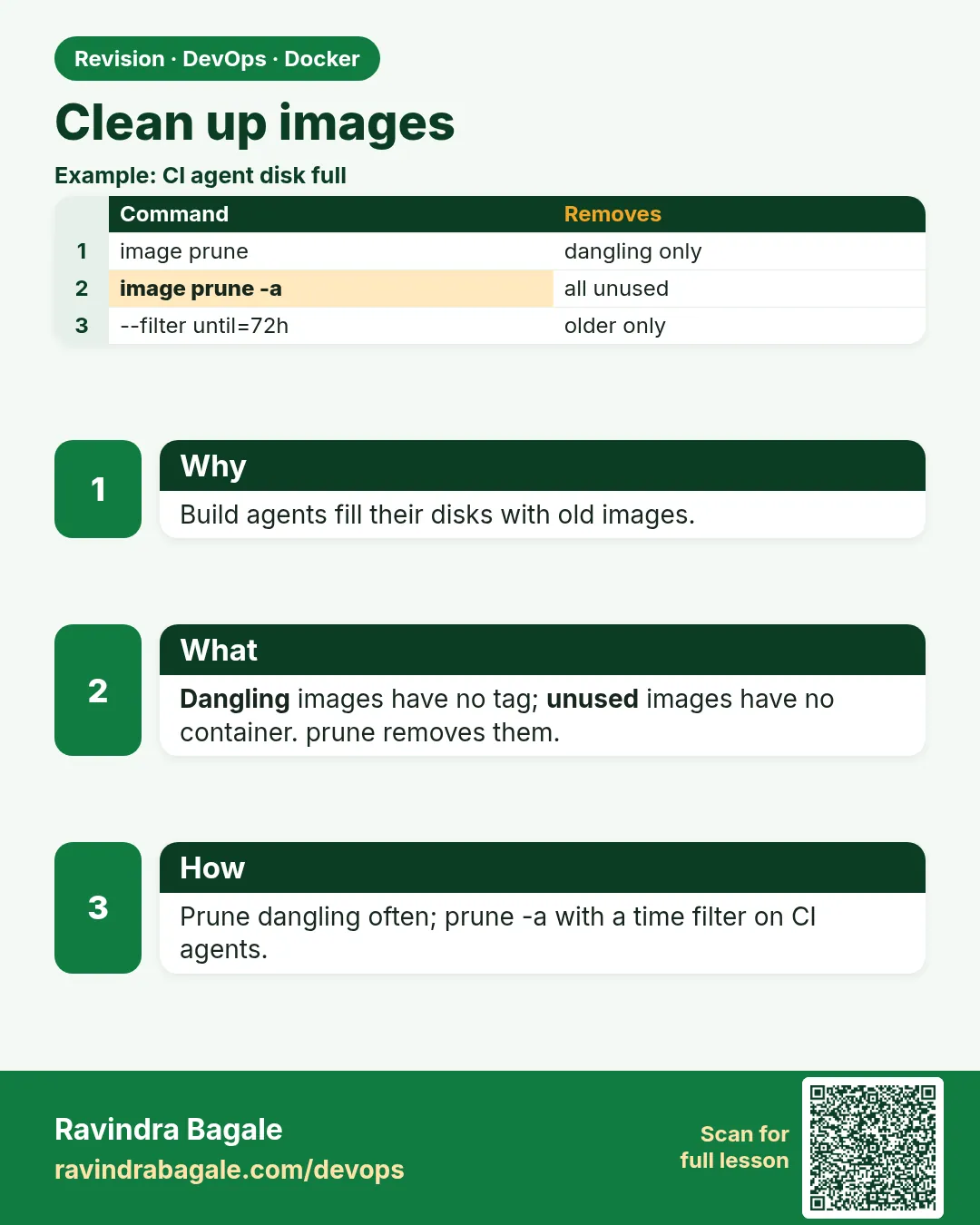
Step 5: docker image prune
Why: Remove all dangling images at once.
What: Without flags it only deletes dangling images. It asks before deleting.
Example 13: Prune dangling
Type this:
docker image prune
You will see:
WARNING! This will remove all dangling images.
Are you sure you want to continue? [y/N] y
Deleted Images:
deleted: sha256:3d4e...
...
Total reclaimed space: 4.7GB
What it means: Shared layers explain why it is 4.7 GB, not 39 GB.
Example 14: No prompt, for scripts
Type this:
docker image prune -f
You will see:
Total reclaimed space: 0B
What it means: Nothing left to delete.
Example 15: Check
Type this:
docker image ls -f dangling=true -q | wc -l
You will see:
0
What it means: Clean.
Step 6: Prune unused images with a filter
Why: Removing every unused image is strong; use age to be careful.
What: -a also removes tagged unused images. The until filter keeps recent ones.
Example 16: Older than 7 days
Type this:
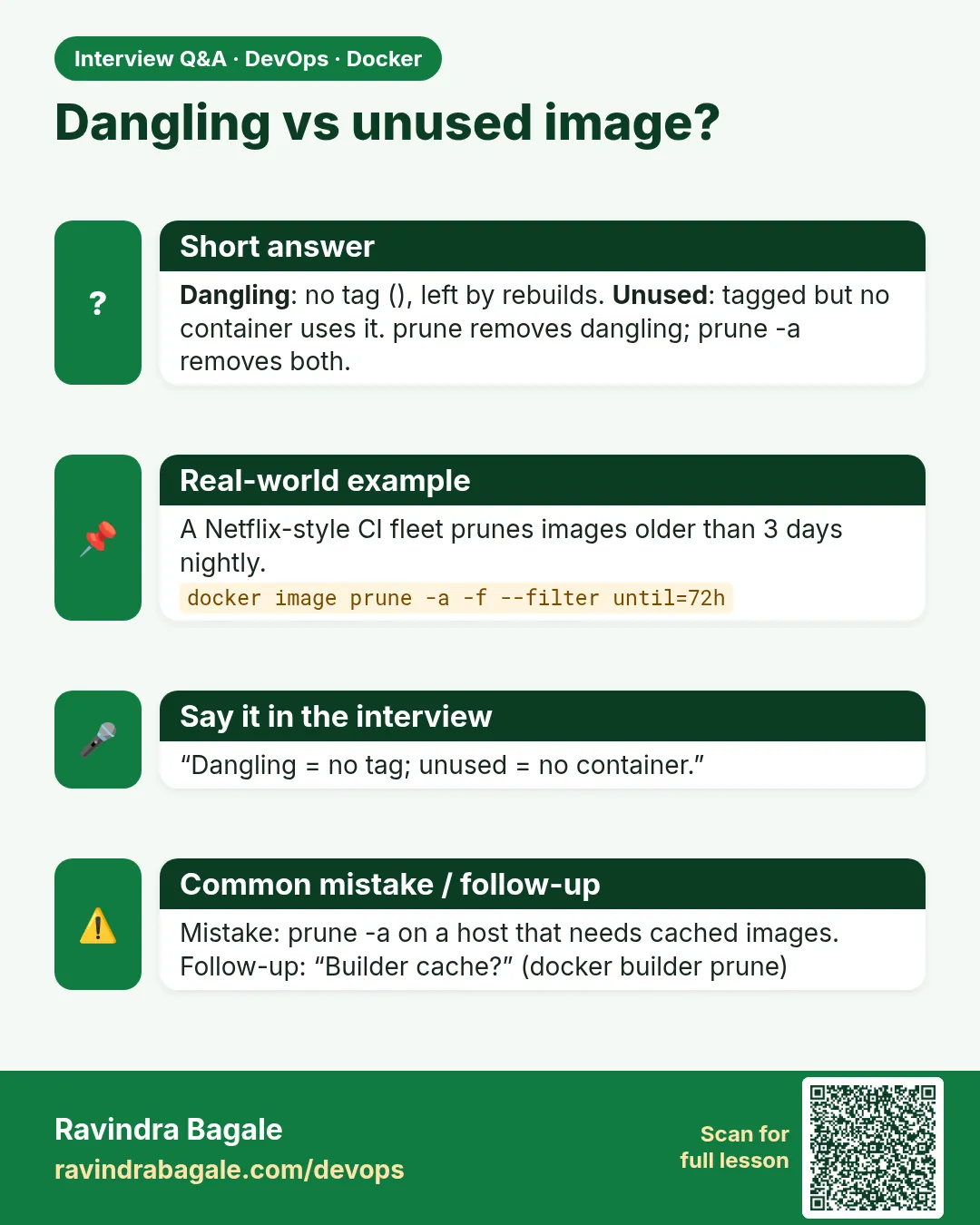
docker image prune -a -f --filter until=168h
You will see:
Deleted Images:
untagged: shop/api:2.28
...
Total reclaimed space: 21.6GB
What it means: Images used in the last week stay.
Example 17: Keep important ones with a label
Type this:
docker image prune -a -f --filter until=168h --filter label!=keep=true
You will see:
Total reclaimed space: 0B
What it means: Images with label keep=true are protected.
Example 18: Check in-use images survived
Type this:
docker ps --format '{{.Names}} {{.Status}}'
You will see:
api Up 3 days
web Up 3 days
db Up 9 days
cache Up 9 days
What it means: Running apps are untouched.
Step 7: docker container prune
Why: Stopped containers hold images and their own writable layer.
What: Removes all stopped containers. Delete these first, then more images become unused.
Example 19: List stopped
Type this:
docker ps -a -f status=exited --format '{{.Names}} {{.Status}}' | head -3
You will see:
test-91 Exited (0) 2 weeks ago
migrate-4 Exited (0) 3 weeks ago
debug Exited (137) 1 month ago
What it means: Old one-off runs.
Example 20: Prune them
Type this:
docker container prune -f
You will see:
Deleted Containers:
...
Total reclaimed space: 904MB
What it means: As system df said.
Example 21: Avoid them next time
Type this:
docker run --rm alpine:3.20 echo hi
You will see:
hi
What it means: --rm deletes the container when it stops.
Step 8: docker builder prune
Why: On CI servers, build cache is often the biggest user.
What: Removes BuildKit cache. Filters and a size limit keep useful cache.
Example 22: See the cache
Type this:
docker buildx du | tail -2
You will see:
Reclaimable:  38.4GB
Total:        38.4GB
What it means: All reclaimable.
Example 23: Keep only 10 GB
Type this:
docker builder prune -f --keep-storage 10GB
You will see:
Total: 28.4GB
What it means: Recent cache stays, so builds stay fast.
Example 24: Remove all cache
Type this:
docker builder prune -a -f
You will see:
Total: 10GB
What it means: Next build will be slow once.
Step 9: docker system prune, carefully
Why: One command cleans several things.
What: Removes stopped containers, unused networks, dangling images and cache. -a adds unused images. --volumes adds unused volumes, which may hold data.
Example 25: The normal version
Type this:
docker system prune -f
You will see:
Deleted Networks:
shop_test
Total reclaimed space: 1.2GB
What it means: Safe for most servers.
Example 26: What -a asks
Type this:
docker system prune -a
You will see:
WARNING! This will remove:
  - all stopped containers
  - all networks not used by at least one container
  - all images without at least one container associated to them
  - all build cache
Are you sure you want to continue? [y/N] n
What it means: Read the list. Answer n if unsure.
Example 27: Never blindly on a database server
Type this:
docker volume ls -f dangling=true
You will see:
DRIVER    VOLUME NAME
local     shop_pgdata_old
What it means: A volume not attached now may still be the only copy of data. Back it up or check before --volumes.
Step 10: Remove many images by name pattern
Why: CI pushed hundreds of shop/api:ci-NNNN tags. prune cannot pick by name, and typing each one is impossible.
What: List names with a format, filter with grep, and pass them to docker rmi with xargs. Always print the list first.
Example 28: Preview the list
Type this:
docker image ls shop/api --format '{{.Repository}}:{{.Tag}}' | grep ':ci-' | head -3
docker image ls shop/api --format '{{.Tag}}' | grep -c '^ci-'
You will see:
shop/api:ci-8812
shop/api:ci-8811
shop/api:ci-8810
214
What it means: 214 CI images. Check the list before deleting.
Example 29: Delete them
Type this:
docker image ls shop/api --format '{{.Repository}}:{{.Tag}}' | grep ':ci-' | xargs -r docker rmi
You will see:
Untagged: shop/api:ci-8812
Untagged: shop/api:ci-8811
...
What it means: xargs -r does nothing if the list is empty, so the command is safe to repeat.
Example 30: Keep the newest five
Type this:
docker image ls shop/api --format '{{.Tag}}' | grep -E '^2\.' | sort -V | head -n -5 | sed 's#^#shop/api:#' | xargs -r docker rmi
You will see:
Untagged: shop/api:2.29
Untagged: shop/api:2.30
...
What it means: sort -V sorts versions correctly; head -n -5 skips the last five, so you can still roll back.
Step 11: Clean up on Docker Desktop
Why: On a laptop, Docker Desktop keeps everything inside one virtual disk file. Pruning frees space inside it, but the file may not shrink at once.
What: Prune as usual, then check the disk usage setting in Docker Desktop. Reset is the last resort, because it deletes all images, containers and volumes.
Example 31: Prune on the laptop
Type this:
docker system prune -a -f --filter until=72h
You will see:
Total reclaimed space: 18.3GB
What it means: Keeps the last three days of work.
Example 32: Check the virtual disk on a Mac
Type this:
du -h ~/Library/Containers/com.docker.docker/Data/vms/0/data/Docker.raw
You will see:
22G .../Docker.raw
What it means: du shows real used blocks; Docker Desktop releases freed space back over time.
Example 33: Limit it
Type this:
printf 'Docker Desktop: Settings, Resources, Advanced, Disk usage limit: 64 GB\n'
You will see:
Docker Desktop: Settings, Resources, Advanced, Disk usage limit: 64 GB
What it means: Set a limit so Docker cannot fill your laptop disk.
Step 12: Automate cleanup
Why: Priya does not want a 2 AM alert again.
What: Run a safe prune on a timer, and set Docker's own build cache limit.
Example 34: A cron line
Type this:
printf '0 3 * * * root docker image prune -a -f --filter until=168h \&\& docker builder prune -f --keep-storage 20GB\n' | sudo tee /etc/cron.d/docker-clean
You will see:
0 3 * * * root docker image prune -a -f --filter until=168h && docker builder prune -f --keep-storage 20GB
What it means: Runs every night at 3 AM.
Example 35: Builder garbage collection
Type this:
sudo jq '. + {"builder":{"gc":{"enabled":true,"defaultKeepStorage":"20GB"}}}' /etc/docker/daemon.json | sudo tee /etc/docker/daemon.json.new && sudo mv /etc/docker/daemon.json.new /etc/docker/daemon.json && sudo systemctl restart docker
You will see:
(no output)
What it means: BuildKit now keeps its cache under 20 GB by itself.
Example 36: Result next day
Type this:
docker system df | sed -n '1,2p;5p'
You will see:
TYPE            TOTAL     ACTIVE    SIZE      RECLAIMABLE
Images          12        6         5.1GB     1.9GB (37%)
Build Cache     140       0         19.7GB    19.7GB
What it means: Disk is at 31 percent now.
Ravindra Bagale's Tip
First docker system df, then image prune, then -a with an until filter. Never use --volumes blindly on production; data can be lost.
आधी docker system df, मग image prune, मग until filter सोबत -a. --volumes production वर कधीच आंधळेपणाने वापरायचं नाही, data जाऊ शकतो.
पहले docker system df, फिर image prune, फिर until filter के साथ -a. --volumes को production पर कभी आँख बंद करके मत चलाइए, data जा सकता है.
Check yourself
Q1. What is a dangling image?
An image that lost its name and tag, usually after a rebuild with the same tag.
Q2. What does docker image prune -a add?
It also removes tagged images that no container uses.
Q3. Why is docker system prune --volumes risky?
Unused volumes can still hold the only copy of data.
Q4. Which command shows reclaimable space?
docker system df.
Q5. How do you keep recent images when pruning?
Use --filter until=168h or a keep label.
Friends, do not fear cleaning, but look first and delete later. Did you understand? Let us try it once more. In the lab compare system df before and after.
मित्रांनो, साफसफाईला घाबरू नका, पण आधी बघा मग काढा. समजलं का? चला, पुन्हा एकदा करून पाहू. Lab मध्ये आधी आणि नंतरचा system df compare करा.
दोस्तों, सफ़ाई से डरिए मत, पर पहले देखिए फिर हटाइए. समझ आया? चलिए, एक बार फिर करके देखते हैं। Lab में पहले और बाद का system df compare कीजिए.
Lab: try at home
- Run docker system df and note sizes.
- Create dangling images by rebuilding with one tag.
- Prune dangling, then unused older than a day.
- Prune build cache keeping 5 GB.
- Add the nightly cron line on a test VM.
Recap
- Docker never cleans by itself.
- system df shows what to reclaim.
- image prune removes dangling; -a removes unused too.
- builder prune frees build cache.
- Be careful with --volumes; automate safe cleanup.
 Revision card
 Interview card