48.7 Multi-arch images with buildx
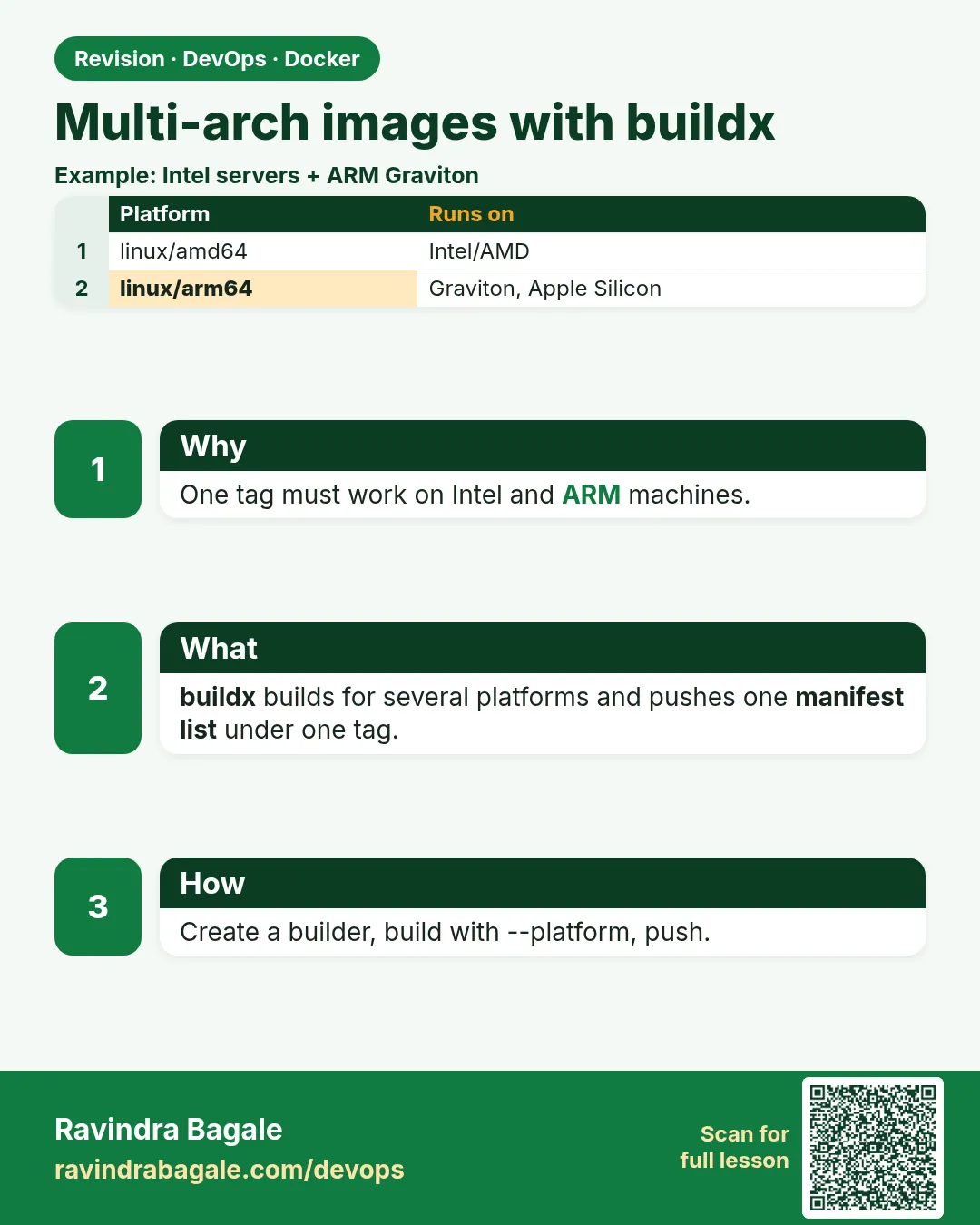
Chala mitrano! Today laptops are often ARM (Apple M chips) while servers are Intel, or AWS Graviton ARM. One image must run on both. So we build a multi-arch image with buildx, step by step.
चला मित्रांनो! आजकाल laptop ARM (Apple M chip) आणि server Intel, किंवा AWS Graviton ARM. एकच image दोन्हीकडे चालायला हवी. त्यासाठी buildx ने multi-arch image बनवू, step by step.
चलो दोस्तों! आजकल laptop ARM (Apple M chip) और server Intel, या AWS Graviton ARM. एक ही image दोनों पर चलनी चाहिए. इसके लिए buildx से multi-arch image बनाएँगे, step by step.
1. Start from a real problem
Sneha works at a fintech startup in Bengaluru. She builds the payments API image on her MacBook with an M3 chip and pushes it. The EC2 server is Intel. The container dies at once with exec format error.
A CPU can only run programs built for its own instruction set. amd64 (Intel and AMD) and arm64 (Apple M chips, AWS Graviton, Raspberry Pi 4 and 5) are different. An image built on one does not run on the other.
A multi-arch image solves this. One tag, such as payments/api:1.4, points to a list with one image per CPU type. Each machine pulls the one that matches it automatically.
2. See the problem and check platforms
Step 1: Find your own CPU type
Why: You must know what you have before you build for others.
What: uname -m shows the machine type. docker version shows what Docker sees.
Example 1: On the Mac
Type this:
uname -m
You will see:
arm64
What it means: Apple chip.
Example 2: On the EC2 server
Type this:
uname -m
You will see:
x86_64
What it means: Intel; Docker calls this linux/amd64.
Example 3: Ask Docker
Type this:
docker version --format '{{.Server.Os}}/{{.Server.Arch}}'
You will see:
linux/arm64
What it means: Docker Desktop on Mac runs a Linux VM on arm64.
Step 2: See the failure
Why: Seeing the error once means you will know it forever.
What: Build a plain image on the Mac, then run it on the Intel server.
Example 4: Build and push on the Mac
Type this:
docker build -t sneha/api:1.3 . && docker push sneha/api:1.3
You will see:
1.3: digest: sha256:4a1f... size: 1784
What it means: Only an arm64 image was pushed.
Example 5: Run on Intel
Type this:
docker run --rm sneha/api:1.3
You will see:
WARNING: The requested image's platform (linux/arm64) does not match the detected host platform (linux/amd64)
exec /app/server: exec format error
What it means: Docker even warns you.
Example 6: Check the image
Type this:
docker image inspect sneha/api:1.3 --format '{{.Architecture}}'
You will see:
arm64
What it means: Confirmed.
Step 3: Read a manifest list
Why: Official images like nginx are already multi-arch. Look at one to see the idea.
What: docker buildx imagetools inspect shows all platforms behind a tag.
Example 7: Inspect nginx
Type this:
docker buildx imagetools inspect nginx:1.27 | grep Platform
You will see:
Platform:  linux/amd64
Platform:  linux/arm/v5
Platform:  linux/arm/v7
Platform:  linux/arm64/v8
Platform:  linux/386
Platform:  linux/ppc64le
Platform:  linux/s390x
What it means: Seven CPU types under one tag.
Example 8: Inspect our tag
Type this:
docker buildx imagetools inspect sneha/api:1.3 | head -3
You will see:
Name:      docker.io/sneha/api:1.3
MediaType: application/vnd.oci.image.manifest.v1+json
Digest:    sha256:4a1f...
What it means: A single manifest, not a list.
Example 9: Pull a chosen platform
Type this:
docker pull --platform linux/amd64 nginx:1.27 && docker image inspect nginx:1.27 --format '{{.Architecture}}'
You will see:
amd64
What it means: --platform overrides the automatic choice.
3. Set up buildx
Step 4: What buildx is
Why: The normal build only makes images for your own CPU.
What: buildx is the Docker CLI plugin for BuildKit. It can build for many platforms in one command. It ships with Docker Desktop and the docker-buildx-plugin package.
Example 10: Check the version
Type this:
docker buildx version
You will see:
buildx v0.17.1 257815a
What it means: Installed.
Example 11: List builders
Type this:
docker buildx ls
You will see:
NAME/NODE     DRIVER/ENDPOINT   STATUS    PLATFORMS
default*      docker
 \_ default    \_ default        running   linux/amd64, linux/386
What it means: The default builder only knows local platforms.
Example 12: On Ubuntu, install it
Type this:
sudo apt-get install -y docker-buildx-plugin
You will see:
docker-buildx-plugin is already the newest version (0.17.1-1~ubuntu.24.04~noble).
What it means: Comes with Docker's apt repository.
Step 5: Install QEMU emulation
Why: To build arm64 on an Intel machine, the machine must pretend to be ARM.
What: QEMU emulates other CPUs. The binfmt image registers it with the Linux kernel once per boot.
Example 13: Register emulators
Type this:
docker run --privileged --rm tonistiigi/binfmt --install all
You will see:
installing: arm64 OK
installing: arm OK
installing: ppc64le OK
installing: s390x OK
What it means: Needs --privileged because it changes kernel settings; only run this trusted image.
Example 14: Check
Type this:
ls /proc/sys/fs/binfmt_misc/ | grep qemu
You will see:
qemu-aarch64
qemu-arm
qemu-ppc64le
qemu-s390x
What it means: Registered.
Example 15: Try it
Type this:
docker run --rm --platform linux/arm64 alpine:3.20 uname -m
You will see:
aarch64
What it means: An ARM container on an Intel host, through emulation.
Step 6: Create a builder
Why: The default docker driver cannot push multi-platform results in older setups.
What: Create a builder with the docker-container driver and make it the default.
Example 16: Create
Type this:
docker buildx create --name multi --driver docker-container --use
You will see:
multi
What it means: Created and selected.
Example 17: Start it
Type this:
docker buildx inspect --bootstrap | grep Platforms
You will see:
Platforms: linux/amd64, linux/arm64, linux/arm/v7, linux/ppc64le, linux/s390x, linux/386
What it means: Now it knows many platforms.
Example 18: See it running
Type this:
docker ps --format '{{.Names}} {{.Image}}'
You will see:
buildx_buildkit_multi0 moby/buildkit:buildx-stable-1
What it means: The builder lives in its own container.
4. Build and push
Step 7: Build for two platforms and push
Why: This is the main command of the lesson.
What: --platform lists targets. --push sends the image and the manifest list to the registry, because a multi-platform result cannot be stored in the old local image store.
Example 19: Build and push
Type this:
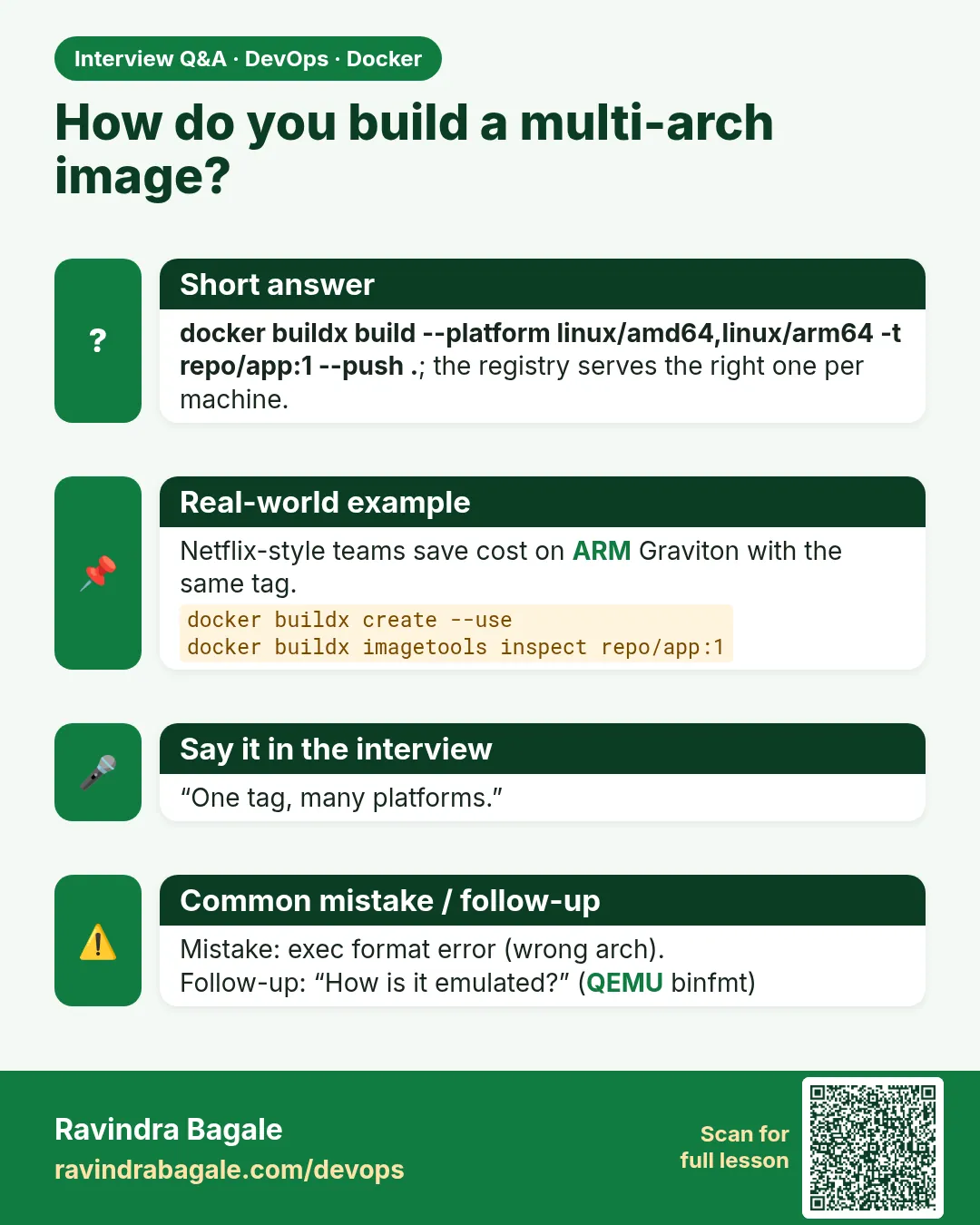
docker buildx build --platform linux/amd64,linux/arm64 -t sneha/api:1.4 --push .
You will see:
[linux/amd64 4/5] RUN go build -o /app/server .
[linux/arm64 4/5] RUN go build -o /app/server .
=> pushing manifest for docker.io/sneha/api:1.4
What it means: Both are built side by side.
Example 20: Check the result
Type this:
docker buildx imagetools inspect sneha/api:1.4 | grep Platform
You will see:
Platform:  linux/amd64
Platform:  linux/arm64
What it means: One tag, two images.
Example 21: Run on the Intel server
Type this:
docker run --rm sneha/api:1.4 --version
You will see:
payments-api 1.4 (linux/amd64)
What it means: Pulled the amd64 one automatically.
Step 8: Cross-compile instead of emulating
Why: QEMU is slow, often 5 to 10 times slower for compiling.
What: Run the compiler on the build machine's own CPU and tell it the target. BuildKit gives BUILDPLATFORM, TARGETOS and TARGETARCH.
Example 22: The Dockerfile
Type this:
printf 'FROM --platform=$BUILDPLATFORM golang:1.23 AS build\nARG TARGETOS TARGETARCH\nWORKDIR /src\nCOPY . .\nRUN GOOS=$TARGETOS GOARCH=$TARGETARCH CGO_ENABLED=0 go build -o /out/server .\nFROM gcr.io/distroless/static\nCOPY --from=build /out/server /server\nENTRYPOINT ["/server"]\n' > Dockerfile
You will see:
(no output)
What it means: The build stage runs natively; Go makes code for the target.
Example 23: Time it
Type this:
time docker buildx build --platform linux/amd64,linux/arm64 -t sneha/api:1.5 --push .
You will see:
real 0m41.2s
What it means: Before, with emulation, it took 4m 50s.
Example 24: Check
Type this:
docker buildx imagetools inspect sneha/api:1.5 | grep -c Platform
You will see:
2
What it means: Same result, much faster.
Step 9: Load one platform locally
Why: --push sends to the registry. Sometimes you just want to test locally.
What: --load puts a single-platform result in the local image store.
Example 25: Load arm64
Type this:
docker buildx build --platform linux/arm64 -t api:test --load .
You will see:
=> => naming to docker.io/library/api:test
What it means: Loaded locally.
Example 26: Two platforms with --load
Type this:
docker buildx build --platform linux/amd64,linux/arm64 -t api:test --load .
You will see:
ERROR: docker exporter does not currently support exporting manifest lists
What it means: Classic store holds one platform per tag. Use --push, or turn on the containerd image store in Docker Desktop.
Example 27: Run the amd64 one by emulation
Type this:
docker buildx build --platform linux/amd64 -t api:amd --load . && docker run --rm api:amd --version
You will see:
payments-api 1.5 (linux/amd64)
What it means: Test the server version on your Mac.
Step 10: Use a build cache in CI
Why: In CI each run starts empty, so every build is slow.
What: Save the BuildKit cache to the registry and reuse it next time.
Example 28: Build with cache
Type this:
docker buildx build --platform linux/amd64,linux/arm64 --cache-from type=registry,ref=sneha/api:cache --cache-to type=registry,ref=sneha/api:cache,mode=max -t sneha/api:1.6 --push .
You will see:
=> importing cache manifest from sneha/api:cache
=> CACHED [linux/amd64 build 3/5] COPY go.mod go.sum ./
What it means: Reused layers.
Example 29: Time the second run
Type this:
time docker buildx build ... (same command)
You will see:
real 0m12.8s
What it means: Down from 41 seconds.
Example 30: Look at the cache tag
Type this:
docker buildx imagetools inspect sneha/api:cache | head -2
You will see:
Name:      docker.io/sneha/api:cache
MediaType: application/vnd.oci.image.index.v1+json
What it means: It is just another tag in the registry.
Step 11: Pin a platform in Compose and check running containers
Why: On a mixed team, some people run the stack on ARM and some on Intel. Bugs that appear on only one CPU are confusing.
What: Compose has a platform key per service. docker inspect shows which variant a container really runs.
Example 31: Pin in compose.yaml
Type this:
printf 'services:\n  api:\n    image: sneha/api:1.6\n    platform: linux/amd64\n' > compose.yaml
docker compose up -d
You will see:
[+] Running 1/1
 ✔ Container lab-api-1  Started
What it means: Forces the Intel variant, same as production, even on a Mac.
Example 32: Check the running container
Type this:
docker inspect lab-api-1 --format '{{.Platform}}'
docker image inspect sneha/api:1.6 --format '{{.Architecture}}'
You will see:
linux
amd64
What it means: Now your Mac tests the exact image the server runs.
Example 33: Remove the pin for speed
Type this:
sed -i '/platform:/d' compose.yaml && docker compose up -d && docker image inspect sneha/api:1.6 --format '{{.Architecture}}'
You will see:
arm64
What it means: Without the pin, the native arm64 variant runs fast. Pin only when hunting a CPU-specific bug.
Step 12: Native ARM builders
Why: Emulation is fine for small images, but heavy C or Rust builds are painful.
What: Add a real ARM machine as a builder node. buildx sends each platform to the matching node.
Example 34: Add a Graviton node
Type this:
docker buildx create --name multi --append --platform linux/arm64 ssh://ubuntu@arm-builder
You will see:
multi
What it means: The node uses SSH like lesson 47.14.
Example 35: See both nodes
Type this:
docker buildx ls | grep -E 'multi|arm'
You will see:
multi*        docker-container
 \_ multi0     \_ unix:///var/run/docker.sock  running  linux/amd64
 \_ multi1     \_ ssh://ubuntu@arm-builder     running  linux/arm64
What it means: Each CPU builds natively.
Example 36: Remove the builder later
Type this:
docker buildx rm multi
You will see:
multi removed
What it means: Clean up when done.
Ravindra Bagale's Tip
If you build on an ARM laptop for an Intel server, always pass --platform. For Go and Rust use cross-compiling; QEMU is very slow.
ARM laptop वरून Intel server साठी build करत असाल तर नेहमी --platform द्या. Go/Rust साठी cross-compile वापरा, QEMU खूप slow आहे.
ARM laptop से Intel server के लिए build कर रहे हों तो हमेशा --platform दीजिए. Go/Rust के लिए cross-compile कीजिए, QEMU बहुत slow है.
Check yourself
Q1. What does exec format error mean?
The image was built for a different CPU type.
Q2. What does one multi-arch tag point to?
A manifest list with one image per platform.
Q3. Why must multi-platform builds usually use --push?
The classic local store holds only one platform per tag.
Q4. How do you avoid slow QEMU builds?
Cross-compile with BUILDPLATFORM and TARGETARCH, or add native builder nodes.
Q5. Which command lists platforms of a remote tag?
docker buildx imagetools inspect.
Friends, one tag, many CPUs. buildx does it in one command. Did you understand? Let us try it once more. Do the lab, because AWS Graviton saves money and needs arm64.
मित्रांनो, एकच tag, अनेक CPU. buildx ने हे एकाच command मध्ये होतं. समजलं का? चला, पुन्हा एकदा करून पाहू. Lab नक्की करा, कारण AWS Graviton वर पैसे वाचतात आणि तिथे arm64 लागतो.
दोस्तों, एक tag, कई CPU. buildx से यह एक command में होता है. समझ आया? चलिए, एक बार फिर करके देखते हैं। Lab ज़रूर कीजिए, क्योंकि AWS Graviton पर पैसे बचते हैं और वहाँ arm64 चाहिए.
Lab: try at home
- Inspect nginx:1.27 and count its platforms.
- Install binfmt and run an arm64 alpine on your machine.
- Create a docker-container builder.
- Build and push a small Go app for amd64 and arm64.
- Change it to cross-compile and compare time.
Recap
- CPUs need images built for them.
- A manifest list lets one tag serve many platforms.
- buildx with QEMU builds other platforms.
- Cross-compiling is much faster than emulation.
- Registry cache speeds up CI builds.
 Revision card
 Interview card