48.5 Run your own private registry
Chala mitrano! Sometimes there is no internet, or the company wants every image on its own server. Then we run our own registry. Today we build one with the registry:2 image and go all the way to volume, password, HTTPS, delete and a UI.
चला मित्रांनो! कधी कधी internet नसतं किंवा company ला सगळ्या images आपल्याच server वर हव्या असतात. तेव्हा आपण स्वतःचा registry चालवतो. आज registry:2 image ने registry बनवू, volume, password, HTTPS, delete आणि UI पर्यंत जाऊ.
चलो दोस्तों! कभी internet नहीं होता या company सारी images अपने ही server पर चाहती है. तब हम अपना registry चलाते हैं. आज registry:2 image से registry बनाएँगे, volume, password, HTTPS, delete और UI तक जाएँगे.
1. Start from an offline factory
A car factory near Pune has machines on a network with no internet, for safety. The machines still run containers, so the images must come from somewhere inside the factory.
A private registry is a server you run yourself that speaks the same language as Docker Hub. Docker publishes the official image registry:2 for this (the project is now called Distribution). You push to it and pull from it with normal docker commands.
We build it in steps: first a quick test, then storage that survives, then a password, then HTTPS so other machines can trust it.
2. A quick registry
Step 1: Start registry:2
Why: You want to see a registry working in one minute.
What: Run the registry image and map port 5000. localhost is trusted by Docker without HTTPS, so testing is easy.
Example 1: Run it
Type this:
docker run -d --name reg -p 5000:5000 registry:2
You will see:
Unable to find image 'registry:2' locally
2: Pulling from library/registry
6c1a8c2b9d3e...
What it means: A registry is now listening on 5000.
Example 2: Ask it something
Type this:
curl -s localhost:5000/v2/
You will see:
{}
What it means: An empty JSON answer means the registry API is alive.
Example 3: List repositories
Type this:
curl -s localhost:5000/v2/_catalog
You will see:
{"repositories":[]}
What it means: Nothing pushed yet.
Step 2: Push to it
Why: The image name must start with the registry address.
What: Tag the image as localhost:5000/name:tag and push.
Example 4: Tag
Type this:
docker pull alpine:3.20
docker tag alpine:3.20 localhost:5000/base/alpine:3.20
You will see:
(pull output)
What it means: base is a folder name we chose.
Example 5: Push
Type this:
docker push localhost:5000/base/alpine:3.20
You will see:
The push refers to repository [localhost:5000/base/alpine]
3.20: digest: sha256:1e42... size: 528
What it means: Stored in our own registry.
Example 6: Check the catalog and tags
Type this:
curl -s localhost:5000/v2/_catalog
curl -s localhost:5000/v2/base/alpine/tags/list
You will see:
{"repositories":["base/alpine"]}
{"name":"base/alpine","tags":["3.20"]}
What it means: The registry API lists repositories and tags.
Step 3: Pull from it
Why: Prove that the image comes from your registry, not Docker Hub.
What: Remove the local copies, then pull with the registry name.
Example 7: Remove local copies
Type this:
docker rmi alpine:3.20 localhost:5000/base/alpine:3.20
You will see:
Untagged: alpine:3.20
Untagged: localhost:5000/base/alpine:3.20
What it means: No local copy left.
Example 8: Pull
Type this:
docker pull localhost:5000/base/alpine:3.20 | tail -1
You will see:
localhost:5000/base/alpine:3.20
What it means: It came from port 5000.
Example 9: Run it
Type this:
docker run --rm localhost:5000/base/alpine:3.20 cat /etc/alpine-release
You will see:
3.20.3
What it means: Works like any image.
3. Make it last
Step 4: Keep data in a volume
Why: If the registry container is removed, all images inside are lost.
What: The registry stores data in /var/lib/registry. Mount a named volume there.
Example 10: Lose data first
Type this:
docker rm -f reg
docker run -d --name reg -p 5000:5000 registry:2
curl -s localhost:5000/v2/_catalog
You will see:
{"repositories":[]}
What it means: The old images are gone.
Example 11: Use a volume
Type this:
docker rm -f reg
docker volume create regdata
docker run -d --name reg -p 5000:5000 --restart unless-stopped -v regdata:/var/lib/registry registry:2
You will see:
regdata
7c2d...
What it means: Data now lives in regdata. It also restarts after reboot.
Example 12: Prove it survives
Type this:
docker tag localhost:5000/base/alpine:3.20 localhost:5000/base/alpine:keep
docker push -q localhost:5000/base/alpine:keep
docker rm -f reg
docker run -d --name reg -p 5000:5000 -v regdata:/var/lib/registry registry:2
curl -s localhost:5000/v2/base/alpine/tags/list
You will see:
{"name":"base/alpine","tags":["keep"]}
What it means: The tag survived a new container.
Step 5: Store layers in S3
Why: At a company on AWS, a single disk is a risk; S3 is safer.
What: The registry can store data in S3 with environment variables. The EC2 role gives access, so no keys go in the command.
Example 13: Run with S3 storage
Type this:
docker rm -f reg
docker run -d --name reg -p 5000:5000 -e REGISTRY_STORAGE=s3 -e REGISTRY_STORAGE_S3_REGION=ap-south-1 -e REGISTRY_STORAGE_S3_BUCKET=pune-factory-registry registry:2
You will see:
9e1f...
What it means: Layers now go to the bucket.
Example 14: Push and look in S3
Type this:
docker push -q localhost:5000/base/alpine:keep
aws s3 ls s3://pune-factory-registry/docker/registry/v2/repositories/
You will see:
PRE base/
What it means: The registry wrote its folders to S3.
Example 15: Check logs for errors
Type this:
docker logs reg 2>&1 | grep -i -c error
You will see:
0
What it means: No storage errors.
Step 6: Add a password
Why: Without a password, anyone on the network can push bad images.
What: The registry supports basic auth with an htpasswd file, which stores users with hashed passwords.
Example 16: Make the file
Type this:
mkdir -p auth
docker run --rm --entrypoint htpasswd httpd:2.4 -Bbn ci 'Pr4ctice-Only' > auth/htpasswd
cut -d: -f1 auth/htpasswd
You will see:
ci
What it means: -B means a bcrypt hash. Pr4ctice-Only is a lab password; use your own strong one.
Example 17: Run with auth
Type this:
docker rm -f reg
docker run -d --name reg -p 5000:5000 -v regdata:/var/lib/registry -v $PWD/auth:/auth -e REGISTRY_AUTH=htpasswd -e REGISTRY_AUTH_HTPASSWD_REALM=reg -e REGISTRY_AUTH_HTPASSWD_PATH=/auth/htpasswd registry:2
curl -s -o /dev/null -w '%{http_code}\n' localhost:5000/v2/
You will see:
401
What it means: 401 means a login is needed.
Example 18: Log in and push
Type this:
printf '%s' 'Pr4ctice-Only' | docker login localhost:5000 -u ci --password-stdin
docker push -q localhost:5000/base/alpine:keep
You will see:
Login Succeeded
localhost:5000/base/alpine:keep
What it means: Only logged-in users can push now.
Step 7: Add HTTPS
Why: Other machines refuse a plain HTTP registry.
What: Docker needs HTTPS for any registry that is not localhost. Give the registry a certificate and key. In a company, use a certificate from your internal certificate authority or Let's Encrypt.
Example 19: The error from another server
Type this:
docker pull 10.0.1.50:5000/base/alpine:keep
You will see:
Error response from daemon: Get "https://10.0.1.50:5000/v2/": http: server gave HTTP response to HTTPS client
What it means: Docker wanted HTTPS.
Example 20: Run with a certificate
Type this:
docker rm -f reg
docker run -d --name reg -p 443:443 -v regdata:/var/lib/registry -v $PWD/certs:/certs -e REGISTRY_HTTP_ADDR=0.0.0.0:443 -e REGISTRY_HTTP_TLS_CERTIFICATE=/certs/registry.crt -e REGISTRY_HTTP_TLS_KEY=/certs/registry.key registry:2
You will see:
5a6b...
What it means: Now on port 443 with HTTPS. Keep registry.key at mode 0600.
Example 21: Trust it on clients
Type this:
sudo mkdir -p /etc/docker/certs.d/registry.factory.local
sudo cp ca.crt /etc/docker/certs.d/registry.factory.local/
docker pull registry.factory.local/base/alpine:keep | tail -1
You will see:
registry.factory.local/base/alpine:keep
What it means: Docker trusts the company CA for this registry only. Avoid the insecure-registries setting outside a lab.
Step 8: Write it as a Compose file
Why: Long docker run lines are hard to repeat on the next server.
What: Put the registry settings in compose.yaml, so one command starts the same registry anywhere.
Example 22: The file
Type this:
printf 'services:\n reg:\n image: registry:2\n restart: unless-stopped\n ports: ["5000:5000"]\n environment:\n REGISTRY_AUTH: htpasswd\n REGISTRY_AUTH_HTPASSWD_REALM: reg\n REGISTRY_AUTH_HTPASSWD_PATH: /auth/htpasswd\n REGISTRY_STORAGE_DELETE_ENABLED: "true"\n volumes: ["regdata:/var/lib/registry", "./auth:/auth:ro"]\nvolumes:\n regdata: {}\n' > compose.yaml
You will see:
(no output)
What it means: Auth, deletes, storage and restart, all in one file. The auth folder is mounted read-only.
Example 23: Start it
Type this:
docker rm -f reg; docker compose up -d
You will see:
[+] Running 2/2
 ✔ Volume "lab_regdata"  Created
 ✔ Container lab-reg-1   Started
What it means: Same registry, one command.
Example 24: Check
Type this:
curl -s -u ci:Pr4ctice-Only localhost:5000/v2/_catalog
You will see:
{"repositories":[]}
What it means: A fresh volume, so it is empty. Commit compose.yaml, but never the htpasswd file.
4. Run it day to day
Step 9: Delete images
Why: Registries fill up with old tags.
What: Turn on deletes with REGISTRY_STORAGE_DELETE_ENABLED=true, delete by digest through the API, then run garbage collection to free disk.
Example 25: Find the digest
Type this:
curl -s -u ci:Pr4ctice-Only -H 'Accept: application/vnd.docker.distribution.manifest.v2+json' -I https://registry.factory.local/v2/base/alpine/manifests/keep | grep -i docker-content-digest
You will see:
docker-content-digest: sha256:1e42...
What it means: Deletes need the digest, not the tag.
Example 26: Delete
Type this:
curl -s -u ci:Pr4ctice-Only -X DELETE https://registry.factory.local/v2/base/alpine/manifests/sha256:1e42... -o /dev/null -w '%{http_code}\n'
You will see:
202
What it means: 202 means accepted.
Example 27: Free the disk
Type this:
docker exec reg registry garbage-collect /etc/docker/registry/config.yml
You will see:
base/alpine
0 blobs marked, 3 blobs and 0 manifests eligible for deletion
What it means: Layers no image uses are removed. Run it in a quiet hour.
Step 10: A pull-through cache
Why: Many Jenkins agents at a factory pull node:20 every hour from Docker Hub and hit limits.
What: Set REGISTRY_PROXY_REMOTEURL, and the registry becomes a cache of Docker Hub. The first pull fetches; later pulls are local.
Example 28: Run a cache
Type this:
docker run -d --name hubcache -p 5001:5000 -e REGISTRY_PROXY_REMOTEURL=https://registry-1.docker.io -v hubcache:/var/lib/registry registry:2
You will see:
3b4c...
What it means: A second registry, used only as a cache.
Example 29: Point Docker at it
Type this:
printf '{\n  "registry-mirrors": ["http://localhost:5001"]\n}\n' | sudo tee /etc/docker/daemon.json
sudo systemctl restart docker
You will see:
{
  "registry-mirrors": ["http://localhost:5001"]
}
What it means: Merge with your existing daemon.json.
Example 30: Pull twice
Type this:
docker pull node:20 >/dev/null; curl -s localhost:5001/v2/_catalog
You will see:
{"repositories":["library/node"]}
What it means: node:20 is now cached for every machine using this mirror.
Step 11: A web UI and cleanup
Why: Not everyone likes curl.
What: Community UIs such as joxit/docker-registry-ui show repositories and tags in a browser. When you finish, remove the practice setup.
Example 31: Run a UI
Type this:
docker run -d --name regui -p 8085:80 -e REGISTRY_TITLE='Factory registry' -e NGINX_PROXY_PASS_URL=http://reg:5000 joxit/docker-registry-ui:2
You will see:
4d5e...
What it means: Put it on the same network as reg so the name works.
Example 32: Open it
Type this:
curl -s localhost:8085 | grep -o '<title>.*</title>'
You will see:
<title>Docker Registry UI</title>
What it means: Browse at http://localhost:8085.
Example 33: Remove everything
Type this:
docker rm -f reg regui hubcache
docker volume rm regdata hubcache
You will see:
reg
regui
hubcache
regdata
hubcache
What it means: Lab finished.
Ravindra Bagale's Tip
Always give a registry a volume, a password and HTTPS. insecure-registries is for labs only, never production.
Registry ला नेहमी volume, password आणि HTTPS द्या. insecure-registries फक्त lab मध्ये, production मध्ये कधीच नाही.
Registry को हमेशा volume, password और HTTPS दीजिए. insecure-registries सिर्फ़ lab में, production में कभी नहीं.
Check yourself
Q1. Which image runs a private registry?
registry:2.
Q2. Where does the registry store data inside the container?
/var/lib/registry.
Q3. Why does pulling from 10.0.1.50:5000 fail by default?
Docker needs HTTPS for any registry except localhost.
Q4. Does deleting a manifest free disk at once?
No. Run garbage-collect after.
Q5. What does a pull-through cache do?
It keeps copies of Docker Hub images so later pulls are local.
Friends, your own registry is your own warehouse: goods in the volume, a lock called password, and HTTPS as the safe road. Did you understand? Let us try it once more. If not, look at Picture 2 again.
मित्रांनो, स्वतःचा registry म्हणजे स्वतःचं गोडाउन: volume मध्ये माल, कुलूप म्हणजे password, आणि HTTPS म्हणजे सुरक्षित रस्ता. समजलं का? चला, पुन्हा एकदा करून पाहू. नसेल तर Picture 2 परत बघा.
दोस्तों, अपना registry मतलब अपना गोदाम: volume में माल, ताला मतलब password, और HTTPS मतलब सुरक्षित रास्ता. समझ आया? चलिए, एक बार फिर करके देखते हैं। नहीं तो Picture 2 फिर देखिए.
Lab: try at home
- Run registry:2, push alpine and read the catalog.
- Move data to a volume and prove it survives a new container.
- Add htpasswd auth and see the 401.
- Delete a tag by digest and run garbage-collect.
- Set up a pull-through cache and pull node:20 through it.
Recap
- registry:2 is a self-hosted registry.
- Use a volume or S3 for storage.
- Add htpasswd auth and HTTPS.
- Delete by digest, then garbage-collect.
- A pull-through cache saves Docker Hub pulls.
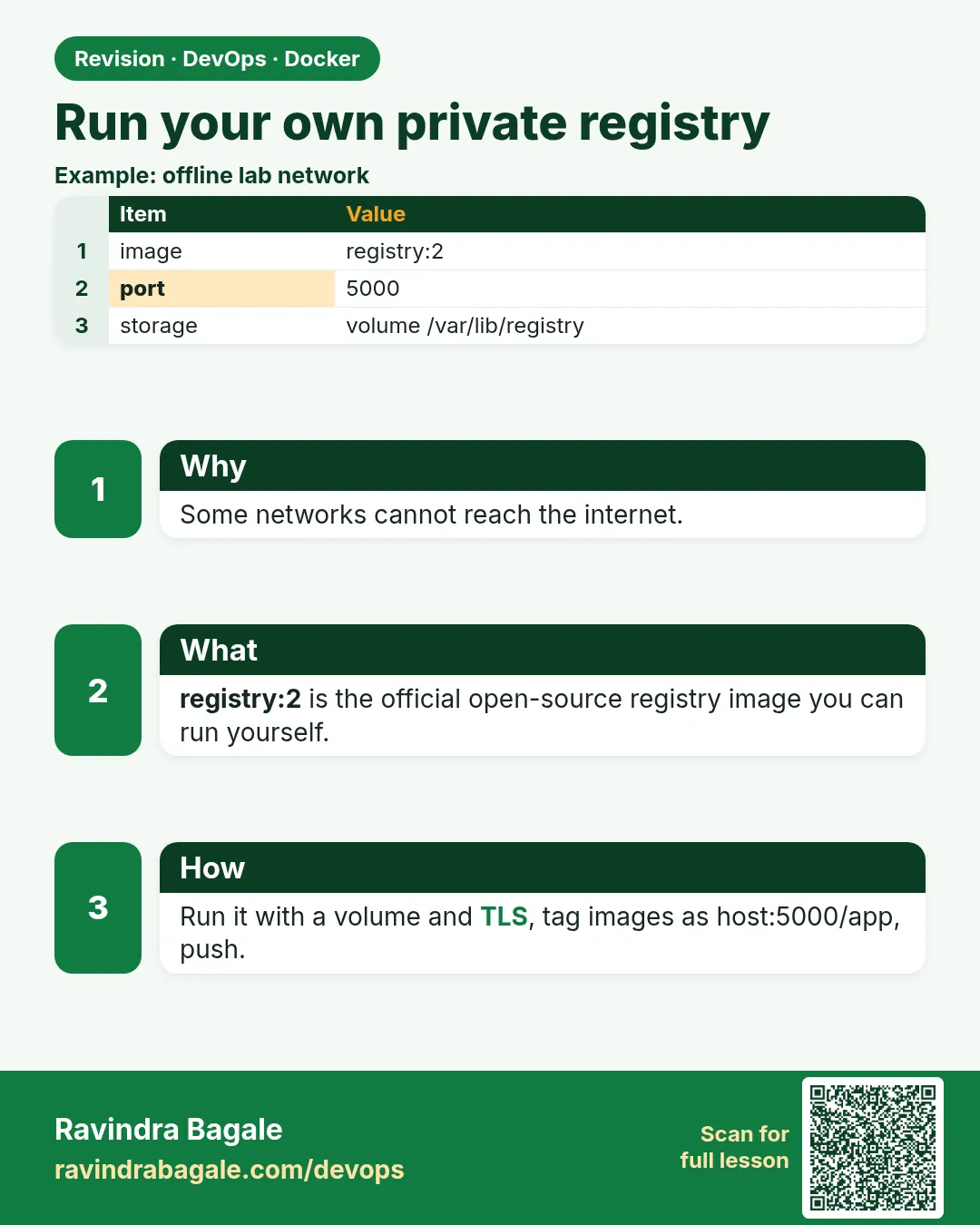 Revision card
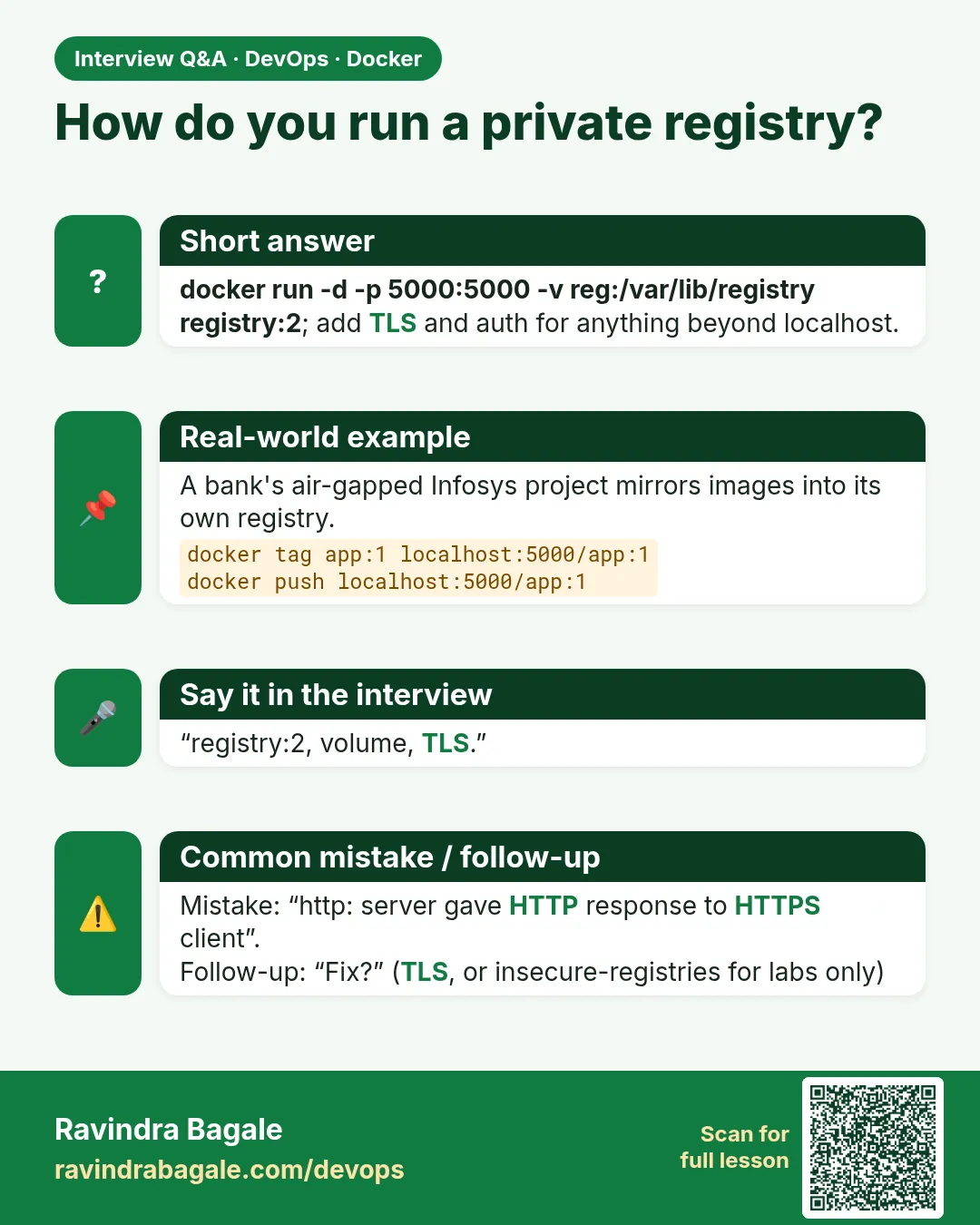 Interview card