48.8 Make images small and fast
Chala mitrano! A big image means slow pulls, slow deploys, more storage cost and more security problems. Today we bring a 1.1 GB image down to about 60 MB, one step at a time, measuring the size at every step.
चला मित्रांनो! मोठी image म्हणजे slow pull, slow deploy, जास्त storage खर्च आणि जास्त security problems. आज 1.1 GB ची image 60 MB पर्यंत आणू, एक एक step ने, प्रत्येक step ला size मोजू.
चलो दोस्तों! बड़ी image मतलब slow pull, slow deploy, ज़्यादा storage खर्च और ज़्यादा security problems. आज 1.1 GB की image को 60 MB तक लाएँगे, एक-एक step में, हर step पर size नापेंगे.
1. Why size matters
Amit runs a food delivery app in Pune on Kubernetes. On a busy Friday evening, autoscaling adds 20 new pods. Each node must pull his 1.1 GB Node.js image first. New pods take almost two minutes to start, and orders fail meanwhile.
A small image pulls in seconds, uses less registry storage and has fewer packages, so fewer security warnings. Builds are faster too when the cache is used well.
We will take one real Node.js app and shrink it step by step. After every step we check the size with docker image ls, so you can see what each trick is worth.
2. Measure first
Step 1: Measure the starting image
Why: You cannot improve what you do not measure.
What: Build the simple Dockerfile and look at its size and history.
Example 1: The simple Dockerfile
Type this:
printf 'FROM node:20\nWORKDIR /app\nCOPY . .\nRUN npm install\nCMD ["node","server.js"]\n' > Dockerfile
docker build -q -t food:v1 .
You will see:
sha256:1c2d...
What it means: A typical first Dockerfile.
Example 2: Check the size
Type this:
docker image ls food --format '{{.Tag}} {{.Size}}'
You will see:
v1 1.12GB
What it means: Over a gigabyte for a small API.
Example 3: Find the big layers
Type this:
docker history food:v1 --format '{{.Size}}\t{{.CreatedBy}}' | head -4
You will see:
214MB   RUN npm install
2.1MB   COPY . .
0B  WORKDIR /app
...
What it means: npm install with dev packages is 214 MB; the base is the rest.
Step 2: Look inside with dive
Why: history shows layers, but not which files are wasted.
What: dive is a free tool that shows every file per layer and a waste score.
Example 4: Run dive in CI mode
Type this:
docker run --rm -v /var/run/docker.sock:/var/run/docker.sock wagoodman/dive:v0.12 food:v1 --ci
You will see:
efficiency: 91.2 %
wastedBytes: 98 MB
Result:PASS
What it means: 98 MB of files are wasted, such as copied then changed files.
Example 5: Look at the base
Type this:
docker image ls node --format '{{.Tag}} {{.Size}}'
You will see:
20 1.1GB
What it means: The base alone is the biggest part.
Example 6: Count packages in the base
Type this:
docker run --rm node:20 sh -c 'dpkg -l | wc -l'
You will see:
465
What it means: Compilers, git and more that the app never uses.
3. Shrink step by step
Step 3: Pick a slim base
Why: The full node image contains build tools for every case.
What: Use the -slim (Debian minimal) or -alpine (musl based, very small) variant.
Example 7: Compare bases
Type this:
docker pull -q node:20-slim && docker pull -q node:20-alpine
docker image ls node --format '{{.Tag}} {{.Size}}'
You will see:
20-alpine 135MB
20-slim 220MB
20 1.1GB
What it means: Same Node version, very different size.
Example 8: Rebuild on slim
Type this:
sed -i 's/FROM node:20/FROM node:20-slim/' Dockerfile && docker build -q -t food:v2 .
docker image ls food:v2 --format '{{.Size}}'
You will see:
442MB
What it means: Already less than half.
Example 9: Test it still works
Type this:
docker run -d --rm -p 3000:3000 --name t food:v2 && sleep 1 && curl -s localhost:3000/health; docker stop t
You will see:
{"status":"ok"}
t
What it means: Always test after every change.
Step 4: Add a .dockerignore
Why: COPY . . also sends node_modules, .git, logs and test data into the image.
What: .dockerignore lists files the build must skip. It makes the build context and the image smaller.
Example 10: See the context size
Type this:
docker build --no-cache -t food:v2 . 2>&1 | grep 'transferring context'
You will see:
=> => transferring context: 312.45MB
What it means: 312 MB sent before building even starts.
Example 11: Write .dockerignore
Type this:
printf 'node_modules\n.git\n*.log\ncoverage\n.env\nDockerfile\n' > .dockerignore
docker build --no-cache -t food:v3 . 2>&1 | grep 'transferring context'
You will see:
=> => transferring context: 1.84MB
What it means: From 312 MB down to under 2 MB. .env is skipped too, so secrets do not leak into the image.
Example 12: Size now
Type this:
docker image ls food:v3 --format '{{.Size}}'
You will see:
418MB
What it means: Smaller and safer.
Step 5: Install only production packages
Why: Test tools like jest and eslint are not needed at runtime.
What: npm ci installs exactly from package-lock.json. --omit=dev skips devDependencies.
Example 13: Change the install line
Type this:
sed -i 's/RUN npm install/RUN npm ci --omit=dev/' Dockerfile && docker build -q -t food:v4 .
You will see:
sha256:7e8f...
What it means: Repeatable and lean.
Example 14: Size now
Type this:
docker image ls food:v4 --format '{{.Size}}'
You will see:
296MB
What it means: 122 MB of dev tools gone.
Example 15: Clean npm cache in the same layer
Type this:
sed -i 's/RUN npm ci --omit=dev/RUN npm ci --omit=dev \&\& npm cache clean --force/' Dockerfile && docker build -q -t food:v5 .
docker image ls food:v5 --format '{{.Size}}'
You will see:
248MB
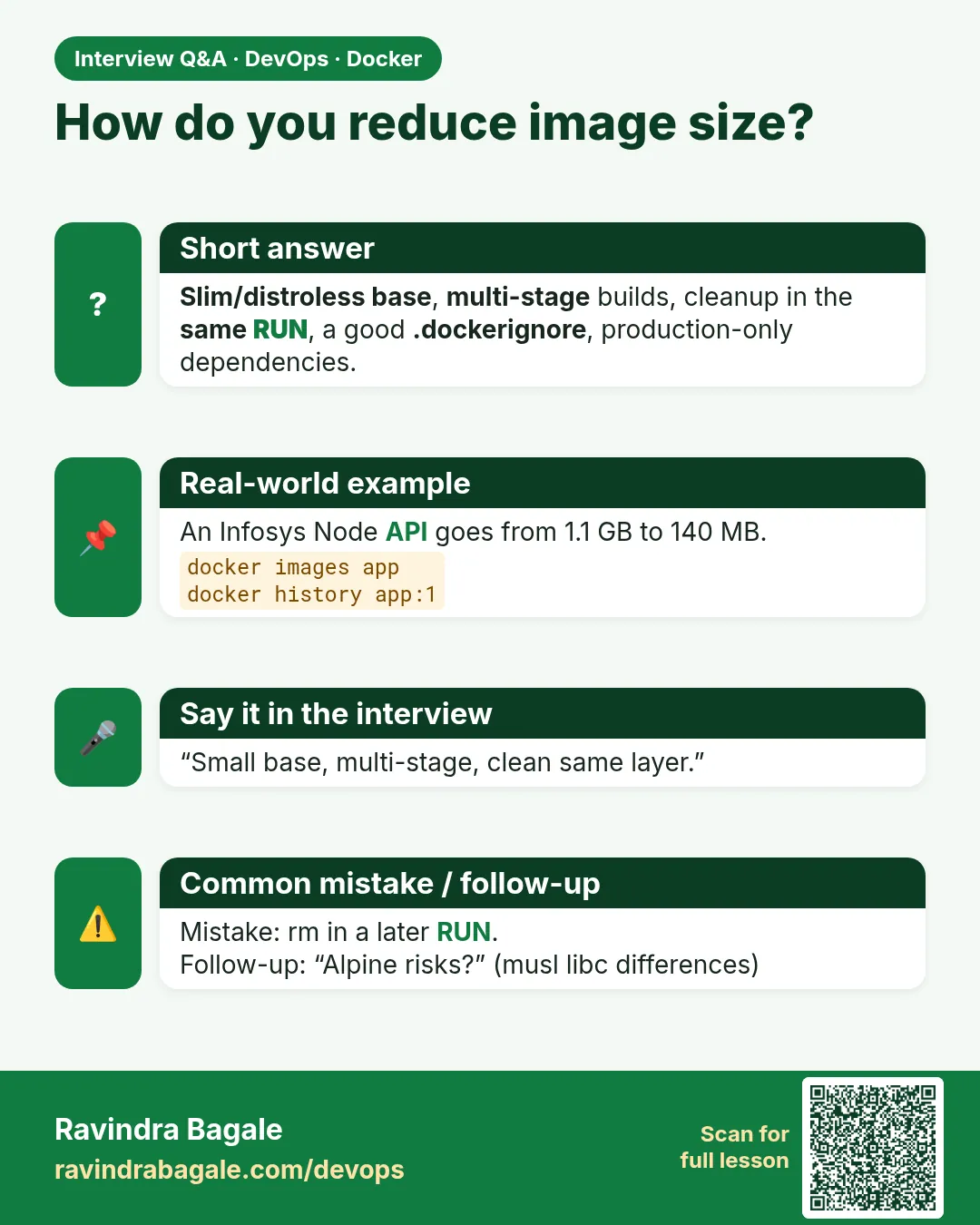
What it means: Clean up in the same RUN, or the cache stays in the earlier layer.
Step 6: Order layers for the cache
Why: Every code change reinstalls all packages, so each build takes 90 seconds.
What: Copy package files first and install, then copy the code. Docker reuses the install layer when only code changes.
Example 16: Better order
Type this:
printf 'FROM node:20-slim\nWORKDIR /app\nCOPY package.json package-lock.json ./\nRUN npm ci --omit=dev \&\& npm cache clean --force\nCOPY . .\nCMD ["node","server.js"]\n' > Dockerfile
docker build -q -t food:v6 .
You will see:
sha256:9a0b...
What it means: Install before code.
Example 17: Change only code and rebuild
Type this:
printf '// tweak\n' >> server.js && time docker build -q -t food:v6 .
You will see:
real 0m2.1s
What it means: CACHED install; only the COPY ran.
Example 18: Proof
Type this:
docker build -t food:v6 . 2>&1 | grep -E 'CACHED.*npm'
You will see:
=> CACHED [3/5] RUN npm ci --omit=dev
What it means: Fast builds every day.
Step 7: Speed up installs with a cache mount
Why: Layer order helps, but when package.json changes, npm downloads every package again from the internet.
What: BuildKit can keep a cache folder between builds with RUN --mount=type=cache. The cache is not stored in the image, so size does not grow.
Example 19: Use the mount
Type this:
sed -i 's#RUN npm ci --omit=dev \&\& npm cache clean --force#RUN --mount=type=cache,target=/root/.npm npm ci --omit=dev#' Dockerfile
grep mount Dockerfile
You will see:
RUN --mount=type=cache,target=/root/.npm npm ci --omit=dev
What it means: No need to clean the cache now, because it never enters the layer.
Example 20: Add one package and rebuild
Type this:
npm install --package-lock-only dayjs && time docker build -q -t food:v6b .
You will see:
real 0m9.7s
What it means: Only dayjs was downloaded; the rest came from the cache. Without the mount this took 48 seconds.
Example 21: Size did not grow
Type this:
docker image ls food:v6b --format '{{.Size}}'
You will see:
249MB
What it means: The cache lives in BuildKit, not in the image.
Step 8: Use a multi-stage build
Why: Some apps need build tools, like TypeScript or native modules, but the final image should not carry them.
What: Build in one stage, then copy only the result into a small final stage.
Example 22: Two stages
Type this:
printf 'FROM node:20 AS build\nWORKDIR /app\nCOPY package*.json ./\nRUN npm ci\nCOPY . .\nRUN npm run build \&\& npm prune --omit=dev\n\nFROM node:20-alpine\nWORKDIR /app\nCOPY --from=build /app/node_modules ./node_modules\nCOPY --from=build /app/dist ./dist\nUSER node\nCMD ["node","dist/server.js"]\n' > Dockerfile
docker build -q -t food:v7 .
You will see:
sha256:b1c2...
What it means: Compile with full tools, ship only dist and runtime modules.
Example 23: Size now
Type this:
docker image ls food:v7 --format '{{.Size}}'
You will see:
148MB
What it means: No compilers, no TypeScript, no source.
Example 24: Runs as non-root
Type this:
docker run --rm food:v7 id
You will see:
uid=1000(node) gid=1000(node) groups=1000(node)
What it means: USER node: safer and free.
Step 9: Go distroless
Why: Even alpine has a shell and a package manager the app does not need.
What: Distroless images contain only the runtime. No shell means attackers have fewer tools.
Example 25: Change the final stage
Type this:
sed -i 's#FROM node:20-alpine#FROM gcr.io/distroless/nodejs20-debian12:nonroot#; s#CMD \["node","dist/server.js"\]#CMD ["dist/server.js"]#; /^USER node/d' Dockerfile
docker build -q -t food:v8 .
You will see:
sha256:c3d4...
What it means: The image runs node itself, so CMD is just the script.
Example 26: Size now
Type this:
docker image ls food:v8 --format '{{.Size}}'
You will see:
131MB
What it means: Smaller and with far fewer packages.
Example 27: No shell inside
Type this:
docker run --rm --entrypoint sh food:v8
You will see:
docker: Error response: exec: "sh": executable file not found in $PATH
What it means: Expected. Debug with docker debug or a sidecar instead.
Step 10: Count the security win
Why: Small images are also safer, and you can prove it.
What: Scan the first and last versions with Trivy and compare.
Example 28: Scan v1
Type this:
docker run --rm -v /var/run/docker.sock:/var/run/docker.sock aquasec/trivy:0.56.2 image -q --severity HIGH,CRITICAL food:v1 | grep Total
You will see:
Total: 187 (HIGH: 161, CRITICAL: 26)
What it means: Most come from unused base packages.
Example 29: Scan v8
Type this:
docker run --rm -v /var/run/docker.sock:/var/run/docker.sock aquasec/trivy:0.56.2 image -q --severity HIGH,CRITICAL food:v8 | grep Total
You will see:
Total: 2 (HIGH: 2, CRITICAL: 0)
What it means: From 187 to 2.
Example 30: Pull time on a new node
Type this:
time docker pull registry.food.in/food:v8
You will see:
real 0m3.4s
What it means: v1 took 38 seconds on the same network.
Step 11: Squeeze RUN lines
Why: Each RUN that adds and later deletes files keeps the deleted files in the older layer.
What: Do install and cleanup in one RUN. For apt, skip recommended packages and delete lists.
Example 31: Bad way
Type this:
printf 'FROM debian:12-slim\nRUN apt-get update\nRUN apt-get install -y curl\nRUN rm -rf /var/lib/apt/lists/*\n' > Dockerfile.bad
docker build -q -f Dockerfile.bad -t apt:bad . && docker image ls apt:bad --format '{{.Size}}'
You will see:
117MB
What it means: The lists are still in layer 2.
Example 32: Good way
Type this:
printf 'FROM debian:12-slim\nRUN apt-get update \&\& apt-get install -y --no-install-recommends curl \&\& rm -rf /var/lib/apt/lists/*\n' > Dockerfile.good
docker build -q -f Dockerfile.good -t apt:good . && docker image ls apt:good --format '{{.Size}}'
You will see:
97MB
What it means: 20 MB saved with one line.
Example 33: Compare layers
Type this:
docker history apt:good --format '{{.Size}}' | head -1
You will see:
22.4MB
What it means: One clean layer.
Step 12: Track size in CI
Why: Images slowly grow again if nobody watches.
What: Fail the pipeline when the image passes a limit.
Example 34: Get size in bytes
Type this:
docker image inspect food:v8 --format '{{.Size}}'
You will see:
131204512
What it means: Exact number.
Example 35: A limit check
Type this:
SIZE=$(docker image inspect food:v8 --format '{{.Size}}'); [ "$SIZE" -lt 150000000 ] \&\& echo OK || echo TOO-BIG
You will see:
OK
What it means: Under 150 MB passes.
Example 36: Final table
Type this:
docker image ls food --format '{{.Tag}} {{.Size}}'
You will see:
v8 131MB
v7 148MB
v5 248MB
v4 296MB
v3 418MB
v2 442MB
v1 1.12GB
What it means: Each step paid off.
Ravindra Bagale's Tip
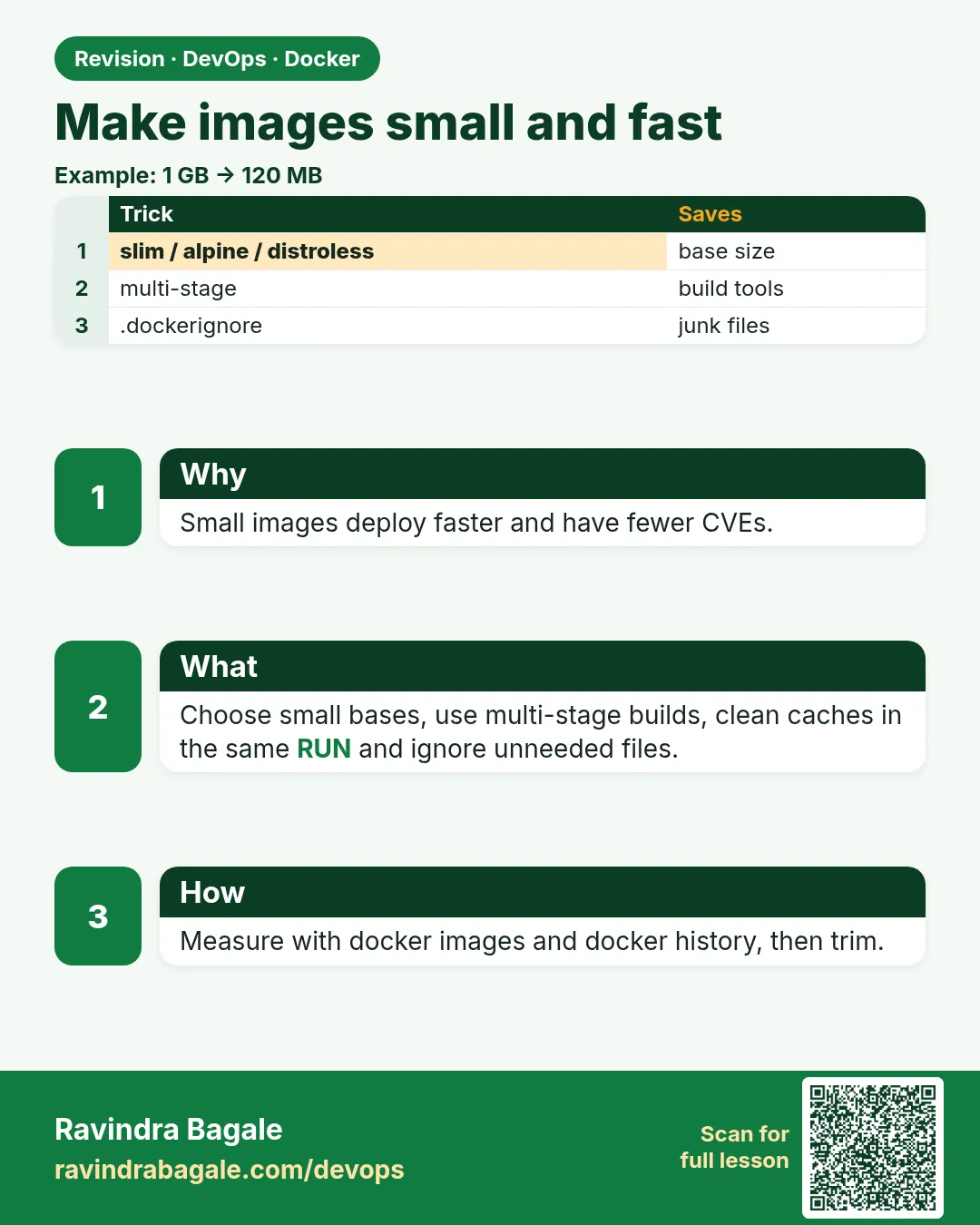
Measure the size first, then make one change and measure again. Go in this order: slim or alpine base, .dockerignore, --omit=dev, multi-stage, distroless.
आधी size मोजा, मग एक एक बदल करा आणि परत मोजा. slim/alpine base, .dockerignore, --omit=dev, multi-stage, distroless: या क्रमाने जा.
पहले size नापिए, फिर एक बदलाव कीजिए और फिर नापिए. इस क्रम में चलिए: slim/alpine base, .dockerignore, --omit=dev, multi-stage, distroless.
Check yourself
Q1. Why copy package files before the code?
So the install layer is cached when only code changes.
Q2. Why must cleanup be in the same RUN?
Deleted files stay in the earlier layer otherwise.
Q3. What does .dockerignore protect besides size?
Secrets like .env are kept out of the image.
Q4. What does a multi-stage build leave behind?
Build tools and source code.
Q5. Why is distroless safer?
No shell or package manager, and far fewer packages to patch.
Friends, from 1.1 GB to 131 MB, and from 187 vulnerabilities to 2. Did you understand? Let us try it once more. Now take your own project's image, follow these steps and make the table.
मित्रांनो, 1.1 GB वरून 131 MB, आणि 187 वरून 2 vulnerabilities. समजलं का? चला, पुन्हा एकदा करून पाहू. आता तुमच्या project ची image घेऊन हेच steps करा आणि table बनवा.
दोस्तों, 1.1 GB से 131 MB, और 187 से 2 vulnerabilities. समझ आया? चलिए, एक बार फिर करके देखते हैं। अब अपने project की image लेकर यही steps कीजिए और table बनाइए.
Lab: try at home
- Build your app as is and note the size.
- Switch to a slim base and add .dockerignore.
- Use npm ci --omit=dev and better layer order.
- Convert to multi-stage and then distroless.
- Scan first and last with Trivy and compare.
Recap
- Measure with image ls, history and dive.
- Slim bases and .dockerignore give quick wins.
- Install only production packages and order layers for cache.
- Multi-stage and distroless remove build tools and shells.
- Smaller images pull faster and have fewer vulnerabilities.
 Revision card
 Interview card