48.2 Image names, tags and digests
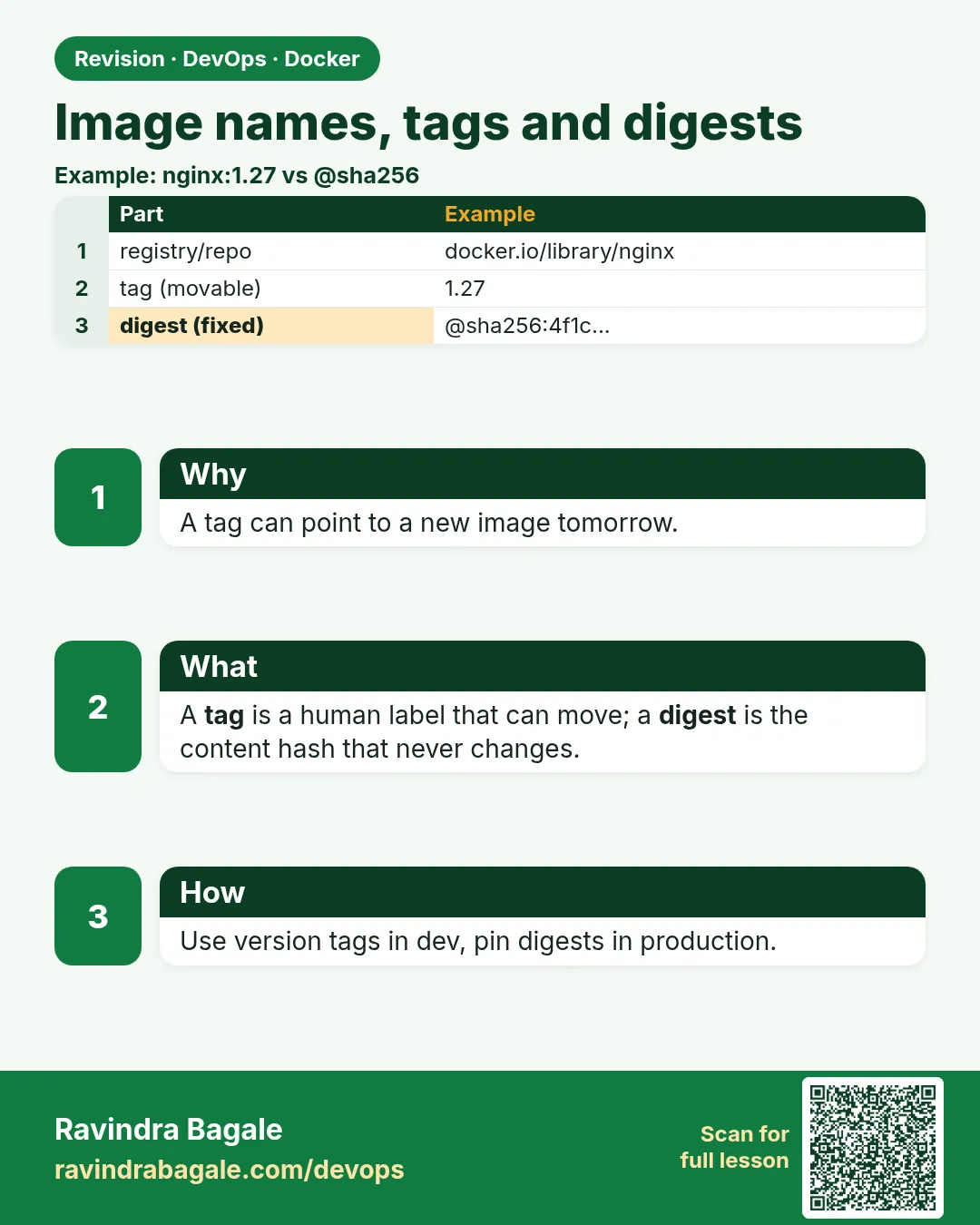
Chala mitrano! Are 'nginx', 'nginx:1.27', 'docker.io/library/nginx:1.27' and 'nginx@sha256:...' all names of the same image? Today we learn every part of an image name: registry, repository, tag and digest.
चला मित्रांनो! 'nginx', 'nginx:1.27', 'docker.io/library/nginx:1.27' आणि 'nginx@sha256:...' ही सगळी एकाच image ची नावं आहेत का? आज image च्या नावाचे सगळे भाग समजून घेऊ: registry, repository, tag आणि digest.
चलो दोस्तों! क्या 'nginx', 'nginx:1.27', 'docker.io/library/nginx:1.27' और 'nginx@sha256:...' सब एक ही image के नाम हैं? आज image के नाम के सारे हिस्से समझेंगे: registry, repository, tag और digest.
1. Start from a postal address
A parcel from Amazon reaches you because the address has parts: city, area, building and flat number. Miss one part, and the courier guesses, sometimes wrongly.
An image name also has parts: the registry (the city), the namespace or account (the area), the repository (the building) and the tag (the flat). When you type only nginx, Docker fills the rest with defaults.
A digest is different. It is like the parcel's unique tracking number. It points to exactly one image and can never be moved to another.
2. Names
Step 1: Short name and full name
Why: A Jenkins job failed at Wipro because it pulled from the wrong registry.
What: When you type nginx, Docker reads it as docker.io/library/nginx:latest. docker.io is Docker Hub, library holds official images, and latest is the default tag.
Example 1: Pull with the short name
Type this:
docker pull nginx
You will see:
Using default tag: latest
latest: Pulling from library/nginx
Status: Downloaded newer image for nginx:latest
docker.io/library/nginx:latest
What it means: The last line shows the full name Docker used.
Example 2: Pull with the full name
Type this:
docker pull docker.io/library/nginx:1.27
You will see:
1.27: Pulling from library/nginx
docker.io/library/nginx:1.27
What it means: Same registry, written out completely.
Example 3: A user image
Type this:
docker pull bitnami/redis:7.4
You will see:
7.4: Pulling from bitnami/redis
docker.io/bitnami/redis:7.4
What it means: bitnami is the namespace, the account that publishes it.
Step 2: Names for other registries
Why: Companies keep private images in ECR, GitHub's registry or Google's registry.
What: If the first part has a dot or a colon, Docker treats it as a registry address.
Example 4: Amazon ECR
Type this:
docker pull 111122223333.dkr.ecr.ap-south-1.amazonaws.com/shop-api:2.4
You will see:
2.4: Pulling from shop-api
What it means: The registry is the long ECR address. 111122223333 is a sample account number.
Example 5: Microsoft's registry
Type this:
docker pull mcr.microsoft.com/dotnet/aspnet:8.0
You will see:
8.0: Pulling from dotnet/aspnet
What it means: mcr.microsoft.com is the registry, dotnet/aspnet the repository.
Example 6: A local registry with a port
Type this:
docker pull localhost:5000/team/web:1.0
You will see:
1.0: Pulling from team/web
What it means: The colon and port show it is a registry. Lesson 48.5 builds one.
Step 3: Naming rules
Why: A bad name stops a build with a confusing error.
What: Repository names must be lowercase. Tags may have letters, numbers, dots, dashes and underscores, up to 128 characters.
Example 7: Uppercase fails
Type this:
docker build -t ShopApi:1.0 .
You will see:
ERROR: invalid tag "ShopApi:1.0": repository name must be lowercase
What it means: Use shop-api.
Example 8: A good name
Type this:
docker build -q -t shop-api:1.0 .
You will see:
sha256:7a1c...
What it means: Lowercase with a dash.
Example 9: A tag with a dot and dash
Type this:
docker tag shop-api:1.0 shop-api:1.0.3-rc1
docker images shop-api --format '{{.Tag}}'
You will see:
1.0.3-rc1
1.0
What it means: Both tags are valid.
3. Tags
Step 4: A tag is a movable label
Why: Teams get surprised when the same tag gives a different image next week.
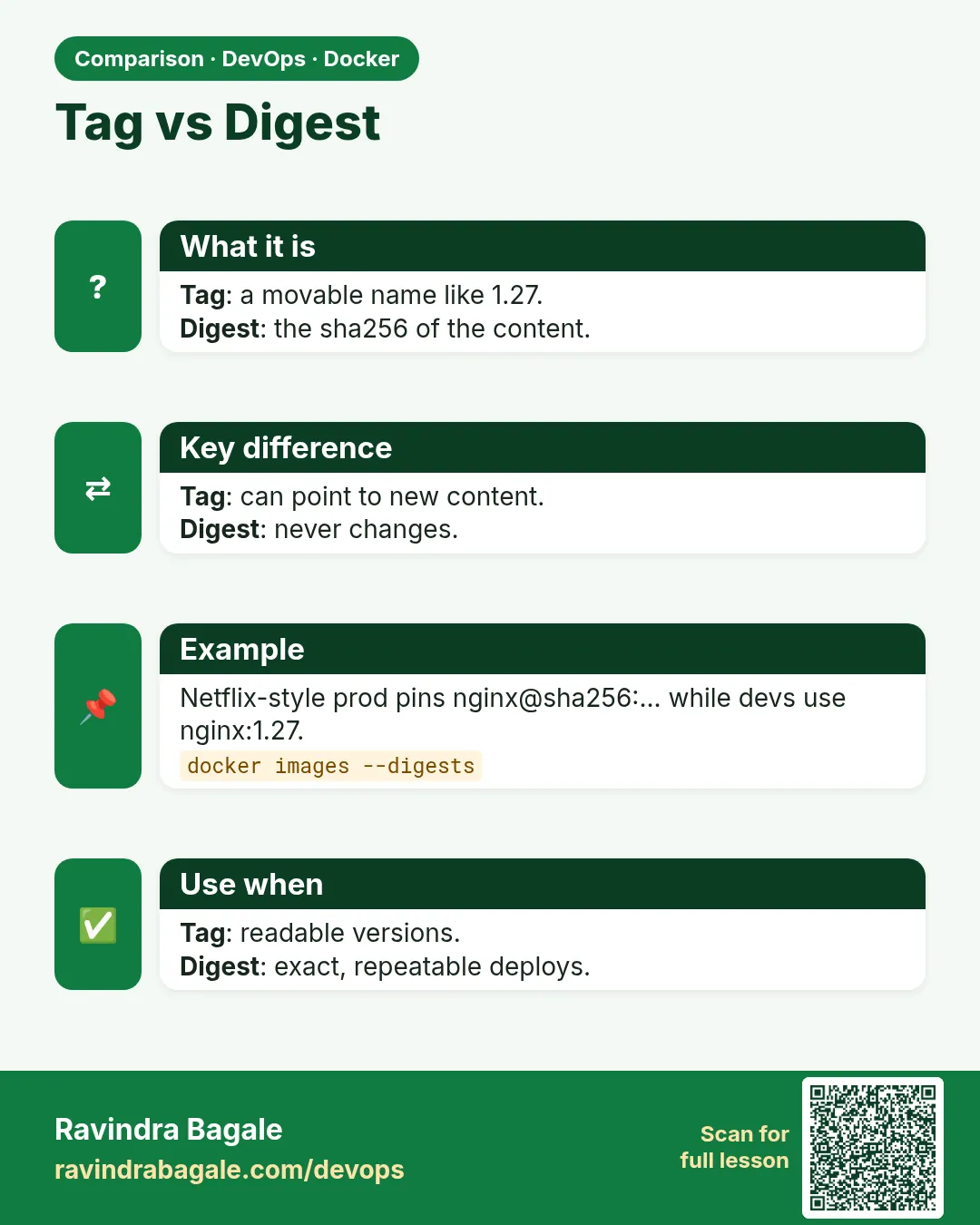
What: A tag points to an image, but the publisher can move it to a new image any time. latest moves most often.
Example 10: Check today
Type this:
docker image inspect nginx:latest --format '{{.Id}}' | cut -c1-19
You will see:
sha256:39286ab8a5e1
What it means: Today latest is this image.
Example 11: Two tags, one image
Type this:
docker image inspect nginx:1.27 --format '{{.Id}}' | cut -c1-19
You will see:
sha256:39286ab8a5e1
What it means: Right now 1.27 and latest point to the same image.
Example 12: Later
Type this:
docker pull nginx:latest
docker image inspect nginx:latest --format '{{.Id}}' | cut -c1-19
You will see:
Status: Downloaded newer image for nginx:latest
sha256:a5b1e47f3c90
What it means: Weeks later latest moved to a new release. Your server could suddenly run a different version.
Step 5: Why latest is risky
Why: At a fintech startup, a Monday deploy broke because latest pulled a new major version.
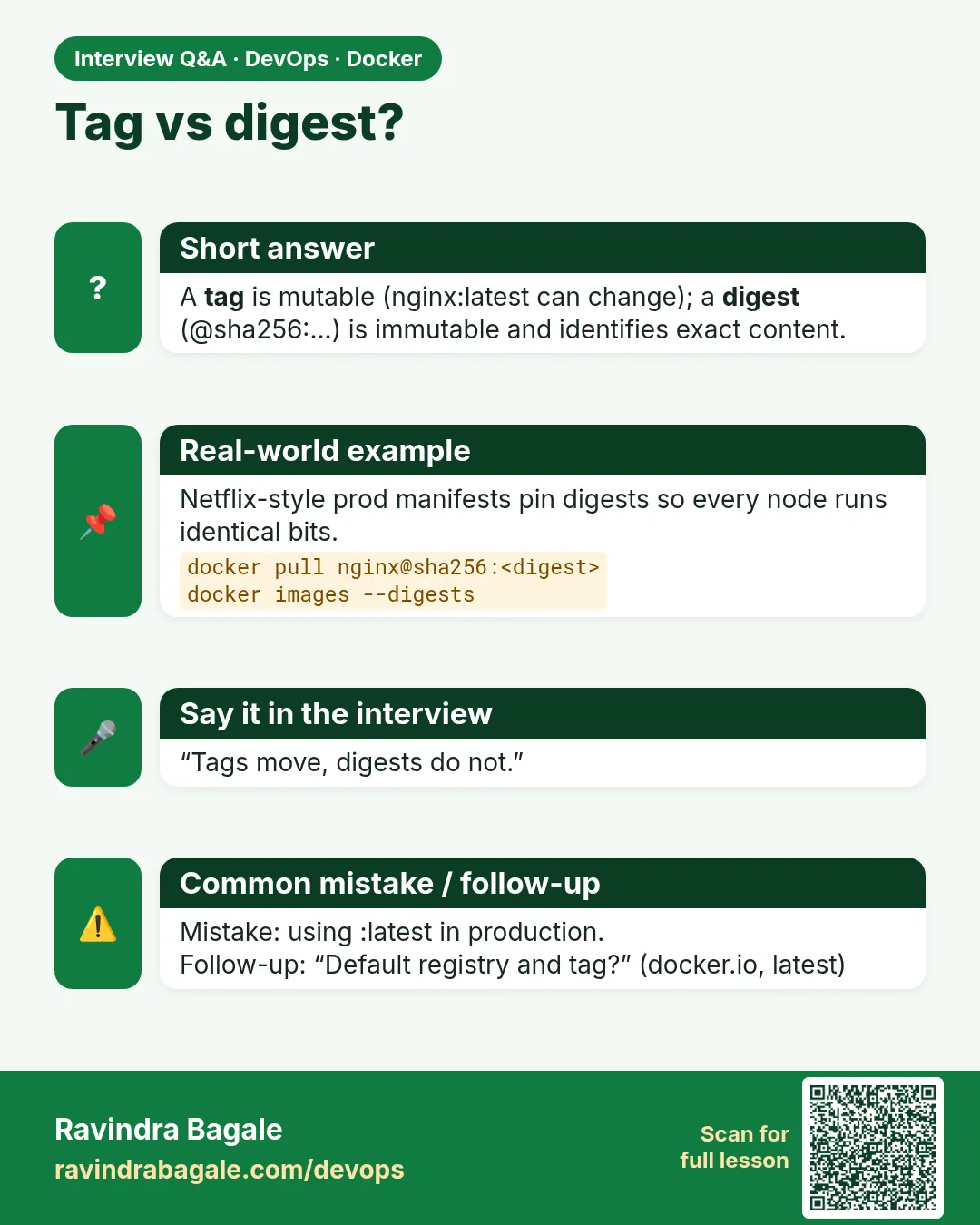
What: latest only means the last tag pushed without a name. It is not always the newest and never fixed. Use version tags in production.
Example 13: No tag means latest
Type this:
docker run -d --name n nginx
docker inspect n --format '{{.Config.Image}}'
You will see:
nginx
What it means: You cannot tell which version runs.
Example 14: Ask the container
Type this:
docker exec n nginx -v
docker rm -f n
You will see:
nginx version: nginx/1.27.2
n
What it means: You only find out by looking inside.
Example 15: Pin a version
Type this:
docker run -d --name n2 nginx:1.27.2
docker inspect n2 --format '{{.Config.Image}}'
docker rm -f n2
You will see:
nginx:1.27.2
n2
What it means: Now the name tells you.
Step 6: Good tag habits
Why: Teams at Swiggy tag every build so they can roll back.
What: Use the app version, the Git commit and sometimes the build number. Never reuse a version tag for different code.
Example 16: Tag with version and commit
Type this:
V=1.4.0; C=$(git rev-parse --short HEAD)
docker build -q -t shop-api:$V -t shop-api:$V-$C .
docker images shop-api --format '{{.Tag}}'
You will see:
1.4.0-3f9e2ab
1.4.0
What it means: One build, two tags.
Example 17: Add a moving tag for testers
Type this:
docker tag shop-api:1.4.0 shop-api:staging
docker images shop-api --format '{{.Tag}} {{.ID}}'
You will see:
staging 7a1c2b3d4e5f
1.4.0-3f9e2ab 7a1c2b3d4e5f
1.4.0 7a1c2b3d4e5f
What it means: staging is meant to move. Version tags are not.
Example 18: Remove one tag only
Type this:
docker rmi shop-api:staging
You will see:
Untagged: shop-api:staging
What it means: The image stays while other tags point to it.
4. Digests
Step 7: What a digest is
Why: Auditors at a bank need proof that prod runs exactly the tested image.
What: A digest is a sha256 hash of the image manifest. If even one byte changes, the digest changes.
Example 19: See the digest
Type this:
docker images --digests nginx
You will see:
REPOSITORY   TAG    DIGEST                    IMAGE ID
nginx        1.27   sha256:0d17b565c37bcb...  39286ab8a5e1
What it means: The DIGEST column.
Example 20: Shown on pull
Type this:
docker pull nginx:1.27 | grep Digest
You will see:
Digest: sha256:0d17b565c37bcb...
What it means: Every pull prints it.
Example 21: Read it in a script
Type this:
docker image inspect nginx:1.27 --format '{{index .RepoDigests 0}}'
You will see:
nginx@sha256:0d17b565c37bcb...
What it means: Name plus digest.
Step 8: Pull and run by digest
Why: You want staging and prod to run byte-for-byte the same image.
What: Use name@sha256:... instead of name:tag.
Example 22: Pull by digest
Type this:
docker pull nginx@sha256:0d17b565c37bcb...
You will see:
docker.io/library/nginx@sha256:0d17b565c37bcb...
What it means: Exactly that image, even if the tag moved.
Example 23: Use it in Compose
Type this:
printf 'services:\n  web:\n    image: nginx:1.27@sha256:0d17b565c37bcb...\n' > compose.yaml
docker compose config | grep image
You will see:
image: nginx:1.27@sha256:0d17b565c37bcb...
What it means: Tag for people to read, digest for Docker to trust.
Example 24: Use it in a Dockerfile
Type this:
printf 'FROM node:20-slim@sha256:4c6d...\n' | head -1
You will see:
FROM node:20-slim@sha256:4c6d...
What it means: Builds always start from the same base.
Step 9: Image ID versus digest
Why: Learners confuse the two long numbers.
What: The image ID is the hash of the local config. The digest is the hash of the manifest in a registry. A locally built image has an ID but no digest until you push it.
Example 25: Before push
Type this:
docker build -q -t ravibagale/hello:1 .
docker images --digests ravibagale/hello
You will see:
REPOSITORY         TAG  DIGEST   IMAGE ID
ravibagale/hello   1    <none>   9c2e1a3b4d5f
What it means: No digest yet.
Example 26: After push
Type this:
docker push ravibagale/hello:1 | tail -1
You will see:
1: digest: sha256:b71f... size: 1570
What it means: The registry gave the digest.
Example 27: Now both
Type this:
docker images --digests ravibagale/hello --format '{{.Digest}} {{.ID}}'
You will see:
sha256:b71f... 9c2e1a3b4d5f
What it means: Two different numbers for two different jobs.
Step 10: Check a remote image without pulling
Why: Before a big pull on a slow link, check what a tag points to.
What: docker buildx imagetools inspect reads the manifest from the registry only.
Example 28: Inspect remotely
Type this:
docker buildx imagetools inspect nginx:1.27 | head -4
You will see:
Name:      docker.io/library/nginx:1.27
MediaType: application/vnd.oci.image.index.v1+json
Digest:    sha256:0d17b565c37bcb...
What it means: The digest without downloading layers.
Example 29: See platforms
Type this:
docker buildx imagetools inspect nginx:1.27 | grep Platform | head -3
You will see:
Platform:  linux/amd64
Platform:  linux/arm/v5
Platform:  linux/arm64/v8
What it means: One tag, many platforms. Lesson 48.7 explains.
Example 30: Compare to a local copy
Type this:
docker image inspect nginx:1.27 --format '{{index .RepoDigests 0}}'
You will see:
nginx@sha256:0d17b565c37bcb...
What it means: Same digest, so your copy is current.
Step 11: Find which tags exist
Why: Before you pin a version, you need to know which versions are published.
What: Docker Hub has a public web API that lists tags. curl fetches it and jq picks the names. Read-only, no login needed for public images.
Example 31: List recent nginx tags
Type this:
curl -s 'https://hub.docker.com/v2/repositories/library/nginx/tags?page_size=5' | jq -r '.results[].name'
You will see:
1.27.2
1.27
mainline
latest
1.27.2-alpine
What it means: The newest five tags. Pick a full version like 1.27.2.
Example 32: Only alpine tags
Type this:
curl -s 'https://hub.docker.com/v2/repositories/library/nginx/tags?page_size=100&name=alpine' | jq -r '.results[].name' | head -3
You will see:
1.27.2-alpine
1.27-alpine
alpine
What it means: The name filter narrows the list.
Example 33: Tags in your private ECR
Type this:
aws ecr list-images --repository-name shop-api --query 'imageIds[].imageTag' --output text
You will see:
2.4 2.3 2.2
What it means: For ECR, the AWS CLI lists tags.
Step 12: One image, names in many registries
Why: A Zerodha team keeps a copy in Docker Hub for partners and in ECR for its own servers.
What: docker tag can give the same image a name for each registry. Then push each name.
Example 34: Add two registry names
Type this:
docker tag shop-api:1.4.0 ravibagale/shop-api:1.4.0
docker tag shop-api:1.4.0 111122223333.dkr.ecr.ap-south-1.amazonaws.com/shop-api:1.4.0
You will see:
(no output)
What it means: Three names, one image ID.
Example 35: Check
Type this:
docker images --format '{{.Repository}}:{{.Tag}} {{.ID}}' | grep 1.4.0
You will see:
shop-api:1.4.0 7a1c2b3d4e5f
ravibagale/shop-api:1.4.0 7a1c2b3d4e5f
111122223333.dkr.ecr.ap-south-1.amazonaws.com/shop-api:1.4.0 7a1c2b3d4e5f
What it means: Same ID on every line.
Example 36: Push both
Type this:
docker push ravibagale/shop-api:1.4.0 | tail -1
docker push 111122223333.dkr.ecr.ap-south-1.amazonaws.com/shop-api:1.4.0 | tail -1
You will see:
1.4.0: digest: sha256:b71f... size: 1570
1.4.0: digest: sha256:b71f... size: 1570
What it means: Same digest in both registries, because the content is the same.
Ravindra Bagale's Tip
Never use :latest in production. Use a version tag, and pin the digest for audits. Tags are for people, digests are for Docker.
Production मध्ये कधीही :latest नको. Version tag वापरा, आणि audit साठी digest pin करा. Tag माणसांसाठी, digest Docker साठी.
Production में कभी :latest नहीं. Version tag इस्तेमाल कीजिए, और audit के लिए digest pin कीजिए. Tag इंसानों के लिए, digest Docker के लिए.
Check yourself
Q1. What does nginx expand to?
docker.io/library/nginx:latest.
Q2. Can a tag move to a different image?
Yes. Tags are movable labels.
Q3. Can a digest change for the same content?
No. The same content always has the same digest.
Q4. Why does a fresh local build have no digest?
The digest comes from the registry manifest after push.
Q5. How do you see a remote digest without pulling?
docker buildx imagetools inspect.
Friends, a name is an address: registry, namespace, repository, tag. A tag can move, a digest never moves. Did you understand? Let us try it once more. If not, look at Pictures 1 and 2 again.
मित्रांनो, नाव म्हणजे पत्ता: registry, namespace, repository, tag. Tag हलतो, digest कधी हलत नाही. समजलं का? चला, पुन्हा एकदा करून पाहू. नसेल तर Picture 1 आणि 2 परत बघा.
दोस्तों, नाम मतलब पता: registry, namespace, repository, tag. Tag बदल सकता है, digest कभी नहीं. समझ आया? चलिए, एक बार फिर करके देखते हैं। नहीं तो Picture 1 और 2 फिर देखिए.
Lab: try at home
- Pull nginx and read the full name Docker prints.
- Compare the image IDs of nginx:latest and nginx:1.27.
- Build shop-api with a version tag and a commit tag.
- Pull nginx by digest and use it in compose.yaml.
- Check a remote digest with buildx imagetools inspect.
Recap
- Full name: registry/namespace/repository:tag.
- Short names default to docker.io/library and latest.
- Tags move; never use latest in production.
- Digests are fixed fingerprints.
- Image ID is local; digest comes from the registry.
 Revision card
 Interview card
 Comparison card