48.6 save, load, export and import: move images without a registry
Chala mitrano! With no registry, how do we move an image to another machine? By pen drive, scp or S3. Today we learn docker save, load, export and import, and the exact difference between them.
चला मित्रांनो! Registry नसेल तर image दुसऱ्या machine वर कशी न्यायची? Pen drive, scp किंवा S3 ने. आज docker save, load, export आणि import शिकू, आणि त्यातला फरक नक्की समजून घेऊ.
चलो दोस्तों! Registry न हो तो image दूसरी machine पर कैसे ले जाएँ? Pen drive, scp या S3 से. आज docker save, load, export और import सीखेंगे, और इनका फ़र्क पक्का समझेंगे.
1. Start from a server with no internet
A hospital in Nashik runs its patient system on a server that is not connected to the internet. The vendor must install a new version of the app, which is a Docker image. There is no registry the server can reach.
Docker can write an image into a single tar file. You carry that file on a USB drive, or copy it with scp, and load it on the other machine. That is docker save and docker load.
There is a second pair, docker export and docker import. They look similar but work on a container's files, not on an image with layers and settings. Mixing them up is a classic interview trap.
2. save and load
Step 1: docker save
Why: You need the exact image, with layers, tags and settings, on another machine.
What: docker save writes one or more images to a tar archive. -o names the file.
Example 1: Save one image
Type this:
docker pull nginx:1.27
docker save -o nginx-1.27.tar nginx:1.27
ls -lh nginx-1.27.tar
You will see:
-rw------- 1 ravi ravi 188M Oct 25 13:02 nginx-1.27.tar
What it means: The full image in one file.
Example 2: Save several images in one file
Type this:
docker save -o hospital-app.tar hospital/web:3.2 hospital/api:3.2 postgres:16
ls -lh hospital-app.tar
You will see:
-rw------- 1 ravi ravi 712M Oct 25 13:04 hospital-app.tar
What it means: Shared layers are stored only once inside the file.
Example 3: Compress it
Type this:
docker save hospital/web:3.2 | gzip > web-3.2.tar.gz
ls -lh web-3.2.tar.gz
You will see:
-rw-r--r-- 1 ravi ravi 61M Oct 25 13:05 web-3.2.tar.gz
What it means: Without -o, save writes to the pipe. gzip often makes it half the size or less.
Step 2: Move the file
Why: The file must reach the other machine safely and complete.
What: Use scp, rsync, S3 or a USB drive. Check a sha256 sum on both sides so you know nothing was damaged.
Example 4: Make a checksum
Type this:
sha256sum web-3.2.tar.gz > web-3.2.tar.gz.sha256
cat web-3.2.tar.gz.sha256
You will see:
9f2c4e... web-3.2.tar.gz
What it means: A fingerprint of the file.
Example 5: Copy with scp
Type this:
scp web-3.2.tar.gz web-3.2.tar.gz.sha256 ubuntu@10.0.5.20:/tmp/
You will see:
web-3.2.tar.gz 100% 61MB 48.2MB/s 00:01
What it means: Copied over SSH.
Example 6: Check on the other side
Type this:
cd /tmp && sha256sum -c web-3.2.tar.gz.sha256
You will see:
web-3.2.tar.gz: OK
What it means: OK means the file is identical.
Step 3: docker load
Why: Now the other machine needs the image back.
What: docker load reads a tar made by save and recreates the images with their tags. It understands gzip files too.
Example 7: Load a plain tar
Type this:
docker load -i nginx-1.27.tar
You will see:
Loaded image: nginx:1.27
What it means: Name and tag come back.
Example 8: Load a gzip file
Type this:
docker load -i /tmp/web-3.2.tar.gz
You will see:
a2abf6c4d29d: Loading layer  77.8MB/77.8MB
Loaded image: hospital/web:3.2
What it means: Layers load one by one.
Example 9: Run it
Type this:
docker run -d --name web -p 80:80 hospital/web:3.2
docker ps --format '{{.Names}} {{.Image}} {{.Status}}'
You will see:
web hospital/web:3.2 Up 2 seconds
What it means: Same image, no registry.
Step 4: Load straight over SSH
Why: For a quick move, you can skip the file on disk.
What: Pipe save on one machine into load on the other through ssh.
Example 10: One line
Type this:
docker save hospital/api:3.2 | gzip | ssh ubuntu@10.0.5.20 'gunzip | docker load'
You will see:
Loaded image: hospital/api:3.2
What it means: Nothing written to disk on either side.
Example 11: With a progress bar
Type this:
docker save hospital/api:3.2 | pv | ssh ubuntu@10.0.5.20 docker load
You will see:
 412MiB 0:00:09 [44.1MiB/s]
Loaded image: hospital/api:3.2
What it means: pv shows speed and size. Install it with apt-get install pv.
Example 12: Through a remote context
Type this:
docker save hospital/api:3.2 | docker --context hospital load
You will see:
Loaded image: hospital/api:3.2
What it means: Lesson 47.14 showed contexts; load works through them too.
Step 5: Check what is in a tar before loading
Why: A file from a vendor should be checked before you load it on a hospital server.
What: A save file is a normal tar. Read its index and list its tags without loading.
Example 13: List the files
Type this:
tar -tf hospital-app.tar | head -5
You will see:
blobs/
blobs/sha256/
blobs/sha256/0a1b...
index.json
manifest.json
What it means: Standard OCI layout.
Example 14: Read the tags
Type this:
tar -xOf hospital-app.tar manifest.json | jq -r '.[].RepoTags[]'
You will see:
hospital/web:3.2
hospital/api:3.2
postgres:16
What it means: Three images, as expected.
Example 15: Scan before loading
Type this:
docker run --rm -v $PWD:/x aquasec/trivy:0.56.2 image --input /x/hospital-app.tar --severity HIGH,CRITICAL -q | tail -3
You will see:
Total: 0 (HIGH: 0, CRITICAL: 0)
What it means: Trivy can scan a tar file directly.
3. export and import
Step 6: docker export
Why: Sometimes you want a container's files exactly as they are now, including changes made inside it.
What: docker export writes the file system of a container as one flat tar. It does not include volumes, layers or image settings.
Example 16: Change a container, then export
Type this:
docker run -d --name tmp nginx:1.27
docker exec tmp sh -c 'printf patched > /usr/share/nginx/html/index.html'
docker export -o tmp-fs.tar tmp
ls -lh tmp-fs.tar
You will see:
-rw------- 1 ravi ravi 186M Oct 25 13:20 tmp-fs.tar
What it means: The file includes our patched page.
Example 17: Look inside
Type this:
tar -tf tmp-fs.tar | grep 'html/index.html'
You will see:
usr/share/nginx/html/index.html
What it means: Just files and folders.
Example 18: No layers
Type this:
tar -tf tmp-fs.tar | grep -c manifest.json
You will see:
0
What it means: No manifest, so it is not an image archive.
Step 7: docker import
Why: You have a flat tar of files and want an image from it.
What: docker import makes a new image with a single layer. Because settings are lost, add them back with --change.
Example 19: Import without settings
Type this:
docker import tmp-fs.tar patched:1
docker run --rm -d --name p1 patched:1
You will see:
sha256:6e7f...
docker: Error response from daemon: no command specified
What it means: The CMD was lost.
Example 20: Import with settings
Type this:
docker import --change 'CMD ["nginx","-g","daemon off;"]' --change 'EXPOSE 80' tmp-fs.tar patched:2
docker run -d --name p2 -p 8090:80 patched:2
curl -s localhost:8090
You will see:
sha256:8a9b...
4c5d...
patched
What it means: Now it runs, with our patch.
Example 21: Only one layer
Type this:
docker history patched:2 --format '{{.Size}} {{.CreatedBy}}'
You will see:
186MB Imported from -
What it means: History is gone. You cannot see how it was built.
Step 8: save versus export side by side
Why: This question comes up in interviews at Accenture and Capgemini.
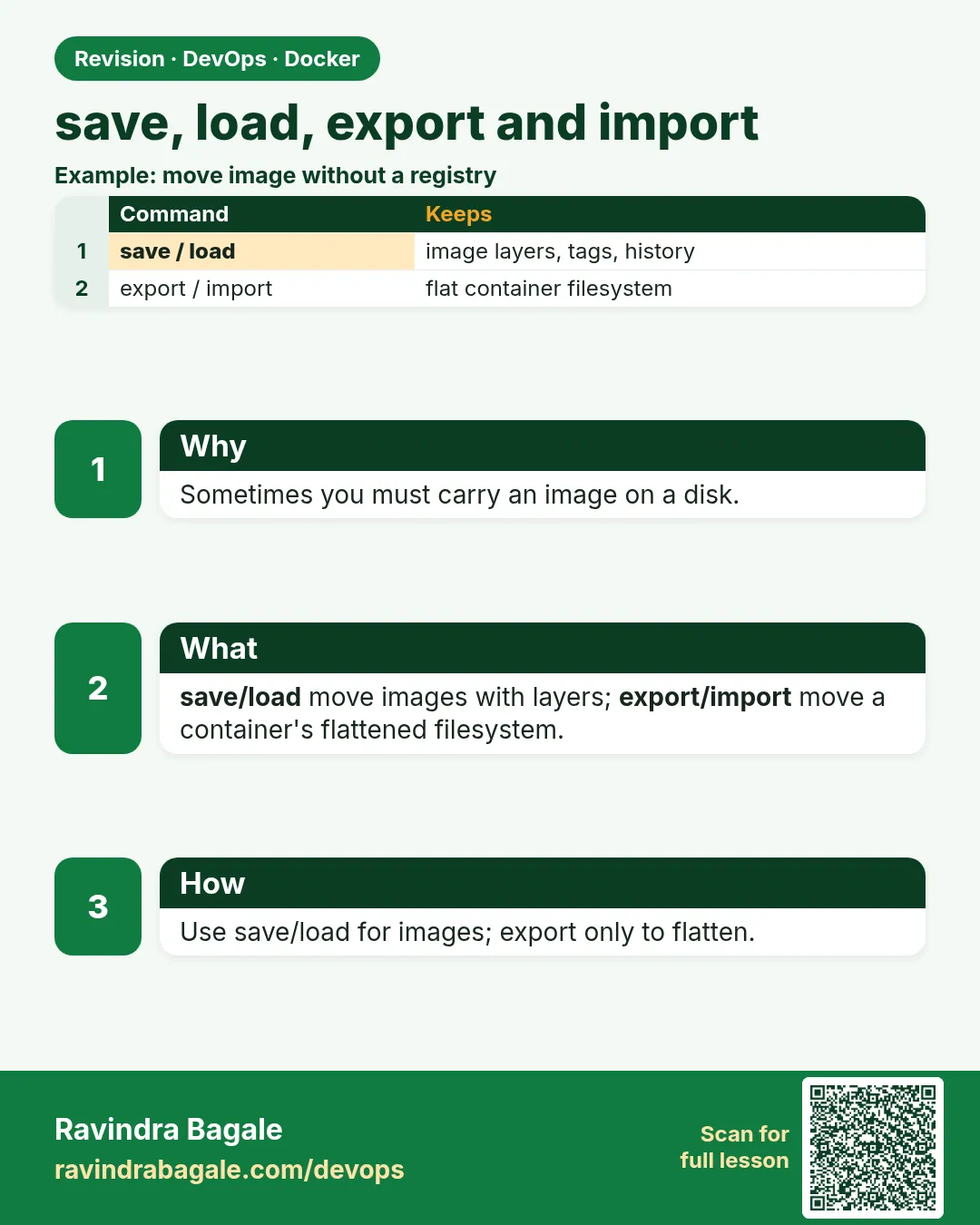
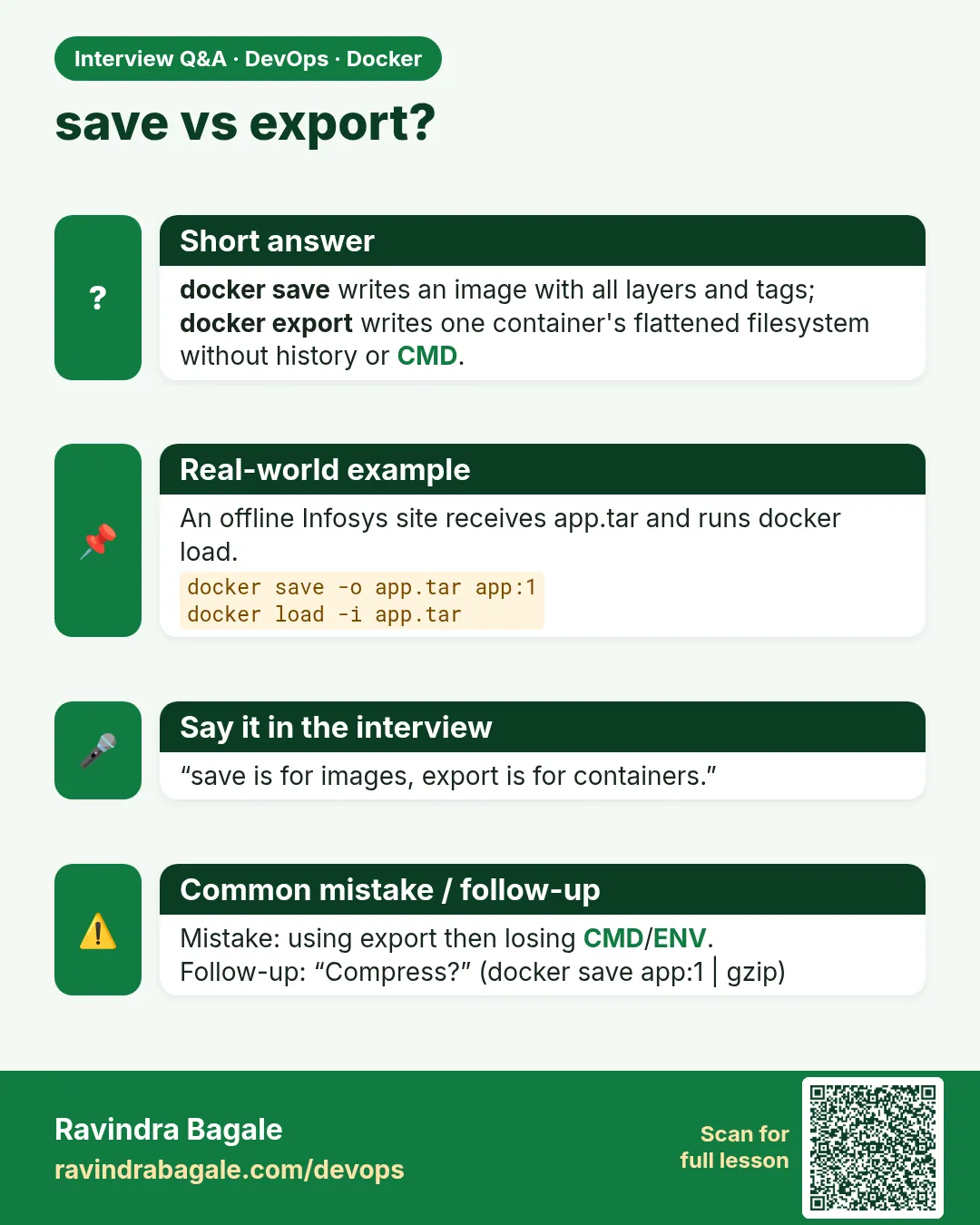
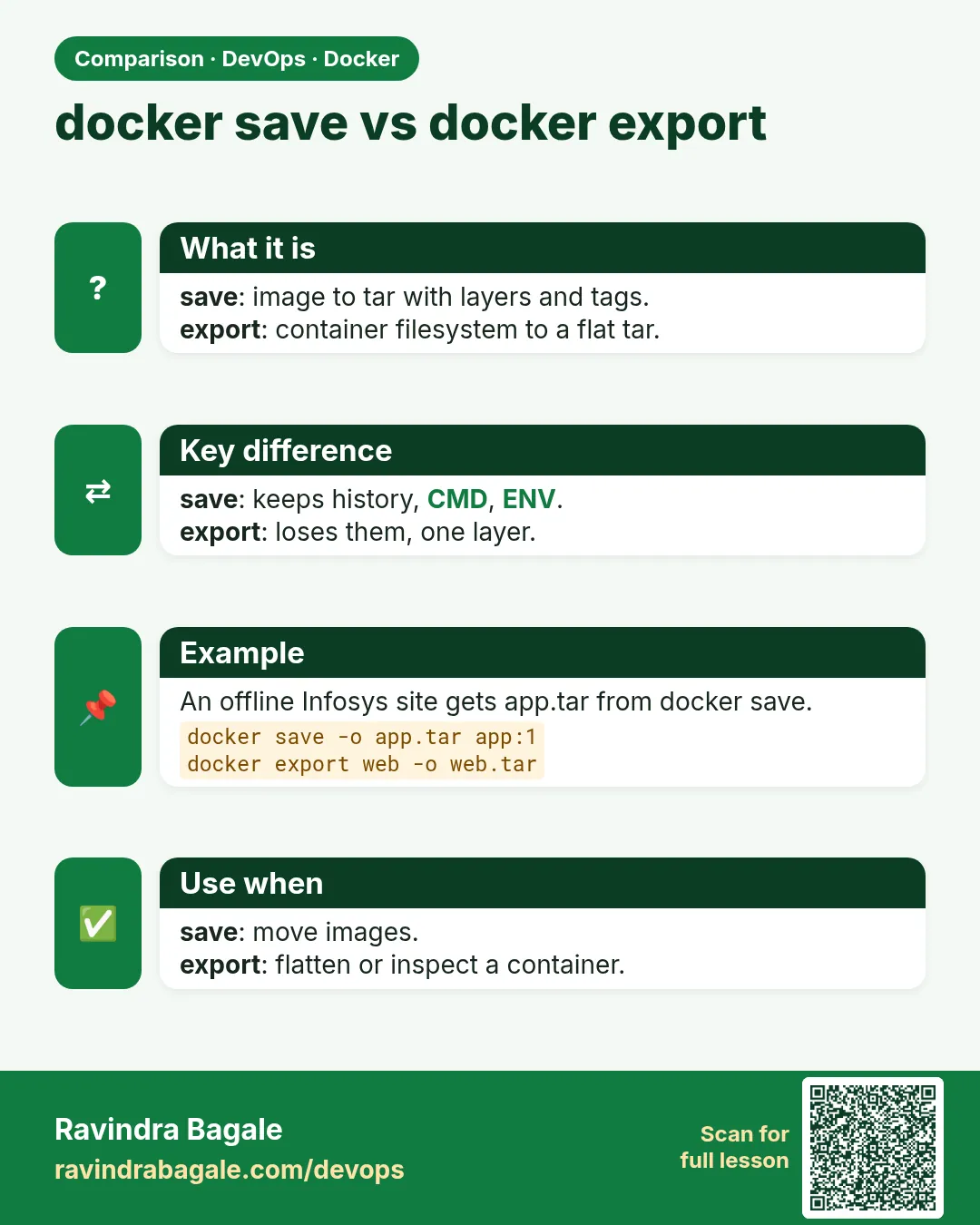
What: save works on images and keeps everything. export works on containers and flattens everything.
Example 22: Compare layer counts
Type this:
docker image inspect nginx:1.27 --format '{{len .RootFS.Layers}}'
docker image inspect patched:2 --format '{{len .RootFS.Layers}}'
You will see:
7
1
What it means: Seven layers versus one.
Example 23: Compare settings
Type this:
docker image inspect nginx:1.27 --format '{{.Config.Env}}' | cut -c1-40
docker image inspect patched:2 --format '{{.Config.Env}}'
You will see:
[PATH=/usr/local/sbin:/usr/local/bin:/u
[]
What it means: ENV is empty after import.
Example 24: The rule
Type this:
printf 'save/load: move images\nexport/import: flatten a container\n'
You will see:
save/load: move images
export/import: flatten a container
What it means: Use save and load almost always.
Step 9: Use docker commit carefully
Why: People export and import to keep changes made by hand. There is a cleaner way, but both are rare.
What: docker commit makes an image from a container, keeping layers and settings. Hand changes are not repeatable, so a Dockerfile is better for real work.
Example 25: Commit the patched container
Type this:
docker commit -m 'patch page' tmp patched:3
docker history patched:3 --format '{{.Size}} {{.Comment}}' | head -1
You will see:
2.1kB patch page
What it means: One small new layer on top of nginx.
Example 26: Settings kept
Type this:
docker run -d --name p3 -p 8091:80 patched:3
curl -s localhost:8091
You will see:
patched
What it means: CMD came from nginx.
Example 27: The better way
Type this:
printf 'FROM nginx:1.27\nRUN printf patched > /usr/share/nginx/html/index.html\n' > Dockerfile
docker build -q -t patched:4 .
You will see:
sha256:2b3c...
What it means: Same result, and the recipe is saved.
Step 10: A full offline update, step by step
Why: At the hospital, the update must be done the same way every time, by any engineer.
What: Write the steps into a small script. Save, compress, checksum on the vendor laptop; check, load, restart on the server.
Example 28: Vendor side
Type this:
printf 'set -e\ndocker save hospital/web:3.3 hospital/api:3.3 | gzip > release-3.3.tar.gz\nsha256sum release-3.3.tar.gz > release-3.3.sha256\n' > pack.sh
bash pack.sh && ls release-3.3*
You will see:
release-3.3.sha256
release-3.3.tar.gz
What it means: Two files go on the USB drive.
Example 29: Server side
Type this:
printf 'set -e\nsha256sum -c release-3.3.sha256\ndocker load -i release-3.3.tar.gz\ndocker compose up -d\n' > install.sh
bash install.sh
You will see:
release-3.3.tar.gz: OK
Loaded image: hospital/web:3.3
Loaded image: hospital/api:3.3
 ✔ Container hospital-web-1  Started
 ✔ Container hospital-api-1  Started
What it means: set -e stops the script if the checksum fails, so a broken file is never loaded.
Example 30: Keep the old version
Type this:
docker image ls hospital/web --format '{{.Tag}}'
You will see:
3.3
3.2
What it means: 3.2 is still there, so going back is just changing the tag in compose.yaml.
Step 11: Pick the right CPU type before saving
Why: The vendor laptop is a Mac with an ARM chip, but the hospital server is Intel. A saved image only holds what was pulled.
What: Pull or build for the server's platform first, then save. Check the architecture inside the image.
Example 31: Pull for Intel
Type this:
docker pull --platform linux/amd64 postgres:16
You will see:
16: Pulling from library/postgres
Status: Downloaded newer image for postgres:16
What it means: Fetched the amd64 variant even on an ARM laptop.
Example 32: Check before saving
Type this:
docker image inspect postgres:16 --format '{{.Os}}/{{.Architecture}}'
You will see:
linux/amd64
What it means: Correct for the server.
Example 33: What a wrong one looks like
Type this:
docker run --rm hospital/web:3.3-arm
You will see:
exec /usr/local/bin/app: exec format error
What it means: This error on the server means the image was built for another CPU. Lesson 48.7 covers multi-arch builds.
Step 12: Clean up
Why: Tar files and test images take space.
What: Remove containers, images and files.
Example 34: Containers
Type this:
docker rm -f tmp p2 p3 web
You will see:
tmp
p2
p3
web
What it means: Gone.
Example 35: Images
Type this:
docker rmi patched:1 patched:2 patched:3 patched:4
You will see:
Untagged: patched:1 ...
What it means: Gone.
Example 36: Files
Type this:
rm -f *.tar *.tar.gz *.sha256
ls *.tar 2>/dev/null | wc -l
You will see:
0
What it means: Disk is clean.
Ravindra Bagale's Tip
To move an image to another machine use save and load. export and import lose the layers, CMD and ENV. After moving the file, check it with sha256sum.
Image दुसऱ्या machine वर न्यायची असेल तर save आणि load. export/import ने layers, CMD, ENV सगळं हरवतं. File हलवल्यावर sha256sum ने तपासा.
Image दूसरी machine पर ले जानी हो तो save और load. export/import में layers, CMD, ENV सब खो जाते हैं. File ले जाने के बाद sha256sum से जाँचिए.
Check yourself
Q1. Which pair keeps layers and tags?
docker save and docker load.
Q2. What does docker export work on?
A container, not an image.
Q3. Why does an imported image often fail to start?
CMD and other settings are lost; add them with --change.
Q4. How do you know a copied tar is not damaged?
Compare sha256sum on both machines.
Q5. Can you load an image without writing a file?
Yes, pipe docker save into ssh and docker load.
Friends, save and load is a parcel of the image; export and import is a photocopy of the container. Interviews always ask this difference. Did you understand? Let us try it once more. If not, look at Pictures 1 and 2 again.
मित्रांनो, save-load म्हणजे image चं parcel, export-import म्हणजे container ची photocopy. Interview मध्ये हा फरक नक्की विचारला जातो. समजलं का? चला, पुन्हा एकदा करून पाहू. नसेल तर Picture 1 आणि 2 परत बघा.
दोस्तों, save-load मतलब image का parcel, export-import मतलब container की photocopy. Interview में यह फ़र्क ज़रूर पूछा जाता है. समझ आया? चलिए, एक बार फिर करके देखते हैं। नहीं तो Picture 1 और 2 फिर देखिए.
Lab: try at home
- Save nginx:1.27, copy it to a second VM with scp and check the sha256 sum.
- Load it and run it.
- Pipe save into ssh and load in one line.
- Export a changed container, import it, and fix the missing CMD.
- Compare layer counts of save versus import.
Recap
- save writes images to tar; load brings them back.
- Compress with gzip and check with sha256sum.
- export flattens a container's files.
- import makes a one-layer image without settings.
- Prefer Dockerfiles over commit for repeatable images.
 Revision card
 Interview card
 Comparison card