48.1 Images and layers: what is inside an image
Chala mitrano! What exactly is an image? Today we open the image box and look inside: layers, overlay2, the container's writable layer and the cache. Once this is clear, every later lesson becomes easy.
चला मित्रांनो! Image म्हणजे नक्की काय? आज image चा डबा उघडून आत बघू: layers, overlay2, container चा writable layer, आणि cache. एकदा हे समजलं की पुढचे सगळे lessons सोपे होतील.
चलो दोस्तों! Image असल में क्या है? आज image का डिब्बा खोलकर अंदर देखेंगे: layers, overlay2, container की writable layer, और cache. एक बार यह समझ आया तो आगे के सारे lessons आसान.
1. Start from a tiffin box
Think of a stacked tiffin box from a Mumbai dabbawala. The bottom box has rice, the next has dal, the top has sabzi. Each box is packed once and never changes. If two customers want the same rice, the kitchen does not cook it twice.
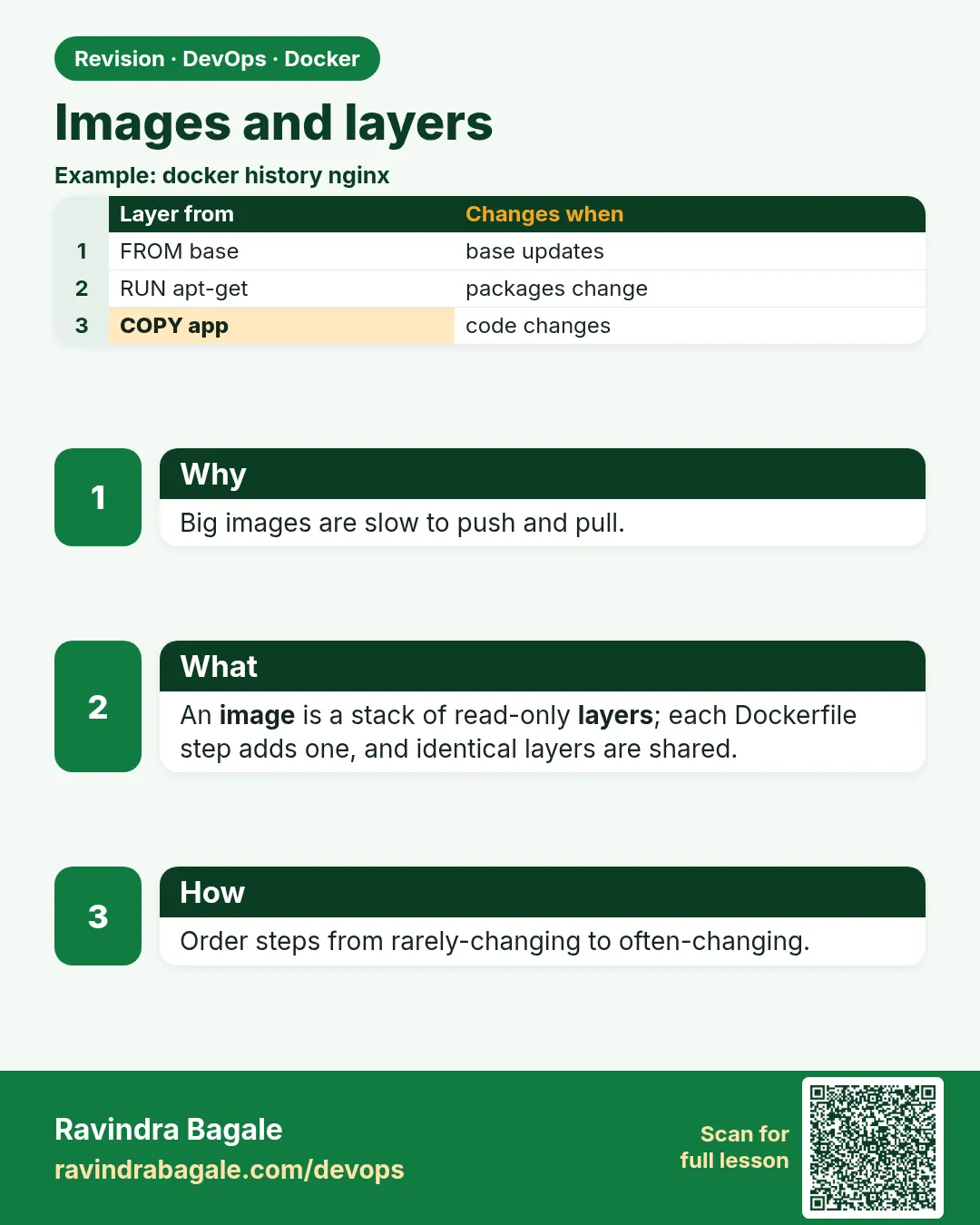
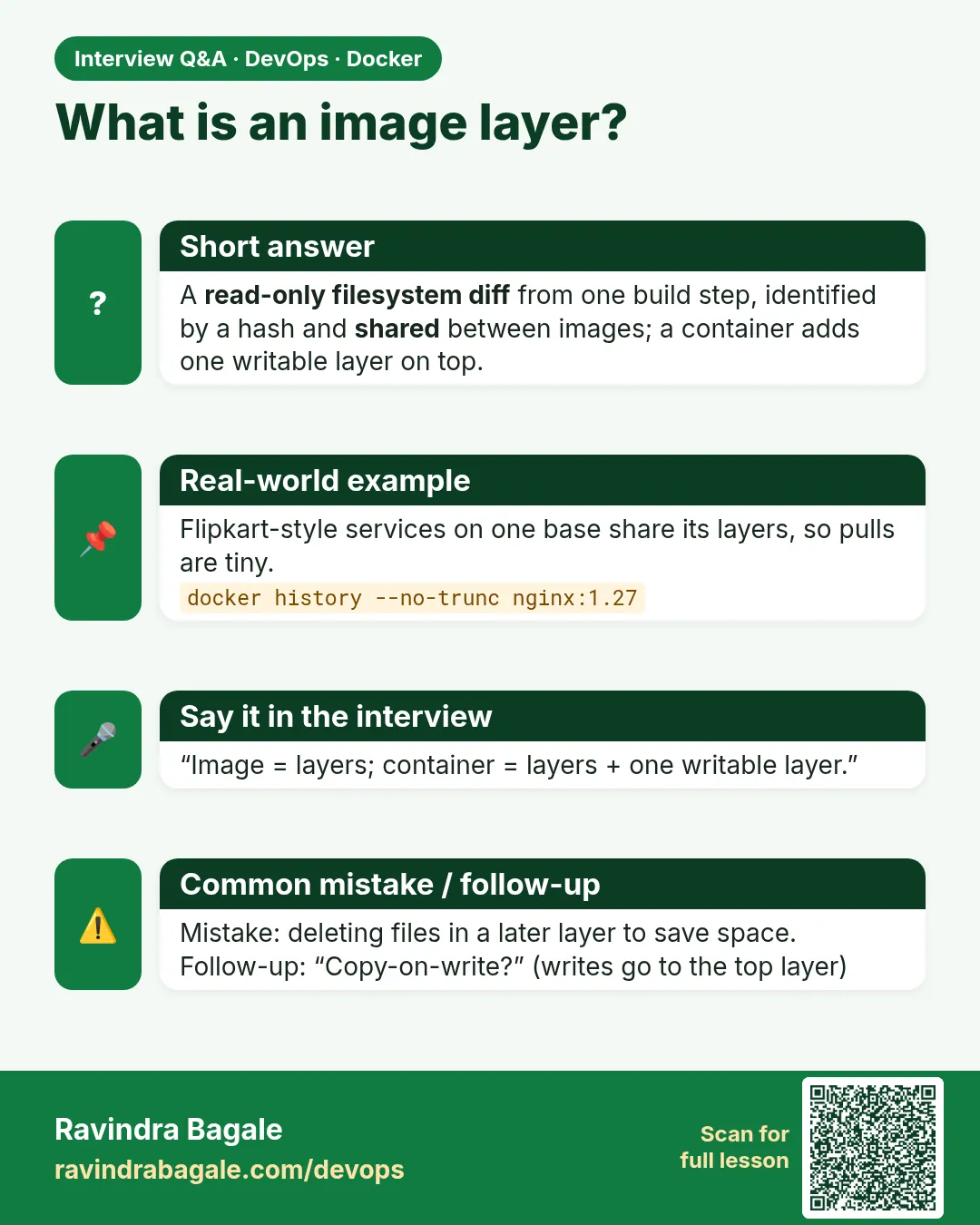
A Docker image works the same way. It is a stack of read-only layers. Each layer holds only the files that one step of the Dockerfile added or changed. Images that share a base, like nginx and your own app built on nginx, share those bottom layers on disk.
When you run a container, Docker puts one thin writable layer on top. Your container writes there. The image below never changes.
2. See the layers
Step 1: What an image is
Why: Interviewers at TCS often start with: what is a Docker image?
What: An image is a read-only template made of layers plus a small config file. The config says which command to run, which port, which user and which environment variables.
Example 1: Pull and list
Type this:
docker pull nginx:1.27
docker images nginx
You will see:
REPOSITORY   TAG    IMAGE ID       CREATED       SIZE
nginx        1.27   39286ab8a5e1   2 weeks ago   192MB
What it means: One image, 192 MB in total.
Example 2: Count its layers
Type this:
docker image inspect nginx:1.27 --format '{{len .RootFS.Layers}}'
You will see:
7
What it means: Seven layers stacked together.
Example 3: Read the config
Type this:
docker image inspect nginx:1.27 --format '{{.Config.Cmd}} {{.Config.ExposedPorts}}'
You will see:
[nginx -g daemon off;] map[80/tcp:{}]
What it means: The config tells Docker what to run when a container starts.
Step 2: docker history
Why: You want to know which step made an image big.
What: docker history lists the layers, newest first, with the instruction that made each one and its size.
Example 4: Full history
Type this:
docker history nginx:1.27
You will see:
IMAGE          CREATED       CREATED BY                                      SIZE
39286ab8a5e1   2 weeks ago   CMD ["nginx" "-g" "daemon off;"]             0B
<missing>      2 weeks ago   EXPOSE map[80/tcp:{}]                           0B
<missing>      2 weeks ago   RUN /bin/sh -c set -x && apt-get update ...     112MB
<missing>      2 weeks ago   # debian.sh --arch 'amd64' ...                  74.8MB
What it means: The apt-get layer is the biggest. missing only means that layer was built elsewhere, which is normal.
Example 5: Full commands
Type this:
docker history --no-trunc --format '{{.Size}} {{.CreatedBy}}' nginx:1.27 | head -2
You will see:
0B CMD ["nginx" "-g" "daemon off;"]
0B STOPSIGNAL SIGQUIT
What it means: --no-trunc shows the whole line.
Example 6: Only the big layers
Type this:
docker history --format '{{.Size}}\t{{.CreatedBy}}' nginx:1.27 | grep MB
You will see:
112MB   RUN /bin/sh -c set -x && apt-get update ...
74.8MB  # debian.sh --arch 'amd64' ...
What it means: Two layers make almost the whole size.
Step 3: Which Dockerfile lines make layers
Why: Learners think every line adds size.
What: RUN, COPY and ADD create file layers. FROM picks the base. Lines like CMD, EXPOSE, ENV and USER only change the config, so they show 0B.
Example 7: A small Dockerfile
Type this:
mkdir layers && cd layers
printf 'Hello Zomato\n' > index.html
printf 'FROM nginx:1.27\nRUN apt-get update && apt-get install -y curl\nCOPY index.html /usr/share/nginx/html/\nENV TEAM=food\n' > Dockerfile
docker build -q -t zlayers:1 .
You will see:
sha256:8a1f...
What it means: Two file steps, one config step.
Example 8: See the new layers
Type this:
docker history --format '{{.Size}}\t{{.CreatedBy}}' zlayers:1 | head -3
You will see:
0B  ENV TEAM=food
13B COPY index.html /usr/share/nginx/html/ # buildkit
24.6MB  RUN /bin/sh -c apt-get update && apt-get install -y curl
What it means: ENV is 0B, COPY is 13 bytes, RUN added 24.6 MB.
Example 9: Layer count grew
Type this:
docker image inspect zlayers:1 --format '{{len .RootFS.Layers}}'
You will see:
9
What it means: Seven nginx layers plus our two file layers.
3. How layers sit on disk
Step 4: overlay2: the storage driver
Why: You must know where images live when the disk fills up.
What: overlay2 is the storage driver on Linux. It stacks layer folders and shows them as one merged folder. The layers live under /var/lib/docker/overlay2.
Example 10: Which driver
Type this:
docker info --format '{{.Driver}}'
You will see:
overlay2
What it means: The standard driver.
Example 11: The layer folders of an image
Type this:
docker image inspect nginx:1.27 --format '{{.GraphDriver.Data.UpperDir}}'
You will see:
/var/lib/docker/overlay2/5c3e.../diff
What it means: Each layer is a normal folder on disk.
Example 12: Look inside one layer
Type this:
sudo ls /var/lib/docker/overlay2/5c3e.../diff/etc/nginx | head -3
You will see:
conf.d
fastcgi_params
mime.types
What it means: Real files. Never edit these by hand; read only.
Step 5: Shared layers save space
Why: At Flipkart, 40 services built on the same base image do not use 40 copies of it.
What: If two images have the same layer, Docker stores it once. docker system df -v shows shared size.
Example 13: Build a second image on nginx
Type this:
printf 'FROM nginx:1.27\nCOPY index.html /usr/share/nginx/html/\n' > Dockerfile.b
docker build -q -f Dockerfile.b -t zlayers:2 .
You will see:
sha256:4e2b...
What it means: A second image on the same base.
Example 14: See shared size
Type this:
docker system df -v | grep -E 'REPOSITORY|zlayers|^nginx'
You will see:
REPOSITORY  TAG   SIZE    SHARED SIZE  UNIQUE SIZE
zlayers     2     192MB   192MB        13B
zlayers     1     217MB   192MB        24.6MB
nginx       1.27  192MB   192MB        0B
What it means: zlayers:2 adds only 13 bytes. The 192 MB is shared.
Example 15: Pull is faster too
Type this:
docker pull nginx:1.27-alpine | grep -c 'Already exists'
You will see:
0
What it means: alpine shares nothing with the debian nginx, so every layer downloads. Same base means faster pulls.
Step 6: The container's writable layer
Why: A container can change files, but the image stays the same. How?
What: Each container gets its own thin writable layer on top. Changes go there. Delete the container, and the changes are gone.
Example 16: Change a file in a container
Type this:
docker run -d --name w1 nginx:1.27
docker exec w1 sh -c 'printf hi > /usr/share/nginx/html/index.html'
You will see:
(container id)
What it means: The change goes to w1's writable layer.
Example 17: See what changed
Type this:
docker diff w1
You will see:
C /usr
C /usr/share/nginx/html
C /usr/share/nginx/html/index.html
A /var/cache/nginx/client_temp
What it means: C means changed, A means added, D means deleted.
Example 18: A second container is clean
Type this:
docker run --rm nginx:1.27 cat /usr/share/nginx/html/index.html | head -1
docker rm -f w1
You will see:
<!DOCTYPE html>
w1
What it means: The image still has the original page.
Step 7: Copy on write
Why: Big files inside layers can make containers slow to change.
What: Copy on write means: the first time a container changes a file from a lower layer, overlay2 copies the whole file up to the writable layer, then changes it.
Example 19: Make a big file in an image
Type this:
printf 'FROM alpine:3.20\nRUN dd if=/dev/zero of=/big bs=1M count=200\n' > Dockerfile.c
docker build -q -f Dockerfile.c -t big:1 .
You will see:
sha256:1c9d...
What it means: A 200 MB file in a layer.
Example 20: Touch one byte
Type this:
docker run --name cow big:1 sh -c 'printf x >> /big'
docker ps -a -s --filter name=cow --format '{{.Size}}'
You will see:
210MB (virtual 218MB)
What it means: One byte changed, but 210 MB was copied up.
Example 21: The lesson
Type this:
docker rm cow
You will see:
cow
What it means: Do not write to big files from the image. Put changing data in volumes (chapter 50).
4. Cache and layer order
Step 8: The build cache
Why: Builds at Swiggy take seconds, not minutes, because of cache.
What: Docker reuses a layer if the instruction and its input files have not changed. Once one step changes, every step after it rebuilds.
Example 22: First build
Type this:
docker build -t zlayers:1 . 2>&1 | grep -E 'CACHED|DONE' | head -3
You will see:
#5 [2/3] RUN apt-get update ... DONE 18.2s
#6 [3/3] COPY index.html ... DONE 0.0s
What it means: No cache on the first run.
Example 23: Build again, no change
Type this:
docker build -t zlayers:1 . 2>&1 | grep -c CACHED
You will see:
2
What it means: Both steps came from cache. The build took under a second.
Example 24: Change the page
Type this:
printf 'Hello again\n' > index.html
docker build -t zlayers:1 . 2>&1 | grep -E 'CACHED|DONE' | head -2
You will see:
#5 [2/3] RUN apt-get update ... CACHED
#6 [3/3] COPY index.html ... DONE 0.0s
What it means: Only COPY ran again, because only its file changed.
Step 9: Order lines to use the cache
Why: If the slow step comes after a file that changes often, every build is slow.
What: Put steps that rarely change first and steps that change often last. For Node, copy package.json and install before copying the code.
Example 25: Bad order
Type this:
printf 'FROM node:20-slim\nWORKDIR /app\nCOPY . .\nRUN npm ci\n' > Dockerfile.bad
cat Dockerfile.bad
You will see:
FROM node:20-slim
WORKDIR /app
COPY . .
RUN npm ci
What it means: Any code change breaks the cache for npm ci.
Example 26: Good order
Type this:
printf 'FROM node:20-slim\nWORKDIR /app\nCOPY package*.json ./\nRUN npm ci\nCOPY . .\n' > Dockerfile.good
cat Dockerfile.good
You will see:
FROM node:20-slim
WORKDIR /app
COPY package*.json ./
RUN npm ci
COPY . .
What it means: npm ci runs again only when package files change.
Example 27: Measure
Type this:
touch server.js; time docker build -q -f Dockerfile.good -t g .
You will see:
real 0m1.4s
What it means: With bad order the same change took 41 seconds.
Step 10: Open an image as a file
Why: Security teams at banks like Kotak sometimes check an image without running it.
What: docker save writes an image to a tar file. Inside is a small index, the config file, and one archive per layer. This shows that an image is just files.
Example 28: Save to a tar file
Type this:
docker save nginx:1.27 -o nginx.tar
ls -lh nginx.tar
You will see:
-rw------- 1 ravi ravi 188M Oct 25 12:10 nginx.tar
What it means: The whole image in one file.
Example 29: List what is inside
Type this:
mkdir img && tar -xf nginx.tar -C img
ls img
You will see:
blobs index.json manifest.json oci-layout repositories
What it means: manifest.json lists the layers in order. blobs holds the layers and the config.
Example 30: Read the manifest
Type this:
python3 -c 'import json;m=json.load(open("img/manifest.json"))[0];print(len(m["Layers"]),m["RepoTags"])'
rm -rf img nginx.tar
You will see:
7 ['nginx:1.27']
What it means: Seven layers, the same number inspect gave us. Lesson 48.6 covers save and load fully.
Step 11: Clean up
Why: Practice images use disk.
What: Remove the images built in this lesson.
Example 31: Remove
Type this:
docker rmi zlayers:1 zlayers:2 big:1 g
You will see:
Untagged: zlayers:1
...
What it means: Gone.
Example 32: Check
Type this:
docker images --format '{{.Repository}}' | grep -c zlayers
You will see:
0
What it means: Nothing left.
Example 33: Reclaim cache
Type this:
docker builder prune -f
You will see:
Total: 250MB
What it means: Build cache freed.
Ravindra Bagale's Tip
In a Dockerfile put steps that rarely change at the top and steps that change often at the bottom. Then the cache is reused and builds are fast.
Dockerfile मध्ये कमी बदलणाऱ्या steps वर, सतत बदलणाऱ्या steps खाली. म्हणजे cache वापरला जातो आणि build fast होतो.
Dockerfile में कम बदलने वाले steps ऊपर, बार-बार बदलने वाले नीचे. तब cache काम आता है और build तेज़ होता है.
Check yourself
Q1. What is an image made of?
Read-only layers plus a config.
Q2. Which instructions add file layers?
RUN, COPY and ADD.
Q3. Where do a container's changes go?
Its own thin writable layer.
Q4. What does docker diff show?
Files the container added, changed or deleted.
Q5. Why copy package.json before the code?
So the dependency install stays cached when only code changes.
Friends, an image is a stack of tiffin boxes: the lower boxes are read-only, the top one belongs to the container. Layers are shared and the cache makes builds fast. Did you understand? Let us try it once more. If not, look at Pictures 1 and 2 again.
मित्रांनो, image म्हणजे डब्यांची चळत: खालचे डबे read-only, वरचा container चा. Layers share होतात, cache build fast करतो. समजलं का? चला, पुन्हा एकदा करून पाहू. नसेल तर Picture 1 आणि 2 परत बघा.
दोस्तों, image मतलब टिफ़िन के डिब्बों का ढेर: नीचे वाले read-only, ऊपर वाला container का. Layers share होती हैं, cache build तेज़ करता है. समझ आया? चलिए, एक बार फिर करके देखते हैं। नहीं तो Picture 1 और 2 फिर देखिए.
Lab: try at home
- Pull nginx:1.27 and read its history; find the biggest layer.
- Build zlayers:1 and count its layers.
- Run a container, change a file, and read docker diff.
- Build twice and see CACHED.
- Compare build time for Dockerfile.bad and Dockerfile.good.
Recap
- An image is read-only layers plus config.
- overlay2 stacks layers into one view.
- Shared layers are stored once.
- Each container has its own writable layer.
- Order Dockerfile steps to keep the cache.
 Revision card
 Interview card