48.10 Every docker image command: full reference
Friends, this is the last lesson of the chapter. Every docker image command is here in one place, each with three examples. Bookmark this page for interviews and daily work.
मित्रांनो, हा chapter चा शेवटचा lesson. इथे docker image चे सगळे commands एका जागी, प्रत्येकाला तीन उदाहरणं. Interview आधी किंवा काम करताना हे page bookmark करा.
दोस्तों, यह chapter का आख़िरी lesson है. यहाँ docker image के सारे commands एक जगह, हर एक के तीन उदाहरण. Interview से पहले या काम के समय यह page bookmark कीजिए.
1. How to use this page
This lesson is a reference. Each concept below is one docker image subcommand. Short forms like docker build, docker pull and docker rmi are the same as docker image build, docker image pull and docker image rm.
We use one small example app throughout, a Python service of a bank in Mumbai called kosh/api. Run the examples in order on a practice machine and you will touch every image command once.
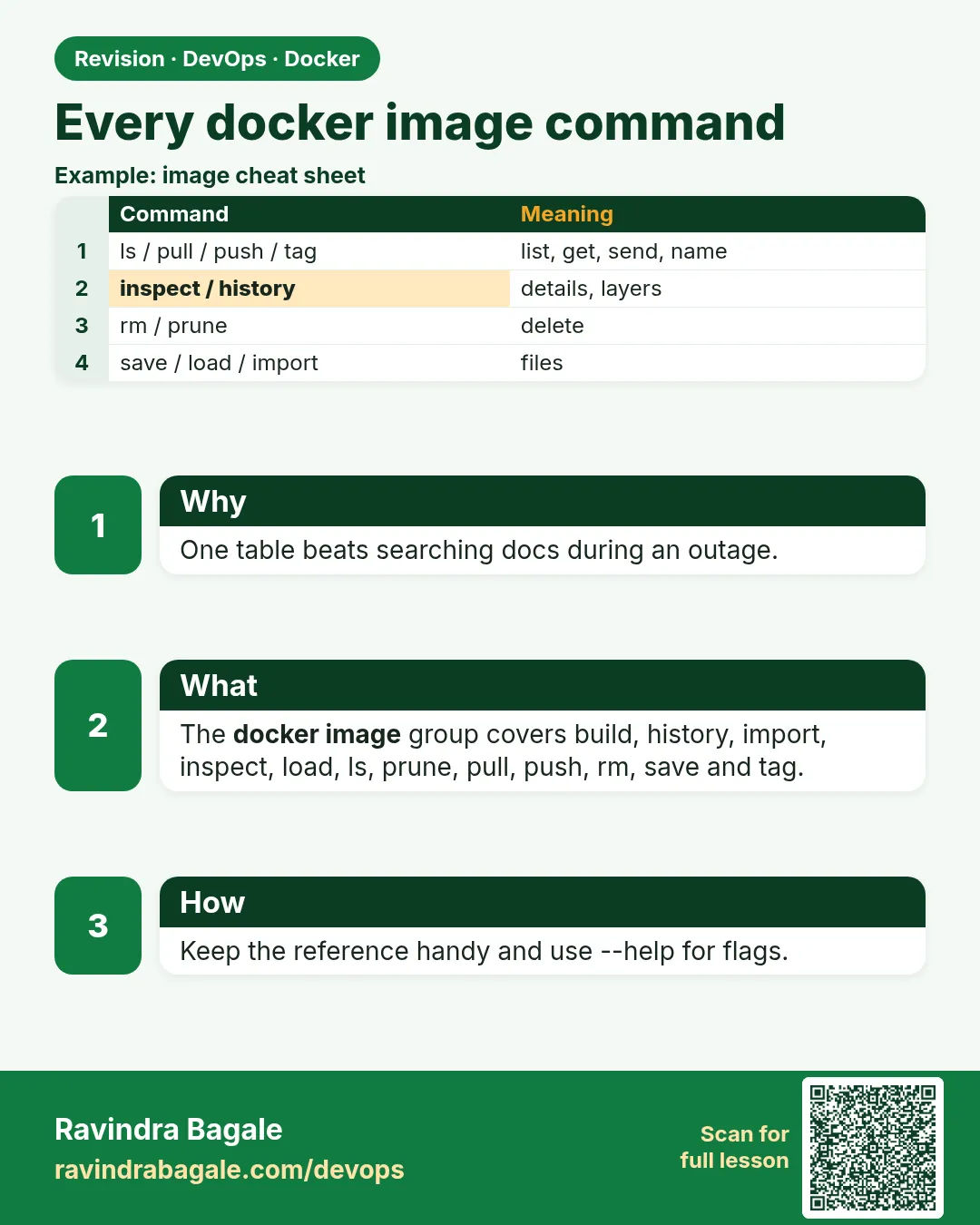
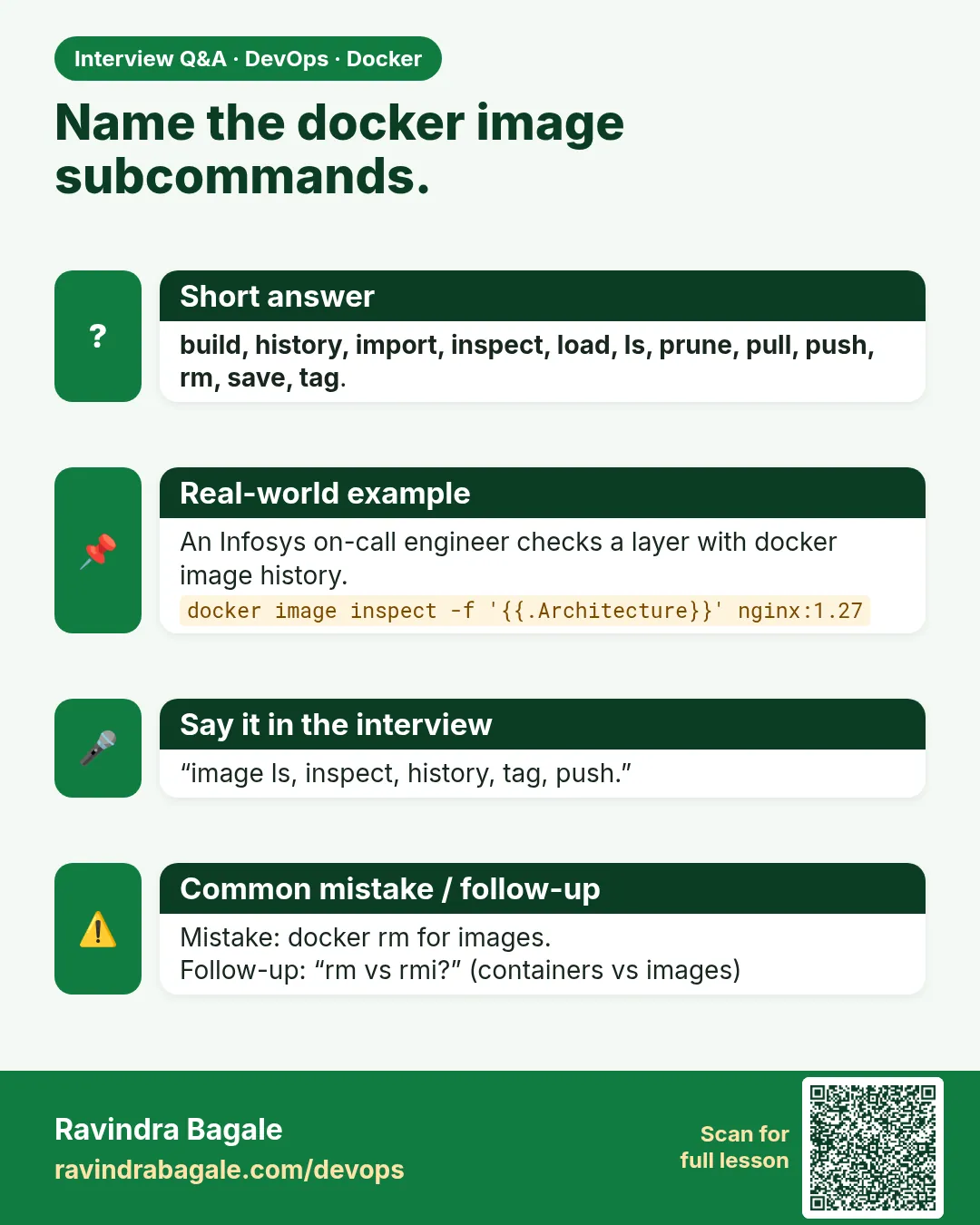
Run docker image --help any time to see this list yourself. The commands are grouped as: get images, look at images, change names, move images and remove images.
2. Get images
Step 1: docker image build
Why: Turns a Dockerfile into an image.
What: Main flags: -t name, -f file, --build-arg, --target, --no-cache, --platform.
Example 1: Basic
Type this:
printf 'FROM python:3.12-slim\nWORKDIR /app\nCOPY app.py .\nCMD ["python","app.py"]\n' > Dockerfile
docker build -t kosh/api:1.0 .
You will see:
=> naming to docker.io/kosh/api:1.0
What it means: Built and named.
Example 2: Build argument
Type this:
docker build --build-arg APP_ENV=uat -t kosh/api:1.0-uat .
You will see:
=> naming to docker.io/kosh/api:1.0-uat
What it means: Pass values the Dockerfile reads with ARG.
Example 3: Stop at a stage
Type this:
docker build --target build -t kosh/api:build .
You will see:
=> naming to docker.io/kosh/api:build
What it means: Useful for running tests in the build stage.
Step 2: docker image pull
Why: Downloads an image from a registry.
What: Use a tag, a digest, --platform or --all-tags.
Example 4: By tag
Type this:
docker pull python:3.12-slim
You will see:
3.12-slim: Pulling from library/python
Status: Downloaded newer image for python:3.12-slim
What it means: Normal way.
Example 5: By digest
Type this:
docker pull python@sha256:2b0079146a74e23bb4ae8f6c8b84e2ab5c9b5e7a8c1d0f3e4b5a6c7d8e9f0a1b
You will see:
Status: Downloaded newer image
What it means: A digest never changes; best for production.
Example 6: Quiet
Type this:
docker pull -q redis:7
You will see:
docker.io/library/redis:7
What it means: Just the name, good for scripts.
Step 3: docker image import and load
Why: Bring in images from files (lesson 48.6).
What: load reads a save tar with layers. import reads a flat file system tar.
Example 7: Load
Type this:
docker load -i kosh-api-1.0.tar
You will see:
Loaded image: kosh/api:1.0
What it means: Everything back.
Example 8: Import
Type this:
docker import --change 'CMD ["python","app.py"]' rootfs.tar kosh/flat:1
You will see:
sha256:5e6f...
What it means: One layer, with CMD added.
Example 9: Import from a URL
Type this:
docker import https://cloud-images.ubuntu.com/minimal/releases/noble/release/ubuntu-24.04-minimal-cloudimg-amd64-root.tar.xz ubuntu-min:24.04
You will see:
sha256:7a8b...
What it means: Imports a downloaded root file system.
3. Look at images
Step 4: docker image ls
Why: Lists local images.
What: Flags: -a, -q, --digests, --filter, --format.
Example 10: Plain
Type this:
docker image ls kosh/api
You will see:
REPOSITORY  TAG      IMAGE ID      CREATED        SIZE
kosh/api    1.0      4c5d6e7f8a9b  5 minutes ago  131MB
kosh/api    1.0-uat  4c5d6e7f8a9b  4 minutes ago  131MB
What it means: Same ID: two names, one image.
Example 11: With digests
Type this:
docker image ls --digests python
You will see:
REPOSITORY  TAG        DIGEST            IMAGE ID      SIZE
python      3.12-slim  sha256:2b00...    9a8b7c6d5e4f  124MB
What it means: Shows pinned digests.
Example 12: Custom format
Type this:
docker image ls --format '{{.Repository}}:{{.Tag}}\t{{.Size}}' | sort
You will see:
kosh/api:1.0    131MB
python:3.12-slim    124MB
redis:7 117MB
What it means: Script-friendly.
Step 5: docker image inspect
Why: Shows everything about an image in JSON.
What: Use --format to pick fields, or jq.
Example 13: Settings
Type this:
docker image inspect kosh/api:1.0 --format '{{.Config.Cmd}} {{.Config.WorkingDir}}'
You will see:
[python app.py] /app
What it means: CMD and WORKDIR.
Example 14: Layers
Type this:
docker image inspect kosh/api:1.0 --format '{{len .RootFS.Layers}}'
You will see:
6
What it means: Number of layers.
Example 15: Full JSON with jq
Type this:
docker image inspect kosh/api:1.0 | jq '.[0] | {Os,Architecture,Created}'
You will see:
{
  "Os": "linux",
  "Architecture": "amd64",
  "Created": "2026-10-25T08:40:12Z"
}
What it means: Created is UTC (14:10 IST).
Step 6: docker image history
Why: Shows how an image was built, layer by layer.
What: Flags: --no-trunc, --format, -H.
Example 16: Plain
Type this:
docker history kosh/api:1.0 | head -4
You will see:
IMAGE         CREATED        CREATED BY                 SIZE
4c5d6e7f8a9b  6 minutes ago  CMD ["python" "app.py"]     0B
1a2b3c4d5e6f  6 minutes ago  COPY app.py . # buildkit   1.2kB
9f8e7d6c5b4a  6 minutes ago  WORKDIR /app               0B
What it means: Newest layer on top.
Example 17: Full commands
Type this:
docker history --no-trunc --format '{{.CreatedBy}}' kosh/api:1.0 | head -2
You will see:
CMD ["python" "app.py"]
COPY app.py . # buildkit
What it means: Not cut off.
Example 18: Sizes only
Type this:
docker history --format '{{.Size}}' kosh/api:1.0 | sort -h | tail -1
You will see:
74.8MB
What it means: The biggest layer.
4. Name and move
Step 7: docker image tag
Why: Adds another name to an image.
What: Format: docker tag SOURCE TARGET. No data is copied.
Example 19: Version tag
Type this:
docker tag kosh/api:1.0 kosh/api:latest
You will see:
(no output)
What it means: Same ID, new name.
Example 20: For a private registry
Type this:
docker tag kosh/api:1.0 registry.kosh.in:5000/api:1.0
You will see:
(no output)
What it means: The name decides where push goes.
Example 21: For ECR
Type this:
docker tag kosh/api:1.0 123456789012.dkr.ecr.ap-south-1.amazonaws.com/kosh-api:1.0
You will see:
(no output)
What it means: Mumbai region, as in lesson 48.4.
Step 8: docker image push
Why: Uploads an image to a registry.
What: Log in first. Use -a for all tags.
Example 22: Push one
Type this:
docker push registry.kosh.in:5000/api:1.0
You will see:
1.0: digest: sha256:8d7c... size: 1572
What it means: Digest printed.
Example 23: All tags
Type this:
docker push -a kosh/api
You will see:
1.0: digest: sha256:8d7c...
latest: digest: sha256:8d7c...
What it means: Both point to the same digest.
Example 24: Not logged in
Type this:
docker push kosh/private:1
You will see:
denied: requested access to the resource is denied
What it means: Run docker login first.
Step 9: docker image save
Why: Writes images to a tar file.
What: -o names the file; without it, output goes to the pipe.
Example 25: To a file
Type this:
docker save -o kosh-api-1.0.tar kosh/api:1.0
You will see:
(no output)
What it means: One file.
Example 26: Compressed
Type this:
docker save kosh/api:1.0 | gzip > kosh-api-1.0.tar.gz
You will see:
(no output)
What it means: Smaller file.
Example 27: A chosen platform
Type this:
docker save --platform linux/amd64 -o kosh-amd64.tar kosh/api:1.0
You will see:
(no output)
What it means: Newer Docker versions with the containerd store can save one platform.
5. Remove
Step 10: docker image rm
Why: Removes images by name or ID.
What: Alias docker rmi. -f forces, but avoid it for images in use.
Example 28: One
Type this:
docker rmi kosh/api:1.0-uat
You will see:
Untagged: kosh/api:1.0-uat
What it means: Just the name, since 1.0 still uses it.
Example 29: By ID with many tags
Type this:
docker rmi 4c5d6e7f8a9b
You will see:
Error response from daemon: conflict: unable to delete 4c5d6e7f8a9b (must be forced) - image is referenced in multiple repositories
What it means: Remove names one by one, or use -f if sure.
Example 30: Several
Type this:
docker rmi kosh/flat:1 ubuntu-min:24.04
You will see:
Untagged: kosh/flat:1
Deleted: sha256:5e6f...
Untagged: ubuntu-min:24.04
Deleted: sha256:7a8b...
What it means: Many at once.
Step 11: docker image prune
Why: Removes dangling or unused images (lesson 48.9).
What: -a for unused, -f no prompt, --filter until= or label=.
Example 31: Dangling
Type this:
docker image prune -f
You will see:
Total reclaimed space: 412MB
What it means: Safe.
Example 32: Unused older than a day
Type this:
docker image prune -a -f --filter until=24h
You will see:
Total reclaimed space: 2.3GB
What it means: Recent ones stay.
Example 33: Help
Type this:
docker image --help | sed -n '5,20p'
You will see:
Commands:
  build       Build an image from a Dockerfile
  history     Show the history of an image
  import      Import the contents from a tarball to create a filesystem image
  inspect     Display detailed information on one or more images
  load        Load an image from a tar archive or STDIN
  ls          List images
  prune       Remove unused images
  pull        Download an image from a registry
  push        Upload an image to a registry
  rm          Remove one or more images
  save        Save one or more images to a tar archive (streamed to STDOUT by default)
  tag         Create a tag TARGET_IMAGE that refers to SOURCE_IMAGE
What it means: The full list matches this lesson.
6. Related commands you will use with images
Step 12: docker buildx imagetools
Why: docker image inspect only sees local images. Often you need facts about an image that is still in the registry, without pulling hundreds of megabytes.
What: imagetools reads manifests straight from the registry. It can also create a new tag in the registry without pulling or pushing layers.
Example 34: Inspect remotely
Type this:
docker buildx imagetools inspect python:3.12-slim | sed -n '1,3p'
You will see:
Name:      docker.io/library/python:3.12-slim
MediaType: application/vnd.oci.image.index.v1+json
Digest:    sha256:2b00...
What it means: An index, so it is multi-arch. Nothing was downloaded.
Example 35: Get only the digest
Type this:
docker buildx imagetools inspect kosh/api:1.0 --format '{{json .Manifest.Digest}}'
You will see:
"sha256:8d7c..."
What it means: Use this digest in Kubernetes YAML for a pinned deploy.
Example 36: Retag in the registry
Type this:
docker buildx imagetools create -t kosh/api:prod kosh/api:1.0
You will see:
#1 pushing kosh/api:prod
#1 DONE 0.6s
What it means: Promotes 1.0 to prod in under a second, with no layer upload. Good for release pipelines.
Step 13: docker scout and filters for daily checks
Why: Before a release, a bank team must answer two questions quickly: what is installed in the image, and does it have known security problems.
What: docker scout (lesson 47.8) reads an image's packages and CVEs. Together with ls filters, it gives a fast daily health check.
Example 37: Quick security summary
Type this:
docker scout quickview kosh/api:1.0
You will see:
Target   kosh/api:1.0   0C 1H 3M 12L
Base     python:3.12-slim   0C 1H 3M 12L
Updated base image  python:3.12.7-slim  0C 0H 1M 10L
What it means: All problems come from the base; a newer base fixes the high one.
Example 38: List packages
Type this:
docker scout sbom --format list kosh/api:1.0 | head -4
You will see:
Name        Version     Type
openssl     3.0.15-1    deb
pip         24.2        pypi
python      3.12.6      generic
What it means: An SBOM, the ingredient list of the image.
Example 39: Useful ls filters
Type this:
docker image ls --filter reference='kosh/*' --filter since=python:3.12-slim --format '{{.Repository}}:{{.Tag}}'
You will see:
kosh/api:1.0
kosh/api:latest
What it means: reference matches names with wildcards; since and before compare to another image.
Ravindra Bagale's Tip
Remember the short forms: build, pull, push, tag, rmi, images. docker image --help always helps.
Short forms लक्षात ठेवा: build, pull, push, tag, rmi, images. docker image --help नेहमी मदत करतो.
Short forms याद रखिए: build, pull, push, tag, rmi, images. docker image --help हमेशा मदद करता है.
Check yourself
Q1. Does docker tag copy image data?
No, it only adds a name.
Q2. Which is safest for production pulls, tag or digest?
Digest, because it never changes.
Q3. What is the difference between load and import?
load keeps layers and settings; import makes one flat layer.
Q4. Why does docker rmi by ID sometimes fail?
The image has several tags or a container uses it.
Q5. Which command shows how an image was built?
docker image history.
Friends, the Docker images chapter is complete! Did you understand? Let us try it once more. In the next chapter we see every container command.
मित्रांनो, Docker images चा chapter संपला! समजलं का? चला, पुन्हा एकदा करून पाहू. पुढच्या chapter मध्ये containers चे सगळे commands बघू.
दोस्तों, Docker images का chapter पूरा हुआ! समझ आया? चलिए, एक बार फिर करके देखते हैं। अगले chapter में containers के सारे commands देखेंगे.
Lab: try at home
- Build kosh/api:1.0 from the Dockerfile above.
- Tag it three ways and push to a local registry.
- Inspect, history and ls with custom formats.
- Save, remove and load it back.
- Prune dangling and unused images.
Recap
- Get: build, pull, load, import.
- Look: ls, inspect, history.
- Name: tag. Move: push, save.
- Remove: rm and prune.
- docker image --help lists them all.
Lab
- Pull nginx:1.27 and read its history.
- Tag and push an image to Docker Hub and ECR.
- Run registry:2 locally and push to it.
- Build one image for amd64 and arm64.
- Prune a build agent and compare docker system df before and after.
Practice task
Take a node:20 image app, measure its size, rebuild it with node:20-slim and a multi-stage Dockerfile, and push both to ECR with immutable tags. Write the size drop.
Ravindra Bagale's Tip
Never use :latest in production. Use a version tag or a digest, so every server runs the same image.
Production मध्ये कधीही :latest वापरू नका. Version tag किंवा digest वापरा, म्हणजे सगळे server same image चालवतील.
Production में कभी :latest मत इस्तेमाल कीजिए. Version tag या digest इस्तेमाल कीजिए, ताकि हर server एक ही image चलाए.
In short
- An image is read-only layers; a container adds one writable layer.
- Tags move; digests never move.
- Push with tokens via --password-stdin.
- ECR gives IAM control, scan on push and immutable tags.
- save/load keeps layers; export/import flattens.
- buildx builds amd64 and arm64 under one tag.
 Revision card
 Interview card