54.8 MySQL and Postgres containers done right
Friends, databases in containers scare people, because one wrong command can delete all the data. Today we learn the safe way, step by step, for both MySQL and Postgres: named volumes, password files instead of plain passwords, init scripts, healthchecks, a private network, backups that we actually restore, and upgrades without losing data.
मित्रांनो, containers मधले databases लोकांना घाबरवतात, कारण एक चुकीची command सगळा data उडवू शकते. आज MySQL आणि Postgres दोन्हीसाठी सुरक्षित पद्धत step by step शिकूया: named volumes, plain password ऐवजी password files, init scripts, healthchecks, private network, खरोखर restore करून पाहिलेले backups, आणि data न गमावता upgrades.
दोस्तों, containers में databases लोगों को डराते हैं, क्योंकि एक गलत command सारा data उड़ा सकती है. आज MySQL और Postgres दोनों के लिए सुरक्षित तरीका step by step सीखेंगे: named volumes, plain password की जगह password files, init scripts, healthchecks, private network, सच में restore करके देखे गए backups, और data खोए बिना upgrades.
1. Start from a story
At Flipkart, a QA team runs dozens of test environments. Each one needs a MySQL for the catalog service and a Postgres for the order service.
In the early days someone started MySQL with docker run and no volume. A teammate ran docker rm to free space, and two days of test data disappeared.
Another environment had the root password typed in the compose file and pushed to the shared repository. A third published port 5432 to the whole office network.
Vikram, the DevOps lead, wrote one standard: named volumes, secrets as files, init scripts for schema, healthchecks so apps wait, no published ports in shared environments, and a nightly dump that is restored once a week to prove it works. Today we follow Vikram's standard.
2. MySQL step by step
Step 1: Data disappears without a volume
Why: See the problem first.
What: A container's writable layer is deleted with the container. Let us prove it.
Example 1: Start and write
Type this:
docker run -d --name m1 -e MYSQL_ROOT_PASSWORD=example-only mysql:8.4 && sleep 25 && docker exec m1 mysql -uroot -pexample-only -e 'CREATE DATABASE shop' 2>/dev/null && echo created
You will see:
created
What it means: Example password only, for this demo.
Example 2: Remove the container
Type this:
docker rm -f m1 && docker run -d --name m1 -e MYSQL_ROOT_PASSWORD=example-only mysql:8.4 >/dev/null && sleep 25 && docker exec m1 mysql -uroot -pexample-only -e 'SHOW DATABASES' 2>/dev/null | grep -c shop
You will see:
0
What it means: shop is gone.
Example 3: Where data lives
Type this:
docker inspect mysql:8.4 --format '{{json .Config.Volumes}}'
You will see:
{"/var/lib/mysql":{}}
What it means: The folder we must put on a named volume.
Step 2: A named volume for MySQL
Why: Data that survives.
What: Mount a named volume on /var/lib/mysql. Removing the container no longer touches the data.
Example 4: Run with a volume
Type this:
docker rm -f m1 && docker volume create mysql-data && docker run -d --name m1 -v mysql-data:/var/lib/mysql -e MYSQL_ROOT_PASSWORD=example-only mysql:8.4 && sleep 25 && docker exec m1 mysql -uroot -pexample-only -e 'CREATE DATABASE shop' 2>/dev/null && echo ok
You will see:
ok
What it means: Data goes into mysql-data.
Example 5: Remove and recreate
Type this:
docker rm -f m1 && docker run -d --name m1 -v mysql-data:/var/lib/mysql mysql:8.4 >/dev/null && sleep 15 && docker exec m1 mysql -uroot -pexample-only -e 'SHOW DATABASES' 2>/dev/null | grep shop
You will see:
shop
What it means: No password variable needed now; the volume already has users.
Example 6: Inspect the volume
Type this:
docker volume inspect mysql-data --format '{{.Mountpoint}}'
You will see:
/var/lib/docker/volumes/mysql-data/_data
What it means: Docker manages this folder.
Step 3: Passwords from files
Why: No passwords in compose files or history.
What: The official images accept _FILE variables. Put the password in a file with 0600 mode and mount it as a secret.
Example 7: Create secret files
Type this:
mkdir -p secrets && printf 'example-only-root' > secrets/mysql_root.txt && printf 'example-only-app' > secrets/mysql_app.txt && chmod 600 secrets/*.txt && ls -l secrets | tail -2
You will see:
-rw------- 1 user user 17 mysql_app.txt
-rw------- 1 user user 17 mysql_root.txt
What it means: Example values only. Keep secrets out of Git.
Example 8: Compose with secrets
Type this:
printf '%s\n' 'services:' ' mysql:' ' image: mysql:8.4' ' environment:' ' MYSQL_DATABASE: catalog' ' MYSQL_USER: catalog' ' MYSQL_PASSWORD_FILE: /run/secrets/mysql_app' ' MYSQL_ROOT_PASSWORD_FILE: /run/secrets/mysql_root' ' secrets: [mysql_app, mysql_root]' ' volumes: [mysql-data:/var/lib/mysql]' 'secrets:' ' mysql_app: {file: ./secrets/mysql_app.txt}' ' mysql_root: {file: ./secrets/mysql_root.txt}' 'volumes: {mysql-data: {}}' > compose.yaml && docker compose config -q && echo valid
You will see:
valid
What it means: The image reads the files at first start.
Example 9: Nothing in env
Type this:
docker compose up -d mysql && sleep 25 && docker compose exec mysql printenv | grep -c 'example-only'
You will see:
0
What it means: The password is not in the environment.
Step 4: Init scripts for the schema
Why: Tables on first start.
What: Files in /docker-entrypoint-initdb.d run in alphabetical order, but only when the data volume is empty.
Example 10: Write a script
Type this:
mkdir -p initdb/mysql && printf '%s\n' 'CREATE TABLE IF NOT EXISTS products (id INT PRIMARY KEY AUTO_INCREMENT, name VARCHAR(100), price INT);' 'INSERT INTO products (name, price) VALUES ("Phone", 15999), ("Charger", 799);' > initdb/mysql/01-schema.sql && cat initdb/mysql/01-schema.sql | head -1
You will see:
CREATE TABLE IF NOT EXISTS products (id INT PRIMARY KEY AUTO_INCREMENT, name VARCHAR(100), price INT);
What it means: Numbered names keep the order clear.
Example 11: Mount and start fresh
Type this:
sed -i 's# volumes: \[mysql-data:/var/lib/mysql\]# volumes: [mysql-data:/var/lib/mysql, ./initdb/mysql:/docker-entrypoint-initdb.d:ro]#' compose.yaml && docker compose down -v && docker compose up -d mysql && sleep 30 && docker compose exec mysql sh -c 'mysql -ucatalog -p$(cat /run/secrets/mysql_app) catalog -e "SELECT COUNT(*) FROM products"' 2>/dev/null
You will see:
COUNT(*)
2
What it means: down -v wiped the volume, so the script ran.
Example 12: They run only once
Type this:
docker compose restart mysql && sleep 15 && docker compose logs mysql | grep -c 01-schema.sql
You will see:
1
What it means: Logged once, at first start only.
Step 5: MySQL healthcheck
Why: Apps wait for real readiness.
What: The port opens before MySQL is ready. mysqladmin ping tells the truth.
Example 13: Add healthcheck
Type this:
printf '%s\n' ' healthcheck:' ' test: ["CMD", "mysqladmin", "ping", "-h", "127.0.0.1", "--silent"]' ' interval: 5s' ' retries: 10' ' start_period: 30s' > hc.part && sed -i '/^ secrets: \[mysql_app, mysql_root\]/r hc.part' compose.yaml && docker compose config -q && echo valid
You will see:
valid
What it means: start_period covers the first-time setup.
Example 14: Status
Type this:
docker compose up -d --wait mysql 2>&1 | tail -1
You will see:
✔ Container db-mysql-1 Healthy
What it means: --wait blocks until healthy.
Example 15: App waits
Type this:
printf '%s\n' ' catalog:' ' image: catalog-api:1.0' ' depends_on:' ' mysql: {condition: service_healthy}'
You will see:
catalog:
  image: catalog-api:1.0
  depends_on:
    mysql: {condition: service_healthy}
What it means: No more connection refused at startup.
Step 6: Tune MySQL with a config file
Why: Settings without rebuilding.
What: Mount a .cnf file into /etc/mysql/conf.d. Keep the buffer pool inside the container memory limit.
Example 16: Config
Type this:
mkdir -p conf && printf '%s\n' '[mysqld]' 'innodb_buffer_pool_size=512M' 'max_connections=200' 'character-set-server=utf8mb4' > conf/my.cnf && cat conf/my.cnf | head -2
You will see:
[mysqld]
innodb_buffer_pool_size=512M
What it means: utf8mb4 supports every language and emoji.
Example 17: Mount it
Type this:
sed -i 's#./initdb/mysql:/docker-entrypoint-initdb.d:ro\]#./initdb/mysql:/docker-entrypoint-initdb.d:ro, ./conf/my.cnf:/etc/mysql/conf.d/my.cnf:ro]#' compose.yaml && docker compose up -d mysql && sleep 15 && docker compose exec mysql sh -c 'mysql -uroot -p$(cat /run/secrets/mysql_root) -Nse "SELECT @@innodb_buffer_pool_size/1024/1024"' 2>/dev/null
You will see:
512.0000
What it means: Loaded from the file.
Example 18: Memory limit
Type this:
printf '%s\n' ' deploy:' ' resources: {limits: {memory: 1g}}'
You will see:
deploy:
  resources: {limits: {memory: 1g}}
What it means: Buffer pool plus overhead must fit inside 1 GB.
3. Postgres step by step
Step 7: Postgres with a volume and a password file
Why: Same pattern, different names.
What: Postgres keeps data in /var/lib/postgresql/data and reads POSTGRES_PASSWORD_FILE.
Example 19: Secret
Type this:
printf 'example-only-pg' > secrets/pg.txt && chmod 600 secrets/pg.txt && echo ok
You will see:
ok
What it means: Example value only.
Example 20: Service
Type this:
printf '%s\n' ' postgres:' ' image: postgres:16' ' environment: {POSTGRES_DB: orders, POSTGRES_USER: orders, POSTGRES_PASSWORD_FILE: /run/secrets/pg}' ' secrets: [pg]' ' volumes: [pg-data:/var/lib/postgresql/data]' > pg.part && sed -i '/^secrets:/e cat pg.part' compose.yaml && sed -i 's#^secrets:#secrets:\n pg: {file: ./secrets/pg.txt}#' compose.yaml && sed -i 's#^volumes: {mysql-data: {}}#volumes: {mysql-data: {}, pg-data: {}}#' compose.yaml && docker compose config -q && echo valid
You will see:
valid
What it means: Spliced in before the top-level secrets key.
Example 21: Connect
Type this:
docker compose up -d postgres && sleep 5 && docker compose exec postgres psql -U orders -d orders -c 'SELECT version()' | sed -n 3p | cut -c1-30
You will see:
PostgreSQL 16.4 (Debian 16.4
What it means: Inside the container, local connections are trusted.
Step 8: Postgres init scripts
Why: .sql and .sh both work.
What: The same initdb folder idea. Scripts run as the postgres user on an empty volume.
Example 22: Schema
Type this:
mkdir -p initdb/pg && printf '%s\n' 'CREATE TABLE orders (id SERIAL PRIMARY KEY, item TEXT, amount INT, created_at TIMESTAMPTZ DEFAULT now());' 'INSERT INTO orders (item, amount) VALUES ($$Phone$$, 15999);' > initdb/pg/01-orders.sql && echo ok
You will see:
ok
What it means: $$ quotes avoid escaping problems in printf.
Example 23: Mount and reset
Type this:
sed -i 's# volumes: \[pg-data:/var/lib/postgresql/data\]# volumes: [pg-data:/var/lib/postgresql/data, ./initdb/pg:/docker-entrypoint-initdb.d:ro]#' compose.yaml && docker compose rm -sf postgres && docker volume rm db_pg-data && docker compose up -d postgres && sleep 6 && docker compose exec postgres psql -U orders -d orders -tAc 'SELECT count(*) FROM orders'
You will see:
1
What it means: Only the Postgres volume was reset.
Example 24: Read-only user script
Type this:
printf '%s\n' 'CREATE ROLE reporting LOGIN PASSWORD $$example-only-report$$;' 'GRANT SELECT ON ALL TABLES IN SCHEMA public TO reporting;' > initdb/pg/02-reporting.sql && echo added
You will see:
added
What it means: Runs after 01 on the next fresh volume.
Step 9: Postgres healthcheck
Why: pg_isready.
What: pg_isready checks that the server accepts connections for a database.
Example 25: Add it
Type this:
printf '%s\n' ' healthcheck:' ' test: ["CMD-SHELL", "pg_isready -U orders -d orders"]' ' interval: 5s' ' retries: 10' > pghc.part && sed -i '/^ secrets: \[pg\]/r pghc.part' compose.yaml && docker compose config -q && echo valid
You will see:
valid
What it means: CMD-SHELL because it has arguments in one string.
Example 26: Healthy
Type this:
docker compose up -d --wait postgres 2>&1 | tail -1
You will see:
✔ Container db-postgres-1 Healthy
What it means: Ready for apps.
Example 27: Run it by hand
Type this:
docker compose exec postgres pg_isready -U orders -d orders
You will see:
/var/run/postgresql:5432 - accepting connections
What it means: The same check Docker runs.
Step 10: Backups with dump tools
Why: And a restore test.
What: Run mysqldump and pg_dump inside the container and write to the host. Then restore into a throwaway container to prove it works.
Example 28: Postgres dump
Type this:
docker compose exec -T postgres pg_dump -U orders orders | gzip > orders-$(date +%F).sql.gz && ls -lh orders-*.sql.gz
You will see:
-rw-r--r-- 1 user user 1.1K orders-2026-10-25.sql.gz
What it means: -T disables the TTY so the output is clean.
Example 29: MySQL dump
Type this:
docker compose exec -T mysql sh -c 'mysqldump -uroot -p$(cat /run/secrets/mysql_root) --single-transaction catalog' 2>/dev/null | gzip > catalog-$(date +%F).sql.gz && ls catalog-*
You will see:
catalog-2026-10-25.sql.gz
What it means: --single-transaction gives a consistent copy without locking.
Example 30: Restore test
Type this:
docker run -d --name pgtest -e POSTGRES_PASSWORD=example-only postgres:16 && sleep 6 && gunzip -c orders-*.sql.gz | docker exec -i pgtest psql -U postgres -q && docker exec pgtest psql -U postgres -tAc 'SELECT count(*) FROM orders' && docker rm -f pgtest
You will see:
1
pgtest
What it means: Same row count: the backup is proven.
Step 11: Private network and upgrades
Why: No public port, safe version changes.
What: Do not publish database ports in shared environments; apps reach them by name. Minor upgrades are a tag change. Major upgrades need a dump and restore.
Example 31: No ports
Type this:
docker compose ps --format '{{.Name}} {{.Ports}}'
You will see:
db-mysql-1 3306/tcp, 33060/tcp
db-postgres-1 5432/tcp
What it means: No 0.0.0.0 mapping: only containers on the network can connect.
Example 32: Minor upgrade
Type this:
sed -i 's#image: postgres:16$#image: postgres:16.6#' compose.yaml && docker compose up -d postgres && sleep 5 && docker compose exec postgres psql -U orders -d orders -tAc 'SHOW server_version'
You will see:
16.6 (Debian 16.6-1.pgdg120+1)
What it means: Same data files, new patch.
Example 33: Major upgrade
Type this:
printf '%s\n' '1. pg_dump from postgres:16' '2. start postgres:17 on a NEW volume' '3. restore the dump' '4. switch the app, keep the old volume for a week'
You will see:
1. pg_dump from postgres:16
2. start postgres:17 on a NEW volume
3. restore the dump
4. switch the app, keep the old volume for a week
What it means: Postgres 17 cannot read 16 data files directly.
Step 12: Connect from your laptop safely
Why: Bind to localhost only.
What: Sometimes you want DBeaver or psql on your laptop. Publish the port on 127.0.0.1 only, so nobody else on the network can reach it.
Example 34: Local-only port
Type this:
printf '%s\n' ' ports: ["127.0.0.1:5432:5432"]' > port.part && sed -i '/^ secrets: \[pg\]/r port.part' compose.yaml && docker compose up -d postgres && docker compose ps postgres --format '{{.Ports}}'
You will see:
127.0.0.1:5432->5432/tcp
What it means: Not 0.0.0.0, so only this machine can connect.
Example 35: Connect
Type this:
PGPASSWORD=$(cat secrets/pg.txt) psql -h 127.0.0.1 -U orders -d orders -tAc 'SELECT item FROM orders'
You will see:
Phone
What it means: The password is read from the file, not typed in the command.
Example 36: Remote server
Type this:
ssh -N -L 5432:127.0.0.1:5432 ec2-user@db-host.example.com
You will see:
(tunnel open, no output)
What it means: On a server, use an SSH tunnel instead of opening the port in the security group.
4. Common mistakes and how Vikram avoids them
Mistake one: no volume. Vikram always mounts a named volume on the data folder.
Mistake two: plain passwords in compose files. He uses _FILE variables with secret files in 0600 mode.
Mistake three: expecting init scripts to run again. They run only on an empty volume.
Mistake four: docker compose down -v by habit. That deletes the data volumes; he uses it only on purpose.
Mistake five: backups never restored. He restores into a throwaway container every week.
Check yourself
Q1. Where does MySQL store data in the container?
/var/lib/mysql.
Q2. When do init scripts run?
Only the first time, when the data volume is empty.
Q3. Which variable takes a password file for Postgres?
POSTGRES_PASSWORD_FILE.
Q4. What does down -v do?
Removes containers and also the named volumes, deleting the data.
Friends, pin the image, name the volume, read passwords from files, run init scripts once, add healthchecks, keep ports private, and restore your backups to prove them. Did you understand? Let us try it once more. Delete a container on purpose and show that the data is still there.
मित्रांनो, image pin करा, volume ला नाव द्या, passwords files मधून वाचा, init scripts एकदाच, healthchecks लावा, ports private ठेवा, आणि backups restore करून सिद्ध करा. समजलं का? चला, पुन्हा एकदा करून पाहू. मुद्दाम एक container delete करा आणि data अजूनही आहे हे दाखवा.
दोस्तों, image pin कीजिए, volume को नाम दीजिए, passwords files से पढ़िए, init scripts एक बार, healthchecks लगाइए, ports private रखिए, और backups restore करके साबित कीजिए. समझ आया? चलिए, एक बार फिर करके देखते हैं। जानबूझकर एक container delete कीजिए और दिखाइए कि data अभी भी है.
Ravindra Bagale's Tip
Before you type docker compose down -v, stop and read it twice. The -v deletes your database volumes, and there is no undo.
docker compose down -v टाइप करण्याआधी थांबा आणि दोनदा वाचा. -v तुमचे database volumes delete करतो, आणि undo नाही.
docker compose down -v टाइप करने से पहले रुकिए और दो बार पढ़िए. -v आपके database volumes delete करता है, और undo नहीं है.
Lab: try at home
- Start MySQL without a volume and lose data on purpose.
- Run it again with a named volume and secret files.
- Add an init script and confirm it runs once.
- Add Postgres with pg_isready healthcheck.
- Dump both databases and restore Postgres into a test container.
- Do a minor version upgrade by changing the tag.
Recap
- Named volume on the data folder, always.
- _FILE variables with secret files.
- Init scripts run only on an empty volume.
- mysqladmin ping and pg_isready healthchecks.
- No public database ports.
- Dump, copy off the host and test the restore.
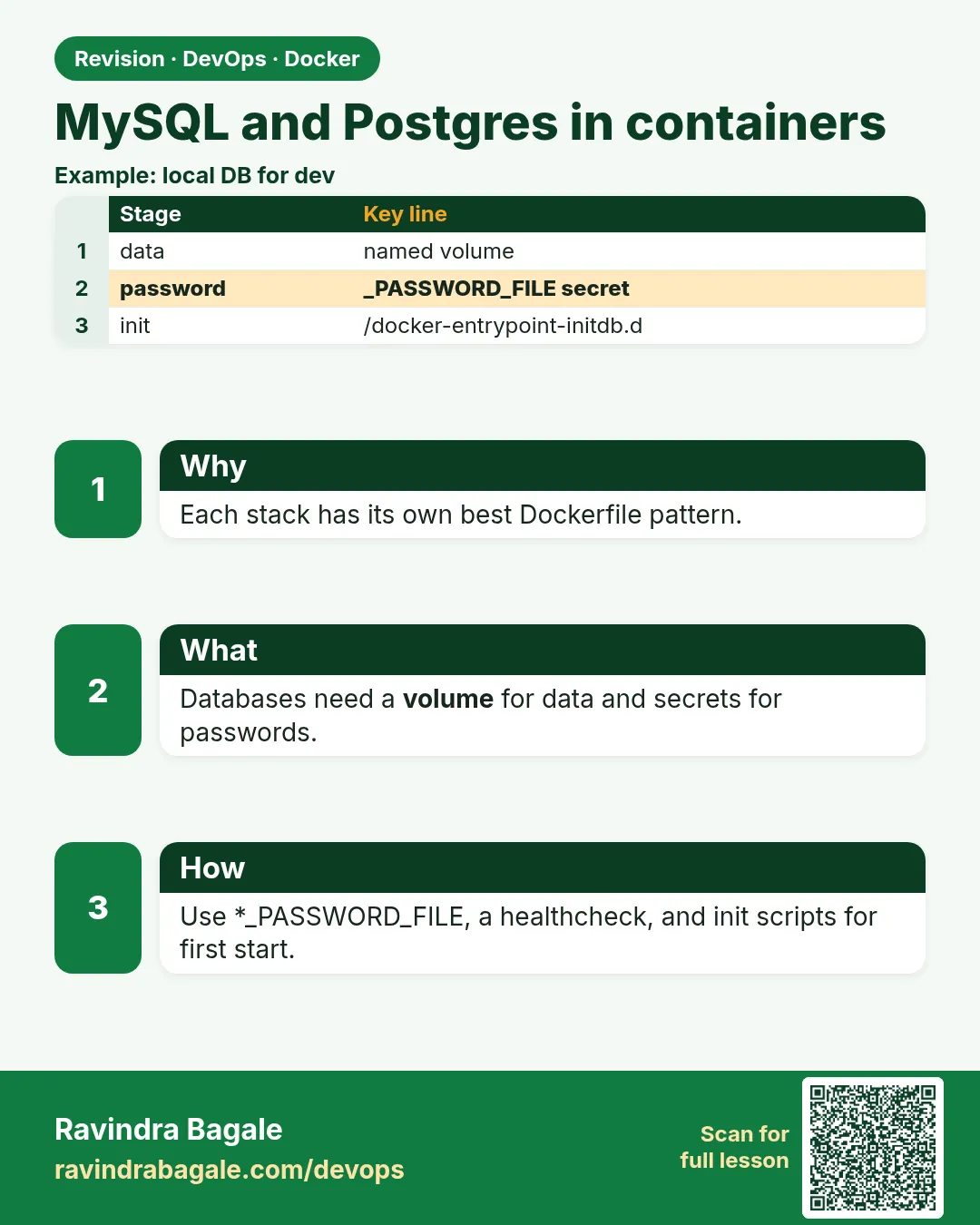 Revision card
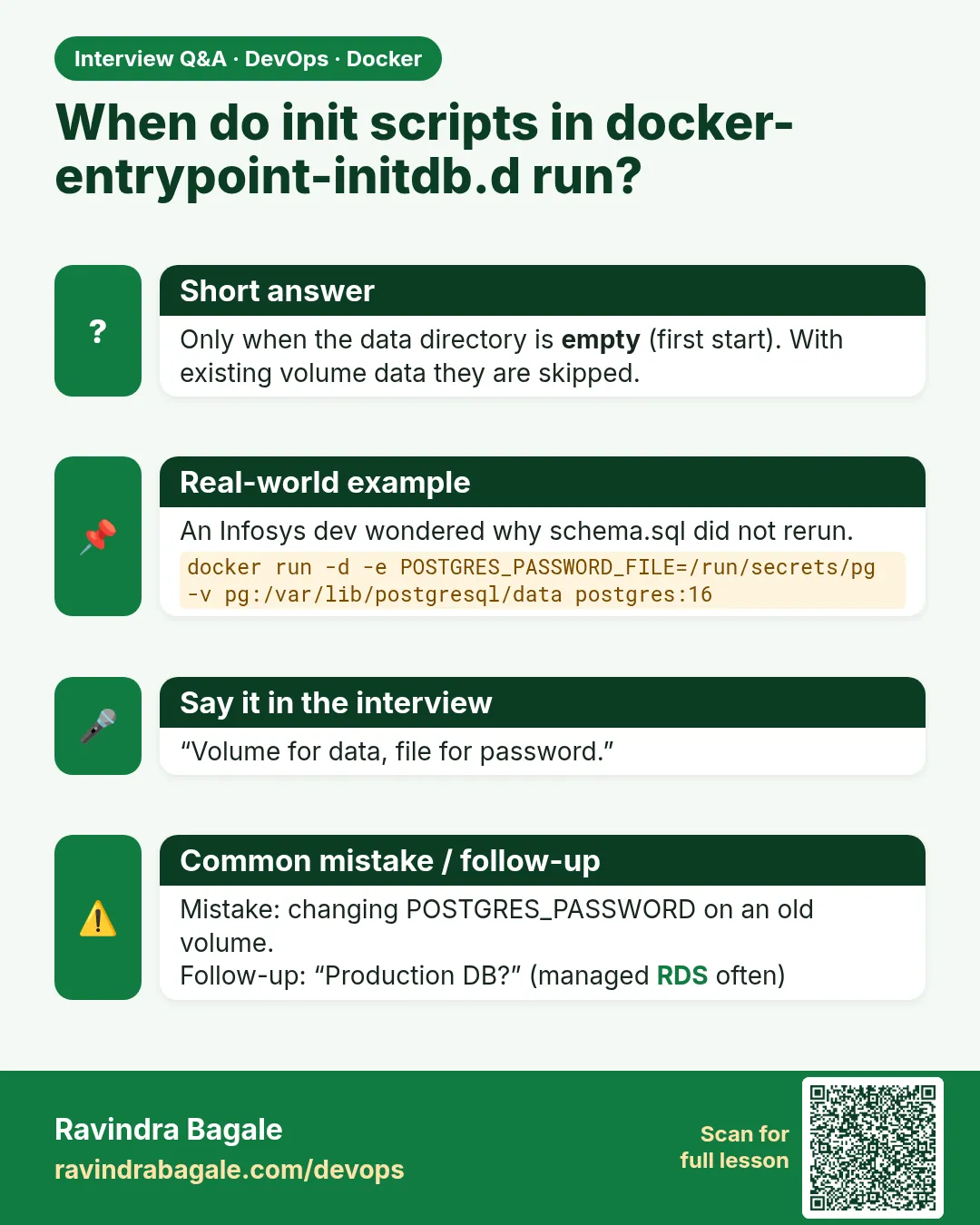 Interview card
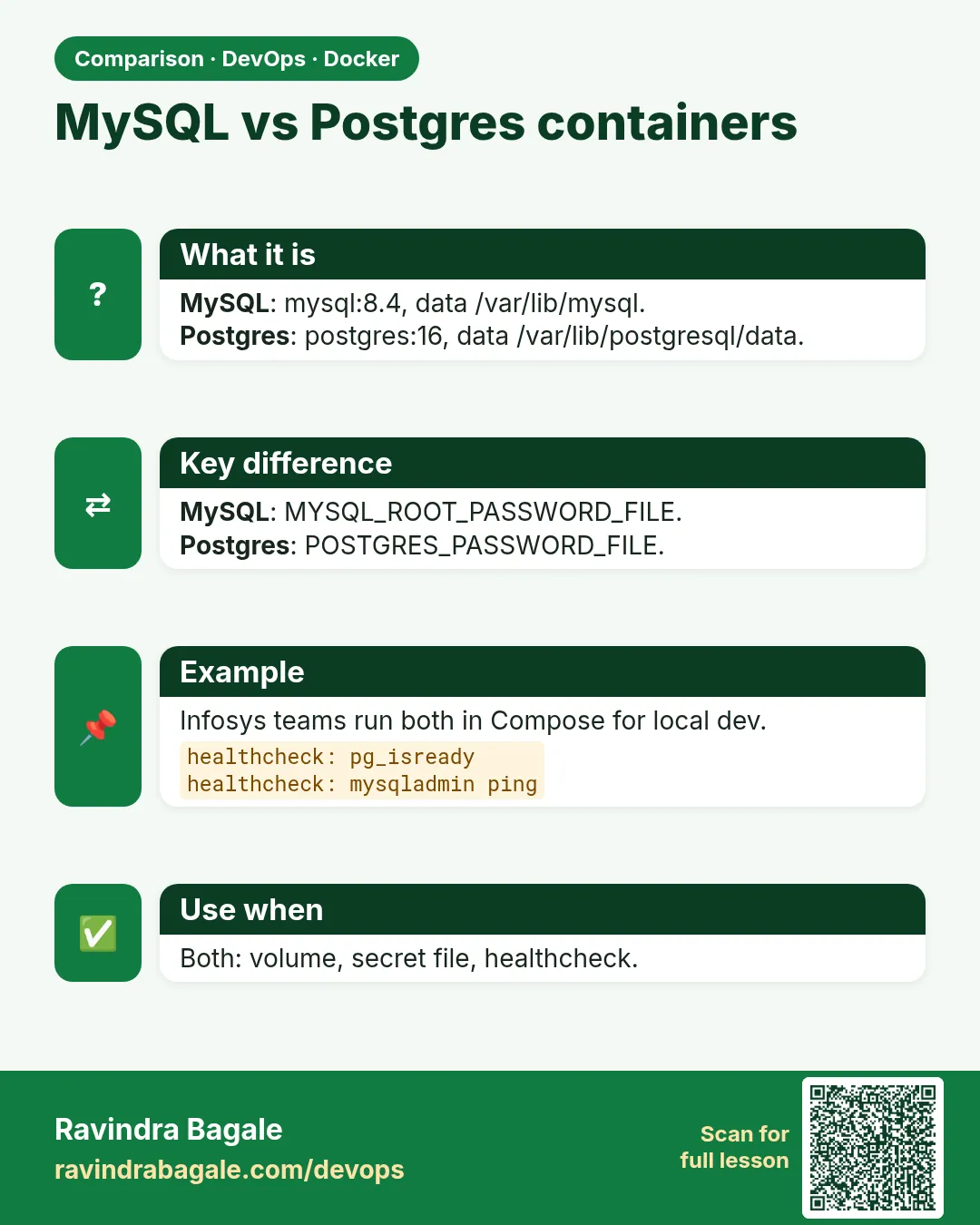 Comparison card