54.7 nginx as a static site and reverse proxy
Friends, nginx is the most used container on Docker Hub. It does two jobs for us: it serves static files like a React build very fast, and it stands in front of our APIs as a reverse proxy. Today we do both, step by step: a custom config, gzip and caching, SPA routing, proxy headers, load balancing, HTTPS, and running nginx as non-root.
मित्रांनो, Docker Hub वर सगळ्यात जास्त वापरला जाणारा container म्हणजे nginx. तो आपली दोन कामं करतो: React build सारखे static files खूप वेगाने serve करतो, आणि आपल्या APIs समोर reverse proxy म्हणून उभा राहतो. आज दोन्ही step by step करूया: custom config, gzip आणि caching, SPA routing, proxy headers, load balancing, HTTPS, आणि nginx non-root म्हणून चालवणं.
दोस्तों, Docker Hub पर सबसे ज़्यादा इस्तेमाल होने वाला container है nginx. वह हमारे दो काम करता है: React build जैसी static files बहुत तेज़ी से serve करता है, और हमारी APIs के आगे reverse proxy बनकर खड़ा होता है. आज दोनों step by step करेंगे: custom config, gzip और caching, SPA routing, proxy headers, load balancing, HTTPS, और nginx को non-root चलाना.
1. Start from a story
At Swiggy, a team builds a React dashboard for restaurant partners and a Node API behind it. In the first version the React app was served by the Node development server, and the browser called the API on a different port.
That caused CORS errors, slow page loads with no compression, and a broken page whenever someone refreshed a deep link like /orders/42, because the server looked for a file named 42.
The API also logged every visitor as 172.18.0.3, the Docker network address, so rate limiting blocked everyone at once.
Priya, the frontend platform engineer, put nginx in front: a multi-stage build that ships only the static files, try_files for SPA routes, gzip, long caching for hashed assets, and a /api/ proxy with the right headers. Today we follow her steps.
2. nginx as a static web server
Step 1: Run nginx and look inside
Why: Know the defaults.
What: The official image serves /usr/share/nginx/html and reads extra config from /etc/nginx/conf.d.
Example 1: Run
Type this:
docker run -d -p 8080:80 --name web nginx:1.27 && curl -s localhost:8080 | grep -o '<title>.*</title>'
You will see:
<title>Welcome to nginx!</title>
What it means: The default page.
Example 2: Where files live
Type this:
docker exec web ls /usr/share/nginx/html /etc/nginx/conf.d
You will see:
/etc/nginx/conf.d:
default.conf

/usr/share/nginx/html:
50x.html
index.html
What it means: Two folders to remember.
Example 3: Print the full config
Type this:
docker exec web nginx -T 2>/dev/null | grep -m3 -E 'listen|root'
You will see:
listen       80;
    root   /usr/share/nginx/html;
What it means: nginx -T prints everything nginx loaded.
Step 2: Serve your own files
Why: Bind mount for testing.
What: Mount a folder read-only over the html folder. Good for a quick local test.
Example 4: Make a page
Type this:
mkdir -p site && printf '%s\n' '<h1>Partner portal</h1>' > site/index.html && cat site/index.html
You will see:
<h1>Partner portal</h1>
What it means: A simple page.
Example 5: Mount it
Type this:
docker rm -f web && docker run -d -p 8080:80 -v "$PWD/site":/usr/share/nginx/html:ro --name web nginx:1.27 && curl -s localhost:8080
You will see:
<h1>Partner portal</h1>
What it means: :ro so the container cannot change your files.
Example 6: Edit live
Type this:
printf '%s\n' '<h1>Partner portal v2</h1>' > site/index.html && curl -s localhost:8080
You will see:
<h1>Partner portal v2</h1>
What it means: No rebuild while testing.
Step 3: Multi-stage build for a React app
Why: Ship only the build folder.
What: Build with Node in the first stage, then copy only the dist folder into nginx. Node is not in the final image.
Example 7: Create app
Type this:
docker run --rm -v "$PWD":/w -w /w node:20 npm create vite@latest partner -- --template react >/dev/null && ls partner
You will see:
index.html package.json public src vite.config.js
What it means: A Vite React app.
Example 8: Dockerfile
Type this:
cd partner && printf '%s\n' '# syntax=docker/dockerfile:1' 'FROM node:20-slim AS build' 'WORKDIR /app' 'COPY package*.json ./' 'RUN npm ci || npm install' 'COPY . .' 'RUN npm run build' '' 'FROM nginx:1.27-alpine' 'COPY --from=build /app/dist /usr/share/nginx/html' > Dockerfile && grep -c FROM Dockerfile
You will see:
2
What it means: Build stage and nginx stage.
Example 9: Size
Type this:
docker build -q -t partner:1.0 . && docker images partner:1.0 --format '{{.Size}}'
You will see:
49.6MB
What it means: No node_modules, no Node.
Step 4: Our own server block
Why: Control the config.
What: Replace default.conf with our own file. We set the port, the root and the index file.
Example 10: Write it
Type this:
printf '%s\n' 'server {' ' listen 8080;' ' root /usr/share/nginx/html;' ' index index.html;' '}' > nginx.conf && printf '%s\n' 'COPY nginx.conf /etc/nginx/conf.d/default.conf' >> Dockerfile && tail -1 Dockerfile
You will see:
COPY nginx.conf /etc/nginx/conf.d/default.conf
What it means: Port 8080 prepares for non-root later.
Example 11: Test the config
Type this:
docker build -q -t partner:1.1 . && docker run --rm partner:1.1 nginx -t
You will see:
nginx: configuration file /etc/nginx/nginx.conf test is successful
What it means: Always test inside the image.
Example 12: Run
Type this:
docker rm -f web && docker run -d -p 8080:8080 --name web partner:1.1 && curl -s -o /dev/null -w '%{http_code}\n' localhost:8080
You will see:
200
What it means: Our block is live.
Step 5: SPA routing with try_files
Why: No 404 on refresh.
What: React Router paths are not real files. try_files sends unknown paths to index.html so React can handle them.
Example 13: The bug
Type this:
curl -s -o /dev/null -w '%{http_code}\n' localhost:8080/orders/42
You will see:
404
What it means: Refresh on a deep link breaks.
Example 14: Fix
Type this:
sed -i 's# index index.html;# index index.html;\n location / { try_files $uri $uri/ /index.html; }#' nginx.conf && grep try_files nginx.conf
You will see:
location / { try_files $uri $uri/ /index.html; }
What it means: File, then folder, then index.html.
Example 15: Test
Type this:
docker build -q -t partner:1.2 . && docker rm -f web && docker run -d -p 8080:8080 --name web partner:1.2 && curl -s -o /dev/null -w '%{http_code}\n' localhost:8080/orders/42
You will see:
200
What it means: React handles the route.
Step 6: gzip and cache headers
Why: Faster pages.
What: Compress text files, and cache hashed asset files for a year. Never cache index.html for long, or users will not see new releases.
Example 16: Add gzip
Type this:
sed -i 's# listen 8080;# listen 8080;\n gzip on;\n gzip_types text/css application/javascript application/json image/svg+xml;#' nginx.conf && grep gzip nginx.conf
You will see:
gzip on;
gzip_types text/css application/javascript application/json image/svg+xml;
What it means: text/html is always compressed when gzip is on.
Example 17: Cache assets
Type this:
sed -i 's#^}$# location /assets/ { expires 1y; add_header Cache-Control "public, immutable"; }\n location = /index.html { add_header Cache-Control "no-cache"; }\n}#' nginx.conf && grep -c Cache-Control nginx.conf
You will see:
2
What it means: Vite puts a hash in asset names, so they are safe to cache.
Example 18: Check headers
Type this:
docker build -q -t partner:1.3 . && docker rm -f web && docker run -d -p 8080:8080 --name web partner:1.3 && f=$(curl -s localhost:8080 | grep -o '/assets/[^"]*js' | head -1) && curl -sI -H 'Accept-Encoding: gzip' localhost:8080$f | grep -iE 'content-encoding|cache-control'
You will see:
Content-Encoding: gzip
Cache-Control: max-age=31536000
Cache-Control: public, immutable
What it means: Compressed and cached.
3. nginx as a reverse proxy
Step 7: proxy_pass to an API
Why: One origin, no CORS.
What: Send /api/ to the api service by its Compose name. The browser now talks to one origin.
Example 19: Add location
Type this:
sed -i 's#^}$# location /api/ { proxy_pass http://api:3000/; }\n}#' nginx.conf && grep proxy_pass nginx.conf
You will see:
location /api/ { proxy_pass http://api:3000/; }
What it means: The trailing slash strips /api from the path.
Example 20: Compose
Type this:
printf '%s\n' 'services:' ' api:' ' image: hashicorp/http-echo:1.0' ' command: ["-listen=:3000", "-text=orders ok"]' ' web:' ' build: .' ' ports: ["8080:8080"]' ' depends_on: [api]' > compose.yaml && docker compose up -d --build 2>&1 | tail -1
You will see:
✔ Container partner-web-1 Started
What it means: A small echo service stands in for the API.
Example 21: Call it
Type this:
curl -s localhost:8080/api/orders
You will see:
orders ok
What it means: Same origin, no CORS needed.
Step 8: Proxy headers
Why: Real client IP and scheme.
What: Without headers the API sees nginx as the client. Pass Host, the real IP and the original scheme.
Example 22: Headers
Type this:
sed -i 's#proxy_pass http://api:3000/; }#proxy_pass http://api:3000/;\n proxy_set_header Host $host;\n proxy_set_header X-Real-IP $remote_addr;\n proxy_set_header X-Forwarded-For $proxy_add_x_forwarded_for;\n proxy_set_header X-Forwarded-Proto $scheme;\n }#' nginx.conf && grep -c proxy_set_header nginx.conf
You will see:
4
What it means: Four standard headers.
Example 23: Timeouts
Type this:
sed -i 's#proxy_set_header X-Forwarded-Proto $scheme;#proxy_set_header X-Forwarded-Proto $scheme;\n proxy_read_timeout 30s;#' nginx.conf && grep timeout nginx.conf
You will see:
proxy_read_timeout 30s;
What it means: Default is 60 seconds; pick what your API needs.
Example 24: Check
Type this:
docker compose up -d --build web >/dev/null 2>&1 && docker compose exec web nginx -T 2>/dev/null | grep -m1 X-Forwarded-For
You will see:
proxy_set_header X-Forwarded-For $proxy_add_x_forwarded_for;
What it means: Loaded. Rate limits now see real users.
Step 9: Load balancing replicas
Why: Spread the traffic.
What: An upstream block lists servers. With Compose scale, the service name resolves to every replica, and nginx spreads requests.
Example 25: Upstream
Type this:
sed -i '1i upstream api_pool { server api:3000; keepalive 16; }' nginx.conf && sed -i 's#proxy_pass http://api:3000/;#proxy_pass http://api_pool/;#' nginx.conf && head -1 nginx.conf
You will see:
upstream api_pool { server api:3000; keepalive 16; }
What it means: keepalive reuses connections.
Example 26: Scale
Type this:
docker compose up -d --build --scale api=3 2>&1 | grep -c 'api-'
You will see:
3
What it means: Three replicas.
Example 27: Spread
Type this:
for i in 1 2 3 4 5 6; do docker compose exec -T web wget -qO- api:3000 >/dev/null; done; docker compose logs api 2>/dev/null | cut -d' ' -f1 | sort | uniq -c
You will see:
2 api-1
2 api-2
2 api-3
What it means: Round robin by default. Restart nginx after scaling so it re-reads DNS.
Step 10: HTTPS termination
Why: Certificates at the edge.
What: nginx can hold the TLS certificate and talk plain HTTP to the API inside the private network. For local tests make a self-signed certificate.
Example 28: Self-signed cert
Type this:
mkdir -p certs && openssl req -x509 -nodes -newkey rsa:2048 -days 30 -subj '/CN=localhost' -keyout certs/tls.key -out certs/tls.crt 2>/dev/null && chmod 600 certs/tls.key && ls certs
You will see:
tls.crt tls.key
What it means: For local testing only. Use Let's Encrypt or AWS ACM in real life.
Example 29: TLS server
Type this:
printf '%s\n' 'server {' ' listen 8443 ssl;' ' ssl_certificate /etc/nginx/certs/tls.crt;' ' ssl_certificate_key /etc/nginx/certs/tls.key;' ' ssl_protocols TLSv1.2 TLSv1.3;' ' location / { proxy_pass http://127.0.0.1:8080; }' '}' > tls.conf && echo written
You will see:
written
What it means: TLS 1.2 and 1.3 only.
Example 30: Test
Type this:
docker run -d -p 8443:8443 -v "$PWD/tls.conf":/etc/nginx/conf.d/tls.conf:ro -v "$PWD/certs":/etc/nginx/certs:ro --name tls partner:1.3 && sleep 1 && curl -sk -o /dev/null -w '%{http_code}\n' https://localhost:8443
You will see:
200
What it means: -k skips trust checks for the self-signed cert.
Step 11: Run nginx as non-root
Why: Smaller blast radius.
What: nginxinc/nginx-unprivileged runs as the nginx user on port 8080 out of the box. Our config already listens on 8080.
Example 31: Swap base
Type this:
sed -i 's#^FROM nginx:1.27-alpine#FROM nginxinc/nginx-unprivileged:1.27-alpine#' Dockerfile && grep unprivileged Dockerfile
You will see:
FROM nginxinc/nginx-unprivileged:1.27-alpine
What it means: One line change.
Example 32: Who runs it
Type this:
docker build -q -t partner:2.0 . && docker rm -f web && docker run -d -p 8080:8080 --name web partner:2.0 && docker exec web ps -o user,args | head -3
You will see:
PID   USER     COMMAND
nginx    nginx: master process nginx -g daemon off;
nginx    nginx: worker process
What it means: Master and workers are not root.
Example 33: Read-only root
Type this:
docker rm -f web && docker run -d -p 8080:8080 --read-only --tmpfs /tmp --name web partner:2.0 && curl -s -o /dev/null -w '%{http_code}\n' localhost:8080
You will see:
200
What it means: Nothing can be written to the image filesystem.
Step 12: Healthcheck and logs
Why: Know it is up.
What: The alpine nginx images have wget. Check a small health location. nginx logs already go to stdout and stderr.
Example 34: Health location
Type this:
sed -i 's#^}$# location = /healthz { access_log off; return 200 "ok";}\n}#' nginx.conf && printf '%s\n' 'HEALTHCHECK --interval=15s CMD wget -qO- localhost:8080/healthz || exit 1' >> Dockerfile && tail -1 Dockerfile
You will see:
HEALTHCHECK --interval=15s CMD wget -qO- localhost:8080/healthz || exit 1
What it means: access_log off keeps logs clean.
Example 35: Status
Type this:
docker build -q -t partner:2.1 . && docker rm -f web && docker run -d -p 8080:8080 --name web partner:2.1 && sleep 16 && docker ps --filter name=web --format '{{.Status}}'
You will see:
Up 16 seconds (healthy)
What it means: Healthy.
Example 36: Logs
Type this:
curl -s localhost:8080 >/dev/null && docker logs web 2>&1 | tail -1
You will see:
172.17.0.1 - - [25/Oct/2026:10:52:11 +0530] "GET / HTTP/1.1" 200 455 "-" "curl/8.5.0"
What it means: Access logs in docker logs.
4. Common mistakes and how Priya avoids them
Mistake one: shipping Node and node_modules for a static site. Priya ships only the dist folder in nginx.
Mistake two: no try_files, so deep links return 404. She always adds it for single-page apps.
Mistake three: caching index.html for a year. She caches only hashed assets.
Mistake four: no proxy headers, so the API sees one IP for everyone. She sets X-Forwarded-For and friends.
Mistake five: nginx as root on port 80. She uses nginx-unprivileged on 8080.
Check yourself
Q1. Why use try_files for a React app?
So unknown paths load index.html and the router can handle them.
Q2. What does the trailing slash in proxy_pass do?
It removes the matched /api/ prefix before forwarding.
Q3. Which header carries the real client IP?
X-Forwarded-For, or X-Real-IP.
Q4. Which image runs nginx as non-root?
nginxinc/nginx-unprivileged on port 8080.
Friends, build in Node and ship in nginx, try_files for routes, gzip and smart caching, proxy_pass with headers, an upstream for replicas, TLS at the edge and non-root on 8080. Did you understand? Let us try it once more. Put your own React app and an API behind one nginx.
मित्रांनो, Node मध्ये build आणि nginx मध्ये ship, routes साठी try_files, gzip आणि smart caching, headers सह proxy_pass, replicas साठी upstream, edge वर TLS आणि 8080 वर non-root. समजलं का? चला, पुन्हा एकदा करून पाहू. तुमची React app आणि एक API एका nginx मागे ठेवा.
दोस्तों, Node में build और nginx में ship, routes के लिए try_files, gzip और smart caching, headers के साथ proxy_pass, replicas के लिए upstream, edge पर TLS और 8080 पर non-root. समझ आया? चलिए, एक बार फिर करके देखते हैं। अपनी React app और एक API को एक nginx के पीछे रखिए.
Ravindra Bagale's Tip
Run nginx -t inside the image in your CI pipeline. A config typo then fails the build, not the production deploy.
CI pipeline मध्ये image च्या आत nginx -t चालवा. Config मधली typo मग build fail करते, production deploy नाही.
CI pipeline में image के अंदर nginx -t चलाइए. Config की typo तब build fail करती है, production deploy नहीं.
Lab: try at home
- Run nginx and print its config with nginx -T.
- Build a Vite React app in a multi-stage Dockerfile.
- Add try_files and test a deep link.
- Add gzip and cache headers and check them with curl -I.
- Proxy /api/ to a scaled service with proxy headers.
- Switch to nginx-unprivileged and add a healthcheck.
Recap
- Ship only the static build in nginx.
- try_files for single-page apps.
- gzip on; cache hashed assets, not index.html.
- proxy_pass with Host and X-Forwarded headers.
- upstream for load balancing replicas.
- Non-root nginx on 8080 with a healthcheck.
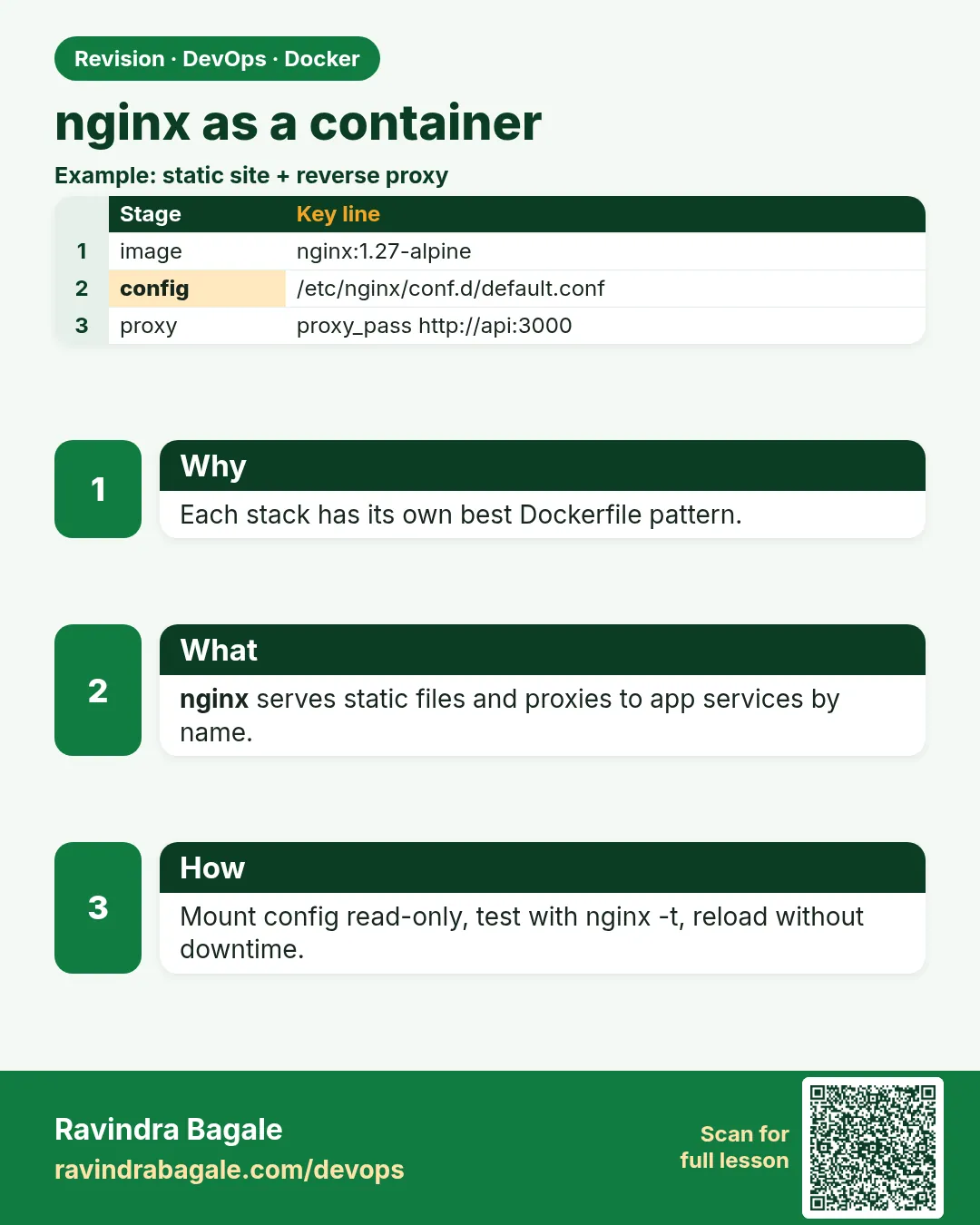 Revision card
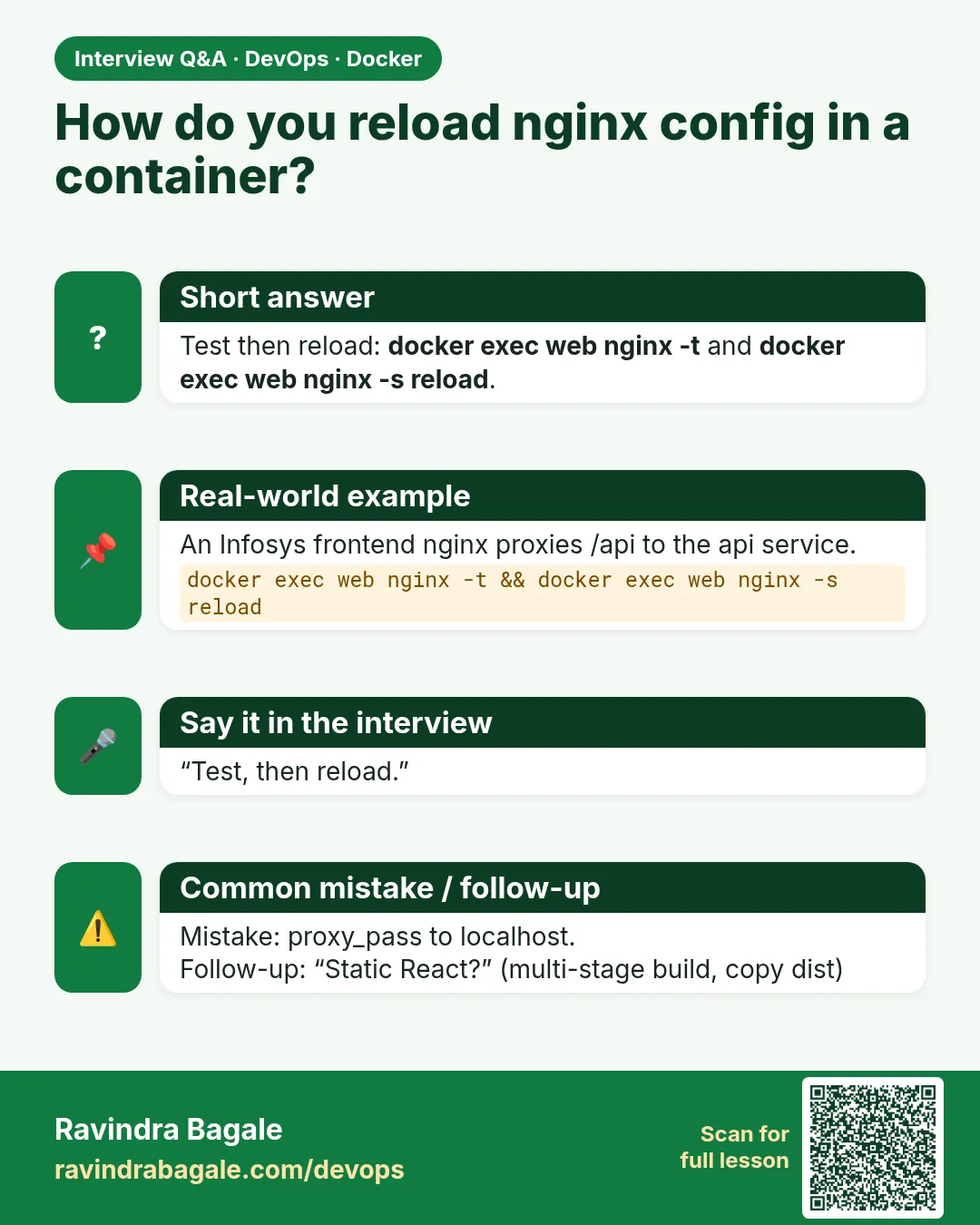 Interview card