54.1 Node.js Dockerfile (Express) for production
Friends, today we write a real production Dockerfile for a Node.js Express API, one line at a time. We start with the simplest file that works, see why it is too big and unsafe, and improve it step by step: a pinned base image, a good layer order, npm ci, a multi-stage build, a non-root user, a healthcheck and clean shutdown.
मित्रांनो, आज Node.js Express API साठी खरा production Dockerfile एक एक line ने लिहू. आधी चालणारी सगळ्यात सोपी file, मग ती मोठी आणि unsafe का आहे ते बघू, आणि step by step सुधारू: pinned base image, योग्य layer क्रम, npm ci, multi-stage build, non-root user, healthcheck आणि clean shutdown.
दोस्तों, आज Node.js Express API के लिए असली production Dockerfile एक-एक line से लिखेंगे. पहले चलने वाली सबसे आसान file, फिर देखेंगे वह बड़ी और unsafe क्यों है, और step by step सुधारेंगे: pinned base image, सही layer क्रम, npm ci, multi-stage build, non-root user, healthcheck और clean shutdown.
1. Start from a story
At Netflix's internal tools team, Vikram wrote a small Express API that lists test devices. On his laptop, npm start worked perfectly.
On the build server it failed: a different Node version. A teammate copied node_modules from a Mac, and a native package crashed on Linux.
Vikram's first Docker image was 1.1 GB, ran as root, and contained test files, the .git folder and even his local .env file.
After one afternoon of small fixes, the image was 140 MB, ran as the node user, rebuilt in seconds when only code changed, and shut down cleanly when Docker stopped it. Today we repeat his fixes one by one.
2. A tiny app to containerise
Step 1: The sample API
Why: Something real to build.
What: A three-file Express app: package.json, package-lock.json and server.js with a /health route.
Example 1: package.json
Type this:
printf '{\n "name": "devices-api",\n "version": "1.0.0",\n "main": "server.js",\n "scripts": {"start": "node server.js"},\n "dependencies": {"express": "4.21.1"}\n}\n' > package.json && npm install --package-lock-only --silent && ls
You will see:
package-lock.json
package.json
What it means: Lock file pins every version.
Example 2: server.js
Type this:
printf 'const express=require("express");\nconst app=express();\napp.get("/health",(q,r)=>r.json({ok:true}));\napp.get("/devices",(q,r)=>r.json([{id:1,name:"Fire TV"}]));\nconst s=app.listen(process.env.PORT||3000,"0.0.0.0",()=>console.log("listening"));\nprocess.on("SIGTERM",()=>s.close(()=>process.exit(0)));\n' > server.js && node --check server.js && echo ok
You will see:
ok
What it means: Listens on 0.0.0.0 and handles SIGTERM.
Example 3: Run without Docker
Type this:
npm ci --silent && (node server.js &) && sleep 1 && curl -s localhost:3000/health
You will see:
listening
{"ok":true}
What it means: Works on the laptop.
Step 2: The naive Dockerfile
Why: Works, but badly.
What: This first version copies everything and installs everything. It runs, so we can measure how bad it is.
Example 4: Write
Type this:
printf 'FROM node\nCOPY . .\nRUN npm install\nCMD npm start\n' > Dockerfile && docker build -q -t devices:naive .
You will see:
sha256:71c0e9d2a4b8
What it means: It builds.
Example 5: Size
Type this:
docker images devices:naive --format '{{.Size}}'
You will see:
1.12GB
What it means: Huge: the full Debian image plus build tools.
Example 6: Who runs it
Type this:
docker run --rm devices:naive whoami
You will see:
root
What it means: Runs as root: a security risk.
3. Fix it step by step
Step 3: Pin the base image
Why: Same Node everywhere.
What: node without a tag means latest, which changes. Pin the major version and a slim variant.
Example 7: Pinned
Type this:
printf 'FROM node:20.18-alpine\n' > Dockerfile && echo pinned
You will see:
pinned
What it means: Alpine is small; 20.18 is fixed.
Example 8: Compare bases
Type this:
docker images node --format '{{.Tag}} {{.Size}}' | grep -E '^(20.18-alpine|20.18-slim|20.18) '
You will see:
20.18-alpine 133MB
20.18-slim 200MB
20.18 1.1GB
What it means: Alpine is the smallest.
Example 9: Digest pin
Type this:
docker buildx imagetools inspect node:20.18-alpine | grep -m1 Digest
You will see:
Digest: sha256:c1f0a2b3...
What it means: For the strictest builds, pin the digest too.
Step 4: WORKDIR and .dockerignore
Why: A clean home and a clean context.
What: WORKDIR sets /app. .dockerignore keeps node_modules, .git, .env and tests out of the image.
Example 10: dockerignore
Type this:
printf 'node_modules\n.git\n.env\n*.log\ncoverage\ntest\nDockerfile\n' > .dockerignore && wc -l .dockerignore
You will see:
7 .dockerignore
What it means: Your secrets never enter the build.
Example 11: WORKDIR
Type this:
printf 'FROM node:20.18-alpine\nWORKDIR /app\n' > Dockerfile && echo ok
You will see:
ok
What it means: Creates /app and moves into it.
Example 12: Context size
Type this:
docker build --no-cache -t t . 2>&1 | grep 'transferring context'
You will see:
=> => transferring context: 2.10kB
What it means: Kilobytes instead of megabytes.
Step 5: Copy package files first
Why: Use the layer cache.
What: Copy only package.json and the lock file, install, and then copy the code. Code changes then do not reinstall dependencies.
Example 13: Order
Type this:
printf 'FROM node:20.18-alpine\nWORKDIR /app\nCOPY package.json package-lock.json ./\nRUN npm ci --omit=dev\nCOPY . .\nCMD ["node","server.js"]\n' > Dockerfile && docker build -q -t devices:v2 .
You will see:
sha256:4d1e7c0a9f22
What it means: Dependencies are their own layer.
Example 14: Change code
Type this:
printf '// tweak\n' >> server.js && docker build -t devices:v2 . 2>&1 | grep -E 'CACHED|npm ci'
You will see:
=> CACHED [3/5] COPY package.json package-lock.json ./
=> CACHED [4/5] RUN npm ci --omit=dev
What it means: npm ci was skipped.
Example 15: Time
Type this:
time docker build -q -t devices:v2 . >/dev/null
You will see:
real 0m1.4s
What it means: Rebuild in about a second.
Step 6: npm ci instead of npm install
Why: Exact, repeatable installs.
What: npm ci installs exactly what the lock file says and fails if package.json and the lock disagree. --omit=dev skips test tools.
Example 16: Mismatch
Type this:
npm pkg set dependencies.lodash=4.17.21 && docker build -q -t t . 2>&1 | grep -m1 'npm ci'
You will see:
npm ci can only install packages when your package.json and package-lock.json are in sync
What it means: Fails early instead of drifting.
Example 17: Fix
Type this:
npm install --package-lock-only --silent && docker build -q -t t . && echo fixed
You will see:
sha256:9a0b...
fixed
What it means: Lock updated.
Example 18: Cache mount
Type this:
printf 'RUN --mount=type=cache,target=/root/.npm npm ci --omit=dev\n'
You will see:
RUN --mount=type=cache,target=/root/.npm npm ci --omit=dev
What it means: BuildKit keeps the npm cache between builds.
Step 7: Exec-form CMD and signals
Why: Stop quickly and cleanly.
What: CMD ["node","server.js"] makes node PID 1, so it receives SIGTERM. npm start or shell form adds a middle process that may not pass the signal on.
Example 19: Shell form
Type this:
printf 'CMD npm start\n' && docker run -d --name a devices:naive && time docker stop a
You will see:
CMD npm start
real    0m10.3s
What it means: Docker waited 10 seconds, then killed it.
Example 20: Exec form
Type this:
docker run -d --name b devices:v2 && time docker stop b
You will see:
real 0m0.4s
What it means: node got SIGTERM and closed at once.
Example 21: init
Type this:
docker run -d --init --name c devices:v2 && docker exec c ps -o pid,comm | head -3
You will see:
PID   COMMAND
    1 docker-init
    7 node
What it means: --init adds a tiny init that reaps zombie processes.
Step 8: Run as the node user
Why: Never root in production.
What: The official image already has a user called node with UID 1000. Switch to it with USER and give it ownership of the app files.
Example 22: USER
Type this:
printf 'COPY --chown=node:node . .\nUSER node\n' && echo 'add before CMD'
You will see:
COPY --chown=node:node . .
USER node
add before CMD
What it means: Files owned by node.
Example 23: Check
Type this:
docker build -q -t devices:v3 . && docker run --rm devices:v3 id
You will see:
uid=1000(node) gid=1000(node) groups=1000(node)
What it means: Not root.
Example 24: Write test
Type this:
docker run --rm devices:v3 sh -c 'touch /etc/x' 2>&1
You will see:
touch: /etc/x: Permission denied
What it means: An attacker cannot change system files.
Step 9: Multi-stage build
Why: Build tools stay behind.
What: One stage installs and builds, the final stage copies only what runs. This matters most for TypeScript or native modules.
Example 25: Dockerfile
Type this:
printf 'FROM node:20.18-alpine AS deps\nWORKDIR /app\nCOPY package*.json ./\nRUN npm ci\n\nFROM deps AS build\nCOPY . .\nRUN npm run build --if-present\n\nFROM node:20.18-alpine AS runtime\nENV NODE_ENV=production\nWORKDIR /app\nCOPY package*.json ./\nRUN npm ci --omit=dev \x26\x26 npm cache clean --force\nCOPY --from=build --chown=node:node /app .\nUSER node\nEXPOSE 3000\nCMD ["node","server.js"]\n' > Dockerfile && grep -c FROM Dockerfile
You will see:
3
What it means: deps, build, runtime.
Example 26: Build
Type this:
docker build -q -t devices:1.0.0 . && docker images devices:1.0.0 --format '{{.Size}}'
You will see:
141MB
What it means: From 1.12 GB to 141 MB.
Example 27: History
Type this:
docker history devices:1.0.0 --format '{{.Size}} {{.CreatedBy}}' | head -3
You will see:
0B CMD ["node" "server.js"]
0B USER node
2.1MB COPY /app . # buildkit
What it means: Only the runtime layers ship.
Step 10: ENV, EXPOSE and HEALTHCHECK
Why: Document and self-check.
What: NODE_ENV=production makes Express faster. EXPOSE documents the port. HEALTHCHECK lets Docker see if the app is alive.
Example 28: Healthcheck
Type this:
printf 'HEALTHCHECK --interval=15s --timeout=3s --retries=3 CMD wget -qO- http://127.0.0.1:3000/health || exit 1\n' >> Dockerfile && echo added
You will see:
added
What it means: Alpine has wget built in.
Example 29: Run
Type this:
docker build -q -t devices:1.0.1 . && docker run -d -p 3000:3000 --name d devices:1.0.1 && sleep 20 && docker ps --format '{{.Names}} {{.Status}}'
You will see:
d Up 20 seconds (healthy)
What it means: Healthy status.
Example 30: Env check
Type this:
docker exec d node -e 'console.log(process.env.NODE_ENV)'
You will see:
production
What it means: Set in the image.
Step 11: Run it with Compose
Why: The image in a real stack.
What: Put the image in compose.yaml with a port, a restart policy and a memory limit, and check it from outside.
Example 31: Compose
Type this:
printf 'services:\n api:\n image: devices:1.0.1\n ports: ["3000:3000"]\n restart: unless-stopped\n deploy: {resources: {limits: {memory: 256M}}}\n' > compose.yaml && docker compose up -d --wait
You will see:
✔ Container devices-api-1 Healthy
What it means: --wait uses the image's HEALTHCHECK.
Example 32: Call it
Type this:
curl -s localhost:3000/devices
You will see:
[{"id":1,"name":"Fire TV"}]
What it means: Served from the container.
Example 33: Memory
Type this:
docker compose stats --no-stream --format '{{.MemUsage}}'
You will see:
38.2MiB / 256MiB
What it means: Plenty of headroom.
Step 12: Scan and label
Why: Know what you ship.
What: Scan the image for known vulnerabilities and add OCI labels for version and source.
Example 34: Scan
Type this:
docker scout cves devices:1.0.1 --only-severity critical,high | tail -2
You will see:
0C 0H 2M 1L
What it means: No critical or high issues.
Example 35: Labels
Type this:
printf 'LABEL org.opencontainers.image.version="1.0.1" org.opencontainers.image.title="devices-api"\n' >> Dockerfile && echo ok
You will see:
ok
What it means: Metadata others can read.
Example 36: Read labels
Type this:
docker build -q -t devices:1.0.1 . && docker inspect devices:1.0.1 --format '{{index .Config.Labels "org.opencontainers.image.version"}}'
You will see:
1.0.1
What it means: Version inside the image.
4. Common mistakes and how Vikram avoids them
Mistake one: FROM node with no tag. Vikram pins node:20.18-alpine.
Mistake two: COPY . . before npm ci. Every code change reinstalls everything. He copies package files first.
Mistake three: no .dockerignore. His .env and node_modules ended up in the image. Now they are ignored.
Mistake four: CMD npm start. Stops took 10 seconds. He uses exec-form node.
Mistake five: running as root. He adds USER node.
Check yourself
Q1. Why copy package.json before the code?
So the npm ci layer stays cached when only code changes.
Q2. npm ci or npm install in Docker?
npm ci: exact versions from the lock file.
Q3. Why exec-form CMD?
node becomes PID 1 and receives SIGTERM directly.
Q4. Which user does the official Node image provide?
node, UID 1000.
Friends, pin the base, ignore junk, copy package files first, npm ci, multi-stage, USER node, exec CMD and a healthcheck. Did you understand? Let us try it once more. Take your own Express app and bring its image under 150 MB.
मित्रांनो, base pin करा, junk ignore करा, package files आधी copy, npm ci, multi-stage, USER node, exec CMD आणि healthcheck. समजलं का? चला, पुन्हा एकदा करून पाहू. तुमचं स्वतःचं Express app घ्या आणि त्याची image 150 MB खाली आणा.
दोस्तों, base pin कीजिए, junk ignore कीजिए, package files पहले copy, npm ci, multi-stage, USER node, exec CMD और healthcheck. समझ आया? चलिए, एक बार फिर करके देखते हैं। अपना Express app लीजिए और उसकी image 150 MB से नीचे लाइए.
Ravindra Bagale's Tip
Always run docker history on a new image. If you see a big layer you did not expect, it is usually a missing .dockerignore line.
नवीन image वर नेहमी docker history चालवा. अपेक्षा नसलेला मोठा layer दिसला तर बहुतेक .dockerignore मध्ये एक line राहिलेली असते.
नई image पर हमेशा docker history चलाइए. उम्मीद से बड़ा layer दिखे तो ज़्यादातर .dockerignore में एक line छूटी होती है.
Lab: try at home
- Build the naive image and note its size and user.
- Pin the base and add .dockerignore.
- Reorder COPY and prove npm ci is cached.
- Switch to exec-form CMD and time docker stop.
- Add USER node and a healthcheck.
- Make it multi-stage and compare sizes.
Recap
- Pin node:20-alpine, never plain node.
- Copy package files, npm ci, then code.
- .dockerignore keeps secrets and node_modules out.
- Exec-form CMD handles SIGTERM.
- USER node removes root.
- Multi-stage plus healthcheck gives a small, safe image.
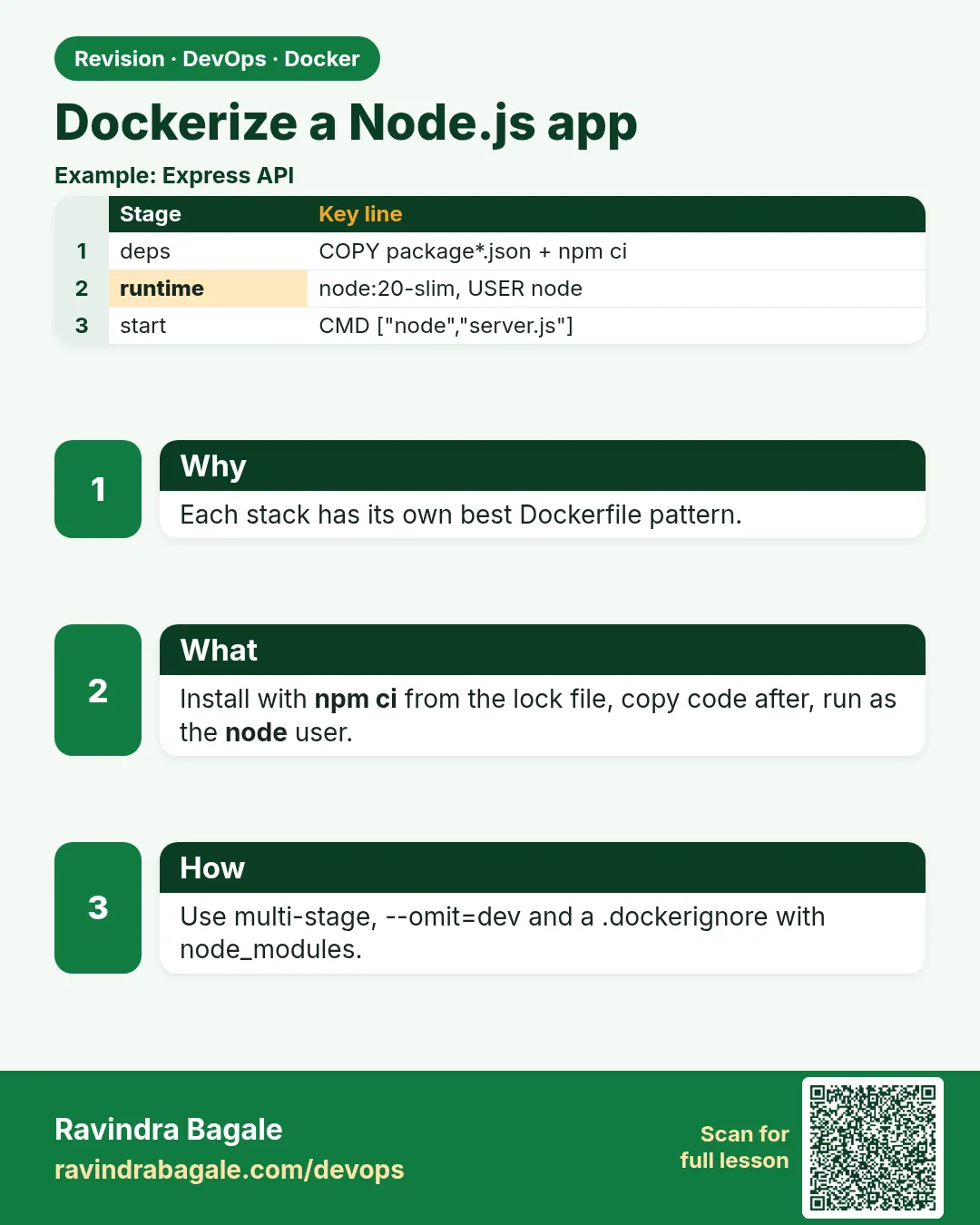 Revision card
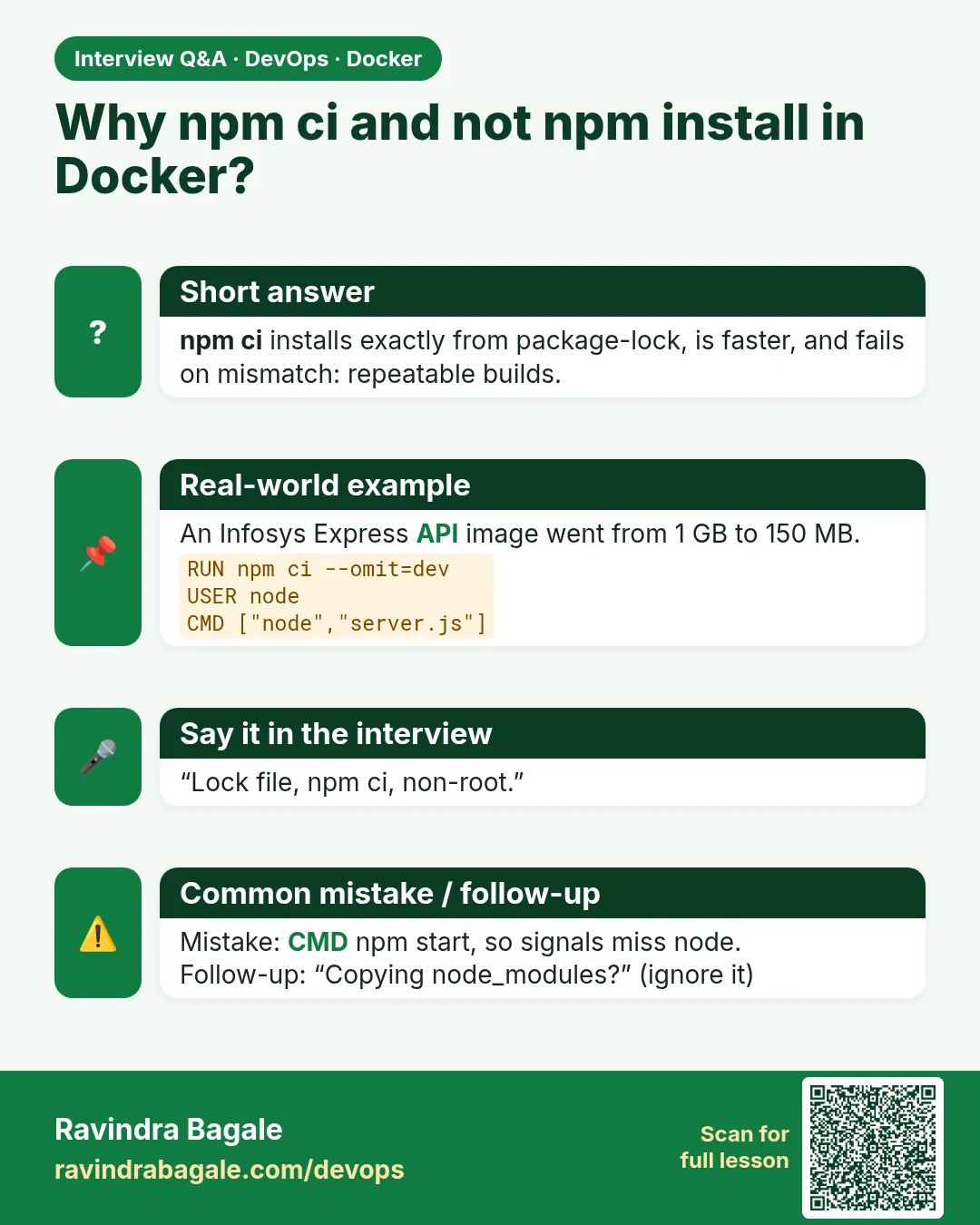 Interview card