54.4 .NET 8 ASP.NET Core Dockerfile
Friends, .NET apps fit Docker very nicely because Microsoft gives separate images for building and for running. Today we write an ASP.NET Core 8 Dockerfile step by step: the SDK image to restore and publish, the small aspnet image to run, the built-in app user, port 8080, health checks and even a chiseled image with no shell.
मित्रांनो, .NET apps Docker मध्ये छान बसतात, कारण Microsoft build साठी आणि run साठी वेगवेगळ्या images देतो. आज ASP.NET Core 8 चा Dockerfile step by step लिहूया: restore आणि publish साठी SDK image, चालवण्यासाठी लहान aspnet image, built-in app user, port 8080, health checks आणि shell नसलेली chiseled image सुद्धा.
दोस्तों, .NET apps Docker में बढ़िया बैठते हैं, क्योंकि Microsoft build और run के लिए अलग-अलग images देता है. आज ASP.NET Core 8 का Dockerfile step by step लिखेंगे: restore और publish के लिए SDK image, चलाने के लिए छोटी aspnet image, built-in app user, port 8080, health checks और बिना shell वाली chiseled image भी.
1. Start from a story
At Infosys, a team maintains an ASP.NET Core API for an insurance client. It returns policy details. For years it ran on Windows servers in IIS.
The client wanted it on Linux containers in AWS. The first attempt copied the bin folder from a developer laptop into an image. It failed on Linux because the laptop built it in Debug mode with Windows paths.
Then they used the SDK image for everything. It worked, but the image was 850 MB and contained the full compiler and NuGet caches.
Meera, the tech lead, rewrote it: restore and publish in the SDK stage, run on the aspnet runtime as the app user on port 8080. The image fell to about 220 MB, and to about 110 MB with the chiseled variant. Today we follow her steps.
2. Build and publish in the SDK stage
Step 1: The sample API
Why: Something to containerise.
What: Create a minimal API with the dotnet CLI inside a container, so you do not even need .NET installed.
Example 1: Create
Type this:
docker run --rm -v "$PWD":/src -w /src mcr.microsoft.com/dotnet/sdk:8.0 dotnet new webapi -n Policy --no-https -o . && ls
You will see:
Policy.csproj Program.cs Properties appsettings.json
What it means: A ready web API project.
Example 2: Add a route
Type this:
printf '%s\n' 'var builder = WebApplication.CreateBuilder(args);' 'builder.Services.AddHealthChecks();' 'var app = builder.Build();' 'app.MapGet("/policy/{id}", (int id) => new { id, plan = "Gold" });' 'app.MapHealthChecks("/healthz");' 'app.Run();' > Program.cs && echo ok
You will see:
ok
What it means: One route plus a health endpoint.
Example 3: Ignore build output
Type this:
printf '%s\n' 'bin/' 'obj/' '.vs/' '*.user' > .dockerignore && cat .dockerignore
You will see:
bin/
obj/
.vs/
*.user
What it means: Never copy laptop build output into the image.
Step 2: Restore first for caching
Why: NuGet downloads happen once.
What: Copy only the .csproj and run dotnet restore. Packages are cached in that layer until the project file changes.
Example 4: Stage start
Type this:
printf '%s\n' '# syntax=docker/dockerfile:1' 'FROM mcr.microsoft.com/dotnet/sdk:8.0 AS build' 'WORKDIR /src' 'COPY Policy.csproj .' 'RUN dotnet restore' > Dockerfile && cat Dockerfile | tail -2
You will see:
COPY Policy.csproj .
RUN dotnet restore
What it means: Project file before code.
Example 5: Build stage
Type this:
docker build --target build -t policy:build . 2>&1 | grep -i restored
You will see:
Restored /src/Policy.csproj (in 2.31 sec).
What it means: Packages downloaded.
Example 6: Edit code and rebuild
Type this:
echo '// note' >> Program.cs && docker build --target build -t policy:build . 2>&1 | grep -c CACHED
You will see:
3
What it means: Restore was cached.
Step 3: Publish in Release mode
Why: The real build.
What: dotnet publish compiles in Release and puts everything the app needs into one folder. --no-restore uses the earlier layer.
Example 7: Add publish
Type this:
printf '%s\n' 'COPY . .' 'RUN dotnet publish -c Release -o /app/publish --no-restore /p:UseAppHost=false' >> Dockerfile && tail -1 Dockerfile
You will see:
RUN dotnet publish -c Release -o /app/publish --no-restore /p:UseAppHost=false
What it means: UseAppHost=false skips the native launcher; we start with dotnet.
Example 8: Look inside
Type this:
docker build -q --target build -t policy:build . && docker run --rm policy:build ls /app/publish | head -4
You will see:
Policy.dll
Policy.deps.json
Policy.runtimeconfig.json
appsettings.json
What it means: The DLL and its config files.
Example 9: Size of the SDK image
Type this:
docker images policy:build --format '{{.Size}}'
You will see:
861MB
What it means: Too big to ship. That is why we need a second stage.
Step 4: Cache the NuGet folder
Why: Faster CI builds.
What: A BuildKit cache mount keeps /root/.nuget/packages between builds without putting it into any layer.
Example 10: Use the mount
Type this:
sed -i 's#^RUN dotnet restore#RUN --mount=type=cache,target=/root/.nuget/packages dotnet restore#' Dockerfile && grep restore Dockerfile
You will see:
RUN --mount=type=cache,target=/root/.nuget/packages dotnet restore
What it means: Packages stay on the build machine.
Example 11: Publish uses it too
Type this:
sed -i 's#^RUN dotnet publish#RUN --mount=type=cache,target=/root/.nuget/packages dotnet publish#' Dockerfile && grep -c mount Dockerfile
You will see:
2
What it means: Both commands share the cache.
Example 12: Time it
Type this:
time docker build -q --target build -t policy:build . | tail -1
You will see:
real 0m6.902s
What it means: Rebuilds take seconds.
3. A small, safe runtime
Step 5: The aspnet runtime stage
Why: Only what runs the app.
What: The aspnet image has the ASP.NET Core runtime but no SDK. We copy the publish folder from the build stage.
Example 13: Final stage
Type this:
printf '%s\n' 'FROM mcr.microsoft.com/dotnet/aspnet:8.0' 'WORKDIR /app' 'COPY --from=build /app/publish .' 'ENTRYPOINT ["dotnet", "Policy.dll"]' >> Dockerfile && grep FROM Dockerfile
You will see:
FROM mcr.microsoft.com/dotnet/sdk:8.0 AS build
FROM mcr.microsoft.com/dotnet/aspnet:8.0
What it means: Two stages.
Example 14: Build and run
Type this:
docker build -q -t policy:1.0 . && docker run -d -p 8080:8080 --name p policy:1.0 && sleep 3 && curl -s localhost:8080/policy/7
You will see:
{"id":7,"plan":"Gold"}
What it means: The API answers.
Example 15: Size
Type this:
docker images policy:1.0 --format '{{.Size}}'
You will see:
221MB
What it means: From 861 MB to 221 MB.
Step 6: Port 8080 and ASPNETCORE_URLS
Why: The .NET 8 change.
What: From .NET 8 the images listen on 8080, not 80, so the app can run as non-root. ASPNETCORE_HTTP_PORTS changes it if needed.
Example 16: Check the default
Type this:
docker inspect policy:1.0 --format '{{range .Config.Env}}{{println .}}{{end}}' | grep PORT
You will see:
ASPNETCORE_HTTP_PORTS=8080
What it means: Set by the base image.
Example 17: Change the port
Type this:
docker run -d -e ASPNETCORE_HTTP_PORTS=5000 -p 5000:5000 --name p5 policy:1.0 && sleep 3 && curl -s localhost:5000/healthz
You will see:
Healthy
What it means: Now on 5000.
Example 18: Common mistake
Type this:
docker run -d -p 8090:80 --name pbad policy:1.0 && sleep 3 && curl -s -m 2 localhost:8090/healthz || echo 'connection reset'
You will see:
connection reset
What it means: Mapping to 80 fails; the app listens on 8080.
Step 7: The built-in app user
Why: Non-root in one line.
What: .NET 8 images include a user named app with UID 1654. Switch to it with USER.
Example 19: Before
Type this:
docker exec p id
You will see:
uid=0(root) gid=0(root) groups=0(root)
What it means: Still root by default.
Example 20: Switch
Type this:
sed -i 's#^ENTRYPOINT#USER app\nENTRYPOINT#' Dockerfile && grep -B1 ENTRYPOINT Dockerfile
You will see:
USER app
ENTRYPOINT ["dotnet", "Policy.dll"]
What it means: USER just before ENTRYPOINT.
Example 21: After
Type this:
docker build -q -t policy:1.1 . && docker rm -f p && docker run -d -p 8080:8080 --name p policy:1.1 && docker exec p id
You will see:
uid=1654(app) gid=1654(app) groups=1654(app)
What it means: Non-root, no extra RUN line needed.
Step 8: Health check endpoint
Why: Docker knows when the API is ready.
What: We already mapped /healthz. The aspnet image has no curl, so the simplest Docker HEALTHCHECK is in Compose with a tool you add, or we rely on the orchestrator probe.
Example 22: Probe by hand
Type this:
curl -s localhost:8080/healthz
You will see:
Healthy
What it means: The endpoint works.
Example 23: Compose healthcheck with curl added
Type this:
printf '%s\n' 'RUN apt-get update && apt-get install -y --no-install-recommends curl && rm -rf /var/lib/apt/lists/*' > curl.part && sed -i '/^WORKDIR \/app/r curl.part' Dockerfile && printf '%s\n' 'HEALTHCHECK --interval=15s CMD curl -fs localhost:8080/healthz || exit 1' > hc.part && sed -i '/^USER app/e cat hc.part' Dockerfile && grep HEALTH Dockerfile
You will see:
HEALTHCHECK --interval=15s CMD curl -fs localhost:8080/healthz || exit 1
What it means: Adds about 10 MB; fine for most teams.
Example 24: Status
Type this:
docker build -q -t policy:1.2 . && docker rm -f p && docker run -d -p 8080:8080 --name p policy:1.2 && sleep 20 && docker ps --format '{{.Names}} {{.Status}}' --filter name=^p$
You will see:
p Up 20 seconds (healthy)
What it means: Healthy.
Step 9: Settings with environment variables
Why: No secrets in appsettings.json.
What: ASP.NET Core reads environment variables. A double underscore means a nested key: ConnectionStrings__Db maps to ConnectionStrings:Db.
Example 25: Set env
Type this:
docker run -d -e ASPNETCORE_ENVIRONMENT=Production -e ConnectionStrings__Db='Host=db;Username=app;Password=example-only' --name penv policy:1.2 && docker exec penv printenv ASPNETCORE_ENVIRONMENT
You will see:
Production
What it means: Example password only; use secrets in real life.
Example 26: Secret file
Type this:
printf 'example-only-pass' > db_pass.txt && chmod 600 db_pass.txt && docker run -d -v "$PWD/db_pass.txt":/run/secrets/db_pass:ro --name psec policy:1.2 && docker exec psec cat /run/secrets/db_pass
You will see:
example-only-pass
What it means: Read the file in Program.cs at startup.
Example 27: Logs
Type this:
docker logs p 2>&1 | grep -m1 'Hosting environment'
You will see:
info: Microsoft.Hosting.Lifetime[0]
      Hosting environment: Production
What it means: Production by default in the aspnet image.
Step 10: Chiseled images
Why: No shell, tiny attack surface.
What: Ubuntu chiseled images contain only the runtime files. There is no shell or apt, and they run as non-root already.
Example 28: Swap the base
Type this:
sed -i 's#dotnet/aspnet:8.0$#dotnet/aspnet:8.0-jammy-chiseled#' Dockerfile && sed -i '/apt-get/d;/^HEALTHCHECK/d' Dockerfile && grep FROM Dockerfile | tail -1
You will see:
FROM mcr.microsoft.com/dotnet/aspnet:8.0-jammy-chiseled
What it means: Remove apt and curl lines; they cannot work here.
Example 29: Size
Type this:
docker build -q -t policy:chiseled . && docker images policy:chiseled --format '{{.Size}}'
You will see:
117MB
What it means: Half of the Debian runtime.
Example 30: No shell
Type this:
docker run -d --name pc policy:chiseled && docker exec pc sh -c 'echo hi' 2>&1 | head -1
You will see:
OCI runtime exec failed: exec: "sh": executable file not found in $PATH
What it means: Attackers cannot get a shell either. Debug with docker debug or a sidecar.
Step 11: Self-contained and trimmed
Why: The smallest .NET image.
What: Publish the app with its own runtime and trim unused code. Then the final stage only needs runtime-deps, which has the native libraries but no .NET.
Example 31: Publish self-contained
Type this:
printf '%s\n' 'RUN dotnet publish -c Release -o /app/sc -r linux-x64 --self-contained true /p:PublishTrimmed=true' > sc.part && sed -i '/-o \/app\/publish/r sc.part' Dockerfile && grep self-contained Dockerfile
You will see:
RUN dotnet publish -c Release -o /app/sc -r linux-x64 --self-contained true /p:PublishTrimmed=true
What it means: Trimming removes unused libraries.
Example 32: runtime-deps stage
Type this:
printf '%s\n' 'FROM mcr.microsoft.com/dotnet/runtime-deps:8.0-jammy-chiseled AS tiny' 'WORKDIR /app' 'COPY --from=build /app/sc .' 'ENTRYPOINT ["./Policy"]' >> Dockerfile && docker build -q --target tiny -t policy:tiny . && docker images policy:tiny --format '{{.Size}}'
You will see:
61MB
What it means: The app carries its own runtime.
Example 33: Test it
Type this:
docker run -d -p 8082:8080 --name pt policy:tiny && sleep 2 && curl -s localhost:8082/policy/3
You will see:
{"id":3,"plan":"Gold"}
What it means: Test well; trimming can break reflection-heavy code.
Step 12: Run it with Postgres in Compose
Why: The real setup.
What: In Compose the API reaches Postgres by service name. The connection string comes from the environment, and the API waits for a healthy database.
Example 34: compose.yaml
Type this:
printf '%s\n' 'services:' ' db:' ' image: postgres:16' ' environment: {POSTGRES_PASSWORD: example-only}' ' healthcheck: {test: ["CMD","pg_isready"], interval: 5s}' ' api:' ' build: .' ' ports: ["8080:8080"]' ' environment:' ' ConnectionStrings__Db: Host=db;Username=postgres;Password=example-only' ' depends_on: {db: {condition: service_healthy}}' > compose.yaml && docker compose config -q && echo valid
You will see:
valid
What it means: Example password only.
Example 35: Up
Type this:
docker compose up -d --build --wait 2>&1 | tail -2
You will see:
✔ Container policy-db-1   Healthy
✔ Container policy-api-1  Started
What it means: The database first, then the API.
Example 36: Call it
Type this:
curl -s localhost:8080/policy/11
You will see:
{"id":11,"plan":"Gold"}
What it means: Working stack.
4. Common mistakes and how Meera avoids them
Mistake one: copying bin/Debug from a laptop. Meera publishes in Release inside the SDK stage.
Mistake two: shipping the SDK image. She runs on aspnet or chiseled.
Mistake three: mapping port 80 on .NET 8. She maps 8080.
Mistake four: running as root. She uses USER app.
Mistake five: secrets in appsettings.json. She passes them as environment variables or secret files.
Check yourself
Q1. Which image builds and which runs?
sdk:8.0 builds; aspnet:8.0 runs.
Q2. Which port does a .NET 8 container use by default?
8080.
Q3. What does ConnectionStrings__Db mean?
The nested setting ConnectionStrings:Db.
Q4. What is special about chiseled images?
No shell or package manager, non-root, about 110 MB.
Friends, restore first, publish in Release, run on aspnet, port 8080, USER app, settings from the environment, and chiseled when you want the smallest image. Did you understand? Let us try it once more. Build both the aspnet and the chiseled image and compare their sizes.
मित्रांनो, आधी restore, Release मध्ये publish, aspnet वर run, port 8080, USER app, settings environment मधून, आणि सगळ्यात लहान image हवी तर chiseled. समजलं का? चला, पुन्हा एकदा करून पाहू. aspnet आणि chiseled दोन्ही images build करा आणि sizes ची तुलना करा.
दोस्तों, पहले restore, Release में publish, aspnet पर run, port 8080, USER app, settings environment से, और सबसे छोटी image चाहिए तो chiseled. समझ आया? चलिए, एक बार फिर करके देखते हैं। aspnet और chiseled दोनों images build कीजिए और sizes की तुलना कीजिए.
Ravindra Bagale's Tip
On .NET 8, if the container starts but you get connection reset, first check the port. Nine times out of ten you mapped 80 instead of 8080.
.NET 8 वर container चालू होतो पण connection reset येतो, तर आधी port तपासा. दहापैकी नऊ वेळा तुम्ही 8080 ऐवजी 80 map केलेला असतो.
.NET 8 पर container चालू होता है पर connection reset आता है, तो पहले port जाँचिए. दस में से नौ बार आपने 8080 की जगह 80 map किया होता है.
Lab: try at home
- Create the Policy API with the SDK container.
- Write the restore and publish stage.
- Add the aspnet runtime stage and run it.
- Switch to USER app and check id.
- Pass a connection string with a double underscore.
- Swap to the chiseled base and compare sizes.
Recap
- SDK stage: restore first, then publish Release.
- aspnet stage: copy the publish folder only.
- Listen on 8080 in .NET 8.
- USER app for non-root.
- Environment variables for settings and secrets.
- Chiseled images for the smallest runtime.
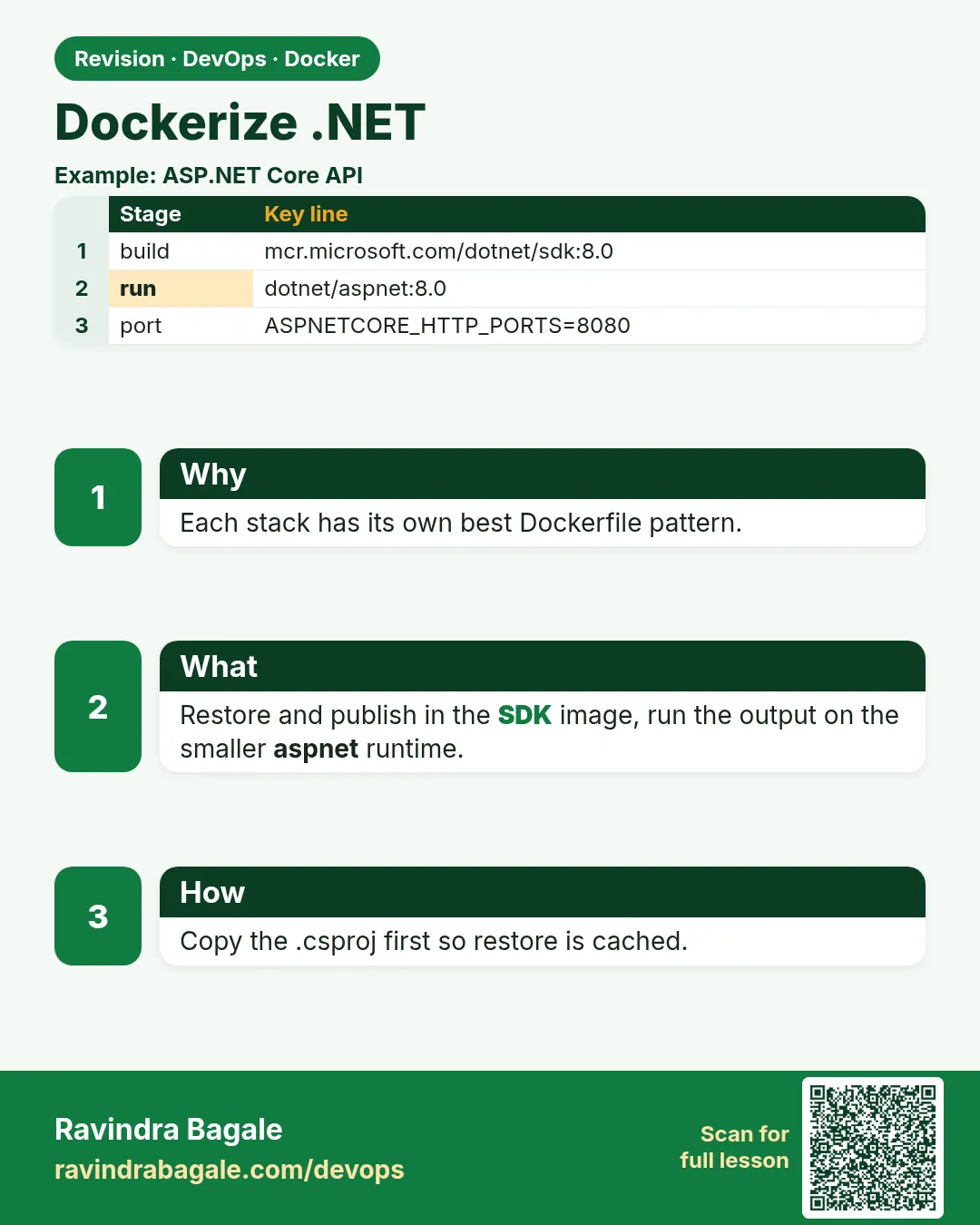 Revision card
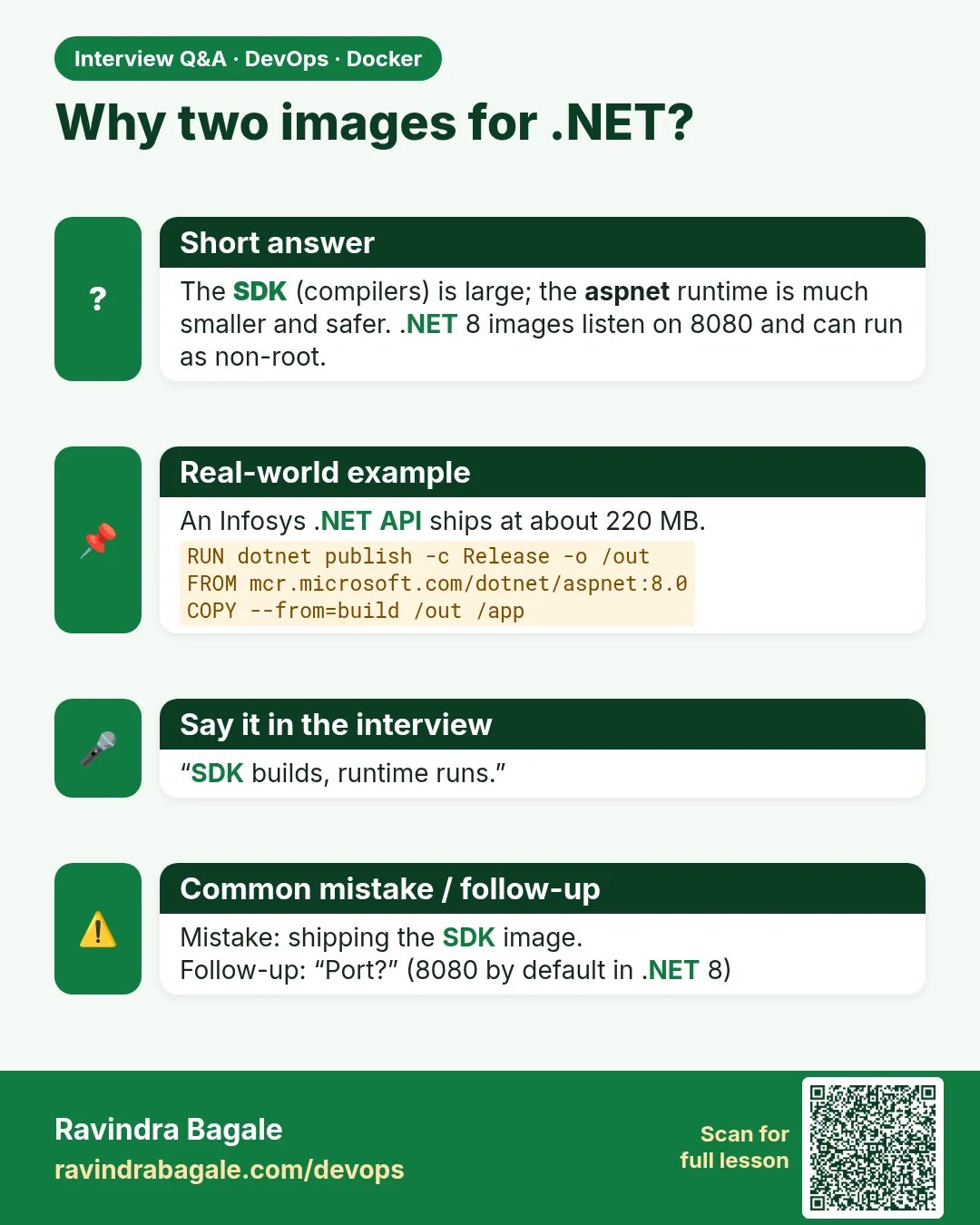 Interview card