54.6 PHP-FPM with nginx Dockerfile (Laravel style)
Friends, PHP in containers is a little different. PHP-FPM runs the PHP code, but it does not speak HTTP to browsers. nginx stands in front and passes .php requests to FPM on port 9000. Today we build a Laravel-style app step by step: Composer in a build stage, PHP extensions, OPcache, two containers that share the public folder, and storage permissions done safely.
मित्रांनो, containers मध्ये PHP थोडं वेगळं आहे. PHP-FPM PHP code चालवतो, पण browser शी HTTP बोलत नाही. समोर nginx उभा राहतो आणि .php requests port 9000 वर FPM कडे पाठवतो. आज Laravel सारखी app step by step build करूया: build stage मध्ये Composer, PHP extensions, OPcache, public folder share करणारे दोन containers, आणि storage permissions सुरक्षितपणे.
दोस्तों, containers में PHP थोड़ा अलग है. PHP-FPM PHP code चलाता है, पर browser से HTTP में बात नहीं करता. आगे nginx खड़ा होता है और .php requests port 9000 पर FPM को भेजता है. आज Laravel जैसी app step by step build करेंगे: build stage में Composer, PHP extensions, OPcache, public folder share करने वाले दो containers, और storage permissions सुरक्षित तरीके से.
1. Start from a story
At Zomato, an internal partner dashboard was written in Laravel years ago. It ran on one old server with Apache, PHP and every extension anyone had ever installed.
When the team moved it to containers, the first image used php:8.3-apache, ran composer install with dev packages, and gave the storage folder full write access for everyone. Pages were slow because OPcache was off.
Uploads failed after a restart because storage lived inside the container, and a security review flagged the open permissions immediately.
Sneha, the DevOps engineer, rebuilt it the standard way: Composer in its own stage, php-fpm with only the needed extensions, OPcache on, nginx in a second container, and storage on a volume owned by www-data. Today we follow her steps.
2. Build the PHP image
Step 1: The sample Laravel app
Why: Create it with Composer in a container.
What: We do not install PHP on the laptop. The composer image creates the project for us.
Example 1: Create project
Type this:
docker run --rm -v "$PWD":/app -w /app composer:2 create-project laravel/laravel partner --no-interaction -q && ls partner | head -5
You will see:
app
artisan
bootstrap
composer.json
composer.lock
What it means: A full Laravel skeleton.
Example 2: Add a route
Type this:
cd partner && printf '%s\n' '' 'Route::get("/health", fn() => response()->json(["ok" => true]));' >> routes/web.php && tail -1 routes/web.php
You will see:
Route::get("/health", fn() => response()->json(["ok" => true]));
What it means: A health route for checks.
Example 3: dockerignore
Type this:
printf '%s\n' 'vendor/' 'node_modules/' '.env' 'storage/logs/*' '.git' > .dockerignore && cat .dockerignore
You will see:
vendor/
node_modules/
.env
storage/logs/*
.git
What it means: Never copy the local .env or vendor folder.
Step 2: Composer in a build stage
Why: No Composer in production.
What: Copy composer.json and composer.lock first, install without dev packages, then copy the code and dump an optimised autoloader.
Example 4: Stage vendor
Type this:
printf '%s\n' '# syntax=docker/dockerfile:1' 'FROM composer:2 AS vendor' 'WORKDIR /app' 'COPY composer.json composer.lock ./' 'RUN composer install --no-dev --no-scripts --no-autoloader --prefer-dist' 'COPY . .' 'RUN composer dump-autoload --optimize --classmap-authoritative' > Dockerfile && wc -l Dockerfile
You will see:
7 Dockerfile
What it means: Lock file first for caching.
Example 5: Build stage only
Type this:
docker build -q --target vendor -t partner:vendor . && docker run --rm partner:vendor ls vendor | wc -l
You will see:
38
What it means: Production packages only.
Example 6: Dev packages gone
Type this:
docker run --rm partner:vendor sh -c 'ls vendor | grep -c phpunit'
You will see:
0
What it means: phpunit is a dev package; it is not shipped.
Step 3: php-fpm base and extensions
Why: Only what the app needs.
What: The official php:8.3-fpm image has a helper, docker-php-ext-install, to compile extensions like pdo_mysql and opcache.
Example 7: Runtime stage
Type this:
printf '%s\n' 'FROM php:8.3-fpm AS app' 'RUN docker-php-ext-install pdo_mysql opcache bcmath' 'WORKDIR /var/www/html' >> Dockerfile && grep ext-install Dockerfile
You will see:
RUN docker-php-ext-install pdo_mysql opcache bcmath
What it means: Three extensions, nothing else.
Example 8: Extensions that need libraries
Type this:
printf '%s\n' 'RUN apt-get update && apt-get install -y --no-install-recommends libzip-dev libpng-dev && docker-php-ext-install zip gd && rm -rf /var/lib/apt/lists/*'
You will see:
RUN apt-get update && apt-get install -y --no-install-recommends libzip-dev libpng-dev && docker-php-ext-install zip gd && rm -rf /var/lib/apt/lists/*
What it means: zip and gd need system libraries first.
Example 9: List modules
Type this:
docker build -q --target app -t partner:app . && docker run --rm partner:app php -m | grep -E 'pdo_mysql|Zend OPcache|bcmath'
You will see:
bcmath
pdo_mysql
Zend OPcache
What it means: Exactly what we asked for.
Step 4: Turn on OPcache
Why: Big speed win.
What: OPcache keeps compiled PHP in memory. In production we also stop checking file timestamps, because the code never changes inside an image.
Example 10: Config file
Type this:
printf '%s\n' 'opcache.enable=1' 'opcache.memory_consumption=128' 'opcache.max_accelerated_files=20000' 'opcache.validate_timestamps=0' > opcache.ini && printf '%s\n' 'COPY opcache.ini /usr/local/etc/php/conf.d/opcache.ini' >> Dockerfile && echo ok
You will see:
ok
What it means: validate_timestamps=0 is for production only.
Example 11: Production php.ini
Type this:
printf '%s\n' 'RUN cp "$PHP_INI_DIR/php.ini-production" "$PHP_INI_DIR/php.ini"' >> Dockerfile && tail -1 Dockerfile
You will see:
RUN cp "$PHP_INI_DIR/php.ini-production" "$PHP_INI_DIR/php.ini"
What it means: Hides errors from users, logs them instead.
Example 12: Check
Type this:
docker build -q --target app -t partner:app . && docker run --rm partner:app php -i | grep -m1 validate_timestamps
You will see:
opcache.validate_timestamps => Off => Off
What it means: OPcache ready.
Step 5: Copy code and set ownership
Why: www-data owns only what it writes.
What: Copy the app from the vendor stage. Code stays owned by root and read-only to FPM. Only storage and bootstrap/cache belong to www-data.
Example 13: Copy and chown
Type this:
printf '%s\n' 'COPY --from=vendor /app /var/www/html' 'RUN chown -R www-data:www-data storage bootstrap/cache && chmod -R 0755 storage bootstrap/cache' 'USER www-data' >> Dockerfile && tail -2 Dockerfile
You will see:
RUN chown -R www-data:www-data storage bootstrap/cache && chmod -R 0755 storage bootstrap/cache
USER www-data
What it means: Never open the folders to everyone.
Example 14: Who runs FPM
Type this:
docker build -q --target app -t partner:app . && docker run -d --name fpm partner:app && sleep 2 && docker exec fpm ps -o user,comm | head -3
You will see:
USER     COMMAND
www-data php-fpm
www-data php-fpm
What it means: Master and workers as www-data.
Example 15: Can it write logs?
Type this:
docker exec fpm sh -c 'touch storage/logs/test.log && echo writable'
You will see:
writable
What it means: Only where it needs to.
Step 6: Laravel caches at startup
Why: Faster boot, config from env.
What: config:cache reads environment variables, so run it when the container starts, not at build time. A small entrypoint script does it and then starts FPM.
Example 16: Entrypoint
Type this:
printf '%s\n' '#!/bin/sh' 'set -e' 'php artisan config:cache' 'php artisan route:cache' 'php artisan view:cache' 'exec php-fpm' > docker-entrypoint.sh && chmod 0755 docker-entrypoint.sh && cat docker-entrypoint.sh | tail -1
You will see:
exec php-fpm
What it means: exec makes php-fpm PID 1.
Example 17: Use it
Type this:
printf '%s\n' 'COPY --chmod=0755 docker-entrypoint.sh /usr/local/bin/' 'ENTRYPOINT ["docker-entrypoint.sh"]' >> Dockerfile && tail -1 Dockerfile
You will see:
ENTRYPOINT ["docker-entrypoint.sh"]
What it means: Runs on every start.
Example 18: Logs
Type this:
docker build -q --target app -t partner:app . && docker rm -f fpm && docker run -d -e APP_KEY=base64:ZXhhbXBsZS1vbmx5LWtleS1jaGFuZ2UtbWUtMzJieXQ= --name fpm partner:app && sleep 3 && docker logs fpm 2>&1 | head -3
You will see:
INFO  Configuration cached successfully.
INFO  Routes cached successfully.
NOTICE: fpm is running, pid 1
What it means: The APP_KEY here is an example only.
3. nginx in front, Compose for the stack
Step 7: nginx config for FPM
Why: The glue.
What: nginx serves files from public and sends anything else to index.php through FastCGI to the app service on port 9000.
Example 19: default.conf
Type this:
printf '%s\n' 'server {' ' listen 8080;' ' root /var/www/html/public;' ' index index.php;' ' location / { try_files $uri $uri/ /index.php?$query_string; }' ' location ~ \.php$ {' ' include fastcgi_params;' ' fastcgi_param SCRIPT_FILENAME $document_root$fastcgi_script_name;' ' fastcgi_pass app:9000;' ' }' '}' > nginx.conf && grep fastcgi_pass nginx.conf
You will see:
fastcgi_pass app:9000;
What it means: app is the Compose service name.
Example 20: Test syntax
Type this:
docker run --rm -v "$PWD/nginx.conf":/etc/nginx/conf.d/default.conf:ro --add-host app:127.0.0.1 nginx:1.27 nginx -t
You will see:
nginx: the configuration file /etc/nginx/nginx.conf syntax is ok
nginx: configuration file /etc/nginx/nginx.conf test is successful
What it means: Always test before deploying.
Example 21: Why 8080
Type this:
printf 'We will run nginx as a non-root user, which cannot bind port 80.\n'
You will see:
We will run nginx as a non-root user, which cannot bind port 80.
What it means: Map 80:8080 on the host.
Step 8: An nginx stage with public files
Why: nginx needs the static files too.
What: Add a third stage that starts from nginx-unprivileged and copies only the public folder and the config.
Example 22: Stage web
Type this:
printf '%s\n' 'FROM nginxinc/nginx-unprivileged:1.27 AS web' 'COPY nginx.conf /etc/nginx/conf.d/default.conf' 'COPY --from=vendor /app/public /var/www/html/public' >> Dockerfile && grep -c '^FROM' Dockerfile
You will see:
3
What it means: vendor, app and web stages.
Example 23: Build both targets
Type this:
docker build -q --target app -t partner-app:1.0 . && docker build -q --target web -t partner-web:1.0 . && docker images 'partner-*' --format '{{.Repository}} {{.Size}}'
You will see:
partner-app 168MB
partner-web 54MB
What it means: Two images from one Dockerfile.
Example 24: nginx user
Type this:
docker run --rm partner-web:1.0 id -un
You will see:
nginx
What it means: Unprivileged image runs as nginx.
Step 9: compose.yaml for the stack
Why: Everything together.
What: app, web and mysql. Storage on a named volume. The password comes from a secret file with example content.
Example 25: Write it
Type this:
printf '%s\n' 'services:' ' app:' ' build: {context: ., target: app}' ' environment: {DB_HOST: db, DB_DATABASE: partner, DB_USERNAME: partner, APP_KEY: base64:ZXhhbXBsZS1vbmx5LWtleS1jaGFuZ2UtbWUtMzJieXQ=}' ' volumes: [storage:/var/www/html/storage/app]' ' web:' ' build: {context: ., target: web}' ' ports: ["80:8080"]' ' depends_on: [app]' ' db:' ' image: mysql:8.4' ' environment: {MYSQL_DATABASE: partner, MYSQL_USER: partner, MYSQL_PASSWORD_FILE: /run/secrets/dbpass, MYSQL_RANDOM_ROOT_PASSWORD: "yes"}' ' secrets: [dbpass]' 'secrets: {dbpass: {file: ./dbpass.txt}}' 'volumes: {storage: {}}' > compose.yaml && printf 'example-only-pass' > dbpass.txt && chmod 600 dbpass.txt && docker compose config -q && echo valid
You will see:
valid
What it means: Example secret value only.
Example 26: Up
Type this:
docker compose up -d --build 2>&1 | tail -3
You will see:
✔ Container partner-db-1   Started
✔ Container partner-app-1  Started
✔ Container partner-web-1  Started
What it means: Three containers.
Example 27: Test
Type this:
curl -s localhost/health && curl -sI localhost/favicon.ico | head -1
You will see:
{"ok":true}
HTTP/1.1 200 OK
What it means: PHP through FPM, static straight from nginx.
Step 10: Migrations and queue workers
Why: Same image, different commands.
What: Use the app image for one-off migrations and for long-running queue workers. Only the command changes.
Example 28: Migrate once
Type this:
docker compose run --rm app php artisan migrate --force
You will see:
INFO  Running migrations.
  2014_10_12_000000_create_users_table ...... DONE
What it means: --force is needed in production mode.
Example 29: Worker service
Type this:
printf '%s\n' ' worker:' ' build: {context: ., target: app}' ' entrypoint: ["php","artisan","queue:work","--tries=3"]' > worker.part && sed -i '/^ web:/e cat worker.part' compose.yaml && docker compose up -d worker && docker compose ps worker --format '{{.Status}}'
You will see:
Up 3 seconds
What it means: Same image, a different entrypoint.
Example 30: Scheduler
Type this:
printf '%s\n' 'entrypoint: ["php","artisan","schedule:work"]'
You will see:
entrypoint: ["php","artisan","schedule:work"]
What it means: Replaces the old server cron.
Step 11: Logs to stdout
Why: See errors with docker logs.
What: Laravel writes to storage/logs by default. In containers send logs to stderr so docker logs and your log tools see them.
Example 31: Set channel
Type this:
docker compose exec app printenv LOG_CHANNEL || echo not-set
You will see:
not-set
What it means: Default is a file.
Example 32: Use stderr
Type this:
sed -i 's#APP_KEY:#LOG_CHANNEL: stderr, APP_KEY:#' compose.yaml && docker compose up -d app && docker compose exec app printenv LOG_CHANNEL
You will see:
stderr
What it means: One environment variable.
Example 33: See an error
Type this:
curl -s localhost/missing >/dev/null; docker compose logs app --tail 2
You will see:
app-1 | 172.18.0.4 - 25/Oct/2026:10:41:02 +0530 "GET /index.php" 404
What it means: Logs flow to Docker now.
Step 12: Healthchecks for FPM and nginx
Why: Know both halves are alive.
What: FPM has a built-in ping page. Turn it on, and check it with the cgi-fcgi tool or simply check the app through nginx.
Example 34: Enable ping
Type this:
printf '%s\n' '[www]' 'ping.path = /ping' 'pm.status_path = /status' > zz-health.conf && printf '%s\n' 'COPY zz-health.conf /usr/local/etc/php-fpm.d/zz-health.conf' > hc.part && sed -i '/^USER www-data/e cat hc.part' Dockerfile && grep zz-health Dockerfile
You will see:
COPY zz-health.conf /usr/local/etc/php-fpm.d/zz-health.conf
What it means: FPM now answers /ping with pong.
Example 35: App healthcheck in Compose
Type this:
printf '%s\n' ' healthcheck:' ' test: ["CMD-SHELL", "php-fpm -t 2>&1 | grep -q successful"]' ' interval: 15s'
You will see:
healthcheck:
  test: ["CMD-SHELL", "php-fpm -t 2>&1 | grep -q successful"]
  interval: 15s
What it means: A simple config test that needs no extra tools.
Example 36: Web healthcheck
Type this:
docker compose exec web sh -c 'wget -qO- localhost:8080/health'
You will see:
{"ok":true}
What it means: Checks nginx, FPM and Laravel in one call.
4. Common mistakes and how Sneha avoids them
Mistake one: Composer and dev packages in production. Sneha uses a vendor stage with --no-dev.
Mistake two: OPcache off. She enables it with validate_timestamps=0.
Mistake three: opening storage to everyone. She gives it to www-data with 0755 and keeps the code root-owned.
Mistake four: config:cache at build time, which freezes the wrong environment. She runs it in the entrypoint.
Mistake five: storage inside the container. She mounts a named volume.
Check yourself
Q1. Why does PHP-FPM need nginx?
FPM speaks FastCGI, not HTTP; nginx handles the browser and static files.
Q2. Which port does FPM listen on?
9000.
Q3. Why validate_timestamps=0?
Code never changes inside an image, so skip file checks for speed.
Q4. Where should config:cache run?
At container start, so it uses the real environment.
Friends, Composer in its own stage, php-fpm with only needed extensions, OPcache on, nginx in front, www-data owning only storage, and caches built at start. Did you understand? Let us try it once more. Run the stack and hit one PHP route and one static file.
मित्रांनो, Composer वेगळ्या stage मध्ये, फक्त गरजेचे extensions असलेला php-fpm, OPcache चालू, समोर nginx, फक्त storage www-data च्या मालकीचं, आणि caches start वेळी. समजलं का? चला, पुन्हा एकदा करून पाहू. Stack चालवा आणि एक PHP route आणि एक static file उघडून बघा.
दोस्तों, Composer अलग stage में, सिर्फ़ ज़रूरी extensions वाला php-fpm, OPcache चालू, आगे nginx, सिर्फ़ storage www-data का, और caches start के समय. समझ आया? चलिए, एक बार फिर करके देखते हैं। Stack चलाइए और एक PHP route और एक static file खोलकर देखिए.
Ravindra Bagale's Tip
If you see a 502 Bad Gateway from nginx, check fastcgi_pass first. The service name and port 9000 must match the FPM container.
nginx कडून 502 Bad Gateway आला, तर आधी fastcgi_pass तपासा. Service name आणि port 9000 FPM container शी जुळले पाहिजेत.
nginx से 502 Bad Gateway आए, तो पहले fastcgi_pass जाँचिए. Service name और port 9000 FPM container से मेल खाने चाहिए.
Lab: try at home
- Create the Laravel app with the composer image.
- Write the vendor stage with --no-dev.
- Add php-fpm with pdo_mysql and OPcache.
- Write nginx.conf and test it with nginx -t.
- Bring up app, web and db with Compose.
- Run migrate as a one-off and add a queue worker.
Recap
- Composer runs only in the build stage.
- php-fpm image with just the extensions you need.
- OPcache on, production php.ini.
- nginx serves public files and passes PHP to app:9000.
- www-data owns only storage and bootstrap/cache.
- Same image for web, migrate and workers.
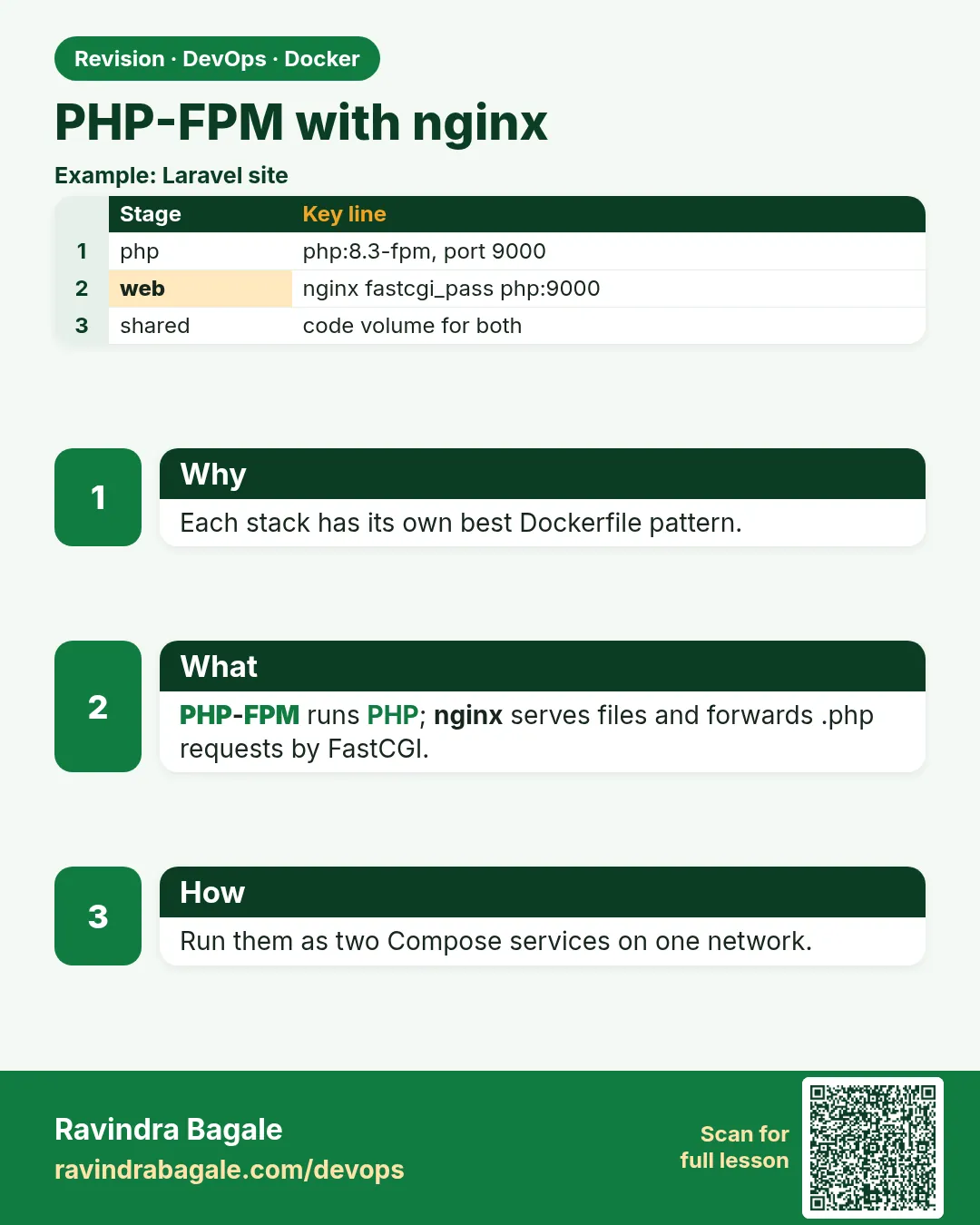 Revision card
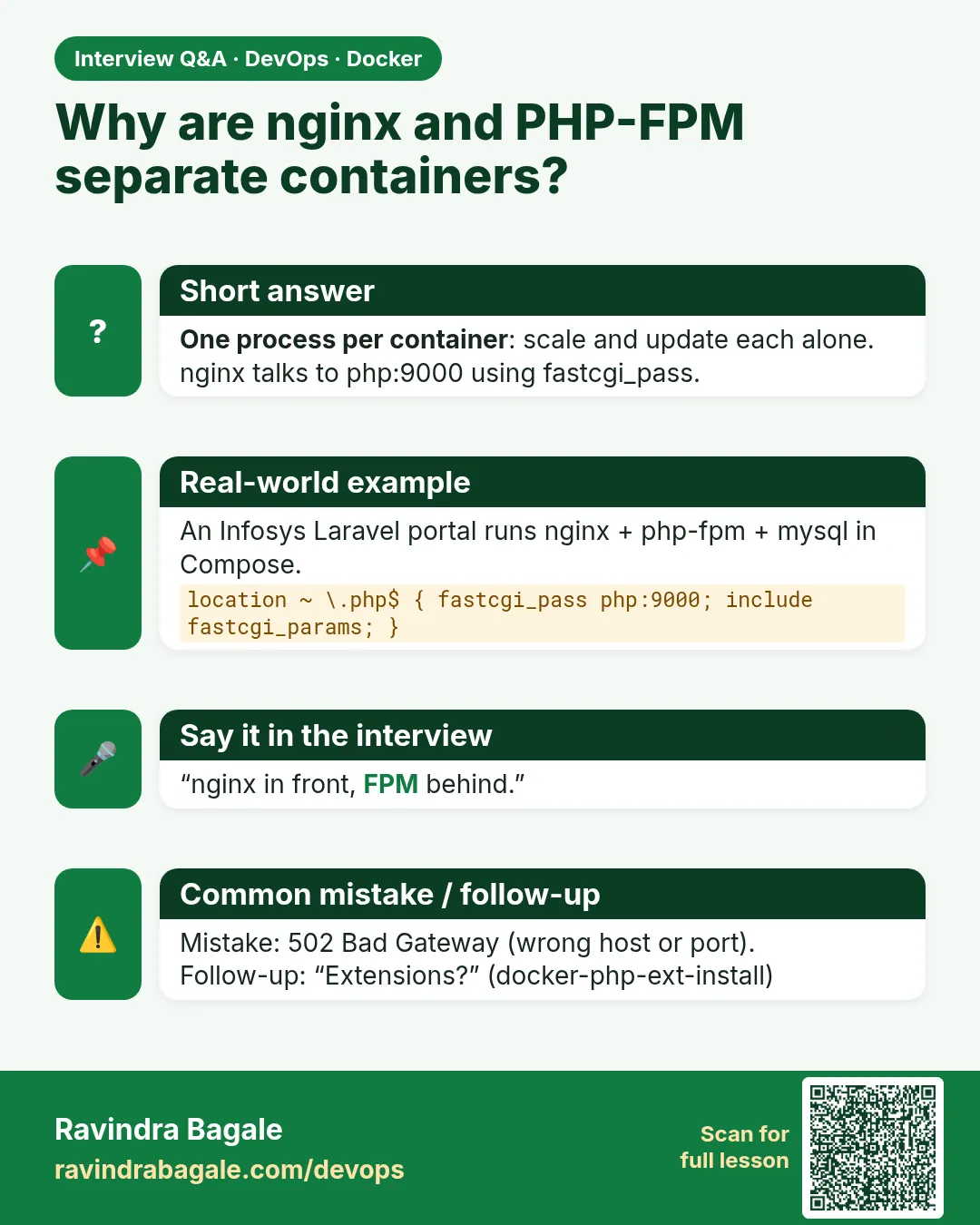 Interview card