53.9 Every docker compose command: full reference
Friends, you already know up and down. But when something breaks at night, you need the other commands too: ps, logs, exec, run, config, pull, build, restart, cp, top, events and more. Today we go through every docker compose command one by one, and each one gets small examples you can type right now.
मित्रांनो, up आणि down तुम्हाला माहीत आहेत. पण रात्री काही बिघडलं की बाकीचे commands पण लागतात: ps, logs, exec, run, config, pull, build, restart, cp, top, events आणि अजून. आज प्रत्येक docker compose command एक एक करून बघू, आणि प्रत्येकाला आत्ता type करता येतील अशी छोटी examples आहेत.
दोस्तों, up और down आप जानते हैं. पर रात को कुछ टूटे तो बाकी commands भी चाहिए: ps, logs, exec, run, config, pull, build, restart, cp, top, events और भी. आज हर docker compose command एक-एक करके देखेंगे, और हर एक के छोटे examples हैं जो आप अभी type कर सकते हैं.
1. Start from a story
At Paytm, a support engineer named Kiran got a call at 11 pm: the merchant dashboard on a staging server was showing errors. The app ran with Docker Compose, but Kiran only knew up and down.
He ran down and up again. The errors came back after two minutes, and now the logs from before the restart were gone too.
The next morning his lead showed him the toolkit: ps to see which service was unhealthy, logs --since to read what happened, exec to look inside, config to check the merged file, and restart for just one service instead of the whole stack.
Kiran wrote every command on a card and stuck it on his monitor. Today we build that same card, grouped by job: start and stop, look, get inside, build and pull, and housekeeping.
2. Start and stop
Step 1: up
Why: Create and start everything.
What: up creates networks, volumes and containers, then starts them. -d runs in the background, --build rebuilds images, --wait waits for health.
Example 1: Background
Type this:
docker compose up -d
You will see:
✔ Network shop_default  Created
✔ Container shop-db-1   Started
✔ Container shop-api-1  Started
What it means: Detached: you get your terminal back.
Example 2: Rebuild
Type this:
docker compose up -d --build api
You will see:
✔ Container shop-api-1 Started
What it means: Builds a fresh api image first.
Example 3: Force new containers
Type this:
docker compose up -d --force-recreate
You will see:
✔ Container shop-db-1   Recreated
✔ Container shop-api-1  Recreated
What it means: Even unchanged containers are replaced.
Step 2: down
Why: Remove what up created.
What: down stops and removes containers and the default network. -v also removes named volumes, --rmi removes images.
Example 4: Normal
Type this:
docker compose down
You will see:
✔ Container shop-api-1  Removed
✔ Network shop_default  Removed
What it means: Data volumes stay.
Example 5: Wipe data
Type this:
docker compose down -v
You will see:
✔ Volume shop_dbdata Removed
What it means: Careful: database data is gone.
Example 6: Orphans
Type this:
docker compose down --remove-orphans
You will see:
✔ Container shop-oldworker-1 Removed
What it means: Removes containers of services you deleted from the file.
Step 3: stop, start and restart
Why: Pause without deleting.
What: stop keeps the containers; start brings the same containers back; restart does both.
Example 7: Stop one
Type this:
docker compose stop api && docker compose ps -a --format '{{.Service}} {{.State}}'
You will see:
db running
api exited
What it means: Only api stopped.
Example 8: Start it
Type this:
docker compose start api
You will see:
✔ Container shop-api-1 Started
What it means: Same container, same data inside.
Example 9: Restart with timeout
Type this:
docker compose restart -t 5 api
You will see:
✔ Container shop-api-1 Started
What it means: Gives the app 5 seconds to shut down cleanly.
Step 4: pause, unpause and kill
Why: Freeze or force-stop.
What: pause freezes processes without stopping them. kill sends a signal, SIGKILL by default.
Example 10: Freeze
Type this:
docker compose pause api && docker compose ps --format '{{.Service}} {{.Status}}'
You will see:
db Up 3 minutes (healthy)
api Up 3 minutes (Paused)
What it means: Process frozen in memory.
Example 11: Unfreeze
Type this:
docker compose unpause api
You will see:
✔ Container shop-api-1 Unpaused
What it means: Continues where it was.
Example 12: Signal
Type this:
docker compose kill -s SIGHUP web
You will see:
✔ Container shop-web-1 Killed
What it means: nginx reloads config on SIGHUP; the container keeps running.
3. Look at what is happening
Step 5: ps
Why: List the project's containers.
What: Shows name, image, service, status and ports. -a includes stopped containers.
Example 13: Default
Type this:
docker compose ps
You will see:
NAME        IMAGE               SERVICE  STATUS                  PORTS
shop-api-1  shop/api:1.4        api      Up 2 minutes            3000/tcp
shop-db-1   postgres:16-alpine  db       Up 2 minutes (healthy)  5432/tcp
What it means: Health in brackets.
Example 14: Only names
Type this:
docker compose ps --services --filter status=running
You will see:
api
db
What it means: Handy in scripts.
Example 15: JSON
Type this:
docker compose ps --format json | head -c 60
You will see:
{"Command":"\"docker-entrypoint.s…","CreatedAt":
What it means: Feed to jq.
Step 6: logs
Why: Read output from services.
What: -f follows, --tail limits lines, --since picks a time window, -t adds timestamps.
Example 16: Last lines
Type this:
docker compose logs --tail 3 api
You will see:
api-1  | GET /health 200
api-1  | GET /orders 500
api-1  | Error: connect ECONNREFUSED db:5432
What it means: Prefix shows the container.
Example 17: Time window
Type this:
docker compose logs --since 10m -t db | head -2
You will see:
db-1  | 2026-10-25T05:41:02Z LOG:  database system is ready
db-1  | 2026-10-25T05:43:17Z FATAL:  password authentication failed
What it means: Times are in UTC.
Example 18: Follow two services
Type this:
docker compose logs -f api web
You will see:
web-1  | 172.20.0.1 - GET / 200
api-1  | GET / 200 4ms
What it means: Ctrl+C stops following, not the app.
Step 7: top, port and events
Why: Processes, ports and live changes.
What: top lists processes in each container, port prints the host port, events streams state changes.
Example 19: Processes
Type this:
docker compose top api
You will see:
shop-api-1
UID   PID    CMD
1000  21456  node server.js
What it means: Runs as user 1000, not root.
Example 20: Port
Type this:
docker compose port web 80
You will see:
0.0.0.0:8080
What it means: Which host port maps to 80.
Example 21: Events
Type this:
docker compose events --json api | head -1
You will see:
{"action":"health_status: healthy","service":"api"}
What it means: See restarts and health changes as they happen.
Step 8: stats and images
Why: Resource use and images in use.
What: stats shows CPU and memory; images lists images used by this project.
Example 22: Usage
Type this:
docker compose stats --no-stream --format '{{.Name}} {{.MemUsage}}'
You will see:
shop-api-1 84MiB / 512MiB
shop-db-1 41MiB / 7.6GiB
What it means: api has a limit, db has none.
Example 23: Images
Type this:
docker compose images
You will see:
CONTAINER   REPOSITORY  TAG        SIZE
shop-api-1  shop/api    1.4        148MB
shop-db-1   postgres    16-alpine  276MB
What it means: What this project runs.
Example 24: Projects
Type this:
docker compose ls
You will see:
NAME  STATUS      CONFIG FILES
shop  running(2)  /srv/shop/compose.yaml
What it means: Every Compose project on this host.
4. Get inside
Step 9: exec
Why: Run a command in a running container.
What: exec is how you open a shell or check a file inside a live service.
Example 25: Shell
Type this:
docker compose exec api sh -c 'id && pwd'
You will see:
uid=1000(node) gid=1000(node)
/app
What it means: You are inside as the app user.
Example 26: As root
Type this:
docker compose exec -u root api apk add --no-cache curl | tail -1
You will see:
OK: 12 MiB in 18 packages
What it means: Only for debugging; never bake this into prod.
Example 27: Database
Type this:
docker compose exec db psql -U shop -c 'select 1'
You will see:
 ?column?
----------
        1
What it means: Talk to Postgres directly.
Step 10: run
Why: Start a one-off container.
What: run uses the service config but starts a new container. --rm deletes it after, --no-deps skips dependencies.
Example 28: Migration
Type this:
docker compose run --rm api npm run migrate
You will see:
Batch 1 run: 3 migrations
What it means: Runs and disappears.
Example 29: Override entrypoint
Type this:
docker compose run --rm --entrypoint sh api -c 'node -v'
You will see:
v20.18.0
What it means: Check the runtime version.
Example 30: With port
Type this:
docker compose run --rm --service-ports api
You will see:
listening on 3000
What it means: Without --service-ports, run does not publish ports.
Step 11: cp and attach
Why: Copy files and attach to output.
What: cp copies files in or out of a service container. attach connects your terminal to its main process.
Example 31: Copy out
Type this:
docker compose cp db:/var/lib/postgresql/data/postgresql.conf ./pg.conf && wc -l pg.conf
You will see:
815 pg.conf
What it means: Read config on your laptop.
Example 32: Copy in
Type this:
docker compose cp ./seed.sql db:/tmp/seed.sql && echo copied
You will see:
copied
What it means: Then run it with exec psql.
Example 33: Attach
Type this:
docker compose attach --no-stdin api
You will see:
GET /health 200
What it means: Detach with Ctrl+C when --sig-proxy=false, or close the terminal.
5. Build, pull and ship
Step 12: build
Why: Build service images.
What: build reads each service's build: block. --no-cache ignores cache, --pull refreshes base images.
Example 34: All
Type this:
docker compose build
You will see:
[+] Building 18.4s (12/12) FINISHED
What it means: Builds every service with build:.
Example 35: Clean
Type this:
docker compose build --no-cache --pull api
You will see:
[+] Building 41.2s (12/12) FINISHED
What it means: Fresh base image, no cache.
Example 36: Build arg
Type this:
docker compose build --build-arg APP_VERSION=1.5 api && docker image inspect shop/api:1.4 --format '{{.Created}}'
You will see:
2026-10-25T06:02:11Z
What it means: Pass a value at build time.
Step 13: pull, push and create
Why: Images and containers without starting.
What: pull downloads images, push uploads built images, create makes containers but does not start them.
Example 37: Pull
Type this:
docker compose pull --quiet && echo pulled
You will see:
pulled
What it means: Latest images for the tags in the file.
Example 38: Push
Type this:
docker compose push api
You will see:
Pushing shop/api:1.4 ... done
What it means: Needs docker login to the registry first.
Example 39: Create
Type this:
docker compose create && docker compose ps -a --format '{{.Service}} {{.State}}'
You will see:
api created
db created
What it means: Ready but not running.
6. Check and tidy
Step 14: config
Why: See the final merged file.
What: config resolves variables, merges overrides and validates. It is the first command to run when something looks wrong.
Example 40: Validate
Type this:
docker compose config -q && echo valid
You will see:
valid
What it means: Silent if fine.
Example 41: Lists
Type this:
docker compose config --services && docker compose config --volumes
You will see:
api
db
dbdata
What it means: Names only.
Example 42: Images used
Type this:
docker compose config --images
You will see:
shop/api:1.4
postgres:16-alpine
What it means: Great for security scanning.
Step 15: rm, wait and version
Why: Small but useful.
What: rm removes stopped containers, wait blocks until containers exit, version prints the Compose version.
Example 43: Remove stopped
Type this:
docker compose rm -f
You will see:
Going to remove shop-api-1
✔ Container shop-api-1  Removed
What it means: Only stopped ones.
Example 44: Wait for a job
Type this:
docker compose up -d migrate && docker compose wait migrate
You will see:
0
What it means: Prints the exit code; 0 means success.
Example 45: Version
Type this:
docker compose version
You will see:
Docker Compose version v2.29.7
What it means: Check before using new features.
Step 16: Global flags
Why: Work from anywhere.
What: -f picks files, -p sets the project name, --profile enables profiles, --env-file picks variables.
Example 46: Another folder
Type this:
docker compose -f /srv/shop/compose.yaml ps --services
You will see:
api
db
What it means: No need to cd.
Example 47: Project name
Type this:
docker compose -p shop-test up -d && docker compose ls
You will see:
NAME       STATUS
shop       running(2)
shop-test  running(2)
What it means: Two copies side by side.
Example 48: Env file
Type this:
docker compose --env-file env/staging.env config | grep TAG
You will see:
image: shop/api:1.4-rc2
What it means: Different values, same file.
7. Common mistakes and how Kiran avoids them
Mistake one: running down and up to fix a single service. Kiran uses restart api or up -d --force-recreate api.
Mistake two: down -v by habit. That deletes the database volume. Kiran types -v only when he really wants fresh data.
Mistake three: reading logs after a restart without --since. He reads logs first, then restarts.
Mistake four: using run when he meant exec. run starts a new container that does not see the running one's memory or temp files.
Mistake five: guessing which file is used. He runs docker compose ls and docker compose config.
Check yourself
Q1. Which command shows the merged final file?
docker compose config.
Q2. exec or run for a database migration?
run --rm, a one-off container.
Q3. What does down -v also delete?
Named volumes, including database data.
Q4. How do you see logs from the last 10 minutes?
docker compose logs --since 10m.
Friends, now you have the whole toolkit: start and stop, look, get inside, build, and check. Did you understand? Let us try it once more. Write your own one-page card of these commands and practise each one on a small stack.
मित्रांनो, आता पूर्ण toolkit तुमच्याकडे आहे: start आणि stop, बघणं, आत जाणं, build, आणि तपासणं. समजलं का? चला, पुन्हा एकदा करून पाहू. या commands चं स्वतःचं एक पानाचं card बनवा आणि छोट्या stack वर प्रत्येक command चा सराव करा.
दोस्तों, अब पूरा toolkit आपके पास है: start और stop, देखना, अंदर जाना, build, और जाँचना. समझ आया? चलिए, एक बार फिर करके देखते हैं। इन commands का अपना एक पन्ने का card बनाइए और छोटे stack पर हर command का अभ्यास कीजिए.
Ravindra Bagale's Tip
When something breaks, follow this order: ps, logs --since, config, exec. Restart only after you have read the logs.
काही बिघडलं की हा क्रम पाळा: ps, logs --since, config, exec. Logs वाचल्यानंतरच restart करा.
कुछ टूटे तो यह क्रम अपनाइए: ps, logs --since, config, exec. Logs पढ़ने के बाद ही restart कीजिए.
Lab: try at home
- Start a two-service stack and run ps, top and port.
- Stop and start one service and confirm it is the same container.
- Read logs from the last 5 minutes with timestamps.
- Run a one-off command with run --rm.
- Copy a file out with cp.
- Validate the file with config -q and list its images.
Recap
- up, down, start, stop and restart control life.
- ps, logs, top, events and stats let you look.
- exec enters a running container; run starts a new one.
- build, pull and push handle images.
- config shows the final merged truth.
- -f, -p and --env-file work from anywhere.
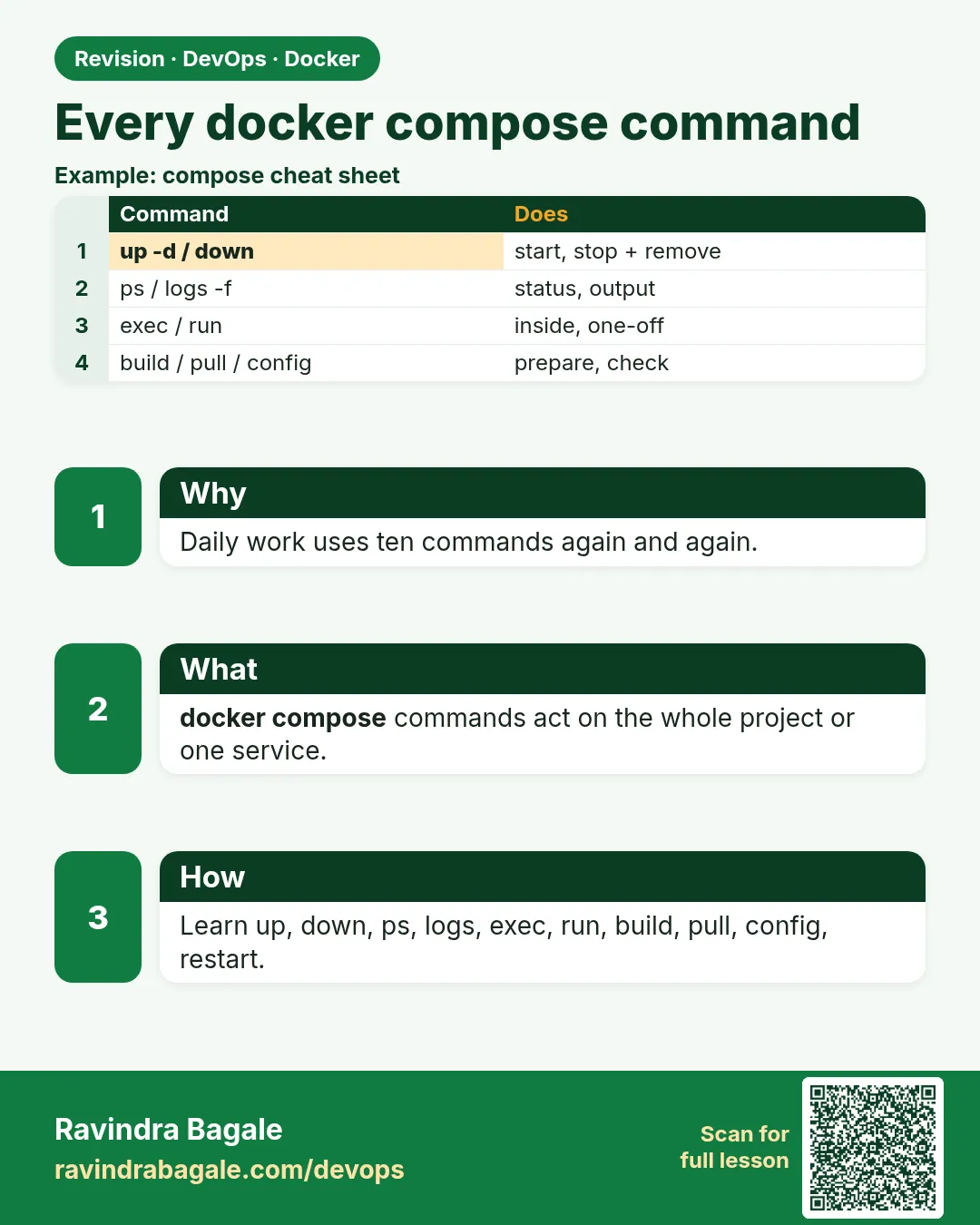 Revision card
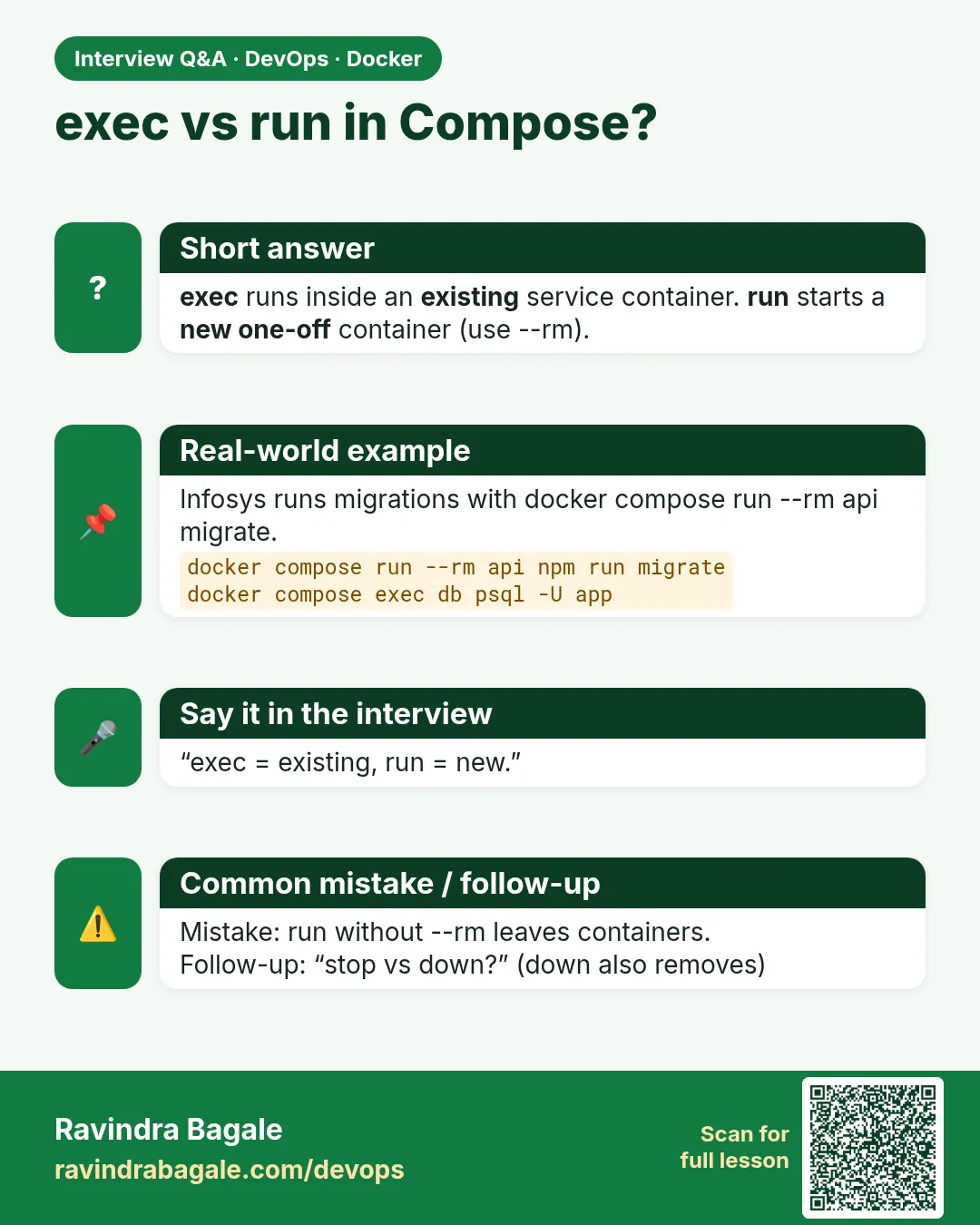 Interview card
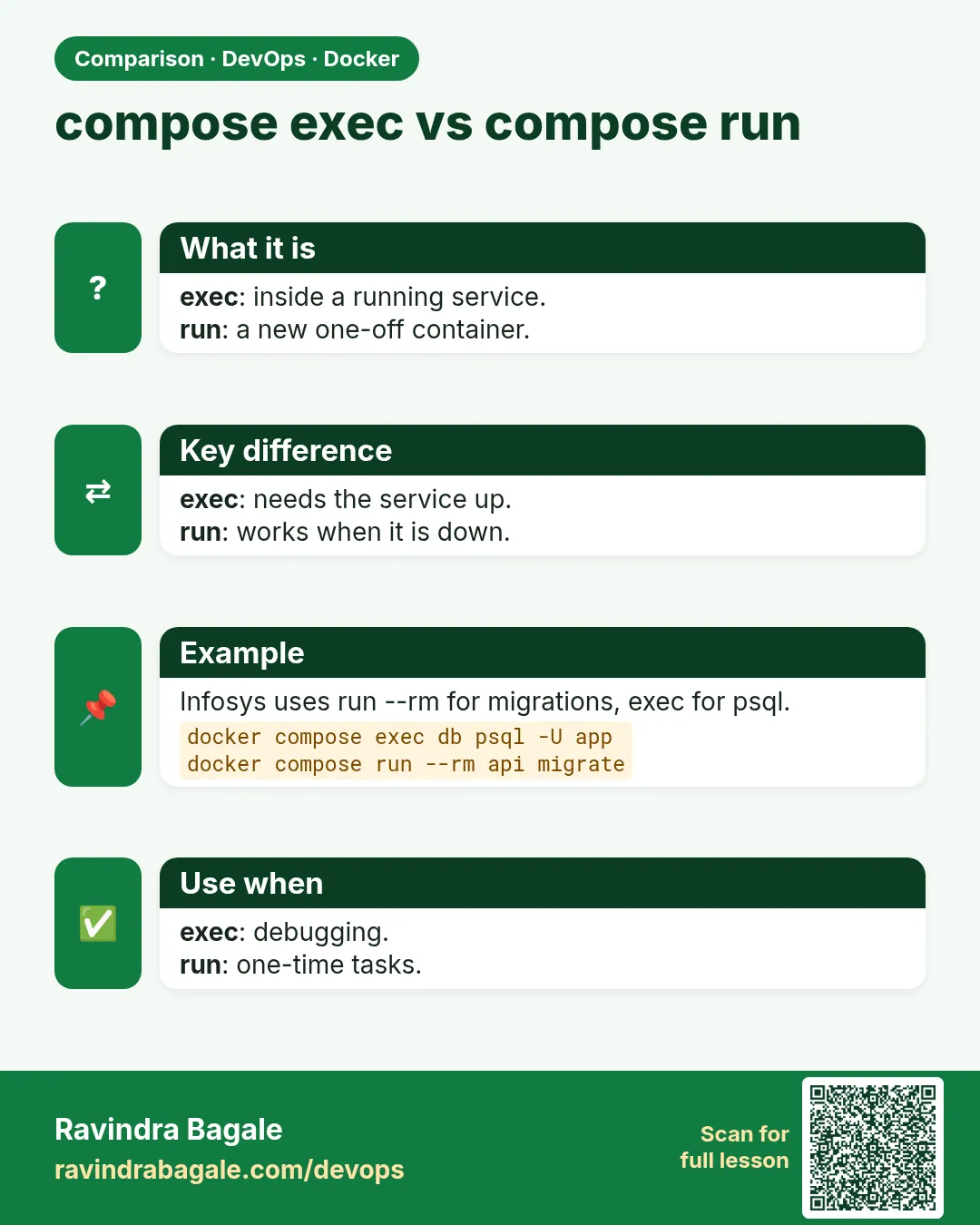 Comparison card