53.2 Service keys: build, image, command, environment, ports, restart
Friends, every service in compose.yaml is a docker run written as YAML. If you know which docker run flag each key replaces, Compose becomes easy. Today we go key by key: image, build, command, entrypoint, environment, ports, expose, restart, container_name, user, working_dir and resource limits, each with its own small example.
मित्रांनो, compose.yaml मधली प्रत्येक service म्हणजे YAML मध्ये लिहिलेला docker run. कोणती key कोणत्या docker run flag ची जागा घेते हे माहीत असेल तर Compose सोपं होतं. आज key by key जाऊ: image, build, command, entrypoint, environment, ports, expose, restart, container_name, user, working_dir आणि resource limits, प्रत्येकाचं छोटं example करून.
दोस्तों, compose.yaml की हर service YAML में लिखा हुआ docker run है. कौन सी key किस docker run flag की जगह लेती है यह पता हो तो Compose आसान हो जाता है. आज key by key चलेंगे: image, build, command, entrypoint, environment, ports, expose, restart, container_name, user, working_dir और resource limits, हर एक का छोटा example करके.
1. Start from a story
Arjun at Zerodha had a long docker run line for the order-notifier service: fourteen flags across three lines of shell. Nobody dared to touch it.
He decided to move it into Compose. For each flag he wrote the matching key: -p became ports, -e became environment, --restart became restart, -u became user, --memory became deploy.resources.limits.memory.
The YAML was longer but readable. Code review now showed exactly which setting changed, line by line, instead of one changed shell line.
A week later a teammate changed the restart policy with a one-line pull request and everyone understood it. Today we learn that flag-to-key map.
2. What to run
Step 1: image
Why: Run an existing image.
What: Same as the image name at the end of docker run. Pin a version.
Example 1: Pinned
Type this:
printf 'services:\n cache:\n image: redis:7.4-alpine\n' > compose.yaml && docker compose up -d && docker compose images
You will see:
CONTAINER       REPOSITORY  TAG
notif-cache-1   redis       7.4-alpine
What it means: Exact version.
Example 2: Digest
Type this:
docker compose config --resolve-image-digests | grep image
You will see:
image: redis:7.4-alpine@sha256:7d4f...
What it means: Pin fully for production.
Example 3: Pull only
Type this:
docker compose pull
You will see:
✔ cache Pulled
What it means: Download without starting.
Step 2: build
Why: Build from a Dockerfile.
What: build can be a folder, or a map with context, dockerfile, args and target. image: then names the result.
Example 4: Short
Type this:
printf 'services:\n api:\n build: ./api\n image: notif/api:dev\n' > compose.yaml && docker compose build
You will see:
=> => naming to docker.io/notif/api:dev
What it means: Built and named.
Example 5: Long form
Type this:
printf 'services:\n api:\n build:\n context: ./api\n dockerfile: Dockerfile.prod\n target: prod\n args:\n NODE_VERSION: "22"\n image: notif/api:1.0\n' > compose.yaml && docker compose build --progress=plain 2>&1 | grep -m1 'FROM'
You will see:
#4 [prod 1/5] FROM docker.io/library/node:22-slim
What it means: Target and args used.
Example 6: Rebuild on up
Type this:
docker compose up -d --build api
You will see:
✔ Container notif-api-1 Started
What it means: Fresh build then start.
Step 3: command
Why: Replace CMD.
What: A list is safest; a string is split by Compose.
Example 7: List
Type this:
printf 'services:\n t:\n image: alpine:3.20\n command: ["echo","hello from compose"]\n' > compose.yaml && docker compose run --rm t
You will see:
hello from compose
What it means: CMD replaced.
Example 8: String
Type this:
sed -i 's/command: .*/command: echo second way/' compose.yaml && docker compose run --rm t
You will see:
second way
What it means: Also works for simple cases.
Example 9: Override at run
Type this:
docker compose run --rm t echo third
You will see:
third
What it means: Arguments after the service replace command.
Step 4: entrypoint
Why: Replace ENTRYPOINT.
What: Useful for debugging an image whose entrypoint exits.
Example 10: Set
Type this:
printf 'services:\n t:\n image: alpine:3.20\n entrypoint: ["sh","-c"]\n command: ["echo $$HOSTNAME"]\n' > compose.yaml && docker compose run --rm t
You will see:
3fa1c2b9e0d7
What it means: $$ escapes $ for Compose.
Example 11: At run time
Type this:
docker compose run --rm --entrypoint id t
You will see:
uid=0(root) gid=0(root)
What it means: Override once.
Example 12: Inspect
Type this:
docker compose run -d --name t1 t 'sleep 60' && docker inspect -f '{{.Config.Entrypoint}}' t1
You will see:
[sh -c]
What it means: Entrypoint applied.
3. Settings for the container
Step 5: environment
Why: Same as -e.
What: A map or a list. Values from the shell or .env can be used with ${NAME}.
Example 13: Map
Type this:
printf 'services:\n t:\n image: alpine:3.20\n environment:\n APP_ENV: prod\n LOG_LEVEL: info\n command: env\n' > compose.yaml && docker compose run --rm t | grep -E 'APP_ENV|LOG'
You will see:
APP_ENV=prod
LOG_LEVEL=info
What it means: Both set.
Example 14: From shell
Type this:
sed -i 's/LOG_LEVEL: info/LOG_LEVEL: ${LOG_LEVEL:-info}/' compose.yaml && LOG_LEVEL=debug docker compose run --rm t | grep LOG
You will see:
LOG_LEVEL=debug
What it means: Default info, overridden by the shell.
Example 15: One-off
Type this:
docker compose run --rm -e APP_ENV=test t | grep APP_ENV
You will see:
APP_ENV=test
What it means: Override at run.
Step 6: ports
Why: Same as -p.
What: HOST:CONTAINER. Always quote. Add an IP to bind only locally.
Example 16: Quoted
Type this:
printf 'services:\n web:\n image: nginx:1.27-alpine\n ports:\n - "8080:80"\n - "127.0.0.1:8443:443"\n' > compose.yaml && docker compose up -d && docker compose port web 80
You will see:
0.0.0.0:8080
What it means: Public mapping.
Example 17: Local only
Type this:
docker compose port web 443
You will see:
127.0.0.1:8443
What it means: Not reachable from outside.
Example 18: Long form
Type this:
printf ' ports:\n - target: 80\n published: "8081"\n protocol: tcp\n' | head -3
You will see:
ports:
  - target: 80
    published: "8081"
What it means: Clearer for reviews.
Step 7: expose
Why: Document an internal port.
What: expose does not publish to the host. Services on the same network can reach any port anyway.
Example 19: Set
Type this:
printf 'services:\n api:\n image: nginx:1.27-alpine\n expose: ["80"]\n t:\n image: alpine:3.20\n command: wget -qO- api\n' > compose.yaml && docker compose up -d api && docker compose run --rm t | head -c 15
You will see:
<!DOCTYPE html>
What it means: Reached on the network.
Example 20: Not on host
Type this:
curl -s -m 2 localhost:80 || echo not-published
You will see:
not-published
What it means: No host port.
Example 21: Shows in ps
Type this:
docker compose ps --format '{{.Service}} {{.Ports}}'
You will see:
api 80/tcp
What it means: Listed, not mapped.
Step 8: restart
Why: Same as --restart.
What: no, always, on-failure and unless-stopped.
Example 22: Set
Type this:
printf 'services:\n t:\n image: alpine:3.20\n command: sh -c "echo start; exit 1"\n restart: on-failure:3\n' > compose.yaml && docker compose up -d && sleep 8 && docker compose ps -a --format '{{.Service}} {{.Status}}'
You will see:
t Exited (1) 2 seconds ago
What it means: Gave up after three tries.
Example 23: Count
Type this:
docker inspect -f '{{.RestartCount}}' $(docker compose ps -aq t)
You will see:
3
What it means: Three restarts.
Example 24: Production
Type this:
sed -i 's/on-failure:3/unless-stopped/' compose.yaml && grep restart compose.yaml
You will see:
restart: unless-stopped
What it means: Usual choice for servers.
Step 9: container_name and hostname
Why: Fixed names.
What: container_name fixes the name but blocks scaling. hostname sets the name seen inside.
Example 25: Fixed name
Type this:
printf 'services:\n db:\n image: postgres:16-alpine\n container_name: orders-db\n hostname: ordersdb\n environment: {POSTGRES_PASSWORD: example-only}\n' > compose.yaml && docker compose up -d && docker ps --format '{{.Names}}' | grep orders
You will see:
orders-db
What it means: No project prefix.
Example 26: Hostname
Type this:
docker exec orders-db hostname
You will see:
ordersdb
What it means: Name inside the container.
Example 27: Scale fails
Type this:
docker compose up -d --scale db=2 2>&1 | tail -1
You will see:
WARNING: The "db" service is using the custom container name "orders-db". Docker requires each container to have a unique name.
What it means: Avoid container_name if you scale.
Step 10: user and working_dir
Why: Same as -u and -w.
What: Run as a non-root user and start in the right folder.
Example 28: Set
Type this:
printf 'services:\n t:\n image: alpine:3.20\n user: "1000:1000"\n working_dir: /tmp\n command: sh -c "id -u; pwd"\n' > compose.yaml && docker compose run --rm t
You will see:
1000
/tmp
What it means: Non-root, right folder.
Example 29: Root check
Type this:
docker compose run --rm t sh -c 'touch /etc/x' 2>&1
You will see:
touch: /etc/x: Permission denied
What it means: Cannot change system files.
Example 30: Read-only root
Type this:
printf ' read_only: true\n tmpfs: ["/tmp"]\n' >> compose.yaml && docker compose run --rm t sh -c 'touch /tmp/ok && echo ok'
You will see:
ok
What it means: Only /tmp is writable.
Step 11: Resource limits
Why: Same as --memory and --cpus.
What: deploy.resources.limits works with plain docker compose up today.
Example 31: Set
Type this:
printf 'services:\n t:\n image: alpine:3.20\n command: sleep 300\n deploy:\n resources:\n limits:\n cpus: "0.5"\n memory: 128M\n' > compose.yaml && docker compose up -d && docker stats --no-stream --format '{{.Name}} {{.MemUsage}}'
You will see:
notif-t-1 412KiB / 128MiB
What it means: Limit applied.
Example 32: CPU
Type this:
docker inspect -f '{{.HostConfig.NanoCpus}}' $(docker compose ps -q t)
You will see:
500000000
What it means: Half a CPU.
Example 33: OOM test
Type this:
docker compose run --rm t sh -c 'head -c 300m /dev/zero | tail' ; echo exit=$?
You will see:
exit=137
What it means: Killed above the limit.
Step 12: labels and logging
Why: Metadata and log size.
What: labels describe the container; logging caps log files.
Example 34: Set
Type this:
printf 'services:\n t:\n image: alpine:3.20\n command: sleep 300\n labels:\n team: notifications\n logging:\n driver: json-file\n options: {max-size: "10m", max-file: "3"}\n' > compose.yaml && docker compose up -d && docker inspect -f '{{.Config.Labels.team}}' $(docker compose ps -q t)
You will see:
notifications
What it means: Label set.
Example 35: Log options
Type this:
docker inspect -f '{{.HostConfig.LogConfig.Config}}' $(docker compose ps -q t)
You will see:
map[max-file:3 max-size:10m]
What it means: At most 30 MB of logs.
Example 36: Filter
Type this:
docker ps --filter label=team=notifications --format '{{.Names}}'
You will see:
notif-t-1
What it means: Find a team's containers.
Step 13: stop_grace_period and init
Why: Clean shutdowns.
What: stop_grace_period is how long Compose waits after SIGTERM before SIGKILL. init: true adds a tiny init process that passes signals to the app.
Example 37: Set
Type this:
printf 'services:\n t:\n image: alpine:3.20\n command: sleep 300\n init: true\n stop_grace_period: 20s\n' > compose.yaml && docker compose up -d && time docker compose stop
You will see:
✔ Container notif-t-1  Stopped
real 0m0.6s
What it means: With init, sleep got SIGTERM and stopped fast.
Example 38: Without init
Type this:
sed -i '/init: true/d' compose.yaml && docker compose up -d && time docker compose stop
You will see:
real 0m20.4s
What it means: PID 1 ignored SIGTERM, so Compose waited 20 seconds.
Example 39: Check
Type this:
docker inspect -f '{{.HostConfig.Init}}' $(docker compose ps -aq t)
You will see:
false
What it means: init is off now; put it back for apps without signal handling.
4. Put it together
Arjun's final service had image, environment, ports, restart, user, deploy limits and logging. Each line maps to one flag you already know from docker run. When someone reads the file, they understand the container without running anything.
5. Common mistakes and how Arjun avoids them
Mistake one: unquoted ports. Arjun quotes every mapping.
Mistake two: container_name on a service that later needs scaling. Arjun leaves names to Compose.
Mistake three: a single $ in command, which Compose tries to fill. Arjun writes $$ for a literal dollar.
Mistake four: no log limits, so disks fill. Arjun sets max-size and max-file on every service.
Mistake five: running as root by default. Arjun sets user and read_only where the app allows.
Check yourself
Q1. Which key replaces -p?
ports.
Q2. How do you write a literal $ in command?
$$.
Q3. Does expose publish to the host?
No.
Q4. Where are memory limits set?
deploy.resources.limits.memory.
Friends, every key is a docker run flag in YAML. Did you understand? Let us try it once more. Take your longest docker run command and rewrite it key by key in compose.yaml.
मित्रांनो, प्रत्येक key म्हणजे YAML मधला docker run flag. समजलं का? चला, पुन्हा एकदा करून पाहू. तुमची सगळ्यात मोठी docker run command compose.yaml मध्ये key by key लिहा.
दोस्तों, हर key YAML में लिखा docker run flag है. समझ आया? चलिए, एक बार फिर करके देखते हैं। अपनी सबसे लंबी docker run command को compose.yaml में key by key लिखिए.
Ravindra Bagale's Tip
When you forget a key name, think of the docker run flag first, then search the Compose file reference for that flag's word. The names are almost always the same idea.
Key चं नाव विसरलात तर आधी docker run flag आठवा, मग Compose file reference मध्ये तो शब्द शोधा. नावं जवळजवळ नेहमी तीच कल्पना असतात.
Key का नाम भूल जाएँ तो पहले docker run flag याद कीजिए, फिर Compose file reference में वह शब्द खोजिए. नाम लगभग हमेशा वही विचार होते हैं.
Lab: try at home
- Pin an image and resolve its digest.
- Build with target and args.
- Override command and entrypoint.
- Use ${VAR:-default} in environment.
- Set restart on-failure:3 and count restarts.
- Set memory limits and trigger an OOM.
Recap
- image or build decides what runs.
- command and entrypoint replace CMD and ENTRYPOINT.
- environment, ports and expose set config and access.
- restart keeps services up.
- user, read_only and limits make it safer.
- logging options stop full disks.
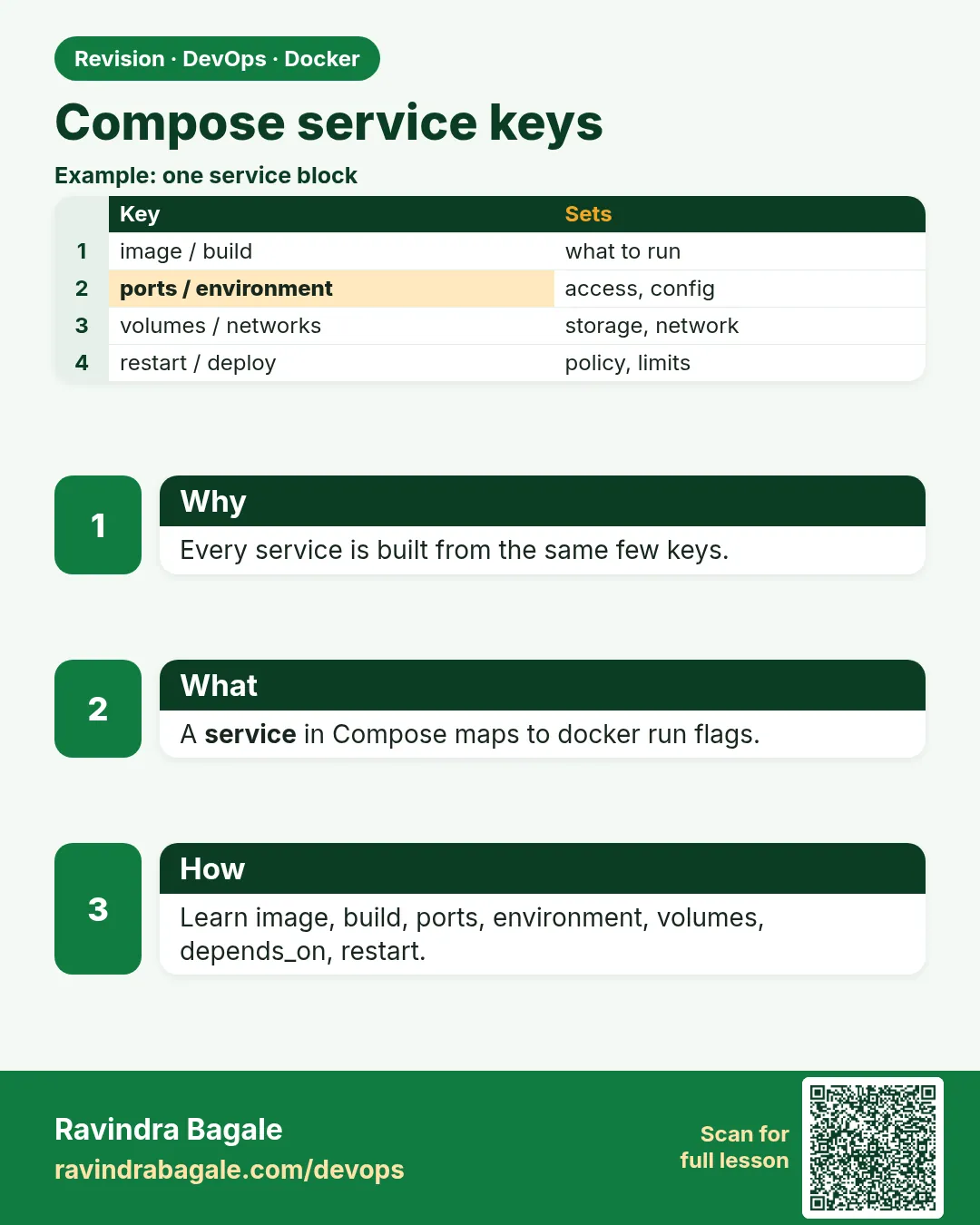 Revision card
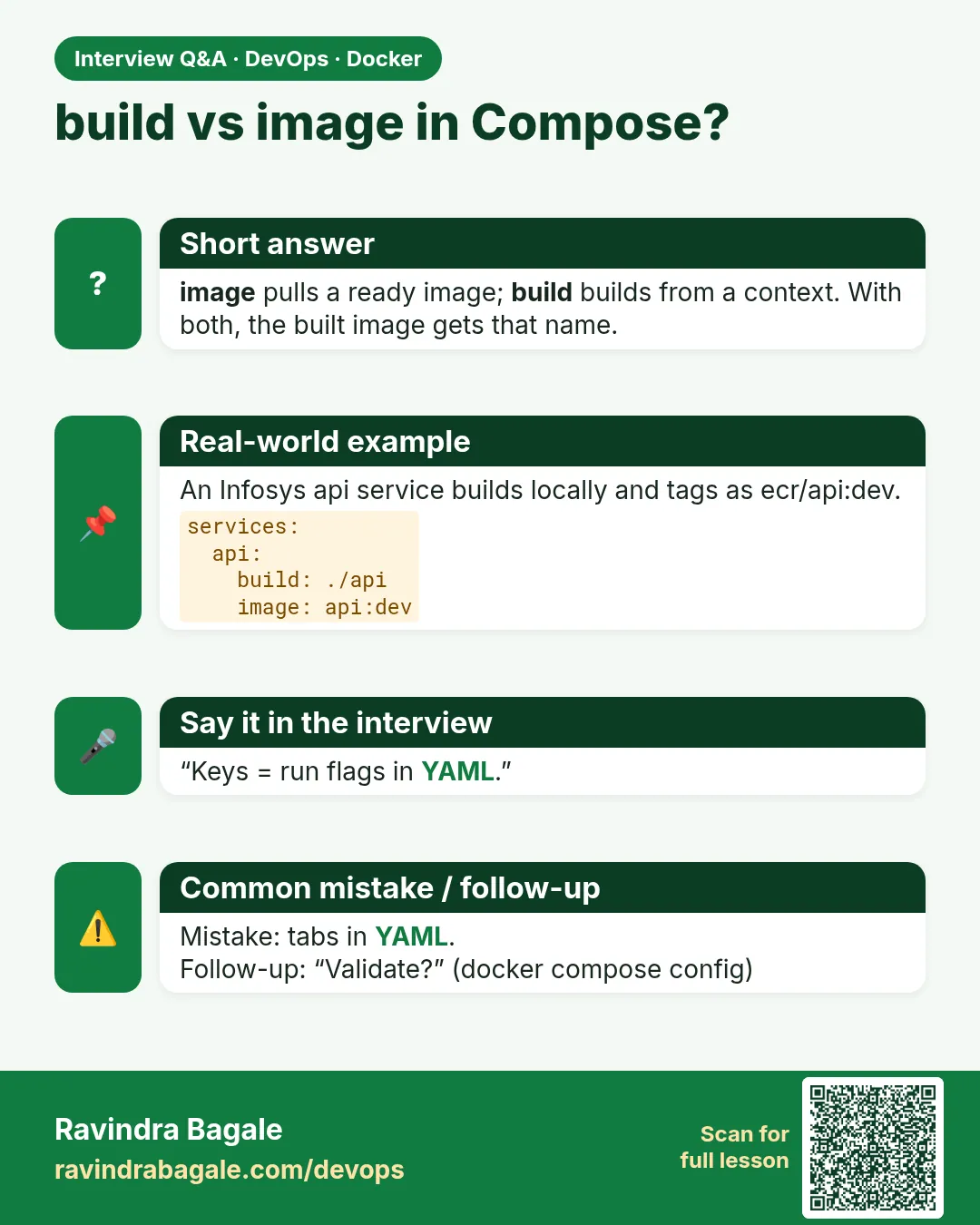 Interview card