53.1 Why Compose: one file for the whole app
Friends, a real app is never one container. There is a web server, an API, a database and a cache. Typing four long docker run commands every morning, in the right order, with the right network and volumes, is slow and easy to get wrong. Today we write them once in a file called compose.yaml and start everything with one command.
मित्रांनो, खरं app कधीच एक container नसतं. Web server, API, database आणि cache असतात. रोज सकाळी चार मोठ्या docker run commands, योग्य क्रमाने, योग्य network आणि volume सोबत टाइप करणं हळू आहे आणि चूक होणं सोपं आहे. आज त्या एकदाच compose.yaml नावाच्या file मध्ये लिहू आणि एका command ने सगळं चालू करू.
दोस्तों, असली app कभी एक container नहीं होता. Web server, API, database और cache होते हैं. रोज़ सुबह चार लंबे docker run commands, सही क्रम में, सही network और volume के साथ टाइप करना धीमा है और गलती आसान है. आज उन्हें एक बार compose.yaml नाम की file में लिखेंगे और एक command से सब चालू करेंगे.
1. Start from a story
Pooja joined the Swiggy restaurant-dashboard team. The README had eleven steps: create a network, create two volumes, start Postgres, wait, start Redis, start the API with nine -e flags, then start nginx.
On her first day she missed one -e flag. The API started but could not reach the database. She lost the whole morning.
Her lead showed her a single compose.yaml with all four services. One command, docker compose up -d, did everything the README described, in the right order, every time.
The eleven steps became one line in the README. New joiners were running the app in ten minutes. Today we build that file ourselves, step by step.
2. Compose basics
Step 1: Is Compose installed
Why: Compose v2 is a docker plugin.
What: The command is docker compose, with a space. The old docker-compose with a hyphen is retired.
Example 1: Version
Type this:
docker compose version
You will see:
Docker Compose version v2.29.7
What it means: Plugin present.
Example 2: Old command
Type this:
docker-compose version
You will see:
bash: docker-compose: command not found
What it means: Use the space form.
Example 3: Install on Ubuntu
Type this:
sudo apt-get install -y docker-compose-plugin && docker compose version --short
You will see:
2.29.7
What it means: Installed from the Docker repository.
Step 2: The file name
Why: Compose looks for a file in the current folder.
What: compose.yaml is the preferred name. docker-compose.yml still works.
Example 4: Make a folder
Type this:
mkdir dash && cd dash && pwd
You will see:
/home/pooja/dash
What it means: The folder name becomes the project name.
Example 5: Empty file
Type this:
printf 'services: {}\n' > compose.yaml && docker compose config
You will see:
name: dash
services: {}
What it means: Valid, but nothing to run.
Example 6: No file
Type this:
cd /tmp && docker compose ps
You will see:
no configuration file provided: not found
What it means: Run it in the folder with the file.
Step 3: First service
Why: services is a map; each key is one container.
What: image says what to run, ports says how to reach it.
Example 7: Write
Type this:
cd ~/dash && printf 'services:\n web:\n image: nginx:1.27-alpine\n ports:\n - "8080:80"\n' > compose.yaml && cat compose.yaml
You will see:
services:
  web:
    image: nginx:1.27-alpine
    ports:
      - "8080:80"
What it means: One service named web.
Example 8: Start
Type this:
docker compose up -d
You will see:
[+] Running 2/2
 ✔ Network dash_default  Created
 ✔ Container dash-web-1  Started
What it means: Network and container made.
Example 9: Test
Type this:
curl -s localhost:8080 | grep -o '<title>[^<]*'
You will see:
<title>Welcome to nginx!
What it means: It works.
Step 4: Same thing with docker run
Why: See what Compose saves you.
What: The one service above equals a network create and a docker run.
Example 10: By hand
Type this:
docker network create manual_default && docker run -d --name manual-web-1 --network manual_default -p 8081:80 nginx:1.27-alpine
You will see:
5e1c...
What it means: Two commands and names to remember.
Example 11: Compare
Type this:
docker ps --format '{{.Names}} {{.Ports}}'
You will see:
dash-web-1 0.0.0.0:8080->80/tcp
manual-web-1 0.0.0.0:8081->80/tcp
What it means: Same result.
Example 12: Clean the manual one
Type this:
docker rm -f manual-web-1 && docker network rm manual_default
You will see:
manual-web-1
manual_default
What it means: Compose cleans itself with down.
Step 5: Top-level keys
Why: A compose.yaml has a few main sections.
What: services is required. volumes, networks, configs and secrets are optional maps declared at the top level. The old version: key is ignored now.
Example 13: Skeleton
Type this:
printf 'name: dash\nservices:\n web:\n image: nginx:1.27-alpine\nvolumes:\n dbdata: {}\nnetworks:\n backend: {}\n' > compose.yaml && docker compose config | grep -E '^[a-z]+:'
You will see:
name: dash
networks:
services:
volumes:
What it means: Four top-level sections.
Example 14: Old version key
Type this:
sed -i '1i version: "3.8"' compose.yaml && docker compose config 2>&1 | head -1
You will see:
WARN the attribute `version` is obsolete, it will be ignored
What it means: Delete the version line.
Example 15: Remove it
Type this:
sed -i '/^version:/d' compose.yaml && docker compose config -q && echo valid
You will see:
valid
What it means: Clean file.
Step 6: config validates the file
Why: Catch mistakes before starting anything.
What: docker compose config prints the final file or the exact error. -q only checks.
Example 16: Bad indent
Type this:
printf 'services:\n web:\n image: nginx\n' > bad.yaml && docker compose -f bad.yaml config
You will see:
services.web additional properties 'image' not allowed
What it means: image must be inside web, two more spaces.
Example 17: Typo key
Type this:
printf 'services:\n web:\n imag: nginx\n' > bad.yaml && docker compose -f bad.yaml config
You will see:
services.web additional properties 'imag' not allowed
What it means: Typo found before running.
Example 18: List services
Type this:
docker compose config --services
You will see:
web
What it means: Handy in scripts.
3. Many services together
Step 7: Add a database
Why: Services find each other by name.
What: Each service name becomes a DNS name on the project network.
Example 19: Add db
Type this:
printf ' db:\n image: postgres:16-alpine\n environment:\n POSTGRES_PASSWORD: example-only\n' >> compose.yaml && docker compose up -d
You will see:
✔ Container dash-db-1   Started
✔ Container dash-web-1  Running
What it means: Only the new service started.
Example 20: Name lookup
Type this:
docker compose exec web nslookup db | tail -2
You will see:
Name:   db
Address: 172.19.0.3
What it means: web can reach db by name.
Example 21: ps
Type this:
docker compose ps --format '{{.Service}} {{.State}}'
You will see:
db running
web running
What it means: Both up.
Step 8: Add an API and cache
Why: A full stack in one file.
What: build: builds from a Dockerfile; depends_on sets start order.
Example 22: Write the stack
Type this:
printf 'services:\n web:\n image: nginx:1.27-alpine\n ports: ["8080:80"]\n depends_on: [api]\n api:\n build: ./api\n environment:\n DATABASE_URL: postgres://postgres:example-only@db:5432/postgres\n REDIS_URL: redis://cache:6379\n depends_on: [db, cache]\n db:\n image: postgres:16-alpine\n environment: {POSTGRES_PASSWORD: example-only}\n cache:\n image: redis:7-alpine\n' > compose.yaml && docker compose config --services
You will see:
web
api
db
cache
What it means: Four services.
Example 23: Up
Type this:
docker compose up -d --build
You will see:
✔ Container dash-db-1     Started
✔ Container dash-cache-1  Started
✔ Container dash-api-1    Started
✔ Container dash-web-1    Started
What it means: Started in dependency order.
Example 24: API health
Type this:
docker compose exec api wget -qO- localhost:3000/health
You will see:
{"db":"ok","redis":"ok"}
What it means: The API reached both by name.
Step 9: Project name
Why: Every resource gets a prefix.
What: The folder name is the default. -p or name: changes it, so two copies can run side by side.
Example 25: Default
Type this:
docker network ls --filter name=dash --format '{{.Name}}'
You will see:
dash_default
What it means: Prefix is dash.
Example 26: Second copy
Type this:
docker compose -p dash2 up -d db && docker ps --format '{{.Names}}' | grep db
You will see:
dash-db-1
dash2-db-1
What it means: Two isolated databases.
Example 27: Set in file
Type this:
sed -i '1i name: restaurant' compose.yaml && docker compose config | head -1
You will see:
name: restaurant
What it means: Fixed name for everyone.
4. The daily commands
Step 10: logs
Why: All services in one stream.
What: Each line is prefixed with the service name. -f follows, a service name filters.
Example 28: All
Type this:
docker compose logs --tail 2
You will see:
db-1   | database system is ready to accept connections
web-1  | start worker process 29
What it means: Mixed, with prefixes.
Example 29: One service
Type this:
docker compose logs -f api
You will see:
api-1 | listening on 3000
What it means: Ctrl+C stops following.
Example 30: Since
Type this:
docker compose logs --since 5m cache | tail -1
You will see:
cache-1 | Ready to accept connections tcp
What it means: Recent lines only.
Step 11: exec and run
Why: Get inside or run a one-off task.
What: exec enters a running container. run starts a new temporary one.
Example 31: exec psql
Type this:
docker compose exec db psql -U postgres -c 'select 1'
You will see:
 ?column?
----------
        1
What it means: Inside the running db.
Example 32: run a task
Type this:
docker compose run --rm api node scripts/migrate.js
You will see:
Migrated 3 tables
What it means: New container, removed after.
Example 33: Shell
Type this:
docker compose exec cache sh -c 'redis-cli ping'
You will see:
PONG
What it means: Quick check.
Step 12: Change and re-up
Why: Compose only recreates what changed.
What: Edit the file and run up -d again.
Example 34: Change port
Type this:
sed -i 's/8080:80/8090:80/' compose.yaml && docker compose up -d
You will see:
✔ Container restaurant-web-1  Recreated
✔ Container restaurant-db-1   Running
What it means: Only web was recreated.
Example 35: Check
Type this:
curl -s -o /dev/null -w '%{http_code}\n' localhost:8090
You will see:
200
What it means: New port works.
Example 36: Restart one
Type this:
docker compose restart api
You will see:
✔ Container restaurant-api-1 Started
What it means: No recreate, just restart.
Step 13: stop, down and down -v
Why: Three levels of cleanup.
What: stop keeps containers, down removes containers and network, down -v also deletes volumes.
Example 37: stop
Type this:
docker compose stop && docker compose ps -a --format '{{.Service}} {{.State}}' | head -2
You will see:
api exited
cache exited
What it means: Containers kept.
Example 38: down
Type this:
docker compose down
You will see:
✔ Container restaurant-web-1  Removed
✔ Network restaurant_default  Removed
What it means: Containers and network gone.
Example 39: down -v
Type this:
docker compose down -v
You will see:
✔ Volume restaurant_dbdata Removed
What it means: Data gone too; use with care.
5. Common mistakes and how Pooja avoids them
Mistake one: using localhost to reach another service. Inside a container localhost is itself. Pooja uses the service name, like db.
Mistake two: unquoted ports like 22:22. YAML can read some of them as numbers in base 60. Pooja always quotes port mappings.
Mistake three: running compose in the wrong folder. Pooja checks with docker compose config first.
Mistake four: down -v by habit, which deletes database data. Pooja uses plain down unless she wants a fresh database.
Mistake five: real passwords in compose.yaml committed to Git. Pooja keeps example values in the file and real ones in .env or secrets, which the next lessons cover.
Check yourself
Q1. What is the Compose file called?
compose.yaml.
Q2. How do services reach each other?
By service name on the project network.
Q3. What does down -v remove?
Containers, network and volumes.
Q4. exec or run for a one-off task?
run --rm.
Friends, one file, one command, same result every time. Did you understand? Let us try it once more. Take three docker run commands you use and turn them into one compose.yaml.
मित्रांनो, एक file, एक command, प्रत्येक वेळी तोच result. समजलं का? चला, पुन्हा एकदा करून पाहू. तुम्ही वापरता त्या तीन docker run commands एका compose.yaml मध्ये बदला.
दोस्तों, एक file, एक command, हर बार वही result. समझ आया? चलिए, एक बार फिर करके देखते हैं। आप जो तीन docker run commands इस्तेमाल करते हैं उन्हें एक compose.yaml में बदलिए.
Ravindra Bagale's Tip
Run docker compose config before every up. It shows the final file after all variables and overrides, and catches typos before they become outages.
प्रत्येक up आधी docker compose config चालवा. सगळे variables आणि overrides नंतरची final file दिसते, आणि typo outage होण्याआधीच पकडला जातो.
हर up से पहले docker compose config चलाइए. सारे variables और overrides के बाद की final file दिखती है, और typo outage बनने से पहले पकड़ में आता है.
Lab: try at home
- Check docker compose version.
- Write a one-service compose.yaml and up it.
- Add db and look it up by name from web.
- Build the four-service stack.
- Change a port and see only one service recreate.
- Compare stop, down and down -v.
Recap
- Compose writes many docker run lines once.
- Service names are DNS names.
- The folder name is the project name.
- up -d recreates only what changed.
- logs, exec and run are daily tools.
- down -v deletes data.
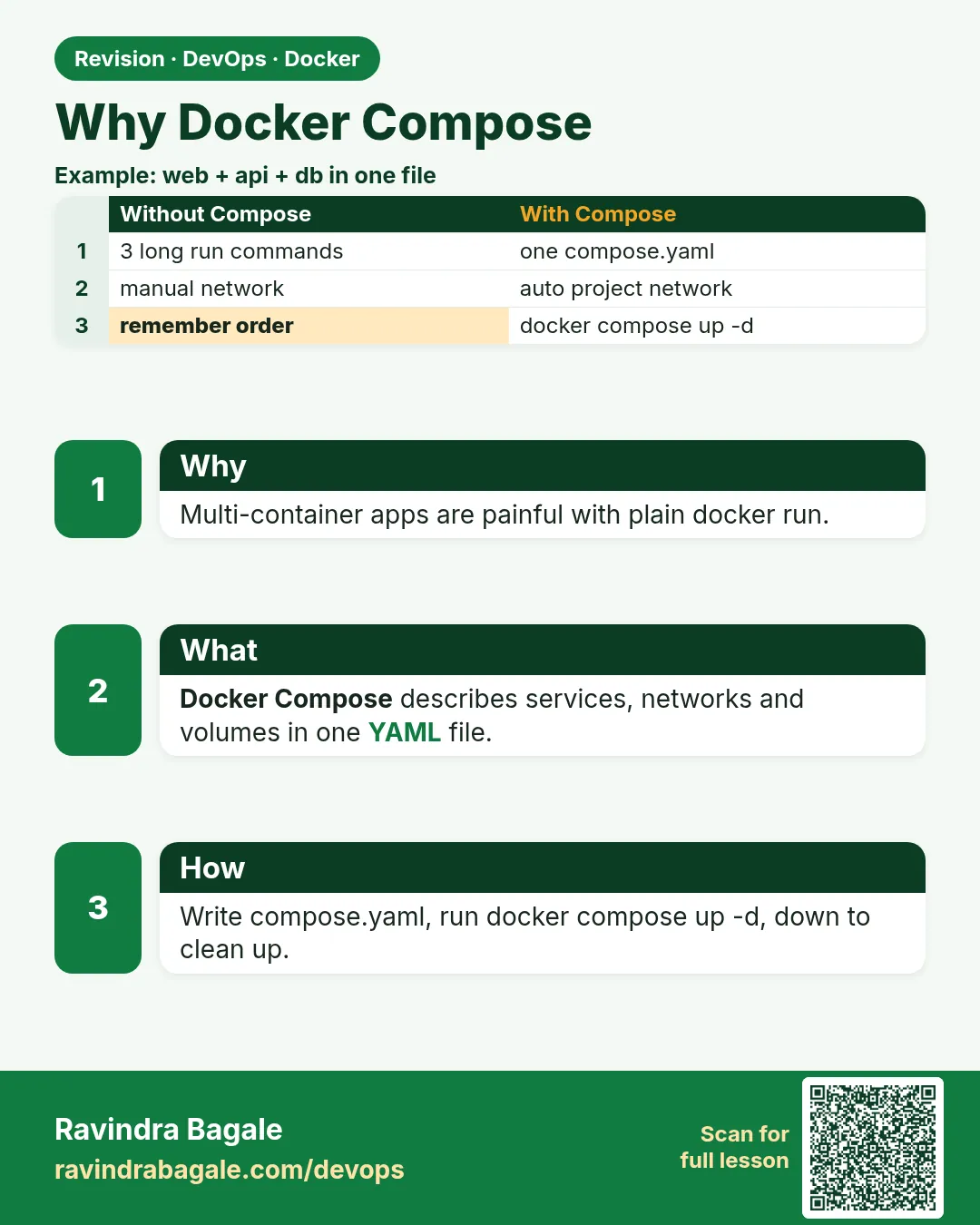 Revision card
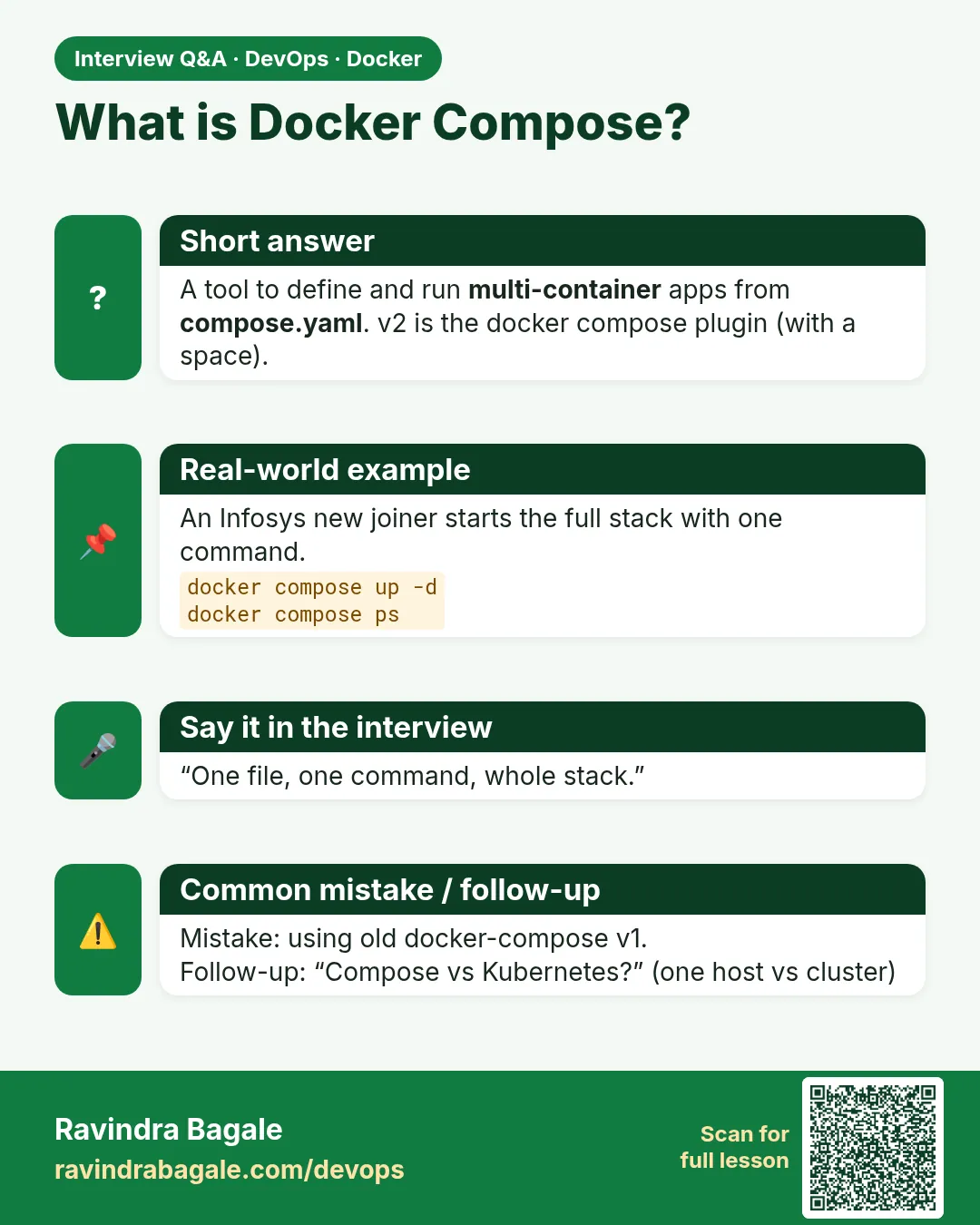 Interview card
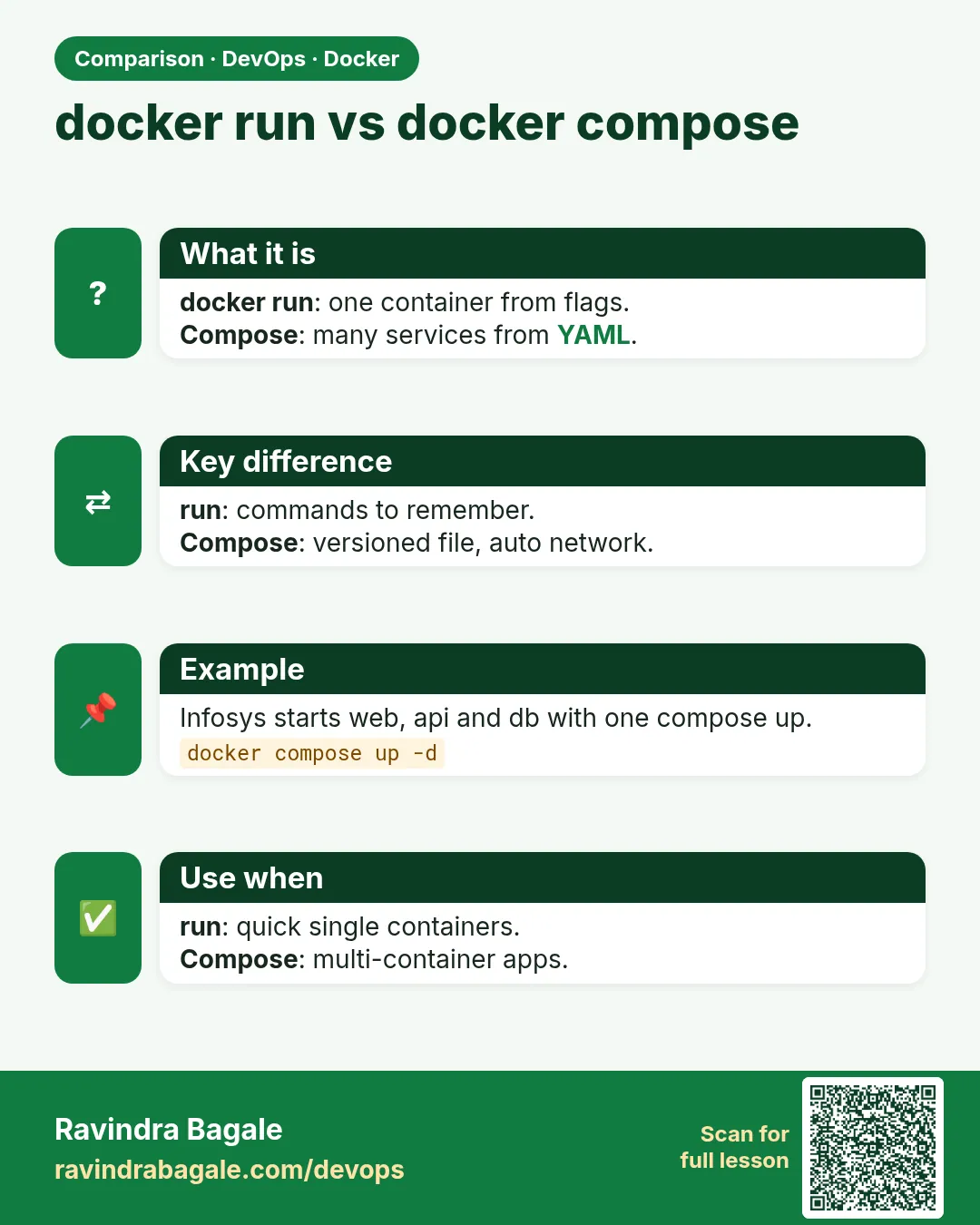 Comparison card