53.6 Profiles: optional services
Friends, not every service should start every time. Adminer for browsing the database, a mail catcher, a load-test tool or a debug shell are useful sometimes, but they waste memory and open ports when you do not need them. Profiles let us keep these optional services in the same compose.yaml and start them only when asked.
मित्रांनो, प्रत्येक service प्रत्येक वेळी सुरू व्हायला नको. Database बघायला Adminer, mail catcher, load-test tool किंवा debug shell कधी कधी उपयोगी असतात, पण गरज नसताना memory खातात आणि port उघडतात. Profiles ने आपण ह्या optional services त्याच compose.yaml मध्ये ठेवू आणि सांगितल्यावरच सुरू करू.
दोस्तों, हर service हर बार शुरू नहीं होनी चाहिए. Database देखने के लिए Adminer, mail catcher, load-test tool या debug shell कभी कभी काम के हैं, पर ज़रूरत न हो तो memory खाते हैं और port खोलते हैं. Profiles से हम इन optional services को उसी compose.yaml में रखेंगे और कहने पर ही शुरू करेंगे.
1. Start from a story
The Meesho seller-portal compose.yaml had grown to eleven services. On laptops with 8 GB of RAM, docker compose up made everything slow, and half the services were only for special tasks.
Some developers kept a second file just for tools; others commented services in and out. Files drifted apart and broke.
Rahul tagged the optional services with profiles: tools for Adminer and Mailpit, monitoring for Prometheus and Grafana, loadtest for k6. The core four services had no profile.
Now plain docker compose up started four services, and docker compose --profile tools up added the tools when needed. One file, no comments, less RAM. Today we do the same.
Laptop memory use dropped from about 6.5 GB to 2.1 GB, and new joiners could start the portal on day one without asking which services to comment out or hunting for a second file.
2. Profile basics
Step 1: Add a profile
Why: A list of names on a service.
What: Services without profiles always start. Services with profiles start only when a profile is active.
Example 1: File
Type this:
printf 'services:\n db:\n image: postgres:16-alpine\n environment: {POSTGRES_PASSWORD: example-only}\n adminer:\n image: adminer:4\n ports: ["8081:8080"]\n profiles: [tools]\n' > compose.yaml && docker compose up -d
You will see:
✔ Container seller-db-1 Started
What it means: Adminer skipped.
Example 2: ps
Type this:
docker compose ps --format '{{.Service}}'
You will see:
db
What it means: Only the core.
Example 3: Config shows it
Type this:
docker compose config --services
You will see:
db
What it means: Inactive services are hidden from config too.
Step 2: --profile
Why: Turn a profile on.
What: Pass --profile name, once per profile.
Example 4: On
Type this:
docker compose --profile tools up -d
You will see:
✔ Container seller-db-1       Running
✔ Container seller-adminer-1  Started
What it means: Adminer added.
Example 5: Use
Type this:
curl -s localhost:8081 | grep -o 'Adminer' | head -1
You will see:
Adminer
What it means: Database UI ready.
Example 6: Services list
Type this:
docker compose --profile tools config --services
You will see:
db
adminer
What it means: Both now.
Step 3: COMPOSE_PROFILES
Why: Turn profiles on with a variable.
What: Comma-separated names, from the shell or .env.
Example 7: Shell
Type this:
COMPOSE_PROFILES=tools docker compose ps --format '{{.Service}}'
You will see:
adminer
db
What it means: Same as --profile.
Example 8: .env
Type this:
printf 'COMPOSE_PROFILES=tools\n' >> .env && docker compose config --services
You will see:
db
adminer
What it means: Your laptop default.
Example 9: Several
Type this:
COMPOSE_PROFILES=tools,monitoring docker compose config --services | wc -l
You will see:
2
What it means: Only two exist so far.
Step 4: Many profiles on one service
Why: A service can belong to several groups.
What: It starts when any of its profiles is active.
Example 10: File
Type this:
printf ' mailpit:\n image: axllent/mailpit:v1.20\n ports: ["8025:8025"]\n profiles: [tools, qa]\n' >> compose.yaml && docker compose --profile qa config --services
You will see:
db
mailpit
What it means: Started by qa.
Example 11: Tools too
Type this:
docker compose --profile tools config --services
You will see:
db
adminer
mailpit
What it means: Also by tools.
Example 12: All
Type this:
docker compose --profile '*' config --services
You will see:
db
adminer
mailpit
What it means: * turns on every profile.
3. Rules to remember
Step 5: Naming a service enables it
Why: Start one optional service directly.
What: docker compose up adminer runs adminer even without --profile.
Example 13: By name
Type this:
docker compose up -d adminer
You will see:
✔ Container seller-adminer-1 Started
What it means: Its profile is turned on for this command.
Example 14: run
Type this:
docker compose run --rm adminer php -v | head -1
You will see:
PHP 8.3.12 (cli)
What it means: Same for run.
Example 15: Not others
Type this:
docker compose ps --format '{{.Service}}'
You will see:
adminer
db
What it means: mailpit did not start.
Step 6: Dependencies and profiles
Why: A core service cannot depend on an optional one.
What: If db had depends_on adminer, plain up would fail. Optional depends on core is fine.
Example 16: Bad
Type this:
printf 'services:\n api:\n image: alpine:3.20\n depends_on: [debug]\n debug:\n image: alpine:3.20\n profiles: [debug]\n' > bad.yaml && docker compose -f bad.yaml up -d 2>&1 | tail -1
You will see:
service "api" depends on undefined service "debug": invalid compose project
What it means: Core needs optional; error.
Example 17: Good
Type this:
printf 'services:\n api:\n image: alpine:3.20\n command: sleep 300\n debug:\n image: nicolaka/netshoot:v0.13\n profiles: [debug]\n depends_on: [api]\n' > good.yaml && docker compose -f good.yaml --profile debug up -d 2>&1 | tail -1
You will see:
✔ Container seller-debug-1 Started
What it means: Optional depends on core; fine.
Example 18: Shared network
Type this:
docker compose -f good.yaml exec debug ping -c1 api | head -1
You will see:
PING api (172.24.0.2) 56(84) bytes of data.
What it means: The debug tool sees the app.
Step 7: down and profiles
Why: down stops only active ones.
What: Pass the same profiles to down, or use --profile '*'.
Example 19: Plain down
Type this:
docker compose down && docker ps --format '{{.Names}}' | grep seller
You will see:
seller-adminer-1
What it means: The tool is still running.
Example 20: With profile
Type this:
docker compose --profile tools down
You will see:
✔ Container seller-adminer-1 Removed
What it means: Now gone.
Example 21: Everything
Type this:
docker compose --profile '*' down
You will see:
✔ Network seller_default Removed
What it means: Clean slate.
4. Real profile sets
Step 8: A tools profile
Why: Database UI and a mail catcher.
What: Developers turn it on when they debug.
Example 22: Mail test
Type this:
docker compose --profile tools up -d mailpit && curl -s localhost:8025/api/v1/messages | head -c 30
You will see:
{"total":0,"unread":0,"messa
What it means: Empty inbox.
Example 23: App sends
Type this:
docker compose exec api sh -c 'echo hi | sendmail -S mailpit:1025 test@example.com' && curl -s localhost:8025/api/v1/messages | grep -o '"total":1'
You will see:
"total":1
What it means: Mail caught, no real email sent.
Example 24: Stop tools
Type this:
docker compose --profile tools stop adminer mailpit
You will see:
✔ Container seller-mailpit-1 Stopped
What it means: Free the RAM.
Step 9: A monitoring profile
Why: Metrics only when needed.
What: Prometheus and Grafana in the same file.
Example 25: File
Type this:
printf ' prometheus:\n image: prom/prometheus:v2.54.1\n profiles: [monitoring]\n ports: ["9090:9090"]\n grafana:\n image: grafana/grafana:11.2.0\n profiles: [monitoring]\n ports: ["3001:3000"]\n' >> compose.yaml && docker compose --profile monitoring config --services | tail -2
You will see:
prometheus
grafana
What it means: Two more services.
Example 26: Start
Type this:
docker compose --profile monitoring up -d --wait
You will see:
✔ Container seller-grafana-1 Healthy
What it means: Up with the app.
Example 27: Check
Type this:
curl -s localhost:9090/-/ready
You will see:
Prometheus Server is Ready.
What it means: Ready.
Step 10: A loadtest profile
Why: Run a job, then exit.
What: k6 runs a script against the API and stops.
Example 28: File
Type this:
printf ' k6:\n image: grafana/k6:0.54.0\n profiles: [loadtest]\n command: run /s/test.js\n volumes: ["./load:/s:ro"]\n' >> compose.yaml && printf 'import http from "k6/http";\nexport const options={vus:10,duration:"10s"};\nexport default function(){http.get("http://api:3000/health");}\n' > load/test.js && echo ready
You will see:
ready
What it means: Script and service.
Example 29: Run
Type this:
docker compose --profile loadtest run --rm k6 | grep http_reqs
You will see:
http_reqs......................: 2841 283.9/s
What it means: About 284 requests per second.
Example 30: Exit code
Type this:
echo $?
You will see:
0
What it means: CI can use this result.
Step 11: A debug profile
Why: A toolbox container next to the app.
What: netshoot has curl, dig, tcpdump and more.
Example 31: Start
Type this:
docker compose --profile debug up -d debug
You will see:
✔ Container seller-debug-1 Started
What it means: Toolbox joined.
Example 32: DNS
Type this:
docker compose exec debug dig +short db
You will see:
172.24.0.3
What it means: Check names.
Example 33: Port
Type this:
docker compose exec debug nc -zv db 5432 2>&1 | tail -1
You will see:
Connection to db 5432 port [tcp/postgresql] succeeded!
What it means: Check reachability.
Step 12: Profiles in CI
Why: Run test-only services in the pipeline.
What: A test profile holds the test runner and a throwaway database; CI turns it on and reads the exit code.
Example 34: File
Type this:
printf ' tests:\n build: .\n command: npm test\n profiles: [test]\n depends_on:\n db: {condition: service_healthy}\n' >> compose.yaml && docker compose --profile test config --services | tail -1
You will see:
tests
What it means: Test runner added.
Example 35: CI step
Type this:
docker compose --profile test run --rm tests | tail -2
You will see:
Tests:       48 passed, 48 total
Time:        6.214 s
What it means: Runs against the real database.
Example 36: Clean up
Type this:
docker compose --profile test down -v && echo cleaned
You will see:
cleaned
What it means: The throwaway data is removed in CI only.
Step 13: Profiles vs override files
Why: Choose the right tool.
What: Profiles add or skip whole services. Override files change settings of services. Lesson 7 covers overrides.
Example 37: Add a service
Type this:
printf 'Need an extra service sometimes -> profile\n'
You will see:
Need an extra service sometimes -> profile
What it means: Example: Adminer.
Example 38: Change a service
Type this:
printf 'Need different ports or env -> override file\n'
You will see:
Need different ports or env -> override file
What it means: Example: prod replicas.
Example 39: Both together
Type this:
docker compose -f compose.yaml -f compose.prod.yaml --profile monitoring config --services | wc -l
You will see:
6
What it means: They combine cleanly.
5. Common mistakes and how Rahul avoids them
Mistake one: commenting services in and out. Rahul uses profiles.
Mistake two: a core service that depends on an optional one. Rahul keeps dependencies pointing to core services only.
Mistake three: forgetting that plain down leaves profile services running. Rahul uses --profile '*' down.
Mistake four: production servers with COMPOSE_PROFILES=tools left in .env. Rahul keeps tool profiles out of production env files.
Mistake five: too many profiles with unclear names. Rahul uses a short, fixed list: tools, monitoring, loadtest, debug.
Check yourself
Q1. Which services always start?
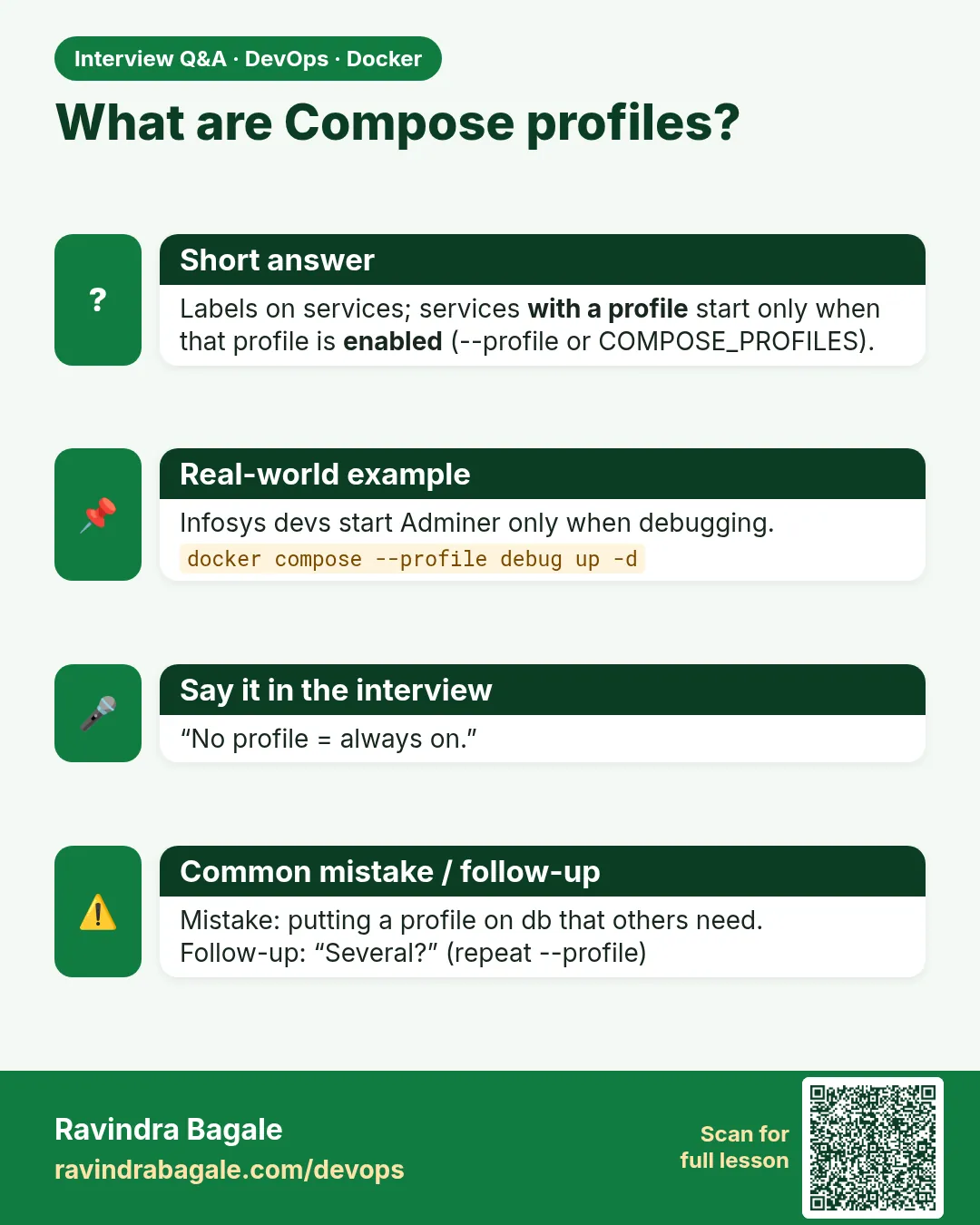
Those without a profile.
Q2. How do you turn on a profile?
--profile name or COMPOSE_PROFILES.
Q3. Does naming a service start it even with a profile?
Yes.
Q4. How do you stop all profile services?
docker compose --profile '*' down.
Friends, one file for every use, but only what you need is running. Did you understand? Let us try it once more. Add Adminer and Mailpit under a tools profile in your project.
मित्रांनो, प्रत्येक वापरासाठी एकच file, पण गरजेचंच चालू. समजलं का? चला, पुन्हा एकदा करून पाहू. तुमच्या project मध्ये Adminer आणि Mailpit tools profile खाली जोडा.
दोस्तों, हर काम के लिए एक ही file, पर चलता सिर्फ़ ज़रूरी. समझ आया? चलिए, एक बार फिर करके देखते हैं। अपने project में Adminer और Mailpit को tools profile में जोड़िए.
Ravindra Bagale's Tip
Write the profile list at the top of compose.yaml as a comment, with one line on what each one is for. New team members find the tools in seconds.
compose.yaml च्या वर comment म्हणून profiles ची यादी लिहा, प्रत्येक कशासाठी आहे ते एका ओळीत. नवीन लोकांना tools काही सेकंदात सापडतात.
compose.yaml के ऊपर comment में profiles की सूची लिखिए, हर एक किसलिए है एक लाइन में. नए लोगों को tools सेकंडों में मिल जाते हैं.
Lab: try at home
- Add Adminer under tools and see it skipped.
- Turn it on with --profile and COMPOSE_PROFILES.
- Give Mailpit two profiles.
- Start an optional service by name.
- Add a monitoring profile.
- Run a k6 load test profile.
Recap
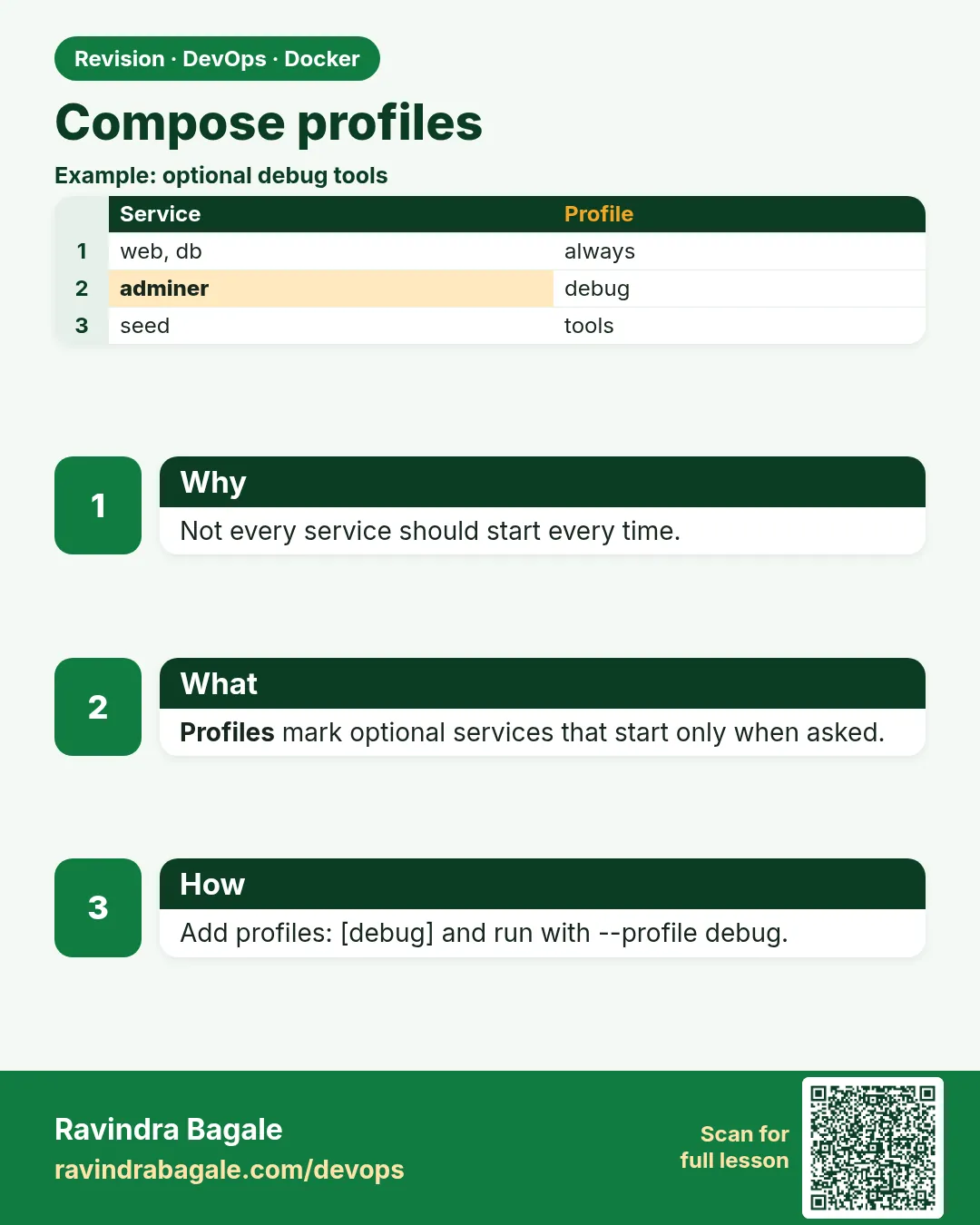
- Profiles hide optional services.
- --profile or COMPOSE_PROFILES turns them on.
- Naming a service enables it.
- Core services must not depend on optional ones.
- down needs the same profiles.
- Keep a short, fixed list of profiles.
 Revision card
 Interview card