53.5 Volumes and networks in Compose
Friends, in Chapters 50 and 51 we made volumes and networks by hand with docker volume create and docker network create. In Compose we declare them once in the file, and Compose creates, names and connects them for us. Today we keep database data safe with named volumes, edit code live with bind mounts, and split the app into a public network and a private one.
मित्रांनो, Chapter 50 आणि 51 मध्ये आपण docker volume create आणि docker network create ने volume आणि network हाताने बनवले. Compose मध्ये ते file मध्ये एकदाच लिहितो, आणि Compose ते बनवतो, नाव देतो आणि जोडतो. आज named volume ने database data सुरक्षित ठेवू, bind mount ने code live edit करू, आणि app ला public आणि private network मध्ये विभागू.
दोस्तों, Chapter 50 और 51 में हमने docker volume create और docker network create से volume और network हाथ से बनाए. Compose में उन्हें file में एक बार लिखते हैं, और Compose उन्हें बनाता है, नाम देता है और जोड़ता है. आज named volume से database data सुरक्षित रखेंगे, bind mount से code live edit करेंगे, और app को public और private network में बाँटेंगे.
1. Start from a story
At BigBasket, the catalogue team ran Postgres in Compose with no volume. A developer ran docker compose down and up to fix a config, and two days of test data vanished.
In the same file, Postgres was on the default network, so the nginx container could reach the database port directly. A security reviewer flagged it.
Nisha added a named volume for /var/lib/postgresql/data, and split networks: frontend for nginx and the API, backend for the API and the database, marked internal so it had no internet route.
Now down and up kept the data, and only the API could talk to the database. Today we make the same two changes.
2. Volumes
Step 1: Named volume
Why: Data that outlives containers.
What: Declare under top-level volumes and mount by name.
Example 1: File
Type this:
printf 'services:\n db:\n image: postgres:16-alpine\n environment: {POSTGRES_PASSWORD: example-only}\n volumes:\n - dbdata:/var/lib/postgresql/data\nvolumes:\n dbdata:\n' > compose.yaml && docker compose up -d --wait && docker volume ls --format '{{.Name}}' | grep dbdata
You will see:
catalog_dbdata
What it means: Prefixed with the project.
Example 2: Write data
Type this:
docker compose exec db psql -U postgres -c 'create table item(id int); insert into item values (1);'
You will see:
CREATE TABLE
INSERT 0 1
What it means: Saved in the volume.
Example 3: down and up
Type this:
docker compose down && docker compose up -d --wait && docker compose exec db psql -U postgres -tc 'select count(*) from item'
You will see:
1
What it means: Data survived.
Step 2: down -v
Why: The one command that deletes data.
What: Only -v removes named volumes.
Example 4: Remove
Type this:
docker compose down -v
You will see:
✔ Volume catalog_dbdata Removed
What it means: Gone.
Example 5: Check
Type this:
docker volume ls -q | grep -c catalog_dbdata
You will see:
0
What it means: No volume left.
Example 6: Fresh
Type this:
docker compose up -d --wait && docker compose exec db psql -U postgres -tc "select to_regclass('item')"
You will see:
What it means: Empty database.
Step 3: Bind mount
Why: A host folder inside the container.
What: Use a path starting with ./ or /. Good for code in development and config files.
Example 7: Static site
Type this:
mkdir -p site && printf 'hello v1\n' > site/index.html && printf 'services:\n web:\n image: nginx:1.27-alpine\n ports: ["8080:80"]\n volumes:\n - ./site:/usr/share/nginx/html:ro\n' > compose.yaml && docker compose up -d && curl -s localhost:8080
You will see:
hello v1
What it means: Served from the host folder.
Example 8: Edit live
Type this:
printf 'hello v2\n' > site/index.html && curl -s localhost:8080
You will see:
hello v2
What it means: No rebuild needed.
Example 9: Read-only
Type this:
docker compose exec web sh -c 'echo x > /usr/share/nginx/html/a' 2>&1
You will see:
sh: can't create /usr/share/nginx/html/a: Read-only file system
What it means: :ro protects the host folder.
Step 4: Long syntax
Why: Clearer and more options.
What: type, source, target, read_only and bind or volume options.
Example 10: Long form
Type this:
printf ' volumes:\n - type: bind\n source: ./nginx.conf\n target: /etc/nginx/conf.d/default.conf\n read_only: true\n' | head -3
You will see:
volumes:
  - type: bind
    source: ./nginx.conf
What it means: Easy to review.
Example 11: tmpfs
Type this:
printf ' tmpfs:\n - /tmp:size=64m\n' && echo memory-only
You will see:
    tmpfs:
      - /tmp:size=64m
memory-only
What it means: Fast scratch space.
Example 12: Missing source
Type this:
docker compose run --rm -v ./nope.conf:/x.conf web true 2>&1 | tail -1
You will see:
Error response from daemon: invalid mount config for type "bind": bind source path does not exist
What it means: Long-form bind needs the file to exist.
Step 5: External and shared volumes
Why: Use a volume made outside this project.
What: external: true tells Compose not to create or delete it.
Example 13: Create
Type this:
docker volume create shared-uploads
You will see:
shared-uploads
What it means: Made by hand.
Example 14: Use
Type this:
printf 'services:\n t:\n image: alpine:3.20\n volumes: [up:/data]\n command: ls /data\nvolumes:\n up:\n external: true\n name: shared-uploads\n' > compose.yaml && docker compose run --rm t && echo listed
You will see:
listed
What it means: Mounted the existing volume.
Example 15: down -v keeps it
Type this:
docker compose down -v && docker volume ls -q | grep shared
You will see:
shared-uploads
What it means: External volumes are never removed.
Step 6: Backup a Compose volume
Why: Same trick as Chapter 50.
What: Run a temporary container with the volume and a host folder.
Example 16: Backup
Type this:
docker compose stop db && docker run --rm -v catalog_dbdata:/v:ro -v $PWD:/b alpine:3.20 tar czf /b/db.tgz -C /v . && ls -lh db.tgz | awk '{print $5}'
You will see:
6.1M
What it means: Archive on the host.
Example 17: Restore
Type this:
docker volume create catalog_dbdata2 && docker run --rm -v catalog_dbdata2:/v -v $PWD:/b alpine:3.20 tar xzf /b/db.tgz -C /v && echo restored
You will see:
catalog_dbdata2
restored
What it means: Into a new volume.
Example 18: Logical dump
Type this:
docker compose exec db pg_dump -U postgres postgres | gzip > dump.sql.gz && ls dump.sql.gz
You will see:
dump.sql.gz
What it means: Preferred for databases.
Step 7: Volume driver options
Why: Store a volume on NFS or EFS.
What: driver_opts passes options to the local driver, so a named volume can point at a network share.
Example 19: NFS volume
Type this:
printf 'volumes:\n uploads:\n driver: local\n driver_opts:\n type: nfs\n o: addr=10.0.1.20,rw,nfsvers=4.1\n device: ":/exports/uploads"\n' > vol.yaml && tail -1 vol.yaml
You will see:
device: ":/exports/uploads"
What it means: The share on the NFS server.
Example 20: Mounted
Type this:
docker compose -f compose.yaml -f vol.yaml run --rm t df -h /data | tail -1
You will see:
10.0.1.20:/exports/uploads 8.0E 1.2G 8.0E 1% /data
What it means: Many servers can share the same files.
Example 21: EFS
Type this:
printf 'o: addr=fs-0abc1234.efs.ap-south-1.amazonaws.com,nfsvers=4.1,rw\n'
You will see:
o: addr=fs-0abc1234.efs.ap-south-1.amazonaws.com,nfsvers=4.1,rw
What it means: Same idea on AWS with an example file system ID.
3. Networks
Step 8: Default network
Why: Compose makes one for the project.
What: All services join project_default and can reach each other by name.
Example 22: List
Type this:
docker compose up -d && docker network ls --format '{{.Name}}' | grep catalog
You will see:
catalog_default
What it means: One network.
Example 23: Members
Type this:
docker network inspect catalog_default -f '{{range .Containers}}{{.Name}} {{end}}'
You will see:
catalog-web-1 catalog-db-1
What it means: Both on it.
Example 24: Reach
Type this:
docker compose exec web nc -zv db 5432 2>&1
You will see:
db (172.21.0.3:5432) open
What it means: web can reach the database. Not ideal.
Step 9: Custom networks
Why: Split by role.
What: Declare networks and list them per service.
Example 25: File
Type this:
printf 'services:\n web:\n image: nginx:1.27-alpine\n networks: [frontend]\n api:\n image: alpine:3.20\n command: sleep 3600\n networks: [frontend, backend]\n db:\n image: postgres:16-alpine\n environment: {POSTGRES_PASSWORD: example-only}\n networks: [backend]\nnetworks:\n frontend:\n backend:\n internal: true\n' > compose.yaml && docker compose up -d && docker network ls --format '{{.Name}}' | grep catalog_
You will see:
catalog_backend
catalog_frontend
What it means: Two networks.
Example 26: Blocked
Type this:
docker compose exec web nc -zv -w 2 db 5432 2>&1
You will see:
nc: bad address 'db'
What it means: web cannot even resolve db.
Example 27: Allowed
Type this:
docker compose exec api nc -zv db 5432 2>&1
You will see:
db (172.22.0.3:5432) open
What it means: api is on both.
Step 10: internal: true
Why: No route to the internet.
What: Containers only on an internal network cannot reach outside.
Example 28: db offline
Type this:
docker compose exec db wget -q -T 3 -O- https://example.com 2>&1 | tail -1
You will see:
wget: bad address 'example.com'
What it means: No internet.
Example 29: api online
Type this:
docker compose exec api wget -q -T 3 -O- https://example.com | head -c 15
You will see:
<!doctype html>
What it means: Through frontend.
Example 30: Why
Type this:
printf 'A database never needs to call the internet.\n'
You will see:
A database never needs to call the internet.
What it means: Less risk if it is ever compromised.
Step 11: Aliases and fixed IPs
Why: Extra names or addresses.
What: aliases add DNS names; ipv4_address pins an IP with an ipam subnet.
Example 31: Alias
Type this:
printf ' networks:\n backend:\n aliases: [postgres, catalog-db]\n' && echo 'db is also postgres'
You will see:
    networks:
      backend:
        aliases: [postgres, catalog-db]
db is also postgres
What it means: Old apps keep working.
Example 32: Lookup
Type this:
docker compose exec api nslookup postgres | tail -1
You will see:
Address: 172.22.0.3
What it means: Same container.
Example 33: Subnet
Type this:
printf 'networks:\n backend:\n ipam:\n config:\n - subnet: 172.30.0.0/24\n' | tail -1
You will see:
- subnet: 172.30.0.0/24
What it means: Avoid clashes with office VPN ranges.
Step 12: External networks
Why: Join a network shared by many projects.
What: Common for a reverse proxy like Traefik used by several apps.
Example 34: Create
Type this:
docker network create proxy
You will see:
8c1d...
What it means: Shared network.
Example 35: Join
Type this:
printf 'services:\n web:\n image: nginx:1.27-alpine\n networks: [proxy]\nnetworks:\n proxy:\n external: true\n' > compose.yaml && docker compose up -d && docker network inspect proxy -f '{{range .Containers}}{{.Name}} {{end}}'
You will see:
catalog-web-1
What it means: Joined.
Example 36: down keeps it
Type this:
docker compose down && docker network ls -q --filter name=proxy | wc -l
You will see:
1
What it means: External networks stay.
Step 13: Inspect what Compose made
Why: Labels tell you the project.
What: Compose labels every resource with com.docker.compose.project.
Example 37: Volumes
Type this:
docker volume ls --filter label=com.docker.compose.project=catalog --format '{{.Name}}'
You will see:
catalog_dbdata
What it means: Only this project.
Example 38: Networks
Type this:
docker network ls --filter label=com.docker.compose.project=catalog --format '{{.Name}}'
You will see:
catalog_backend
catalog_frontend
What it means: Easy cleanup lists.
Example 39: Volumes command
Type this:
docker compose volumes
You will see:
DRIVER    VOLUME NAME
local     catalog_dbdata
What it means: Compose's own listing.
4. Common mistakes and how Nisha avoids them
Mistake one: no volume for a database. Nisha always mounts a named volume on the data folder.
Mistake two: down -v by habit. Nisha keeps it for fresh starts only.
Mistake three: everything on the default network. Nisha splits frontend and backend.
Mistake four: bind-mounting node_modules over the image's folder. Nisha uses a named volume for node_modules, covered in Compose Watch.
Mistake five: subnets that clash with the office VPN. Nisha pins a safe range with ipam.
Check yourself
Q1. Which command deletes named volumes?
docker compose down -v.
Q2. What does internal: true do?
Blocks internet access for that network.
Q3. How do you stop web reaching db?
Put them on different networks.
Q4. What does external: true mean?
Compose uses it but never creates or deletes it.
Friends, data in named volumes, roles in separate networks. Did you understand? Let us try it once more. Split your own Compose app into frontend and backend networks and prove the web container cannot reach the database.
मित्रांनो, data named volume मध्ये, roles वेगळ्या network मध्ये. समजलं का? चला, पुन्हा एकदा करून पाहू. तुमचं Compose app frontend आणि backend network मध्ये विभागा आणि web container database पर्यंत पोहोचू शकत नाही हे सिद्ध करा.
दोस्तों, data named volume में, roles अलग network में. समझ आया? चलिए, एक बार फिर करके देखते हैं। अपने Compose app को frontend और backend network में बाँटिए और साबित कीजिए कि web container database तक नहीं पहुँच सकता.
Ravindra Bagale's Tip
Before every docker compose down, ask yourself: do I want the data back? If yes, never add -v.
प्रत्येक docker compose down आधी स्वतःला विचारा: मला data परत हवा आहे का? हो असेल तर -v कधीही लावू नका.
हर docker compose down से पहले खुद से पूछिए: क्या मुझे data वापस चाहिए? हाँ है तो -v कभी मत लगाइए.
Lab: try at home
- Add a named volume to Postgres and survive down/up.
- Delete it with down -v.
- Serve a site from a read-only bind mount.
- Use an external volume.
- Split frontend and backend networks.
- Prove internal: true blocks the internet.
Recap
- Named volumes keep data.
- down -v deletes them.
- Bind mounts share host folders.
- Custom networks separate roles.
- internal: true blocks the internet.
- External resources are never deleted by Compose.
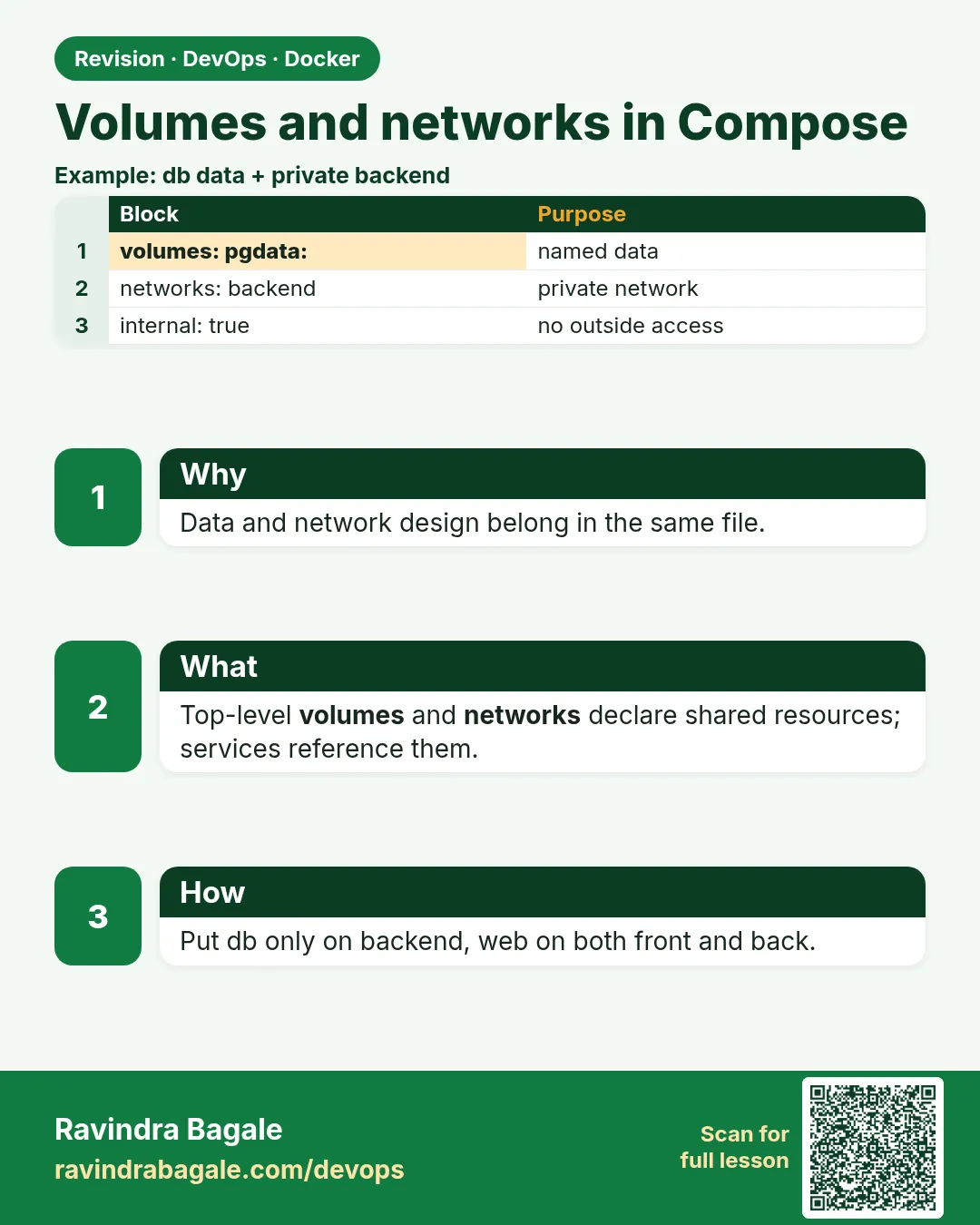 Revision card
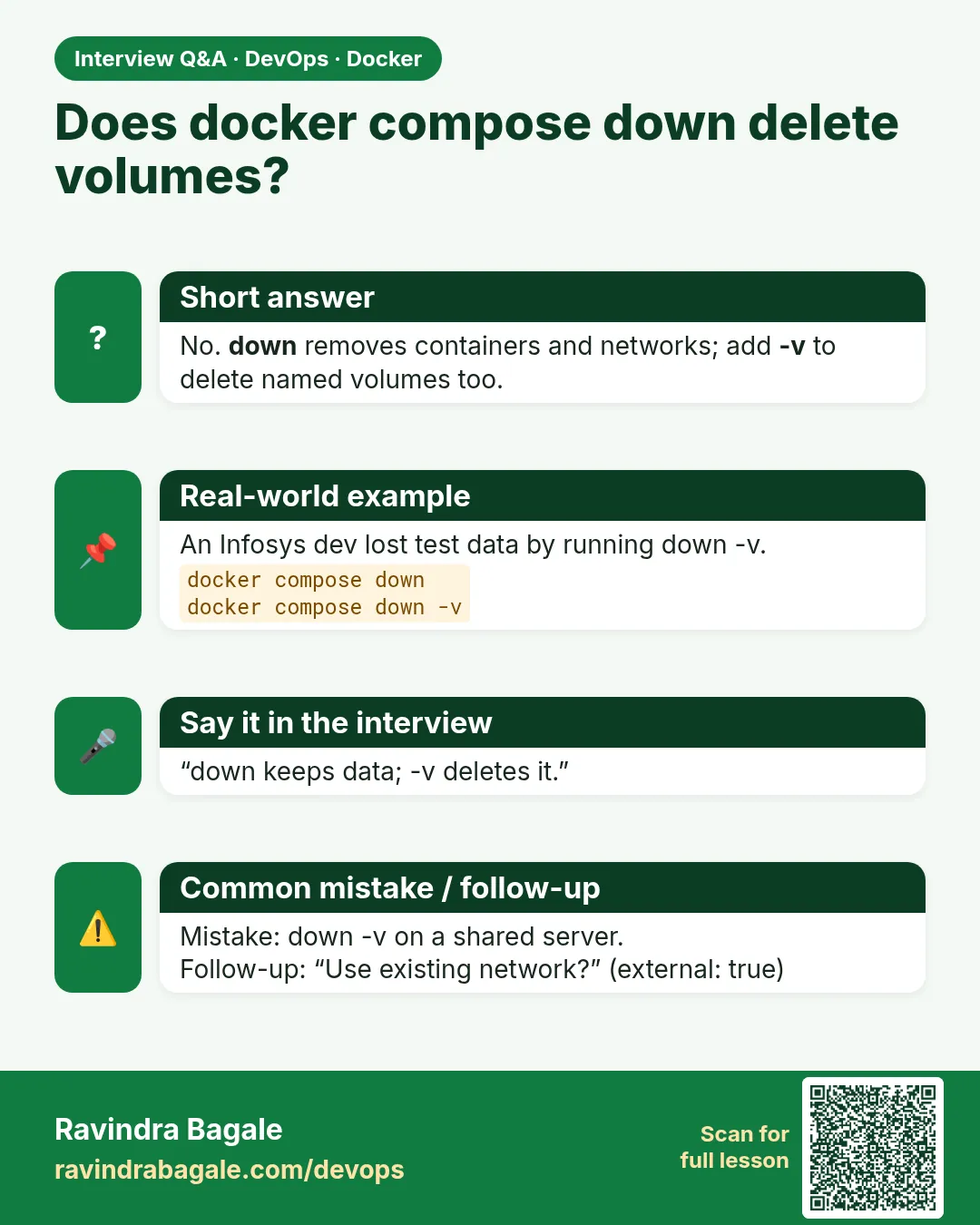 Interview card