53.8 Scaling, watch mode and the full 3-tier stack
Friends, so far we started one container per service. Real traffic needs more than one API copy, and real developers do not want to rebuild after every small code change. Today we scale a service, put nginx in front to spread the load, use Compose Watch to sync code live, and finally write the complete 3-tier stack: nginx, API, Postgres and Redis, in one file.
मित्रांनो, आतापर्यंत आपण प्रत्येक service साठी एकच container चालवला. खऱ्या traffic ला API च्या अनेक copies लागतात, आणि developer ला प्रत्येक छोट्या बदलानंतर rebuild करायचं नसतं. आज service scale करू, load वाटायला समोर nginx ठेवू, code live sync करायला Compose Watch वापरू, आणि शेवटी पूर्ण 3-tier stack लिहू: nginx, API, Postgres आणि Redis, एकाच file मध्ये.
दोस्तों, अब तक हमने हर service का एक ही container चलाया. असली traffic को API की कई copies चाहिए, और developer हर छोटे बदलाव के बाद rebuild नहीं करना चाहता. आज service scale करेंगे, load बाँटने के लिए आगे nginx रखेंगे, code live sync के लिए Compose Watch इस्तेमाल करेंगे, और आखिर में पूरा 3-tier stack लिखेंगे: nginx, API, Postgres और Redis, एक ही file में.
1. Start from a story
At Swiggy, the menu API ran as one container on a test server. Every Friday evening, when the QA team ran a load test, the single API container hit 100 percent CPU and requests started timing out.
Priya, the developer, first tried a bigger server. It helped a little, but one Node process uses only one CPU core, so most of the new cores sat idle.
Then she ran four copies of the API with one command, docker compose up --scale api=4, and put nginx in front. Each copy got about a quarter of the traffic and the timeouts disappeared.
The same week, she got tired of rebuilding the image after every one-line change, so she added a develop.watch block. Now saving a file updates the running container in about a second. Today we do exactly what Priya did, step by step.
2. Scaling a service
Step 1: What scaling means
Why: More copies of the same service.
What: Scaling starts several identical containers from one service definition. Compose names them project-service-1, project-service-2 and so on.
Example 1: Small file
Type this:
printf 'services:\n api:\n image: nginxdemos/hello:plain-text\n' > compose.yaml && docker compose up -d
You will see:
✔ Container shop-api-1 Started
What it means: One copy, the normal start.
Example 2: Scale to three
Type this:
docker compose up -d --scale api=3
You will see:
✔ Container shop-api-1  Running
✔ Container shop-api-2  Started
✔ Container shop-api-3  Started
What it means: Two new copies were added; the first kept running.
Example 3: See them
Type this:
docker compose ps --format '{{.Name}}'
You will see:
shop-api-1
shop-api-2
shop-api-3
What it means: Three containers, numbered.
Step 2: Scale down
Why: Remove extra copies safely.
What: Running up with a smaller number stops and removes the highest-numbered containers first.
Example 4: Down to one
Type this:
docker compose up -d --scale api=1
You will see:
✔ Container shop-api-3  Removed
✔ Container shop-api-2  Removed
What it means: Extra copies removed.
Example 5: Check
Type this:
docker compose ps -q api | wc -l
You will see:
1
What it means: Only one is left.
Example 6: Zero
Type this:
docker compose up -d --scale api=0 && docker compose ps -q api | wc -l
You will see:
0
What it means: Zero copies is allowed: the service is defined but not running.
Step 3: The scale command
Why: Change copies without up.
What: docker compose scale changes the count of running services directly.
Example 7: Scale command
Type this:
docker compose scale api=4
You will see:
✔ Container shop-api-4 Started
What it means: Same result as up --scale.
Example 8: Count
Type this:
docker compose ps api --format '{{.Name}}' | wc -l
You will see:
4
What it means: Four copies.
Example 9: In the file
Type this:
printf 'services:\n api:\n image: nginxdemos/hello:plain-text\n deploy:\n replicas: 2\n' > compose.yaml && docker compose up -d && docker compose ps -q | wc -l
You will see:
2
What it means: deploy.replicas sets the default count, so every up starts two.
Step 4: Port clash when scaling
Why: Only one container can own a host port.
What: If a service publishes a fixed host port like 3000:3000, the second copy fails because the port is already taken.
Example 10: Fixed port
Type this:
printf 'services:\n api:\n image: nginxdemos/hello:plain-text\n ports: ["3000:80"]\n' > compose.yaml && docker compose up -d --scale api=2 2>&1 | tail -1
You will see:
Error: Bind for 0.0.0.0:3000 failed: port is already allocated
What it means: Second copy cannot use port 3000.
Example 11: Port range
Type this:
printf 'services:\n api:\n image: nginxdemos/hello:plain-text\n ports: ["3000-3003:80"]\n' > compose.yaml && docker compose up -d --scale api=3 && docker compose ps --format '{{.Ports}}'
You will see:
0.0.0.0:3000->80/tcp
0.0.0.0:3001->80/tcp
0.0.0.0:3002->80/tcp
What it means: Each copy gets a port from the range.
Example 12: Better: no ports
Type this:
printf 'services:\n api:\n image: nginxdemos/hello:plain-text\n expose: ["80"]\n' > compose.yaml && docker compose up -d --scale api=3 && echo no-clash
You will see:
no-clash
What it means: Do not publish api at all; put nginx in front. That is the next step.
Step 5: container_name blocks scaling
Why: Names must be unique.
What: If a service has container_name set, Compose cannot create a second container with the same name.
Example 13: Fixed name
Type this:
printf 'services:\n api:\n image: nginxdemos/hello:plain-text\n container_name: api\n' > compose.yaml && docker compose up -d --scale api=2 2>&1 | tail -1
You will see:
WARNING: The "api" service is using the custom container name "api". Docker requires each container to have a unique name.
What it means: Compose refuses to scale.
Example 14: Remove it
Type this:
sed -i '/container_name/d' compose.yaml && docker compose up -d --scale api=2 && echo ok
You will see:
ok
What it means: Default names are unique.
Example 15: Talk by service name
Type this:
docker compose exec --index 2 api hostname
You will see:
3c1f9a2b7d10
What it means: Use --index to pick one copy; other services just use the name api.
3. Load balancing with nginx
Step 6: Docker DNS returns every copy
Why: The service name points to all containers.
What: Inside the project network, the name api resolves to the IP of every api container. Clients that look up the name again get spread across copies.
Example 16: Scale first
Type this:
docker compose up -d --scale api=3 && echo up
You will see:
up
What it means: Three copies.
Example 17: Look up
Type this:
docker run --rm --network shop_default busybox nslookup api | grep Address | tail -3
You will see:
Address: 172.20.0.3
Address: 172.20.0.4
Address: 172.20.0.5
What it means: One name, three IPs.
Example 18: Ask repeatedly
Type this:
for i in 1 2 3 4; do docker run --rm --network shop_default curlimages/curl:8.10.1 -s api | grep 'Server name'; done
You will see:
Server name: 3c1f9a2b7d10
Server name: 9ab02e11c4f5
Server name: 3c1f9a2b7d10
Server name: 77d1e0a9b2c3
What it means: Fresh containers each pick an address, so requests spread.
Step 7: nginx as the front door
Why: One public port, many backends.
What: nginx listens on port 80 and proxies to http://api. A resolver line makes nginx look up the name again, so new copies are found.
Example 19: Config
Type this:
printf 'server {\n listen 80;\n resolver 127.0.0.11 valid=10s;\n set $up http://api:80;\n location / { proxy_pass $up; }\n}\n' > nginx.conf && echo written
You will see:
written
What it means: 127.0.0.11 is Docker's built-in DNS.
Example 20: Compose
Type this:
printf 'services:\n api:\n image: nginxdemos/hello:plain-text\n deploy: {replicas: 3}\n web:\n image: nginx:1.27-alpine\n ports: ["8080:80"]\n volumes: ["./nginx.conf:/etc/nginx/conf.d/default.conf:ro"]\n depends_on: [api]\n' > compose.yaml && docker compose up -d && echo started
You will see:
started
What it means: Only web publishes a port.
Example 21: Test spread
Type this:
for i in 1 2 3 4 5 6; do curl -s localhost:8080 | grep 'Server name'; done | sort | uniq -c
You will see:
2 Server name: 3c1f9a2b7d10
2 Server name: 77d1e0a9b2c3
2 Server name: 9ab02e11c4f5
What it means: Traffic is shared by all three.
Step 8: Adding copies while running
Why: Grow without downtime.
What: Because nginx re-resolves every 10 seconds, scaling up adds new backends without restarting nginx.
Example 22: Grow
Type this:
docker compose up -d --scale api=5 --no-recreate
You will see:
✔ Container shop-api-4  Started
✔ Container shop-api-5  Started
What it means: --no-recreate leaves the old ones alone.
Example 23: Wait and test
Type this:
sleep 11 && for i in $(seq 10); do curl -s localhost:8080 | grep 'Server name'; done | sort -u | wc -l
You will see:
5
What it means: All five now get traffic.
Example 24: Shrink
Type this:
docker compose up -d --scale api=2 --no-recreate && sleep 11 && curl -s -o /dev/null -w '%{http_code}\n' localhost:8080
You will see:
200
What it means: Still serving after scale-down.
4. Compose Watch: live code sync
Step 9: The develop.watch block
Why: Tell Compose what to watch.
What: Each rule has a path on your laptop, an action and, for sync, a target inside the container.
Example 25: Rules
Type this:
printf 'services:\n api:\n build: .\n ports: ["3000:3000"]\n develop:\n watch:\n - action: sync\n path: ./src\n target: /app/src\n - action: rebuild\n path: package.json\n' > compose.yaml && docker compose config -q && echo valid
You will see:
valid
What it means: Two rules: sync code, rebuild on dependency change.
Example 26: Start watch
Type this:
docker compose watch
You will see:
[+] Running 1/1
 ✔ Container shop-api-1  Started
Watch enabled
What it means: Builds, starts and keeps watching.
Example 27: Save a file
Type this:
printf 'console.log("v2")\n' >> src/app.js
You will see:
Syncing "api" after changes were detected
What it means: The file was copied into the running container.
Step 10: sync, sync+restart and rebuild
Why: Three actions for three cases.
What: sync copies files only, good for hot-reload tools. sync+restart copies and restarts the container, good for config files. rebuild builds a new image and replaces the container.
Example 28: sync+restart
Type this:
printf ' - action: sync+restart\n path: ./nginx.conf\n target: /etc/nginx/conf.d/default.conf\n' >> compose.yaml && echo added
You will see:
added
What it means: Config changes need a process restart.
Example 29: Rebuild trigger
Type this:
printf '{"name":"api","dependencies":{"express":"4.21.1"}}\n' > package.json
You will see:
Rebuilding service(s) ["api"] after changes were detected
What it means: New dependencies need a new image.
Example 30: Ignore files
Type this:
printf ' ignore:\n - node_modules/\n - "*.test.js"\n'
You will see:
ignore:
  - node_modules/
  - "*.test.js"
What it means: Skip folders you do not want synced.
Step 11: Watch with up
Why: One command for dev.
What: Modern Compose lets you pass --watch to up, so logs and watching share one terminal.
Example 31: up --watch
Type this:
docker compose up --watch
You will see:
api-1  | listening on 3000
⦿ Watch enabled
What it means: Logs plus watch.
Example 32: Only one service
Type this:
docker compose watch api
You will see:
Watch enabled
What it means: Watch just the API.
Example 33: Stop watching
Type this:
printf 'Press Ctrl+C in the watch terminal, then run: docker compose down\n'
You will see:
Press Ctrl+C in the watch terminal, then run: docker compose down
What it means: Watch stops; containers keep running until down.
5. The full 3-tier stack
Step 12: The complete compose.yaml
Why: Everything together.
What: nginx at the front, three API copies, Postgres with a healthcheck and volume, Redis for cache, and two networks so the database is never reachable from the front.
Example 34: Write it
Type this:
printf 'services:\n web:\n image: nginx:1.27-alpine\n ports: ["80:80"]\n volumes: ["./nginx.conf:/etc/nginx/conf.d/default.conf:ro"]\n networks: [front]\n depends_on: [api]\n api:\n build: ./api\n deploy: {replicas: 3}\n environment:\n DATABASE_URL: postgres://shop:example-only@db:5432/shop\n REDIS_URL: redis://cache:6379\n networks: [front, back]\n depends_on:\n db: {condition: service_healthy}\n cache: {condition: service_started}\n db:\n image: postgres:16-alpine\n environment: {POSTGRES_USER: shop, POSTGRES_PASSWORD: example-only, POSTGRES_DB: shop}\n volumes: ["dbdata:/var/lib/postgresql/data"]\n healthcheck: {test: ["CMD-SHELL","pg_isready -U shop"], interval: 5s, retries: 10}\n networks: [back]\n cache:\n image: redis:7-alpine\n networks: [back]\nnetworks: {front: {}, back: {}}\nvolumes: {dbdata: {}}\n' > compose.yaml && docker compose config --services
You will see:
web
api
db
cache
What it means: Four services, two networks, one volume. The password is an example only.
Example 35: Bring it up
Type this:
docker compose up -d --wait
You will see:
✔ Container shop-db-1     Healthy
✔ Container shop-cache-1  Started
✔ Container shop-api-1    Started
✔ Container shop-api-2    Started
✔ Container shop-api-3    Started
✔ Container shop-web-1    Started
What it means: --wait returns only when everything is healthy or running.
Example 36: Test
Type this:
curl -s localhost/health
You will see:
{"status":"ok","db":"up","cache":"up"}
What it means: The request went nginx, then api, then db and cache.
Step 13: Check the network split
Why: The front cannot see the database.
What: web is only on front, db is only on back, and api sits on both as the bridge.
Example 37: From web
Type this:
docker compose exec web ping -c1 -W1 db 2>&1 | tail -1
You will see:
ping: bad address 'db'
What it means: nginx cannot even resolve db.
Example 38: From api
Type this:
docker compose exec --index 1 api sh -c 'nc -z db 5432 && echo reachable'
You will see:
reachable
What it means: API reaches the database.
Example 39: Inspect
Type this:
docker network inspect shop_back --format '{{range .Containers}}{{.Name}} {{end}}'
You will see:
shop-db-1 shop-cache-1 shop-api-1 shop-api-2 shop-api-3
What it means: Only back-end members.
Step 14: Day-two commands for the stack
Why: Run it like a pro.
What: Logs, stats, scaling under load and a clean shutdown that keeps the data.
Example 40: Follow API logs
Type this:
docker compose logs -f --tail 5 api
You will see:
api-2  | GET /health 200 3ms
api-1  | GET /menu 200 12ms
What it means: Prefix shows which copy answered.
Example 41: Live usage
Type this:
docker compose stats --no-stream --format '{{.Name}} {{.CPUPerc}}'
You will see:
shop-api-1 18.2%
shop-api-2 17.9%
shop-api-3 18.5%
What it means: Load is even.
Example 42: Stop, keep data
Type this:
docker compose down && docker volume ls --format '{{.Name}}' | grep dbdata
You will see:
shop_dbdata
What it means: down keeps named volumes; only down -v deletes them.
6. Common mistakes and how Priya avoids them
Mistake one: publishing a fixed port on a scaled service. Priya publishes only nginx and uses expose for the API.
Mistake two: container_name on a service she wants to scale. She removes it and lets Compose number the containers.
Mistake three: storing state inside API containers, such as uploaded files or sessions in memory. With four copies, a user lands on a different copy each time. Priya keeps sessions in Redis and files in a volume or S3.
Mistake four: nginx without a resolver line. nginx then remembers old IPs forever and never sees new copies.
Mistake five: using watch in production. Watch is a developer tool; production uses fixed image tags.
Check yourself
Q1. How do you run four API copies?
docker compose up -d --scale api=4, or deploy.replicas: 4.
Q2. Why does a fixed host port break scaling?
Only one container can bind a host port.
Q3. What does action: sync do?
Copies changed files into the running container.
Q4. Why is db only on the back network?
So the public-facing nginx can never reach it.
Friends, scale with one flag, balance with nginx, develop with watch, and keep the database behind a private network. Did you understand? Let us try it once more. Build the 3-tier stack, scale the API to five and watch the requests spread.
मित्रांनो, एका flag ने scale, nginx ने balance, watch ने develop, आणि database private network मागे. समजलं का? चला, पुन्हा एकदा करून पाहू. 3-tier stack बनवा, API पाच पर्यंत scale करा आणि requests कशा वाटल्या जातात ते बघा.
दोस्तों, एक flag से scale, nginx से balance, watch से develop, और database private network के पीछे. समझ आया? चलिए, एक बार फिर करके देखते हैं। 3-tier stack बनाइए, API को पाँच तक scale कीजिए और requests कैसे बँटती हैं वो देखिए.
Ravindra Bagale's Tip
Before a load test, scale the API and check docker compose stats. If one copy is much busier than the others, nginx is not re-resolving: add the resolver line.
Load test आधी API scale करा आणि docker compose stats बघा. एखादी copy बाकींपेक्षा खूप busy असेल तर nginx पुन्हा resolve करत नाहीये: resolver line जोडा.
Load test से पहले API scale कीजिए और docker compose stats देखिए. कोई copy बाकियों से बहुत ज़्यादा busy हो तो nginx दोबारा resolve नहीं कर रहा: resolver line जोड़िए.
Lab: try at home
- Scale a service to three and back to one.
- Break scaling with a fixed port, then fix it with expose.
- Put nginx in front and count which copy answers.
- Add a develop.watch block and edit a file.
- Write the full 3-tier compose.yaml and bring it up with --wait.
- Prove nginx cannot reach the database.
Recap
- --scale and deploy.replicas run many copies.
- Fixed host ports and container_name block scaling.
- Docker DNS returns every copy; nginx spreads the load.
- Compose Watch syncs or rebuilds on save.
- The 3-tier stack uses front and back networks.
- down keeps volumes; down -v deletes them.
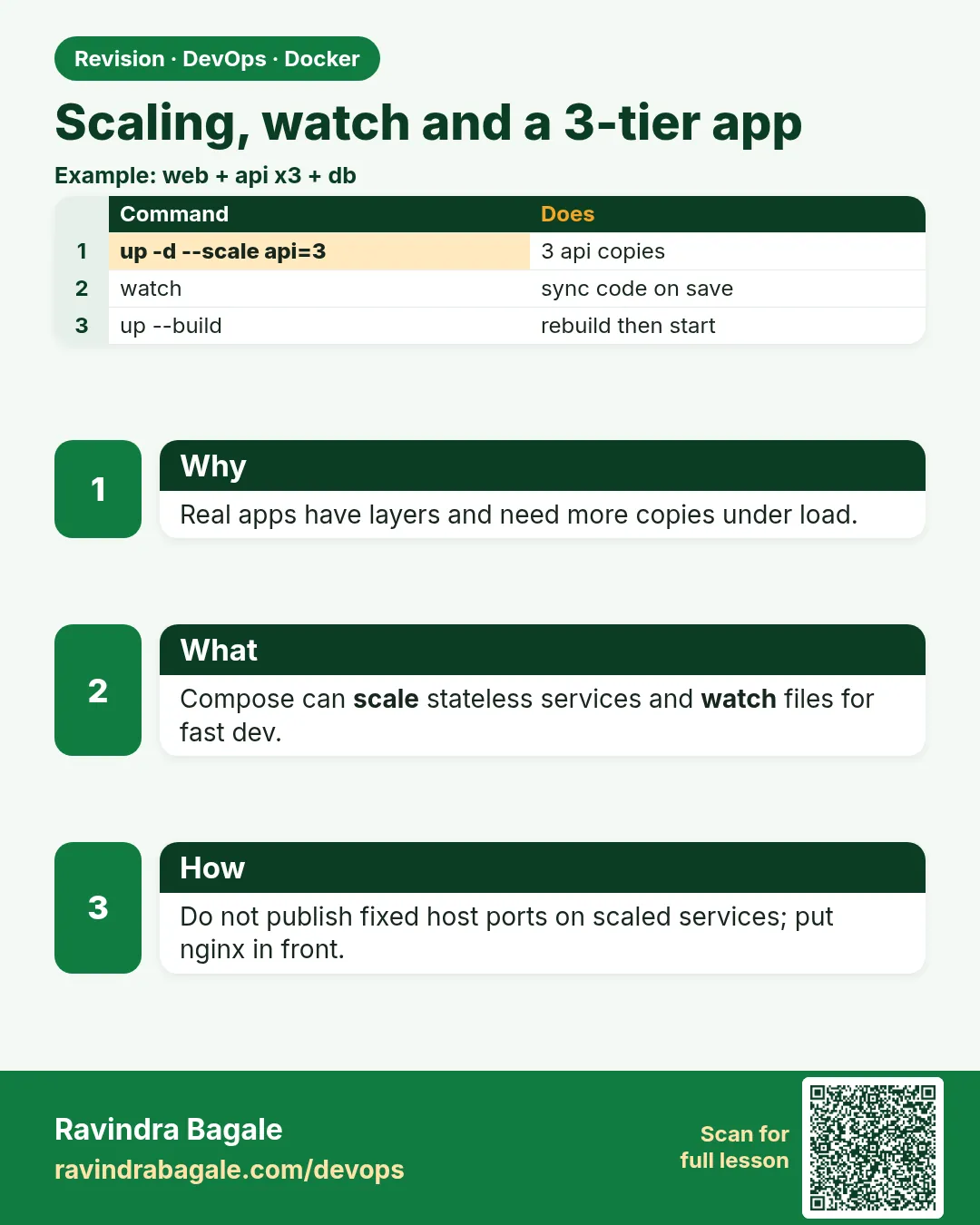 Revision card
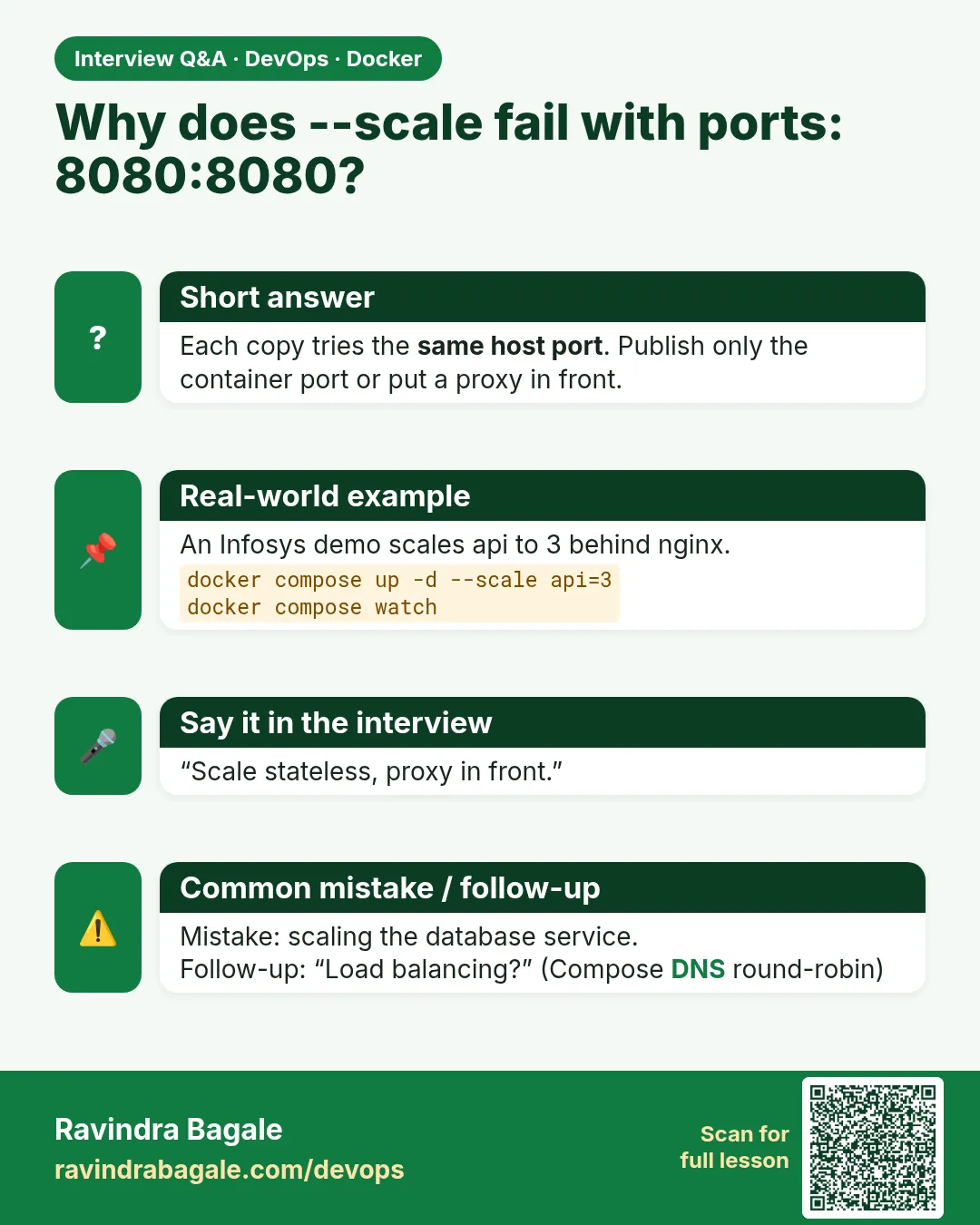 Interview card