53.7 Override files, multiple -f, include and extends
Friends, the same app runs on your laptop, in CI and on the server, but each place needs small differences: ports, replicas, log levels, bind mounts. Copying the whole compose.yaml three times is how bugs are born. Today we learn four ways to share one base file and change only what differs: the automatic override file, several -f flags, include and extends.
मित्रांनो, तेच app laptop वर, CI मध्ये आणि server वर चालतं, पण प्रत्येक ठिकाणी थोडे फरक लागतात: ports, replicas, log level, bind mounts. संपूर्ण compose.yaml तीनदा copy करणं म्हणजे bugs ला आमंत्रण. आज एक base file share करून फक्त फरक बदलण्याचे चार मार्ग शिकू: automatic override file, अनेक -f, include आणि extends.
दोस्तों, वही app laptop पर, CI में और server पर चलता है, पर हर जगह थोड़े फ़र्क चाहिए: ports, replicas, log level, bind mounts. पूरी compose.yaml तीन बार copy करना bugs को न्योता है. आज एक base file share करके सिर्फ़ फ़र्क बदलने के चार तरीके सीखेंगे: automatic override file, कई -f, include और extends.
1. Start from a story
At Zomato, the restaurant-onboarding team had compose.yaml, compose-dev.yaml and compose-prod.yaml, each a full copy. Someone upgraded Postgres in dev only. Production stayed on the old version for three months without anyone noticing.
Arjun rebuilt it as one base file with the shared truth, a compose.override.yaml for laptop extras, and a compose.prod.yaml with only production changes.
The image tag for Postgres now lived in exactly one place. A diff of compose.prod.yaml showed just twelve lines: what production does differently.
Later, the shared observability stack moved into its own file and was pulled in with include. Today we build that layout.
2. The automatic override
Step 1: compose.override.yaml
Why: Loaded automatically.
What: If it sits next to compose.yaml and you pass no -f, Compose merges it on top.
Example 1: Base
Type this:
printf 'services:\n api:\n image: shop/api:1.4\n environment:\n LOG_LEVEL: info\n' > compose.yaml && printf 'services:\n api:\n environment:\n LOG_LEVEL: debug\n ports: ["3000:3000"]\n' > compose.override.yaml && echo ok
You will see:
ok
What it means: Two files.
Example 2: Merged
Type this:
docker compose config | grep -E 'LOG_LEVEL|published'
You will see:
LOG_LEVEL: debug
  published: "3000"
What it means: Override wins and adds a port.
Example 3: Skip it
Type this:
docker compose -f compose.yaml config | grep -c published
You will see:
0
What it means: With -f, the override is not auto-loaded.
Step 2: Merge rules for single values
Why: Later file wins.
What: image, command, user, restart and similar keys are replaced.
Example 4: Command
Type this:
printf 'services:\n api:\n command: npm run dev\n' >> compose.override.yaml && docker compose config | grep command -A1 | tail -1
You will see:
- npm
What it means: Replaced, shown as a list.
Example 5: Image
Type this:
printf 'services:\n api:\n image: shop/api:dev\n' > o2.yaml && docker compose -f compose.yaml -f o2.yaml config | grep image
You will see:
image: shop/api:dev
What it means: Second file wins.
Example 6: Order matters
Type this:
docker compose -f o2.yaml -f compose.yaml config | grep image
You will see:
image: shop/api:1.4
What it means: Now the base wins.
Step 3: Merge rules for maps and lists
Why: Some keys merge, some add.
What: environment and labels merge by key. ports, expose and dns add entries. volumes merge by target path.
Example 7: Environment
Type this:
printf 'services:\n api:\n environment: {A: 1}\n' > b.yaml && printf 'services:\n api:\n environment: {B: 2}\n' > c.yaml && docker compose -f b.yaml -f c.yaml config | grep -E '^ +(A|B):'
You will see:
A: "1"
B: "2"
What it means: Both kept.
Example 8: Ports add
Type this:
printf 'services:\n api:\n image: x\n ports: ["80:80"]\n' > p1.yaml && printf 'services:\n api:\n ports: ["443:443"]\n' > p2.yaml && docker compose -f p1.yaml -f p2.yaml config | grep -c published
You will see:
2
What it means: Ports are added, not replaced.
Example 9: Volumes by target
Type this:
printf 'Same target path in both files: the later source wins.\n'
You will see:
Same target path in both files: the later source wins.
What it means: So you can swap a volume for a bind mount.
3. Several -f flags
Step 4: Explicit -f for production
Why: No auto override in prod.
What: Pass the base and the prod file. The laptop override is never used.
Example 10: Prod file
Type this:
printf 'services:\n api:\n restart: always\n deploy:\n resources:\n limits: {cpus: "1.0", memory: 512M}\n environment:\n LOG_LEVEL: warn\n' > compose.prod.yaml && echo written
You will see:
written
What it means: Only differences.
Example 11: Merged
Type this:
docker compose -f compose.yaml -f compose.prod.yaml config | grep -E 'LOG_LEVEL|restart|memory'
You will see:
  LOG_LEVEL: warn
restart: always
      memory: "536870912"
What it means: Prod values.
Example 12: Up
Type this:
docker compose -f compose.yaml -f compose.prod.yaml up -d
You will see:
✔ Container shop-api-1 Started
What it means: Same command on every server.
Step 5: COMPOSE_FILE
Why: Avoid typing -f every time.
What: List files with a colon on Linux and macOS, semicolon on Windows.
Example 13: Server .env
Type this:
printf 'COMPOSE_FILE=compose.yaml:compose.prod.yaml\n' > .env && docker compose config | grep LOG_LEVEL
You will see:
LOG_LEVEL: warn
What it means: Prod by default on that server.
Example 14: Check
Type this:
docker compose ls
You will see:
NAME   STATUS      CONFIG FILES
shop   running(1)  /srv/shop/compose.yaml,/srv/shop/compose.prod.yaml
What it means: Both files shown.
Example 15: Separator
Type this:
printf 'COMPOSE_PATH_SEPARATOR=;\n' && echo 'only needed on Windows'
You will see:
COMPOSE_PATH_SEPARATOR=;
only needed on Windows
What it means: Custom separator.
Step 6: Removing a value with !reset
Why: Delete something the base set.
What: Modern Compose supports !reset to clear a key and !override to replace a list.
Example 16: Reset ports
Type this:
printf 'services:\n api:\n ports: !reset []\n' > noports.yaml && docker compose -f p1.yaml -f noports.yaml config | grep -c published
You will see:
0
What it means: No published ports in CI.
Example 17: Override list
Type this:
printf 'services:\n api:\n ports: !override ["8443:443"]\n' > one.yaml && docker compose -f p1.yaml -f one.yaml config | grep published
You will see:
published: "8443"
What it means: Replaced, not added.
Example 18: Version
Type this:
docker compose version --short
You will see:
2.29.7
What it means: Needs Compose 2.24 or newer.
Step 7: Project directory
Why: Where relative paths start.
What: Paths resolve from the first file's folder, or --project-directory.
Example 19: Other folder
Type this:
docker compose -f deploy/compose.yaml config | grep -m1 source
You will see:
source: /srv/shop/deploy/data
What it means: Relative to deploy/.
Example 20: Override
Type this:
docker compose --project-directory . -f deploy/compose.yaml config | grep -m1 source
You will see:
source: /srv/shop/data
What it means: Relative to here.
Example 21: Tip
Type this:
printf 'Keep all compose files in one folder.\n'
You will see:
Keep all compose files in one folder.
What it means: Avoids path surprises.
Step 8: A CI override
Why: Make tests repeatable.
What: compose.ci.yaml removes published ports, adds tmpfs for the database and pins image tags.
Example 22: File
Type this:
printf 'services:\n db:\n ports: !reset []\n tmpfs: [/var/lib/postgresql/data]\n api:\n image: shop/api:${GIT_SHA}\n' > compose.ci.yaml && echo written
You will see:
written
What it means: Fast, isolated database.
Example 23: Run
Type this:
GIT_SHA=3f9c2ab docker compose -f compose.yaml -f compose.ci.yaml config | grep image: | head -1
You will see:
image: shop/api:3f9c2ab
What it means: Exact build under test.
Example 24: Parallel jobs
Type this:
docker compose -p ci-$CI_JOB_ID -f compose.yaml -f compose.ci.yaml up -d --wait && echo isolated
You will see:
isolated
What it means: No port clashes between jobs.
Step 9: Different env files per environment
Why: Values outside YAML.
What: Each override points at its own env_file, so YAML stays the same shape.
Example 25: Prod
Type this:
printf 'services:\n api:\n env_file: [env/prod.env]\n' >> compose.prod.yaml && printf 'DB_HOST=db\nAPI_KEY=example-only\n' > env/prod.env && echo ok
You will see:
ok
What it means: Example values only.
Example 26: Check
Type this:
docker compose -f compose.yaml -f compose.prod.yaml config | grep DB_HOST
You will see:
DB_HOST: db
What it means: Loaded.
Example 27: Dev
Type this:
printf 'services:\n api:\n env_file: [env/dev.env]\n' >> compose.override.yaml && echo dev-ready
You will see:
dev-ready
What it means: Same keys, different values.
4. include and extends
Step 10: include
Why: Bring in another project file.
What: Top-level include loads other compose files with their own relative paths.
Example 28: Shared stack
Type this:
printf 'services:\n prometheus:\n image: prom/prometheus:v2.54.1\n' > observability/compose.yaml && printf 'include:\n - observability/compose.yaml\nservices:\n api:\n image: shop/api:1.4\n' > compose.yaml && docker compose config --services
You will see:
prometheus
api
What it means: Both services.
Example 29: With env file
Type this:
printf 'include:\n - path: observability/compose.yaml\n env_file: observability/.env\n' | head -2
You will see:
include:
  - path: observability/compose.yaml
What it means: Its own variables.
Example 30: Conflict
Type this:
printf 'services:\n prometheus:\n image: other\n' >> compose.yaml && docker compose config 2>&1 | tail -1
You will see:
services.prometheus conflicts with imported resource
What it means: include will not silently override.
Step 11: extends
Why: Reuse one service's settings.
What: A service copies another and changes a few keys.
Example 31: Base worker
Type this:
printf 'services:\n worker-base:\n image: shop/worker:1.4\n environment: {QUEUE: default}\n profiles: [never]\n email-worker:\n extends: worker-base\n environment: {QUEUE: email}\n profiles: !reset []\n sms-worker:\n extends: worker-base\n environment: {QUEUE: sms}\n profiles: !reset []\n' > compose.yaml && docker compose config --services
You will see:
email-worker
sms-worker
What it means: Base hidden with a profile.
Example 32: Values
Type this:
docker compose config | grep QUEUE
You will see:
QUEUE: email
QUEUE: sms
What it means: Each overrides one key.
Example 33: From file
Type this:
printf ' extends:\n file: common.yaml\n service: worker-base\n'
You will see:
extends:
  file: common.yaml
  service: worker-base
What it means: Base in another file.
Step 12: YAML anchors
Why: Plain YAML reuse.
What: x- keys are ignored by Compose; anchors copy blocks.
Example 34: Anchor
Type this:
printf 'x-logging: &log\n driver: json-file\n options: {max-size: 10m, max-file: "3"}\nservices:\n api:\n image: shop/api:1.4\n logging: *log\n web:\n image: nginx:1.27-alpine\n logging: *log\n' > compose.yaml && docker compose config | grep -c max-size
You will see:
2
What it means: Same logging on both.
Example 35: Merge key
Type this:
printf ' environment:\n <<: *commonenv\n PORT: 3000\n' | head -2
You will see:
environment:
  <<: *commonenv
What it means: Merge a map and add keys.
Example 36: Choose
Type this:
printf 'anchors: same file. extends: one service. include: whole stack.\n'
You will see:
anchors: same file. extends: one service. include: whole stack.
What it means: Pick the smallest tool.
Step 13: Always check the merge
Why: config is the truth.
What: Diff the merged output before deploying.
Example 37: Save
Type this:
docker compose -f compose.yaml -f compose.prod.yaml config > merged.prod.yaml && wc -l merged.prod.yaml
You will see:
84 merged.prod.yaml
What it means: Final file.
Example 38: Diff
Type this:
diff <(docker compose config) merged.prod.yaml | head -3
You will see:
8c8
<       LOG_LEVEL: debug
---
What it means: See exactly what changes.
Example 39: CI check
Type this:
docker compose -f compose.yaml -f compose.prod.yaml config -q && echo valid
You will see:
valid
What it means: Fail fast on errors.
5. Common mistakes and how Arjun avoids them
Mistake one: full copies per environment. Arjun keeps one base and small overrides.
Mistake two: the laptop override on the server. Arjun always uses explicit -f or COMPOSE_FILE in prod.
Mistake three: expecting ports to be replaced. Arjun remembers lists add, and uses !override.
Mistake four: secrets in override files committed to git. Arjun keeps compose.override.yaml in .gitignore when it holds personal values.
Mistake five: guessing the result. Arjun runs docker compose config every time.
Check yourself
Q1. Which file loads automatically?
compose.override.yaml, when no -f is given.
Q2. Do ports merge or replace?
They add; use !override to replace.
Q3. include or extends for a monitoring stack?
include.
Q4. How do you see the final result?
docker compose config.
Friends, one base, small differences, and config to check. Did you understand? Let us try it once more. Split your project into compose.yaml, compose.override.yaml and compose.prod.yaml and diff the two merged outputs.
मित्रांनो, एक base, छोटे फरक, आणि तपासायला config. समजलं का? चला, पुन्हा एकदा करून पाहू. तुमचा project compose.yaml, compose.override.yaml आणि compose.prod.yaml मध्ये विभागा आणि दोन्ही merged output diff करा.
दोस्तों, एक base, छोटे फ़र्क, और जाँचने के लिए config. समझ आया? चलिए, एक बार फिर करके देखते हैं। अपने project को compose.yaml, compose.override.yaml और compose.prod.yaml में बाँटिए और दोनों merged output diff कीजिए.
Ravindra Bagale's Tip
Save docker compose config output for prod in CI as an artifact. When something breaks, you can see exactly what was deployed.
CI मध्ये prod चं docker compose config output artifact म्हणून save करा. काही बिघडलं तर नक्की काय deploy झालं ते दिसतं.
CI में prod का docker compose config output artifact के रूप में save कीजिए. कुछ टूटे तो ठीक क्या deploy हुआ वो दिखता है.
Lab: try at home
- Create an override and see it merged.
- Swap -f order and see the winner change.
- Write compose.prod.yaml with only differences.
- Set COMPOSE_FILE on a server.
- Pull in a monitoring stack with include.
- Share logging with a YAML anchor.
Recap
- compose.override.yaml loads automatically.
- Later -f files win for single values.
- Lists add; !override and !reset change that.
- include pulls whole stacks.
- extends and anchors reuse pieces.
- docker compose config shows the truth.
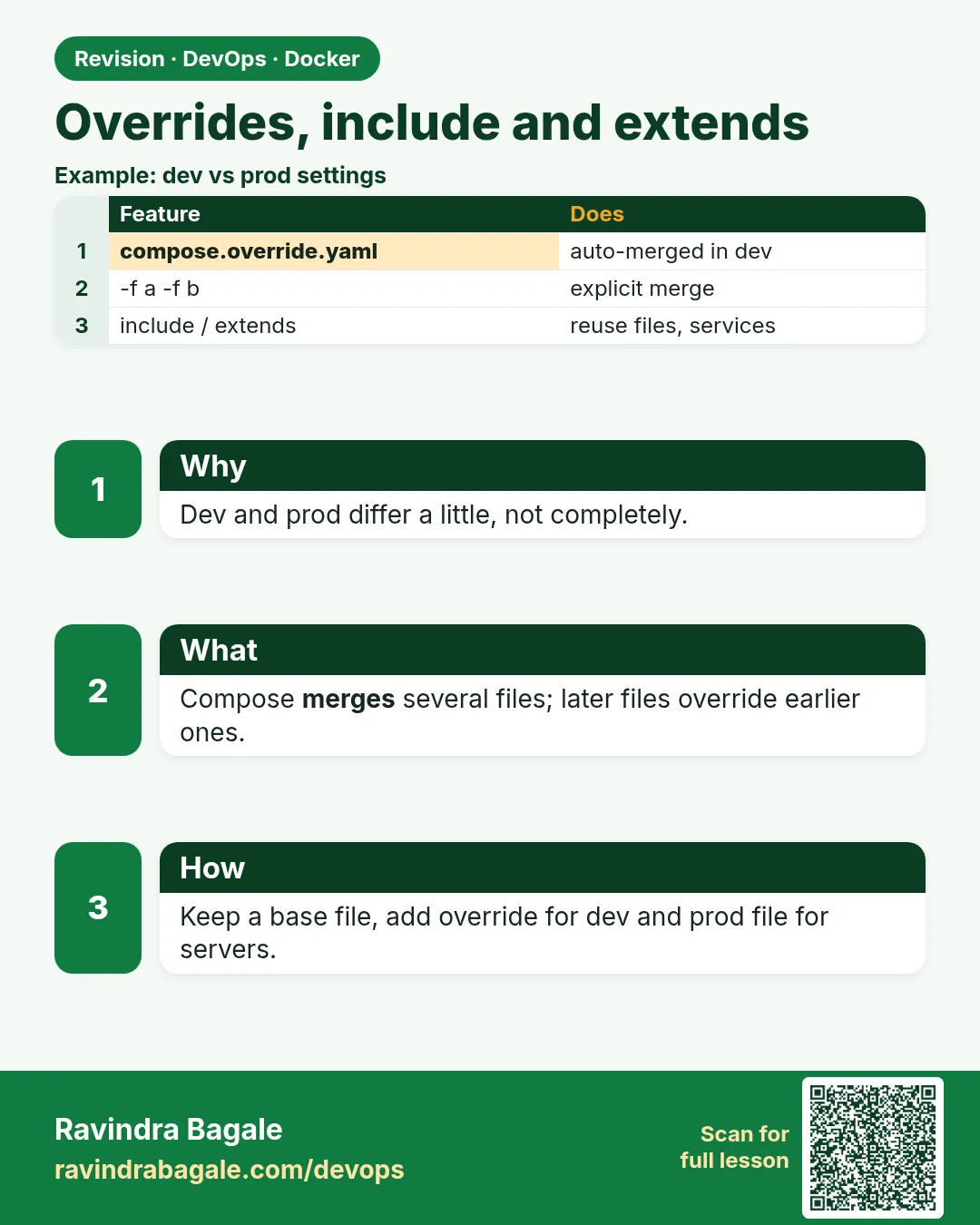 Revision card
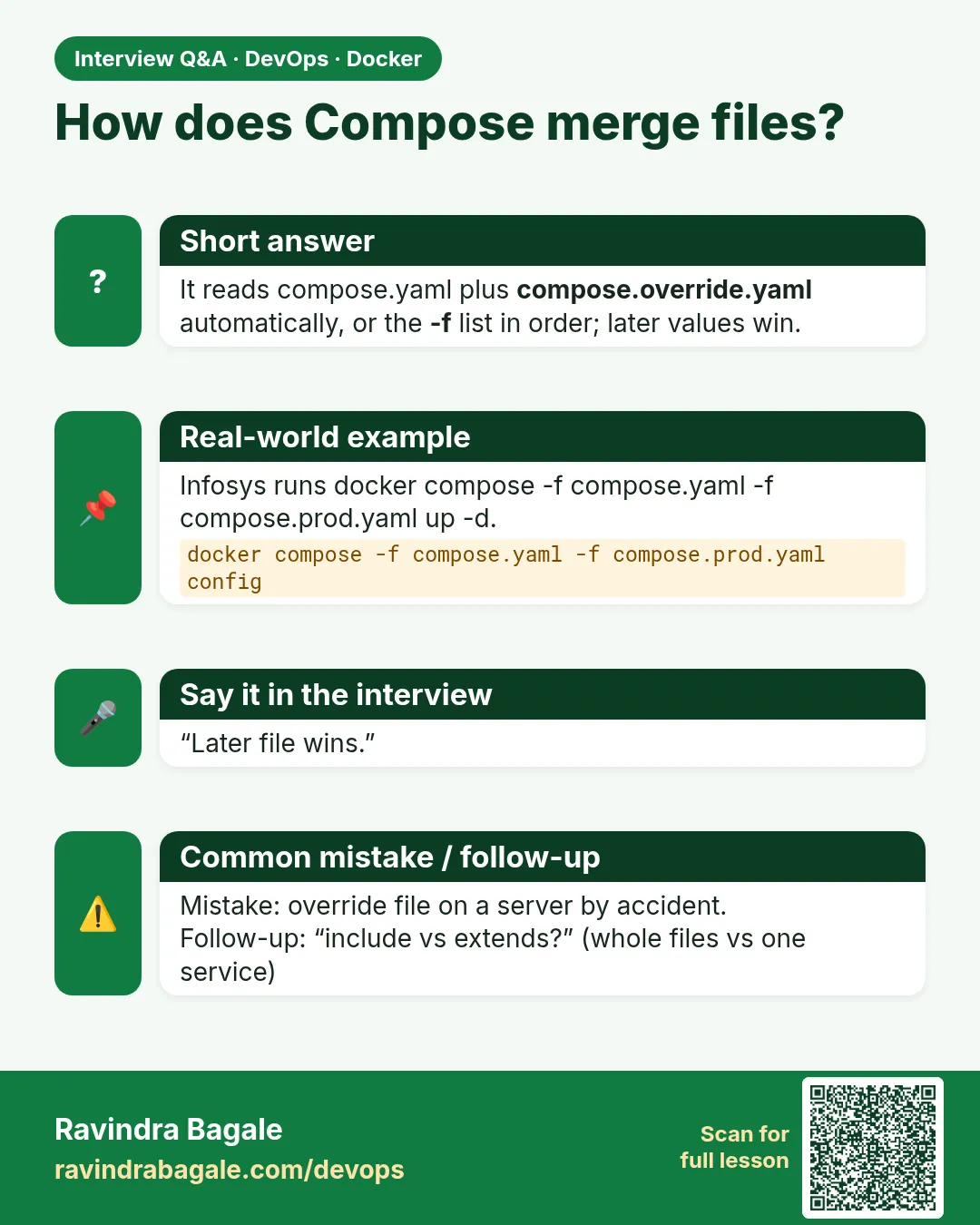 Interview card