49.9 Every docker container command: full reference
Friends, so far we learned the container commands in separate lessons. Today they are all in one place, in groups, with three examples each. Bookmark this page; you will use it daily.
मित्रांनो, आतापर्यंत container चे सगळे commands वेगवेगळ्या lessons मध्ये शिकलो. आज ते सगळे एकाच जागी, गटानुसार, प्रत्येकाला तीन उदाहरणं. हे page bookmark करा, रोज कामाला येईल.
दोस्तों, अब तक container के commands अलग-अलग lessons में सीखे. आज सब एक जगह, groups में, हर एक के तीन उदाहरण. यह page bookmark कीजिए, रोज़ काम आएगा.
1. Start from a story
A fresher joins the platform team at Infosys. On day one, the lead says: here is a server, keep its containers healthy. The fresher knows docker run and docker ps, but nothing else.
Think of a TV remote. It has many buttons, but they are in groups: power, volume, channels, settings. Once you know the groups, you can find any button.
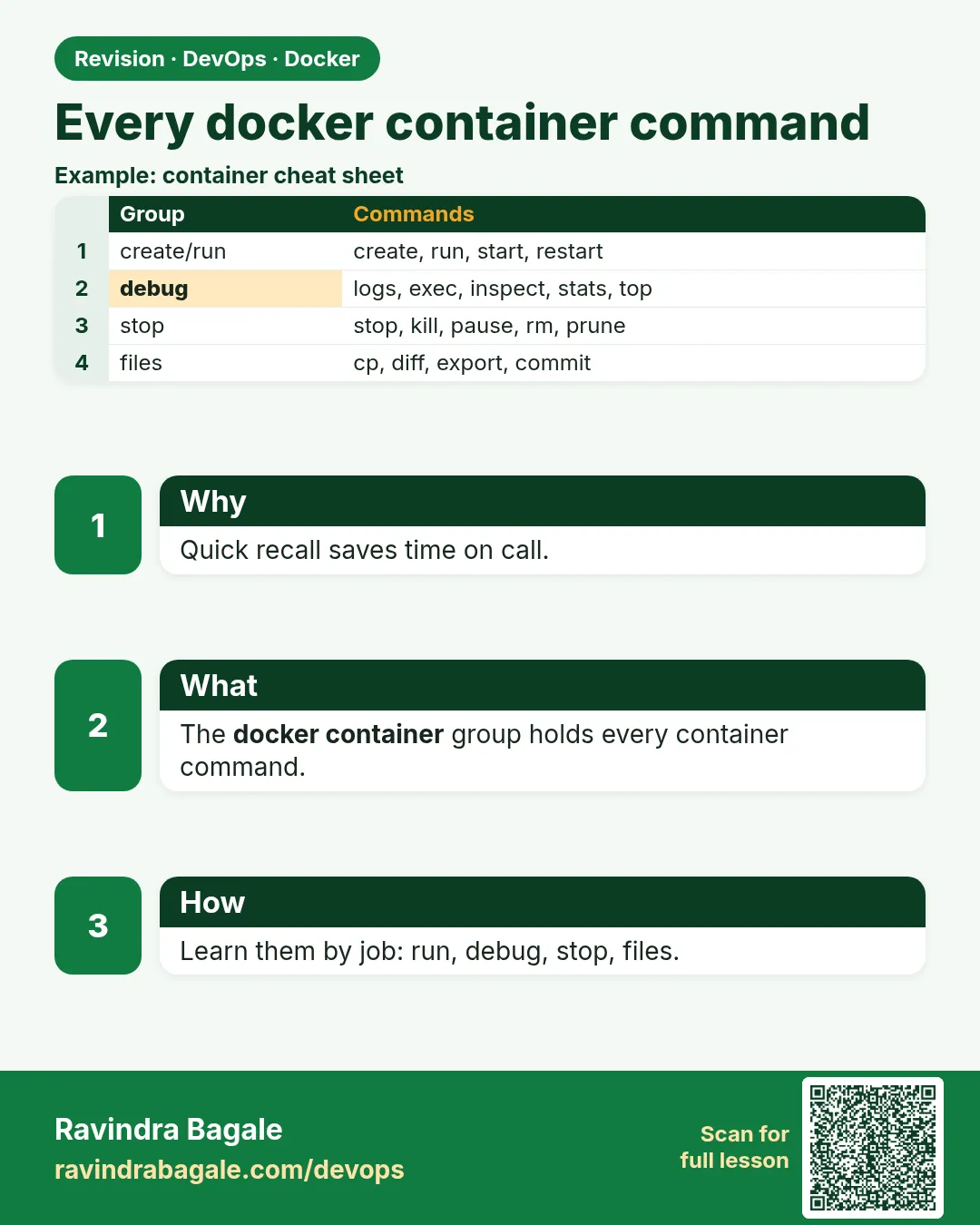
Docker container commands are also in groups: create and run, start and stop, look inside, change, move files, and clean up. Every one starts with docker container, and most have a short form without the word container.
2. Long form and short form
Step 1: docker container vs short commands
Why: You will see both forms in blogs and scripts.
What: Each command has a long form, like docker container ls, and most have a short one, like docker ps. They do exactly the same thing.
Example 1: Long form
Type this:
docker container ls --format '{{.Names}}'
You will see:
web
What it means: The new, clear style.
Example 2: Short form
Type this:
docker ps --format '{{.Names}}'
You will see:
web
What it means: Same result.
Example 3: See every subcommand
Type this:
docker container --help | sed -n '/Commands:/,/^$/p' | head -6
You will see:
Commands:
  attach      Attach local standard input, output, and error streams to a running container
  commit      Create a new image from a container's changes
  cp          Copy files/folders between a container and the local filesystem
  create      Create a new container
  diff        Inspect changes to files or directories on a container's filesystem
What it means: The built-in list. --help works on each one too.
3. Create and run
Step 2: create and run
Why: Make a container, with or without starting it.
What: create makes it; run makes and starts it. Both take the same flags.
Example 4: create
Type this:
docker container create --name web -p 8080:80 nginx:1.27
You will see:
7a1b...
What it means: Status Created.
Example 5: run
Type this:
docker container run -d --name web2 -p 8081:80 nginx:1.27
You will see:
8c2d...
What it means: Status Up.
Example 6: run a one-off
Type this:
docker container run --rm alpine:3.20 uname -r
You will see:
6.1.0-26-cloud-amd64
What it means: Host kernel, because containers share it.
4. Start and stop
Step 3: start, stop, restart
Why: Daily on and off.
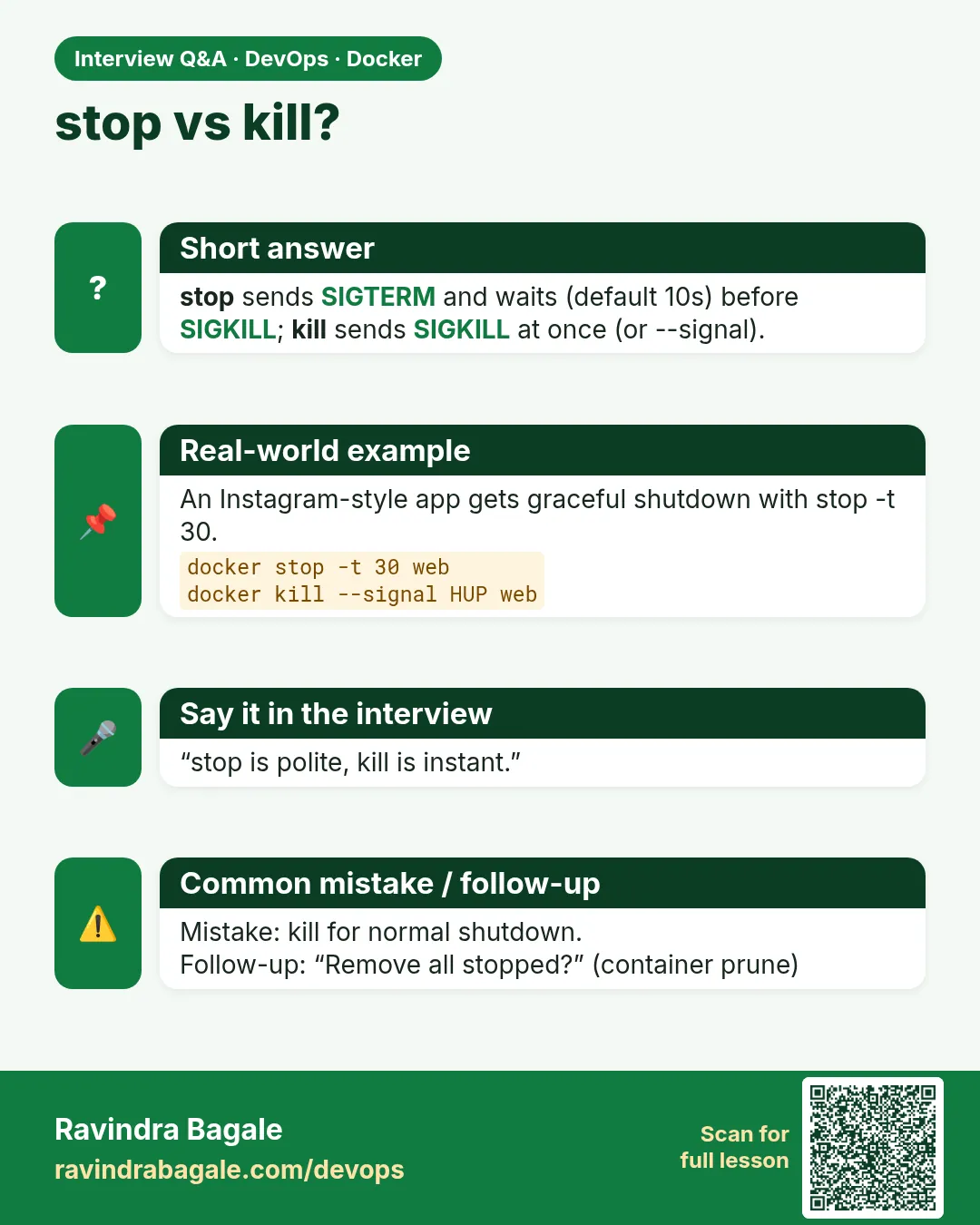
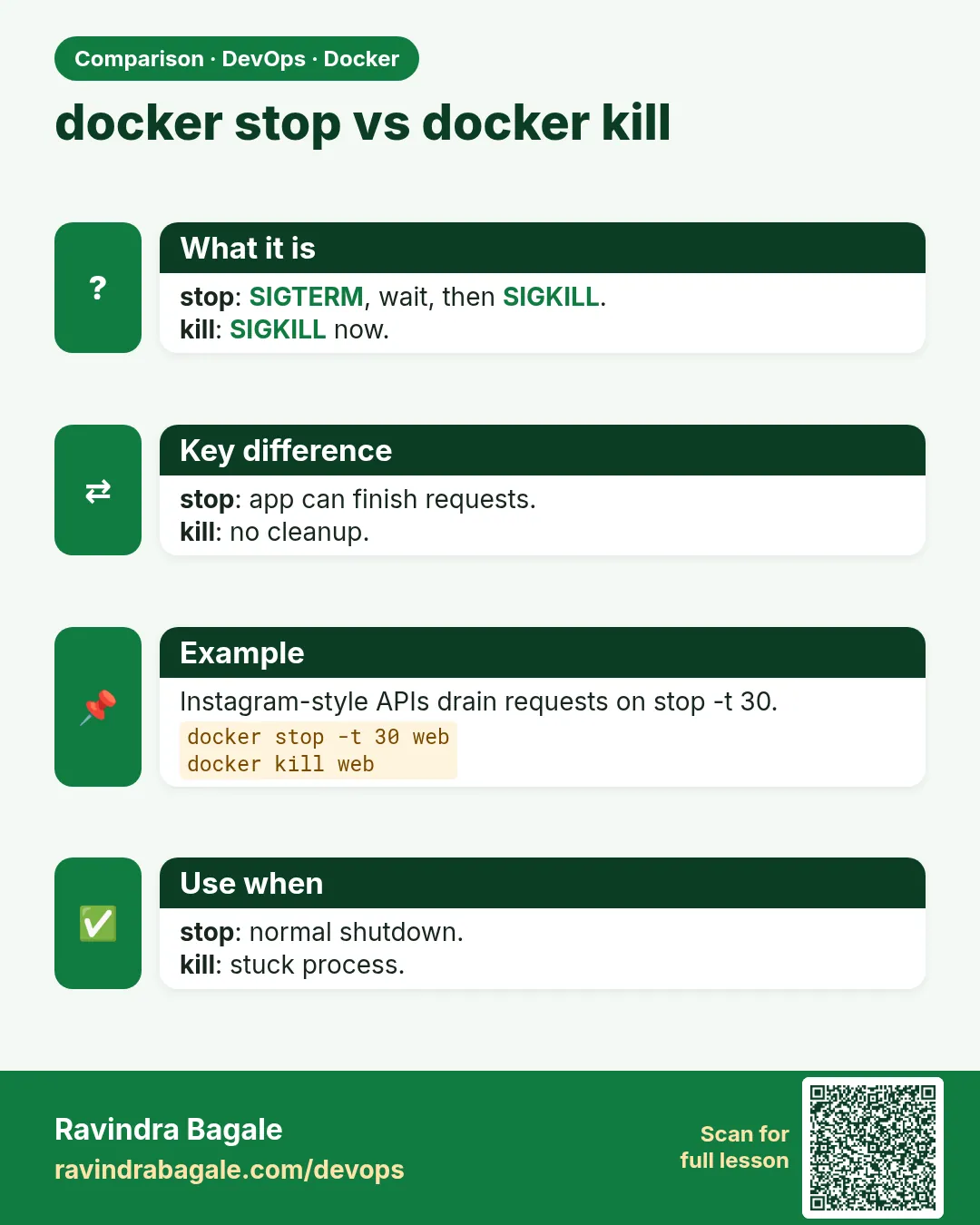
What: start runs a created or exited container; stop sends SIGTERM then SIGKILL; restart does both.
Example 7: start
Type this:
docker container start web
You will see:
web
What it means: Created to Up.
Example 8: stop with time
Type this:
docker container stop -t 5 web
You will see:
web
What it means: Waits 5 seconds before SIGKILL.
Example 9: restart many
Type this:
docker container restart web web2
You will see:
web
web2
What it means: Two at once.
Step 4: pause, unpause, kill
Why: Freeze, unfreeze, or force.
What: pause freezes processes; unpause continues; kill sends SIGKILL or the signal you choose with -s.
Example 10: pause
Type this:
docker container pause web2 && docker ps --filter name=web2 --format '{{.Status}}'
You will see:
web2
Up 2 minutes (Paused)
What it means: Frozen.
Example 11: unpause
Type this:
docker container unpause web2
You will see:
web2
What it means: Running again.
Example 12: kill with a signal
Type this:
docker container kill -s SIGHUP web2
You will see:
web2
What it means: nginx reloads on HUP.
5. Look at containers
Step 5: ls with filters and format
Why: Find the right containers fast.
What: ls (ps) shows containers. -a all, -q IDs only, -l latest, -n N last N, -s sizes, --filter and --format to pick.
Example 13: Running by image
Type this:
docker container ls --filter ancestor=nginx:1.27 --format '{{.Names}}'
You will see:
web
web2
What it means: Only nginx containers.
Example 14: Last 2 created
Type this:
docker container ls -a -n 2 --format '{{.Names}} {{.Status}}'
You will see:
web2 Up 3 minutes
web Up 4 minutes
What it means: Newest first.
Example 15: IDs for scripts
Type this:
docker container ls -q
You will see:
8c2d4e6f8a1b
7a1b3c5d7e9f
What it means: Short IDs only.
Step 6: logs, inspect, stats
Why: Output, setup and usage.
What: logs shows output, inspect shows setup as JSON, stats shows live use.
Example 16: logs
Type this:
docker container logs --tail 1 web
You will see:
/docker-entrypoint.sh: Configuration complete; ready for start up
What it means: Last line.
Example 17: inspect
Type this:
docker container inspect -f '{{.State.Status}} {{.HostConfig.RestartPolicy.Name}}' web
You will see:
running no
What it means: -f is short for --format.
Example 18: stats
Type this:
docker container stats --no-stream --format '{{.Name}} {{.MemUsage}}'
You will see:
web 3.2MiB / 7.6GiB
web2 3.3MiB / 7.6GiB
What it means: One snapshot.
Step 7: top, port, diff
Why: Processes, ports and file changes.
What: top lists processes, port lists published ports, diff lists changed files.
Example 19: top
Type this:
docker container top web -o pid,comm
You will see:
PID    COMMAND
71001  nginx
71040  nginx
What it means: Host PIDs.
Example 20: port
Type this:
docker container port web
You will see:
80/tcp -> 0.0.0.0:8080
What it means: Published ports.
Example 21: diff
Type this:
docker container diff web | head -2
You will see:
C /var
C /var/cache
What it means: Changes in the writable layer.
Step 8: --format fields you will use
Why: Every look command takes --format, and the same few fields come up daily.
What: For ls: .Names, .Image, .Status, .Ports, .ID, .Size, .Labels. For stats: .Name, .CPUPerc, .MemUsage, .NetIO, .PIDs. The word table at the start adds headers.
Example 22: A neat table
Type this:
docker container ls --format 'table {{.Names}}\t{{.Image}}\t{{.Ports}}'
You will see:
NAMES   IMAGE        PORTS
web     nginx:1.27   0.0.0.0:8080->80/tcp
web2    nginx:1.27   0.0.0.0:8081->80/tcp
What it means: Headers and columns.
Example 23: JSON for tools
Type this:
docker container ls --format json | head -1 | jq -r .Names
You will see:
web
What it means: One JSON object per line.
Example 24: Stats columns
Type this:
docker container stats --no-stream --format 'table {{.Name}}\t{{.CPUPerc}}\t{{.PIDs}}'
You will see:
NAME   CPU %   PIDS
web    0.00%   3
web2   0.00%   3
What it means: The same idea for stats.
6. Get inside
Step 9: exec and attach
Why: Run commands inside, or join the main process.
What: exec starts a new process; attach joins PID 1. Use exec for debugging.
Example 25: exec a shell
Type this:
docker container exec -it web sh -c 'nginx -v'
You will see:
nginx version: nginx/1.27.2
What it means: A new process inside.
Example 26: exec as a user
Type this:
docker container exec -u nginx web whoami
You will see:
nginx
What it means: Run as another user.
Example 27: attach without input
Type this:
docker container attach --no-stdin web
You will see:
(shows new log lines; Ctrl+C here stops the container)
What it means: Use --sig-proxy=false so Ctrl+C does not stop it.
7. Change containers
Step 10: rename, update
Why: Change name or limits in place.
What: rename changes the name; update changes memory, CPU, pids and restart policy.
Example 28: rename
Type this:
docker container rename web2 cart
You will see:
(no output)
What it means: web2 is now cart.
Example 29: update limits
Type this:
docker container update -m 256m --memory-swap 256m --cpus 0.5 cart
You will see:
cart
What it means: Live change.
Example 30: update policy
Type this:
docker container update --restart unless-stopped web cart
You will see:
web
cart
What it means: Two at once.
Step 11: commit, wait
Why: Freeze as image; wait for exit.
What: commit saves a container as an image; wait blocks until it stops and prints the exit code.
Example 31: commit
Type this:
docker container commit -m 'debug copy' web web-debug:1
You will see:
sha256:3e4f...
What it means: New image.
Example 32: wait
Type this:
docker container run -d --name job alpine:3.20 sh -c 'sleep 2; exit 0' && docker container wait job
You will see:
...
0
What it means: Exit code 0.
Example 33: wait on many
Type this:
docker container run -d --name j2 alpine:3.20 sh -c 'exit 5'; docker container wait job j2
You will see:
0
5
What it means: One code per container.
8. Move files and clean up
The last group keeps the server tidy. A busy CI server at Infosys can create hundreds of containers a day. If nobody cleans them, the disk fills with old writable layers and logs. Make cleanup a habit, not an emergency.
Step 12: cp, export
Why: Files in and out.
What: cp copies files between host and container; export writes the whole filesystem to a tar.
Example 34: cp out
Type this:
docker container cp web:/etc/nginx/nginx.conf . && wc -l nginx.conf
You will see:
Successfully copied 2.56kB to /home/ravi/nginx.conf
32 nginx.conf
What it means: A file on the host.
Example 35: cp in
Type this:
printf 'Hi Infosys\n' > i.html && docker container cp i.html web:/usr/share/nginx/html/index.html && curl -s localhost:8080
You will see:
Successfully copied 2.05kB to web:/usr/share/nginx/html/index.html
Hi Infosys
What it means: Served at once.
Example 36: export
Type this:
docker container export web | wc -c
You will see:
195821568
What it means: About 187 MB of files, as a tar stream.
Step 13: rm and prune
Why: Clean up exited and unwanted containers.
What: rm removes named containers (-f force, -v with anonymous volumes). prune removes all stopped ones (with optional filters).
Example 37: rm force
Type this:
docker container rm -f cart
You will see:
cart
What it means: Stopped and removed.
Example 38: prune old ones
Type this:
docker container prune -f --filter until=1h
You will see:
Deleted Containers:
j2...
job...
Total reclaimed space: 0B
What it means: Only stopped containers created more than 1 hour ago are removed.
Example 39: remove everything
Type this:
docker container rm -f $(docker container ls -aq)
You will see:
web
...
What it means: Careful: this removes every container on the host.
Step 14: Exit codes and errors cheat sheet
Why: The same few errors come up again and again.
What: Name in use: remove the old container. Port allocated: pick another host port. Not running: start it or read logs. No such container: check the name with ls -a.
Example 40: Name in use
Type this:
docker run -d --name web nginx:1.27
You will see:
docker: Error response from daemon: Conflict. The container name "/web" is already in use
What it means: Run docker rm -f web first, or pick another name.
Example 41: No such container
Type this:
docker logs wbe
You will see:
Error response from daemon: No such container: wbe
What it means: A typo. Check docker ps -a.
Example 42: Final clean
Type this:
docker rm -f web; docker rmi web-debug:1; rm -f nginx.conf i.html
You will see:
web
Untagged: web-debug:1
What it means: All clean.
Check yourself
Q1. What is the long form of docker ps?
docker container ls.
Q2. Which command freezes a container?
docker container pause.
Q3. Which flag of rm also removes anonymous volumes?
-v.
Q4. Which command prints an exit code after a container stops?
docker container wait.
Q5. What does docker container prune remove?
All stopped containers.
Friends, remember these commands in groups like a TV remote: create, start and stop, look, go inside, change, clean up. Did you understand? Let us try it once more. Keep this page open and manage one server like the Infosys fresher.
मित्रांनो, TV remote सारखे हे commands गटात लक्षात ठेवा: बनवा, चालू-बंद, बघा, आत जा, बदला, साफ करा. समजलं का? चला, पुन्हा एकदा करून पाहू. आता हे page उघडं ठेवून Infosys च्या fresher सारखा एक server सांभाळा.
दोस्तों, TV remote की तरह ये commands groups में याद रखिए: बनाओ, चालू-बंद, देखो, अंदर जाओ, बदलो, साफ़ करो. समझ आया? चलिए, एक बार फिर करके देखते हैं। यह page खुला रखकर Infosys के fresher की तरह एक server सँभालिए.
Ravindra Bagale's Tip
Use the long form docker container ls in scripts, because the reader instantly knows which object is being worked on.
Script मध्ये लांब form docker container ls वापरा, कारण वाचणाऱ्याला लगेच कळतं कोणत्या object वर काम चालू आहे.
Script में लंबा form docker container ls इस्तेमाल कीजिए, क्योंकि पढ़ने वाले को तुरंत पता चलता है किस object पर काम हो रहा है.
Lab: try at home
- Run docker container --help and read every subcommand.
- Create, start, pause, unpause, stop and remove one container using only long forms.
- Use ls with --filter ancestor and --format.
- Copy a file in and out, then export the container.
- Prune stopped containers older than one hour.
Recap
- Every command has a long form under docker container.
- Groups: create, start-stop, look, get inside, change, move and clean.
- -f is short for --format in inspect.
- prune cleans all stopped containers.
- Read errors: name in use, port allocated, not running, no such container.
 Revision card
 Interview card
 Comparison card