49.4 inspect, stats, top, port, diff and events
Friends, the container is running, but how do we know what is happening inside? Today we learn Docker's six eyes: inspect, stats, top, port, diff and events. Each answers a different question.
मित्रांनो, container चालू आहे, पण त्याच्या आत काय चालू आहे हे कसं कळणार? आज Docker चे सहा डोळे शिकू: inspect, stats, top, port, diff आणि events. प्रत्येक command एका वेगळ्या प्रश्नाचं उत्तर देतो.
दोस्तों, container चल रहा है, पर अंदर क्या हो रहा है कैसे पता चले? आज Docker की छह आँखें सीखेंगे: inspect, stats, top, port, diff और events. हर command अलग सवाल का जवाब देता है.
1. Start from a story
At PhonePe, the payments team gets a message: the UPI container feels slow. Nobody knows why. Is it using too much CPU? Is it on the wrong port? Did someone change a file inside it? Did it restart ten times last night?
Think of a car dashboard. One meter shows speed, one shows fuel, one shows engine heat, and a warning light shows past problems. You do not open the engine to read the speed. Docker gives us the same kind of dashboard for containers.
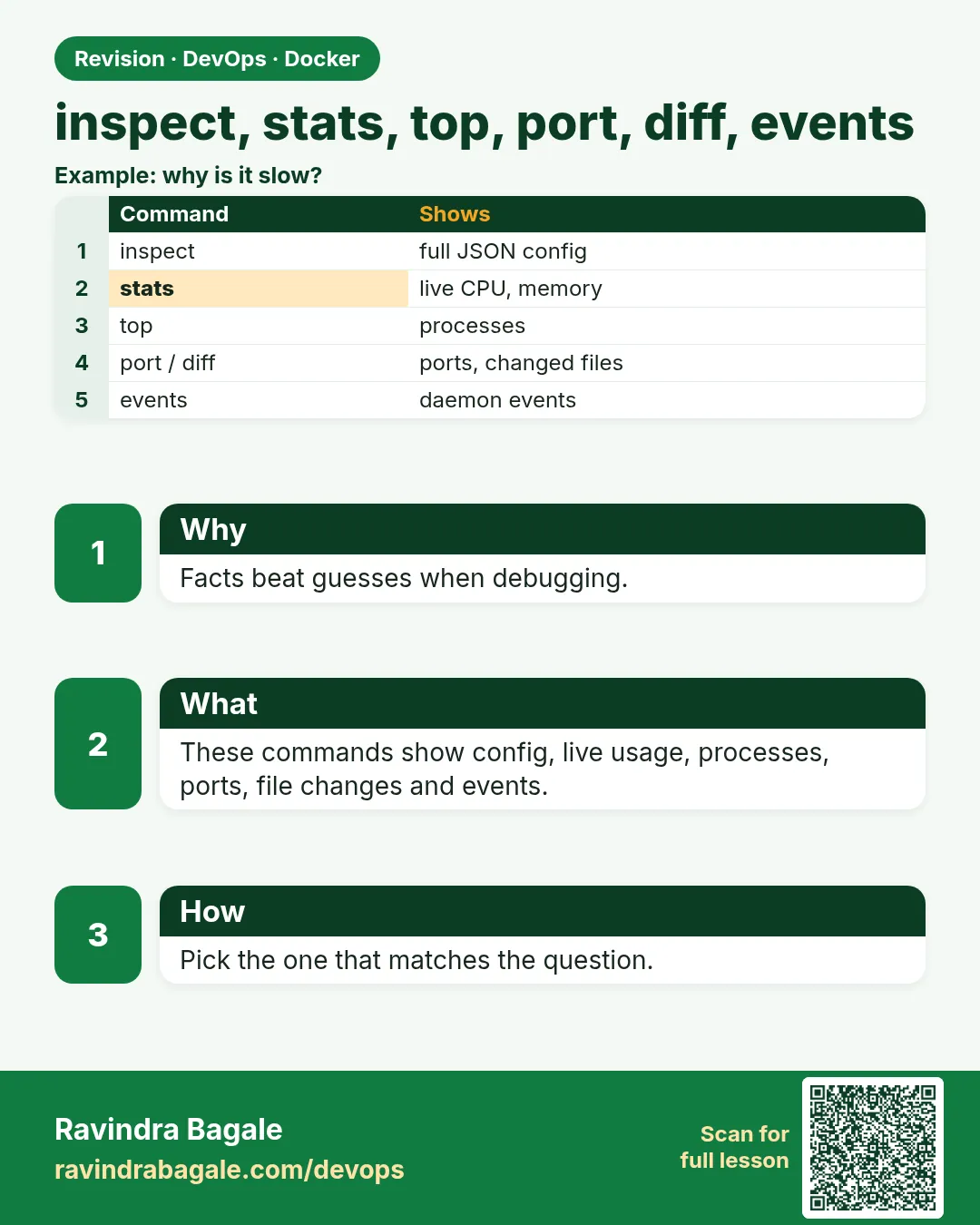
Each command answers one question. inspect: how was it set up? stats: how much is it using now? top: which processes run inside? port: which ports are open? diff: which files changed? events: what happened over time?
2. The setup: docker inspect
We start every check the same way: run one test container, then point each tool at it. Keep two terminals open. In the first, run the commands. In the second, keep docker stats or docker events running so you can see the effect of each step.
Step 1: docker inspect: the full record
Why: You need the exact settings of a container someone else started.
What: docker inspect prints a big JSON record: image, command, env, mounts, network, IP, restart policy, state and more.
Example 1: Start a test app
Type this:
docker run -d --name upi -p 9090:80 -e MODE=test --restart on-failure nginx:1.27
You will see:
4b7e...
What it means: Our patient.
Example 2: The whole record
Type this:
docker inspect upi | head -8
You will see:
[
    {
        "Id": "4b7e...",
        "Created": "2026-10-25T05:50:11Z",
        "Path": "/docker-entrypoint.sh",
        "Args": [
            "nginx",
What it means: Hundreds of lines. Too much to read by eye.
Example 3: Pick parts with jq
Type this:
docker inspect upi | jq '.[0].HostConfig.RestartPolicy'
You will see:
{
  "Name": "on-failure",
  "MaximumRetryCount": 0
}
What it means: jq picks one part of the JSON.
Step 2: --format: ask one question
Why: Scripts need one value, not a page of JSON.
What: --format uses Go templates. {{.State.Status}} reads one field. json prints a part as JSON.
Example 4: Status and start time
Type this:
docker inspect upi --format '{{.State.Status}} {{.State.StartedAt}}'
You will see:
running 2026-10-25T05:50:11.9Z
What it means: Two fields in one line.
Example 5: The IP address
Type this:
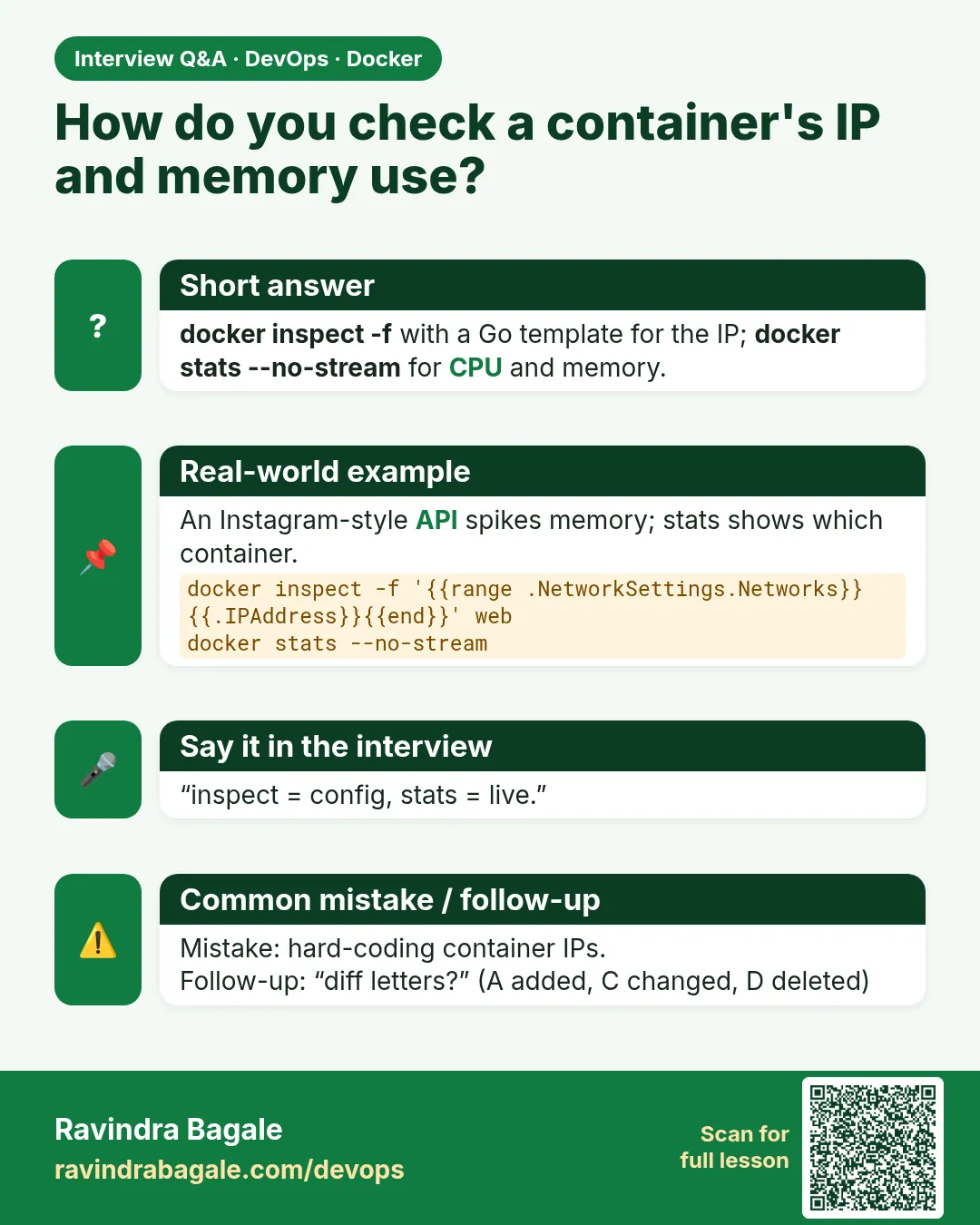
docker inspect upi --format '{{range .NetworkSettings.Networks}}{{.IPAddress}}{{end}}'
You will see:
172.17.0.3
What it means: range loops over the networks.
Example 6: Mounts as JSON
Type this:
docker inspect upi --format '{{json .Mounts}}'
You will see:
[]
What it means: No volumes on this container.
Step 3: Restart count and health
Why: Did it crash last night?
What: RestartCount shows how many times Docker restarted it. State.Health shows the health check result if one is set.
Example 7: Restart count
Type this:
docker inspect upi --format '{{.RestartCount}}'
You will see:
0
What it means: No restarts yet.
Example 8: Make it crash and restart
Type this:
docker run -d --name crashy --restart on-failure alpine:3.20 sh -c 'sleep 2; exit 1'; sleep 12; docker inspect crashy --format '{{.RestartCount}} {{.State.ExitCode}}'
You will see:
3 1
What it means: It failed with code 1 and Docker restarted it 3 times so far. on-failure restarts only non-zero exits.
Example 9: Health status
Type this:
docker run -d --name h1 --health-cmd 'curl -fs localhost || exit 1' --health-interval 5s nginx:1.27; sleep 8; docker inspect h1 --format '{{.State.Health.Status}}'
You will see:
healthy
What it means: Chapter 49.10 and 52 use health checks more.
3. Live usage: docker stats and docker top
Step 4: docker stats: live meters
Why: The UPI container feels slow. Is it CPU or memory?
What: docker stats shows live CPU, memory, network and disk use for each running container, like top for containers.
Example 10: Live view
Type this:
docker stats upi
You will see:
CONTAINER ID   NAME   CPU %   MEM USAGE / LIMIT     MEM %   NET I/O        BLOCK I/O   PIDS
4b7e...        upi    0.00%   3.4MiB / 7.6GiB       0.04%   1.2kB / 0B     0B / 4kB    3
What it means: Updates every second. Ctrl+C to stop.
Example 11: One snapshot
Type this:
docker stats --no-stream --format 'table {{.Name}}\t{{.CPUPerc}}\t{{.MemUsage}}'
You will see:
NAME   CPU %   MEM USAGE / LIMIT
upi    0.00%   3.4MiB / 7.6GiB
h1     0.01%   3.6MiB / 7.6GiB
What it means: --no-stream prints once. Good for scripts.
Example 12: Put some load
Type this:
docker run --rm --network container:upi alpine:3.20 sh -c 'for i in $(seq 2000); do wget -qO- localhost >/dev/null; done' &
docker stats --no-stream upi --format '{{.CPUPerc}}'
You will see:
38.20%
What it means: Now we can see real CPU use.
Step 5: docker top: processes inside
Why: Which process inside the container is eating CPU?
What: docker top lists the processes running in a container, as the host sees them. You can pass ps options.
Example 13: List processes
Type this:
docker top upi
You will see:
UID    PID     PPID    CMD
root   61001   60980   nginx: master process nginx -g daemon off;
101    61040   61001   nginx: worker process
What it means: Host PIDs, not container PIDs.
Example 14: Choose columns
Type this:
docker top upi -o pid,user,%cpu,comm
You will see:
PID    USER   %CPU  COMMAND
61001  root   0.0   nginx
61040  101    3.1   nginx
What it means: Like ps -o.
Example 15: Same thing from the host
Type this:
ps -o pid,comm -p $(docker inspect upi --format '{{.State.Pid}}')
You will see:
  PID COMMAND
61001 nginx
What it means: A container is a normal host process.
4. Ports and files: docker port and docker diff
Step 6: docker port: which ports are open
Why: A tester says the app is not reachable. Is the port published?
What: docker port lists the published port mappings of a container.
Example 16: All mappings
Type this:
docker port upi
You will see:
80/tcp -> 0.0.0.0:9090
80/tcp -> [::]:9090
What it means: IPv4 and IPv6.
Example 17: One port
Type this:
docker port upi 80
You will see:
0.0.0.0:9090
[::]:9090
What it means: Which host port reaches container port 80.
Example 18: Nothing published
Type this:
docker port h1
You will see:
(no output)
What it means: h1 was started without -p, so only other containers can reach it.
Step 7: docker diff: what changed inside
Why: Someone at the bank says: I did not change anything in the container.
What: docker diff lists files added (A), changed (C) or deleted (D) in the writable layer, compared with the image.
Example 19: Make a change
Type this:
docker exec upi sh -c 'echo hacked > /usr/share/nginx/html/index.html; rm /usr/share/nginx/html/50x.html'
You will see:
(no output)
What it means: We changed and deleted a file.
Example 20: See the diff
Type this:
docker diff upi
You will see:
C /usr/share/nginx/html
C /usr/share/nginx/html/index.html
D /usr/share/nginx/html/50x.html
C /var/cache/nginx
What it means: Clear proof of what changed.
Example 21: Undo by recreating
Type this:
docker rm -f upi && docker run -d --name upi -p 9090:80 nginx:1.27 && docker diff upi | grep -c html
You will see:
0
What it means: A fresh container has a clean writable layer.
Step 8: Labels: find containers by tag
Why: At Flipkart one server runs 60 containers from 8 teams.
What: A label is a key=value note you attach with --label. You can filter ps, events and prune by label.
Example 22: Run with labels
Type this:
docker run -d --name cart --label team=cart --label env=test nginx:1.27
You will see:
5d2a...
What it means: Two notes on the container.
Example 23: Filter by label
Type this:
docker ps --filter label=team=cart --format '{{.Names}}'
You will see:
cart
What it means: Only the cart team's containers.
Example 24: Read labels
Type this:
docker inspect cart --format '{{json .Config.Labels}}'
You will see:
{"env":"test","team":"cart"}
What it means: Labels from the image show here too.
Step 9: Inspect other objects
Why: inspect is not only for containers.
What: docker inspect works on images, volumes and networks too. Use the object name to be clear: docker image inspect, docker network inspect.
Example 25: An image
Type this:
docker image inspect nginx:1.27 --format '{{.Architecture}} {{.Os}} {{.Size}}'
You will see:
amd64 linux 192004567
What it means: Platform and size in bytes.
Example 26: A network
Type this:
docker network inspect bridge --format '{{range .IPAM.Config}}{{.Subnet}}{{end}}'
You will see:
172.17.0.0/16
What it means: The default bridge subnet.
Example 27: Clean up
Type this:
docker rm -f cart crashy
You will see:
cart
crashy
What it means: Removed.
5. History: docker events
Step 10: docker events: what happened
Why: Did the container restart at 3 a.m.?
What: docker events streams actions: create, start, die, kill, oom, health_status and more. --since reads past events kept by the daemon.
Example 28: Past hour
Type this:
docker events --since 1h --until 0s --filter container=upi --format '{{.Time}} {{.Action}}'
You will see:
1761371411 kill
1761371411 die
1761371412 destroy
1761371413 create
1761371413 start
What it means: Times are Unix seconds.
Example 29: Only deaths
Type this:
docker events --since 24h --until 0s --filter event=die --format '{{.Actor.Attributes.name}} exit={{.Actor.Attributes.exitCode}}'
You will see:
upi exit=0
What it means: Who died, and with which code.
Example 30: Live health changes
Type this:
docker events --filter event=health_status
You will see:
container health_status: healthy 9a1c... (image=nginx:1.27, name=h1)
What it means: Great for alerting.
Step 11: docker system df and info
Why: Where did 40 GB of disk go?
What: docker system df shows space used by images, containers, volumes and build cache. docker info shows the daemon setup.
Example 31: Disk use
Type this:
docker system df
You will see:
TYPE            TOTAL   ACTIVE   SIZE      RECLAIMABLE
Images          9       3        1.4GB     980MB (70%)
Containers      4       2        2.1kB     1.0kB (48%)
Local Volumes   2       1        48MB      0B
Build Cache     21      0        310MB     310MB
What it means: Reclaimable space can be pruned.
Example 32: Per container size
Type this:
docker ps -s --format '{{.Names}} {{.Size}}'
You will see:
upi 1.09kB (virtual 192MB)
h1 1.1kB (virtual 192MB)
What it means: The first number is the writable layer.
Example 33: Daemon facts
Type this:
docker info --format '{{.ServerVersion}} {{.Driver}} {{.CgroupVersion}}'
You will see:
27.3.1 overlay2 2
What it means: Version, storage driver and cgroup version.
Step 12: Putting it together
Why: The PhonePe team must answer their question in two minutes.
What: A quick health routine: ps, stats, logs, inspect, events. Five commands, one clear picture.
Example 34: Status and restarts
Type this:
docker ps --format '{{.Names}} {{.Status}}' && docker inspect upi --format 'restarts={{.RestartCount}}'
You will see:
upi Up 10 minutes
h1 Up 12 minutes (healthy)
restarts=0
What it means: Running, not crash-looping.
Example 35: Usage
Type this:
docker stats --no-stream upi --format '{{.CPUPerc}} {{.MemUsage}}'
You will see:
92.40% 41MiB / 7.6GiB
What it means: High CPU. Now we know where to look.
Example 36: Clean up
Type this:
docker rm -f upi h1
You will see:
upi
h1
What it means: Done.
Check yourself
Q1. Which command shows live CPU and memory?
docker stats.
Q2. How do you print only the IP of a container?
docker inspect with --format and range over NetworkSettings.Networks.
Q3. What do A, C and D mean in docker diff?
Added, changed, deleted.
Q4. Are docker top PIDs container PIDs?
No, they are host PIDs.
Q5. How do you see why containers died yesterday?
docker events --since 24h --until 0s --filter event=die.
Friends, these six commands are a car dashboard: inspect for setup, stats and top for live use, port for ports, diff for changes and events for history. Did you understand? Let us try it once more. Run the PhonePe routine yourself.
मित्रांनो, हे सहा commands म्हणजे गाडीचा dashboard: setup साठी inspect, आताच्या वापरासाठी stats आणि top, port साठी port, बदलासाठी diff, आणि इतिहासासाठी events. समजलं का? चला, पुन्हा एकदा करून पाहू. PhonePe ची routine स्वतः चालवून बघा.
दोस्तों, ये छह commands गाड़ी का dashboard हैं: setup के लिए inspect, अभी के इस्तेमाल के लिए stats और top, port के लिए port, बदलाव के लिए diff, और इतिहास के लिए events. समझ आया? चलिए, एक बार फिर करके देखते हैं। PhonePe वाली routine खुद चलाकर देखिए.
Ravindra Bagale's Tip
In scripts use docker inspect --format; do not read the whole JSON. One question, one field.
Script मध्ये docker inspect --format वापरा, पूर्ण JSON वाचत बसू नका. एक प्रश्न, एक field.
Script में docker inspect --format इस्तेमाल कीजिए, पूरा JSON मत पढ़िए. एक सवाल, एक field.
Lab: try at home
- Start nginx with -p and -e, then read its env, restart policy and IP with --format.
- Watch docker stats while you send 2000 requests.
- List processes with docker top -o pid,user,%cpu,comm.
- Change and delete files, then read docker diff.
- Read the last hour of events for your container.
Recap
- inspect shows setup; use --format.
- stats shows live use; --no-stream for scripts.
- top lists host processes inside.
- port lists published ports.
- diff shows file changes; events shows history.
 Revision card
 Interview card