49.6 Resource limits: memory, CPU, pids and IO
Friends, a server has ten containers and one of them eats all the memory. All the others become slow. Today we learn by hand how to limit memory, CPU, pids and disk IO.
मित्रांनो, एका server वर दहा container आहेत आणि एकच container सगळी memory खातो. बाकी सगळे slow होतात. आज memory, CPU, pids आणि disk IO ला limit कसं लावायचं हे हाताने बघू.
दोस्तों, एक server पर दस container हैं और एक ही सारी memory खा जाता है. बाकी सब slow हो जाते हैं. आज memory, CPU, pids और disk IO पर limit लगाना खुद करके देखेंगे.
1. Start from a story
At Swiggy, during a cricket final, one reporting container started a huge query. It took all 16 GB of memory on the server. The Linux kernel began killing processes, and the order API on the same server died too. Orders stopped for six minutes.
Think of a shared flat with four friends and one fridge. If one friend fills the whole fridge, the others have no space. The fix is simple: each friend gets one shelf. Docker limits give each container its own shelf of memory, CPU and disk.
Without limits, a container can use everything the host has. With limits, a greedy container hurts only itself.
2. Memory limits
Step 1: -m: a hard memory limit
Why: The reporting container must never take the whole server.
What: -m or --memory sets the most memory the container may use. If it tries to use more, the kernel kills a process inside it. This is called OOM, out of memory.
Example 1: Run with 256 MB
Type this:
docker run -d --name rep -m 256m nginx:1.27
You will see:
4e8a...
What it means: The limit is set.
Example 2: See the limit
Type this:
docker stats --no-stream rep --format '{{.MemUsage}}'
You will see:
3.1MiB / 256MiB
What it means: 256 MiB is the ceiling.
Example 3: Read it in inspect
Type this:
docker inspect rep --format '{{.HostConfig.Memory}}'
You will see:
268435456
What it means: Bytes: 256 x 1024 x 1024.
Step 2: What OOM looks like
Why: You must recognise an OOM kill at once.
What: When the limit is hit, the container usually dies with exit code 137 and OOMKilled is true.
Example 4: Eat memory
Type this:
docker run --name eat -m 50m alpine:3.20 sh -c 'x=a; while true; do x=$x$x; done'
You will see:
(the command ends after a moment)
What it means: The shell keeps doubling a string until it hits 50 MB.
Example 5: Check the reason
Type this:
docker inspect eat --format 'exit={{.State.ExitCode}} oom={{.State.OOMKilled}}'
You will see:
exit=137 oom=true
What it means: Clear proof of OOM.
Example 6: The event
Type this:
docker events --since 2m --until 0s --filter event=oom --format '{{.Actor.Attributes.name}} oom'
You will see:
eat oom
What it means: Monitoring tools watch this event.
Step 3: --memory-swap and swap
Why: On a server with swap, a container can use swap beyond -m.
What: --memory-swap is memory plus swap in total. Set it equal to -m to allow no swap. Set -1 to allow unlimited swap.
Example 7: No swap allowed
Type this:
docker run -d --name ns -m 256m --memory-swap 256m nginx:1.27
You will see:
...
What it means: 256 MB total, no swap.
Example 8: Read it
Type this:
docker inspect ns --format '{{.HostConfig.Memory}} {{.HostConfig.MemorySwap}}'
You will see:
268435456 268435456
What it means: Both the same.
Example 9: Warning on some hosts
Type this:
docker run --rm -m 64m --memory-swap 128m alpine:3.20 true
You will see:
WARNING: Your kernel does not support swap limit capabilities
What it means: Some cloud images turn swap accounting off; the limit then is memory only.
Step 4: --memory-reservation: a soft limit
Why: You want the container to give memory back when the host is under pressure.
What: --memory-reservation is a soft target. The container can go above it, but when the host is short of memory, the kernel pushes it back toward this number.
Example 10: Soft and hard
Type this:
docker run -d --name soft -m 1g --memory-reservation 512m nginx:1.27
You will see:
...
What it means: Soft 512 MB, hard 1 GB.
Example 11: Read both
Type this:
docker inspect soft --format '{{.HostConfig.MemoryReservation}} {{.HostConfig.Memory}}'
You will see:
536870912 1073741824
What it means: Soft must be less than hard.
Example 12: Bad order
Type this:
docker run --rm -m 256m --memory-reservation 512m alpine:3.20 true
You will see:
docker: Error response from daemon: Minimum memory limit can not be less than memory reservation limit
What it means: Docker checks the order.
3. CPU limits
Step 5: --cpus: a hard CPU cap
Why: A video job at Hotstar must not slow the API on the same host.
What: --cpus N lets the container use at most N CPUs worth of time. 0.5 means half of one CPU.
Example 13: Burn CPU without a limit
Type this:
docker run -d --name burn alpine:3.20 sh -c 'while true; do :; done'
docker stats --no-stream burn --format '{{.CPUPerc}}'
You will see:
...
100.12%
What it means: One full CPU.
Example 14: Cap it
Type this:
docker update --cpus 0.25 burn
sleep 3; docker stats --no-stream burn --format '{{.CPUPerc}}'
You will see:
burn
25.04%
What it means: Now only a quarter.
Example 15: Read it
Type this:
docker inspect burn --format '{{.HostConfig.NanoCpus}}'
You will see:
250000000
What it means: 0.25 x 1,000,000,000.
Step 6: --cpu-shares: a weight
Why: Two containers share a busy host. One is more important.
What: --cpu-shares is a relative weight, default 1024. It matters only when CPUs are busy. A container with 2048 gets about twice the time of one with 1024.
Example 16: Two burners
Type this:
docker run -d --name hi --cpuset-cpus 0 --cpu-shares 2048 alpine:3.20 sh -c 'while true; do :; done'
docker run -d --name lo --cpuset-cpus 0 --cpu-shares 1024 alpine:3.20 sh -c 'while true; do :; done'
You will see:
...
What it means: Both forced onto CPU 0 so they fight.
Example 17: See the split
Type this:
docker stats --no-stream hi lo --format '{{.Name}} {{.CPUPerc}}'
You will see:
hi 66.40%
lo 33.38%
What it means: Two to one, as the weights say.
Example 18: When the CPU is free
Type this:
docker rm -f hi; sleep 2; docker stats --no-stream lo --format '{{.CPUPerc}}'
You will see:
hi
99.80%
What it means: Alone, the low-weight one gets all of it. Shares are not a cap.
Step 7: --cpuset-cpus: pin to CPUs
Why: Some apps, like trading engines at Zerodha, run best on fixed CPUs.
What: --cpuset-cpus picks which CPU cores the container may use, for example 0,1 or 2-3.
Example 19: Pin to CPU 1
Type this:
docker run --rm --cpuset-cpus 1 alpine:3.20 nproc
You will see:
1
What it means: The container sees one CPU.
Example 20: Two cores
Type this:
docker run --rm --cpuset-cpus 0-1 alpine:3.20 nproc
You will see:
2
What it means: Cores 0 and 1.
Example 21: Clean up
Type this:
docker rm -f burn lo
You will see:
burn
lo
What it means: Stop the burners.
4. Process and disk limits
Step 8: --pids-limit: stop a fork bomb
Why: A bug that starts processes in a loop can freeze the whole host.
What: --pids-limit sets the most processes and threads a container can have.
Example 22: Run with 50 pids
Type this:
docker run -d --name p1 --pids-limit 50 alpine:3.20 sleep 1d
You will see:
...
What it means: At most 50 processes.
Example 23: Try to start 100
Type this:
docker exec p1 sh -c 'for i in $(seq 100); do sleep 60 & done' 2>&1 | tail -1
You will see:
sh: can't fork: Resource temporarily unavailable
What it means: The limit stopped the flood.
Example 24: Count them
Type this:
docker stats --no-stream p1 --format '{{.PIDs}}'
You will see:
50
What it means: Capped at 50.
Step 9: --device-read-bps and write-bps: disk speed
Why: A backup container at a bank must not slow the database disk.
What: --device-write-bps and --device-read-bps cap how fast a container reads or writes one block device.
Example 25: Find the disk
Type this:
lsblk -d -o NAME,SIZE | head -3
You will see:
NAME     SIZE
nvme0n1   50G
What it means: Our disk is /dev/nvme0n1.
Example 26: Cap writes to 10 MB per second
Type this:
docker run --rm --device-write-bps /dev/nvme0n1:10mb alpine:3.20 sh -c 'dd if=/dev/zero of=/t bs=1M count=50 oflag=direct 2>&1 | tail -1'
You will see:
52428800 bytes (50.0MB) copied, 5.0 seconds, 10.0MB/s
What it means: Exactly 10 MB per second.
Example 27: Without the cap
Type this:
docker run --rm alpine:3.20 sh -c 'dd if=/dev/zero of=/t bs=1M count=50 oflag=direct 2>&1 | tail -1'
You will see:
52428800 bytes (50.0MB) copied, 0.2 seconds, 250.0MB/s
What it means: Much faster when free.
Step 10: --ulimit: open files and more
Why: A Kafka or Elasticsearch container fails with: too many open files.
What: --ulimit sets Linux limits inside the container, like nofile (open files) and nproc.
Example 28: Default
Type this:
docker run --rm alpine:3.20 sh -c 'ulimit -n'
You will see:
1048576
What it means: High default on most hosts.
Example 29: Set a limit
Type this:
docker run --rm --ulimit nofile=1024:2048 alpine:3.20 sh -c 'ulimit -n'
You will see:
1024
What it means: Soft 1024, hard 2048.
Example 30: Read it
Type this:
docker run -d --name ul --ulimit nofile=65536:65536 nginx:1.27
docker inspect ul --format '{{json .HostConfig.Ulimits}}'
You will see:
[{"Name":"nofile","Hard":65536,"Soft":65536}]
What it means: Saved with the container.
5. Changing and planning limits
Step 11: docker update: change limits live
Why: Traffic doubled. The API needs more memory now, without downtime.
What: docker update changes memory, CPU and some other limits on a running container.
Example 31: Raise memory
Type this:
docker update -m 512m --memory-swap 512m rep
You will see:
rep
What it means: Done in place.
Example 32: Check
Type this:
docker stats --no-stream rep --format '{{.MemUsage}}'
You will see:
3.1MiB / 512MiB
What it means: The new ceiling.
Example 33: Update many
Type this:
docker update --cpus 1 rep ns soft
You will see:
rep
ns
soft
What it means: Same change for three.
Step 12: How to pick numbers
Why: Too low means OOM kills. Too high means no protection.
What: Watch real use under load, then set the limit about 30 to 50 percent above the peak. Java and Node need their own heap settings inside the limit.
Example 34: Find the peak
Type this:
docker stats --no-stream --format '{{.Name}} {{.MemUsage}}' rep
You will see:
rep 180MiB / 512MiB
What it means: Peak under a load test.
Example 35: Java sees the limit
Type this:
docker run --rm -m 1g eclipse-temurin:21-jre java -XX:+PrintFlagsFinal -version 2>/dev/null | grep -E ' MaxHeapSize'
You will see:
size_t MaxHeapSize = 268435456
What it means: Java picks a quarter of the limit by default. Use -XX:MaxRAMPercentage=75 to give it more.
Example 36: Node needs a flag
Type this:
docker run --rm -m 512m -e NODE_OPTIONS=--max-old-space-size=384 node:20-slim node -e 'console.log(v8.getHeapStatistics().heap_size_limit/1048576)'
You will see:
432
What it means: Heap set below the container limit.
Step 13: Compose and clean up
Why: Limits belong in the Compose file, not in memory.
What: In Compose, use mem_limit, cpus and pids_limit, or deploy.resources.limits.
Example 37: Compose limits
Type this:
printf 'services:\n  api:\n    image: nginx:1.27\n    mem_limit: 256m\n    cpus: 0.5\n    pids_limit: 100\n' > compose.yaml
docker compose up -d
You will see:
[+] Running 1/1
 Container demo-api-1  Started
What it means: Same limits in YAML.
Example 38: Check
Type this:
docker stats --no-stream demo-api-1 --format '{{.MemUsage}} {{.PIDs}}'
You will see:
3.0MiB / 256MiB 3
What it means: Limits applied.
Example 39: Clean up
Type this:
docker compose down; docker rm -f rep ns soft p1 ul eat
You will see:
...
What it means: All removed.
Check yourself
Q1. What exit code means OOM?
137, with OOMKilled=true.
Q2. Does --cpu-shares cap CPU?
No, it is only a weight when CPUs are busy.
Q3. How do you stop a fork bomb?
--pids-limit.
Q4. How do you raise a limit without restart?
docker update.
Q5. What does --memory-swap equal to -m mean?
No swap allowed.
Friends, limits are like one shelf each in a shared fridge. -m for memory, --cpus for CPU, --pids-limit for processes. Did you understand? Let us try it once more. Now create the eat container and watch the OOM yourself.
मित्रांनो, limits म्हणजे fridge मध्ये प्रत्येकाला एक shelf. Memory साठी -m, CPU साठी --cpus, process साठी --pids-limit. समजलं का? चला, पुन्हा एकदा करून पाहू. आता eat container बनवून OOM स्वतः बघा.
दोस्तों, limits मतलब fridge में हर किसी का एक shelf. Memory के लिए -m, CPU के लिए --cpus, process के लिए --pids-limit. समझ आया? चलिए, एक बार फिर करके देखते हैं। अब eat container बनाकर OOM खुद देखिए.
Ravindra Bagale's Tip
In production give every container a memory limit, and set MaxRAMPercentage for Java.
Production मध्ये प्रत्येक container ला memory limit द्यायचं, आणि Java ला MaxRAMPercentage set करायचं.
Production में हर container को memory limit दीजिए, और Java के लिए MaxRAMPercentage set कीजिए.
Lab: try at home
- Run nginx with -m 256m and read the limit in stats and inspect.
- Make a container OOM and read exit code and OOMKilled.
- Burn CPU, then cap it with docker update --cpus 0.25.
- Test --pids-limit 50 with a loop.
- Write limits in a Compose file.
Recap
- -m is a hard memory limit; OOM gives 137.
- --cpus caps, --cpu-shares weighs, --cpuset-cpus pins.
- --pids-limit stops fork bombs.
- --device-write-bps caps disk speed.
- docker update changes limits live.
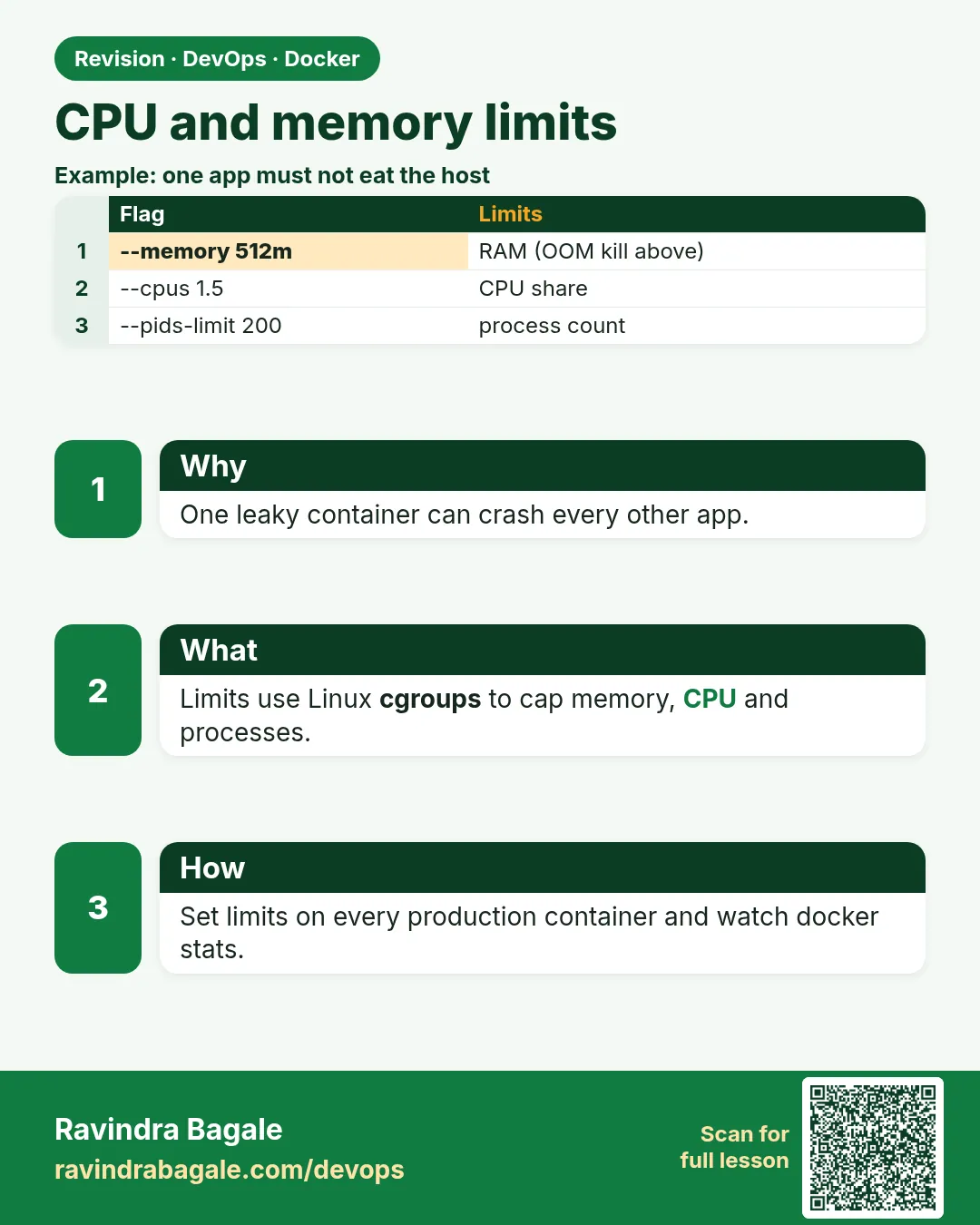 Revision card
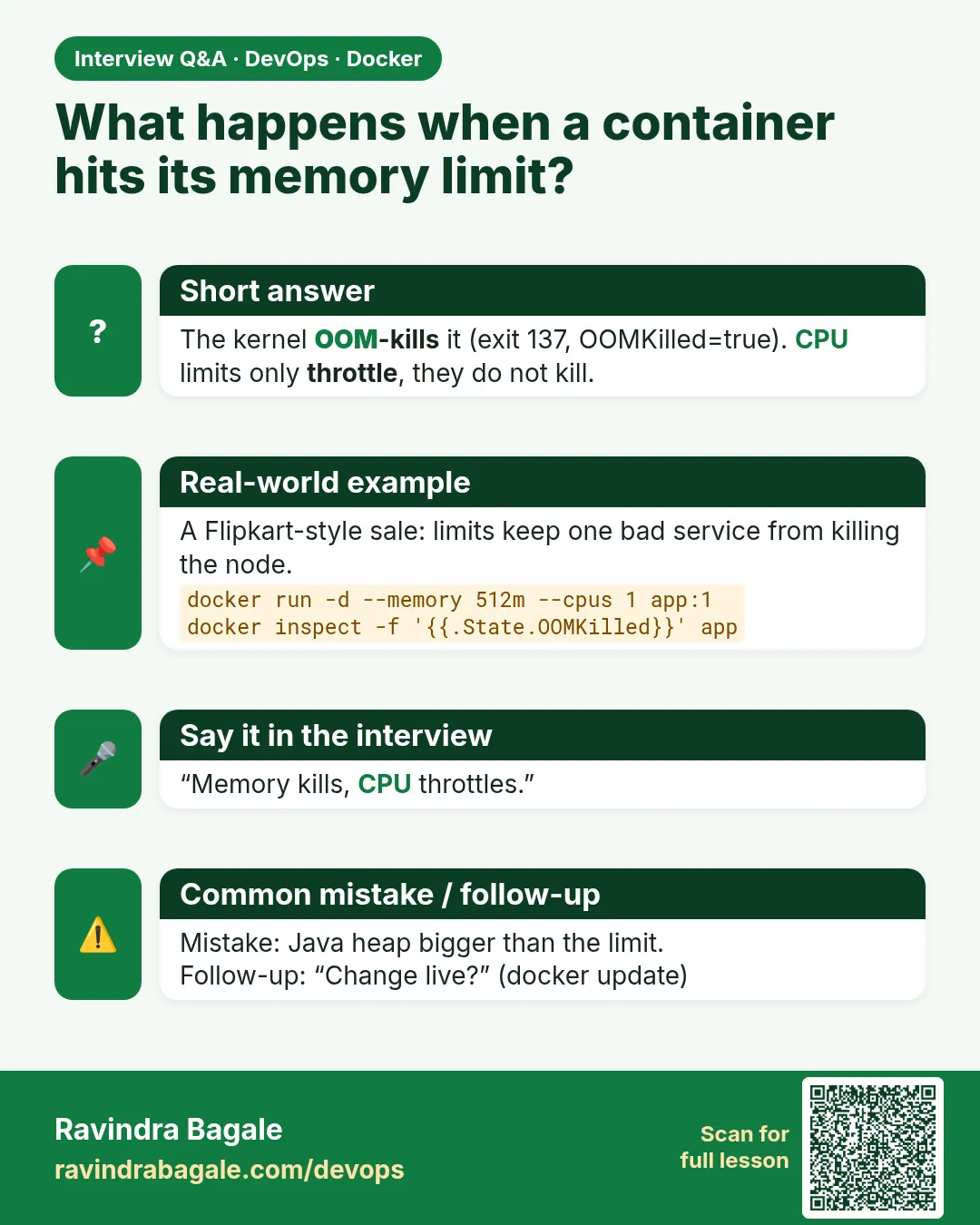 Interview card