49.7 cp, commit, rename, update, wait and export
Friends, today we learn small but very useful container commands: cp, commit, rename, update, wait and export. They are needed every day and asked in interviews.
मित्रांनो, आज container साठी छोटे पण खूप कामाचे commands शिकू: cp, commit, rename, update, wait आणि export. हे रोज लागतात, आणि interview मध्ये पण विचारतात.
दोस्तों, आज container के छोटे पर बहुत काम के commands सीखेंगे: cp, commit, rename, update, wait और export. ये रोज़ काम आते हैं, और interview में भी पूछे जाते हैं.
1. Start from a story
At Myntra, a tester finds a bug in the catalog container. The developer asks for three things: the config file from inside the container, a copy of the container exactly as it is now, and a script that waits until a test container finishes and then reads its result.
Think of a toolbox. A hammer, a screwdriver and a tape each do one small job. You do not build a house with one tool. These six commands are the small tools of the container toolbox.
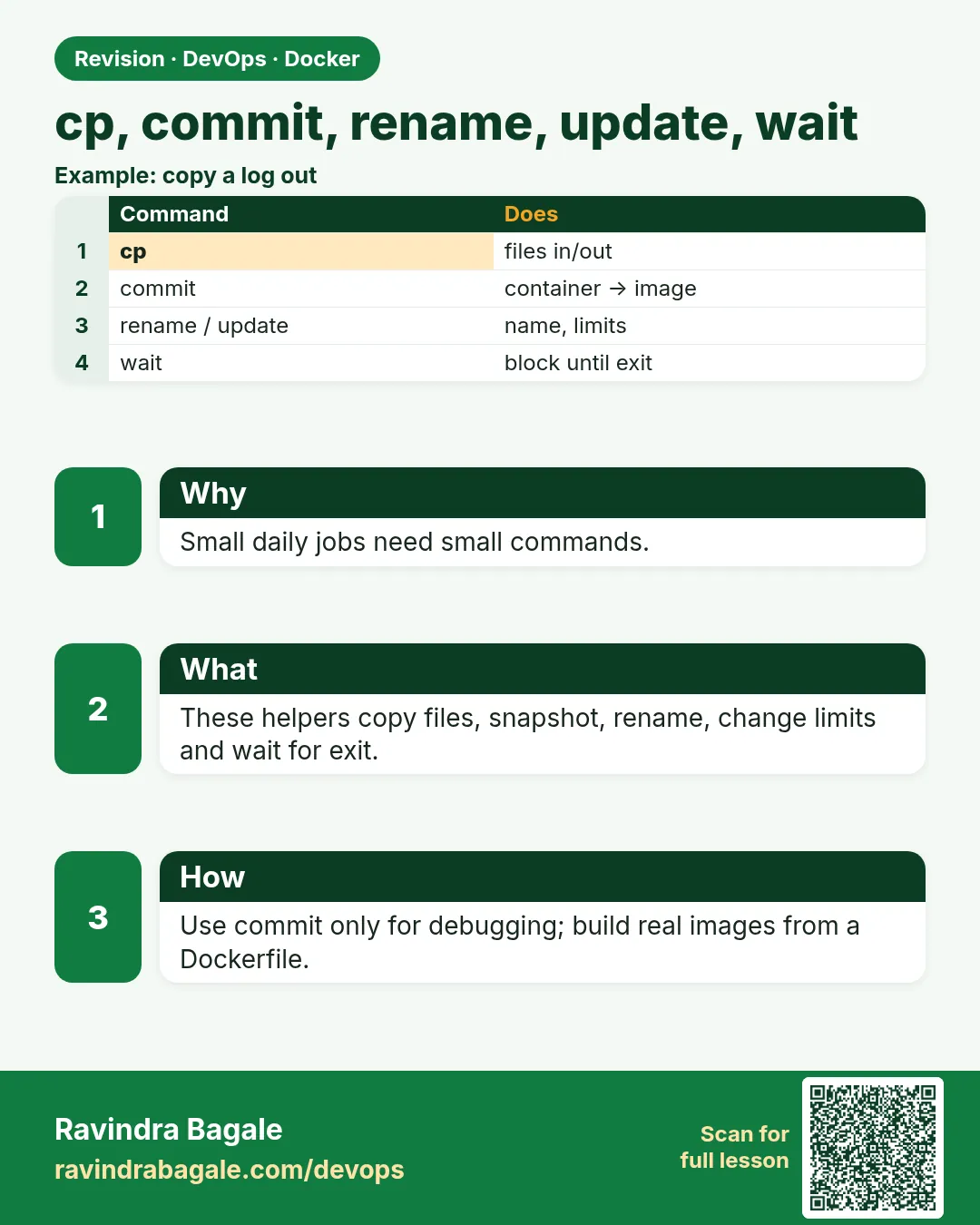
cp moves files in and out. commit saves a container as an image. rename changes the name. update changes limits and policy. wait blocks until a container stops. export dumps the files.
2. Moving files: docker cp
Step 1: Copy a file out
Why: The developer needs the nginx config from the container.
What: docker cp CONTAINER:PATH HOSTPATH copies a file or folder from the container to the host.
Example 1: Start the app
Type this:
docker run -d --name catalog -p 8080:80 nginx:1.27
You will see:
3a7b...
What it means: Our container.
Example 2: Copy out
Type this:
docker cp catalog:/etc/nginx/conf.d/default.conf ./default.conf
head -3 default.conf
You will see:
Successfully copied 2.56kB to /home/ravi/default.conf
server {
    listen       80;
What it means: The file is on the host now.
Example 3: Copy a folder
Type this:
docker cp catalog:/usr/share/nginx/html ./html && ls html
You will see:
Successfully copied 3.07kB to /home/ravi/html
50x.html  index.html
What it means: Whole folder, with its files.
Step 2: Copy a file in
Why: You want to test a new page without rebuilding the image.
What: docker cp HOSTPATH CONTAINER:PATH copies into the container. The change lives in the writable layer only.
Example 4: Make a page
Type this:
printf 'Myntra sale is live\n' > index.html
You will see:
(no output)
What it means: A local file.
Example 5: Copy in
Type this:
docker cp index.html catalog:/usr/share/nginx/html/index.html
curl -s localhost:8080
You will see:
Successfully copied 2.05kB to catalog:/usr/share/nginx/html/index.html
Myntra sale is live
What it means: Served at once.
Example 6: It is not in the image
Type this:
docker run --rm nginx:1.27 head -c 15 /usr/share/nginx/html/index.html
You will see:
<!DOCTYPE html>
What it means: The image is unchanged. For real changes, edit the Dockerfile.
Step 3: cp with stopped containers and stdin
Why: A container crashed, and its log file is inside.
What: docker cp works on stopped containers too. With - it reads or writes a tar stream.
Example 7: A crashed container
Type this:
docker run --name crash alpine:3.20 sh -c 'echo boom > /tmp/err.log; exit 3'
You will see:
(no output)
What it means: It exited with code 3.
Example 8: Copy from it
Type this:
docker cp crash:/tmp/err.log . && cat err.log
You will see:
Successfully copied 1.54kB to /home/ravi/err.log
boom
What it means: Works even though it is stopped.
Example 9: Tar stream
Type this:
docker cp catalog:/etc/nginx - | tar -tf - | head -3
You will see:
nginx/
nginx/conf.d/
nginx/conf.d/default.conf
What it means: - writes a tar to stdout.
Step 4: cp and file owners
Why: After docker cp, the app says: permission denied.
What: docker cp copies files in as root by default, keeping the host file's mode. An app that runs as a normal user may not be able to write them. Use -a to keep the owner, or fix the owner with exec.
Example 10: Who owns the copied file
Type this:
docker exec catalog ls -l /usr/share/nginx/html/index.html
You will see:
-rw-r--r-- 1 root root 20 Oct 25 12:20 index.html
What it means: Owned by root, readable by all, so nginx can read it.
Example 11: Give it to the app user
Type this:
docker exec catalog chown nginx:nginx /usr/share/nginx/html/index.html
docker exec catalog ls -l /usr/share/nginx/html/index.html
You will see:
-rw-r--r-- 1 nginx nginx 20 Oct 25 12:20 index.html
What it means: Now the nginx user owns it.
Example 12: Keep the host owner
Type this:
docker cp -a index.html catalog:/tmp/
docker exec catalog ls -n /tmp/index.html
You will see:
-rw-r--r-- 1 1000 1000 20 Oct 25 12:20 /tmp/index.html
What it means: -a keeps the host user and group IDs.
3. Saving a container: docker commit
Step 5: docker commit
Why: The developer wants the buggy container exactly as it is, to study later.
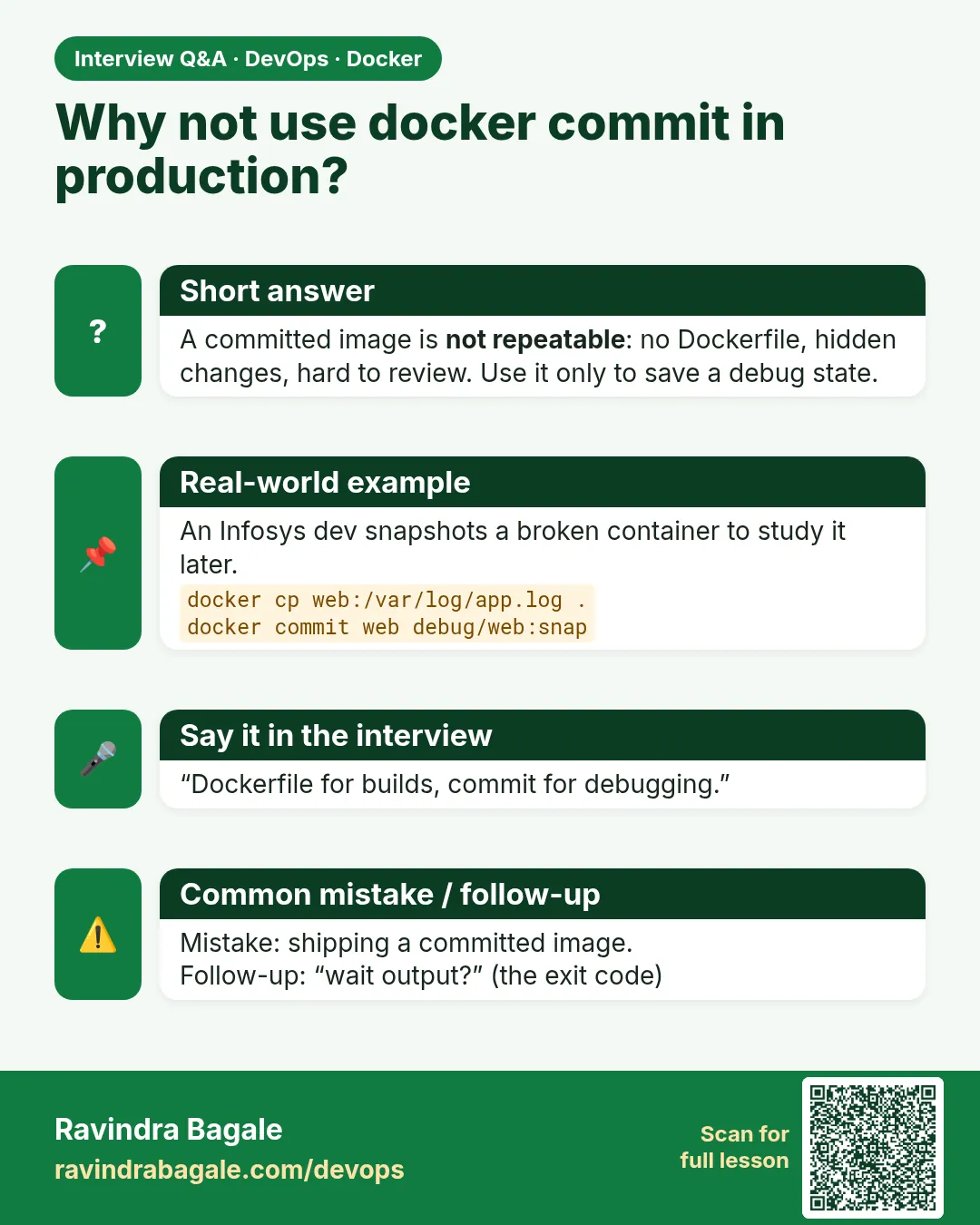
What: docker commit makes a new image from a container's current files. It is good for debugging, not for building real images, because nobody knows how it was made.
Example 13: Commit
Type this:
docker commit catalog catalog-bug:1
You will see:
sha256:9c2e...
What it means: A new image from the container.
Example 14: Run the copy
Type this:
docker run -d --name bugcopy -p 8081:80 catalog-bug:1
curl -s localhost:8081
You will see:
Myntra sale is live
What it means: The copied file is inside the new image.
Example 15: History shows no Dockerfile
Type this:
docker history catalog-bug:1 --format '{{.CreatedBy}}' | head -1
You will see:
nginx -g daemon off;
What it means: There is no line that says how the page got there. That is why Dockerfiles are better.
Step 6: commit with changes and a message
Why: You want the debug image to say who made it and why.
What: -m adds a message, -a an author, and -c applies Dockerfile instructions like CMD or ENV.
Example 16: Commit with notes
Type this:
docker commit -a 'Ravi' -m 'catalog bug JIRA-412' -c 'ENV DEBUG=1' catalog catalog-bug:2
You will see:
sha256:1d4f...
What it means: Notes and a new ENV.
Example 17: Read the notes
Type this:
docker image inspect catalog-bug:2 --format '{{.Author}} | {{.Comment}}'
You will see:
Ravi | catalog bug JIRA-412
What it means: Saved in the image.
Example 18: Read the env
Type this:
docker run --rm catalog-bug:2 sh -c 'echo $DEBUG'
You will see:
1
What it means: The -c change worked.
4. Names, limits and waiting
Step 7: docker rename
Why: Someone started a container with a random name.
What: docker rename OLD NEW changes the name. The ID, files and settings stay the same.
Example 19: Random name
Type this:
docker run -d nginx:1.27 && docker ps -l --format '{{.Names}}'
You will see:
...
vigilant_bose
What it means: Hard to remember.
Example 20: Rename it
Type this:
docker rename vigilant_bose search
You will see:
(no output)
What it means: Done.
Example 21: Check
Type this:
docker ps --filter name=search --format '{{.Names}} {{.ID}}'
You will see:
search 7f1a2b3c4d5e
What it means: Same ID, new name.
Step 8: rename and other containers
Why: Other containers find this one by name on a shared network.
What: On a user-made network, Docker DNS uses the container name. After a rename, the new name works and the old one stops working.
Example 22: Two containers on a network
Type this:
docker network create shop
docker run -d --name oldapi --network shop nginx:1.27
docker run --rm --network shop alpine:3.20 wget -qO- oldapi | head -c 15
You will see:
...
<!DOCTYPE html>
What it means: Found by its name.
Example 23: Rename it
Type this:
docker rename oldapi newapi
docker run --rm --network shop alpine:3.20 wget -qO- newapi | head -c 15
You will see:
<!DOCTYPE html>
What it means: The new name works at once.
Example 24: The old name is gone
Type this:
docker run --rm --network shop alpine:3.20 wget -qO- oldapi; docker rm -f newapi; docker network rm shop
You will see:
wget: bad address 'oldapi'
newapi
shop
What it means: Tell other teams before you rename a shared container.
Step 9: docker update
Why: The catalog needs more memory and a restart policy.
What: docker update changes memory, CPU, pids and restart policy without recreating the container. It cannot change ports, volumes or env.
Example 25: Add limits
Type this:
docker update -m 300m --memory-swap 300m --cpus 1 catalog
You will see:
catalog
What it means: Live change.
Example 26: Add a policy
Type this:
docker update --restart unless-stopped catalog
You will see:
catalog
What it means: Also live.
Example 27: Ports cannot change
Type this:
docker update -p 9090:80 catalog
You will see:
unknown shorthand flag: 'p' in -p
What it means: For ports, volumes or env, remove and run again.
Step 10: docker wait
Why: A CI script at Razorpay must wait until a test container finishes, then read its exit code.
What: docker wait blocks until the container stops, then prints its exit code.
Example 28: Start a test
Type this:
docker run -d --name tests alpine:3.20 sh -c 'sleep 5; exit 0'
You will see:
2b9c...
What it means: It runs for 5 seconds.
Example 29: Wait for it
Type this:
docker wait tests
You will see:
0
What it means: The command returned after 5 seconds with 0.
Example 30: Use it in a script
Type this:
code=$(docker wait tests); if [ "$code" -ne 0 ]; then echo FAIL; else echo PASS; fi
You will see:
PASS
What it means: A simple CI gate.
Step 11: wait with a failing job
Why: CI must fail when tests fail.
What: docker wait returns the exit code of the container, so the script can stop the pipeline.
Example 31: A failing job
Type this:
docker run -d --name bad alpine:3.20 sh -c 'sleep 2; exit 4'
You will see:
...
What it means: It will fail.
Example 32: Wait and read
Type this:
docker wait bad
You will see:
4
What it means: Non-zero, so the job failed.
Example 33: Read its logs then
Type this:
docker logs bad; docker rm bad
You will see:
(no output)
bad
What it means: Always read logs before removing.
5. Dumping files: docker export
Step 12: docker export
Why: A security team wants to scan the files of a running container.
What: docker export writes the container's whole filesystem to a tar file. It does not include volumes, history or settings like CMD.
Example 34: Export
Type this:
docker export catalog -o catalog.tar
ls -lh catalog.tar
You will see:
-rw------- 1 ravi ravi 187M Oct 25 12:40 catalog.tar
What it means: All files in one tar.
Example 35: Look inside
Type this:
tar -tf catalog.tar | grep index.html
You will see:
usr/share/nginx/html/index.html
What it means: Our changed page is there.
Example 36: Import back
Type this:
docker import -c 'CMD ["nginx","-g","daemon off;"]' catalog.tar catalog-flat:1
docker history catalog-flat:1 | wc -l
You will see:
sha256:6a1b...
2
What it means: One flat layer. CMD had to be added back.
Step 13: Which tool when
Why: Interviewers at Accenture ask: commit, export or save?
What: Use cp for a few files. Use commit to freeze a container for debugging. Use export to scan or move files. Use save for real image transfer. Use a Dockerfile for anything you ship.
Example 37: Size check
Type this:
ls -lh catalog.tar; docker save catalog-bug:1 -o bug.tar; ls -lh bug.tar
You will see:
187M catalog.tar
192M bug.tar
What it means: Similar size, different content.
Example 38: Clean files
Type this:
rm -f catalog.tar bug.tar default.conf err.log index.html; rm -rf html
You will see:
(no output)
What it means: Host files gone.
Example 39: Clean containers and images
Type this:
docker rm -f catalog bugcopy search tests crash; docker rmi catalog-bug:1 catalog-bug:2 catalog-flat:1
You will see:
...
What it means: All removed.
Check yourself
Q1. Does docker cp work on stopped containers?
Yes.
Q2. Why not build real images with commit?
Nobody can see how the image was made; use a Dockerfile.
Q3. Can docker update change ports?
No; remove and run again.
Q4. What does docker wait print?
The exit code after the container stops.
Q5. What does export leave out?
Volumes, history and config like CMD.
Friends, remember these six small tools: cp for files, commit for debugging, rename for names, update for limits, wait for CI and export for a file dump. Did you understand? Let us try it once more. Do the three Myntra tasks yourself.
मित्रांनो, हे सहा छोटे tools लक्षात ठेवा: cp file साठी, commit debug साठी, rename नावासाठी, update limit साठी, wait CI साठी, आणि export file dump साठी. समजलं का? चला, पुन्हा एकदा करून पाहू. Myntra ची तीन कामं स्वतः करून बघा.
दोस्तों, ये छह छोटे tools याद रखिए: cp file के लिए, commit debug के लिए, rename नाम के लिए, update limit के लिए, wait CI के लिए, और export file dump के लिए. समझ आया? चलिए, एक बार फिर करके देखते हैं। Myntra वाले तीन काम खुद कीजिए.
Ravindra Bagale's Tip
docker commit is only for debugging. Always build production images with a Dockerfile, so everyone knows how the image was made.
docker commit फक्त debug साठी. Production image नेहमी Dockerfile ने बनवा, म्हणजे सगळ्यांना कळतं image कशी बनली.
docker commit सिर्फ़ debug के लिए है. Production image हमेशा Dockerfile से बनाइए, ताकि सबको पता हो image कैसे बनी.
Lab: try at home
- Copy the nginx config out, edit it, and copy it back.
- Commit the container with -m and -a, and read the notes.
- Rename a random-named container.
- Write a CI script with docker wait that prints PASS or FAIL.
- Export a container and import it with a CMD.
Recap
- cp moves files both ways, even from stopped containers.
- commit freezes a container as an image.
- rename and update change a container in place.
- wait returns the exit code.
- export dumps files; save moves images.
 Revision card
 Interview card